Exporting Your Show Back to Ableton
Export a whole setlist as one Ableton Live Set with every arrangement in order and LTC timecode tracks pre-configured.
This is the payoff. Once you've got a few songs in your library and a setlist in show order, Pliris™ can hand you the entire night as a single Ableton Live project — every arrangement stitched together, in order, with LTC timecode tracks already in place.
That's what "from stems to set in seconds" means at the scale of a whole show.
Browsers for large exports. For Export Ableton → With samples on a large set, use Chrome or Edge. Safari cannot finish large set exports with samples (memory / folder-write limit) — switch to Chrome or Edge. Details: Supported Browsers for Pliris and Large Ableton Exports and Browsers.
Who can do this. You need manage access on the band — band admin, or permission to manage arrangements or create setlists. That's the only requirement: exporting works on every plan, including free, and there's no flag to request. What your plan changes is which template you can build on — see Pick your template below.
What you get
Export a setlist and Pliris builds one Ableton Live Set containing:
- Every arrangement in the setlist, in order — the same order you set when building the setlist.
- LTC / SMPTE timecode tracks, pre-configured — so the whole show is ready to sync lighting, backing gear, and anything else that follows timecode.
- Your stems, routed and grouped, on a Playback template.
Open the .als in Ableton Live and you're ready for soundcheck — no manual session-building, no wiring up timecode by hand.
Export from a setlist
- Open the setlist you want to export.
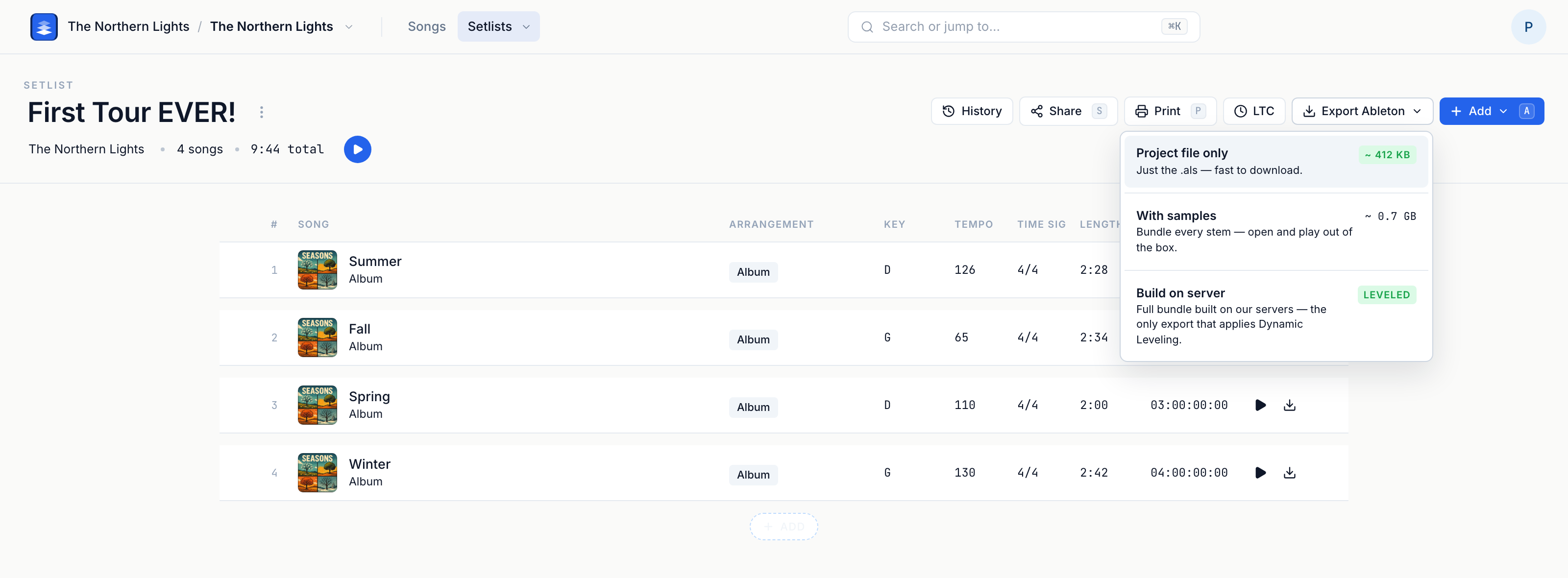
- Click Export Ableton in the setlist toolbar.
- Pick how much you want in the download:
| Preset | What you get |
|---|---|
| Project file only | Just the .als — fast to download. Open it where your stems already live. |
| With samples | Bundles every stem, so the set opens and plays out of the box. Bigger file. In Chrome this uses a folder picker — not the normal Downloads save. |
| Build on server (alpha) | The full bundle, assembled on our servers instead of in your browser — and the only export that applies Dynamic Leveling. Paid or trial + alpha + per-band only; free and canceled plans don't get it. When it moves to beta, paid or trial users can use it. |
The two local options show their download size right in the menu, so you know what you're getting before you click. (Build on server shows a LEVELED badge instead — its size isn't known until the build runs.)
- What happens next depends on which you picked:
- Project file only — the download starts right away. Pliris assembles the
.alson a Playback template in your browser, zips it, and hands you the file. - With samples — in Chrome, you get a folder picker first. That's required in Chrome; it is not the normal Downloads save. You cannot save into a system folder itself (Desktop, Downloads, Documents). Create or pick a folder inside one of those, then save into that folder. Once the picker succeeds, Chrome can write large sets — including multi-GB ones. Pliris assembles the
.als, bundles the stems, and writes the zip there. - Build on server — nothing downloads immediately. The build is queued and runs on our servers, showing its progress as it goes ("Waiting in queue", "Downloading stems", and so on). When it finishes you get the
.zip. Don't worry if no download appears the moment you click — that's expected.
- Project file only — the download starts right away. Pliris assembles the
LTC is automatic. There's no "include LTC" toggle to remember: any song in the setlist that has LTC assigned gets its timecode track built into the export for you.
Pick your template
The set is built on a Playback template. Depending on your plan and access you can build on:
- Playback Pro
- Playback Standard
- Playback Intro
Your available templates depend on your plan. Free accounts can build only on the Playback Intro template. Playback Standard, Playback Pro, and custom .als templates require a paid Pliris subscription. The export uses the band's template from Settings → Template; see Switching Your Ableton Export Template. Locators for AbleSet, LIOBOX and other setlist tools come from Settings → Setlist management; see Exporting Your Songs for AbleSet, LIOBOX and TAZ.
Pro tip: Exporting a full setlist is the big version of downloading a single arrangement as an Ableton Set. Same idea — a real, editable
.als— scaled to the whole show instead of one song.
Good to know
- It runs as you. You can only export sets for bands and setlists you have access to — the same permissions that apply everywhere else in Pliris.
- Re-run anytime. Each export starts a fresh build, so you always get the current stems and arrangements. Tweaked a song right before the show? Export again and it's included.
- Lighter option. If you'd rather not bundle all the audio, you can build a set that references local samples instead — smaller file, but you'll need the audio on hand.
- One project, whole night. Because every arrangement lands in a single set in order, you can run the show straight through in Ableton without loading a new project between songs.
- VoiceOver and the Chrome folder picker. VoiceOver often never completes that picker. If the folder prompt never lands, the export stops with a size/Safari-memory message — even in Chrome. That's us, not your machine.
The round trip
Export isn't a one-way door. Open the set in Ableton, make your edits, save, and drag the .als back onto the setlist in Chrome. For each song, choose a new arrangement, overwrite, or leave it unchanged. It doesn't cost credits, and stems aren't re-uploaded. See Updating Your Set's Arrangements from Ableton and Building a Set and Updating It from Ableton.
Frequently asked questions
Do I need a paid plan to export a setlist to Ableton?
No. Exporting works on every plan, including free — you just need manage access on the band (band admin, or permission to manage arrangements or create setlists). There's no separate flag to request: with manage access, the Export Ableton button is already there. What a paid plan changes is the template you can build on — free exports are built on Playback Intro, while a subscription unlocks Standard, Pro, and your own custom templates.
Which Playback templates can I build my export on?
Depending on your plan and access, Pliris can build the set on Playback Pro, Playback Standard, or Playback Intro. Free accounts can build only on the Playback Intro template; Playback Standard, Playback Pro, and custom .als templates require a paid Pliris subscription.
If I change a song, do I have to rebuild the export?
Just export again — each export starts a fresh build, so you always get the current stems and arrangements. Tweak a song right before the show, re-run the export, and it's included.
Can I export a set without bundling all the audio?
Yes. Instead of bundling stems, Pliris can build a set that references local samples — a smaller file, but you'll need the audio on hand.
Why does Chrome ask me to pick a folder for With samples?
That's required in Chrome — With samples uses the folder picker, not the normal Downloads save. You can't save into Desktop, Downloads, or Documents themselves. Create or pick a folder inside one of those, then save into it. Once that picker succeeds, Chrome can write large sets, including multi-GB ones.
I got a size / Safari memory error in Chrome. Is my computer the problem?
Usually no. If VoiceOver is on, the folder picker often never completes. When the prompt never lands, the export stops with that size/Safari-memory message even in Chrome. That's on us, not your machine.
Does Safari work for large Ableton set exports?
Not for large With samples exports. Safari hits a memory / folder-write limit. Use Chrome or Edge for those exports — see Supported Browsers for Pliris.
Can I bring edits made in Ableton back into Pliris after exporting?
Yes. Save the set in Ableton, then drag the .als onto the setlist and choose, for each song, a new arrangement, overwrite, or leave unchanged. It doesn't cost credits. See Updating Your Set's Arrangements from Ableton.
Where to go next
- Haven't ordered your show yet? Start with Building and Sharing a Setlist.
- Need standalone timecode audio for your gear? See Sending LTC / SMPTE Timecode.
- Large set exports with samples: Supported Browsers for Pliris and Large Ableton Exports and Browsers.
Hit a snag exporting, click the support bubble in the bottom-right of any page, or email support@fromstudiotostage.com. You'll hear back within 24 hours.