Getting Perfectly Timed Lyrics with a Lead Vocal
Upload stems that include a lead vocal, tick Lyrics and Chords, fix the song sections, then use Lyrics, Import to paste the correct words. Pliris keeps the timing it made, so the lyrics are right and in time for AbleSet, ProPresenter and the Lyrics app.
When your song has a lead vocal, Pliris can listen to it and place the lyrics in time. The first pass is a very good guess, not a finished product. This article gets you from a fresh upload to lyrics with the right words and the right timing.
Watch the lesson: Get perfectly timed lyrics with a lead vocal, in the Lyrics section of the Using Pliris to Program, Practice, and Perform course.
No lead vocal in your stems, or want to add a lyric reference? This page is not for you. Most Multitracks, Loop Community and backing-track downloads have no lead vocal. Follow Creating Perfectly Timed Lyrics Without a Lead Vocal and its lesson, Get perfectly timed lyrics without a lead vocal.
What you need
- Audio with a vocal Pliris can hear. That means a lead vocal stem in your stems, or a reference recording with the lead vocal that is time-aligned with them. With no lead vocal there is nothing to build lyrics from, and you get large gaps. For stems without a lead vocal, see Creating Perfectly Timed Lyrics Without a Lead Vocal and the lesson.
- The Lyrics and Chords option. It is its own analysis run. Key, Tempo, Time Signature and Sections does not make lyrics. Each option you tick is its own credit charge, and both together are two runs.
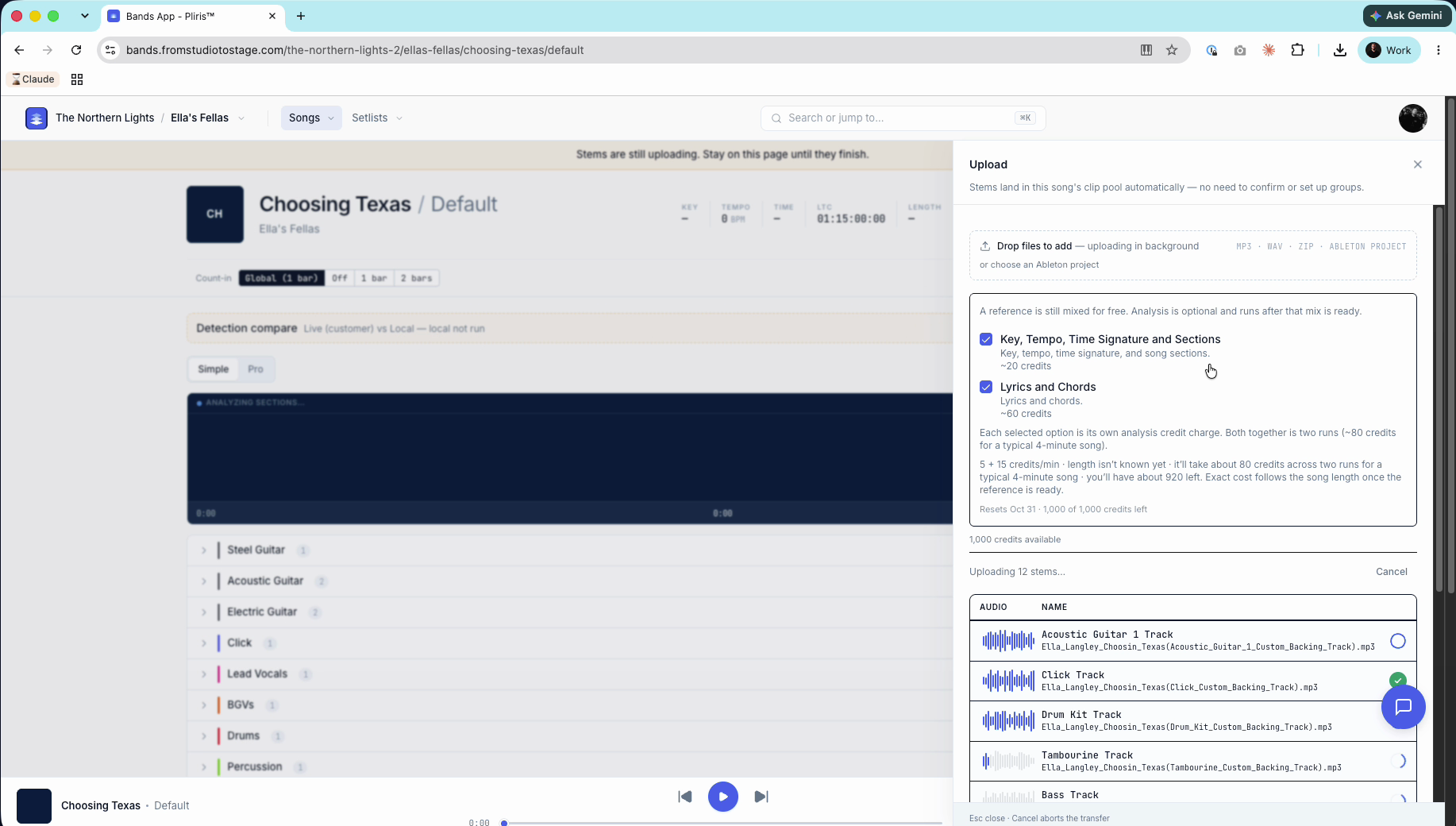
- Credits. The upload panel shows an estimate for each option and your balance. In the lesson it showed about 20 credits for Key, Tempo, Time Signature and Sections and about 60 for Lyrics and Chords for a typical 4-minute song (5 and 15 credits per minute). See Credits Explained.
- The correct lyrics, from a source you trust, if you want the words to be exact.
Upload the stems and tick Lyrics and Chords
- Open the song. A new song starts with a Default arrangement. (On the Free plan a song has one arrangement.)
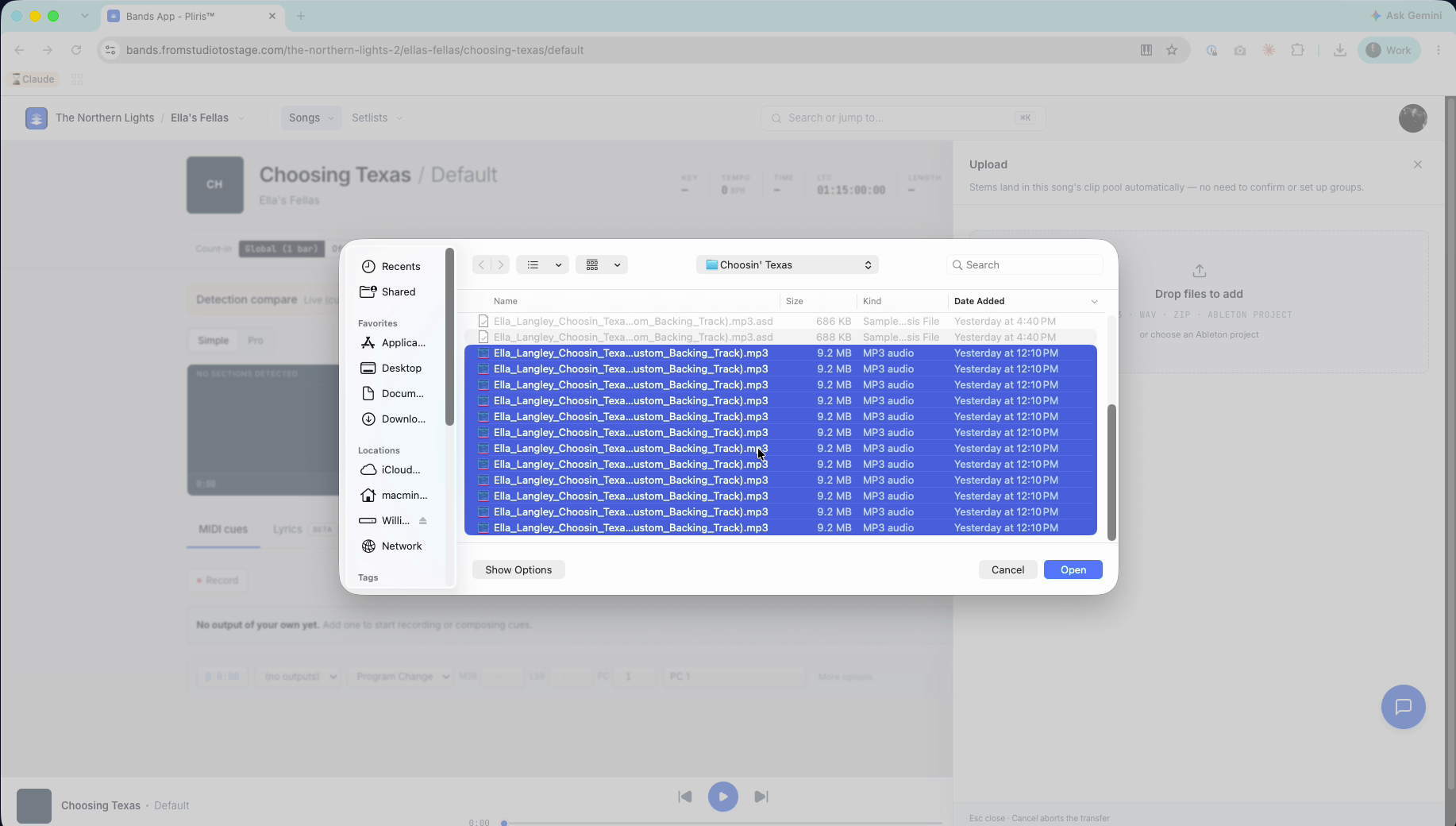
- Click Drop files to add, select your stems (including the lead vocal stem), and click Open. The uploader accepts MP3, WAV, ZIP and Ableton project files.
- While the stems upload, tick Lyrics and Chords. If these are raw stems and you also need the key, tempo, time signature and sections, tick Key, Tempo, Time Signature and Sections too. Read the credit estimate on the panel first.
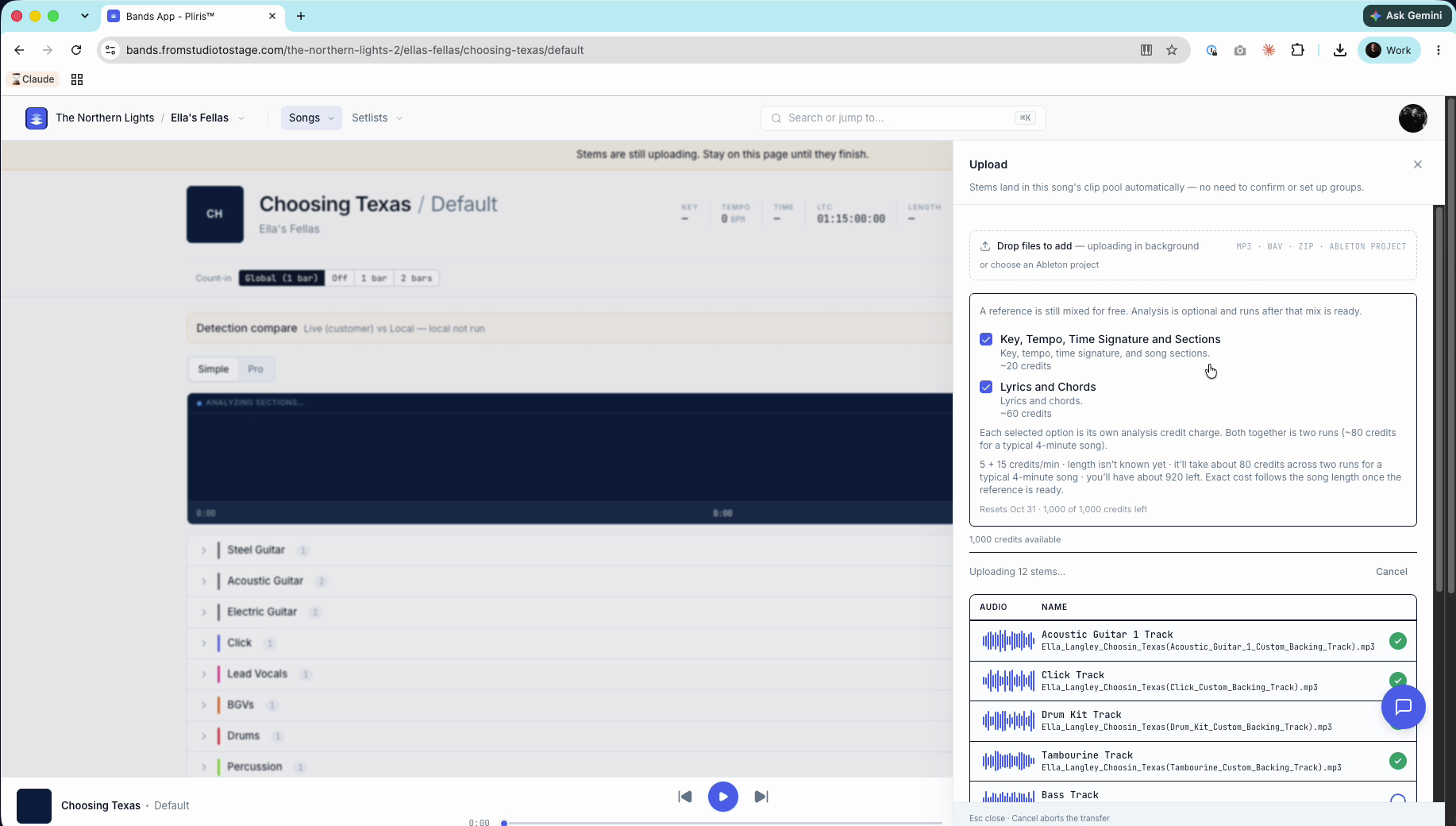
- Stay on the page until every stem has a green check mark. The page warns you: Stems are still uploading. Stay on this page until they finish.
Afterwards a note in the bottom right shows the progress. If a song stays on Processing audio for much longer than a few minutes, see Why does my stem show "Processing"?.
Treat the first result as a guess
When analysis finishes you see the key, tempo, time signature and sections, and the Lyrics tab has lines. With a lead vocal they usually land close, but depending on the song they may not be perfect.
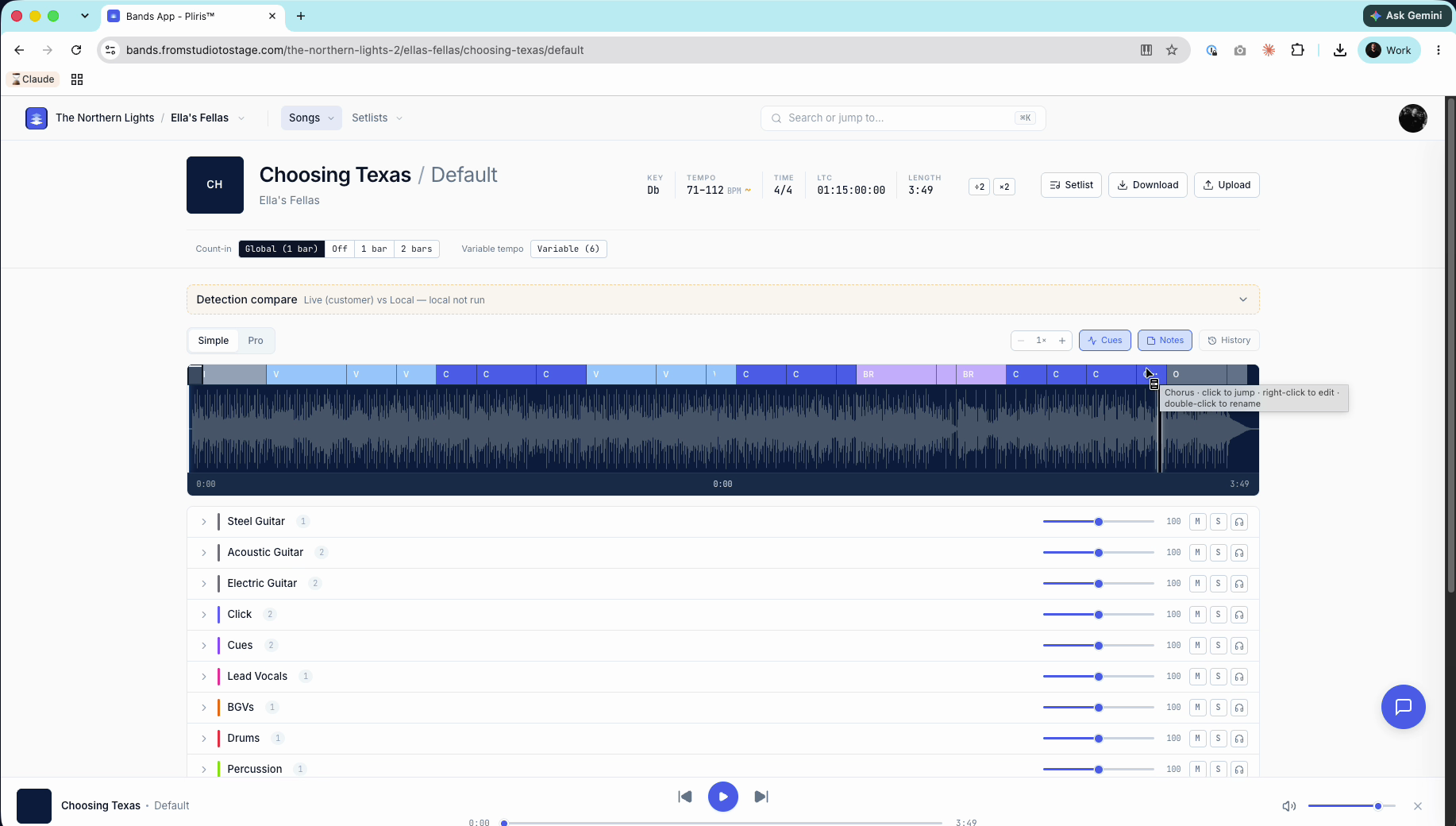
If the key, tempo or time signature is off, right-click it to change it. The time signature menu offers 4/4, 3/4, 2/4, 5/4, 6/4, 7/4, 5/8, 6/8, 7/8, 9/8 and 12/8, and you can type any other meter. See How to Change a Song's Key, Fixing a Wrong Tempo and Fixing a Wrong Time Signature.
Fix the song sections first
Scroll down to the Lyrics tab (beside MIDI cues, Chords and Notes). The lines are grouped under section labels, so if the sections are off, the grouping looks off too.
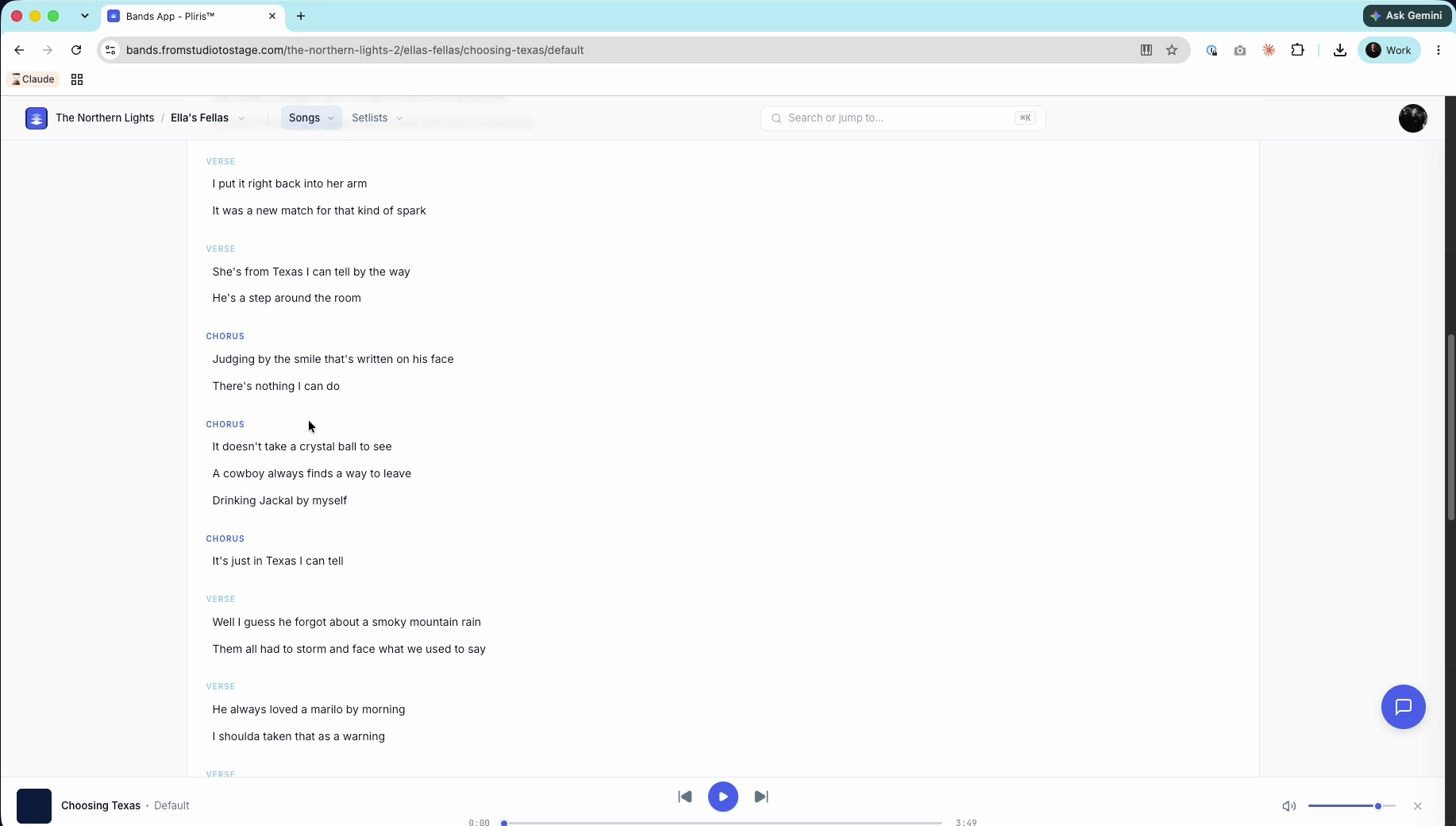
Edit your sections so they match the song: rename, move or resize them. Pro mode makes it easy to jump around. See Fixing song sections after analysis. Then go back to Lyrics and the lines should be grouped under the right sections.
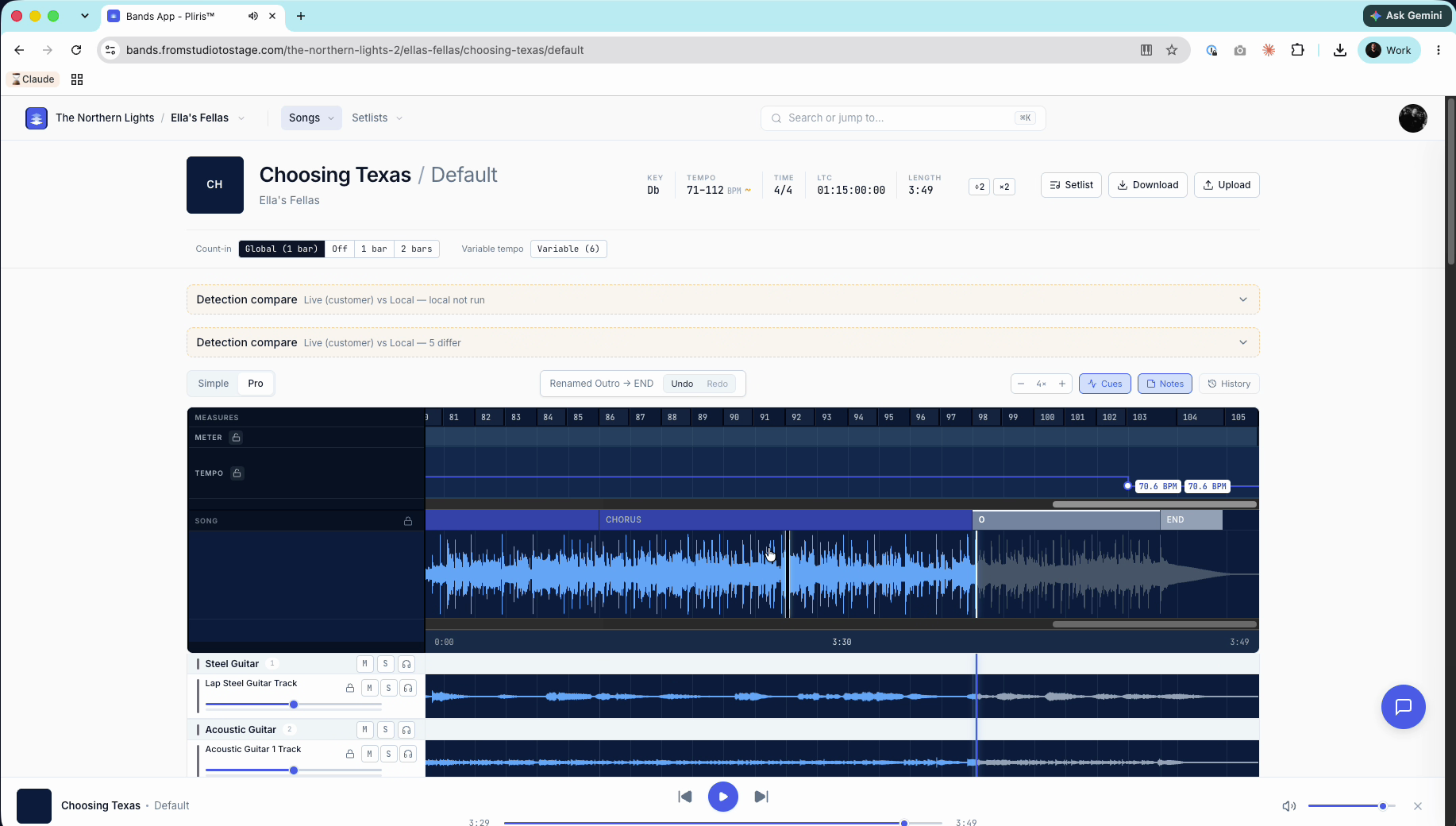
If your song still looks way off after you fix the sections, contact support with the song and band.
Check lines against the vocal
Play a section and look at the Lyrics tab. The line being sung is highlighted as it plays. In the lesson the bridge's timing was right, but one line's words were wrong.
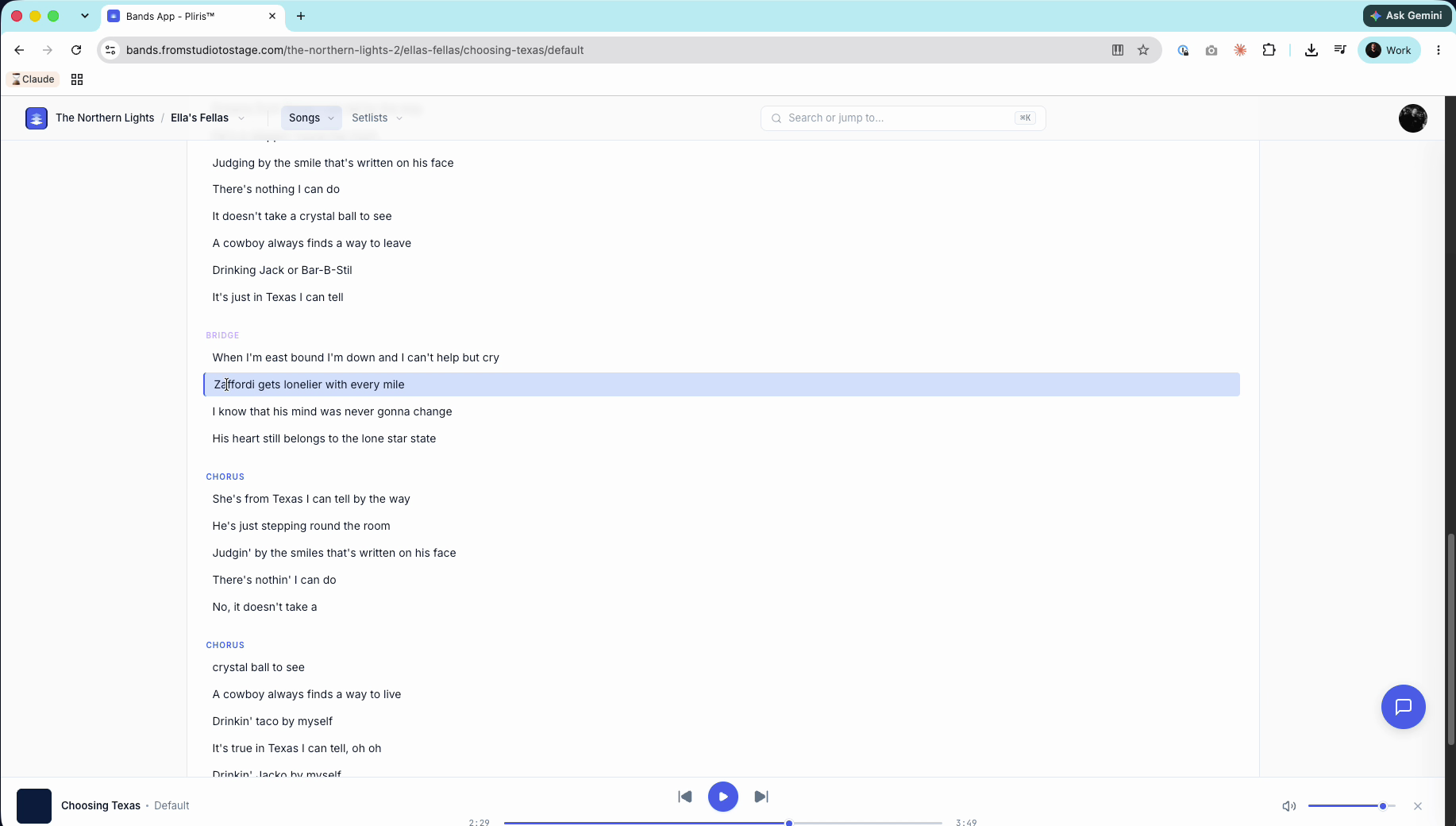
Fix wrong words: Edit or Import
You have two ways to fix the words:
- Edit. Click into a lyric line on the Lyrics tab and edit it in place. Fine for a few words.
- Import. Paste the whole correct lyric once. Faster when many lines are off.
Use Import
- On the Lyrics tab, click Import (next to Lyrics).
- Find the correct lyrics (a web search works) and copy them.
- Paste them into the Paste the correct lyrics box.
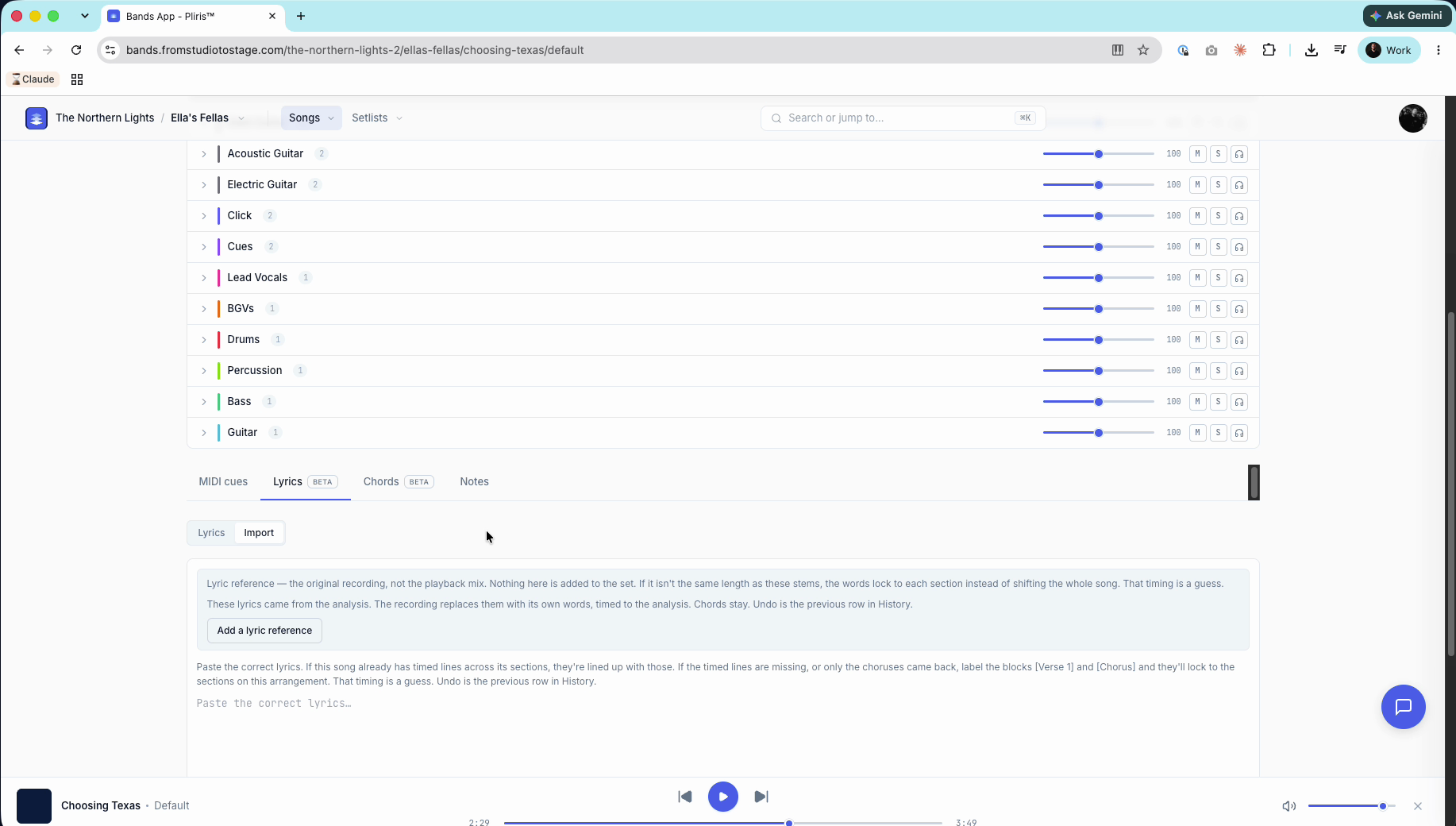
What the panel says: if the song already has timed lines across its sections, your pasted words are lined up with those. If the timed lines are missing, or only the choruses came back, label the blocks, such as [Verse 1] and [Chorus], and they lock to the sections on this arrangement. That timing is a guess. Undo is the previous row in History.
- Scroll down and click Apply.
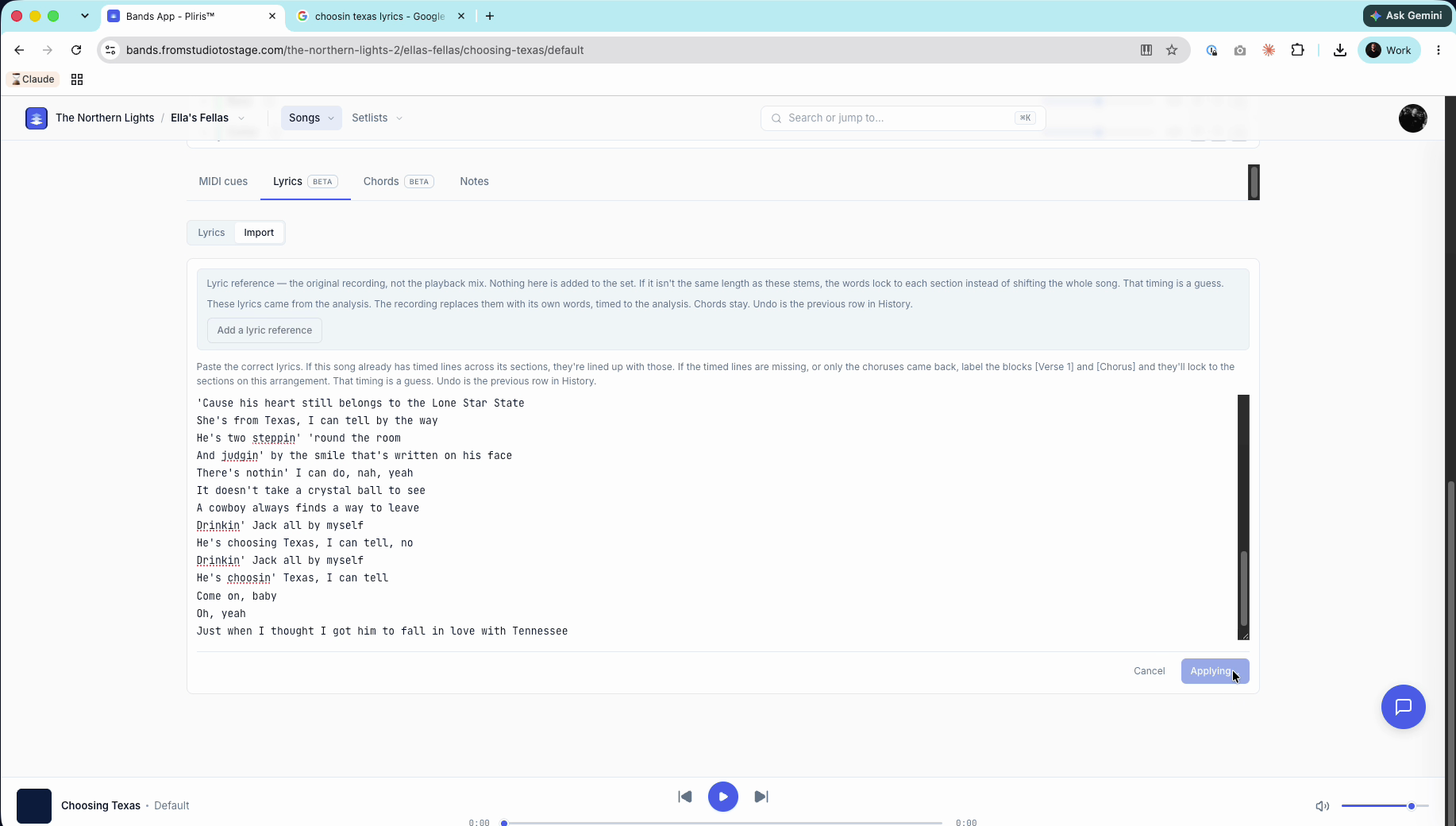
Import replaces the words the analyzer found. It keeps the timing and the spacing of the lines in your sections. A "Lyrics updated" note appears, and you can undo it from History.
- Press play and listen. The highlighted line should now read correctly and sit in time.
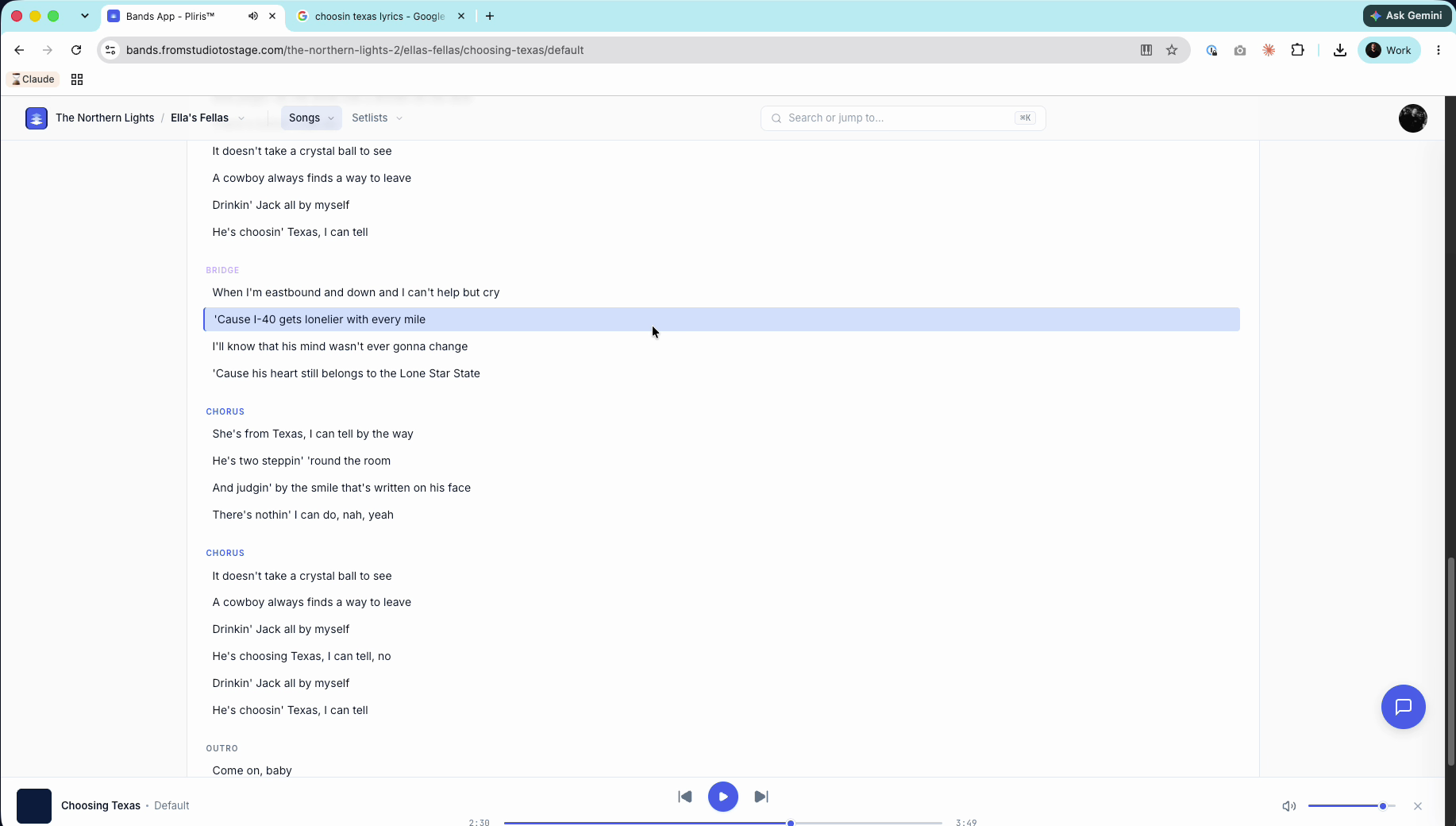
Import lines your words up with timed lines that already exist, so that is the precise route. If timed lines are missing, labeled blocks such as [Verse 1] lock to the arrangement's sections and get guessed, section-based timing, not precise line timing. For precise timing, run Lyrics and Chords with vocal audio. See Lyrics Text vs Timing (and AbleSet).
The Lyric reference box
The Import tab also has an Add a lyric reference button. A lyric reference is the original recording, not the playback mix. Nothing in it is added to the set. If it isn't the same length as your stems, the words lock to each section instead of shifting the whole song, and that timing is a guess. The recording's own words replace the analyzer's, timed to the analysis, and the chords stay. If your stems have no lead vocal, the full lyric reference process (analyze first, then add the reference, then paste the official lyrics) is in Creating Perfectly Timed Lyrics Without a Lead Vocal.
Using timed lyrics
Timed lyrics are what the AbleSet lyrics track, a ProPresenter file and the Pliris Lyrics app use. For the AbleSet lyrics track, turn on Add lyrics track in Settings → Setlist management and re-export. See The Setlist Management Page and Setlist Solutions — Setlist, AbleSet, LIOBOX, Conductor & TAZ. The course covers each export format in a later lesson.
Frequently asked questions
Why are my lyrics empty or full of gaps?
Lyrics and Chords needs vocal-capable audio: a lead vocal stem or a time-aligned reference that has one. Without it, expect large gaps. Also check that you ran Lyrics and Chords and not only Key, Tempo, Time Signature and Sections, which does not show lyrics.
Do I spend credits twice if I tick both options?
Yes. Each selected option is its own analysis credit charge, and both together are two runs. If your balance covers the first charge but not the second, the song page says the lyrics run did not start, and Lyrics and Chords stays available to retry.
Will Import wipe my timing?
No. Import keeps the timing and replaces the words. If you don't like the result, Undo is the previous row in History.
The analyzer only gave me some of the lines. What now?
Label the blocks you paste, such as [Verse 1] and [Chorus], so they lock to the sections on the arrangement.
Should I fix sections or lyrics first?
Sections. The lyrics are grouped under them, so fix placement first and then fix the words.