Creating Perfectly Timed Lyrics Without a Lead Vocal (Adding a Lyric Reference)
How to add a lyric reference track when your stems have no lead vocal. Upload your stems, analyze with Lyrics and Chords first, then on the Lyrics tab click Import and Add a lyric reference (a recording of the song with the vocal), then paste the official lyrics and click Apply. Pliris keeps the timing, so the lyrics are right and in time for ProPresenter, AbleSet and the Lyrics app.
Multitracks and Loop Community downloads, and cover-version backing tracks, include every part except the lead vocal. Lyrics and Chords listens for a lead vocal, so on its own it returns thin or oddly grouped lyrics for those songs. You can still get perfectly timed lyrics. This article walks through the three steps: analyze, add a lyric reference, then import the official lyrics.
Watch the lesson: Get perfectly timed lyrics without a lead vocal, in the Lyrics section of the Using Pliris to Program, Practice, and Perform course. If your stems do include a lead vocal, start with Getting Perfectly Timed Lyrics with a Lead Vocal instead.
The order, in one line
Stems in → Analyze with Lyrics and Chords → Import → Add a lyric reference → paste the official lyrics → Apply.
- The lyric reference goes in after Lyrics and Chords has finished, not before. The lesson's first rule for the reference is: make sure you've already analyzed for Lyrics and Chords.
- You add it on the Lyrics tab with Import → Add a lyric reference. Do not drop it in as a regular file with Drop files to add.
- Upload all your stems before anything else. Pliris builds the song's grid (tempo, count-in, sections) from whatever is uploaded first. If a full recording goes in first as a regular file, the grid is built from it, and stems that are a different length won't line up. A recording meant only for lyrics belongs in Add a lyric reference.
What you need
- A song whose stems have no lead vocal, already uploaded. The lesson uses an Ableton session from a multitrack download. If you are uploading raw stems, upload all of them first.
- A lyric reference: a recording of the song with the vocal. It can be the original recording or a recording of your own band doing the song. It does not have to be perfect, but it needs to be close to the same arrangement as your stems. For precise timing it should be in time with your stems and the same length. If it is a different length, Pliris locks the words to each section instead, and that timing is a guess. The reference is there so Pliris can hear the vocal. It is not the playback mix, and nothing in it is added to the set.
- The official lyrics, copied from a source you trust (a web search works).
- Credits. Each analysis option is its own credit charge. In the lesson the panel showed about 2 minutes and 75 credits for Lyrics and Chords on a 5-minute file (15 credits per minute) and about 25 credits for Key, Tempo, Time Signature and Sections (5 credits per minute), with 1,000 credits available. See Credits Explained.
- On the Free plan a song has one arrangement, and Pliris creates it for you (Default).
Step 1: Analyze for Lyrics and Chords
- Open the song and scroll down to Analyze this song.
- Tick Lyrics and Chords. An Ableton session already carries its key, tempo, time signature and sections, so in the lesson Key, Tempo, Time Signature and Sections is left unticked. If you are starting from raw stems, you may want that option too.
- Read the panel before you click. It says each selected option is its own analysis credit charge and both together are two runs. It also shows your estimate and your balance, for example 15 credits/min · this file is 5 minutes · It'll take 75 credits · you'll have 925 left.
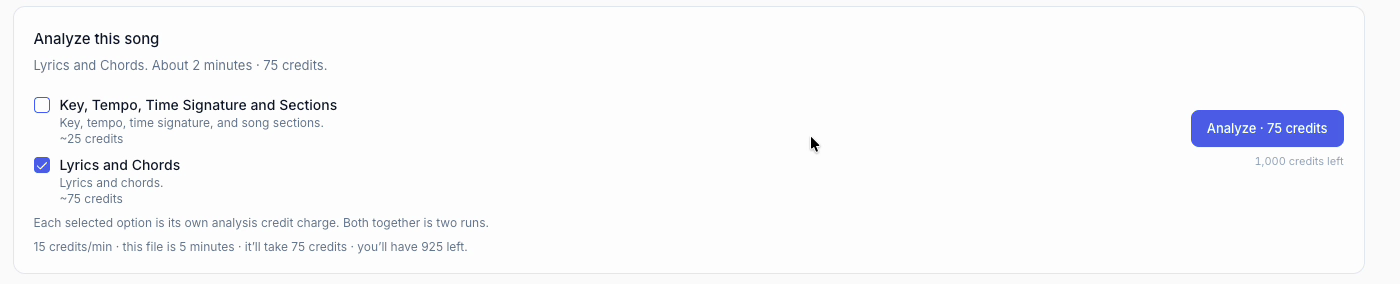
- Click Analyze. A note in the bottom right says the analysis is running. Stay on the page.
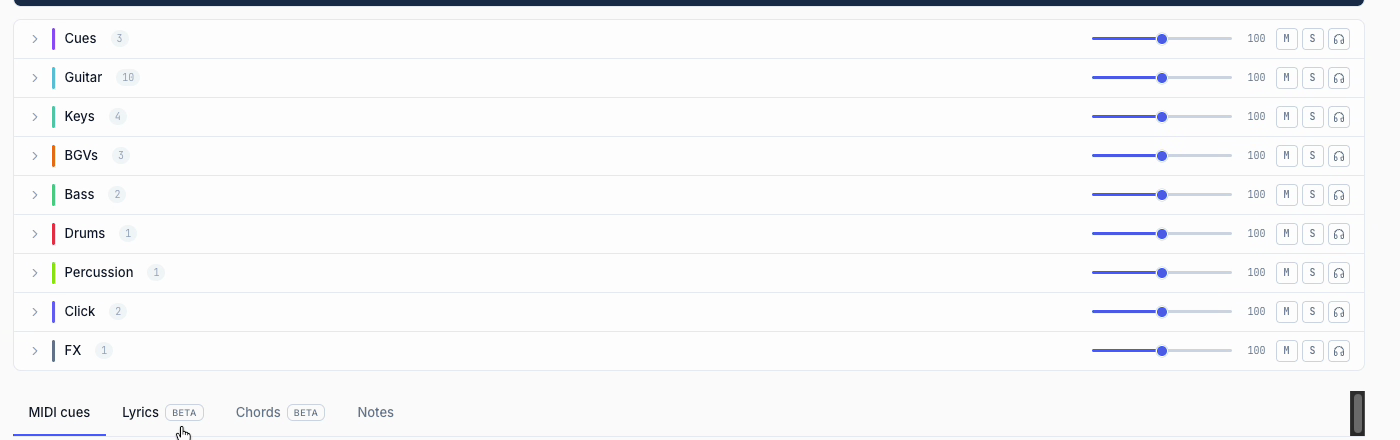
When it finishes, open the Lyrics tab. With no lead vocal, expect a rough first pass: lines grouped oddly, or missing sections such as a verse. That is why the next step matters.
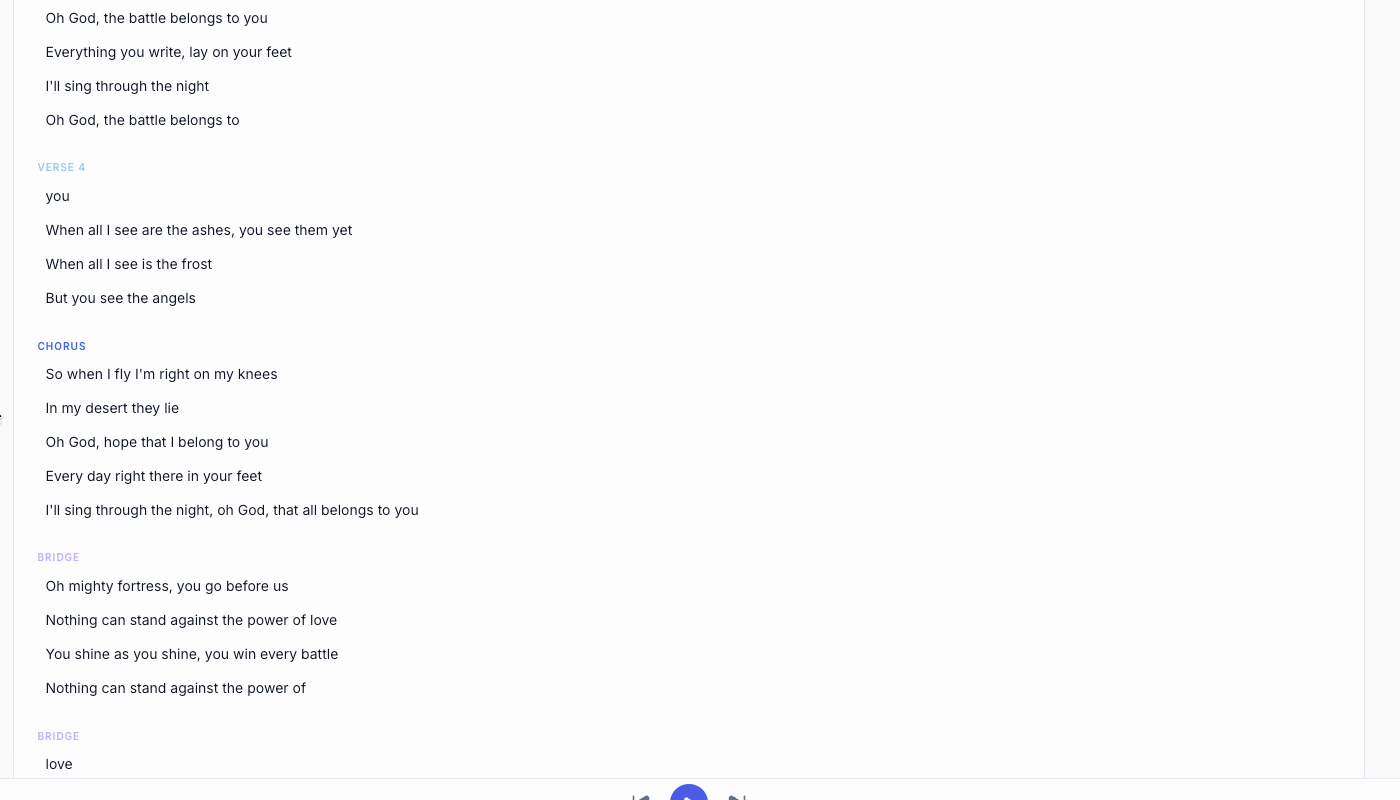
This screenshot shows song lyrics from the lesson's demo song.
Step 2: Add a lyric reference
Only do this once Lyrics and Chords from Step 1 has finished.
- On the Lyrics tab, click Import (next to Lyrics).
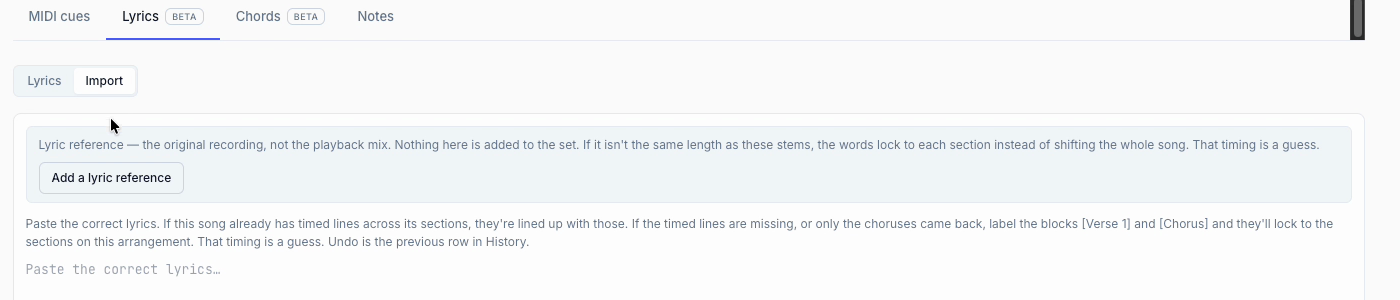
- Read the Lyric reference note: the original recording, not the playback mix. Nothing here is added to the set. If it isn't the same length as these stems, the words lock to each section instead of shifting the whole song. That timing is a guess.
- Click Add a lyric reference.
- In the file chooser, pick the recording and click Open.
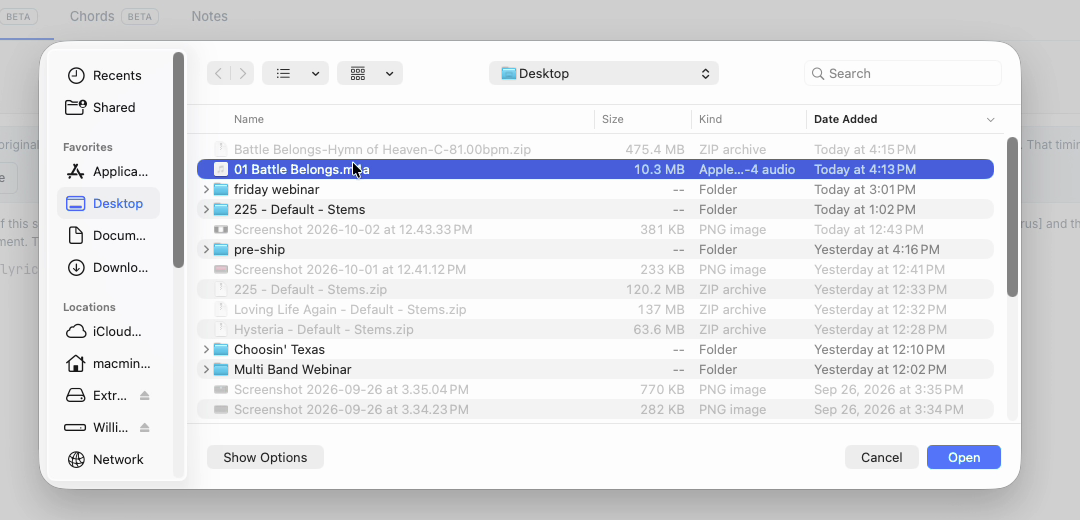
- The button shows Reading the recording... while Pliris detects the lyrics in it.
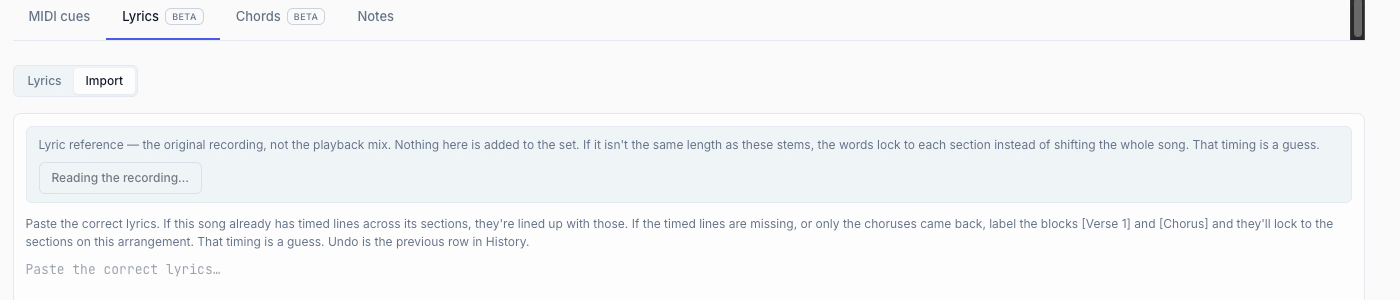
- When it is done, the box shows a checkbox: This song already has lyrics on most of its sections. Replace them with this recording's lyrics. Chords stay. Undo is the previous row in History. In the lesson this box is ticked, so the lyrics detected from the recording replace the first pass. Make sure it is ticked before you continue; untick it to keep the lyrics you have.
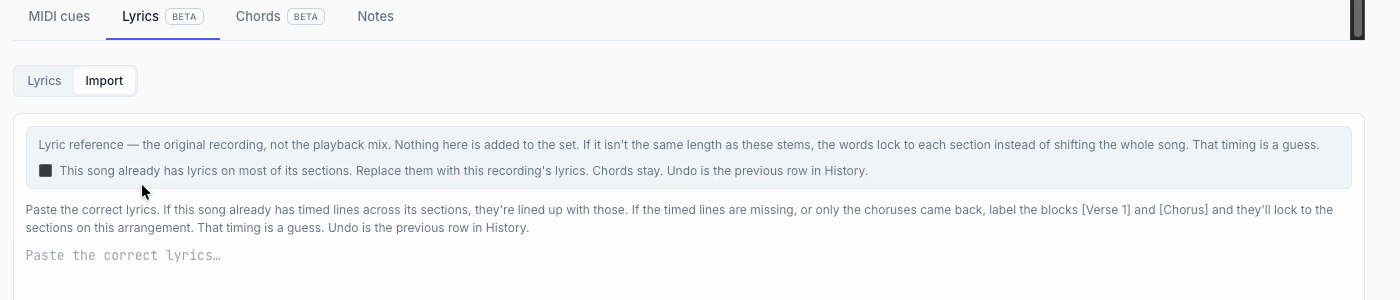
Pliris takes the lyrics it detected in the recording, times them with the analysis it already did, and replaces the lyrics on the Lyrics tab. Your chords stay. Open the Lyrics tab: your verses and choruses now have lyrics, but the words can still be off.
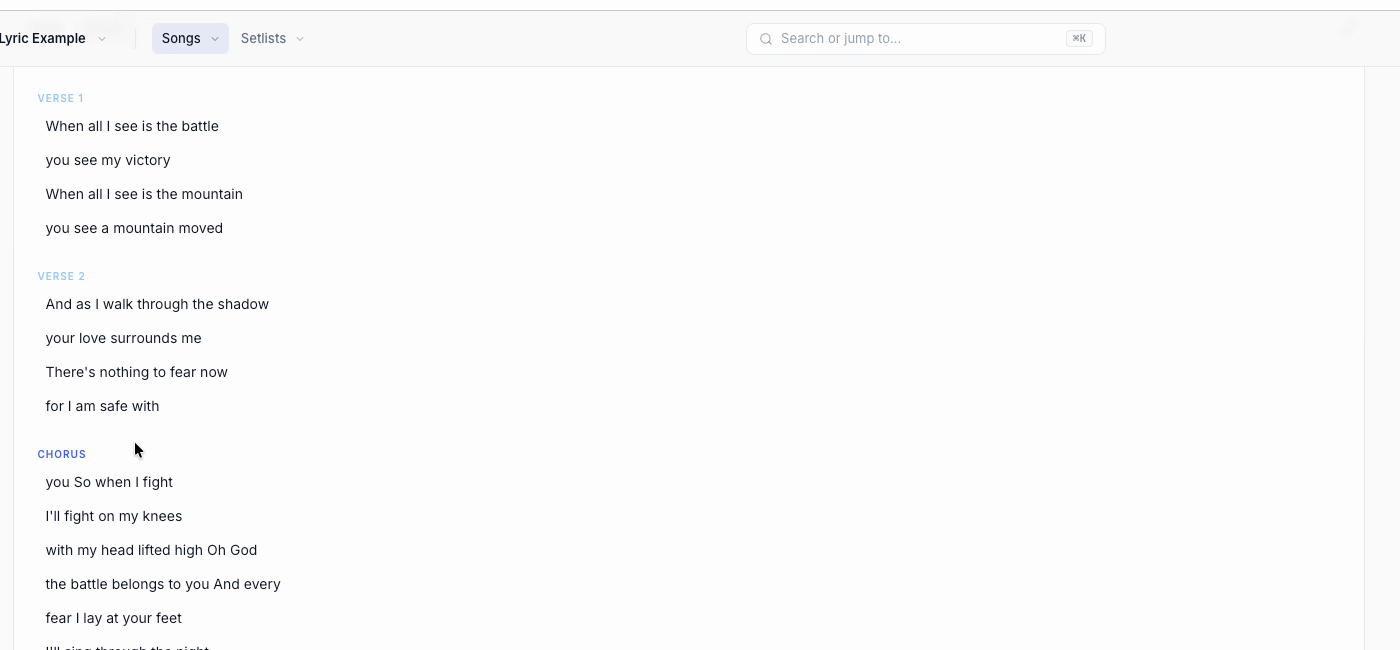
This screenshot shows song lyrics from the lesson's demo song.
Step 3: Import the official lyrics
You could click into each lyric line and fix them one by one, or you could retype and time everything yourself. Import is faster.
- On the Import tab, paste the official lyrics into Paste the correct lyrics. The panel explains: If this song already has timed lines across its sections, they're lined up with those. If the timed lines are missing, or only the choruses came back, label the blocks [Verse 1] and [Chorus] and they'll lock to the sections on this arrangement. That timing is a guess. Undo is the previous row in History.
- Scroll down and click Apply.
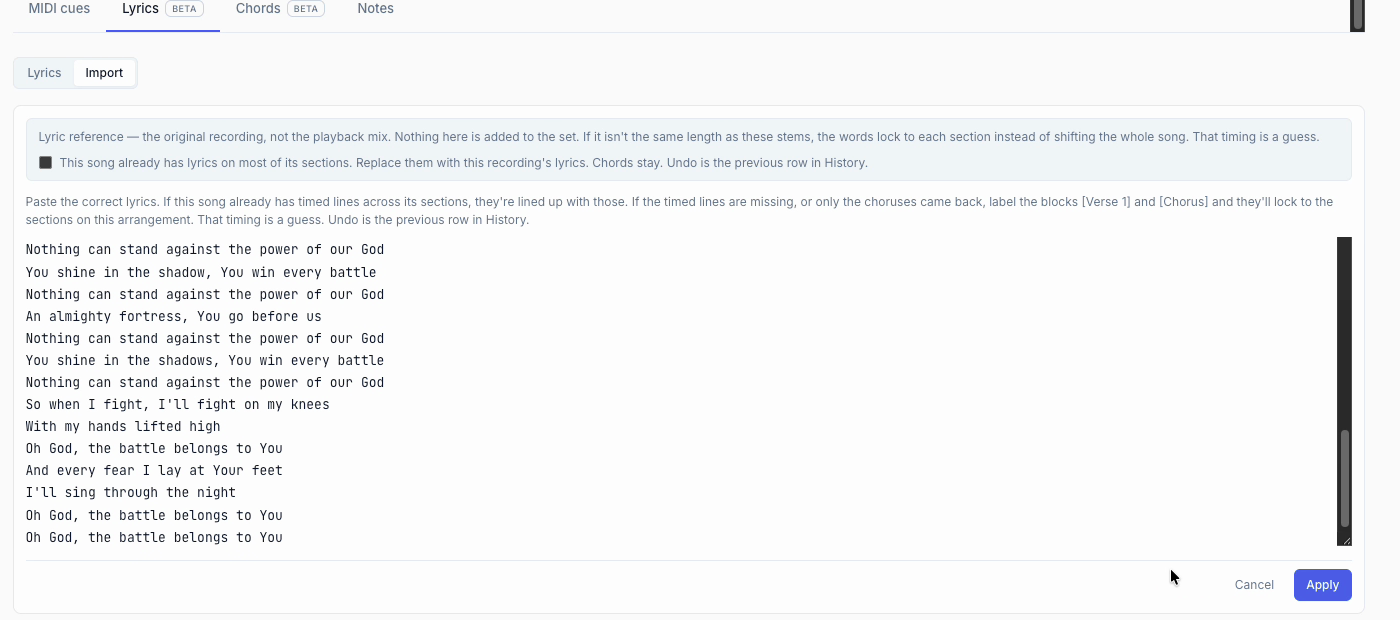
This screenshot shows song lyrics from the lesson's demo song.
Pliris combines the timing of the lyric reference with the timing of your first analysis and replaces the lyrics with the ones you pasted. A Lyrics updated note appears, and Undo is the previous row in History. You get all your sections, with pickups placed between them, and the correct lyrics.
Import lines your words up with timing that already exists. It does not create timing out of nothing, which is why Steps 1 and 2 come first. See Lyrics Text vs Timing (and AbleSet).
Use the timed lyrics
Click Download at the top of the song page. In the Download dialog, under Or just these files, you can choose:
- ProPresenter 7 file (Beta, a .pro file of lyric slides). The ProPresenter slides options are Lines per slide (2 in the lesson) and Long lines (Split at about 40 characters: a long line breaks at its comma, or evenly, into shorter lines; a break you set by hand is kept). The defaults should work well. Double-click the downloaded file to open it in ProPresenter. In the lesson it had the chords added in, the sections separated out and every section timed.
- AbleSet lyrics track (Beta, an .als with a +LYRICS MIDI track), so your Ableton project has MIDI cues for the lyrics.
- ChordPro chart (Beta, a .cho with lyrics and chords).
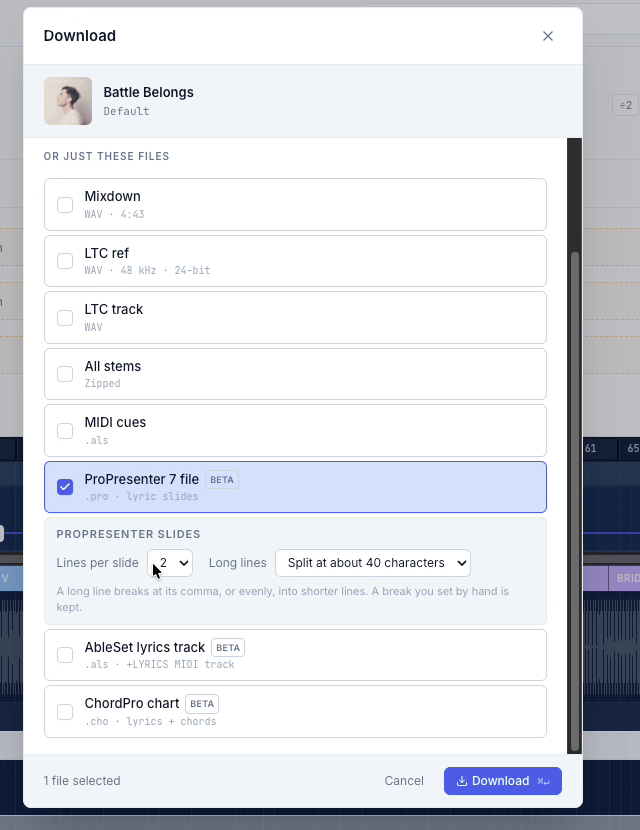
The song's timecode is assigned and matches the song. When you download the Ableton project, the timecode file in the set matches the timecode in the ProPresenter file, so they sync up. The Pliris Lyrics app shows the same perfectly timed lyrics. For the AbleSet lyrics track setting, see The Setlist Management Page and Setlist Solutions — Setlist, AbleSet, LIOBOX, Conductor & TAZ. For timecode, see Sending LTC (SMPTE) Timecode.
Frequently asked questions
When do I add the lyric reference: before or after Lyrics and Chords?
After. Upload your stems, run Lyrics and Chords, and when it finishes go to Lyrics → Import → Add a lyric reference. Then paste the official lyrics and click Apply. Pliris uses the timing from that first analysis together with the vocal it hears in the reference.
Do I upload the lyric reference with my stems?
No. Upload your stems with Drop files to add, and add the recording only with Import → Add a lyric reference on the Lyrics tab. Nothing in a lyric reference is added to the set. A full recording dropped in as a regular file before your stems becomes what the grid is built from, so the stems may not line up.
My song has no lead vocal. Is the "with a lead vocal" process wrong for me?
Yes. That process assumes a lead vocal stem, so Pliris can hear the words in your stems. With no lead vocal, follow the three steps on this page.
What should I use as the lyric reference?
A recording of the song with the vocal: the original recording, or a recording of your own band doing the song. For precise timing it should be in time with your stems and the same length. If it is a different length, Pliris locks the words to each section instead, and that timing is a guess. It is not the playback mix, and nothing in it is added to the set.
What if my reference is not the same length as my stems?
The words lock to each section instead of shifting the whole song, and that timing is a guess. Check the lines against the vocal as the song plays.