How to Edit Songs in Pliris
Rename a song, change cover art, and right-click on an arrangement to update key, tempo, sections, stems, and more — without touching the audio file itself unless you mean to.
In Pliris™, a song is the name and identity in your library. An arrangement is the version you actually play — stems, tempo, sections, cues. Most day-to-day edits happen on the arrangement page (see Bands, Songs, Arrangements, and Setlists); a few live on the song in the library.
Prefer right-click for Key/Tempo/Time, stems, and sections (overview). Edit still covers LTC/Length (and any field without a right-click menu yet).
Song-level edits (library)
In the band's Songs list, open the song's row menu (⋯) for:
- Rename song… — changes the title everywhere that song appears.
- Edit cover art — upload or change artwork.
- Add arrangement — a second version (live cut, acoustic, festival edit). Paid plans allow more than one arrangement per song.
- Add to setlist… / Delete song — as needed.
- Move to another band… / Duplicate to another band… — send the song to another band on this account, or leave a separate copy there. See Move or Duplicate a Song to Another Band.
Renaming the song does not rename the arrangement. The arrangement keeps its own name (often Default until you change it).
Arrangement edits — right-click
- Open the song's arrangement.
- Change what you need:
- Right-click Key, Tempo, or Time (meter) chips to edit them. See Changing a Song's Key. A time signature change partway through the song is fixed in Pro mode: Fixing a Wrong Time Signature.
- LTC / Length — use Edit when that control is still present (right-click rollout covers Key/Tempo/Time first).
- Right-click a stem to rename it or move it to another group (how).
- Right-click a section to rename it or map its Ableton template cue.
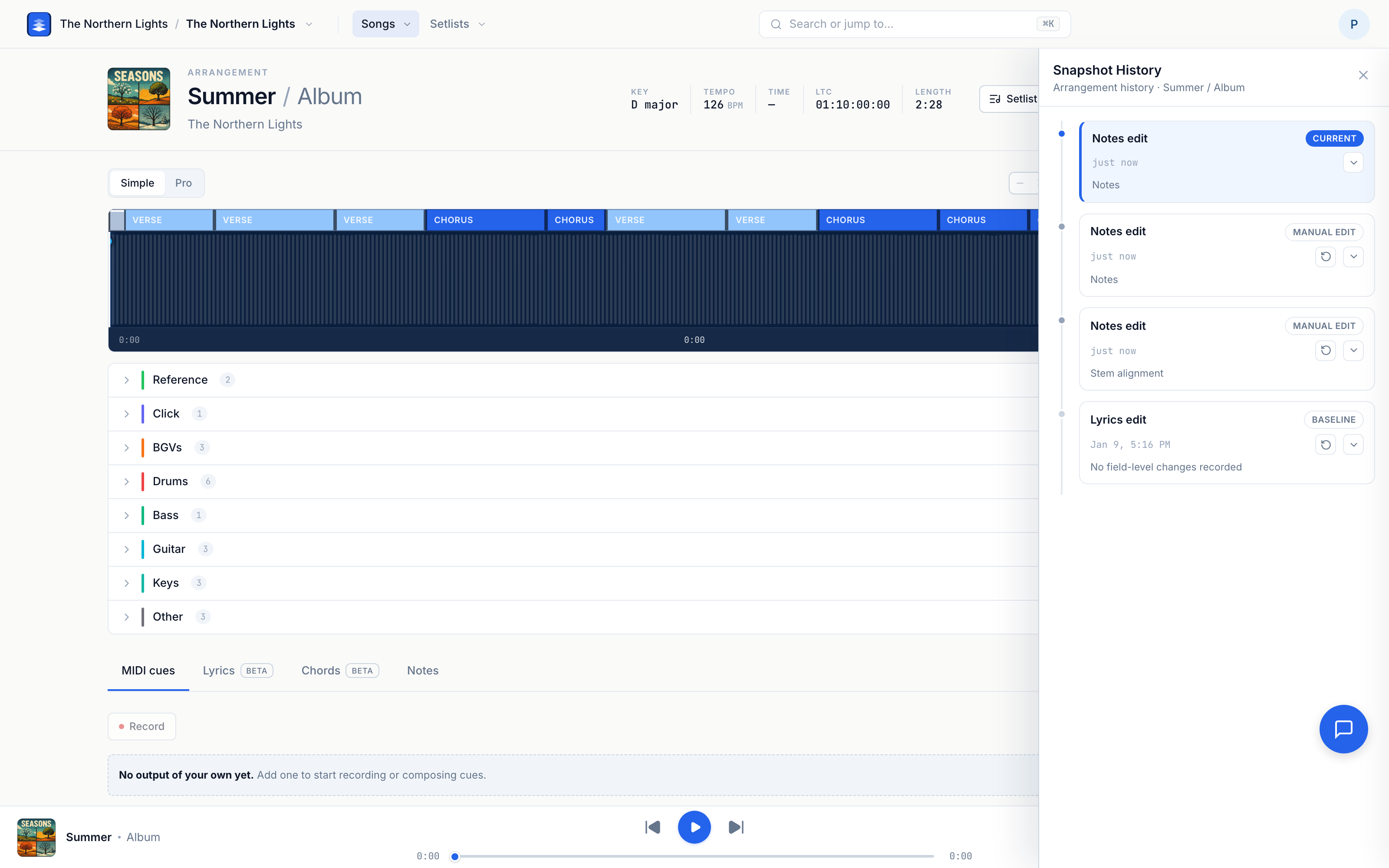
- Keep working — changes save into Snapshot History. If you used Edit, click Done when finished.
What these edits are (and aren't)
| You can change | What it means |
|---|---|
| Tempo | Metadata for click, grid, count-in, and export — not time-stretching the stems |
| Key / time signature / LTC / length | Arrangement metadata used in the player and exports. The key doesn't transpose your stems, and it's stored per arrangement |
| Section names | Labels on the timeline and in Ableton exports → Renaming Song Sections |
| Stem names / groups | How tracks are organized in the mixer |
To replace audio, drop files on the arrangement or replace stems. To pull structure from Ableton, drop an .als.
Temporary workaround: After deleting a tempo or time signature change on the song page, refresh before pressing Play — otherwise the player can keep the old map until a hard refresh.
Always available (no special edit mode)
These don't need a header Edit toggle:
- Count-in — the segmented control under the header (Global / Off / 1 bar / 2 bars).
- MIDI cues — the MIDI cues panel → Changing Cues in Pliris.
- Lyrics, chords, notes — bottom tabs; edits save into history as their own versions. Those tabs fill from Lyrics and Chords (or from what you type). Key, Tempo, Time Signature and Sections does not show lyrics. See Lyrics Text vs Timing (and AbleSet).
- Mute / solo / Focus — rehearsal controls; they don't rewrite arrangement structure the way metadata edits do.
Pro tip: Need manage access on the band to edit. If you only see playback and Download, ask a band admin to raise your permissions.
Frequently asked questions
How do I rename a song in Pliris?
In the band's Songs list, open the song's ⋯ menu and choose Rename song…. That changes the song title in the library and on setlists; the arrangement name is separate.
What's the difference between editing a song and editing an arrangement?
The song is the library identity (title, cover art). The arrangement is the playable version (stems, tempo, sections, cues). Most musical edits happen on the arrangement via right-click (or Edit, if your build still shows it).
Do my edits save automatically?
Yes. Arrangement edits land in Snapshot History. Lyrics, chords, notes, MIDI cues, count-in, and Ableton drops save as their own versions when you change them.
Can bandmates undo my edits?
Anyone with manage access can open History and restore an earlier snapshot. Restoring creates a new version on top, so the restore itself is undoable.
Where to go next
- Tour the page → How to Use the Song Arrangement Page.
- Fix a wrong key → Changing a Song's Key.
- Fix a wrong time signature → Fixing a Wrong Time Signature.
- Move or rename stems → Moving and Renaming Stems on the Song Page.
- New uploader + right-click overview → Drop Files, Analyze When Ready, Right-Click to Edit.
- Structure from Ableton → Updating an Arrangement from Ableton.
- Send a song to another band → Move or Duplicate a Song to Another Band.
Stuck at any point, click the support bubble in the bottom-right corner of any page, or email support@fromstudiotostage.com.