Editing the Grid — Tempo, Meter and Sections
Pro mode adds a Measures, Meter and Tempo grid above the waveform. Right-click a bar to change its time signature, drag a tempo point, and right-click a section to rename, split, merge, loop or delete it. These edits change the GRID — the bar lines, meter and click — and never the audio: your stems are not time-stretched, re-rendered or sped up. ⌘Z (Ctrl+Z on Windows) undoes the last edit; History keeps version snapshots on save / leave edit / .als update.
Every song in Pliris™ has a grid — the bar lines the click follows, the meter it counts in, and the tempo it runs at. Analyze works that grid out from your audio when you upload, and most of the time it gets it right.
When it doesn't, you can now fix it yourself. Pro mode puts the grid on screen as three editable lanes above the waveform. The section strip is editable in either mode — right-click a section to rename, split, merge, loop or delete it without leaving Simple. No round trip through Ableton.
Where this changed. Previously, section structure and the tempo map could only be changed in your Live Set and re-imported. Renaming was the only edit available in the app. That's no longer true — everything on this page happens in Pliris.
Read this first: you are editing the grid, not the song
Nothing on this page changes how your song sounds. Not the tempo it plays at, not its key, not its length, not one sample of your stems.
The grid is Pliris's description of the music you uploaded — where the bar lines are, what the meter is, what the tempo is doing. Analyze writes that description automatically. When you edit it, you are correcting the description so it matches the recording. The recording never moves.
| You change | What actually happens | What does not happen |
|---|---|---|
| A time signature | Bar lines regroup; the click counts differently | No audio is touched |
| A tempo point | The click, count-in and export follow the new value | Your stems are not time-stretched or sped up |
| A section boundary | The section label covers a different span | The audio underneath stays exactly where it was |
The clearest way to think about it: if the click is fighting the music, the click is wrong, not the music. You are fixing the click.
So a tempo edit is you saying "this song is 102 BPM" — not "play this song at 102 BPM." If you type a tempo the song isn't actually at, the audio keeps playing at its recorded speed and the click drifts away from it. That is the symptom of a wrong grid, and the fix is to correct the grid, not to nudge it further.
Nothing here re-analyzes anything, and no credits are spent.
Turning on Pro mode
Open a song's arrangement page and click Pro next to Simple, above the timeline. You can also press Tab.
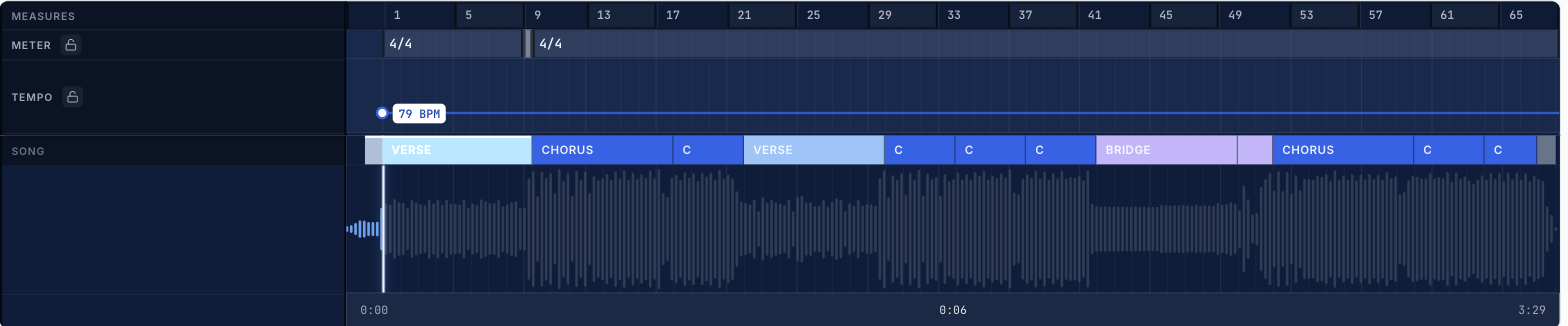
Four lanes appear:
| Lane | What it shows |
|---|---|
| Measures | Bar numbers — the ruler everything else lines up against |
| Meter | The time signature in force, as blocks that start where it changes |
| Tempo | The tempo curve, with a point at each change |
| Song | Your sections — Intro, Verse, Chorus and the rest |
Simple hides all of this and goes back to the plain waveform. Your edits are saved either way; the mode only changes what you see.
Zooming
The grid starts at 1×, showing the whole song. Use + and − beside the zoom readout, or press = and - on the keyboard.
Zoom matters for more than reading labels:
- Below 2×, only every fourth bar line is drawn brightly — enough to orient, not enough to clutter
- At 2× and above, every bar line is drawn
- At 8×, beat lines appear between the bars
At 1× a short bar can be too narrow to show its own label, so it draws as a solid marker instead. Zoom in and the label appears.
Clicking the timeline in Pro mode snaps the playhead to the nearest bar, so you land on the downbeat you aimed at. In Simple mode clicking seeks to the exact spot you clicked, which is what you want when you're just listening.
Changing a time signature
Right-click anywhere in the Meter lane at the bar you want to change.
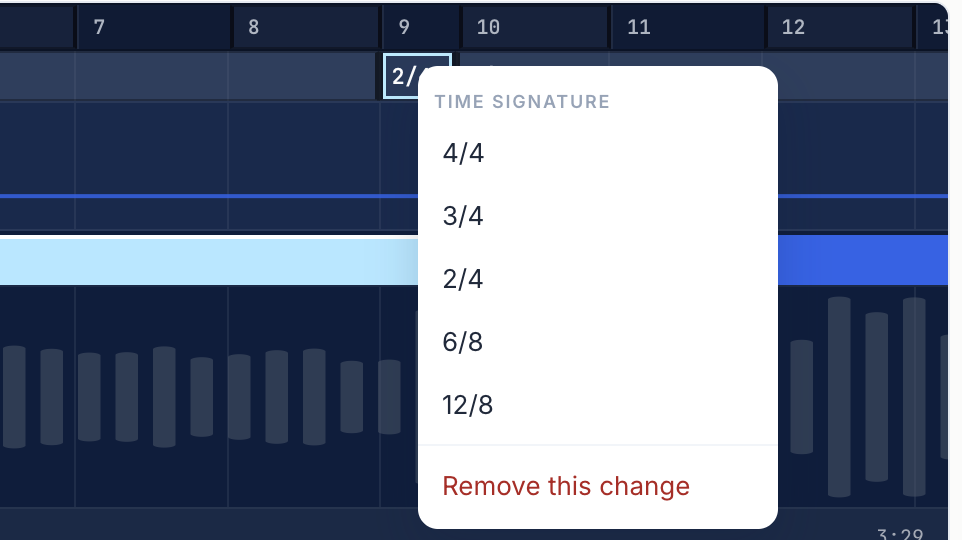
Pick 4/4, 3/4, 2/4, 6/8 or 12/8. The new meter applies from that bar until the next change. A confirmation appears with an Undo link.
The Time field in the header lists every meter in the song (for example 4/4 · 6/4). A small ! next to it means the song has a time signature change, so it's worth checking. Walkthrough: Fixing a Wrong Time Signature.
Remove this change deletes a meter change you've added, and the previous meter carries on through that bar.
Temporary workaround: After you delete a tempo point or a time-signature change on the song page, refresh the page before pressing Play. Otherwise the player can keep the old map until a hard refresh.
Adding a bar of a different length
This is the common one: the song drops or adds a couple of beats going into a chorus, and Analyze has bundled them into one long bar.
Say Analyze gave you a single 6/4 bar where the music is really a bar of 4/4 followed by a bar of 2/4. Both are six beats, so the audio lines up either way — but the count is wrong, and your players hear it. Fix it in two steps:
- Right-click the 6/4 block and choose 4/4
- Right-click the next bar and choose 2/4
Between those two steps the song is two beats short and the following sections will look shifted. That's expected — finish the second step and everything lands again.
The rule to keep in mind: the beats have to add up. If you shorten a bar without putting those beats back somewhere, everything after it moves earlier.
The lock
Each of the Meter and Tempo lanes has a small padlock. Click it to lock that lane and its blocks stop responding to edits. Useful when you're working in the tempo lane and don't want to nudge a meter change by accident.
Changing tempo
The Tempo lane draws the song's tempo as a line, with a point wherever the tempo changes.
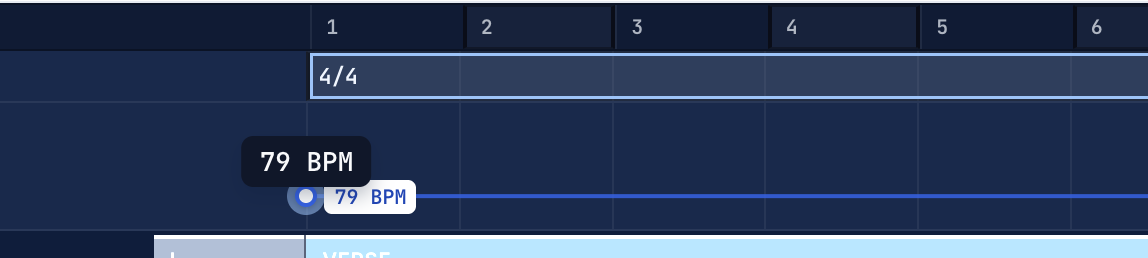
- Drag a point up or down to retune from that bar onward
- Hold Shift while dragging to fine-tune in smaller steps
- Drag left or right to move the change to a different bar — it snaps to bar lines
- Right-click a point for Halve (÷2), Double (×2) or Remove this change. After a remove, refresh before Play (same temporary workaround as deleting a meter change above)
- Right-click empty space in the lane to add a change at that bar
The BPM readout beside each point shows the tempo there. Detected tempos are often not round numbers — a song Analyze measured at 101.9894 BPM displays as 102. Pliris keeps the precise value internally so playback stays accurate; the label is rounded so it reads like the header.
Changing the tempo here does not change the speed of your song. Your stems are not time-stretched, re-rendered or altered in any way — they keep playing exactly as recorded. You are telling Pliris what tempo the song already is, so the click, count-in and Ableton export line up with it.
If a song is recorded at 102 BPM and you set the grid to 120, the audio still plays at 102 and the click marches away from it. The number is a description, not a control.
See Setting the Tempo of a Song for the difference between the header tempo and the tempo map.
Editing sections
Right-click any section in the Song lane. These edits work in Simple as well as Pro — right-click the section strip either way.
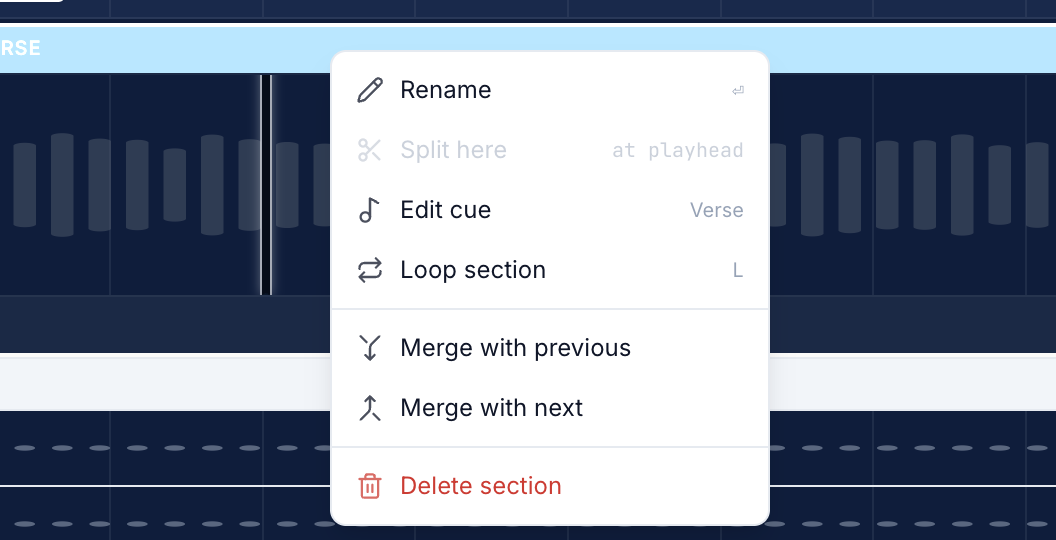
| Action | What it does |
|---|---|
| Rename | Rename the section inline. Double-clicking the section does the same thing |
| Split here | Splits the section in two at the playhead. Greyed out unless the playhead is inside it |
| Edit cue | Choose which template cue this section fires |
| Loop section | Marks this section to loop during playback (persisted and exported). Right-click again for Stop looping. L alone is a temporary transport loop while listening — it does not mark the section |
| Merge with previous | Joins this section to the one before it |
| Merge with next | Joins this section to the one after it |
| Delete section | Removes the section. The neighbouring section takes over its span |
Resizing a section
This one needs Pro mode — the seam is part of the grid, so it is only draggable with the Pro lanes on.
Drag the boundary between two sections left or right. The seam snaps to the beat grid, and as you drag you'll hear a tick each time you cross a beat, accented on the downbeat — so you can feel where you're landing without watching the numbers.
Because it's a boundary, moving it changes two sections at once: one gets longer, the other shorter. Section starts always stay in order.
What "Loop section" exports to your device
Marking a section as a loop is not only a playback convenience — it travels into your Ableton export, and what it becomes depends on which device integration you have switched on in Settings → Exports.
| Integration | What a looped section becomes |
|---|---|
| AbleSet | +LOOP appended to that section's locator name — AbleSet reads locator names, so the suffix is the instruction |
| LIOBOX | A loop N action locator at the section start |
| Setlist (the device) | A loop N action locator, same as LIOBOX |
| Conductor / TAZ | No loop marker — those integrations do not have the concept |
| No integration enabled | The flag is stored on the section and used for playback in Pliris, and nothing extra is written to the export |
So a section you loop in Pliris will loop on stage if the device you run is one that understands it, and if that integration is enabled for the export. If you mark a loop and your set doesn't loop, the integration toggle is the first thing to check.
The loop flag is stored on the section itself, so it survives renames, resizes and re-exports. It is not a temporary transport loop — for that, use L while listening without marking the section.
Undo, and History
⌘Z (Ctrl+Z on Windows) undoes the last edit in this session. It works for renames, splits, merges, deletes, loop toggles and seam drags.
History (above the timeline) is Snapshot History — version snapshots when you save arrangement edits, leave edit mode, or drop an updated .als. It is not a row for every click. Use it to restore an earlier version after a reload or from another machine; restoring writes a new snapshot so the restore itself is undoable.
Full detail: Snapshot History.
What your edits actually change
This is worth understanding, because it explains why some edits ripple.
A grid edit rewrites the song's tempo map and time signature map — the same data Analyze produced and the same data your Ableton export reads. It also relabels the beat grid, which is what decides where the downbeats fall.
That last part is why the count follows your edit. Turn a 6/4 bar into 4/4 + 2/4 and the cues stop counting 1-2-3-4-5-6 and start counting 1-2-3-4, 1-2 — because the bar lines genuinely moved, not just the label.
Your stems are never touched, and section times stay where they are. Nothing is re-analyzed and no credits are spent.
When the grid and the music disagree
If the grid looks wrong, check these in order:
- Is the bar line in the right place, or just labelled oddly? Six beats grouped as one 6/4 bar and as 4/4 + 2/4 sound identical to the click — the downbeat lands in the same place. Only the count differs. If the sections land correctly and only the counting feels wrong, it's a grouping question, and the fix is the two-step edit above.
- Does the section start on a bar line? Sections that begin mid-bar usually mean the meter before them is wrong, not the section.
- Did the beats add up? After a meter edit, check that the section following it still starts where it did.
If playback and the cues are right but the picture looks wrong, say so when you get in touch — that distinction tells us a great deal about where to look.
Frequently asked questions
Do I need Pro mode to edit tempo, meter, or sections?
For the tempo and meter maps, yes — those edits happen in the Meter and Tempo lanes, and those lanes only appear in Pro. Open the arrangement page and click Pro next to Simple above the timeline.
Resizing a section by dragging the boundary between two sections is a Pro edit too — the seam is part of the grid.
Everything else on a section is not. Rename, Split here, Merge with previous/next, Loop section, Delete section and Edit cue are all on the section right-click menu and work in Simple, with no Pro mode needed.
Either way your edits stay saved when you switch modes — the mode only changes what you see.
Does editing tempo time-stretch or speed up my stems?
No. Changing a tempo point only updates the click, count-in and export map. Your stems keep playing at their recorded speed — Pliris is not time-stretching or re-rendering the audio.
I deleted a tempo point or time-signature change — why does Play still sound wrong?
Refresh the page before pressing Play. Until a fix ships (#1929 interim), the player can keep the old map after you delete a tempo or meter change. A hard refresh clears it.
Is 4/4 + 2/4 the same as one 6/4 bar?
For the click and downbeat placement, yes — both layouts span the same six beats, so the following section can stay aligned. The grouping and count differ: one bar of 1-2-3-4-5-6 vs 1-2-3-4, 1-2. If sections land correctly and only the counting feels wrong, fix it with the two-step meter edit above.
Can I undo a grid or section edit?
Yes. ⌘Z (Ctrl+Z on Windows) undoes the last edit in this session. History keeps version snapshots (save / leave edit / .als update), so you can restore an earlier version after a reload — see Snapshot History.