Fixing a Wrong Tempo (Half Time, Double Time and Tempo Changes)
If the click feels half or double speed, right-click the tempo and use ×2 or ÷2. If it drifts, type the exact tempo. For songs with tempo changes, edit points in Pro mode's Tempo lane and roll back with Undo or History. Your stems never change speed.
Analysis works out each song's tempo from the audio. It's a best guess, so it can land at half or double time, or slightly off. Fix it on the song page. Re-uploading won't help: analysis gives the same result again.
Watch the lesson: this article goes with Edit tempo and tempo changes, part of the Using Pliris to Program, Practice, and Perform course.
A tempo edit changes the grid and the click. It never changes your stems: they aren't sped up, slowed down or re-rendered.
Half time or double time
If the click feels half as fast as the band (or twice as fast):
- Right-click the Tempo in the arrangement header. The Edit Tempo dialog opens.
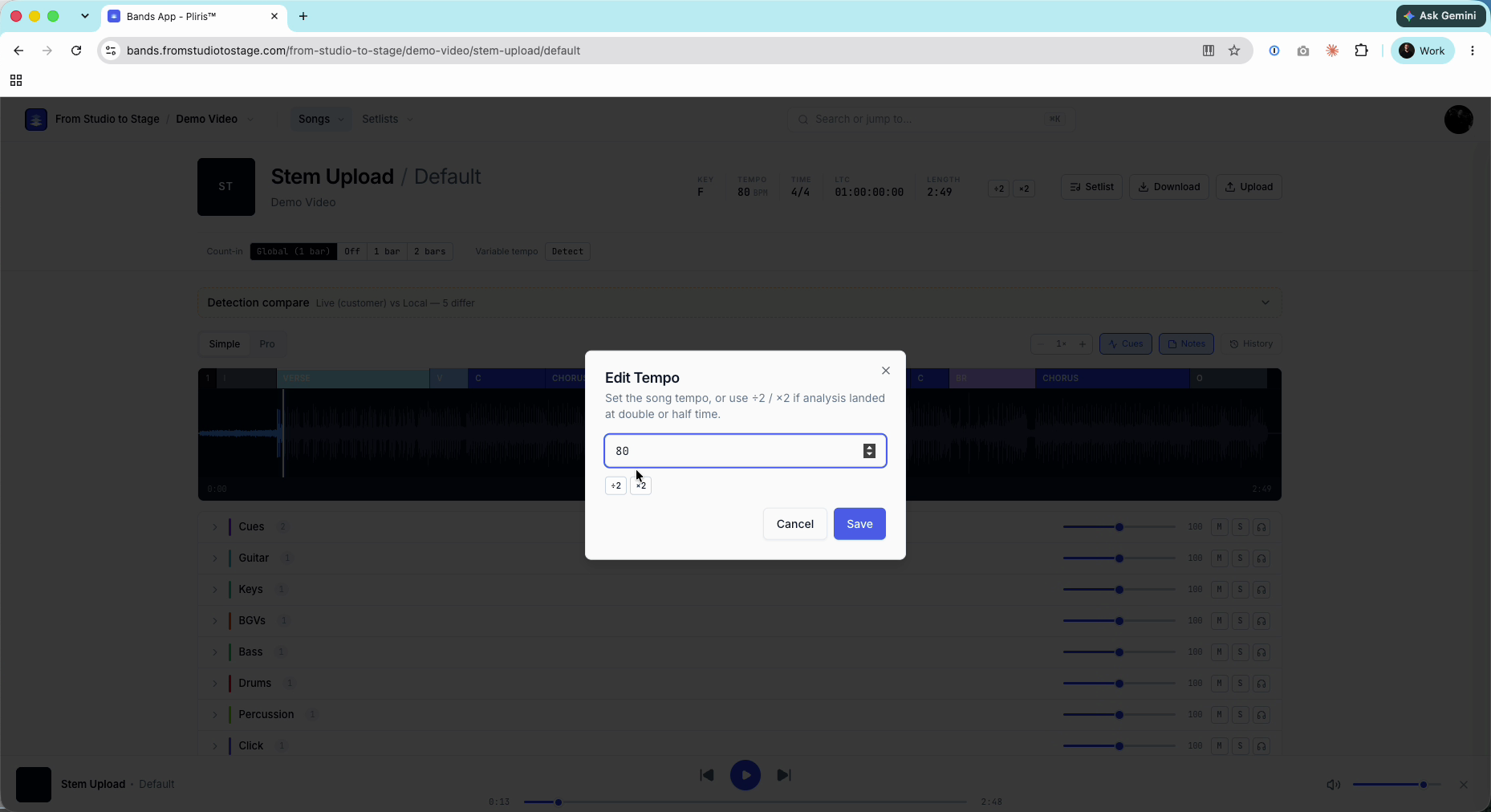
- Click ×2 to double the tempo, or ÷2 to halve it. The ÷2 and ×2 buttons next to the tempo in the header do the same thing.
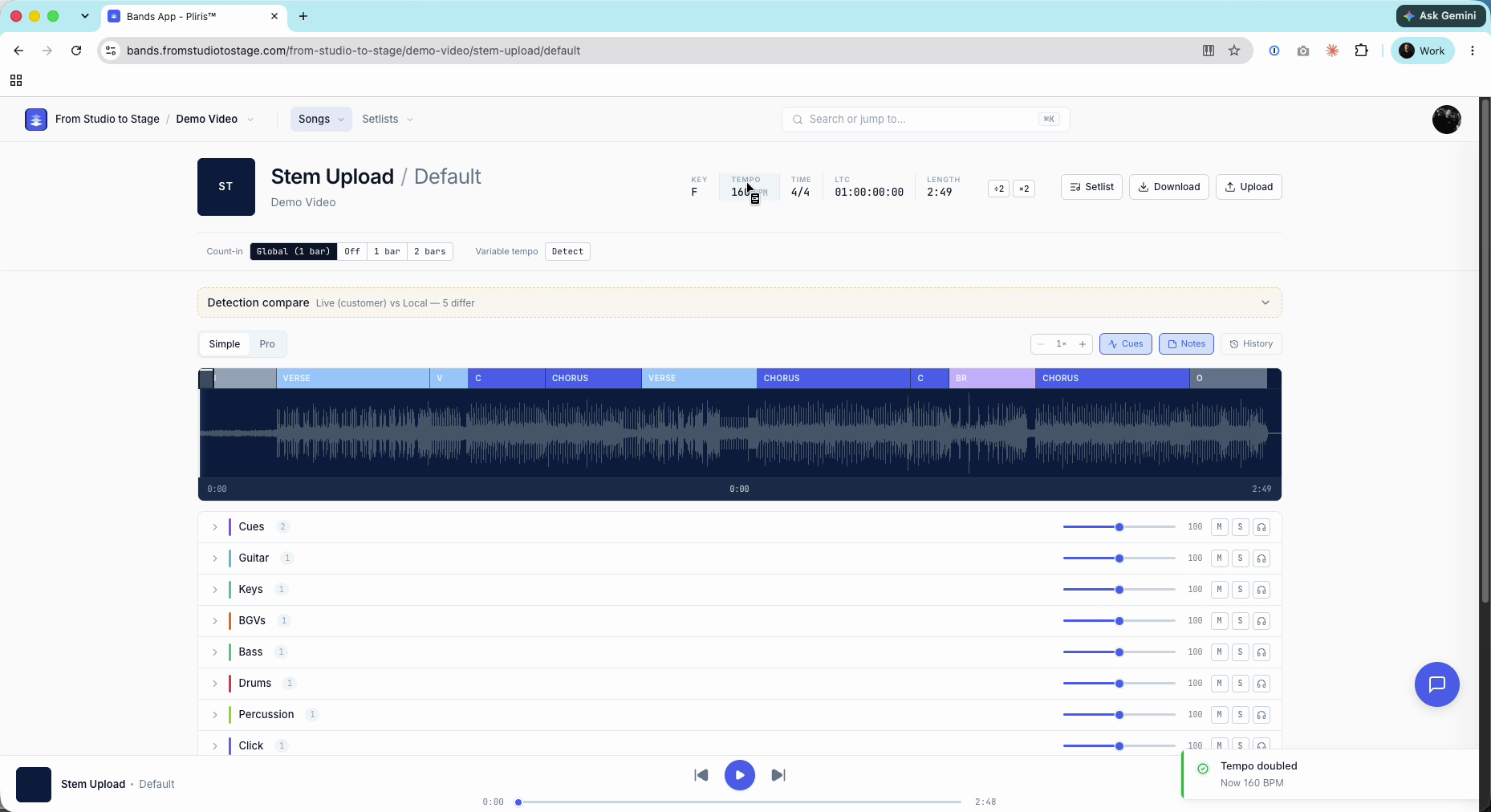
A tempo that's slightly off
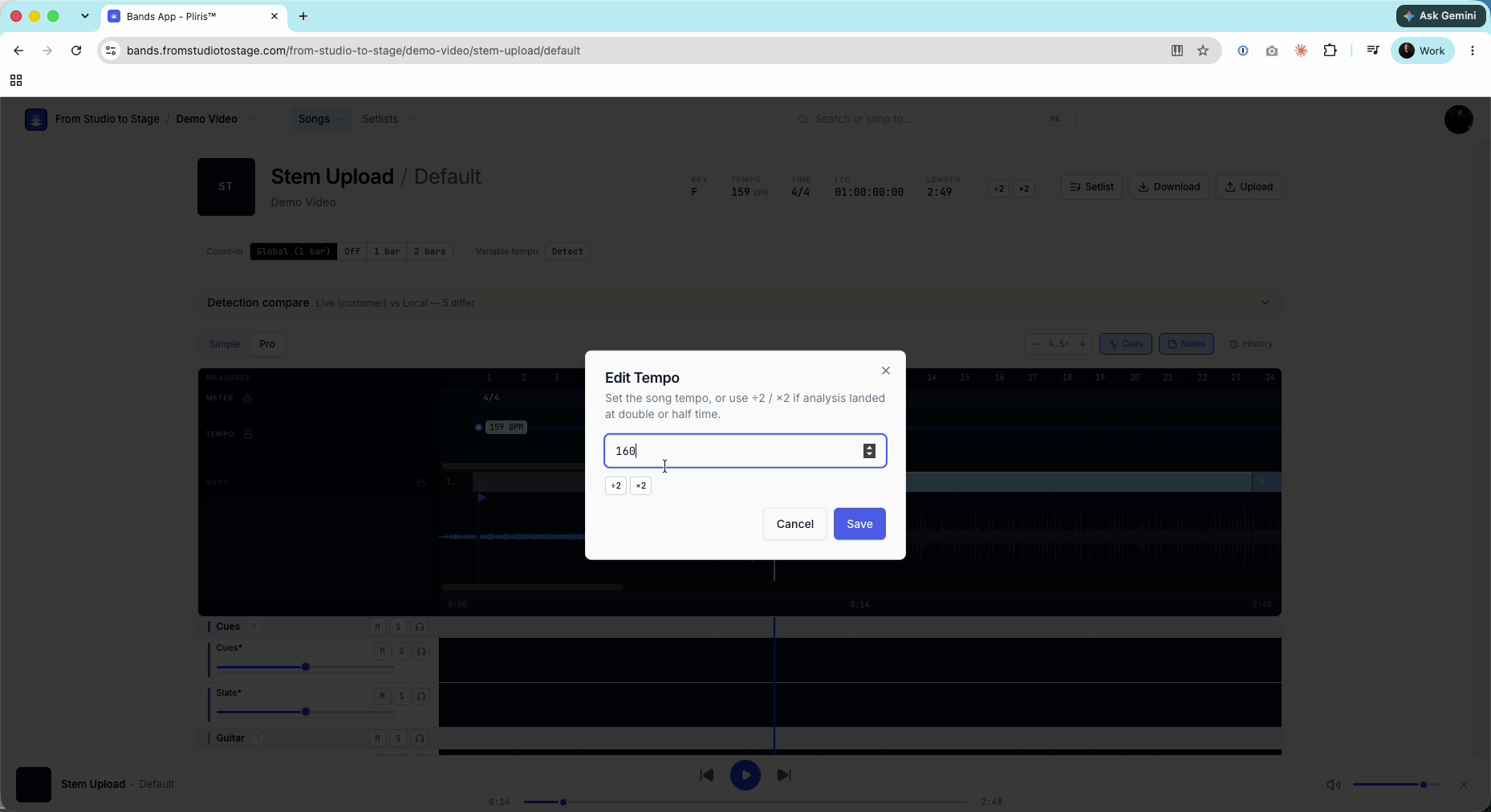
If the click drifts out of time with your tracks, the tempo is a little wrong (for example 159 instead of 160). In Pro mode (press Tab) you'll see the stems sit ahead of or behind the beat lines.
- Right-click the Tempo in the header.
- Type the correct tempo and click Save. The grid lines up with your stems.
Songs with tempo changes
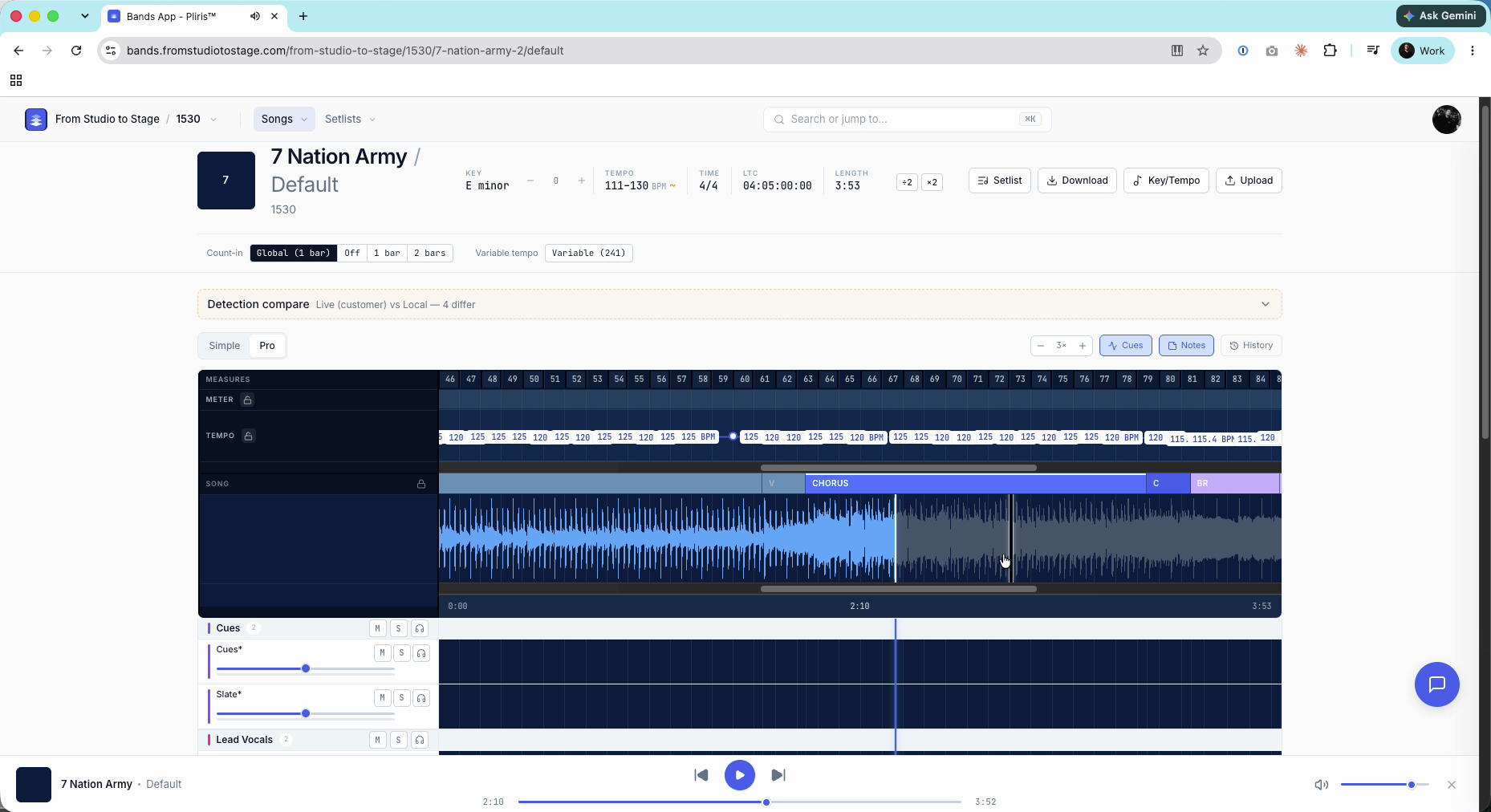
When analysis finds tempo changes, the header shows a range (for example 111–130 BPM) with a small ~.
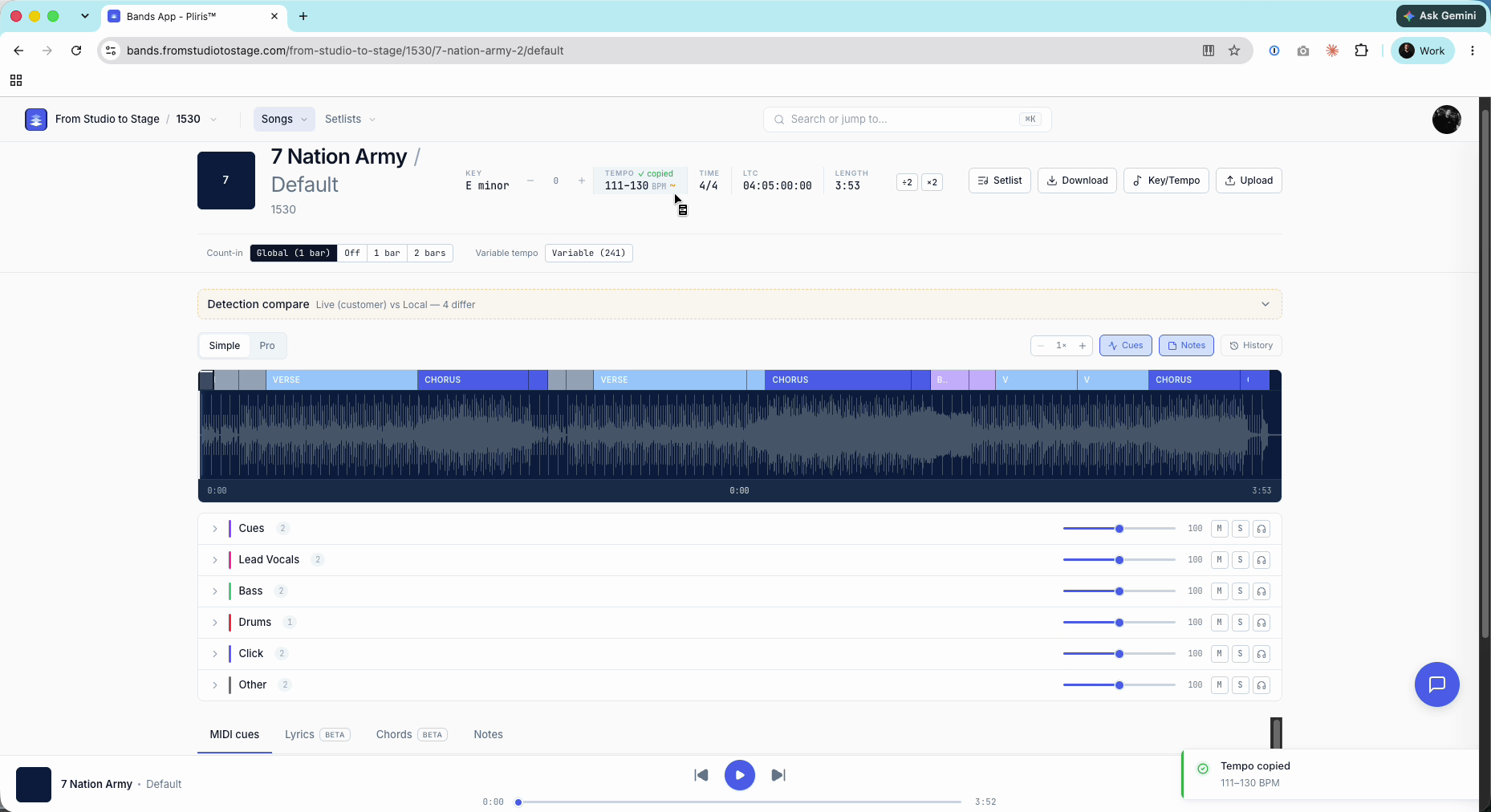
- Press Tab for Pro mode. The Tempo lane shows each tempo point as a BPM label.
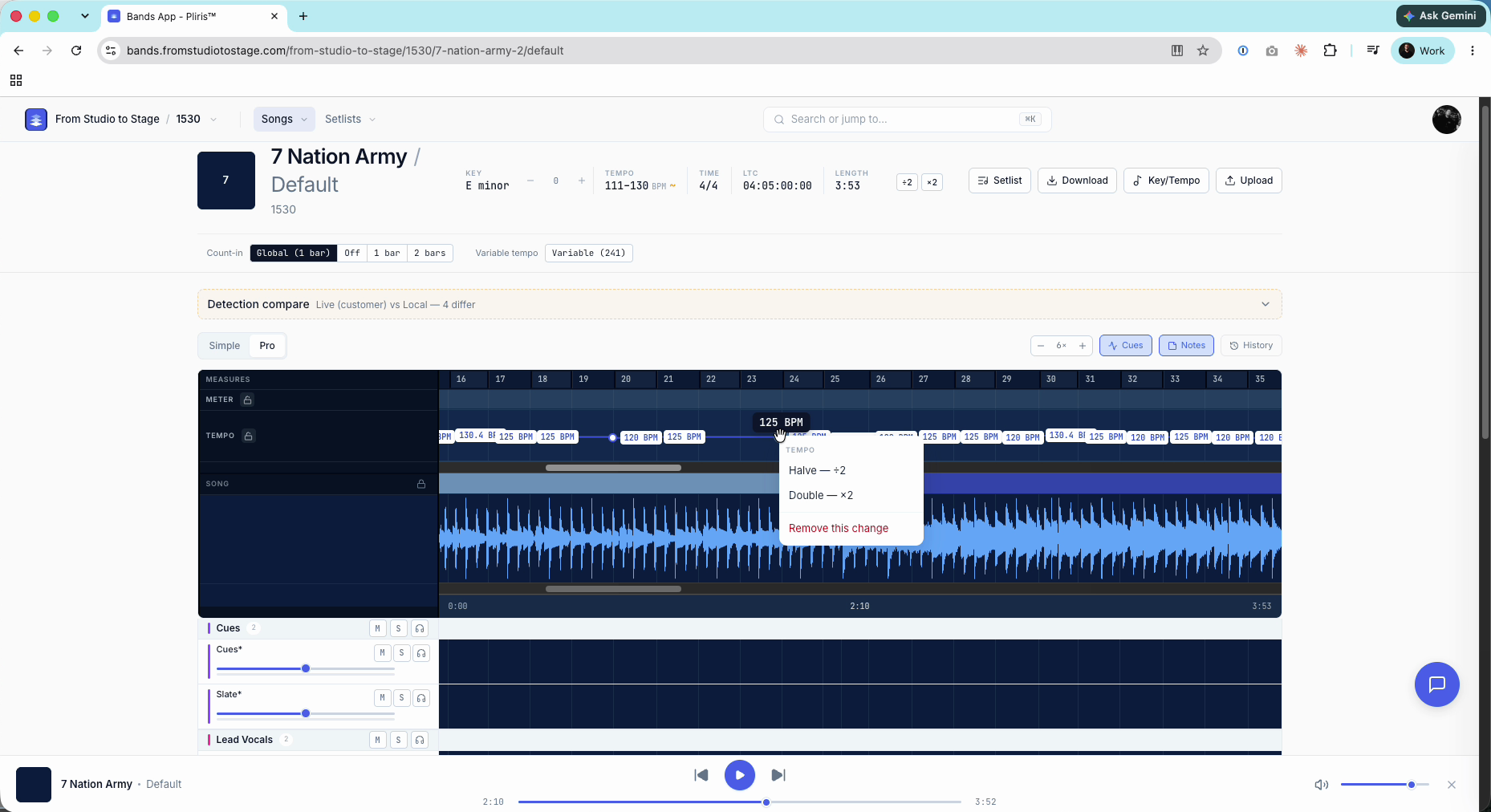
- Right-click a point for Halve (÷2), Double (×2) or Remove this change, or drag it up or down to set a new BPM.
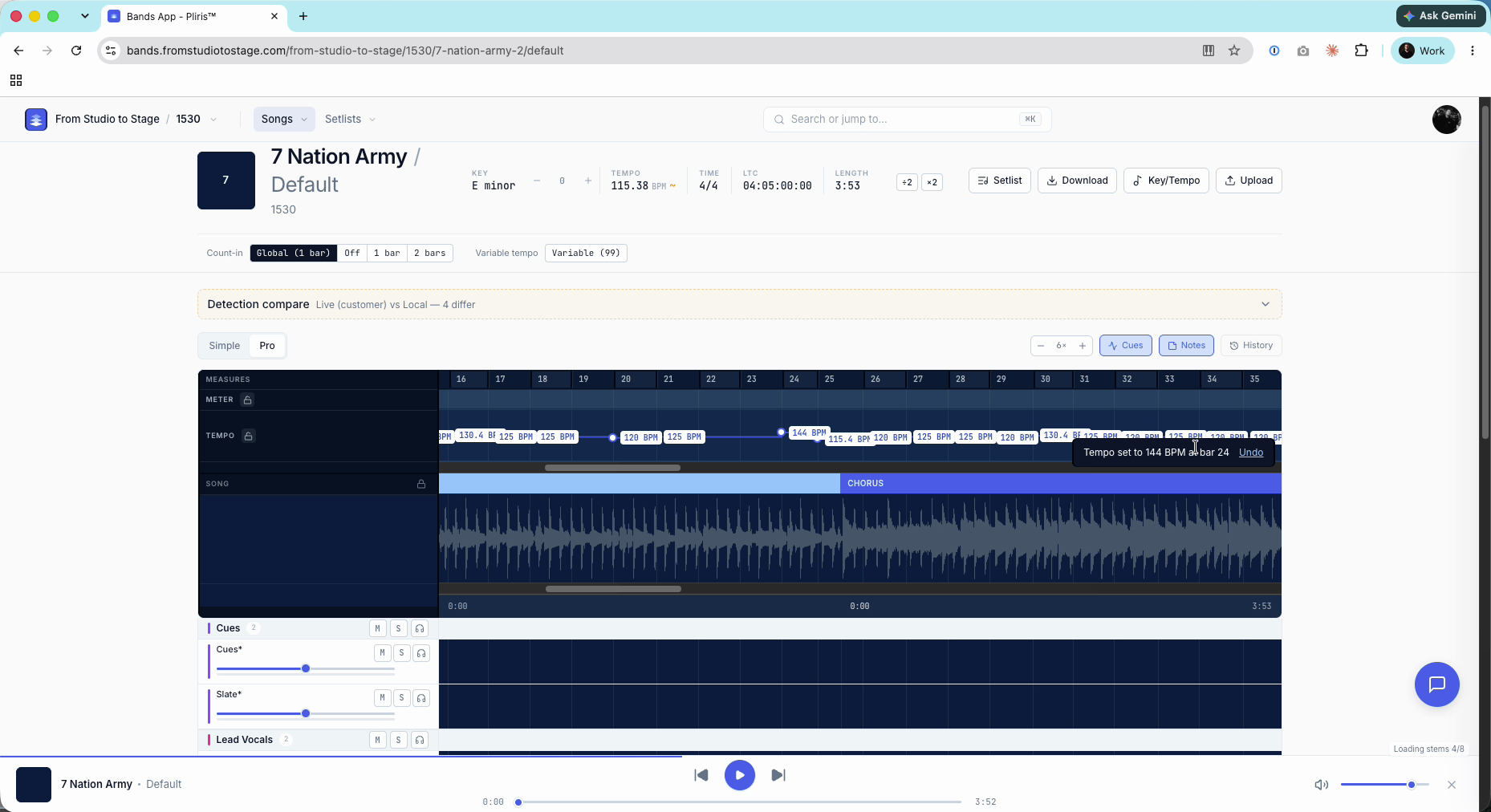
- Each change shows a toast with Undo. Click it straight away to reverse that change.
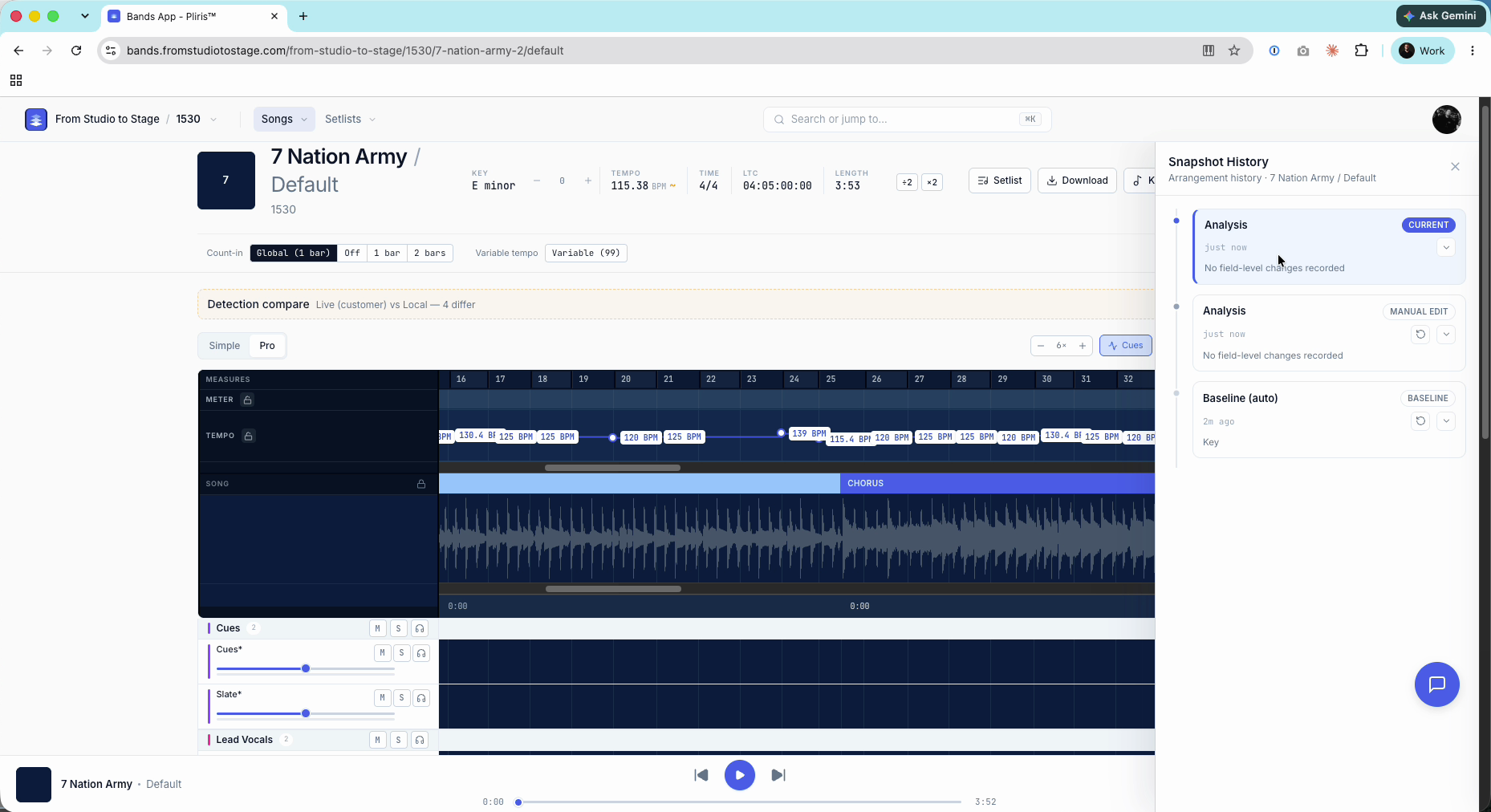
To roll back several edits at once, click History and restore an earlier version, such as the original Analysis. See Snapshot History.
Pro tip: After you delete a tempo change, refresh the page before you press Play.
For the full grid (tempo, meter and sections) see Editing the Grid: Tempo, Meter and Sections and Setting the Tempo of a Song.
Frequently asked questions
Why does Pliris show half (or double) my song's tempo?
Analysis can count the same song at half or double time. Right-click the tempo and click ×2 or ÷2.
Should I re-upload a song to fix its tempo?
No. Analysis gives the same result again. Edit the tempo on the song page instead.
Does changing the tempo change my stems?
No. It changes the grid and the click. Your stems keep playing exactly as recorded.
How do I undo several tempo edits?
Open History and restore the version from before your edits. Undo on the toast only reverses the latest change.
My click drifts out of time. What's wrong?
The tempo is slightly off. Right-click it, type the exact tempo and click Save.