Updating Your Set's Arrangements from Ableton
Export your set, rehearse and edit it in Ableton, drop the one file back on the setlist — and update each arrangement or spin up new versions, your call, song by song.
The best part of rehearsal is when the whole show tightens up at once — a mute here, a re-cut chorus there, a couple of songs reordered. With Pliris you don't have to carry all that back into the app song by song. You drop one file on the setlist, and it lands everywhere.
The round-trip
- Export your set to Ableton. From the setlist, export the show as a Live set — see Exporting Your Show Back to Ableton.
- Rehearse and edit it. Work the set in Ableton like you always would. Change whatever needs changing, across as many songs as you like.
- Drop it back. Drag that same
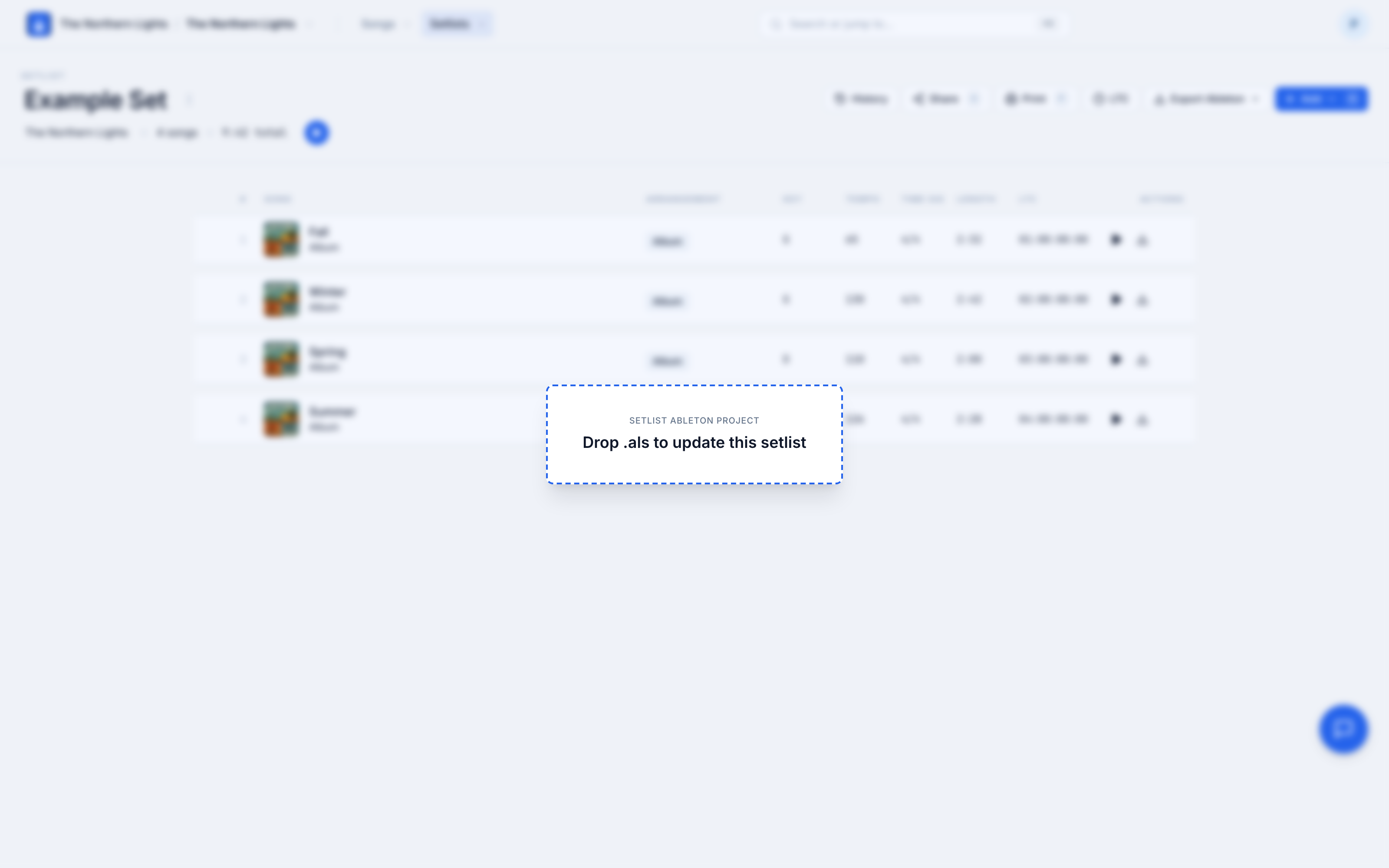
.alsonto the setlist page. A Drop .als to update this setlist overlay appears; let go and Pliris reads the file.
Choose what happens, song by song
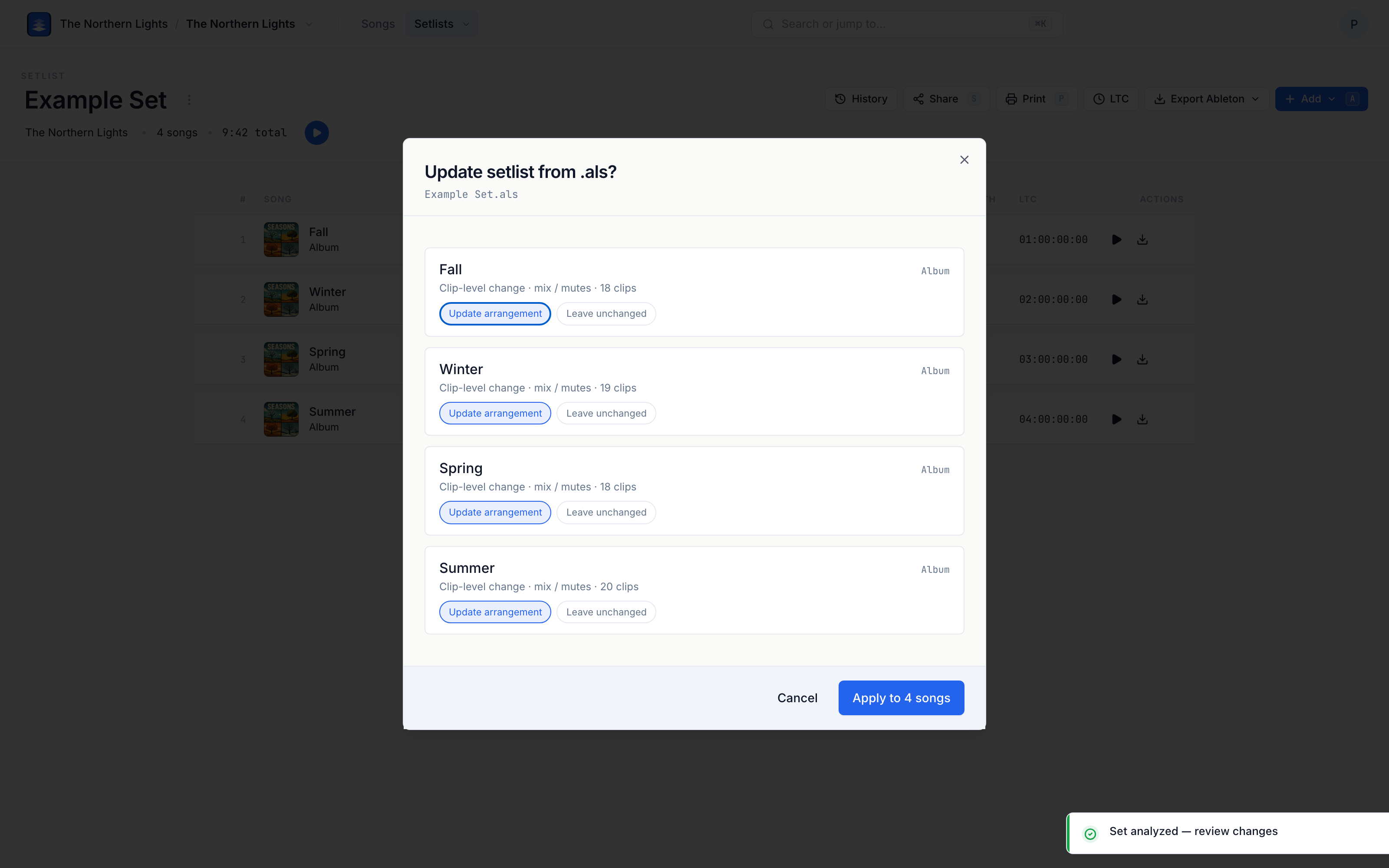
Pliris matches each song in the file to the songs in your set, then shows you what changed in each one — and lets you decide what to do with it. There are two kinds of change, with different options:
Clip-level changes — mutes, mix, moved or deactivated clips:
| Option | What it does |
|---|---|
| Update arrangement (default) | Updates the existing arrangement in place — a new version on its history. |
| Leave unchanged | Skips this song. |
Structural changes — sections added, removed, or reordered:
| Option | What it does |
|---|---|
| New arrangement (default) | Creates a new arrangement of the song and swaps it into the set, leaving the original untouched. You can rename it right there. |
| Overwrite existing | Applies the change to the existing arrangement instead. |
| Leave unchanged | Skips this song. |
Why the split? A muted track is clearly the same arrangement, tweaked — so the default updates it. Re-cutting the sections often means you've built a genuinely different version (a radio edit, a short version), so the default protects the original and makes a new one. Either default is one click to change.
Reorder, and confirm
If you moved songs around in Ableton, Pliris notices — Song order changed — and offers to match your set's order to the file. Leave it on to reorder, turn it off to keep your current order.
When it all looks right, click the confirm button at the bottom of the review. Its label tells you exactly what's about to happen — usually Apply to 3 songs (however many you're changing), with + reorder on the end when the running order changes too. If the only thing changing is the order, it reads Reorder & snapshot.
Pliris applies every choice in one pass, reorders the set if you asked it to, and you're done — each updated song's on-page player reflects the new version immediately.
Everything's saved
The set gets a version, and so does every arrangement you updated — all in Snapshot History. So a big rehearsal rework is completely reversible: if a change doesn't survive the next run-through, restore the version from before.
Good to know
- Songs are matched by name, then order. If a song in the file doesn't match anything in the set (or vice versa), Pliris flags it as unmatched rather than guessing.
- New arrangements are named for you. A forked arrangement gets a suggested name you can edit before you confirm.
- You need edit access — manage on the band (or band admin).
- Nothing changes until you confirm. The review is read-only; the confirm button (Apply to N songs, or Reorder & snapshot if you're only reordering) is the only thing that writes.
Frequently asked questions
Will dropping an .als on my setlist overwrite my arrangements automatically?
No. Nothing changes until you confirm — the per-song review is read-only, and the confirm button is the only thing that writes. It reads Apply to N songs (plus + reorder if the order changed), or Reorder & snapshot when you're only reordering. For every changed song you choose whether to update the existing arrangement, create a new one, or leave it unchanged.
What happens if I changed a song's sections in Ableton?
For structural changes — sections added, removed, or reordered — the default is to create a new arrangement and swap it into the set, leaving the original untouched (you can rename it right there). You can switch to overwriting the existing arrangement or leaving the song unchanged with one click.
How does Pliris match the songs in the file to the songs in my set?
Songs are matched by name, then order. If a song in the file doesn't match anything in the set (or vice versa), Pliris flags it as unmatched rather than guessing.
Does Pliris reorder my setlist to match the Ableton file?
Only if you let it. When Pliris detects that the song order changed, it offers to match your set's order to the file — leave the option on to reorder, or turn it off to keep your current order.
Can I undo a set-wide update from Ableton?
Yes. The set gets a version and so does every arrangement you updated, all in Snapshot History — so a big rehearsal rework is completely reversible by restoring the version from before.
Where to go next
- Build the set, export it and update it, start to finish (with the course lesson) → Building a Set and Updating It from Ableton.
- One song at a time → Updating an Arrangement from Ableton.
- Getting the set into Ableton → Exporting Your Show Back to Ableton.
- Every version, and how to restore → Snapshot History.
Stuck at any point, click the support bubble in the bottom-right corner of any page, or email support@fromstudiotostage.com. You'll hear back within 24 hours.