Snapshot History — Every Version of Your Work
Pliris saves a version every time you change an arrangement or setlist. See exactly what changed, and restore any version — safely, because restoring is itself undoable.
There's no Save Snapshot button in Pliris™ — and that's the point.
Every time you change an arrangement or a setlist, Pliris quietly saves a version of it. Rename a section, regroup your stems, fix a lyric, drop in a new .als, reorder a set — each one lands in a history you can scroll back through. If something goes sideways an hour before doors, you can see exactly what changed and put it back.
And putting it back is safe: restoring saves a new version on top, so the restore itself is undoable. You can never paint yourself into a corner.
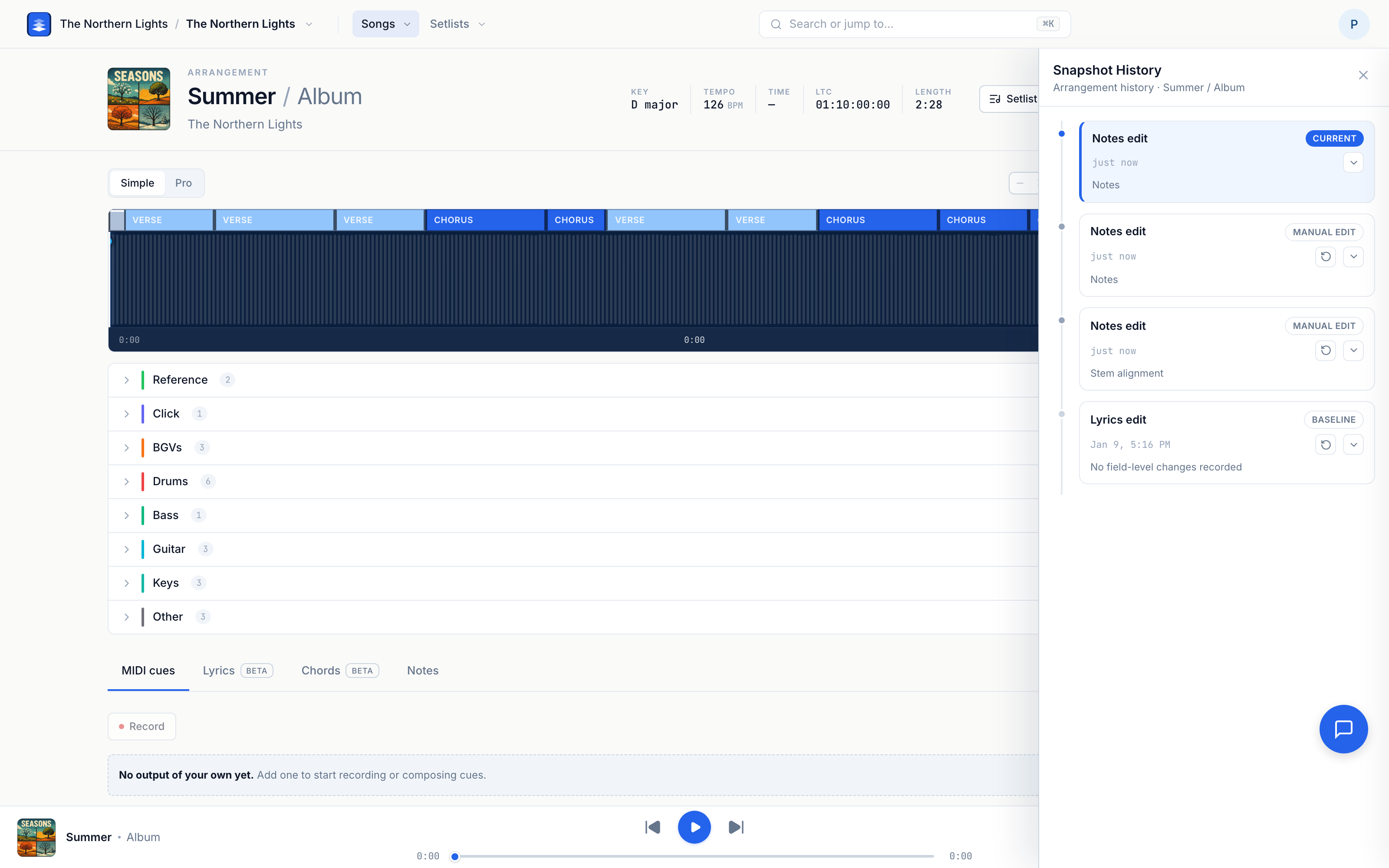
Opening the history
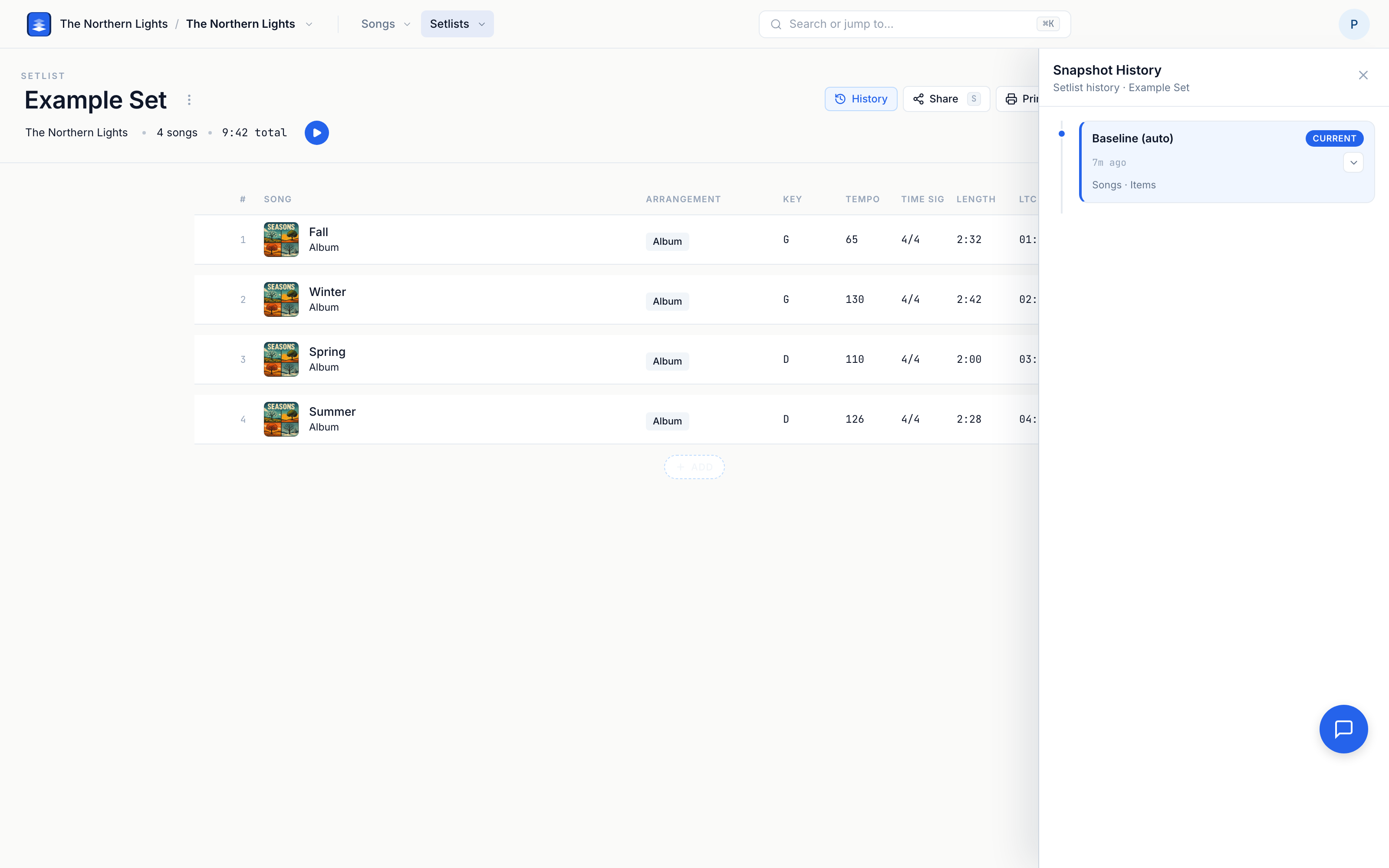
Look for the History button.
- On an arrangement — in the player toolbar, alongside the other player controls.
- On a setlist — first button in the toolbar at the top of the set.
The Snapshot History panel slides in from the right. The page stays live behind it, so you can keep working with it open.
Pro tip: History is only available if you can edit. You need manage access on the band (or band admin). Members with view or download access won't see the button.
What gets saved — arrangements
You don't have to do anything. A version is saved when you:
- Edit arrangement details. Right-click (or Edit) changes — key/tempo, sections, stems, cues — land in history as you save them; an Edit-mode sitting still batches into one version when you leave it.
- Drop an
.alsonto the arrangement to update it from Ableton. - Edit lyrics, chords, MIDI cues, voice cues, or notes.
- Upload stems, or when analysis finishes.
What gets saved — setlists
- A baseline the first time you open a setlist that has no history yet.
- An auto-checkpoint about 10 seconds after you stop editing — or when you close the tab or navigate away. Pliris won't write a version if nothing actually changed.
- When you drop an
.alsonto the setlist and confirm the review.
A setlist version records which arrangements are in the set and what order they're in — not what's inside each arrangement. Every arrangement keeps its own separate history. So restoring a setlist puts the running order back; it doesn't undo edits you made inside a song.
Update from Ableton, mid-rehearsal
History is what makes the fastest thing in Pliris safe. You can edit in Ableton during rehearsal and push it straight to the page — and because every push is a version, you can always roll it back.
One arrangement. Change a song in Ableton — mute a track, deactivate a clip, duplicate a chorus — and drop the .als onto its arrangement page. Pliris shows you exactly what it read, you click Update arrangement, and the on-page player updates in place. No re-upload. → Updating an Arrangement from Ableton.
Your whole set. Export your setlist to Ableton, rehearse it, edit across songs, and drop that one set file back on the setlist page. Pliris matches each song and shows you what changed — and for each one you choose what happens:
| What changed in the song | Your options |
|---|---|
| Clip-level — mutes, mix, clip placement | Update arrangement (updates the existing one) · Leave unchanged |
| Structural — sections added, removed, or reordered | New arrangement (creates a fresh one and swaps it into the set) · Overwrite existing · Leave unchanged |
Confirm — the button reads Apply to N songs (plus + reorder if the order changed) — and Pliris applies every choice in one pass. → Updating Your Set's Arrangements from Ableton.
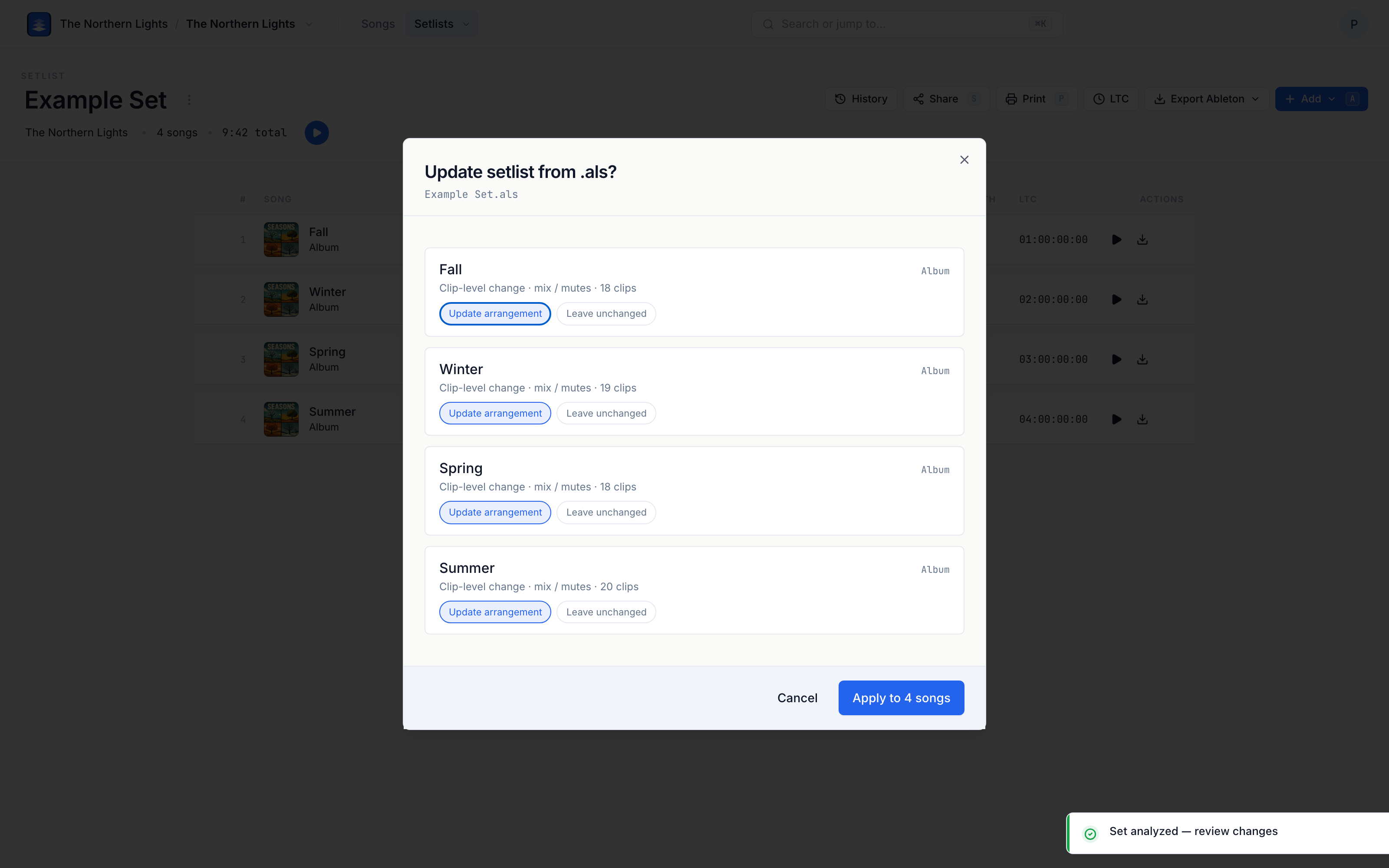
Every one of those updates lands in the arrangement's history (and the set's), so if a rehearsal idea doesn't land, you restore the version from before it.
Reading the history
Newest is at the top. Each row is a version, tagged with where it came from:
| Label | What it means |
|---|---|
| Current | The version you're looking at right now. |
| Manual edit | Arrangement details you changed (right-click or Edit). |
| .als import | An Ableton file was dropped in. |
| Checkpoint | A saved point in a setlist's editing session. |
| Baseline | The very first version — where the history starts. |
| Auto | A quiet, routine save. Shown as a one-liner so it stays out of your way. |
Seeing exactly what changed
Click the chevron on any row (Show changes) and it expands to show a plain-English diff — only the things that actually moved:
- Arrangements: Sections, Tempo, Tempo map, Length, Key, Time sigs, Locators, Click, Mix, Stem alignment, Stem groups, MIDI cues, Voice cues, Lyrics, Chords, Notes, LTC.
- Setlists: Songs added or removed, and Order changed / Moved when you've re-run the set.
Renames show as a before-and-after, e.g. Chorus 1 → Chorus, so you can spot the one thing you didn't mean to touch.
Restoring a version
- Find the version you want and click Restore this version.
- Pliris asks you to confirm — "Restore this version? It's saved as a new snapshot on top — so this is fully undoable."
- Click Confirm restore.
You'll get a Restored confirmation, and a new version appears at the top of the history mirroring the state you went back to.
Nothing is ever overwritten or thrown away. The version you restored from is still sitting in the history, so if you change your mind, restore that one instead.
One exception worth knowing: restoring a setlist puts back its songs, order, description, and LTC start hour — but it does not rename the setlist. That's deliberate, so a restore can't silently change your setlist's name and link.
Good to know
- It's on for everyone. Snapshot History isn't a beta or a paid add-on. If you can edit, you have it.
- Nothing to turn on, nothing to remember. There's no "save version" step to forget before a show.
- Restoring is not destructive. It moves forward, never back. A restore is just another version.
- Versions can't be deleted individually. A history goes away only if you delete the arrangement or setlist it belongs to.
- Naming a version isn't available in the web app yet — versions are identified by what changed and when.
Frequently asked questions
Do I have to save versions manually in Pliris?
No. There's no Save Snapshot button — Pliris automatically saves a version every time you change an arrangement or a setlist, so there's nothing to turn on and nothing to remember before a show.
Can I undo a restore if I picked the wrong version?
Yes. Restoring saves the restored state as a new version on top of the history, so the restore itself is fully undoable — the version you restored from is still in the history, and you can restore that one instead.
Why can't I see the History button?
Snapshot History is only available if you can edit — you need manage access on the band (or band admin). Members with view or download access won't see the History button.
Does restoring a setlist version undo edits inside its songs?
No. A setlist version records which arrangements are in the set and their order, not what's inside each arrangement — every arrangement keeps its own separate history, so restoring a setlist puts the running order back without undoing edits made inside a song.
Is Snapshot History a paid or beta feature?
No. Snapshot History is on for everyone — if you can edit an arrangement or setlist, you have it, with no beta toggle or paid add-on.
Where to go next
- Editing arrangements in Ableton? See Updating an Arrangement from Ableton.
- Reworking a whole set? See Updating Your Set's Arrangements from Ableton.
- New to setlists? See Building and Sharing a Setlist.
- Getting stems in? See Uploading and Analyzing Your Stems.
- Working from Ableton? See Importing a Song from Ableton Live and Exporting Your Show Back to Ableton.
Stuck at any point, click the support bubble in the bottom-right corner of any page, or email support@fromstudiotostage.com. You'll hear back within 24 hours.