Updating an Arrangement from Ableton
Change a song in Ableton — mutes, deactivated clips, a duplicated chorus — drop the .als on its arrangement, and the on-page player updates in place. No re-upload.
You're in rehearsal and the song needs a change. You do it where you'd do it anyway — in Ableton. Mute the doubled guitar, deactivate the pad clip, duplicate the last chorus for a bigger ending. You hit save.
Now you don't re-upload anything. You drop that Live set onto the arrangement, and the on-page player becomes the new version — in seconds, in front of the band.
Drop it on the arrangement
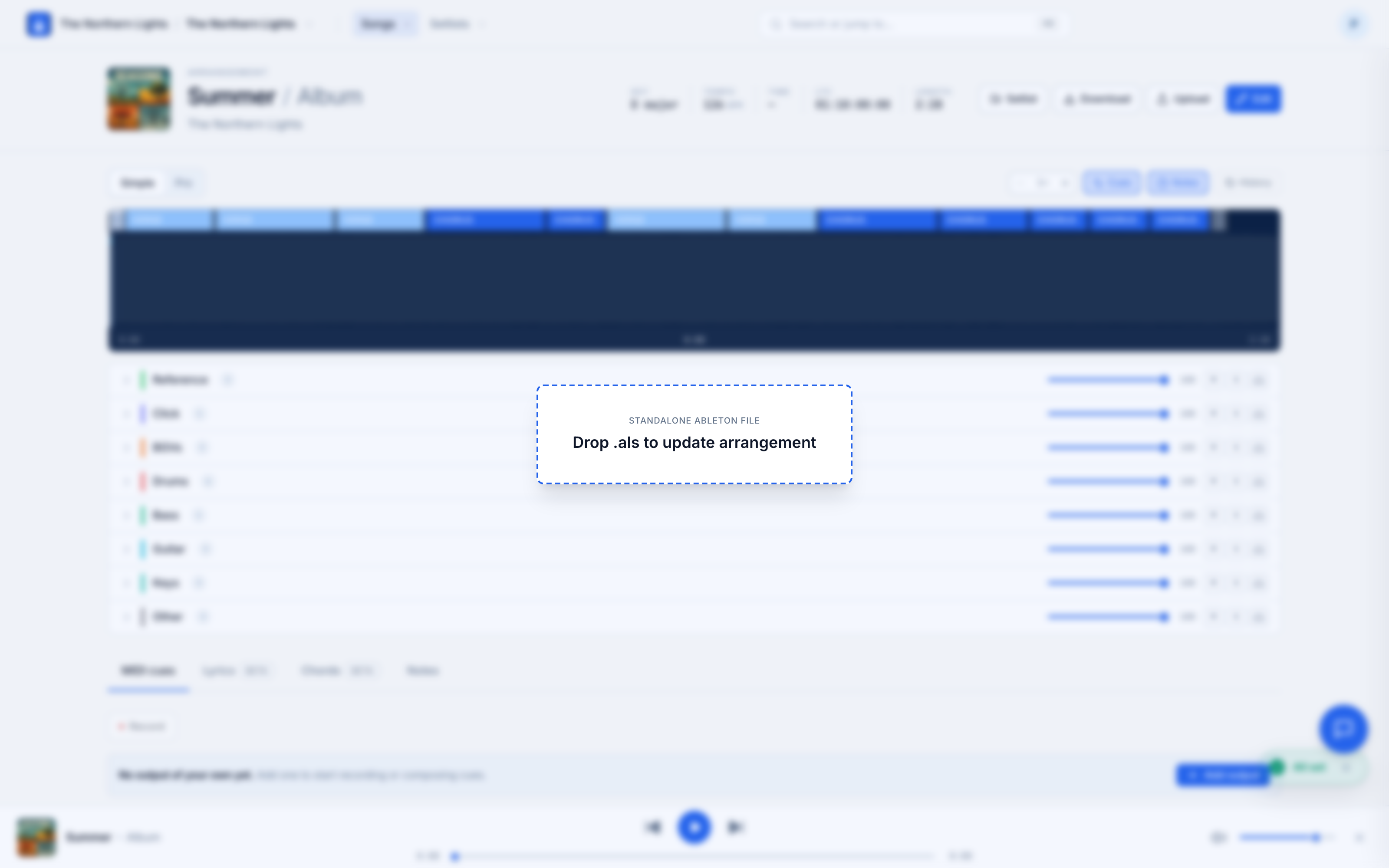
Open the arrangement page and drag your edited .als anywhere onto it. A Drop .als overlay appears — let go, and Pliris reads the file.
You're updating the arrangement you already have, so your stems stay put — Pliris isn't re-uploading audio, it's re-reading what changed around the audio: your mutes, your clip placement, your sections, your tempo.
Review what it caught
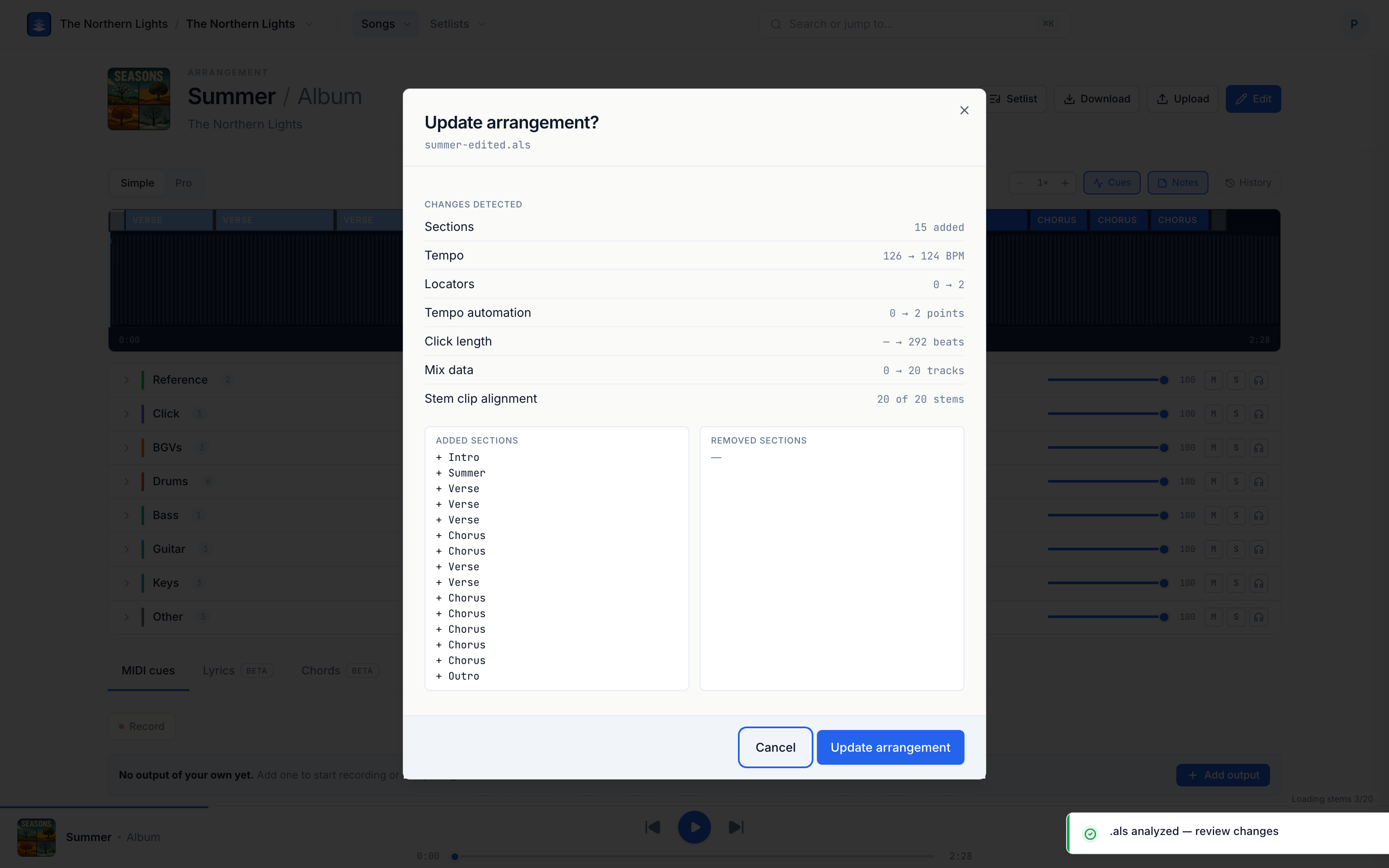
Before anything changes, Pliris shows you a plain-English summary of what it read from the file:
| It reads | From your Ableton edit |
|---|---|
| Sections | Renamed, added, removed, or duplicated sections |
| Tempo and Tempo automation | A new tempo, or tempo changes across the song |
| Mix data | Track volumes and mutes |
| Stem clip alignment | Clips you moved, trimmed, or deactivated |
Renames read back as a before-and-after, so a stray change is easy to spot. For the full field list (locators, click length, time signature, and what never gets replaced), see What Gets Imported When You Update from Ableton.
When it looks right, click Update arrangement.
The player updates in place
That's it — the on-page player now reflects your edit, and you'll see an Arrangement updated from .als confirmation. Whoever's rehearsing off the page is now playing the version you just built, muted guitar and longer ending and all.
It's saved, so you can experiment
Every drop is captured in the arrangement's Snapshot History as an .als import version. So make the bold call in the room — if it doesn't land, open the history and restore the version from before. Even that restore is undoable, so you can't lose anything.
Good to know
- Your stems aren't touched. This updates structure, mix, and clip alignment — it doesn't replace or re-analyze your audio. To bring in new audio, upload stems as usual.
- You need edit access. Updating an arrangement requires manage access on the band (or band admin).
- One song at a time here. Dropping a single-song
.alsupdates that arrangement. To push edits across a whole show at once, see Updating Your Set's Arrangements from Ableton.
Frequently asked questions
Do I have to re-upload my stems when I update an arrangement from Ableton?
No. Dropping an edited .als onto the arrangement page updates the arrangement you already have — your stems stay put, and Pliris re-reads only what changed around the audio: mutes, clip placement, sections, and tempo. To bring in new audio, upload stems as usual.
What changes does Pliris pick up from the .als file?
Pliris reads sections (renamed, added, removed, or duplicated), tempo and tempo automation, mix data like track volumes and mutes, and stem clip alignment for clips you moved, trimmed, or deactivated — and shows you a plain-English summary before anything changes.
Can I undo an arrangement update from Ableton?
Yes. Every .als drop is captured in the arrangement's Snapshot History as an .als import version, so if the change doesn't land you can restore the version from before — and even that restore is undoable.
Can I update several songs at once by dropping one Ableton file?
Not on an arrangement page — dropping a single-song .als there updates that one arrangement. To push edits across a whole show at once, drop the set's file on the setlist page instead: see Updating Your Set's Arrangements from Ableton.
Where to go next
- The course walkthrough, including what doesn't round-trip yet → Re-importing Your Ableton Edits.
- What to change in Ableton first → Making Rehearsal Edits in Ableton.
- Exact import field list → What Gets Imported When You Update from Ableton.
- Whole set at once → Updating Your Set's Arrangements from Ableton.
- Every version, and how to restore → Snapshot History.
- Getting a set into Ableton in the first place → Exporting Your Show Back to Ableton.
Stuck at any point, click the support bubble in the bottom-right corner of any page, or email support@fromstudiotostage.com. You'll hear back within 24 hours.