Importing a Song from Ableton Live
Bring a song in from Ableton in one drop. Collect All and Save, zip the project folder, drop it on the uploader — Pliris reads your tempo, sections, and arrangement AND pulls in your stems together. (A bare .als is structure-only.)
Already built the song in Ableton Live? You don't have to start over — and you don't have to bring it in piece by piece. Zip up your Ableton project and drop it on Pliris™. In one step it reads your structure — tempo, sections, arrangement — and pulls in your stems.
The one thing worth understanding first is the difference between an Ableton .als file and an Ableton project. It's the source of almost every "where did my audio go?" moment, and it's an Ableton concept — not a Pliris one.
First, .als vs. project — the thing Ableton doesn't make obvious
When you save in Ableton, the .als file is just the set: the arrangement, tempo, locators, mixer, and a list of references to your audio. It does not contain the audio itself. Your stems and samples live as separate files on disk, and the .als only points to where they are.
Your project is the whole folder — the .als file plus the Samples folder that holds the actual audio it points to.
So:
- A
.alson its own = structure only. Tempo, sections, arrangement — no audio. - The whole project = structure and your stems.
If you've ever emailed someone "the Ableton file" and they opened it to a wall of "Media files are missing," this is why. To move a song somewhere else — including into Pliris — you move the project, not just the .als.
Import your whole project (the way you'll want almost every time)
This brings the song in complete — structure and stems — in a single drop.
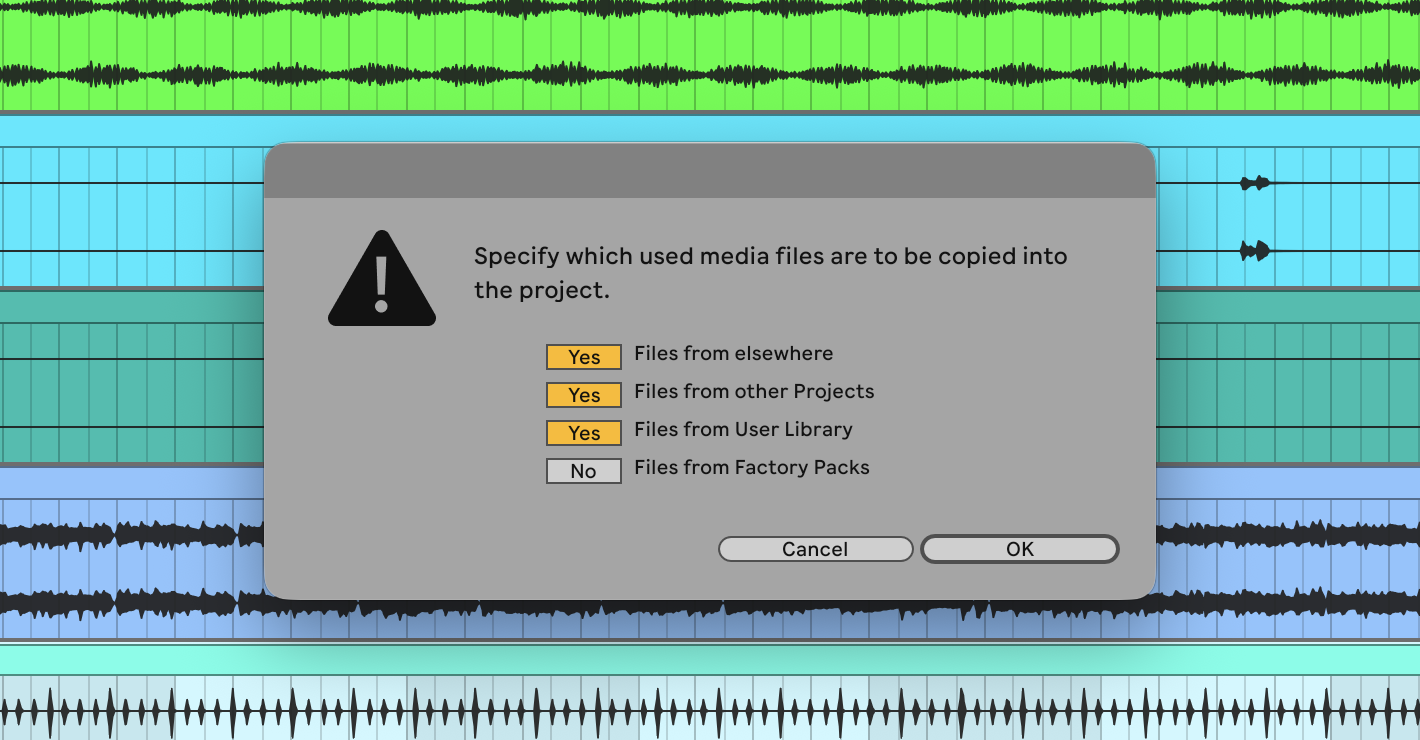
- In Ableton: File → Collect All and Save. A dialog asks which sources to copy into the project. Set Files from elsewhere, Files from other Projects, and Files from User Library to Yes — those hold your actual stems and samples. Files from Factory Packs can stay No: those are Ableton's built-in sounds, and collecting them just bloats the zip (only switch it to Yes if a track plays a raw factory sample directly). Click OK. This copies your referenced audio into the project's own
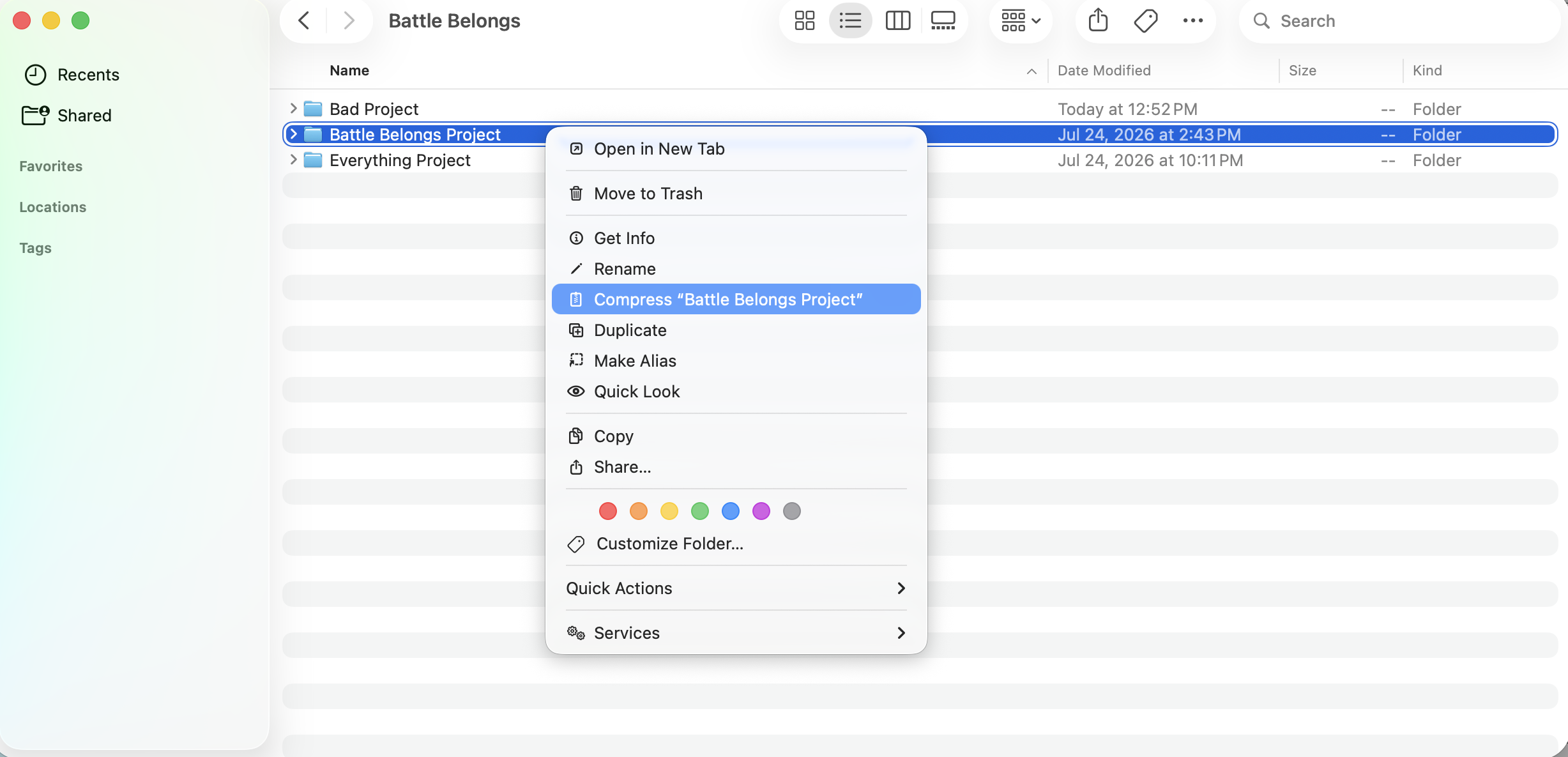
Samplesfolder, so it travels with the set — anything left uncollected stays behind on your machine and won't be in the zip to upload. - Zip the project folder. On a Mac, right-click the folder → Compress. On Windows, right-click → Send to → Compressed (zipped) folder. You want a single
.zipof the whole project. - In Pliris: open the song and its arrangement and drop the
.zipon the drop zone. - Pliris reads the
.alsinside for tempo, sections, and arrangement, and stages the referenced stems. Review the list, then Import (Ableton keeps Import + Cancel — ordinary stem drops have no Confirm button).
That's it — one drop gets you the arrangement laid out on the page and your stems uploading. Ableton sidecar files (like .asd analysis files) are ignored automatically, so there's no need to clean out the folder first.
No zip needed: in Files, choose Upload → Add files → This computer → Choose folder to upload an Ableton project folder that isn't zipped. A zip still works everywhere.
Pro tip: "Collect All and Save" is the whole trick. It's an Ableton command that gathers every referenced sample into the project folder. Do it, then zip the folder — and everything the song needs is inside the one file you drop.
What gets pulled in
From the .als inside your project, Pliris reads:
- The tempo map — including tempo changes across the song, not just a single headline BPM.
- Sections and markers — your locators become Pliris song sections (Intro, Verse, Chorus, Bridge, and so on), with their names intact.
- The arrangement — the overall structure and length of the song.
And from the project's Samples folder, it stages the stems those sections play against — so the timeline and the audio line up from the start.
Just want the structure? A bare .als works too
You don't always need the whole project. If the stems are already in Pliris and you only want to pull in structural changes — a renamed section, an adjusted arrangement, a moved marker — you can drop just the .als. Pliris treats that as a structure-only update: it re-reads tempo, sections, and arrangement and leaves your existing audio untouched.
That's the right tool for the round-trip, and it's covered in depth here:
- Updating one song's structure → Updating an Arrangement from Ableton
- Pushing edits across a whole show → Updating Your Set's Arrangements from Ableton
Structure-only re-imports don't cost credits. If you're out of credits you'll see a warning — ignore it. Re-reading an .als isn't re-analyzing audio; it's just pulling your structural changes back in, and it's basically instant.
Rule of thumb: First time bringing a song in, or want the audio too → upload the whole project (zip). Song already in Pliris and you just changed its structure in Ableton → drop the
.als.
A note on tempo
Warped clips in Ableton can produce a jittery tempo map, and Pliris may show a tempo range even when the song is effectively one steady tempo. That's expected — a range on the display doesn't necessarily mean a genuine multi-tempo arrangement. Pliris uses your project's base (Manual) tempo as the authoritative value.
Frequently asked questions
Should I drop the .als file or the whole project?
Drop the whole project (zipped) when you're bringing a song in for the first time or you want your stems to come along — a .als on its own is just the set file and contains no audio. Drop just the .als when the song is already in Pliris and you only want to update its structure (sections, arrangement, tempo).
Why didn't my audio come in when I imported?
You almost certainly dropped a bare .als instead of the project. The .als only references your audio — the samples live in the project's Samples folder. Run File → Collect All and Save in Ableton, zip the whole project folder, and drop that instead.
What is "Collect All and Save" and do I have to do it?
It's an Ableton command (File menu) that copies the samples your song references into the project's own folder, so the audio travels with the set. When the dialog appears, set Files from elsewhere, Files from other Projects, and Files from User Library to Yes — those hold your stems and samples. Files from Factory Packs can stay No (that's Ableton's built-in content, which just adds bloat) unless a track plays a raw factory sample. Do it before zipping — otherwise samples that live outside the project folder won't be inside the zip and won't upload.
Does re-importing an Ableton file overwrite my work or cost credits?
Re-importing an edited .als to update an existing song pulls your structural changes — sections, arrangement, tempo — back into Pliris and does not use any credits. Your stems stay put. If you're out of credits you'll see a warning you can ignore: re-importing isn't re-analyzing audio.
What does Pliris read from an Ableton Live Set?
Pliris reads the tempo map (including tempo changes across the song), your locators as named song sections (Intro, Verse, Chorus, and so on), and the overall arrangement structure and length. When you upload the whole project, it also brings in the stems those sections play against.
Why does Pliris show a tempo range when my song has one steady tempo?
Warped clips in Ableton can produce a jittery tempo map, so Pliris may display a tempo range even for an effectively single-tempo song. That's expected — Pliris uses your project's base tempo as the authoritative value.
Where to go next
- Whole show in one Ableton Live set? See Importing a Whole Ableton Live Set.
- Want to fine-tune stems after import, or upload audio separately? See Uploading and Analyzing Your Stems.
- Edited the song in Ableton and want the change to flow back? See Updating an Arrangement from Ableton.
- Ready to send a whole show back the other way? See Exporting Your Show Back to Ableton.
Stuck on an import, click the support bubble in the bottom-right of any page, or email support@fromstudiotostage.com. You'll hear back within 24 hours.