What Gets Imported When You Update from Ableton
Dropping an .als on an arrangement updates structure, tempo, mix, and clip alignment — not your stem audio. Here's exactly what Pliris reads.
When a song is already in Pliris™ and you drop a standalone Ableton .als on its arrangement, Pliris re-reads the set and updates the arrangement around your audio. Your stems stay put — this is not a re-upload and not a re-analyze.
Step-by-step UX (drop → review → Update arrangement) lives in Updating an Arrangement from Ableton. This article is the field list: what comes in, and what doesn't.
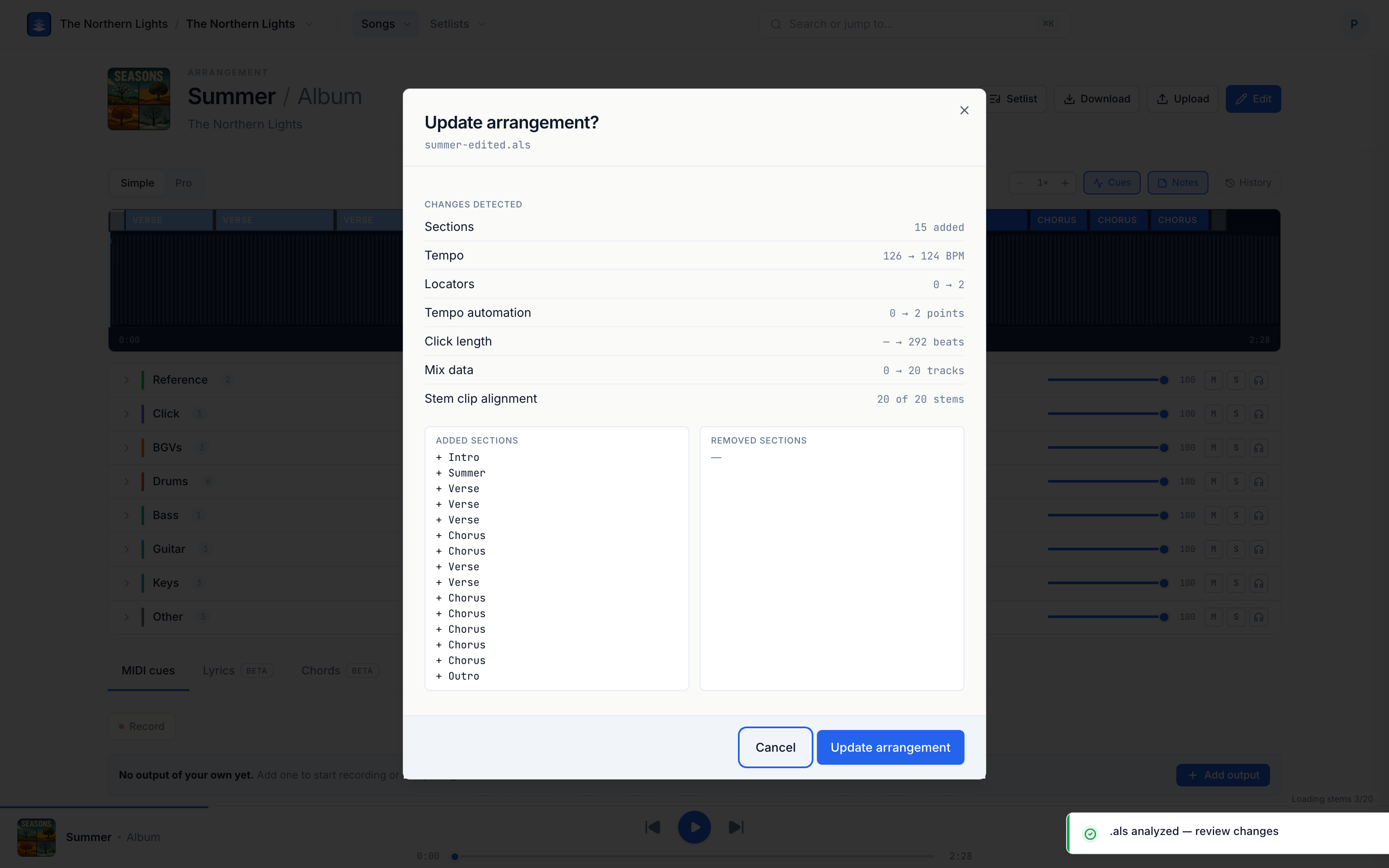
What Pliris imports from the .als
| It reads | What that means |
|---|---|
| Sections | Locators renamed, added, removed, or duplicated (shown as before → after when names change) |
| Tempo | Headline BPM for the arrangement |
| Tempo automation | Multi-point tempo map / tempo changes across the song |
| Locators | Locator count and placement that drive the section lane |
| Mix data | Track volumes and mutes matched to your stems |
| Stem clip alignment | Clips you moved, trimmed, or deactivated in Live (matched by track name) |
| Click length | Click end / length in beats when the set defines it |
| Time signature | When the set's meter differs from what's on the arrangement |
| Cues programming | Cue placement you changed in Live |
| Click programming | Click changes you made in Live |
The review dialog speaks plain English so you can spot a stray rename or tempo jump before anything is written. When it looks right, click Update arrangement.
What does not get replaced
- Stem audio files — no new WAV/MP3 upload; no analysis credits for a structure-only
.alsdrop. - Your catalog identity — song title and band membership stay as they are in Pliris unless you edit them separately.
- Click sound, cue voice and click subdivision — at the time of writing these are stored with the song, but they don't play in the Pliris player or come back in the re-export yet. Cue placement does come back. See Re-importing Your Ableton Edits.
- A full project zip's worth of new samples — that's the first import path (Importing a Song from Ableton Live), not the mid-rehearsal update.
Need new audio? Use Upload / replace stems. Need the whole project the first time? Zip after Collect All and Save.
Arrangement vs setlist drop
| Where you drop | Scope |
|---|---|
| Arrangement page | One song — that arrangement updates |
| Setlist page | Matched songs across the set — see Updating Your Set's Arrangements from Ableton |
Safety net
Every confirmed drop is stored in Snapshot History as an .als import version. Restore the previous version if the room doesn't like the change — restoring is itself undoable.
You need manage access on the band (or band admin) to update.
Frequently asked questions
Does updating from an Ableton file re-upload my stems?
No. A standalone .als update changes structure, tempo, mix, and clip alignment only. Stem files already in Pliris stay in place. Bring new audio with Upload or a project zip import.
What should I look for in the Update arrangement review?
Check section renames (before → after), tempo / tempo automation, mutes and volumes, and any clip alignment changes. If a line looks wrong, cancel and fix the set in Ableton before dropping again.
Will my tempo and count-in change?
Tempo (and tempo automation) can update from the file — remember Pliris uses that BPM for click and count-in timing, not to time-stretch audio. Count-in's Off / 1 bar / 2 bars preference is set in Pliris on the arrangement page; the import may update click length from the set when present.
Can I undo an Ableton update?
Yes — open History, find the .als import version (or the one before it), and restore. Restoring writes a new snapshot so you can undo the undo.
Where to go next
- The course walkthrough of the round trip → Making Rehearsal Edits in Ableton and Re-importing Your Ableton Edits.
- The drop-and-confirm walkthrough → Updating an Arrangement from Ableton.
- First-time project import → Importing a Song from Ableton Live.
- Tempo lives on the arrangement as metadata (it does not time-stretch stems) → Bands, Songs, Arrangements, and Setlists.
Stuck at any point, click the support bubble in the bottom-right corner of any page, or email support@fromstudiotostage.com.