How to Change Cues in Pliris
Edit MIDI cues that fire external gear, record them live, drag them in Pro view, and map section cues for Ableton templates — all from the arrangement page.
"Cues" in Pliris™ means two related things on the arrangement page (see Bands, Songs, Arrangements, and Setlists):
- MIDI cues — timed MIDI events (notes, CCs, program changes) that fire your gear during playback.
- Section cues — which Ableton template cue a timeline section maps to on export.
This page covers both. For a deeper hardware walkthrough (WebMIDI, recording, troubleshooting), see Programming MIDI Cues for External Gear.
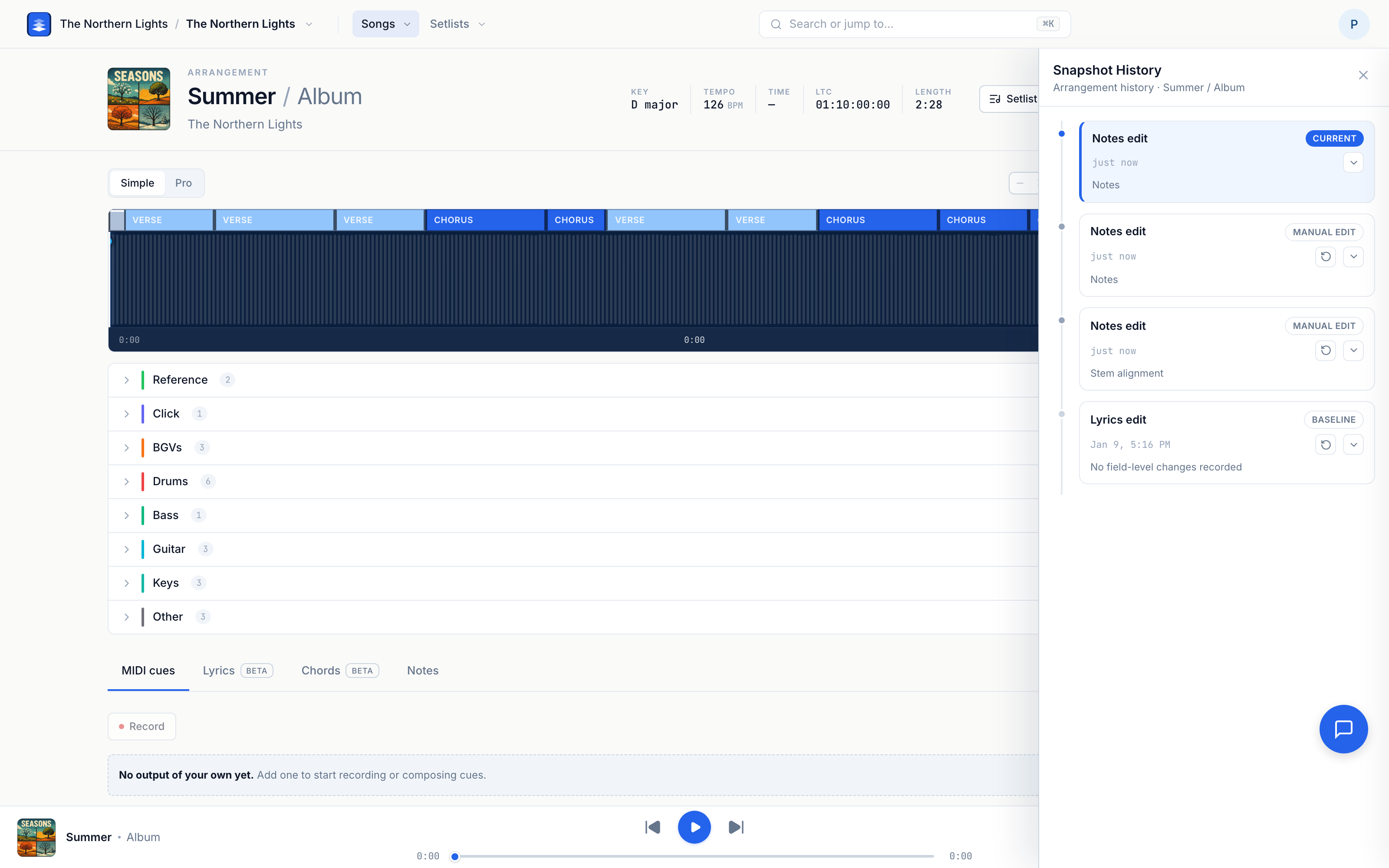
Change MIDI cues
- Open the arrangement.
- Open the MIDI cues tab in the bottom panels (or press C to drop a cue quickly).
- If you don't have an output yet, click Add output and pick a WebMIDI destination (allow browser MIDI permission when asked — Chrome or Edge recommended).
- Click Add Cue (or compose from the panel): set timecode, channel (1–16), and command (Note On, CC, or Program Change).
- To capture live: arm Record, choose input and output, play the arrangement, and perform on your controller — Pliris stamps each message at the timecode it landed.
- To nudge timing: switch to Pro view and drag the diamond cue markers on the waveform.
- Use Delete cue on events you own and no longer need.
MIDI cues are per user. Everyone on the band can see every cue; you can only edit your own — unless you're a band admin, who can edit or delete anyone's cues.
Change a section's Ableton cue
- Right-click a section on the timeline.
- Choose Edit cue.
- Pick a template cue, Use section name, or No cue for this section — it saves as you choose. There is no Edit mode and no separate Done step.
That's export mapping — it does not send MIDI to gear by itself. Rename the visible label with Rename instead → Renaming Song Sections.
Quick checks when a MIDI cue doesn't fire
- Interface plugged in before you opened the page
- Browser allowed MIDI
- Cue assigned to the correct output
- You're testing in a WebMIDI-capable browser (Chrome / Edge)
Frequently asked questions
How do I edit MIDI cues on a song in Pliris?
Open the arrangement → MIDI cues tab → add or select a cue, change timecode / channel / command, or drag markers in Pro view. Press C for a fast new cue. Full detail: Programming MIDI Cues for External Gear.
Can I change someone else's cues?
You can see every bandmate's MIDI cues, but you can only edit or delete your own — unless you're a band admin, who can edit or delete anyone's cues. More detail: Who Can Edit MIDI Cues.
What's the difference between Edit cue on a section and the MIDI cues panel?
Edit cue on a section maps that section to an Ableton template cue for export. The MIDI cues panel is for timed MIDI messages that fire external gear during playback.
Do Ableton updates overwrite my MIDI cues?
Dropping an .als primarily updates structure, tempo, mix, and clip alignment. Review the import summary before confirming — and keep Snapshot History handy if anything looks off. See Updating an Arrangement from Ableton.
Where to go next
- Hardware-focused cue guide → Programming MIDI Cues for External Gear.
- LTC instead of MIDI → Sending LTC / SMPTE Timecode to External Gear.
- Arrangement tour → Bands, Songs, Arrangements, and Setlists.
Cues not firing after you've checked the output? Click the support bubble in the bottom-right corner, or email support@fromstudiotostage.com.