Building a Set and Updating It from Ableton
Build a setlist three ways, export it as one Ableton Live Set with samples in Chrome, edit it in Ableton, then drop the .als back on the setlist to update each song: new arrangement, overwrite, or leave unchanged.
Build your show's setlist in Pliris, export it as one Ableton Live Set, rehearse and edit it in Ableton, then drop the edited .als back on the setlist. Every song in Pliris then matches how your band actually plays it, and nobody re-uploads stems or rebuilds reference files.
Watch the lesson: this article goes with Building a set in Pliris, part of the Using Pliris to Program, Practice, and Perform course.
Create the setlist
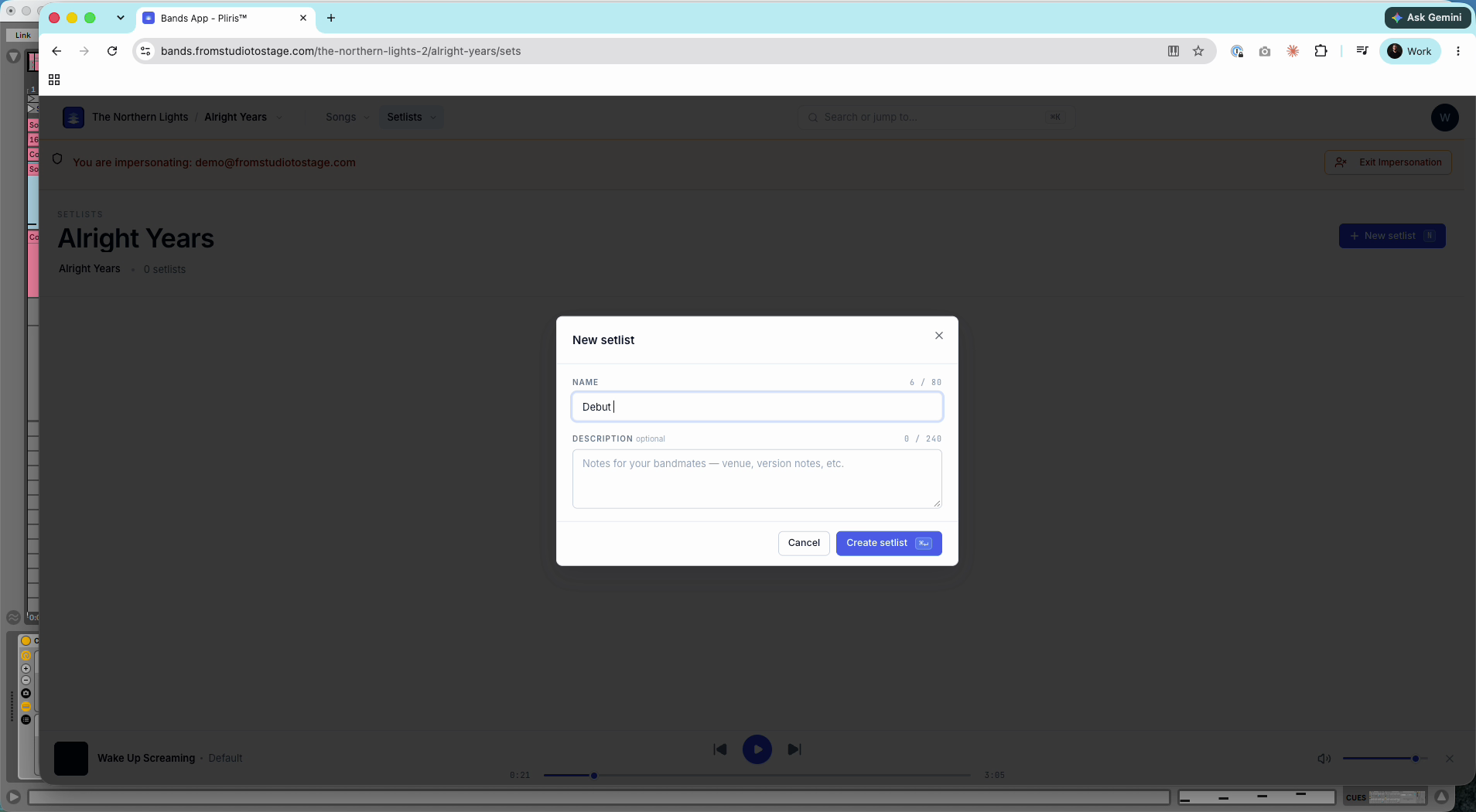
Go to Setlists, click New setlist, name it and click Create setlist.
You can add songs three ways:
- From the setlist: click Add your first song, or press A then Enter. Type to search, press Tab to reach Add, and Escape to close. Use the Add button between rows to insert a song in a specific place.
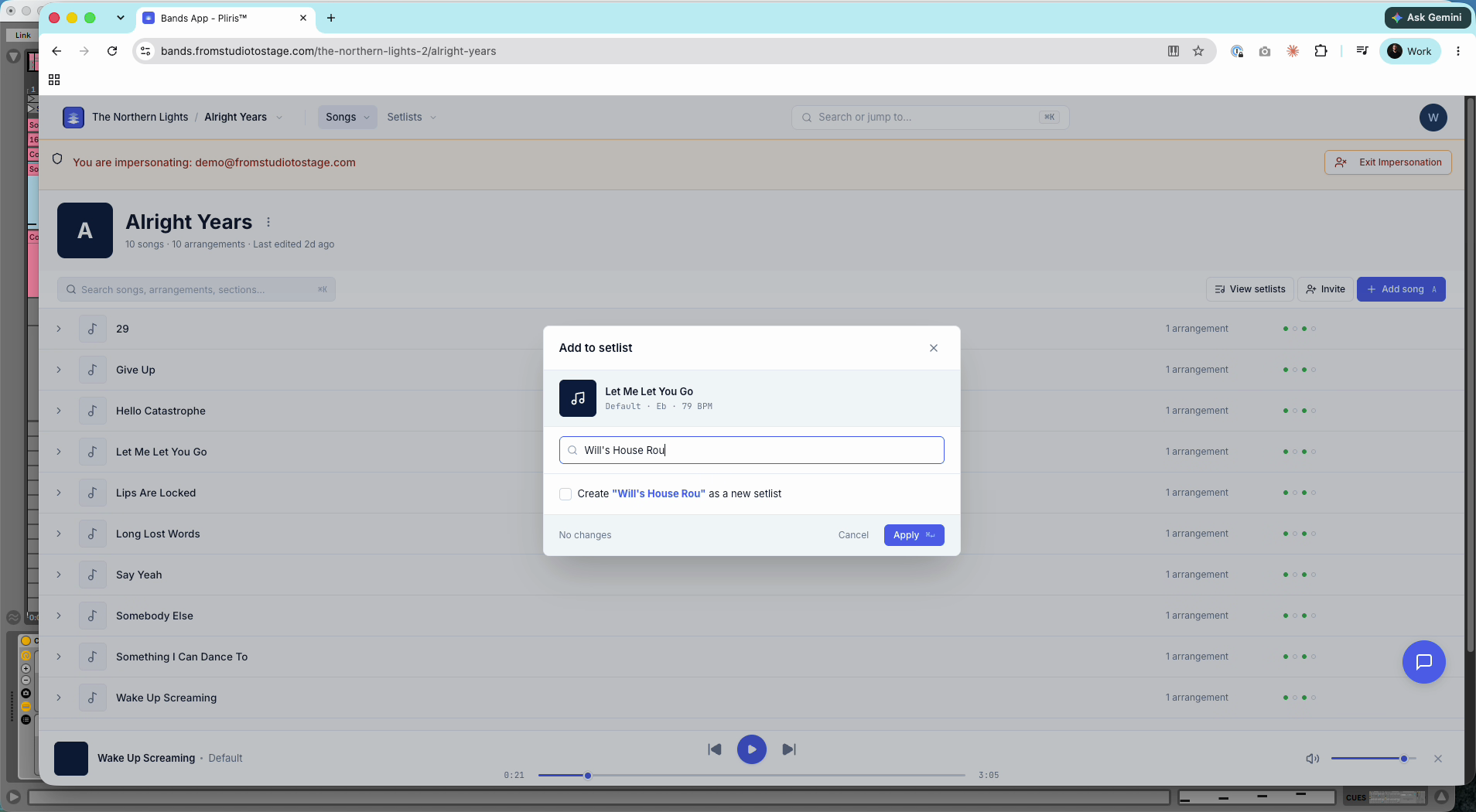
- From the song library: click a song's + icon, pick the setlist under Recent (or create a new one) and click Apply.
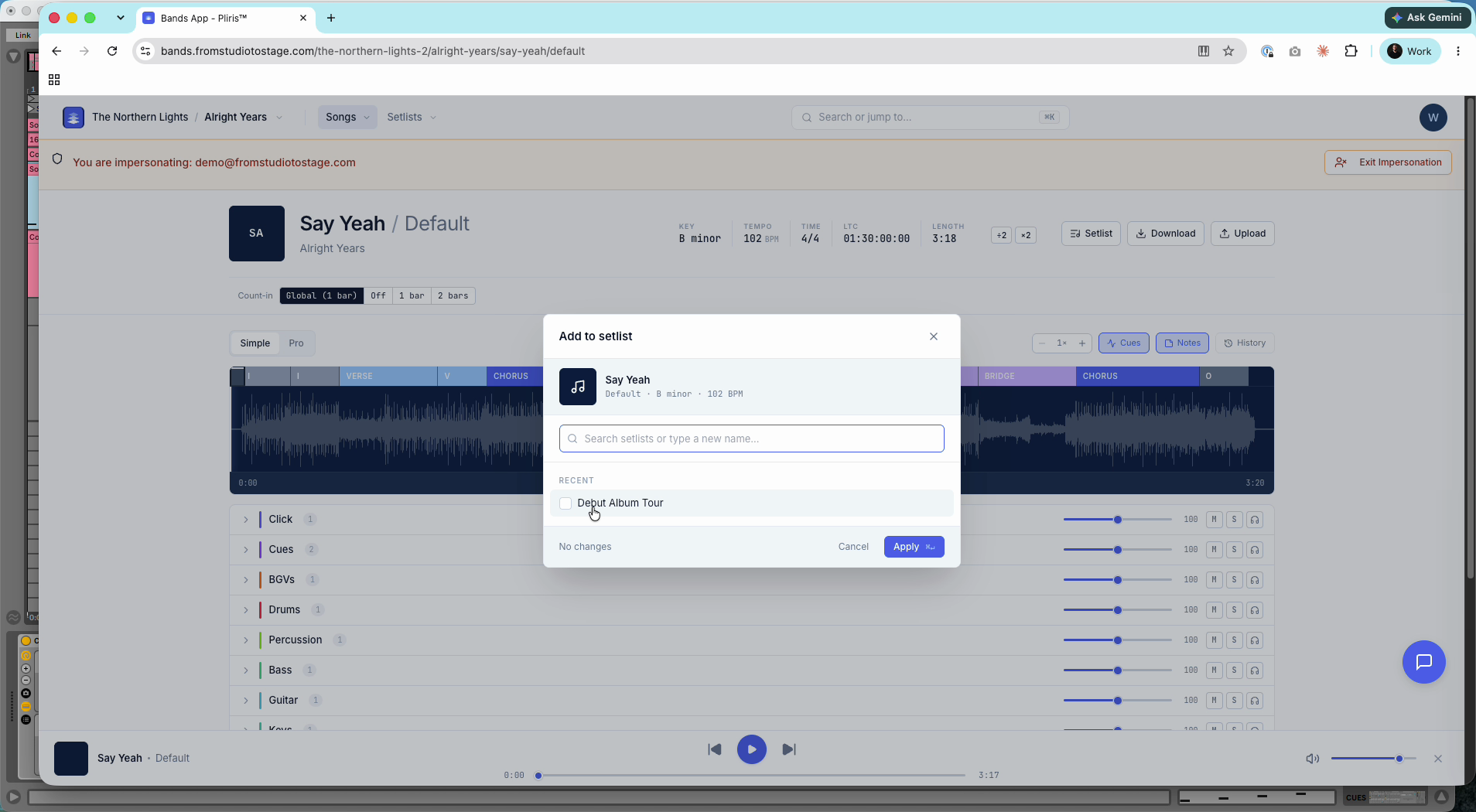
- From a song's page: open the arrangement and click Setlist.
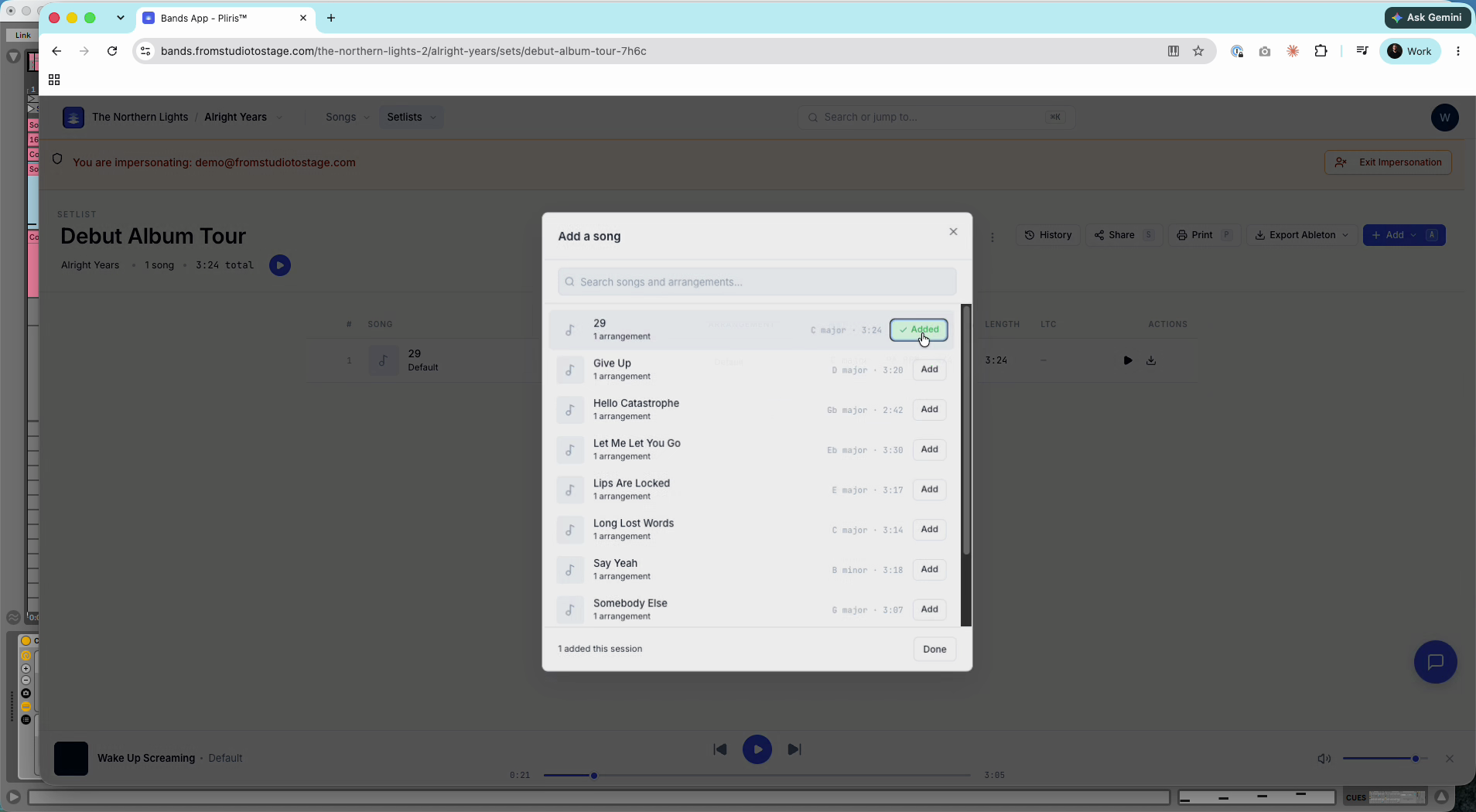
Drag songs to reorder them. The setlist shows each song's key, tempo, time signature, length and LTC start, plus the total time. Add → Talk adds a timed talk (for example Welcome, 0:30) that counts toward the total.
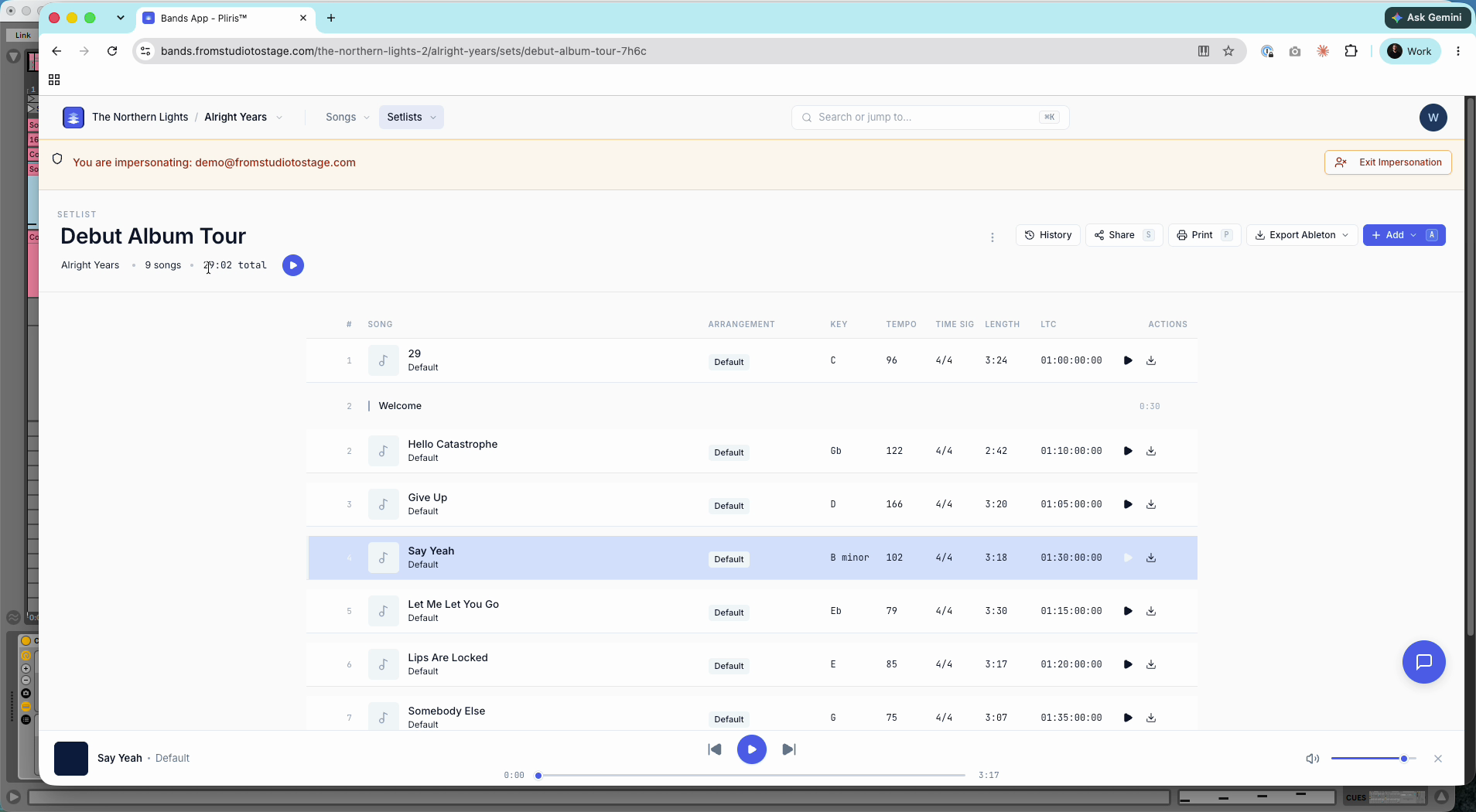
Export it to Ableton
Use Chrome or Edge. Safari can't finish large exports. See Large Ableton Exports and Browsers.
- Click Export Ableton → With samples.
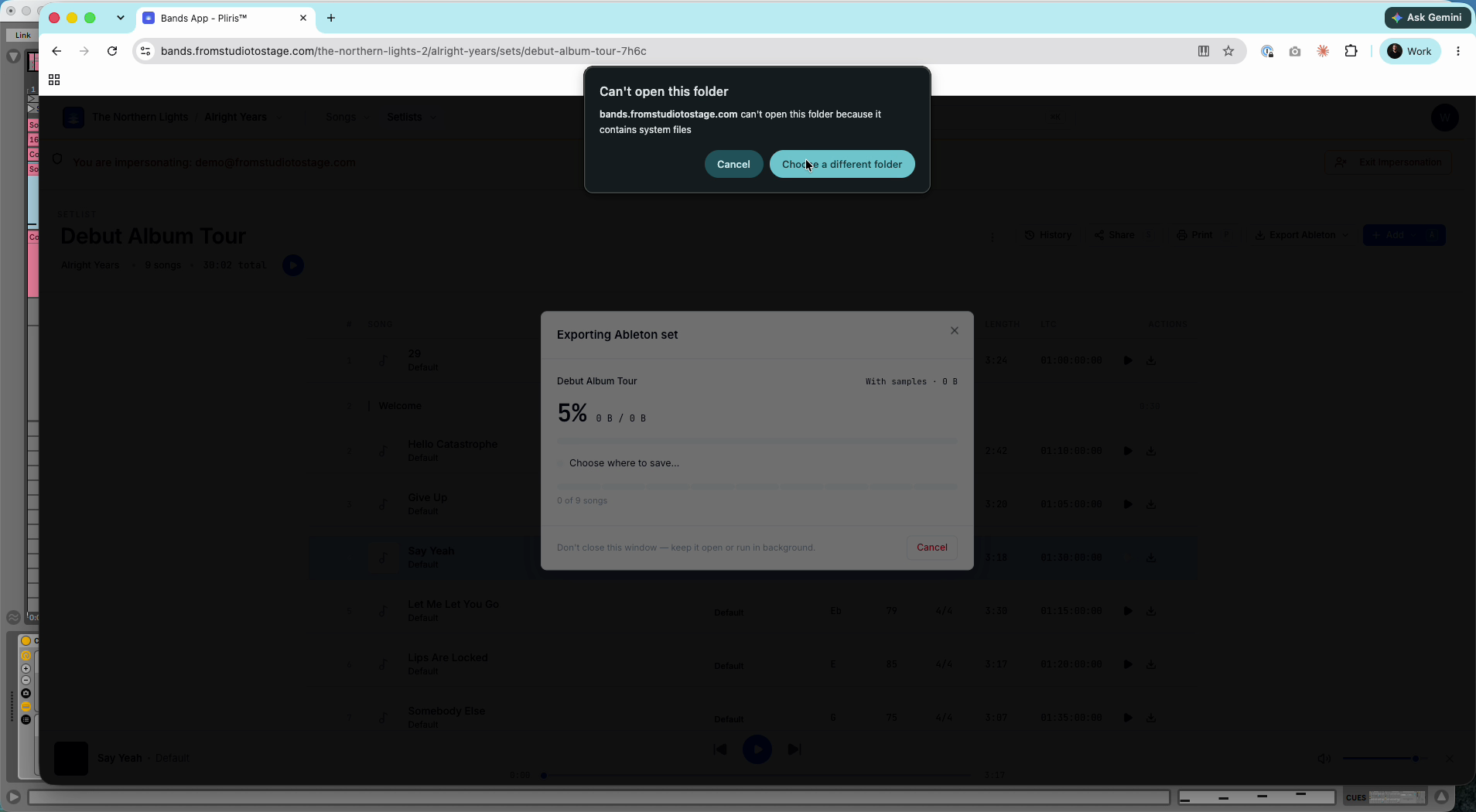
- Chrome can't save directly to Desktop or Documents, so create a new folder inside one of them and choose it. Click Allow.
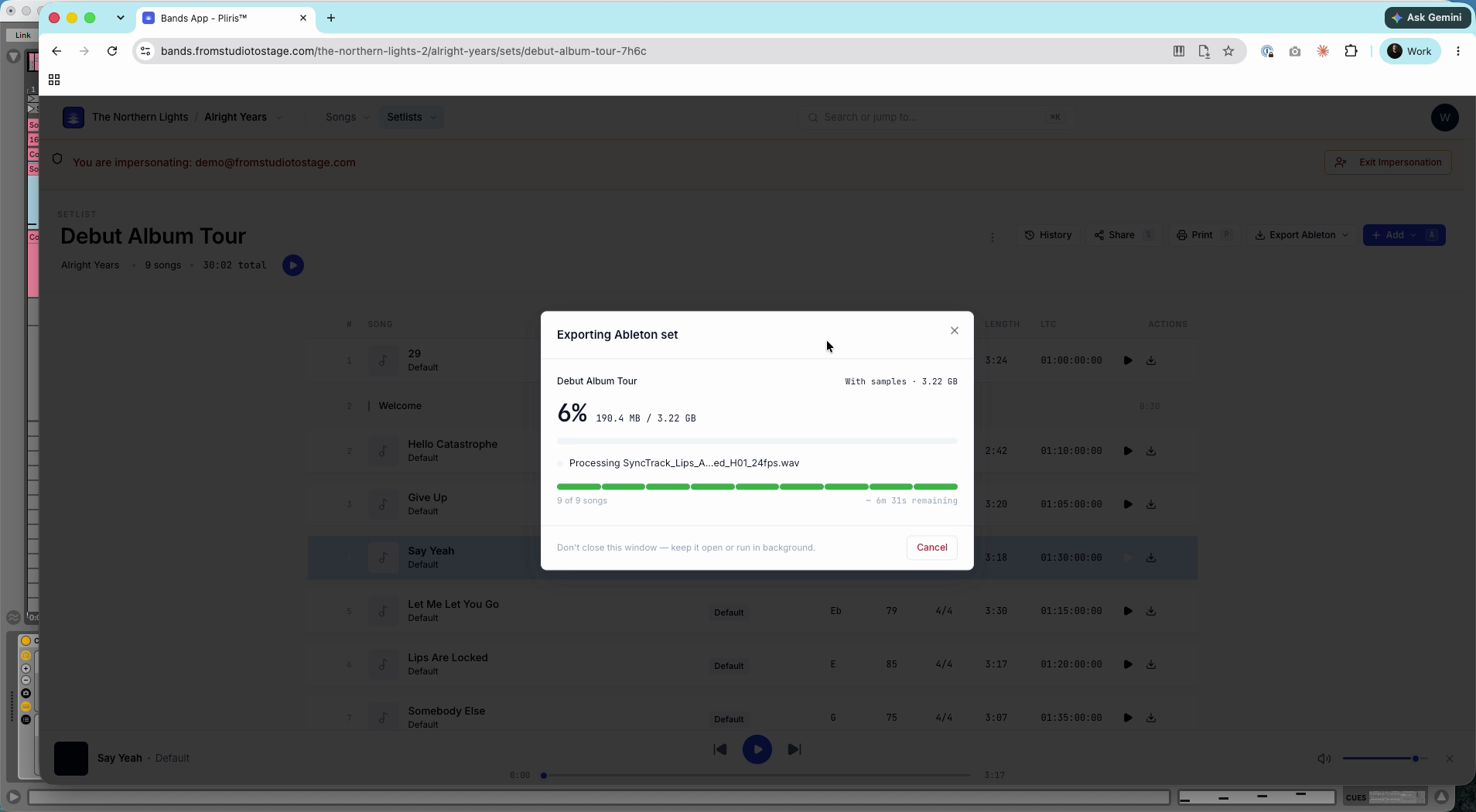
- Keep the tab open until the set finishes. Speed depends on your connection, the number of songs and, most of all, the number of stems.
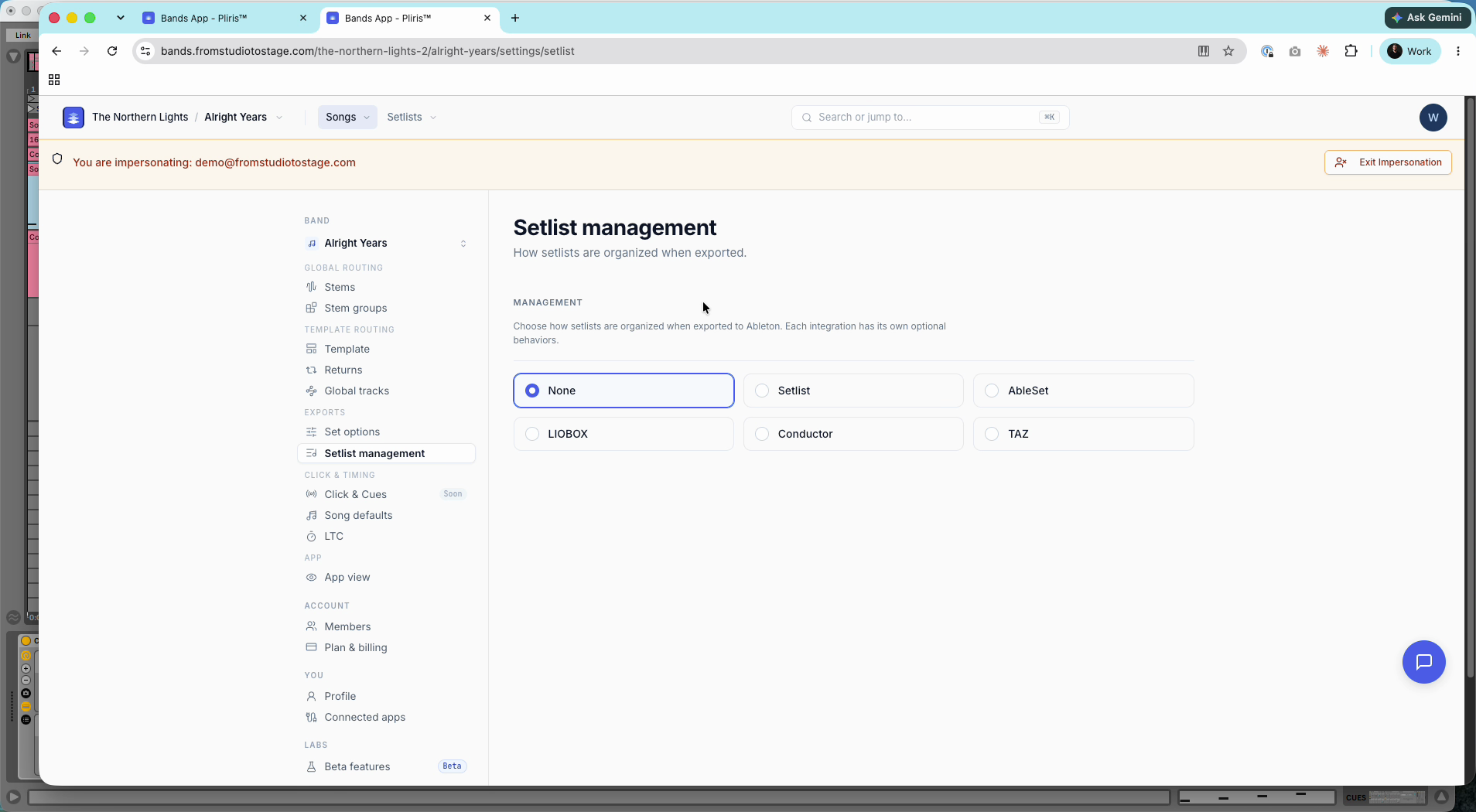
What you get depends on your band settings: Template (layout), Returns, Global tracks, Stems and Stem groups (routing), and Setlist management, where you choose your stage tool and can auto-generate STOP locators so songs stop after they play. See Settings → Setlist management.
Edit the set in Ableton
Open the .als from the export folder. Sets built from Pliris's built-in templates are saved with Ableton Live 11.3 and open in any newer version; Live may ask you to Save Live Set As when you save.
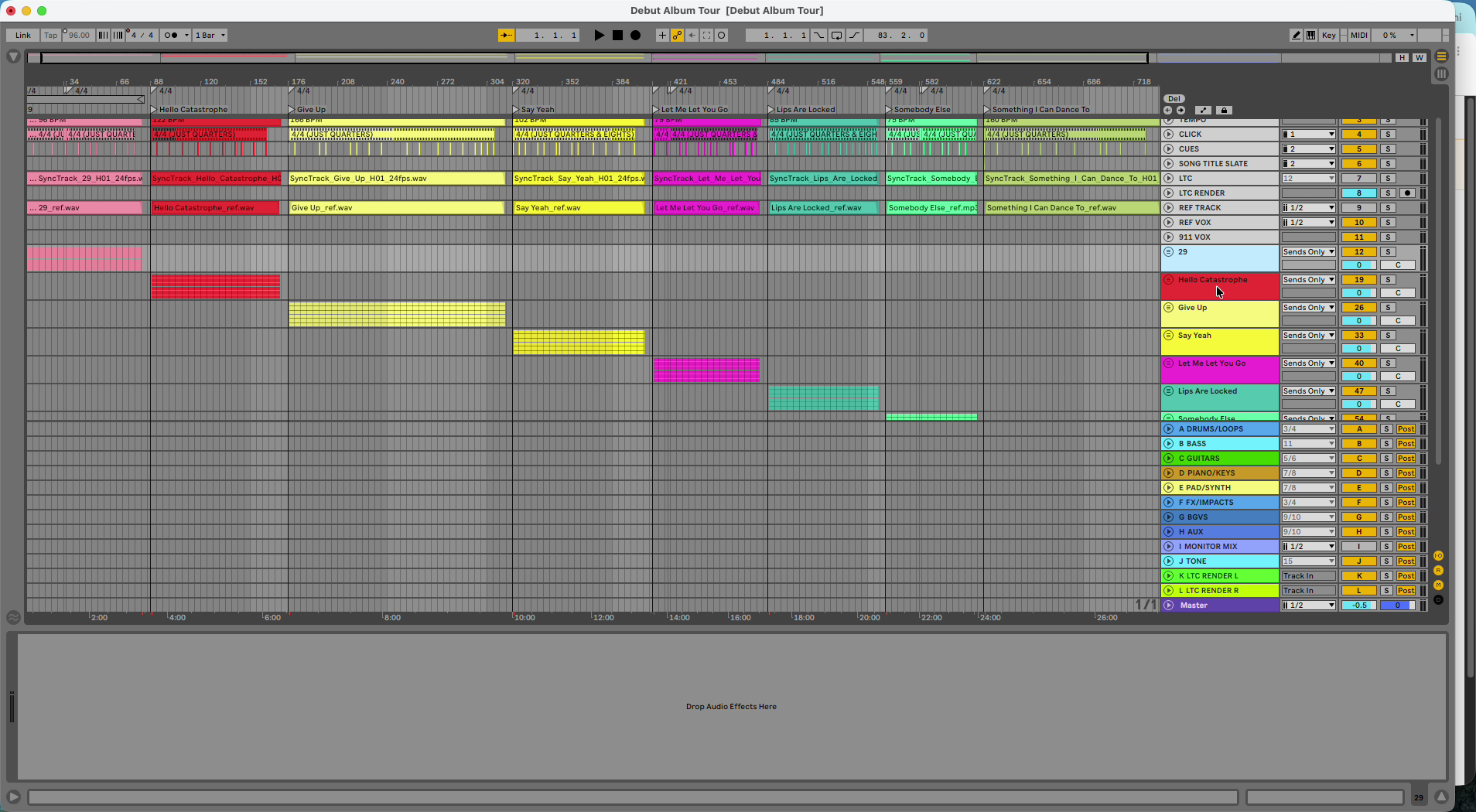
Play through every song and make the changes your band needs: remove an intro, fix a time signature, turn a fade into a hard stop, change a cue. Then save.
Update the setlist from your edited set
- In Chrome, open the setlist in Pliris.
- Drag the edited
.als(the Live Set file, not the Samples folder) onto the setlist. - Update setlist from .als lists each song and what changed. For each one choose:
- New arrangement: keep the original and add this version (name it, for example Live)
- Overwrite existing: replace the current arrangement with your edits
- Leave unchanged
- Click Apply.
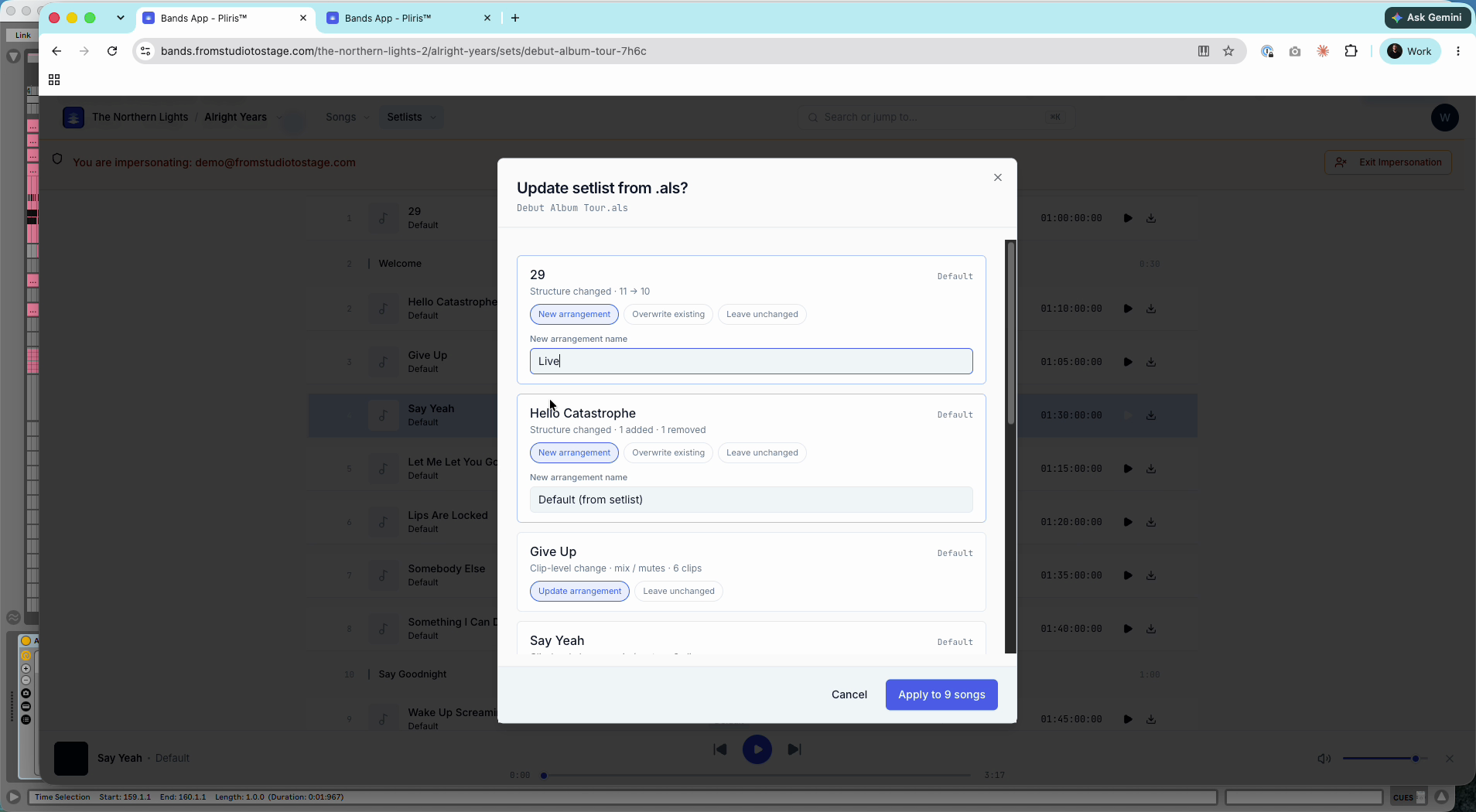
Pliris reads the structure, cues and timing from the set. Stems aren't re-uploaded unless you printed new audio. See Updating Your Set's Arrangements from Ableton.
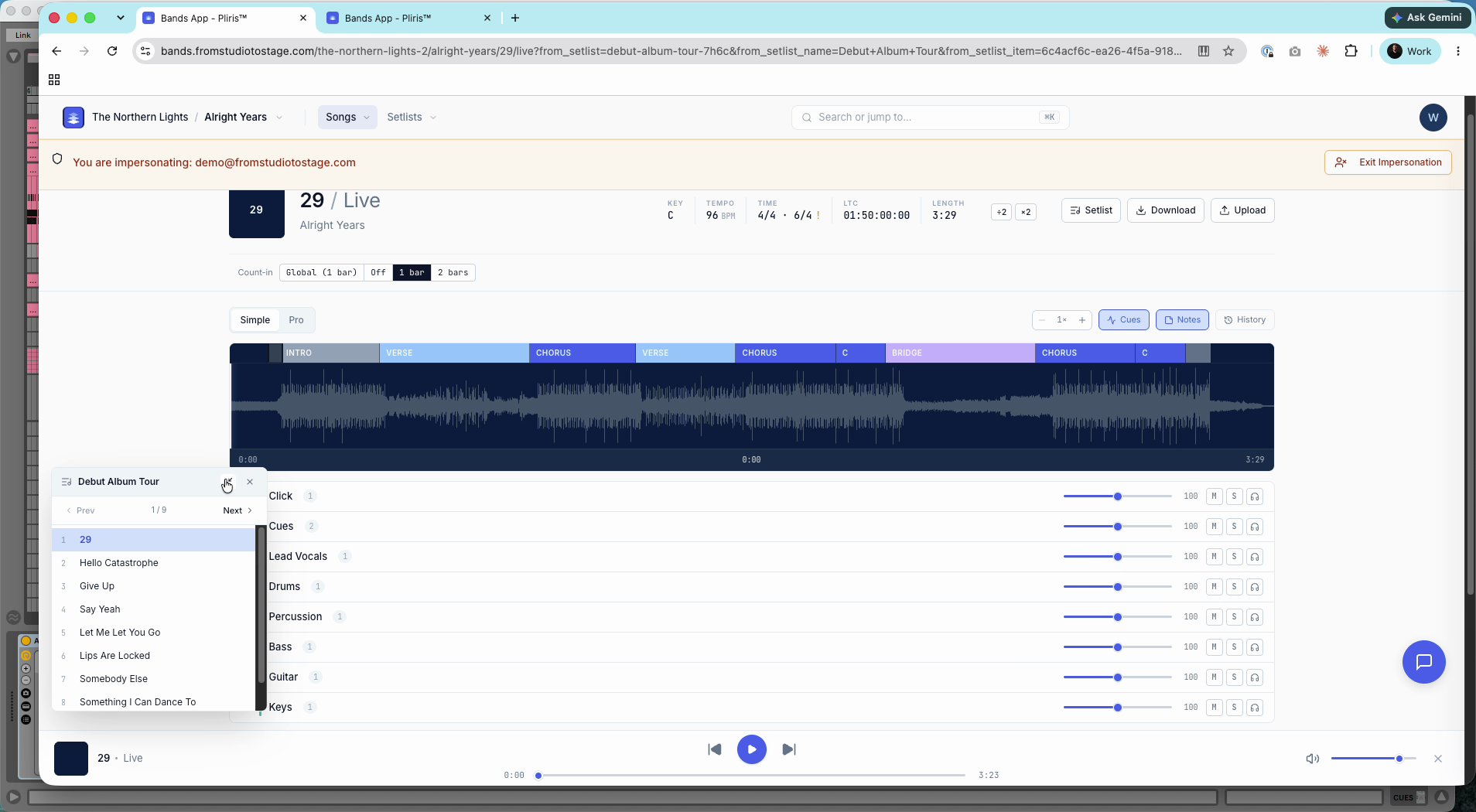
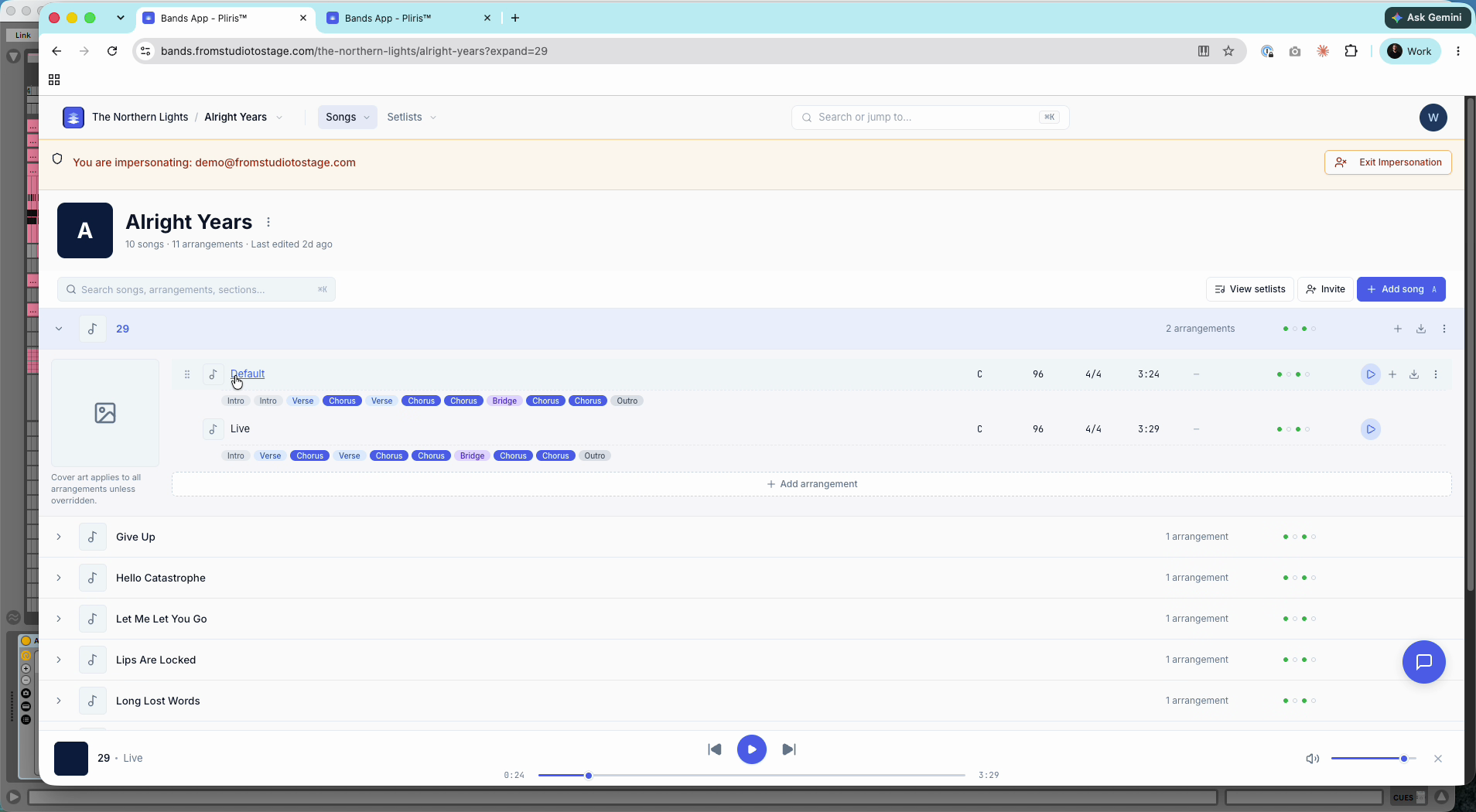
Open a song from the setlist to check it. The setlist navigation panel moves you through the set. A song you updated with New arrangement now has both versions in the library.
Frequently asked questions
How do I add songs to a setlist quickly?
On the setlist, press A then Enter, type the song name, press Tab to reach Add, and Escape when you're done.
Why does my set export fail in Safari?
Safari can't finish large downloads. Export the set in Chrome or Edge.
Can I save the export straight to my Desktop?
Not directly. Chrome doesn't allow it, so create a new folder on your Desktop and choose that folder.
How do I get my Ableton edits back into Pliris?
Save the set in Ableton, then drag the .als onto the setlist in Pliris and choose, for each song, a new arrangement, overwrite, or leave unchanged.
Do I have to re-upload stems after editing the set?
No. Only structure and timing are read from the .als. You only update audio if you printed new stems.