How to Rename Song Sections
Right-click a section on the arrangement timeline to rename it — the label updates on the player and in Ableton exports.
Sections are the colored labels on the arrangement timeline — Intro, Verse, Chorus, and the rest. Renaming them changes how the song is labeled in Pliris™ and what goes out in Ableton exports.
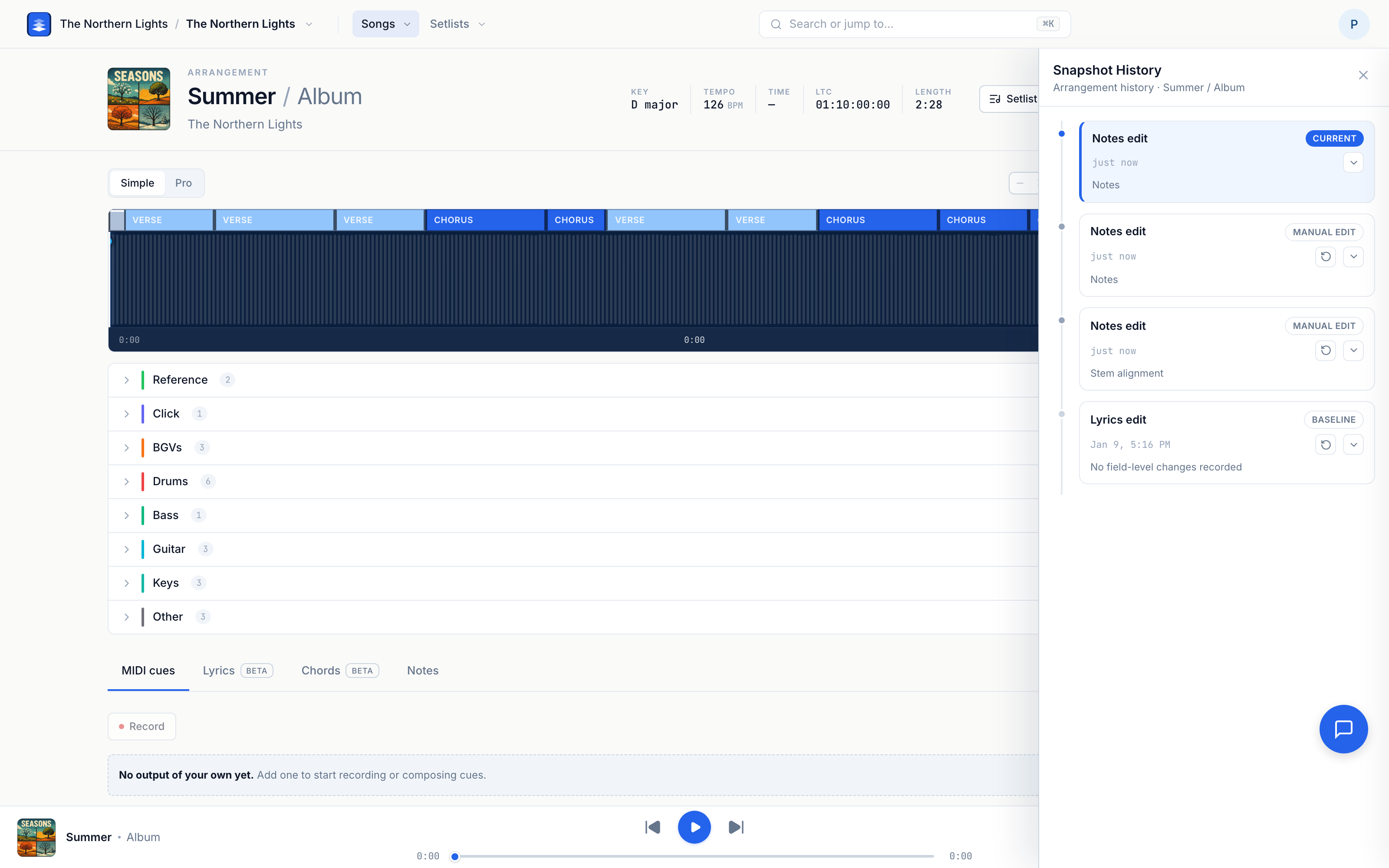
Rename a section in Pliris
- Open the song's arrangement page (see Bands, Songs, Arrangements, and Setlists).
- Find the section on the timeline (Simple or Pro view).
- Right-click the section and choose Rename (or double-click the section label).
- Type the new name and press Enter — it saves immediately. There is no Edit mode and no separate Save/Done step.
Section renames land in Snapshot History.
Rename via Ableton instead
Already renaming locators in Live? You don't have to retype them in Pliris.
- Save the set in Ableton.
- Drop the
.alson the arrangement page. - Review the section renames in the summary (before → after).
- Click Update arrangement.
Details: Updating an Arrangement from Ableton.
Section name vs Ableton template cue
The same right-click menu often includes Edit cue — that's separate from the display name.
- Rename — what you see on the timeline (and as the section label in exports).
- Edit cue — which Ableton template cue that section maps to (for example, an "All-in" cue on a Chorus). You can use the section name, pick another cue, or choose No cue for this section.
For per-user MIDI events that fire gear mid-song, see Changing Cues in Pliris — those live in the MIDI cues panel, not on the section label.
Frequently asked questions
How do I rename a verse or chorus in Pliris?
Open the arrangement, right-click the section on the timeline, choose Rename, type the new label, and press Enter. The timeline and Ableton exports pick up the new name.
Does renaming a section change my audio?
No. Section names are labels on the timeline. Stems, timing, and length stay the same unless you also move clips in Ableton and re-import, or replace audio in Pliris.
Can I rename sections in Ableton and bring them into Pliris?
Yes. Rename locators in Live, drop the .als on the arrangement, review the before/after names, and click Update arrangement. Your stems stay put.
Why is there both Rename and Edit cue?
Rename changes the label you see. Edit cue maps that section to an Ableton template cue for export (which can differ from the label). MIDI cues for external gear are a third thing — they live under the MIDI cues tab.
Where to go next
- Arrangement overview → Bands, Songs, Arrangements, and Setlists.
- MIDI and section cues → Changing Cues in Pliris.
- Undo a bad rename → Snapshot History.
Stuck at any point, click the support bubble in the bottom-right corner of any page, or email support@fromstudiotostage.com.