Fixing Song Sections After Analysis
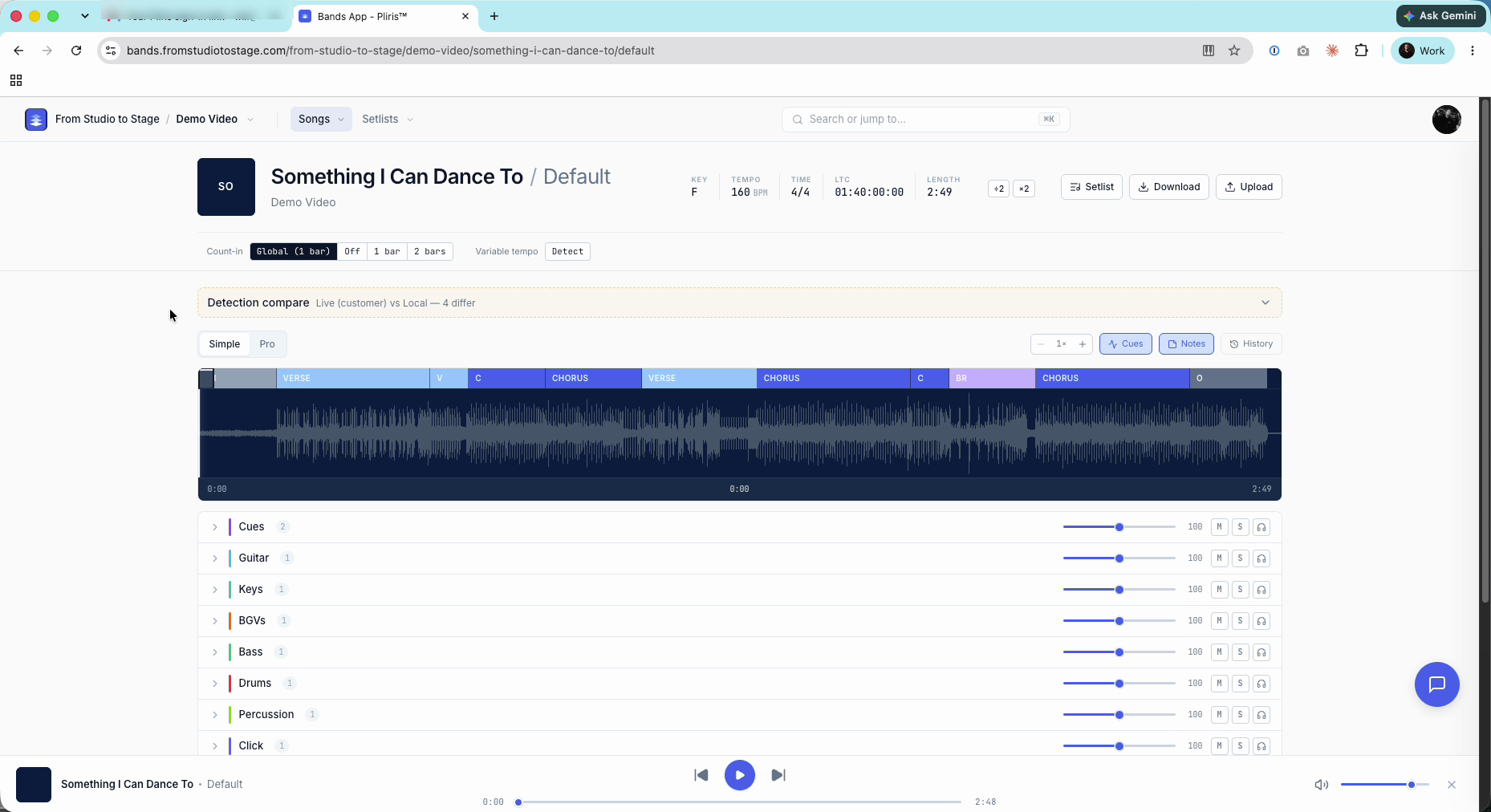
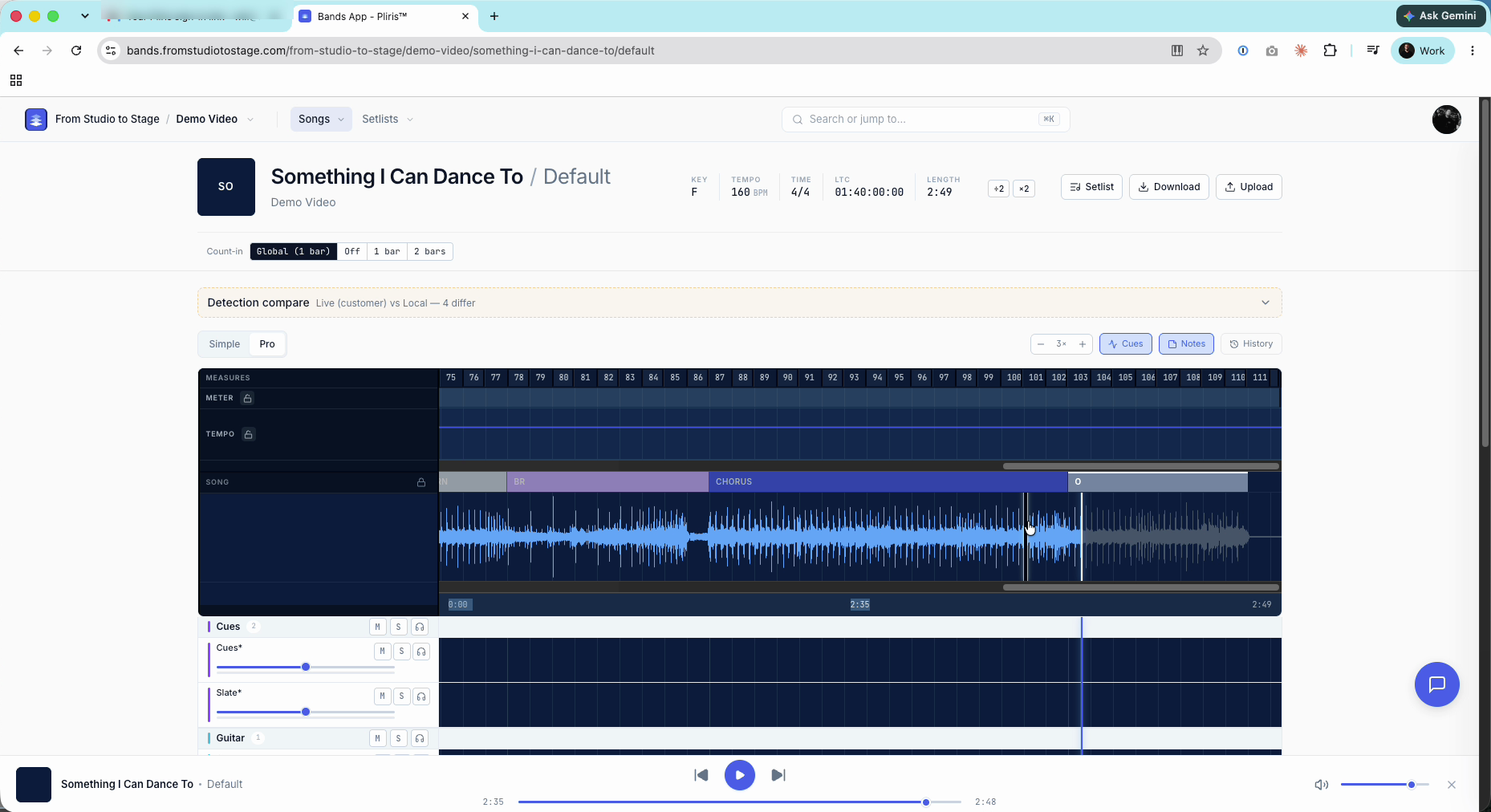
Analysis guesses your song sections. Right-click a section to rename, split at the playhead, merge with previous or next, loop or delete it, and drag its edge to resize. Cues follow your sections automatically.
When you analyze a song, Pliris makes its best guess at where each section starts and what to call it. When a guess is off, fix it on the song page. The cues follow your sections automatically, both in the player and in your Ableton export.
Watch the lesson: this article goes with Edit song sections, part of the Using Pliris to Program, Practice, and Perform course.
Pro tip: If the song came from an Ableton project with a guide cue, upload the Ableton file instead. Your sections will match it exactly. See Importing a Song from Ableton Live.
The section menu
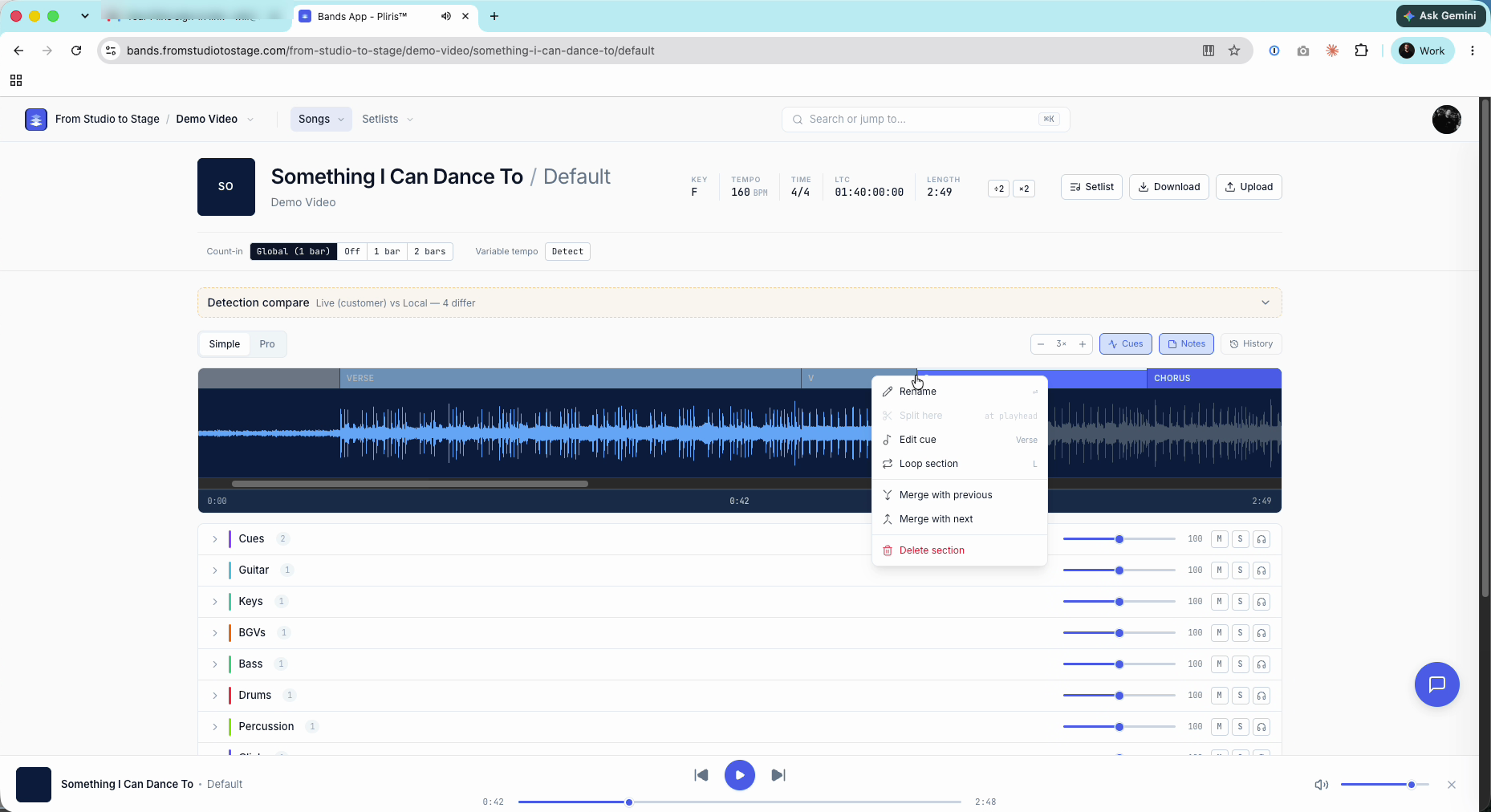
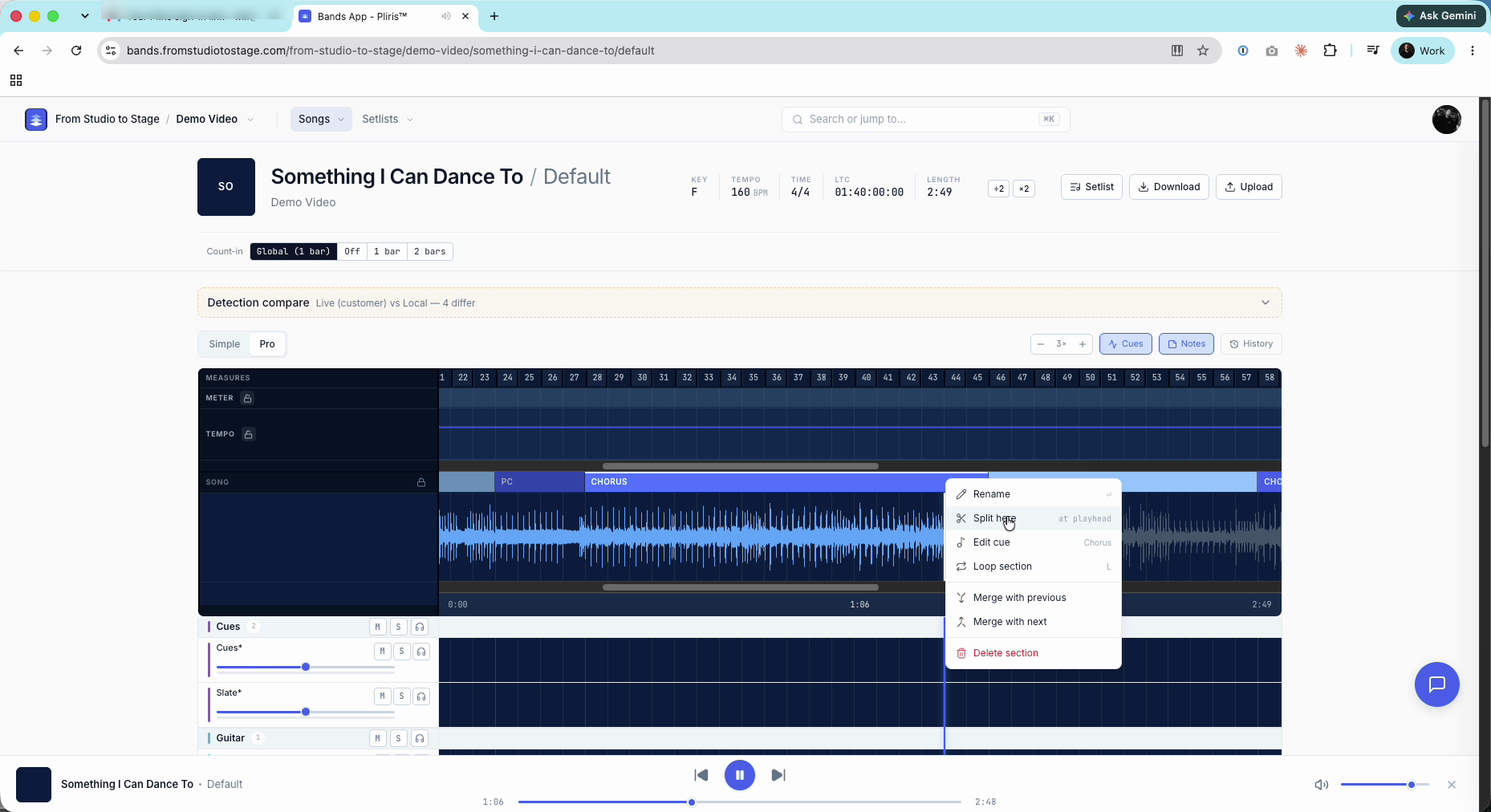
Click a section to jump to it. Right-click a section to open its menu:
- Rename (or double-click the section)
- Split here, at the playhead
- Edit cue, which shows the section's current cue
- Loop section (saved and exported; pressing L only loops the section while you listen)
- Merge with previous / Merge with next
- Delete section
Rename a section
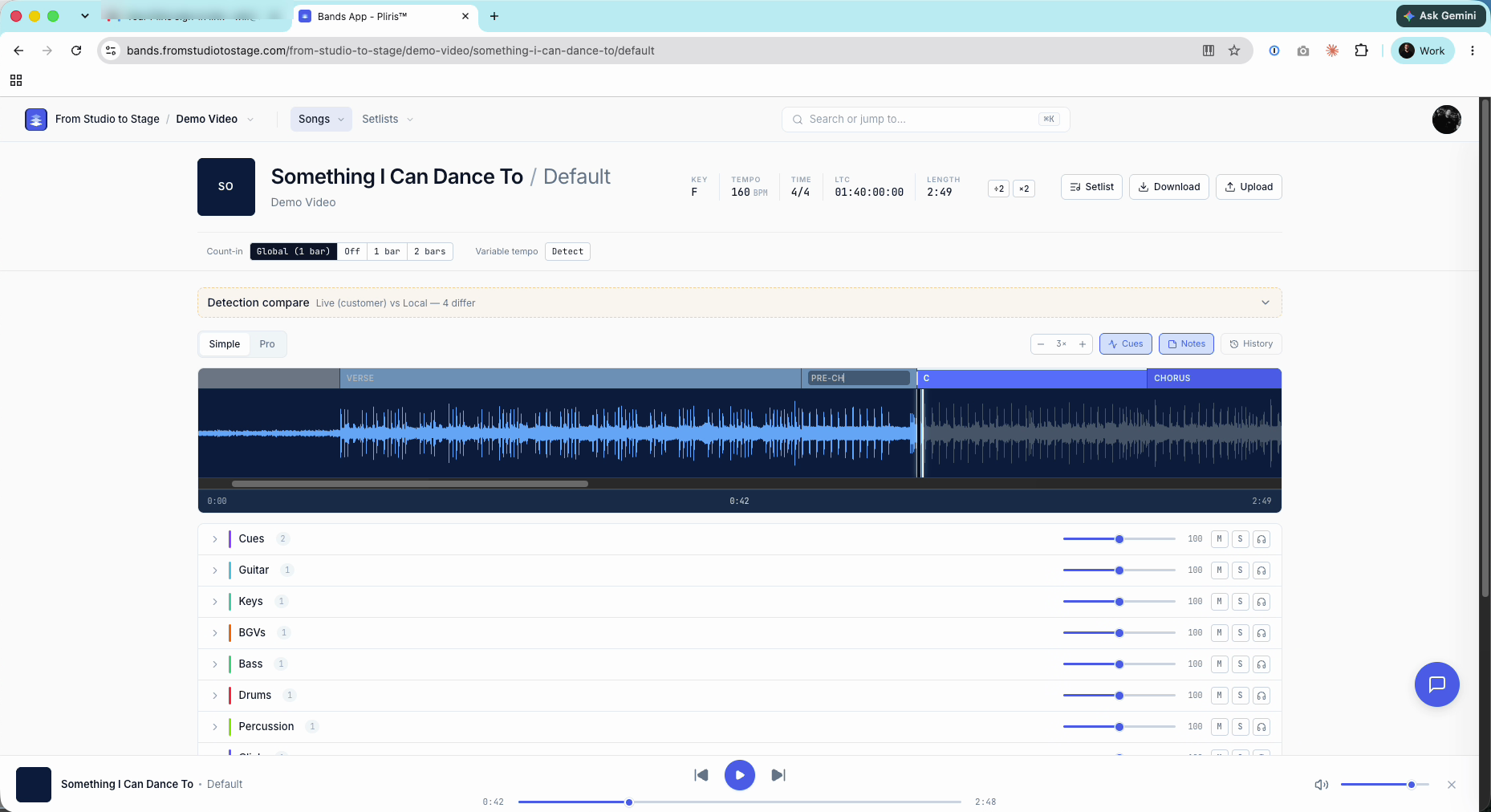
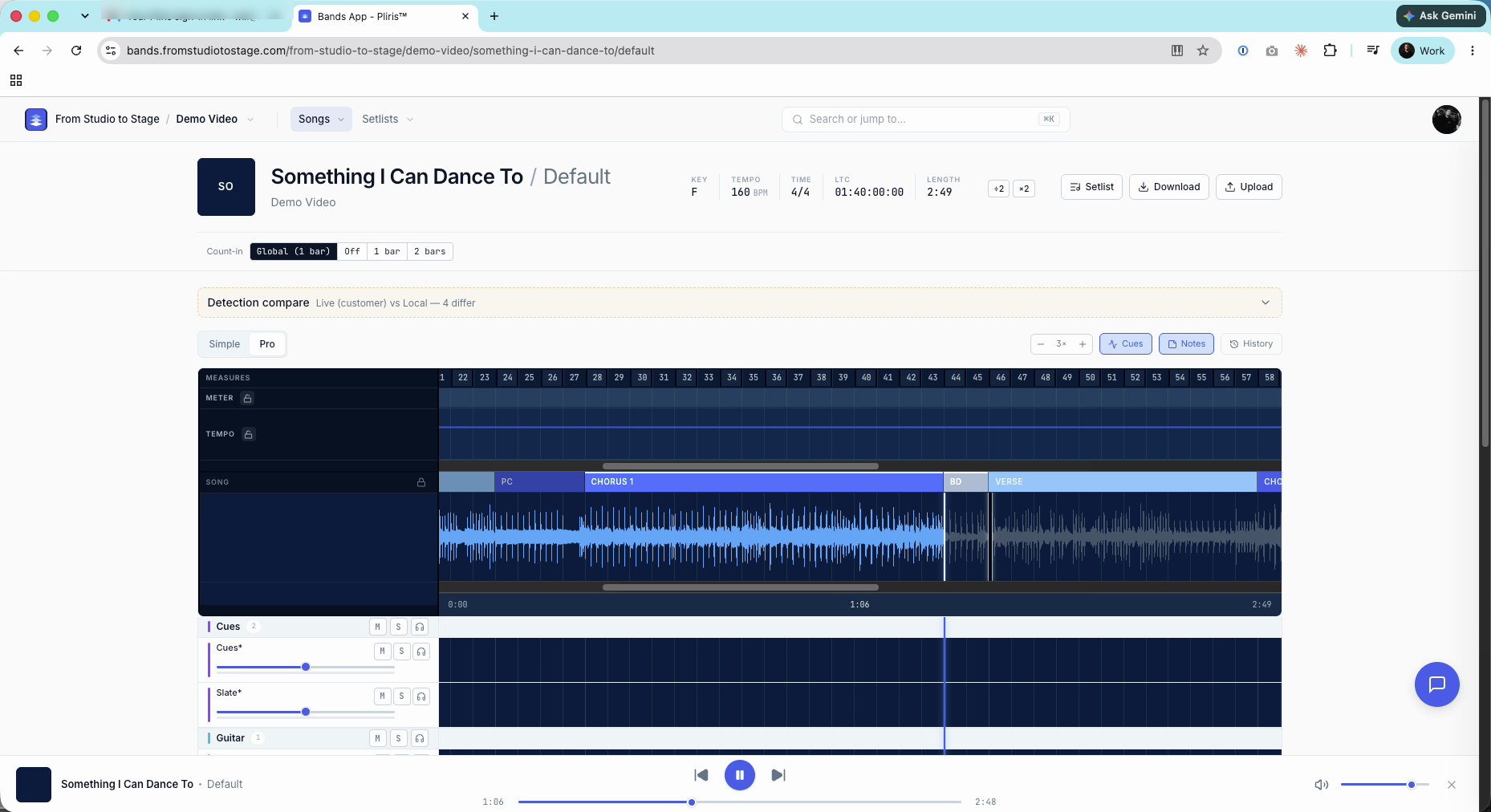
Right-click it, choose Rename, and type the new name. The section's cue is rebuilt with the new name.
Merge two sections
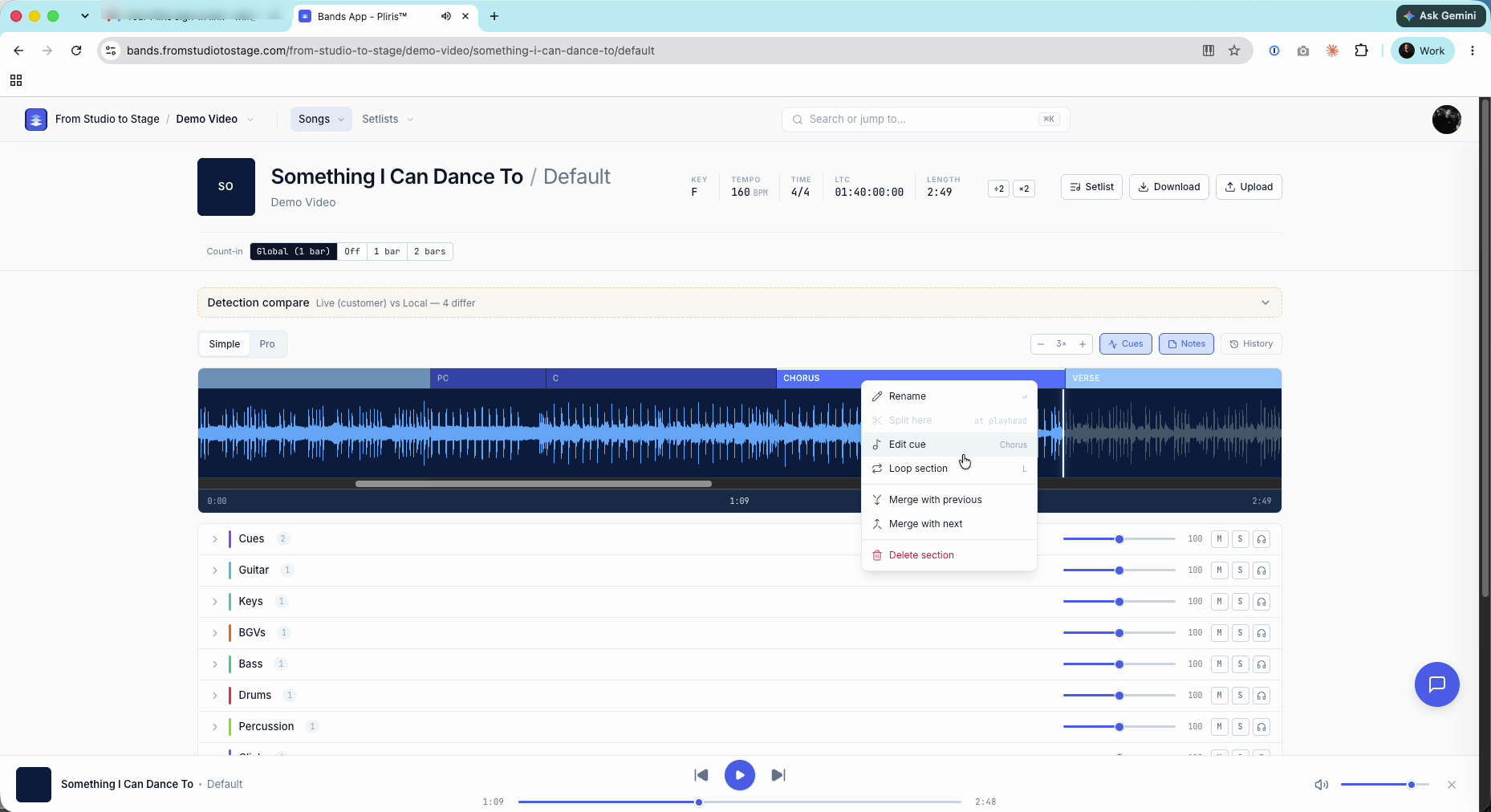
Right-click one of them and choose Merge with previous or Merge with next.
Split a section
- Press Tab to switch to Pro mode. Clicks snap the playhead to the grid, so it's easy to land on a downbeat.
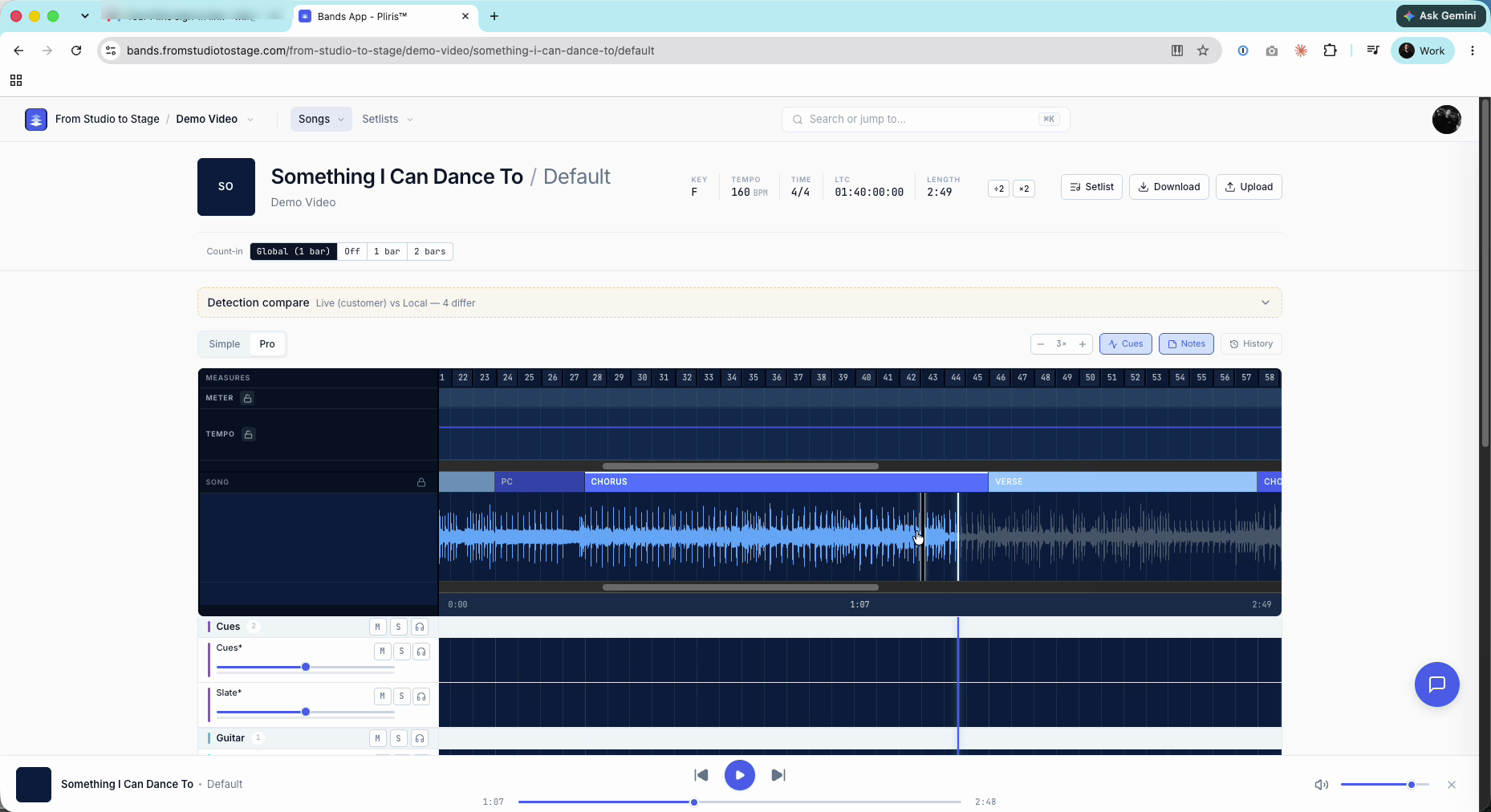
- Click where the new section should start to move the playhead there.
- Right-click the section and choose Split here. It's only available when the playhead is inside that section.
- Rename the new piece.
Resize a section
Hover over a section's edge and drag it. As you drag, you'll hear an audible grid: a click that goes up in pitch on each downbeat. Drag until you hear it, then check against the waveform.
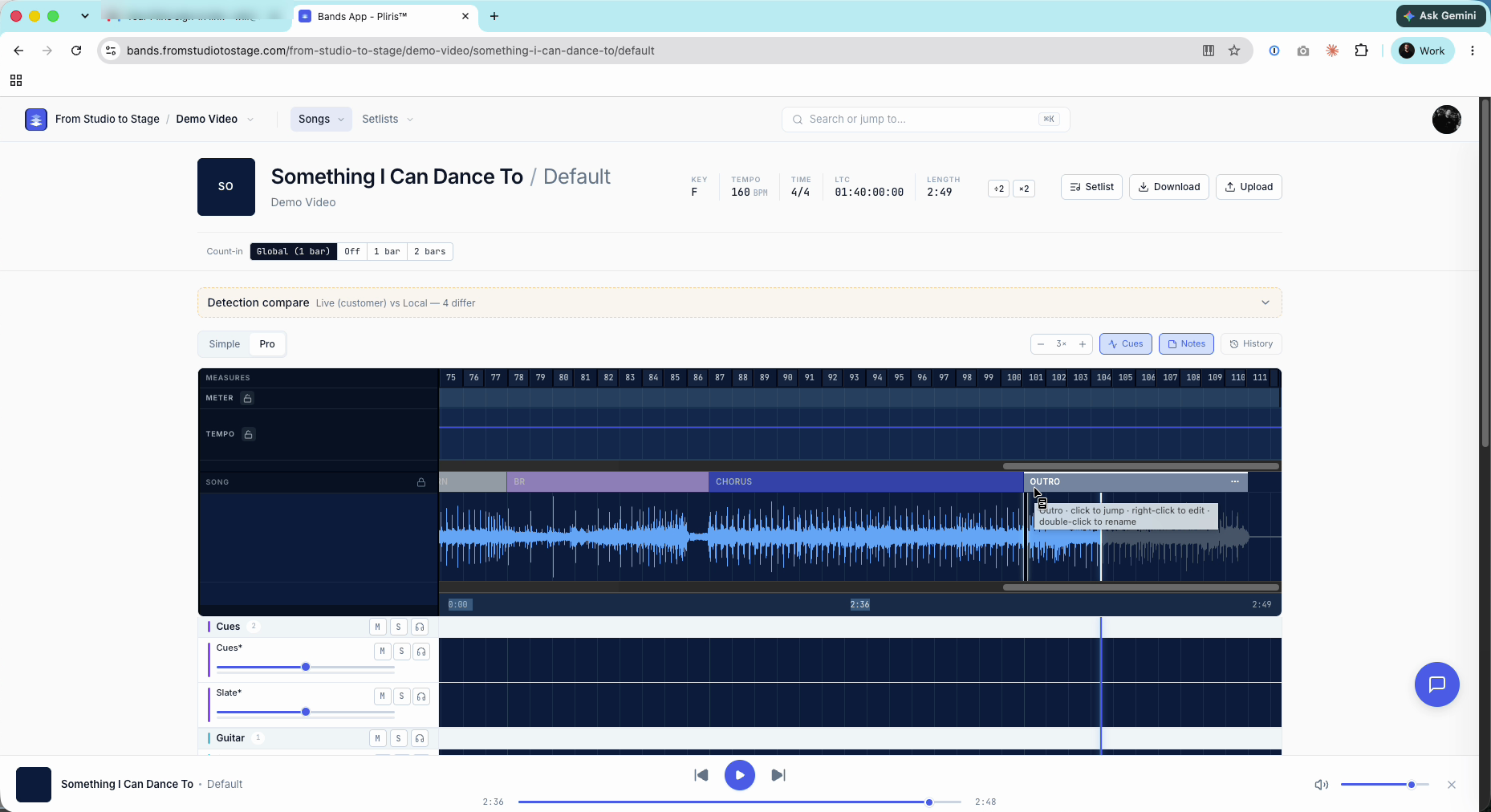
Play the song back. The cues move with your sections, so there's nothing to re-drag.
More detail: Renaming Song Sections, Resizing Song Sections, Adding and Changing Song Sections and Editing the Grid: Tempo, Meter and Sections.
Frequently asked questions
How do I rename a song section in Pliris?
Right-click the section and choose Rename, or double-click it, then type the new name.
Why is Split here grayed out?
Split here splits at the playhead. Move the playhead inside the section you want to split first.
How do I merge two song sections?
Right-click one of them and choose Merge with previous or Merge with next.
Do I need to move my cues after editing sections?
No. Cues follow your sections automatically, in the player and in your Ableton export.
My sections don't match my Ableton guide cue. What should I do?
Upload the song's Ableton project instead. Its sections come across exactly.