Moving and Renaming Stems on the Song Page
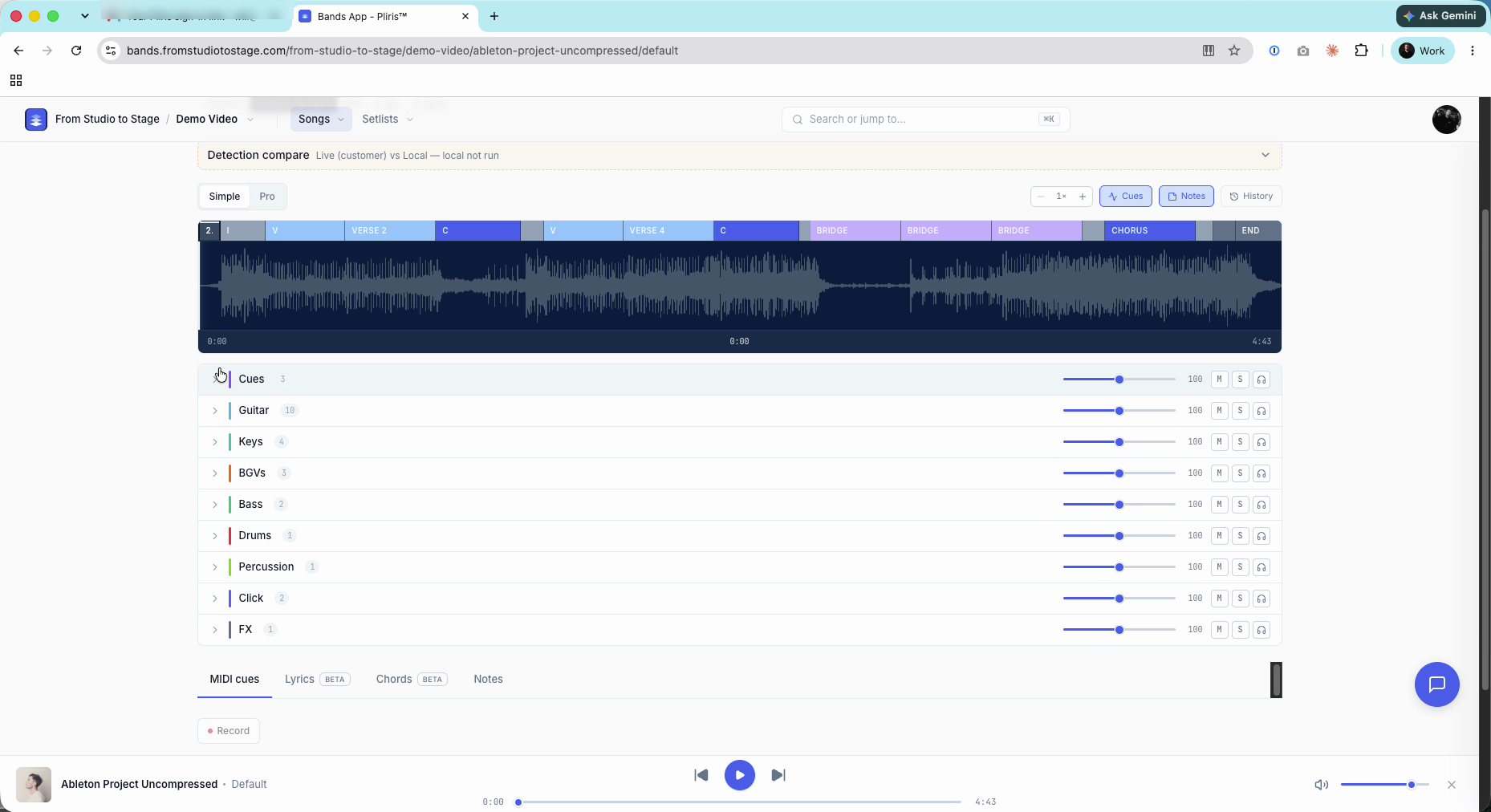
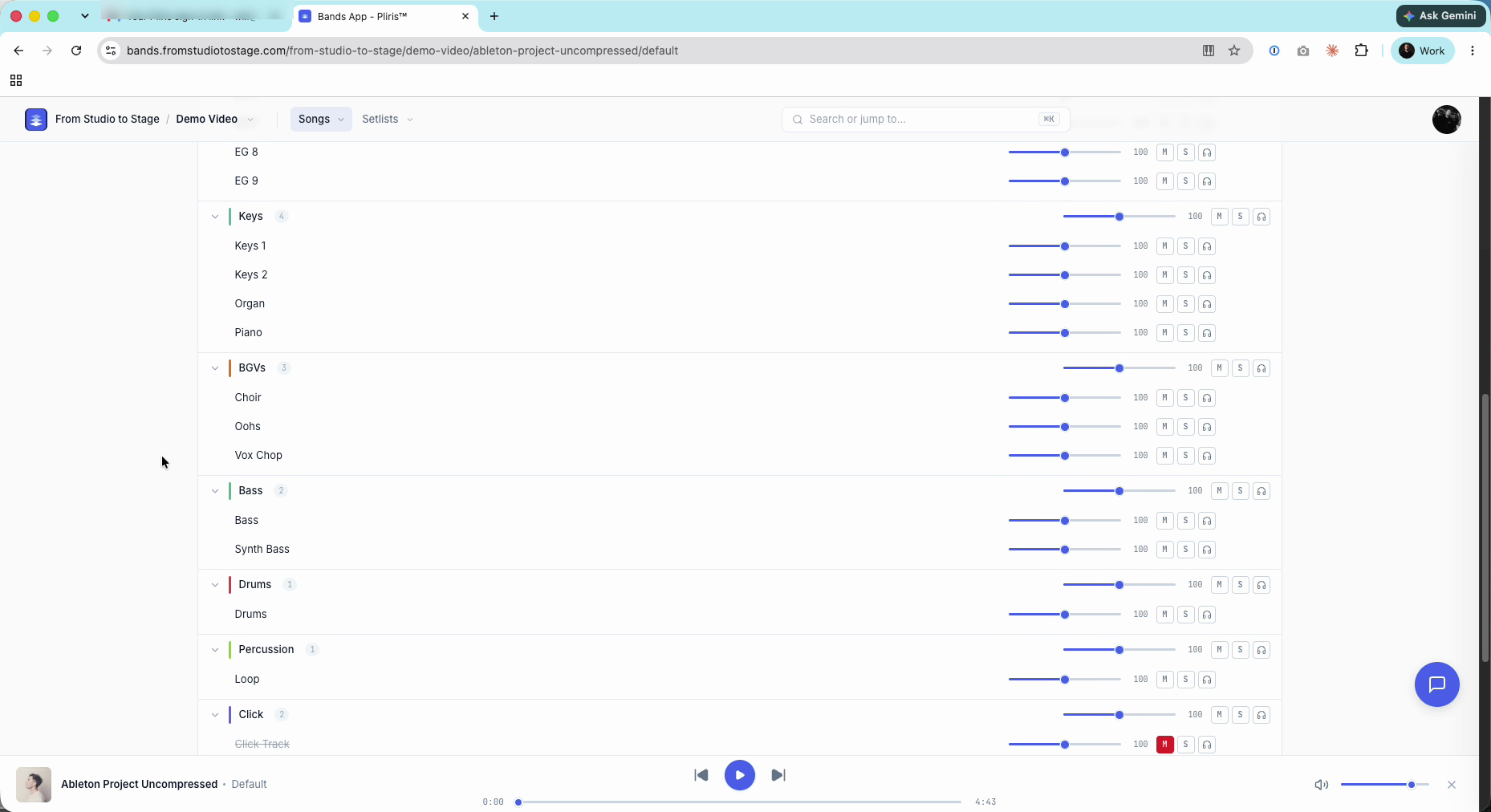
Shift-click to open every stem group, then right-click a stem to Move to group or Rename stem. Renaming changes how the stem appears. The underlying file is not changed.
When you upload a song, Pliris sorts each stem into a stem group (Guitar, Keys, BGVs, FX and so on). If a stem lands in the wrong group, or its name got trimmed on upload, fix it on the song page with a right-click.
Watch the lesson: this article goes with Move and rename stems, part of the Using Pliris to Program, Practice, and Perform course.
Open every group at once
Groups start collapsed. Hold Shift and click any group's arrow to open all of them, so you can check every stem in one pass.
Move a stem to another group
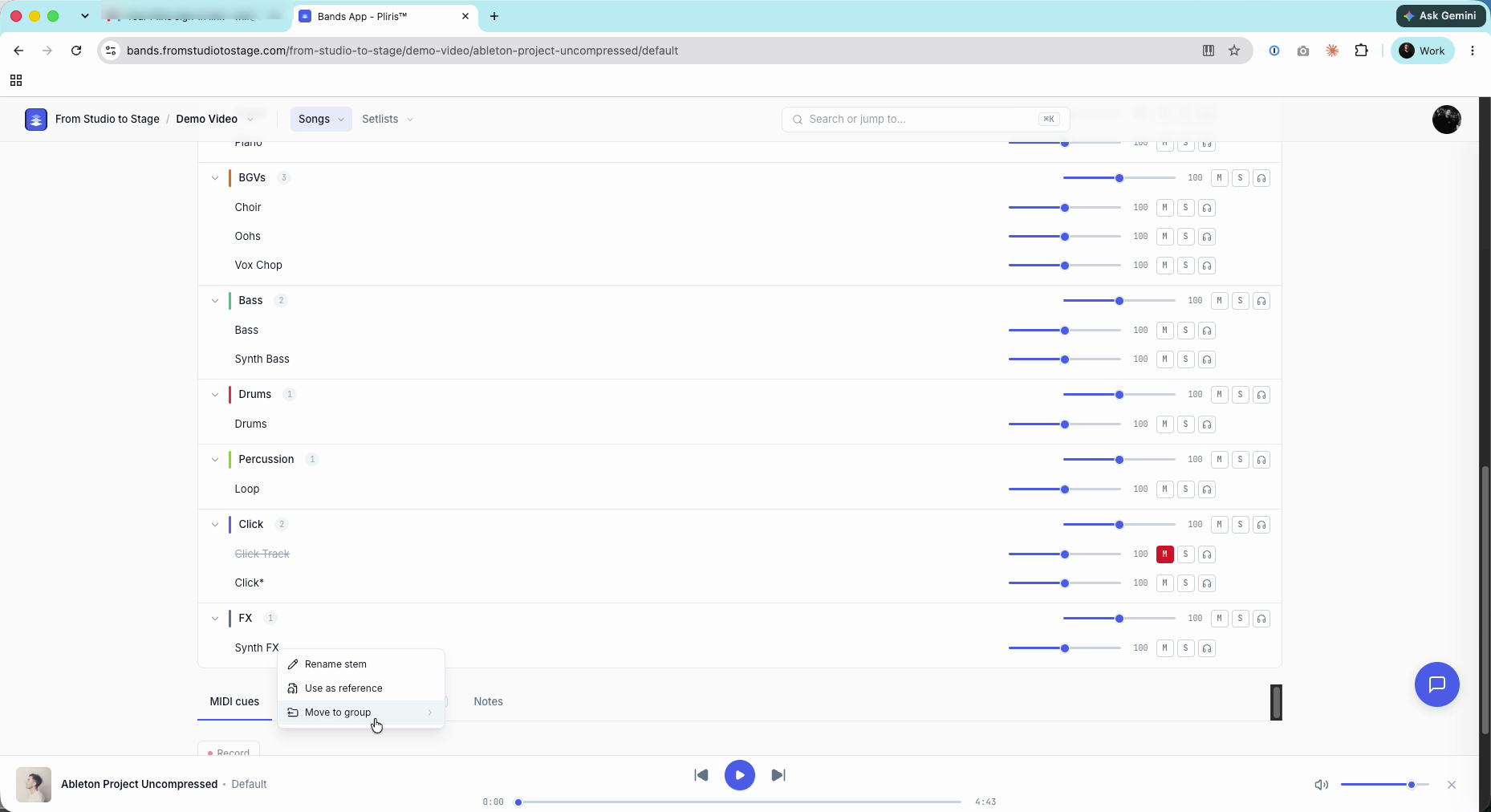
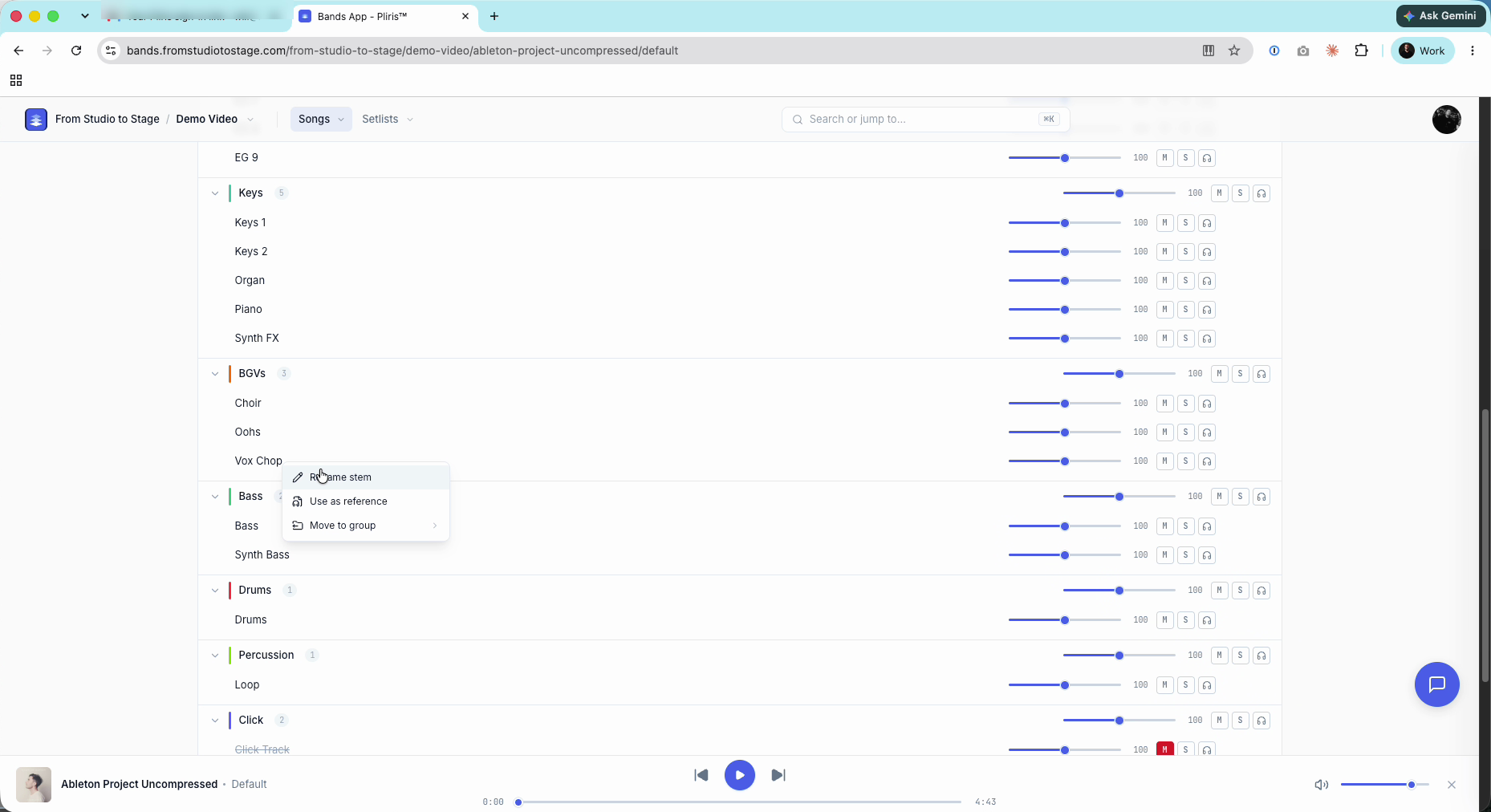
- Right-click the stem. The menu shows Rename stem, Use as reference and Move to group.
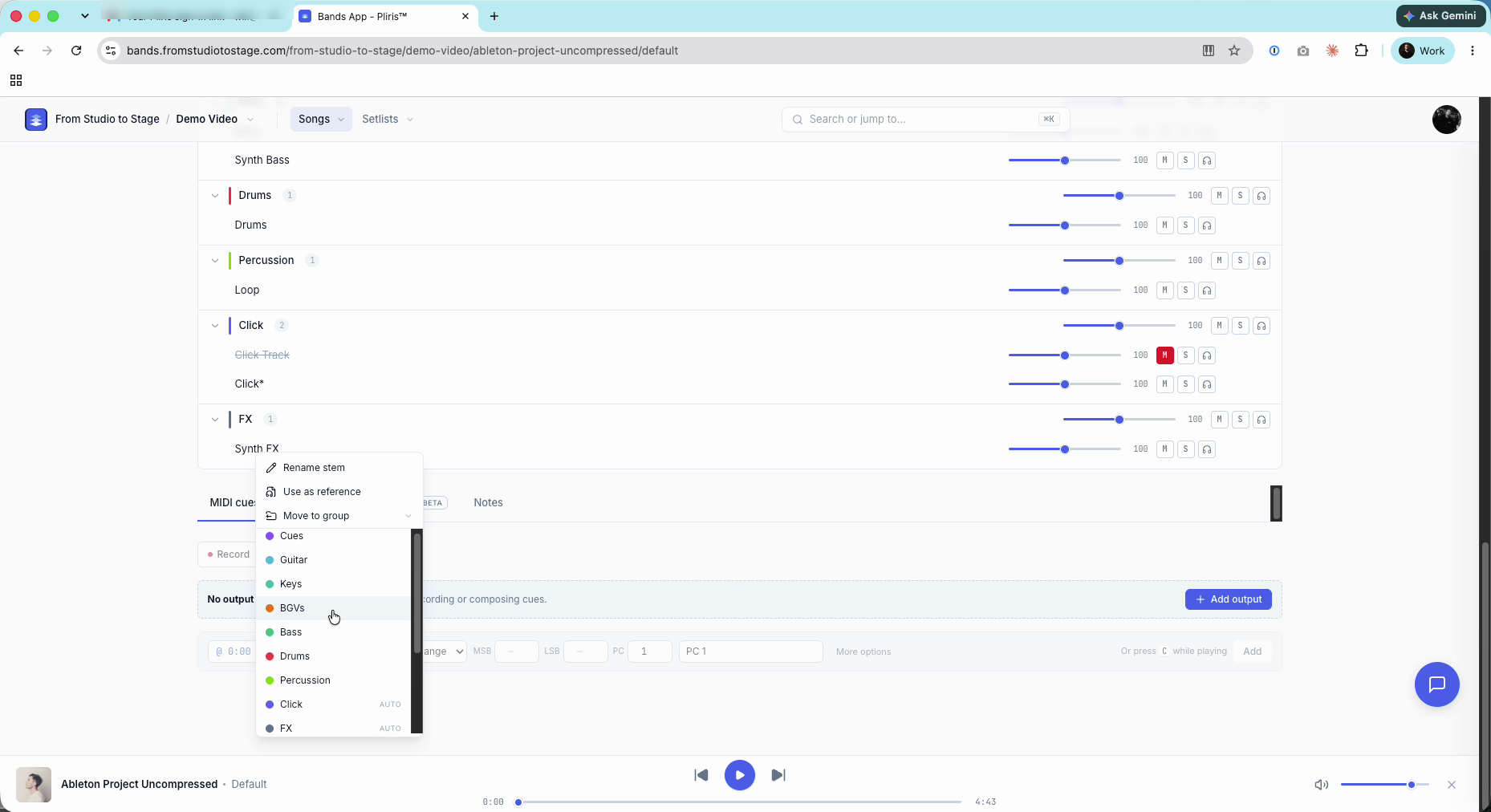
- Choose Move to group, then pick the group. Some groups, like Click and FX, carry an AUTO tag in the list.
- The stem moves straight away.
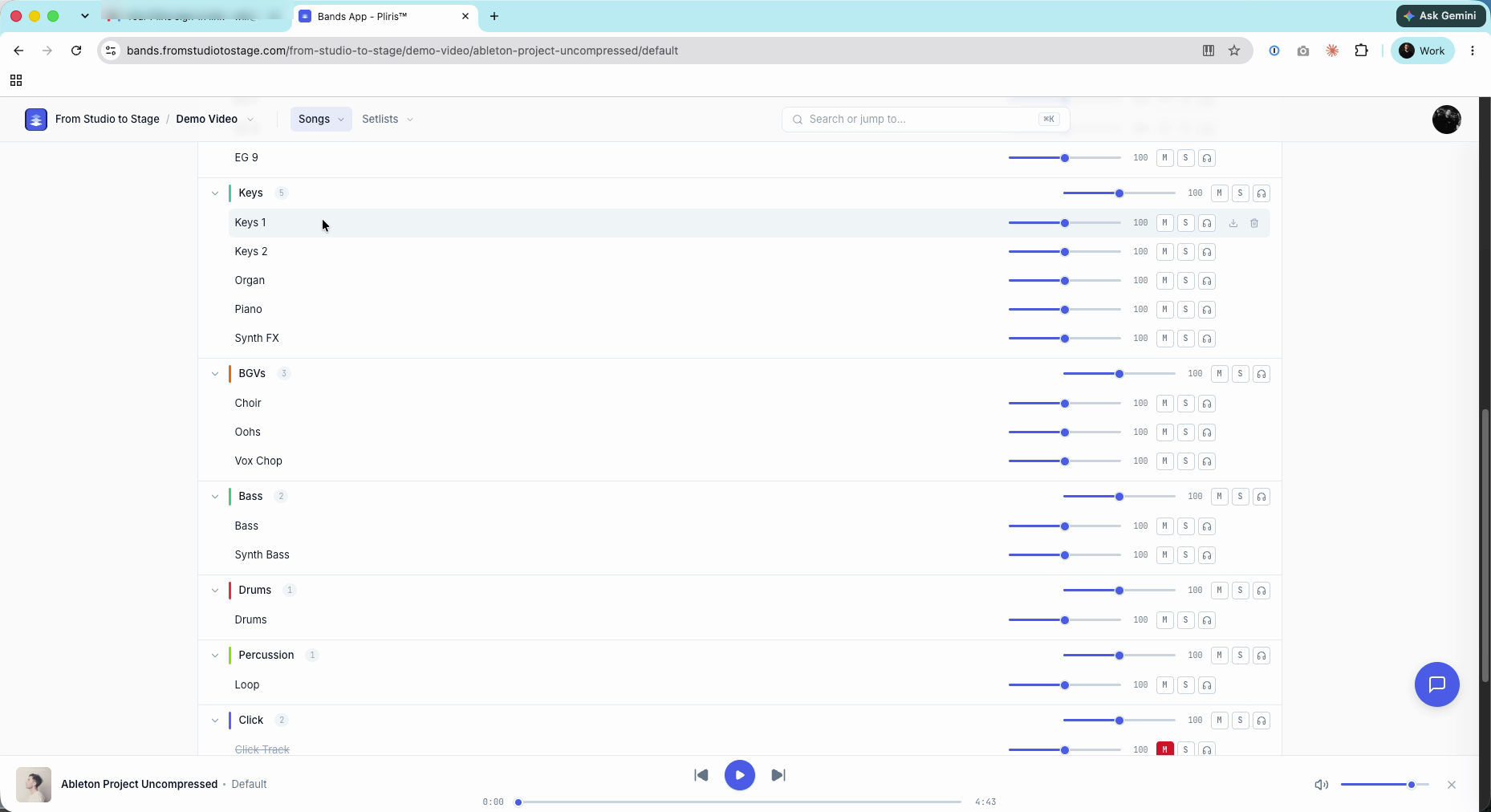
You can't drag a stem into another group. Use the right-click menu.
Moving a stem changes its group on this song only. It doesn't change where that group lands in Ableton. That's the group's Routes to setting on Settings → Stem groups. See How to Change a Stem's Group on a Song and Pre-Routing Stems to Groups.
To use a group of your own, create it on Settings → Stem groups first, then set its Routes to. See Creating Custom Stem Groups.
Rename a stem
- Right-click the stem and choose Rename stem.
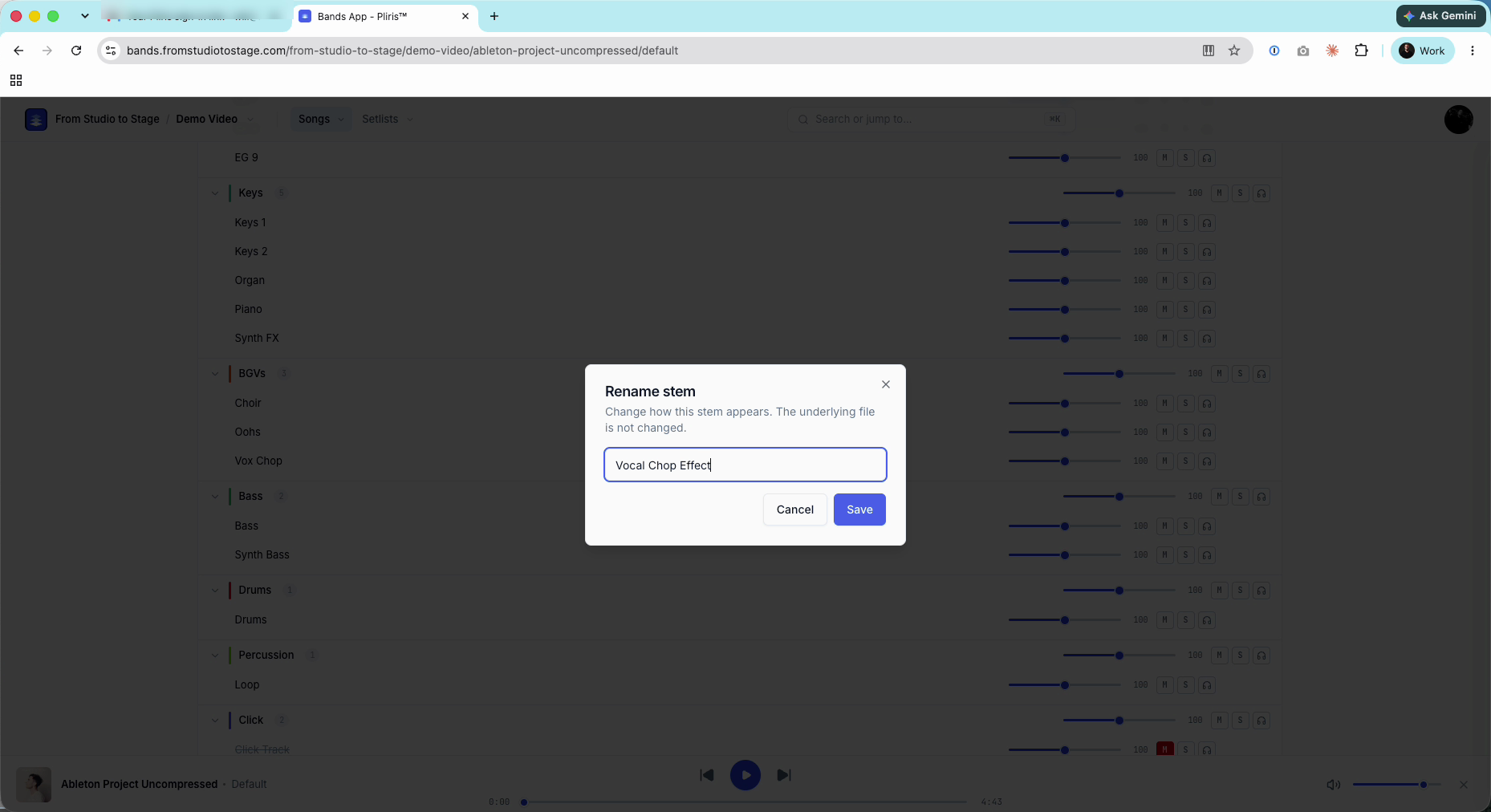
- Type the new name and click Save.
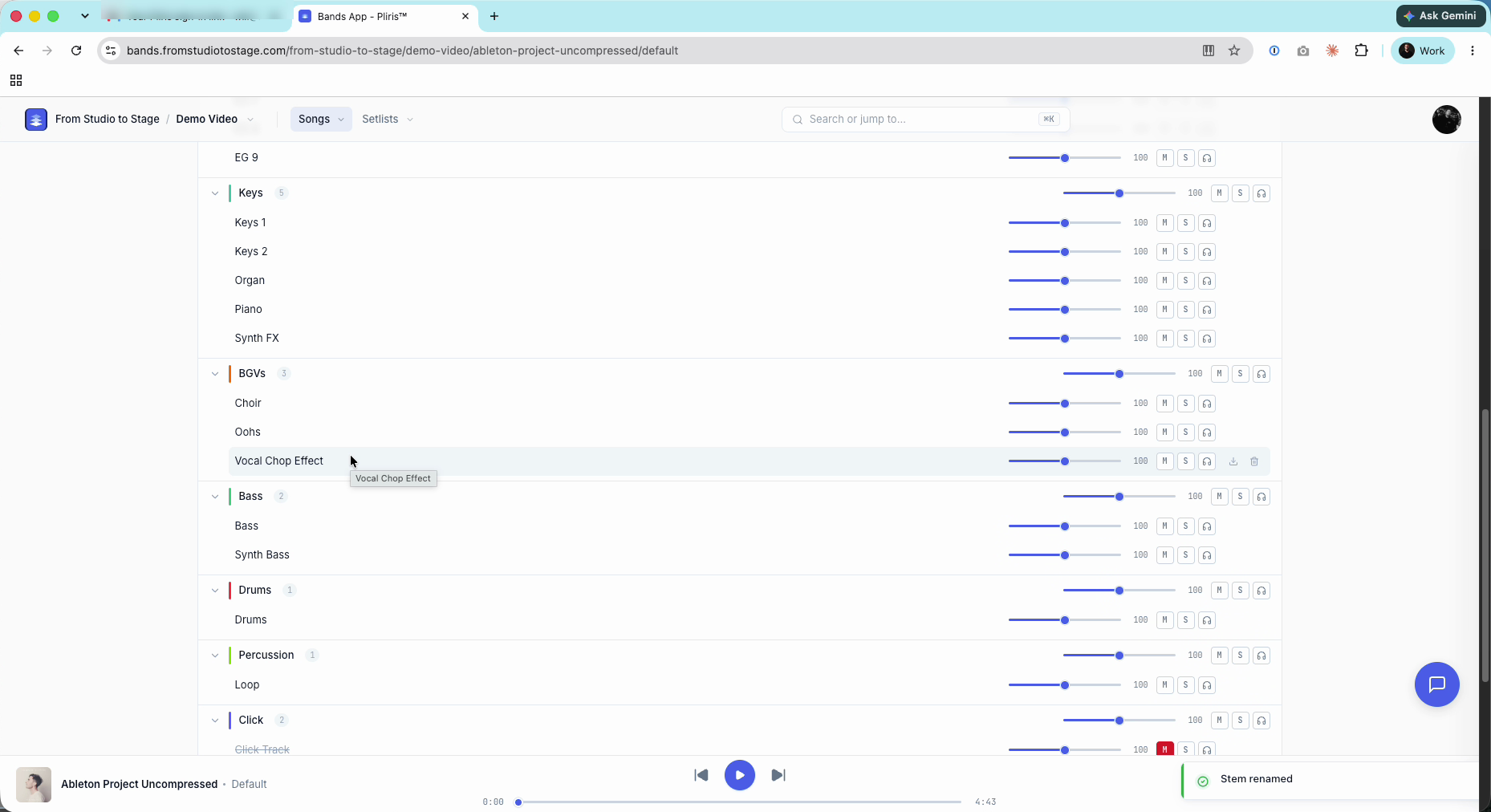
The new name shows on the song page and in Ableton Live when you export. The audio file itself keeps its original name.
Re-uploading a file with the same name replaces that stem. It doesn't add a duplicate.
To move several stems at once, or fix a stem name on every song, see How to Change a Stem's Group on a Song.
Frequently asked questions
How do I move a stem to a different stem group?
Right-click the stem on the song page, choose Move to group, and pick the new group.
How do I open all stem groups at once?
Hold Shift and click any group's arrow. Every group opens.
Does renaming a stem rename the audio file?
No. Rename stem changes how the stem appears in Pliris and in your Ableton export. The underlying file is not changed.
Why did my stem land in the wrong group?
Pliris makes a best guess at each stem's group when you upload. When the guess is wrong, move it with Move to group.
Can I drag a stem into another group?
No. Right-click the stem and choose Move to group.