How to Pre-Route Stems to Groups
Add your stem names to Settings → Stems before you upload, each pointed at a group, so every matching file lands routed the moment it arrives. Names match as keywords, longest wins, custom groups first.
The fastest way to set up a band is to do the routing before the audio arrives. Tell Pliris what your stems will be called and which group each name belongs to, and the first upload lands routed with nothing to clean up.
Add a stem name
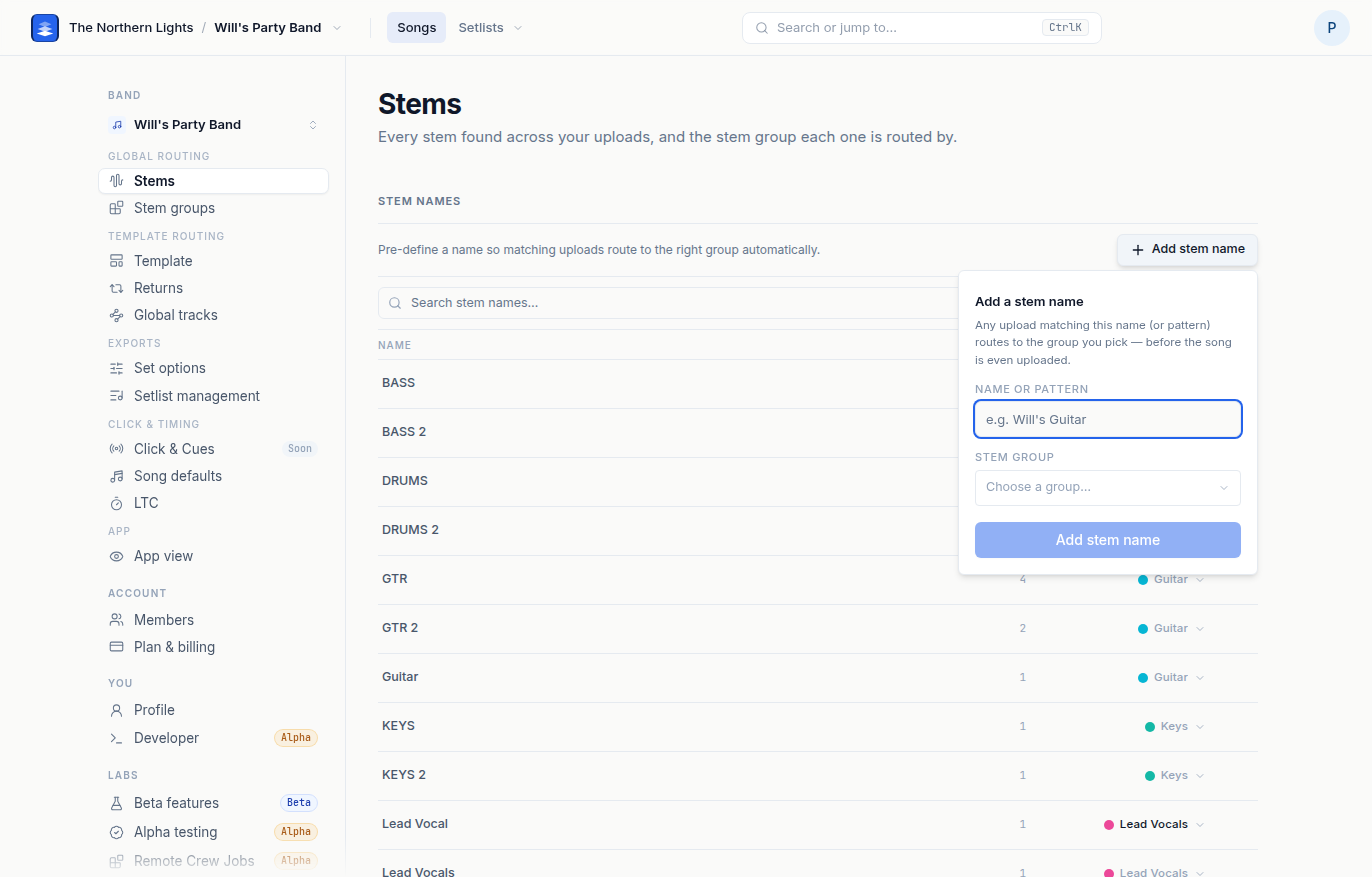
- Open Settings → Stems.
- Click Add stem name (top right of the list).
- Under Name or pattern, type the name your stems will arrive with:
Tim's Guitar,gtr t,prog drums. - Under Stem group, pick the group. Choose Create group… if it does not exist yet; the group is made and selected in one step.
- Click Add stem name. The toast reads
<name> → <group>.
The name now appears in the list with 0 in the Files column and an × beside it. When a stem matching it is uploaded, it lands in that group, and the Files count goes up.
Repeat for every name your team uses. If you already have a catalog, work down the list and let the Files column pick your order: a name used by 40 files is worth pinning before one used by a single file.
How matching works
A pre-defined name is matched as a keyword, not an exact filename, and matching is case-insensitive. gtr t matches GTR T L, Gtr T R and gtr t.
When several keywords match one file:
- Custom-group keywords are checked first. A keyword pointed at a custom group beats one pointed at a built-in group, however short it is.
- Then the longest keyword wins.
That order is what you want: put your specific rules on custom groups and leave the broad fallbacks on built-in groups. The trap is the inverse. A short keyword on a custom group swallows a longer one on a built-in group, so keep custom-group keywords specific.
Turn your naming convention into a routing engine
Say your team exports guitars as GTR T L, GTR T R, GTR J, and sometimes just GTR:
| Pre-define | Group |
|---|---|
gtr t |
Tim's Guitar |
gtr j |
Jason's Guitar |
gtr |
Guitar |
GTR T L matches both gtr and gtr t. The custom one is checked first, so it lands in Tim's Guitar. GTR J goes to Jason's. A plain GTR matches no custom keyword and falls through to the built-in Guitar group. Every future upload sorts itself.
Patterns worth stealing:
- Player initials. One keyword per person, one fallback per instrument.
- Played versus programmed.
prog drumsto Programmed Drums,drumsto Drums. - A short generic keyword per instrument family as the safety net. It is what stops an odd name landing on a bus nobody is listening to.
The full pre-routing order
- Settings → Stem groups. Create the groups your band thinks in and set each group's return. See Creating Custom Stem Groups.
- Settings → Returns. Name and color the returns, set their outputs, remove the ones you do not use. See Routing Return Tracks.
- Settings → Stems → Add stem name. Pre-define the names, each pointed at a group.
- Upload. Every matching file lands routed, and your first export is right without touching a single stem.
Undo a pre-define
Click the × on the name's row. The pin is removed, any existing files with that name are cleared back to automatic matching, and the next upload uses Pliris's guess.
Pre-defines are per band. Each band can use its own engineer's convention.
See also: Organizing Stems with Custom Stem Groups shows pre-routing as part of splitting a crowded group, with the course lesson.
Frequently asked questions
Can I set up stem routing before I upload any stems?
Yes. On Settings → Stems, click Add stem name, type the name your stems will arrive with, pick a group, and click Add stem name. The first upload that matches lands in that group.
Does the stem name have to match exactly?
No. A pre-defined name is matched as a keyword inside the filename, case-insensitively. gtr t matches GTR T L and Gtr T R.
What happens when two pre-defined names both match a file?
A keyword pointed at a custom group is checked before any pointed at a built-in group. Among those, the longest keyword wins. Keep custom-group keywords specific so a short one does not swallow everything.
Do pre-defined names apply to all my bands?
No. Pre-defines are per band, so each band can use its own naming convention.
How do I remove a pre-defined stem name?
Click the × beside the name on Settings → Stems. Existing files with that name go back to automatic matching, and so does the next upload.
Why did my "Click Custom Backing Track" stem land in Other instead of Click?
Pliris doesn't file a stem named Click Custom Backing Track under Click on its own, because some backing-track packs use that exact name for a drum or full-mix stem. If yours is your metronome, tell Pliris once. On the song page, right-click the stem, choose Move to group and pick Click. Then open Settings → Stems, click Add stem name, type click custom backing track, set Stem group to Click and click Add stem name. Every later upload with that name lands in Click.
I moved my click into the Click group. Why does the report card still say the tempo can't be read from a click?
The tempo was worked out from the mix when the song first analyzed, before the click was in the Click group. Moving the stem doesn't redo that. Ask us in the support chat and we can re-time the song from your click at no credit cost, or set the tempo yourself by right-clicking Tempo in the song header. See Fixing a Wrong Tempo.