Setting Up Return Tracks for Your Ableton Export
Stems go into stem groups and stem groups go into return tracks. On Settings → Returns, color and rename each return, route unrouted groups, add global tracks or single stems, set outputs, turn returns on or mute them, and check the result in Ableton Live.
Return tracks are where your stems land in the Ableton Live set Pliris exports. The signal flow is simple: stems go into stem groups, and stem groups go into return tracks. A stem is in one stem group at a time, but several stem groups can share one return, for example an Acoustic Guitars group and an Electric Guitars group both on a single Guitars return. Set this up once per band and every export follows it.
Watch the lesson: this article goes with Route stem groups to return tracks, part of the Using Pliris to Program, Practice, and Perform course.
Open the Returns page
- Click your icon (top right), then Band settings.
- Under Template routing, click Returns.
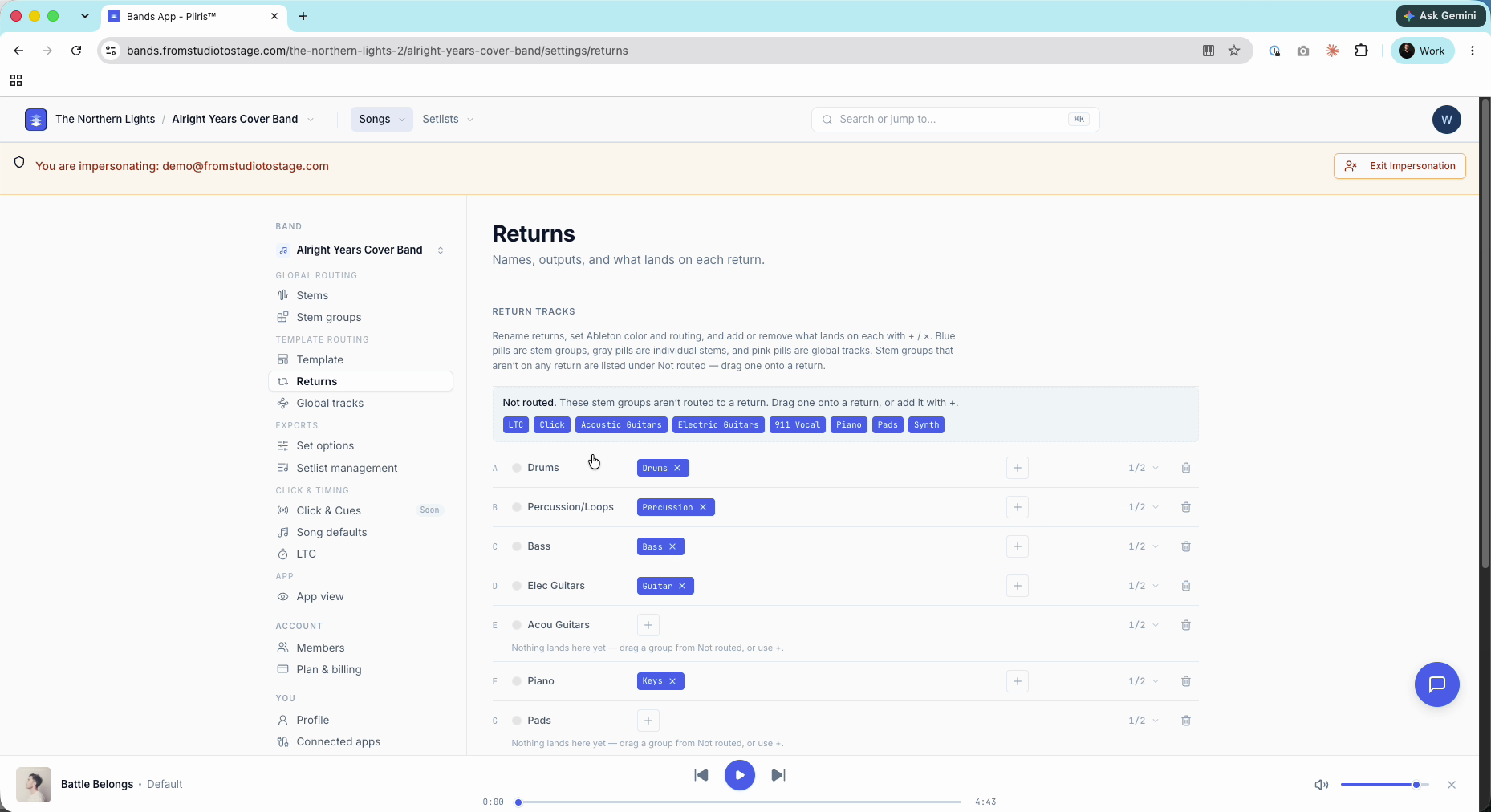
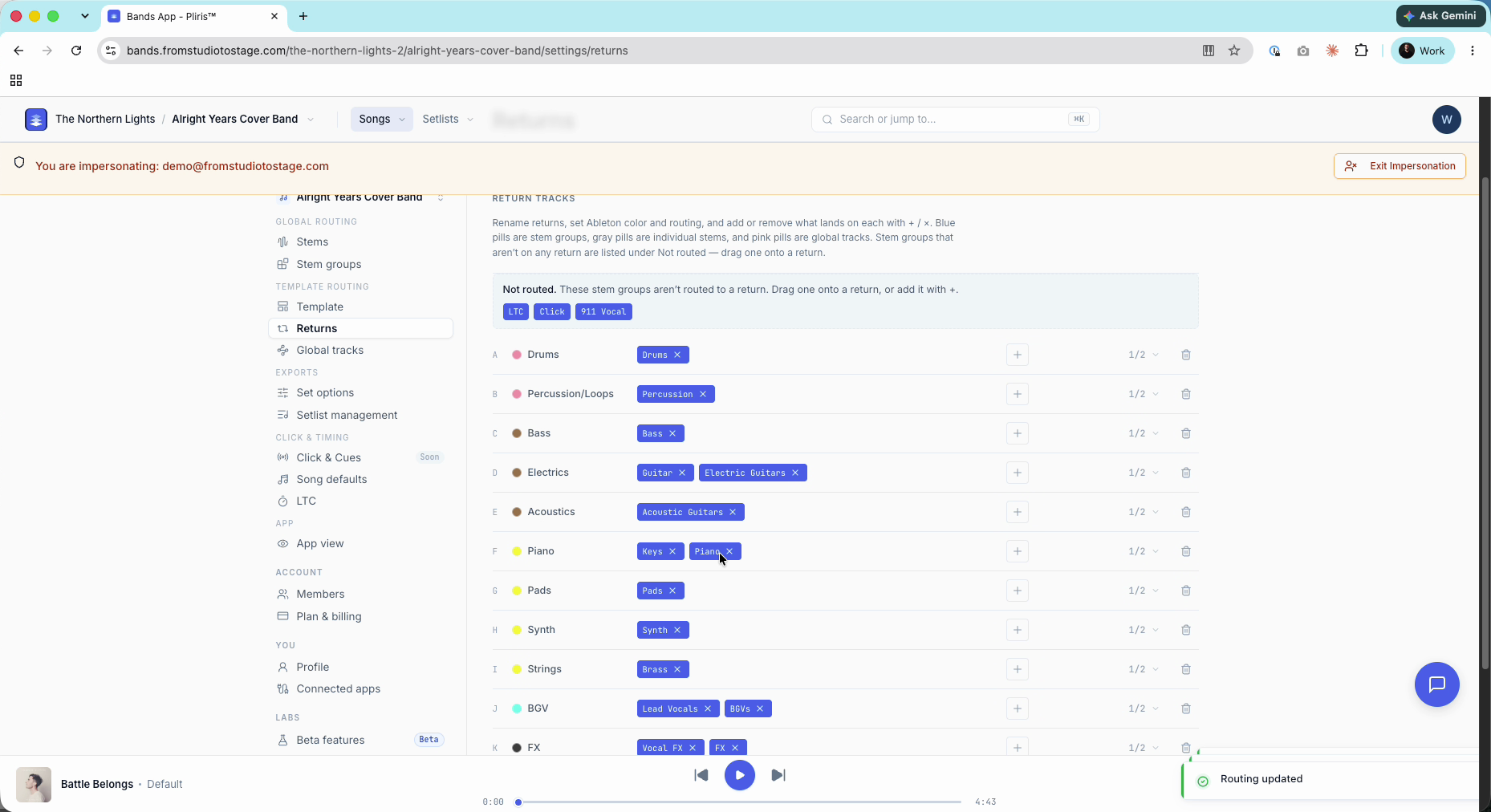
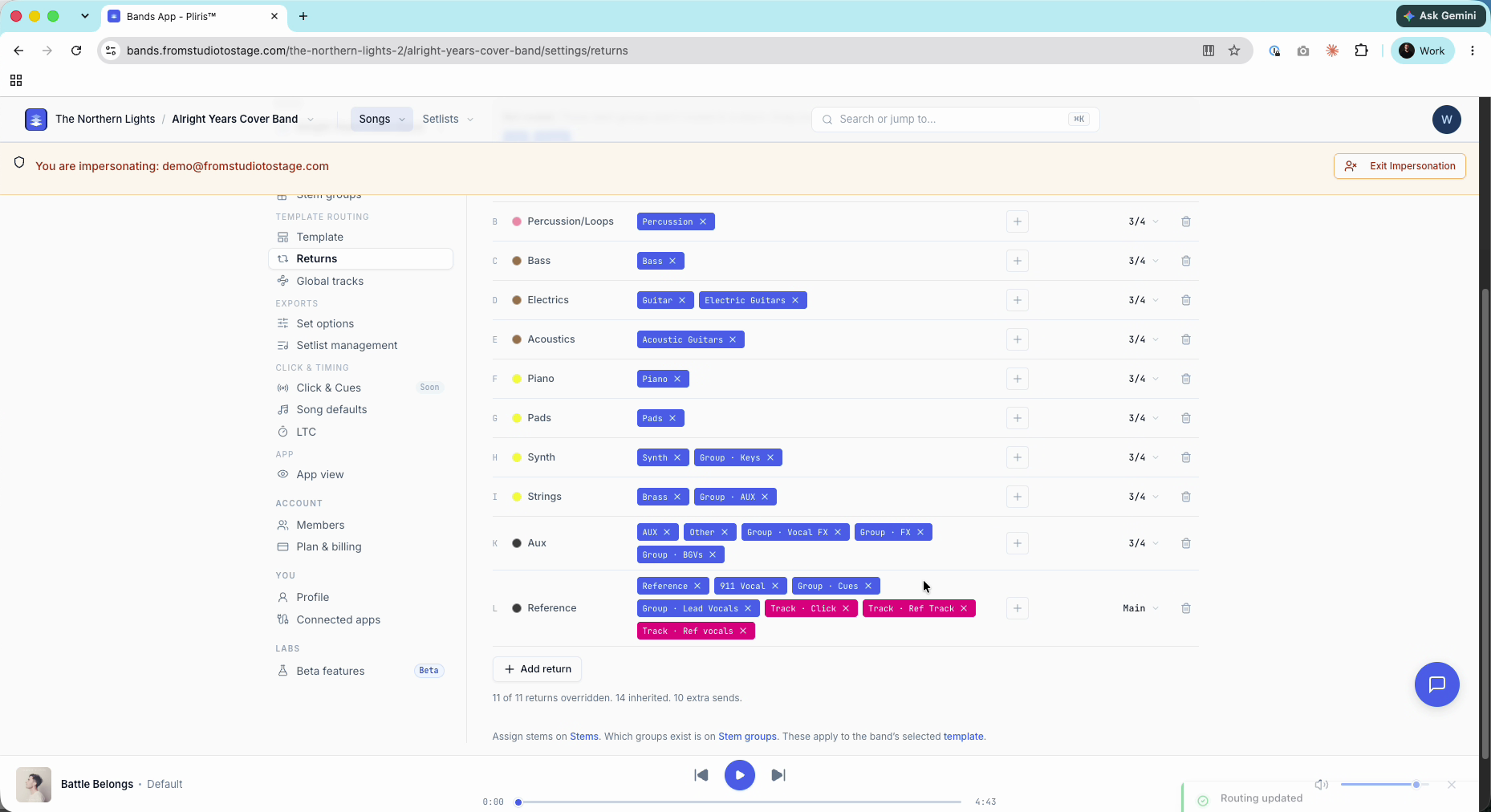
Each row is one return: its letter (A, B, C…), color dot, name, what lands on it, whether it is on or muted, and its output. Blue pills are stem groups, gray pills are individual stems, and pink pills are global tracks.
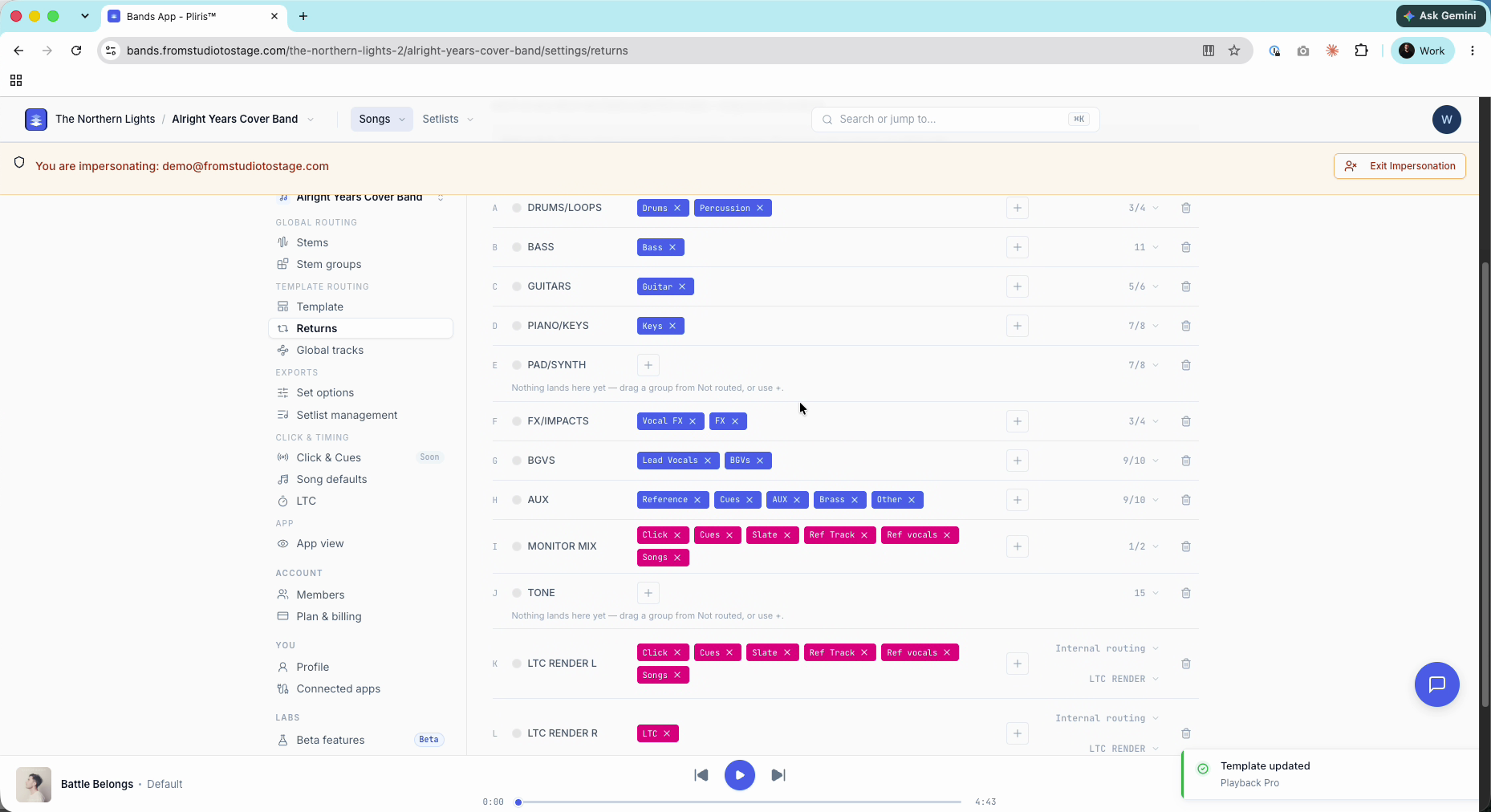
The returns you see depend on the band's template. Switch to Pro on the Template page and the list changes (for example to MONITOR MIX, TONE and LTC RENDER returns). Your changes are saved per band, on the template you're on. See Switching Your Ableton Export Template.
Color-code and rename returns
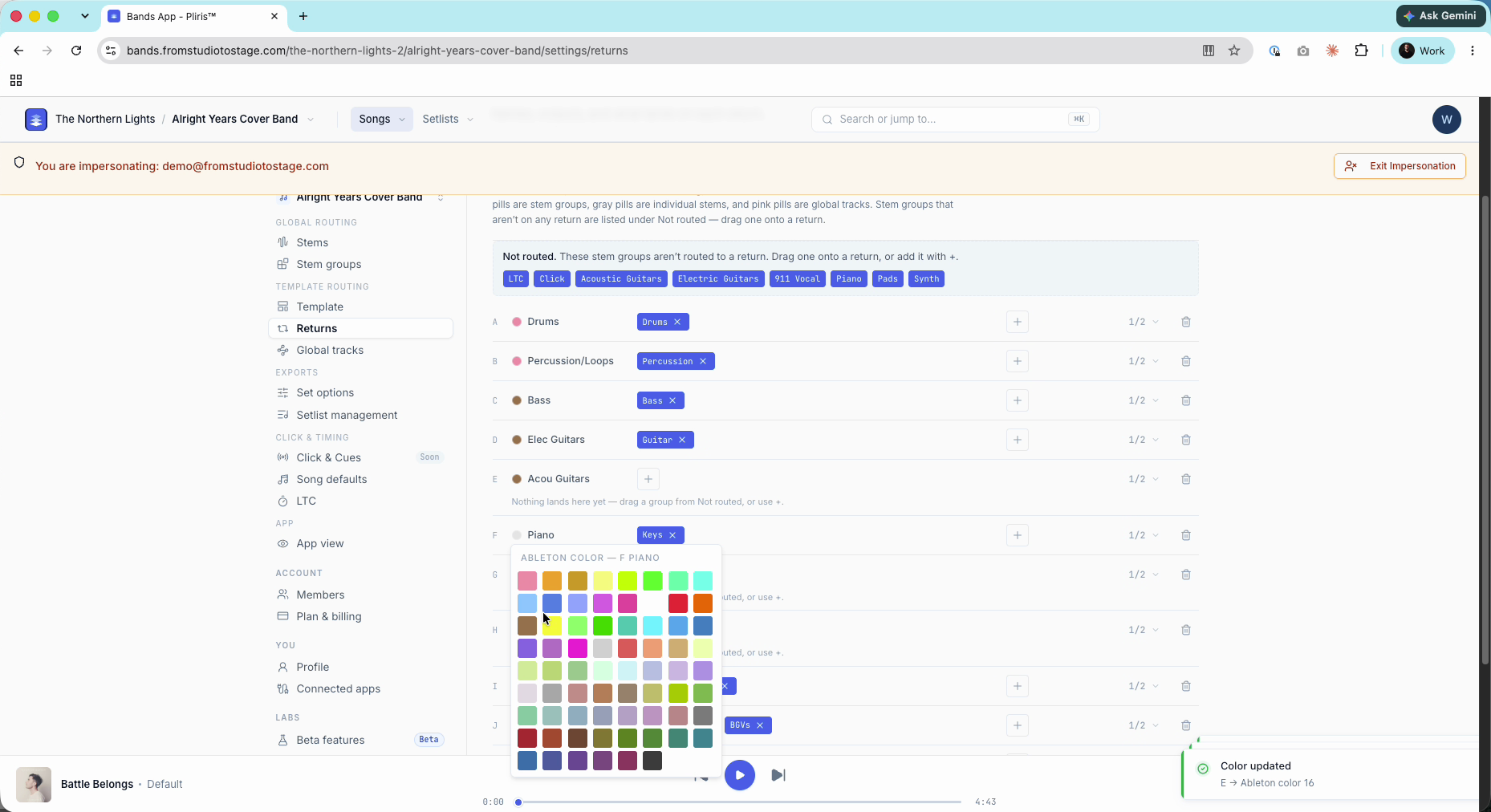
- Color: click the color dot and pick an Ableton color. For example, make drums and percussion pink and guitars brown. The color carries into Live.
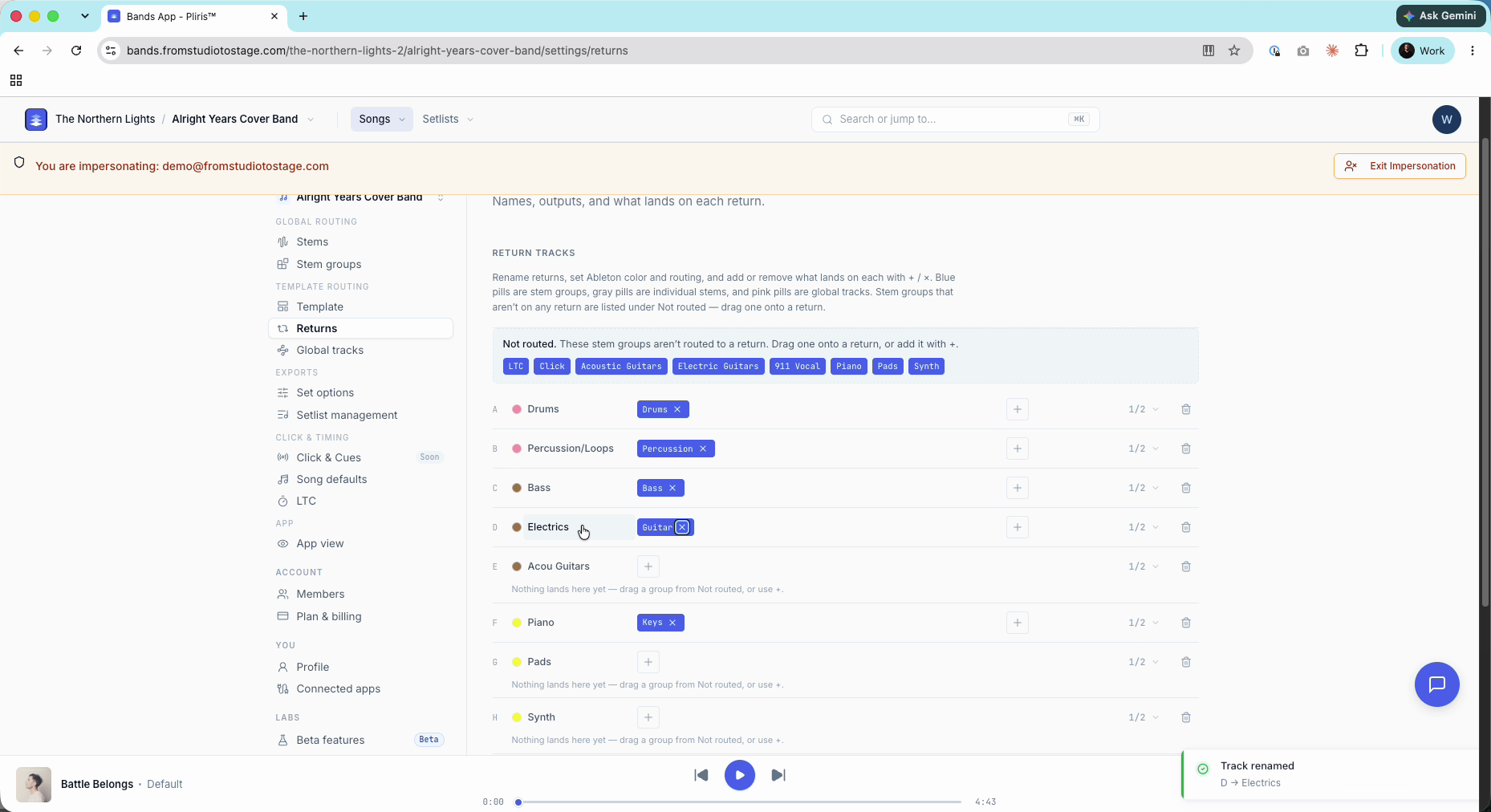
- Name: click the name (Click to rename) and type a new one, such as Electrics or Acoustics. The new name is what you'll see in Live.
Route the Not routed groups
Not routed at the top lists stem groups that aren't on any return. Stems in those groups get no return track routing when you export. New custom groups always start here, because Pliris doesn't guess where you want them.
Drag each group onto a return, or click + on the return and add it. For example, drag Acoustic Guitars onto Acoustics and Electric Guitars onto Electrics. Do this before you export.
Add stem groups, global tracks or single stems
Click + on a return. Under From there are three lists:
| Choose | What lands on the return |
|---|---|
| Stem group | Every stem in that group. |
| Tracks | A global track from your template, such as Click, Cues, Ref Track or Ref vocals. |
| Specific stem | Every stem with that name, whatever group it's in (for example EG 3 if that's always one player's guitar). |
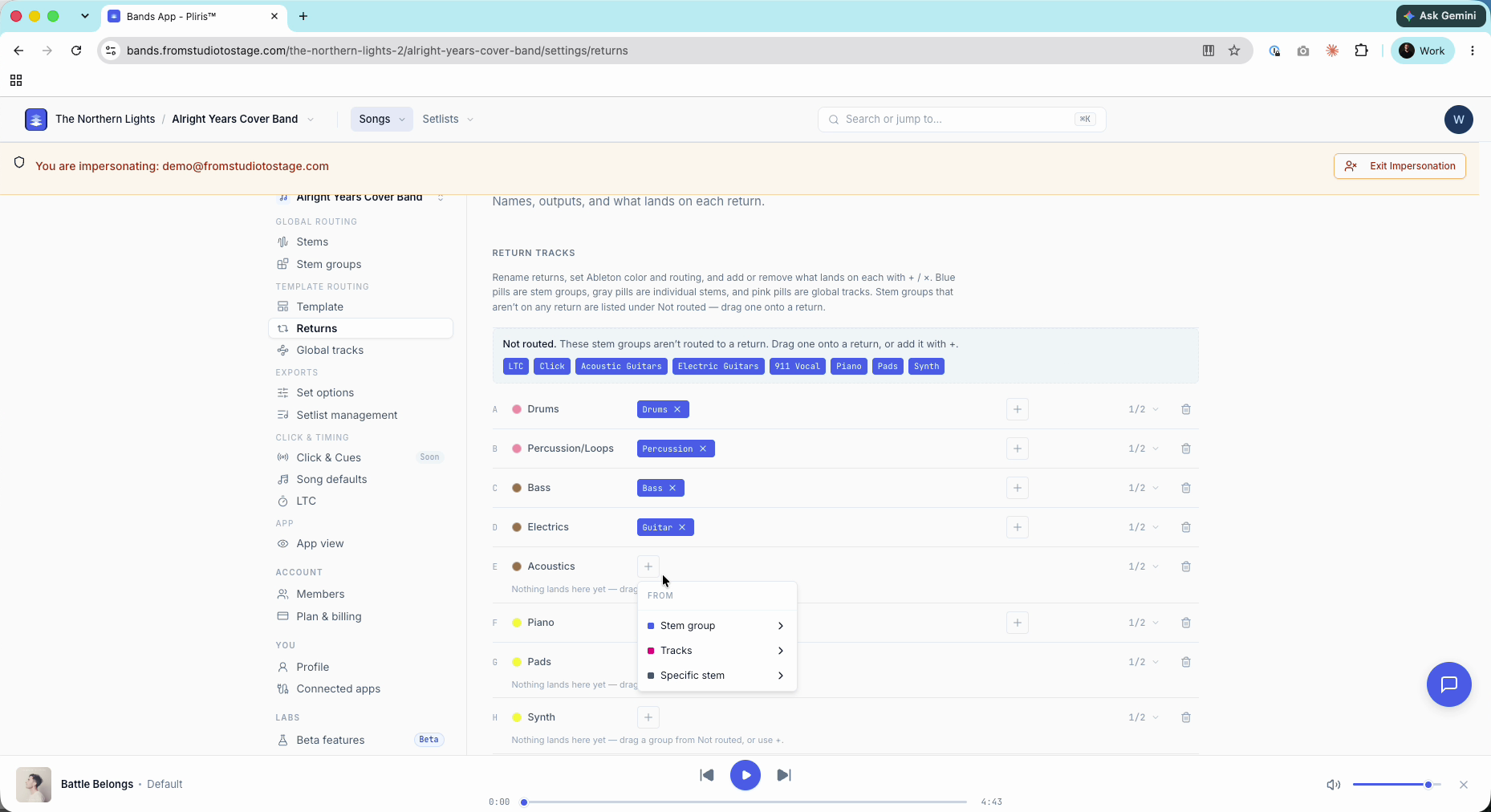
A global track you add is sent to the return as well. It still plays out of its own output. To take something off a return, click the × on its pill.
Pro tip: Build a reference return. Rename a spare return to Reference, add the Reference, Lead Vocals, 911 Vocal and Cues groups, then add Click, Ref Track and Ref vocals from Tracks.
Set each return's output
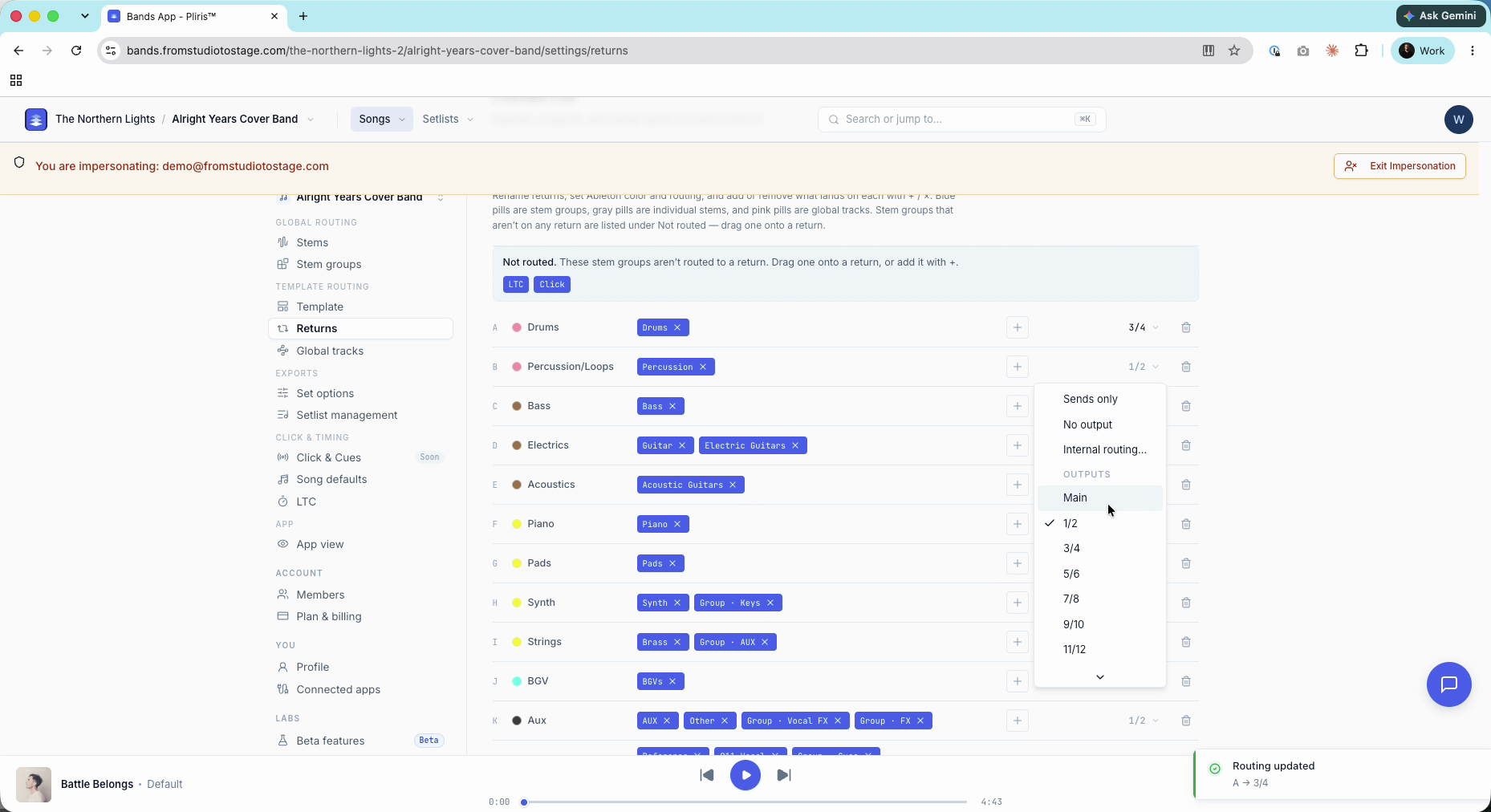
Click the output on the right of a row (1/2 by default). The picker offers Sends only, No output, Internal routing…, Main and stereo pairs (1/2, 3/4, 5/6…). For example, keep click and cues on 1/2, send every other return to 3/4, and send Reference to Main.
There's no bulk edit for outputs yet, so set each row.
Turn a return on or mute it
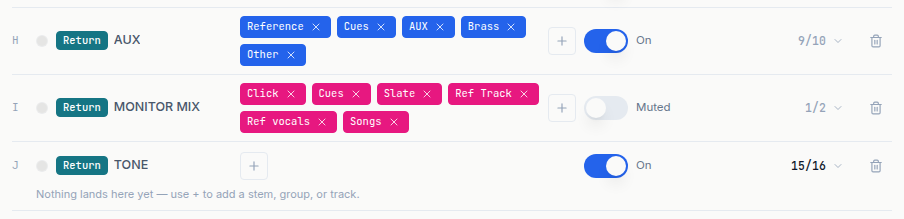
The switch beside each return's output shows whether the return sounds when the exported set opens. On means the return is on. Turn the switch off and the label reads Muted, so the return loads muted in Live.
Every return starts at whatever your template does. On Pro, every return is on except I (MONITOR MIX), which ships muted. If you have turned return I into your own bus, for example renamed it and routed a stem group to it, turn its switch on. Every export from then on loads it unmuted.
Remove a return or bring it back
- Click the trash icon to remove a return you don't need. Route its groups to another return first (for example, move BGVs to Aux).
- Click Add return under the list to bring it back.
A return you add back comes with the template's default output, so set its output again.
Check the result in Ableton Live
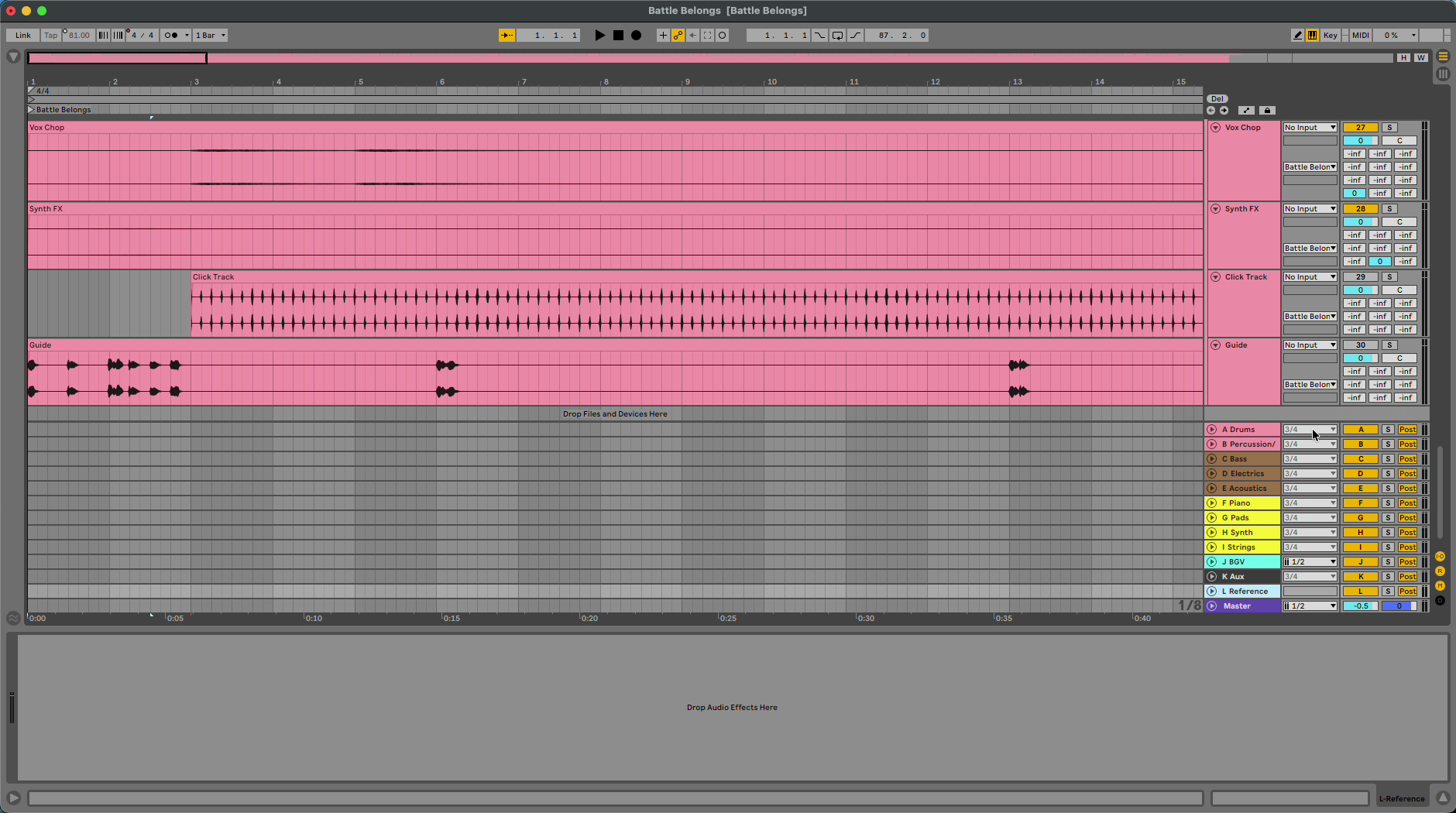
Export a song and open the set. Check that each stem sends to the returns you chose, that the returns have your colors and names, and that the I/O outputs match the Returns page.
Related: How to Route Return Tracks, Settings → Returns, How to Route One Stem to Multiple Return Tracks, Organizing Stems with Custom Stem Groups, Settings → Stem groups.
Frequently asked questions
Why don't some stems have a return track in my Ableton export?
Their stem group is in the Not routed list on Settings → Returns. Drag the group onto a return, or add it with +, then export again.
Can two stem groups go to the same return track?
Yes. A stem is in one stem group at a time, but any number of stem groups can land on one return, for example acoustic and electric guitar groups on one Guitars return.
How do I send the click to a return track?
On Settings → Returns, click + on the return, choose Tracks, then Click. The click still plays out of its own output as well.
Why did my return tracks change when I switched templates?
Returns depend on the band's template, and your routing is saved per template. Each template shows its own set of returns.
I added a return back. Why is it outputting to 1/2?
Add return restores the template's default output. Click the output on that row and set it again.