Routing Global Tracks in Your Ableton Export
Global tracks are the header tracks at the top of every exported song and set. Choose each one's output, whether it loads on or muted, set its color or a shared color, use Sends only, and feed global tracks into return tracks.
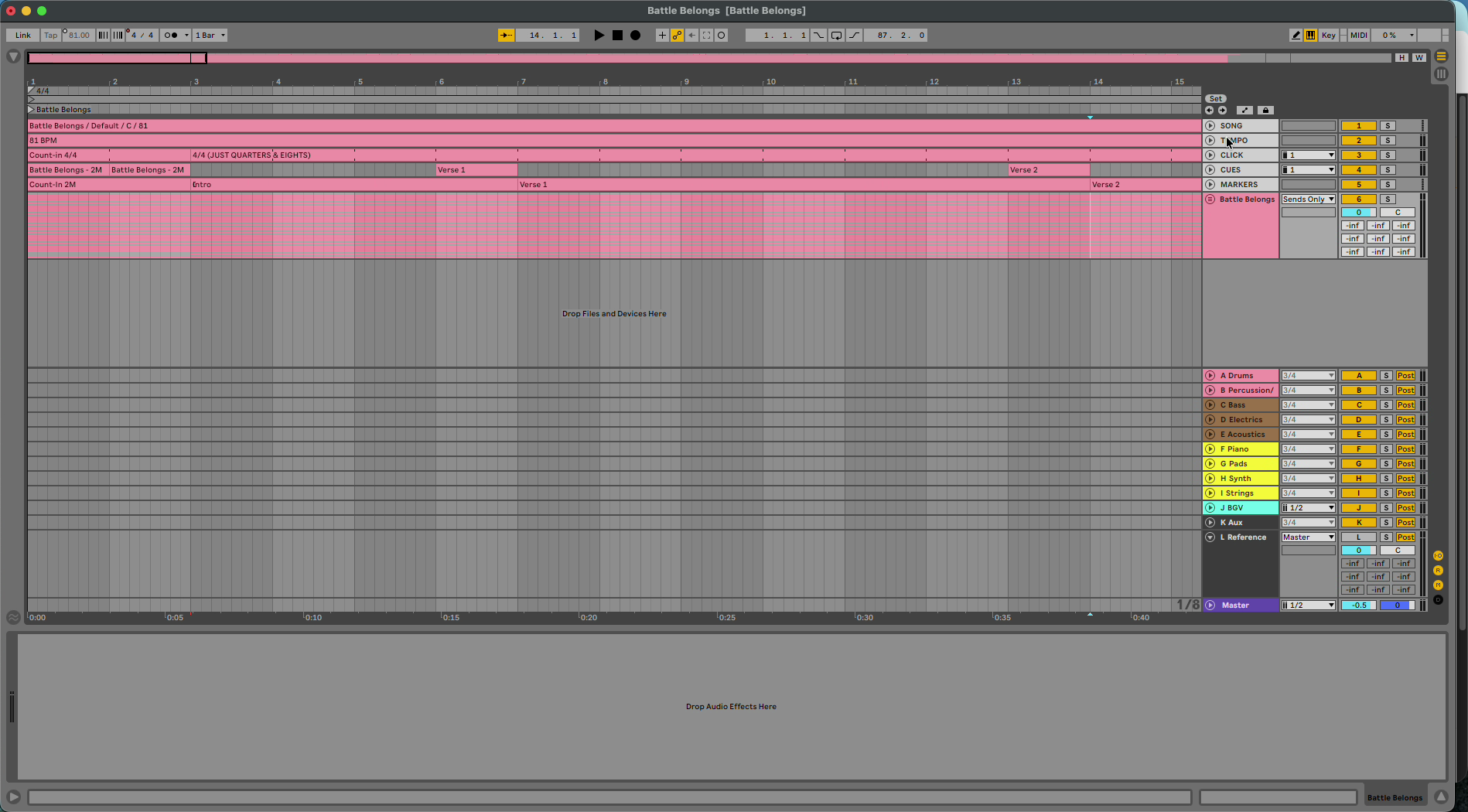
Global tracks (also called header tracks) are the tracks at the top of every song and the full set in your Ableton export: song, tempo, click, cues, markers and, on bigger templates, LTC and reference tracks. Settings → Global tracks controls where each one outputs, whether it loads on or muted, and its color. Changes apply to every future export for that band.
Watch the lesson: this article goes with Route your global tracks, part of the Using Pliris to Program, Practice, and Perform course.
Which global tracks you get
The list comes from your band's template:
- Standard: Songs, Click, Tempo, Cues, Markers.
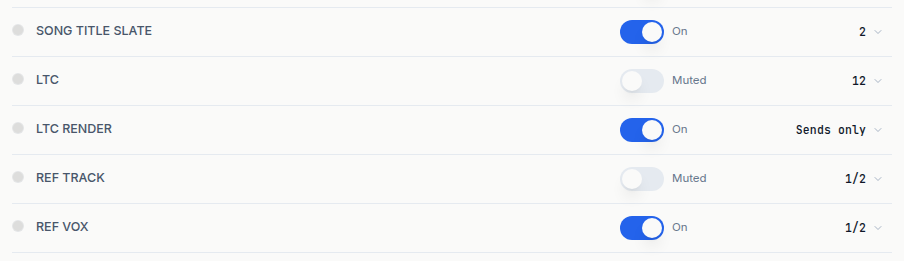
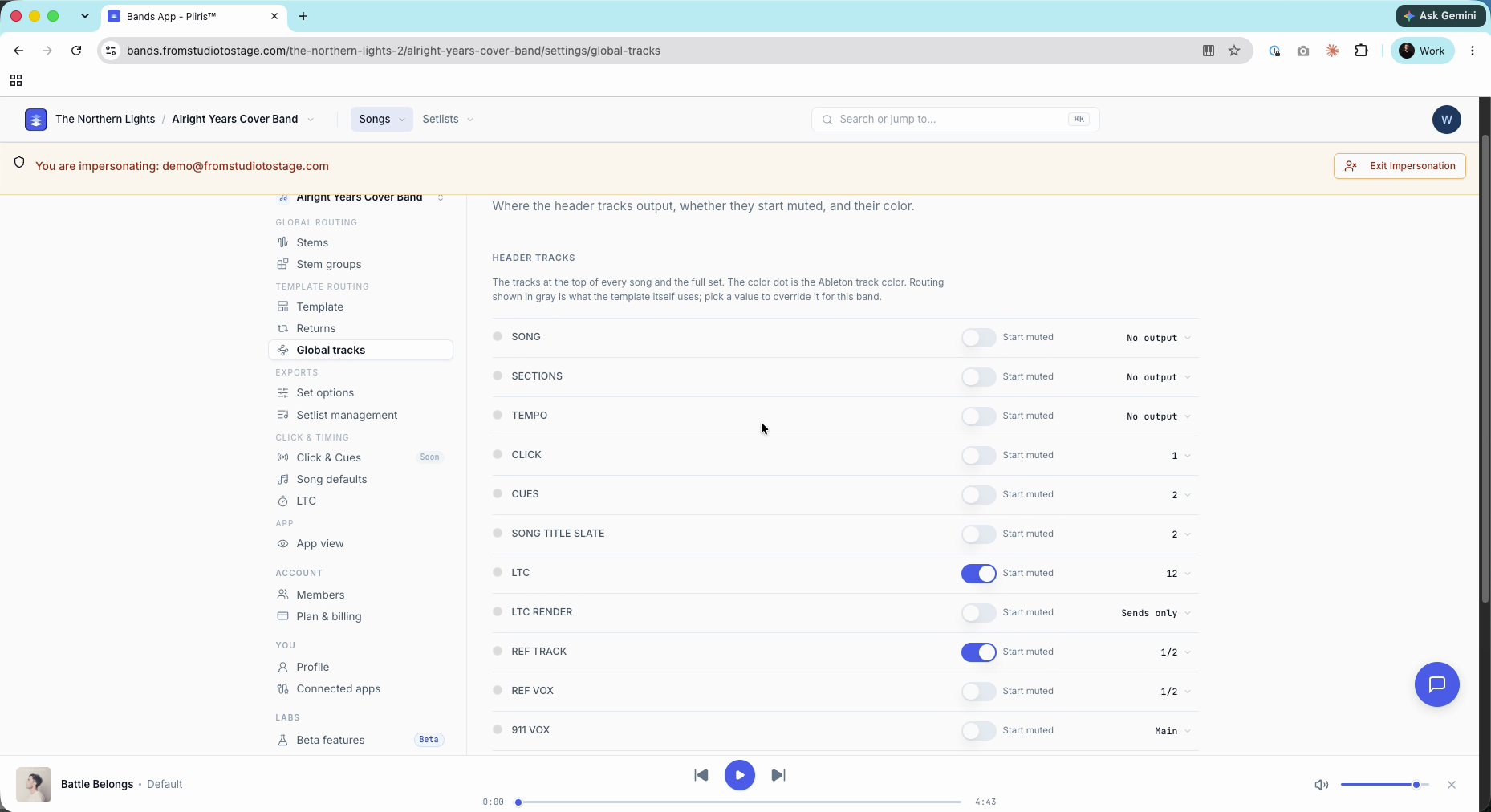
- Pro: Song, Sections, Tempo, Click, Cues, Song Title Slate, LTC, LTC Render, Ref Track, Ref Vox, 911 Vox.
To change it, pick another template under Settings → Template. See Switching Your Ableton Export Template.
Change a global track
- Open your band's Settings and click Global tracks, under Template routing.
- For each track you can:
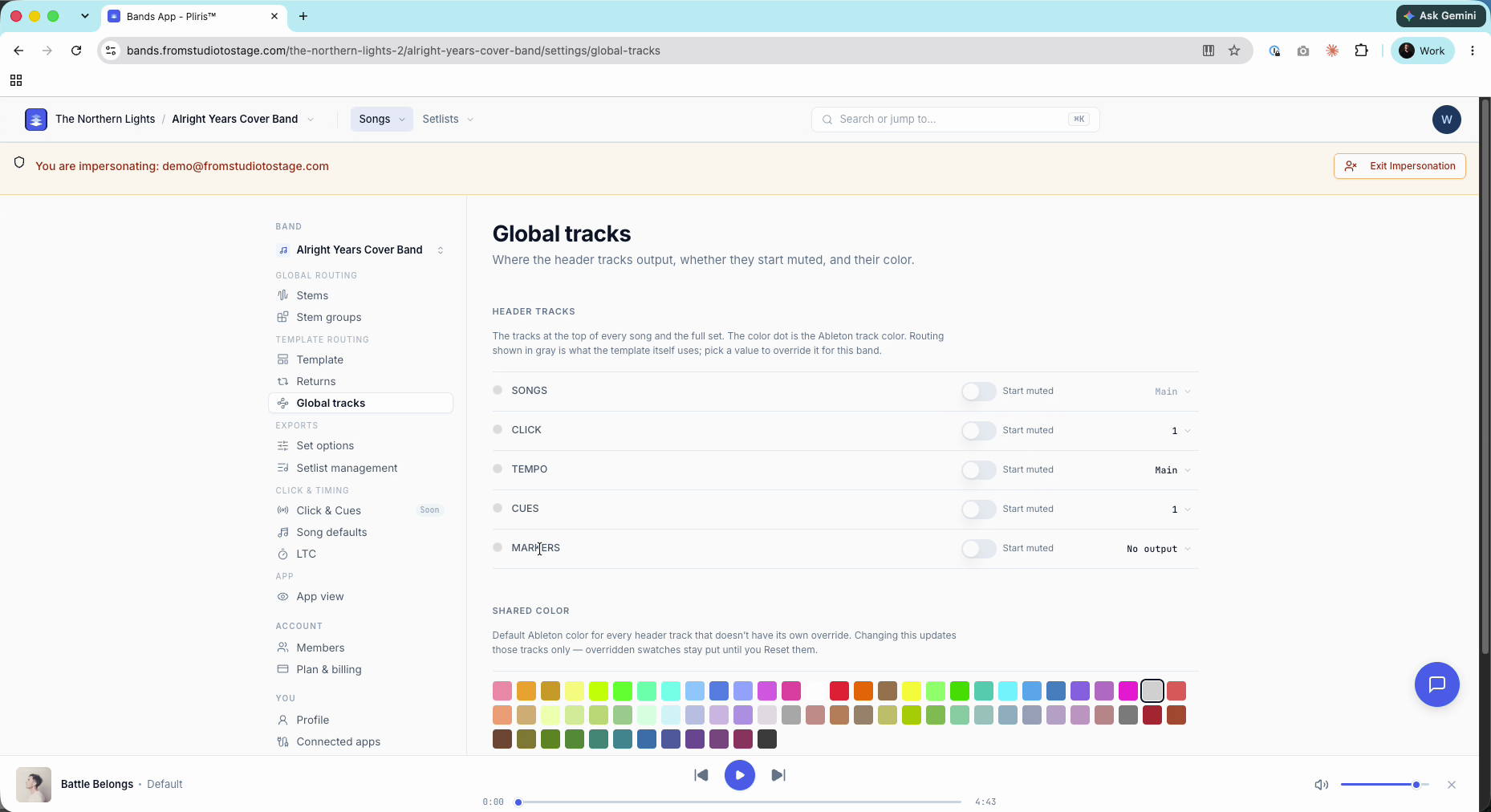
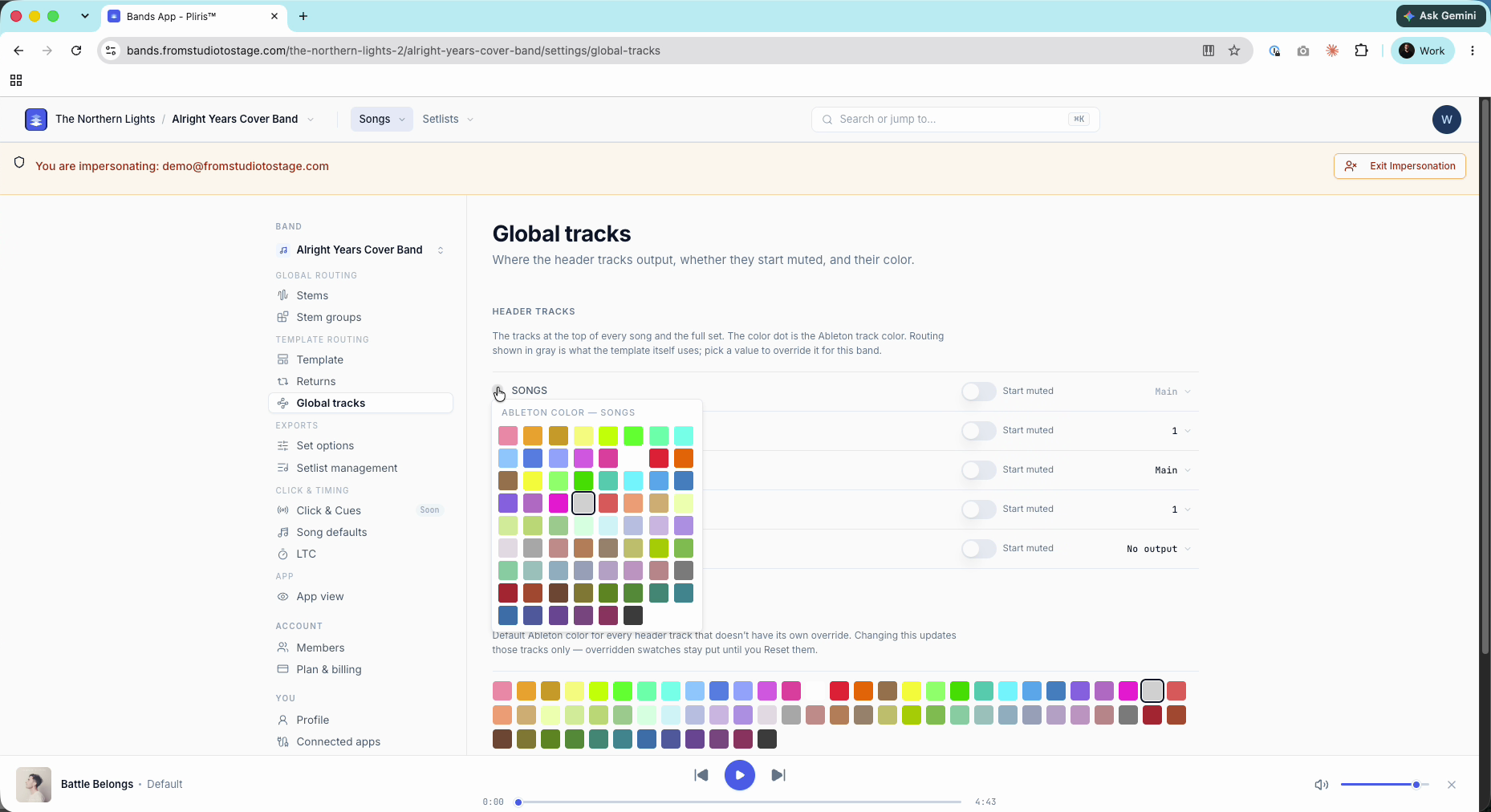
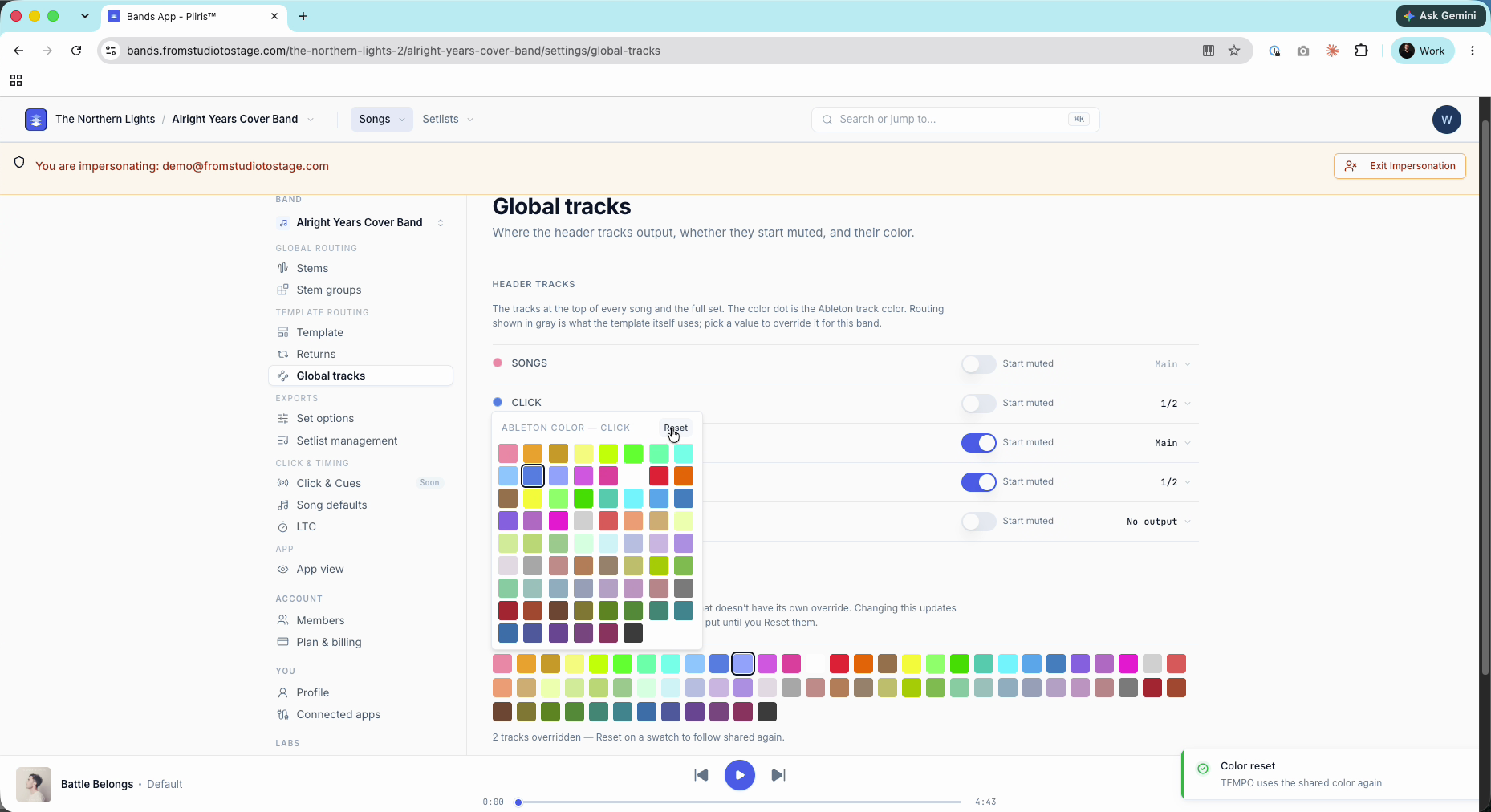
- Set its color: click the color dot. It's the Ableton track color.
- Turn it on or mute it: the switch shows whether the track sounds when the set opens. On means the track is on; turn it off and the label reads Muted, so the track loads muted.
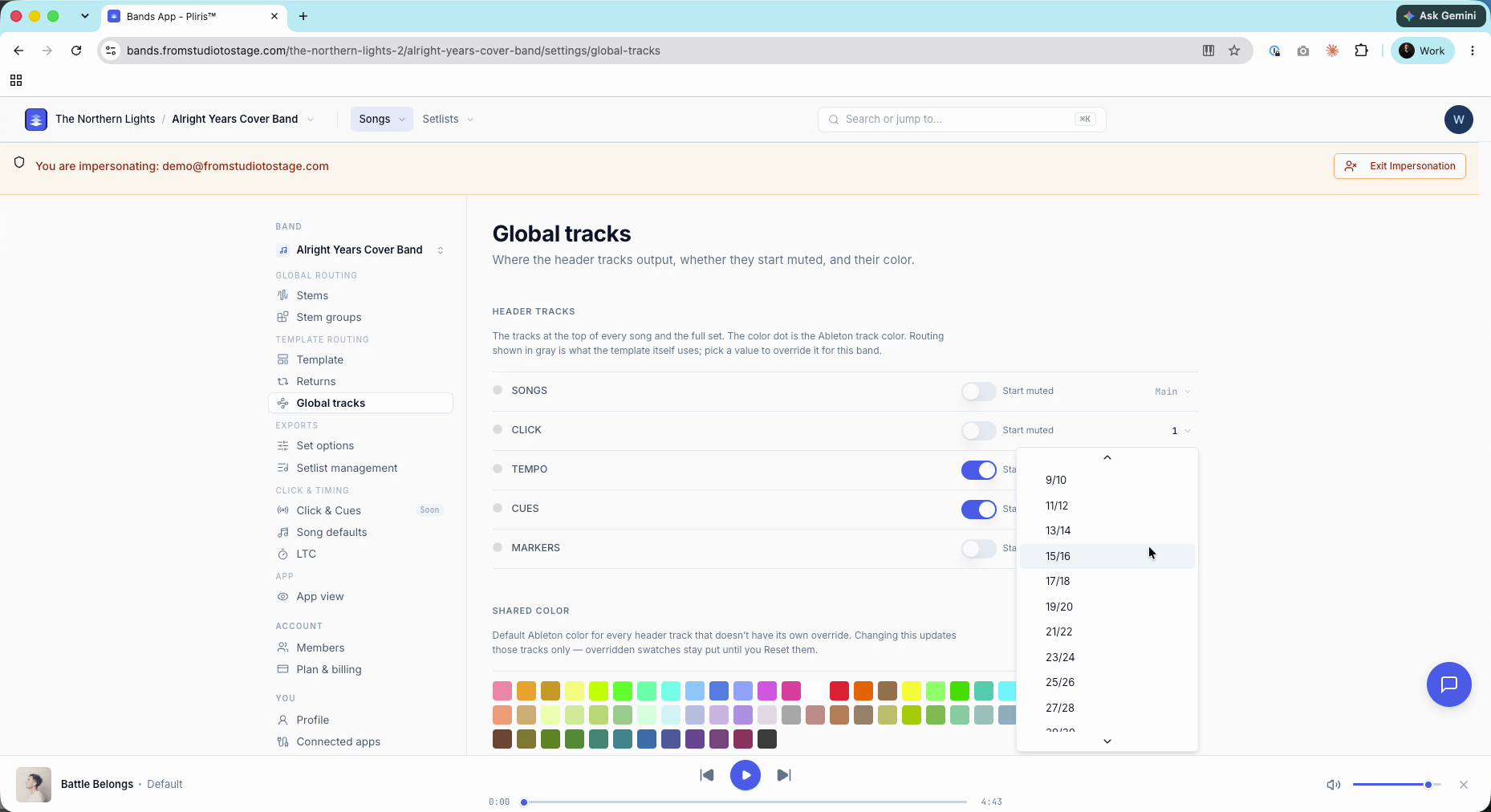
- Change its output: open the picker on the right and choose Main, a stereo pair (1/2, 3/4…) or a single channel.
Routing shown in gray is what the template uses. A value you pick overrides it for this band.
Use a shared color
Shared color is the default Ableton color for every header track that doesn't have its own color. Changing it updates those tracks only. Tracks with their own color stay put until you open their color dot and click Reset.
Sends only, No output and Reset to template
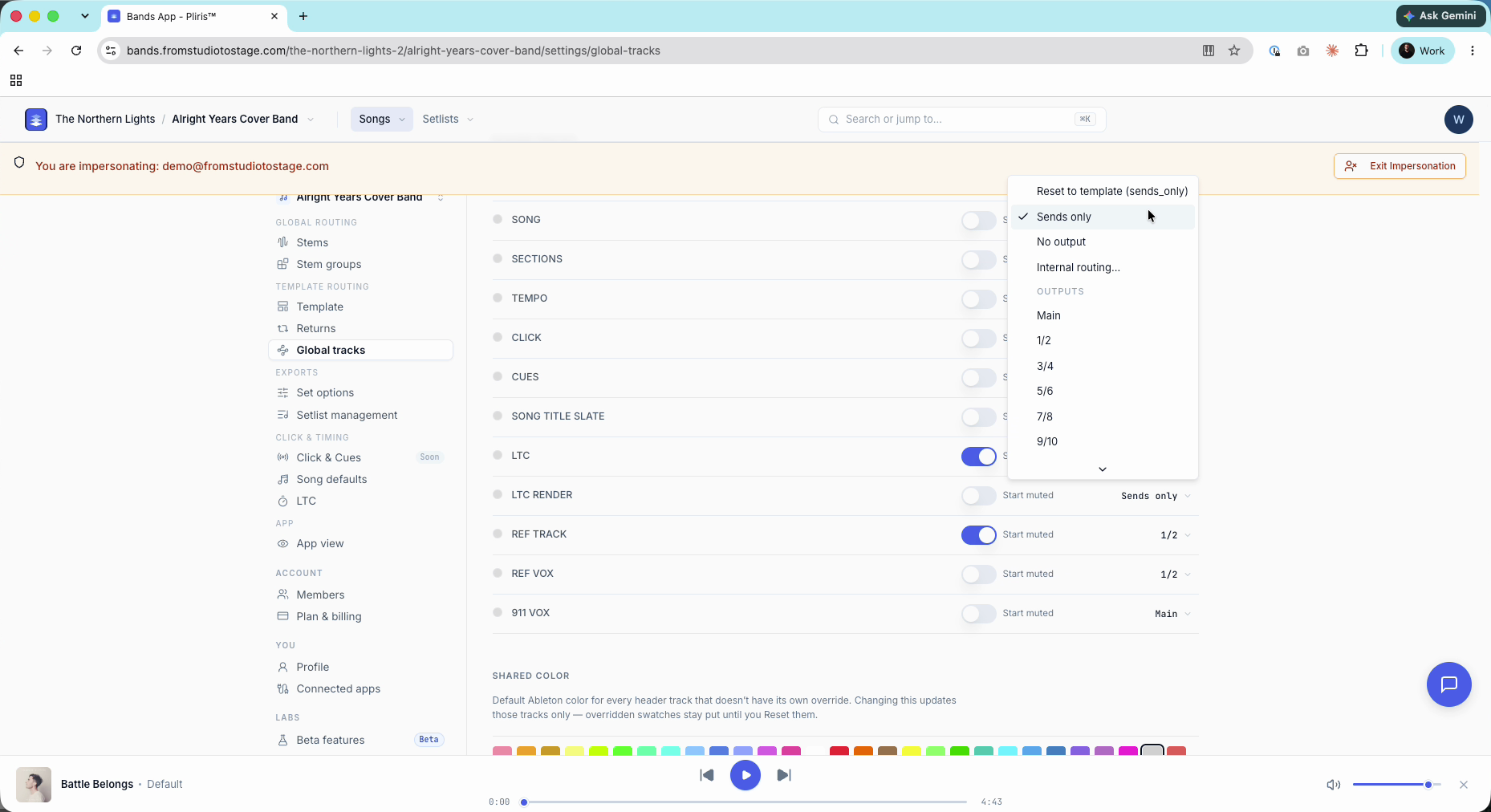
The output picker has four options above the outputs list:
- Reset to template: go back to the template's routing (shown in brackets).
- Sends only: no main output. The track is heard only through a send to a return track; if nothing sends it anywhere, it's effectively silent. Pro's LTC Render bus works this way.
- No output: the track doesn't output at all.
- Internal routing…: route the track to another track in the set.
Send global tracks to a return track
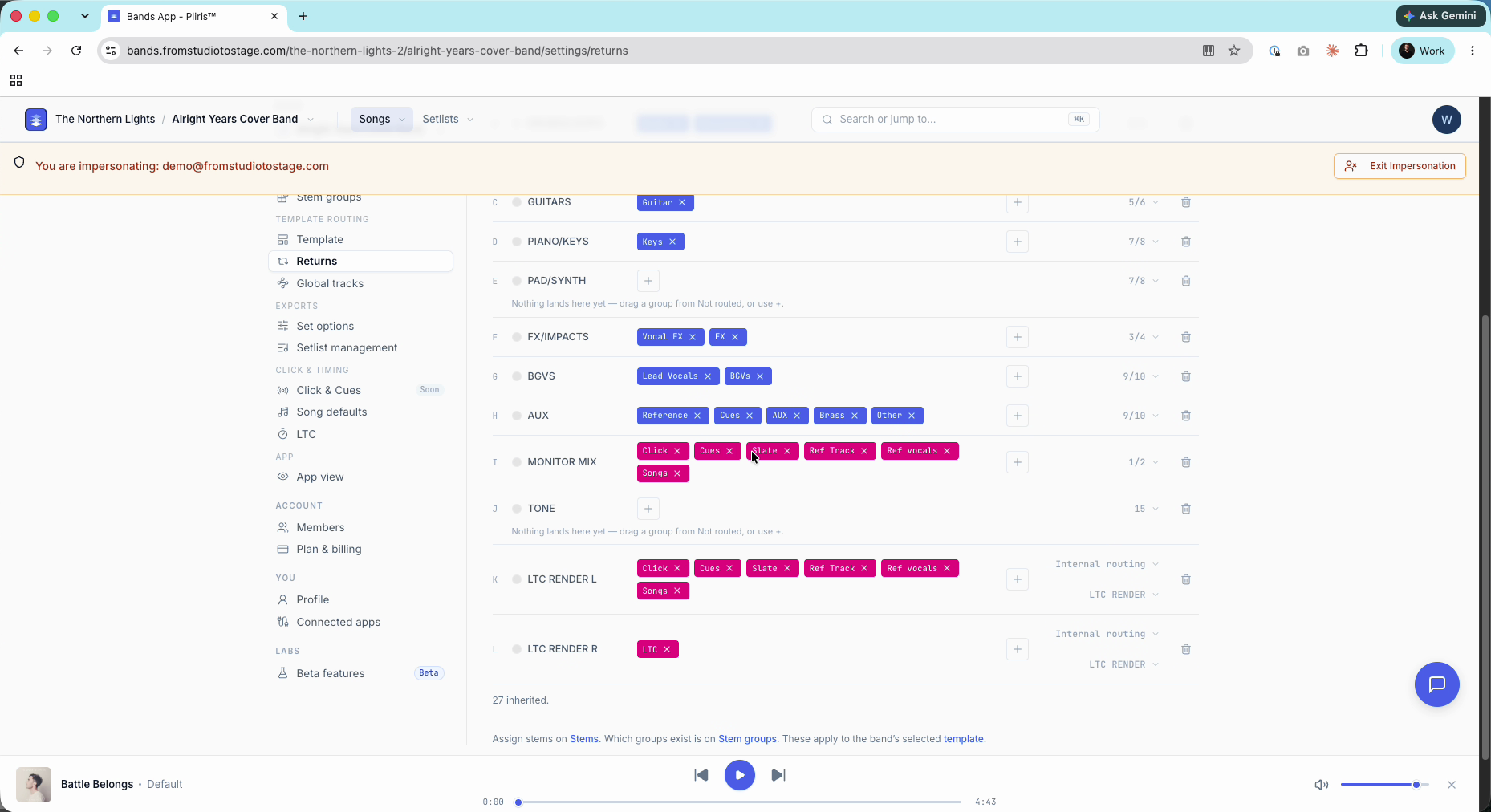
A global track can have its own output and feed a return track through a send. On Settings → Returns, global tracks are the pink pills. Click + on a return to add one. For example, a Monitor Mix return can take Click, Cues, Slate, Ref Track, Ref Vocals and Songs (each song's master volume).
Related: Settings → Global tracks, How to Route Return Tracks, Settings → Returns.
Frequently asked questions
What are global tracks in a Pliris Ableton export?
They're the header tracks at the top of every song and the full set, such as song, tempo, click, cues and markers. Pro adds LTC, reference tracks and a song title slate.
How do I send my click to its own outputs?
Open Settings → Global tracks and pick an output for Click, for example 1/2. Every future export uses it.
Why is a global track silent in Ableton?
Check its output. Sends only is silent unless the track is sent to a return, and No output never plays.
Can a global track feed a monitor mix?
Yes. On Settings → Returns, add the global track (a pink pill) to your monitor-mix return. It keeps its own output too.
How do I undo my routing changes?
Choose Reset to template in the track's output picker. To clear every override at once, use Reset to defaults on the Template page.