Switching Your Ableton Export Template
Pick Intro, Standard, Pro or Custom as the Ableton template for a band, check what it ships on Returns and Global tracks, and use Reset to defaults to clear your routing overrides. Your songs and stems don't change when you switch.
Every Ableton Live set Pliris exports for a band is built on that band's template. The template decides how many global (header) tracks and return tracks ship with each export. Your songs, stems and stem groups are separate from it, so you can switch templates at any time and every song comes down in the new shape.
Watch the lesson: this article goes with Choose your Ableton export template, part of the Using Pliris to Program, Practice, and Perform course.
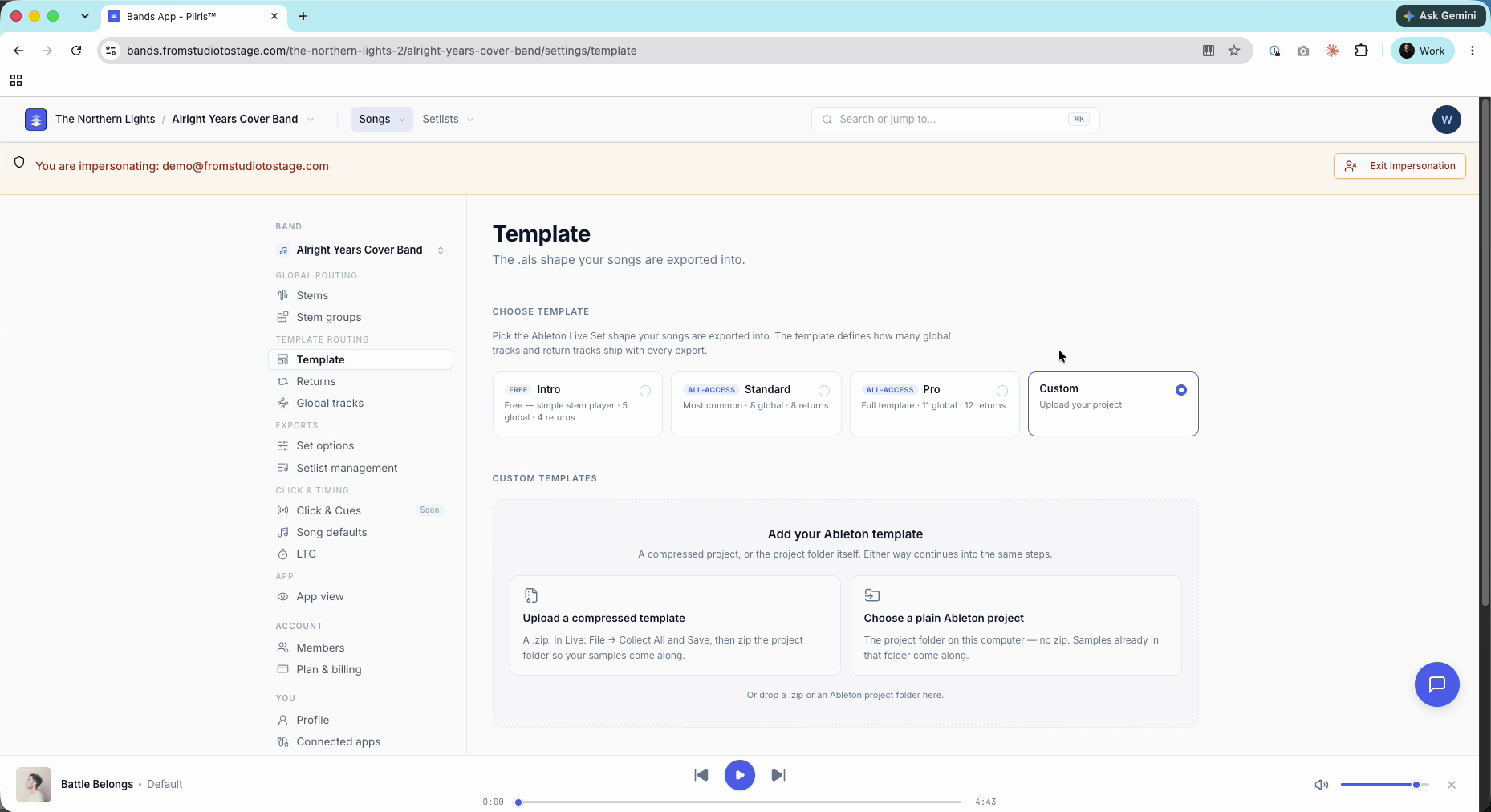
Choose a template
- Open your band's Settings and click Template, under Template routing.
- Pick one of the cards:
| Template | Plan | What ships |
|---|---|---|
| Intro | Free | Simple stem player · 5 global tracks · 4 returns |
| Standard | All-Access | Most common · 5 global tracks · 12 returns |
| Pro | All-Access | Full template · 11 global tracks · 12 returns |
| Custom | Your own Ableton project |
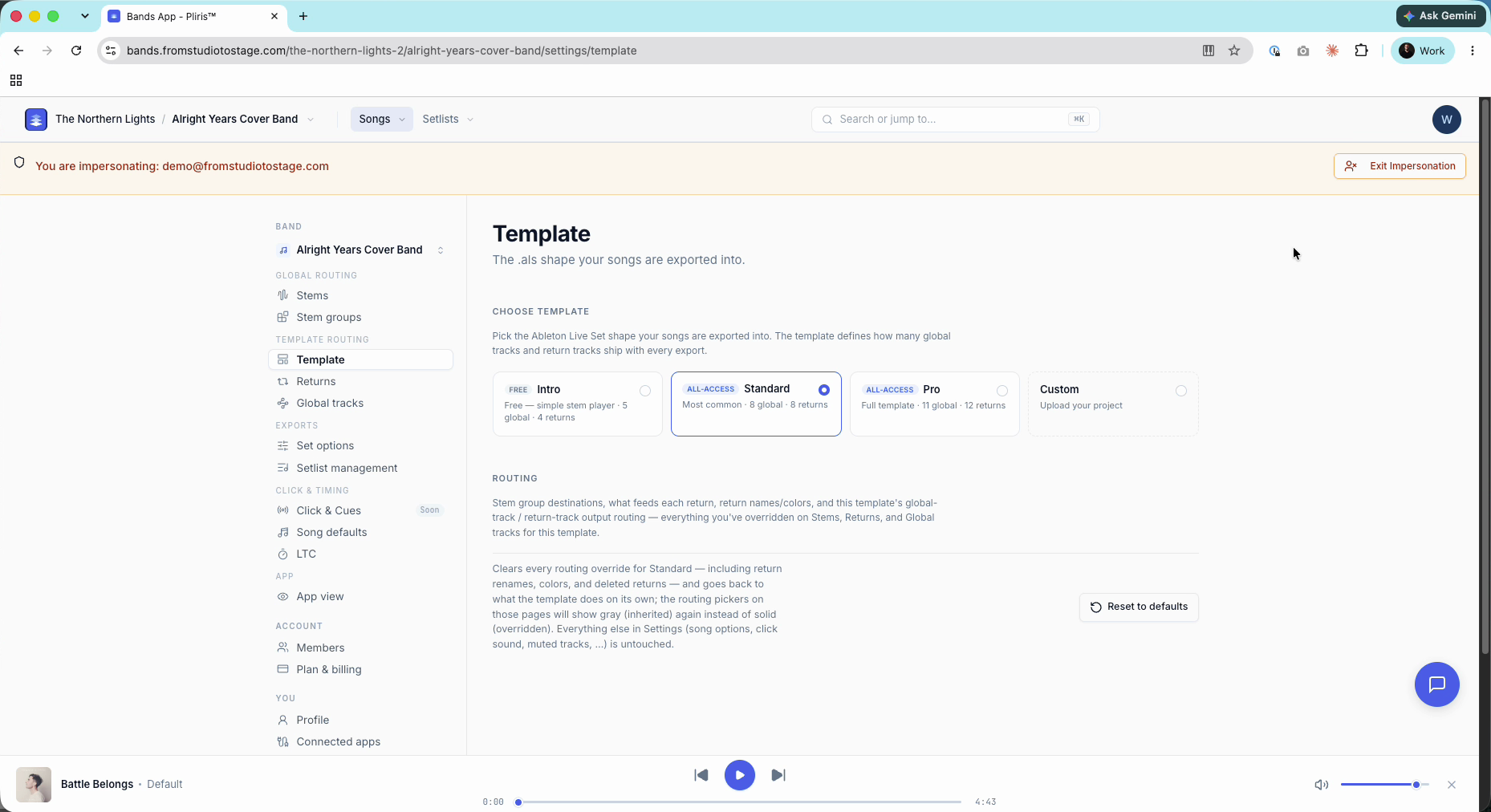
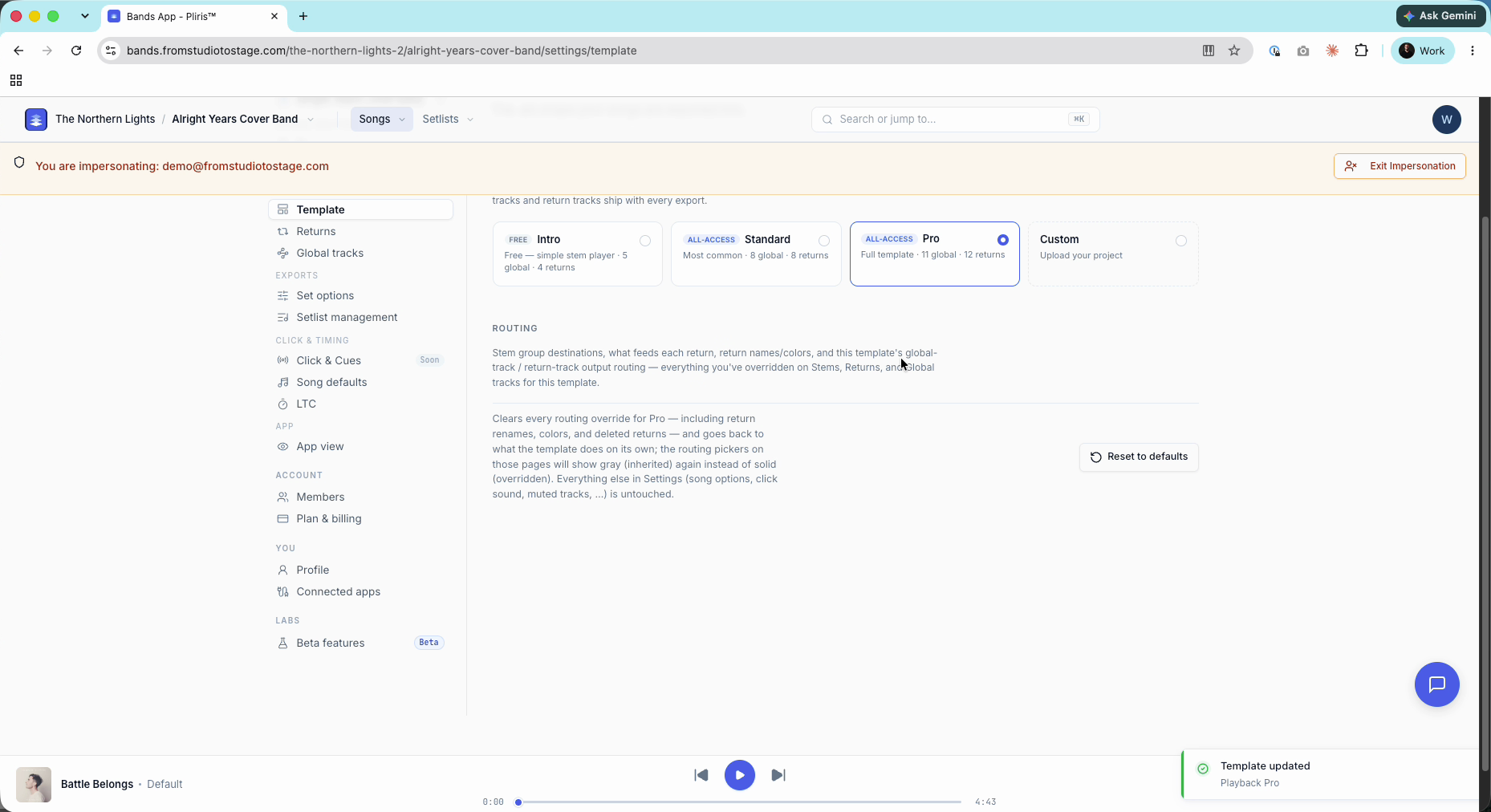
A Template updated message confirms the change. The template applies to single-song exports and full-set exports, and it is set per band, so each band can use a different one.
Exporting never asks which template to use. It uses the one set here, so check it before a big export. You need to be an admin on the band to change it. Anyone who can export still gets the band's template.
A paid plan adds templates; it doesn't take Intro away. You can still pick Intro for a stripped-back show.
Cloud builds from the Pliris CLI or API are the exception. Each build takes its own template and uses Playback Pro if you don't pass one.
Check what a template includes
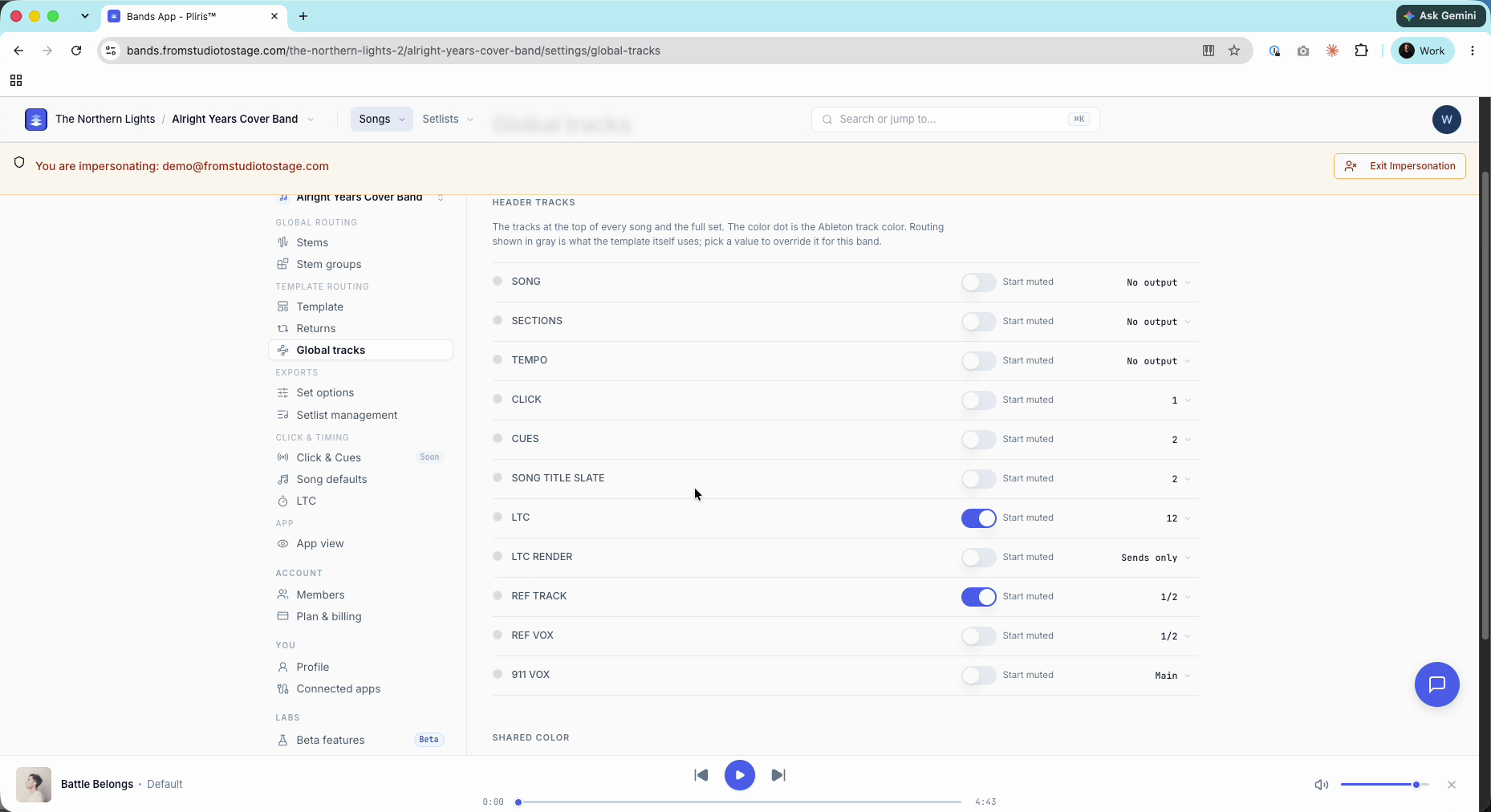
Open Returns and Global tracks after you switch. They show exactly what the current template ships with.
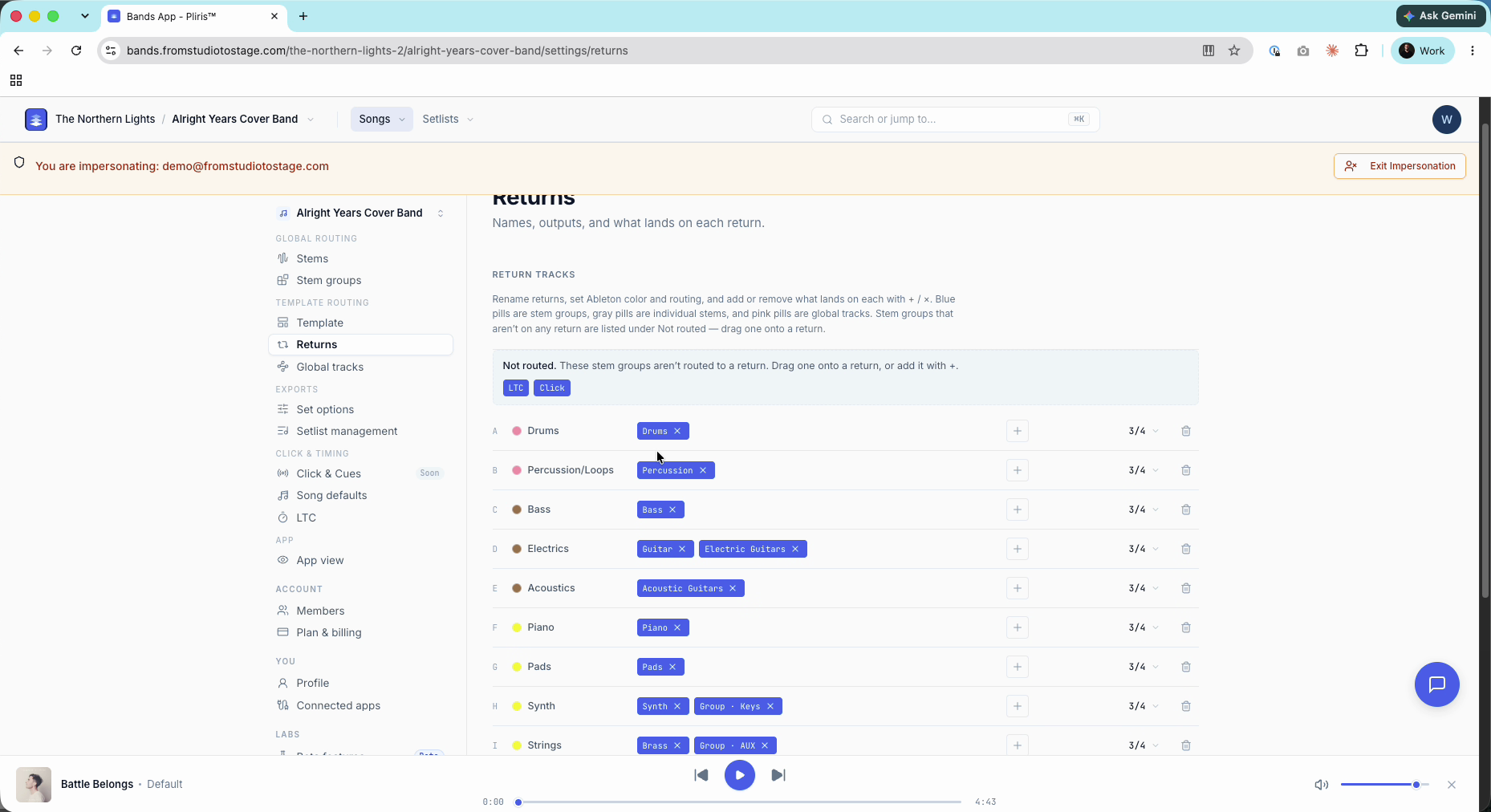
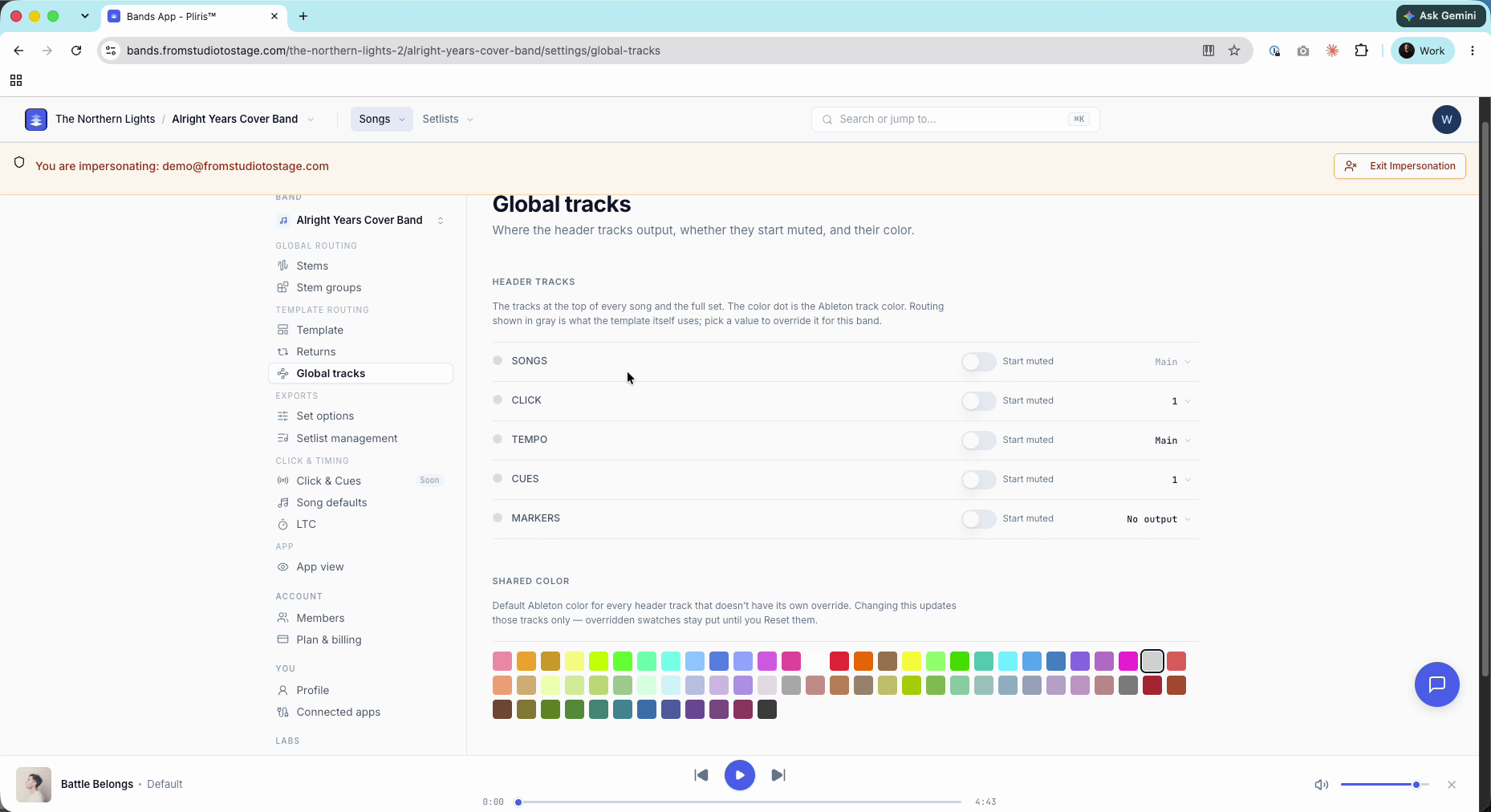
For example, Standard has no LTC track. If you need timecode, choose Pro. Its Global tracks page adds LTC, LTC Render, reference tracks, a song title slate and more.
Use your own template
Choose Custom to add your own Ableton template. You can:
- Upload a compressed template: a .zip. In Live, use File → Collect All and Save, then zip the project folder so your samples come along.
- Choose a plain Ableton project: the project folder on your computer, no zip needed.
You can also drop a .zip or a project folder onto the page.
Reset to defaults
If you've changed a lot of routing and want to start over, click Reset to defaults on the Template page and confirm.
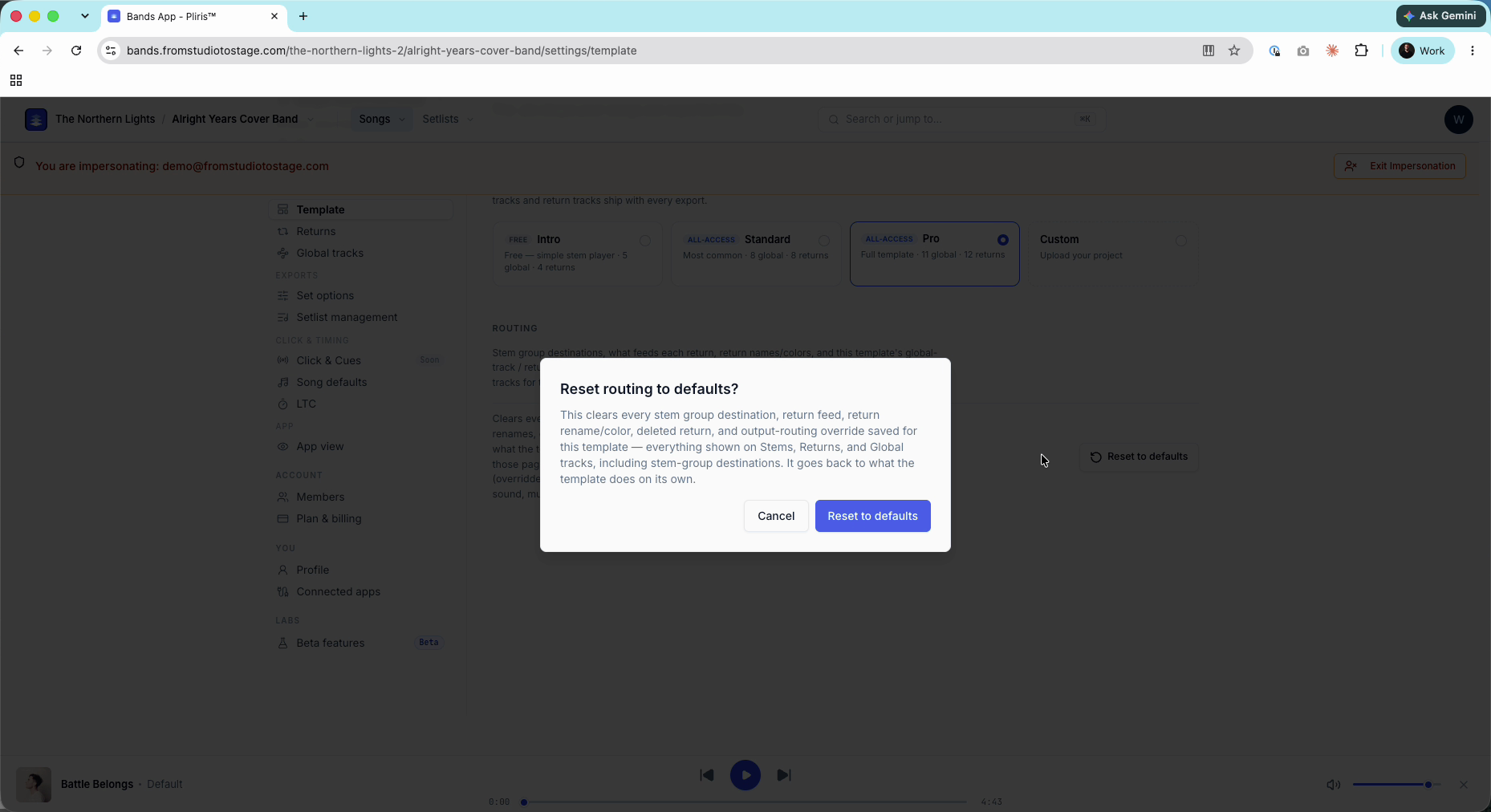
This clears every stem-group destination, return feed, return rename or color, deleted return and output-routing override saved for the current template (everything you changed on Stems, Returns and Global tracks). Routing pickers go back to gray (inherited from the template) instead of solid (overridden).
It does not change:
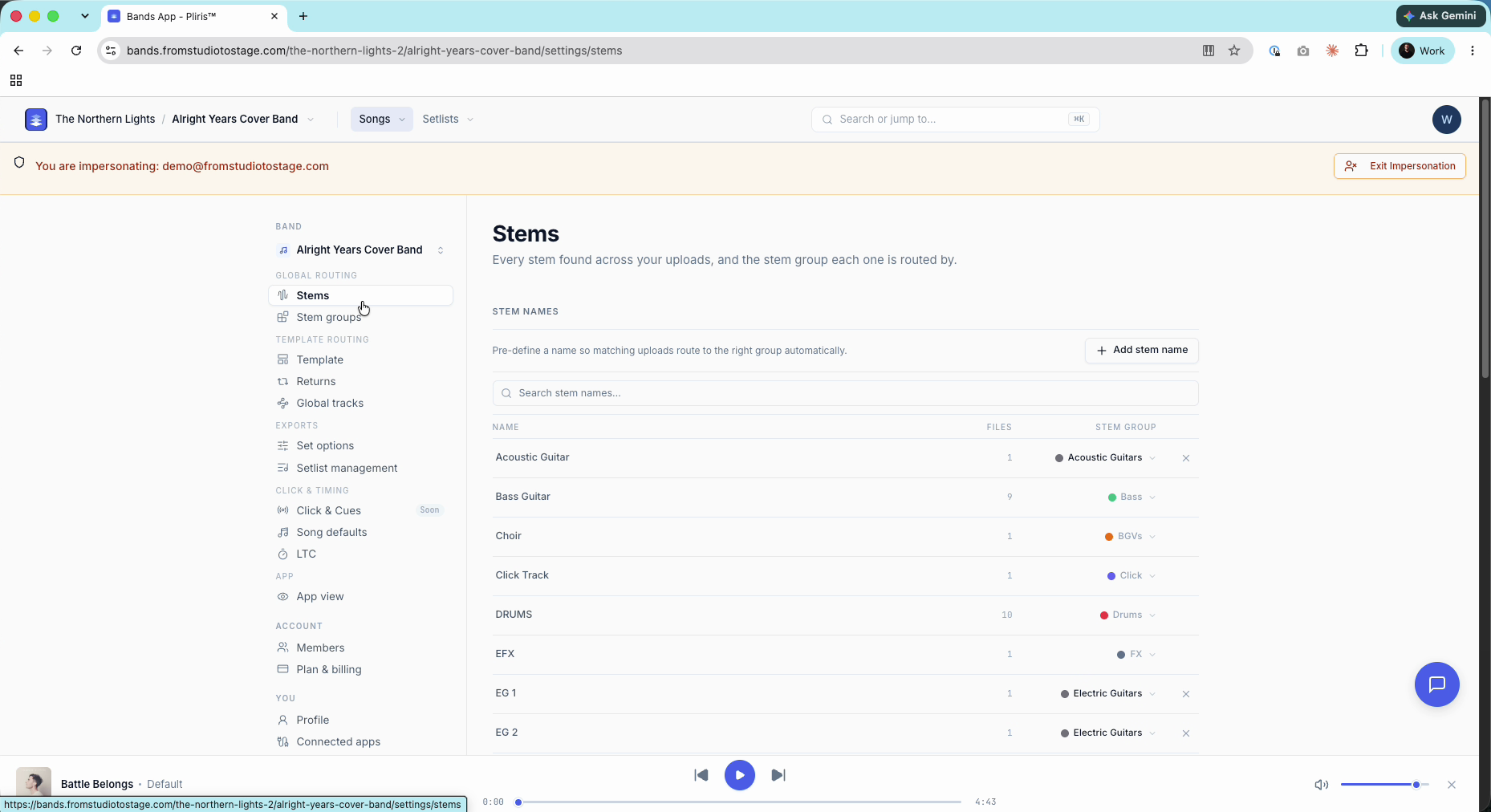
- which stem belongs to which stem group, or your custom stem groups. Those are band-wide.
- anything else in Settings, such as song options, click sound or muted tracks.
Related: Settings → Template, Settings → Global tracks, How to Route Return Tracks, How to Pre-Route Stems to Groups.
Frequently asked questions
Which Ableton template can I use on a free account?
Free accounts export with Intro, a simple stem player with 5 global tracks and 4 returns. Standard and Pro need All-Access.
How do I get an LTC timecode track in my Ableton export?
Switch the band's template to Pro. Its Global tracks include LTC; the Standard template doesn't have one.
Does changing the template change my songs or stems?
No. Your songs, stems and stem groups are separate from the template. Every export simply comes down in the template you've selected.
Can two of my bands use different templates?
Yes. The template is set per band, and it applies to both single-song and full-set exports for that band.
What does Reset to defaults clear?
Every routing override saved for the current template on Stems, Returns and Global tracks. It leaves stem-to-group assignments, custom stem groups and your other settings alone.