Organizing Stems with Custom Stem Groups
Split a crowded group (like nine guitar parts in Guitar) into custom stem groups: rename stems everywhere, pre-route names before they're uploaded, create and hide groups, and route each stem to its group. Future uploads sort themselves.
Stem groups decide how stems are organized on the song page, and they're what you later route to return tracks in your Ableton export. When one group gets crowded, for example an acoustic guitar and nine electric parts all in Guitar, split it into custom groups. A stem can only be in one group at a time.
Watch the lesson: this article goes with Organize stems with stem groups, part of the Using Pliris to Program, Practice, and Perform course.
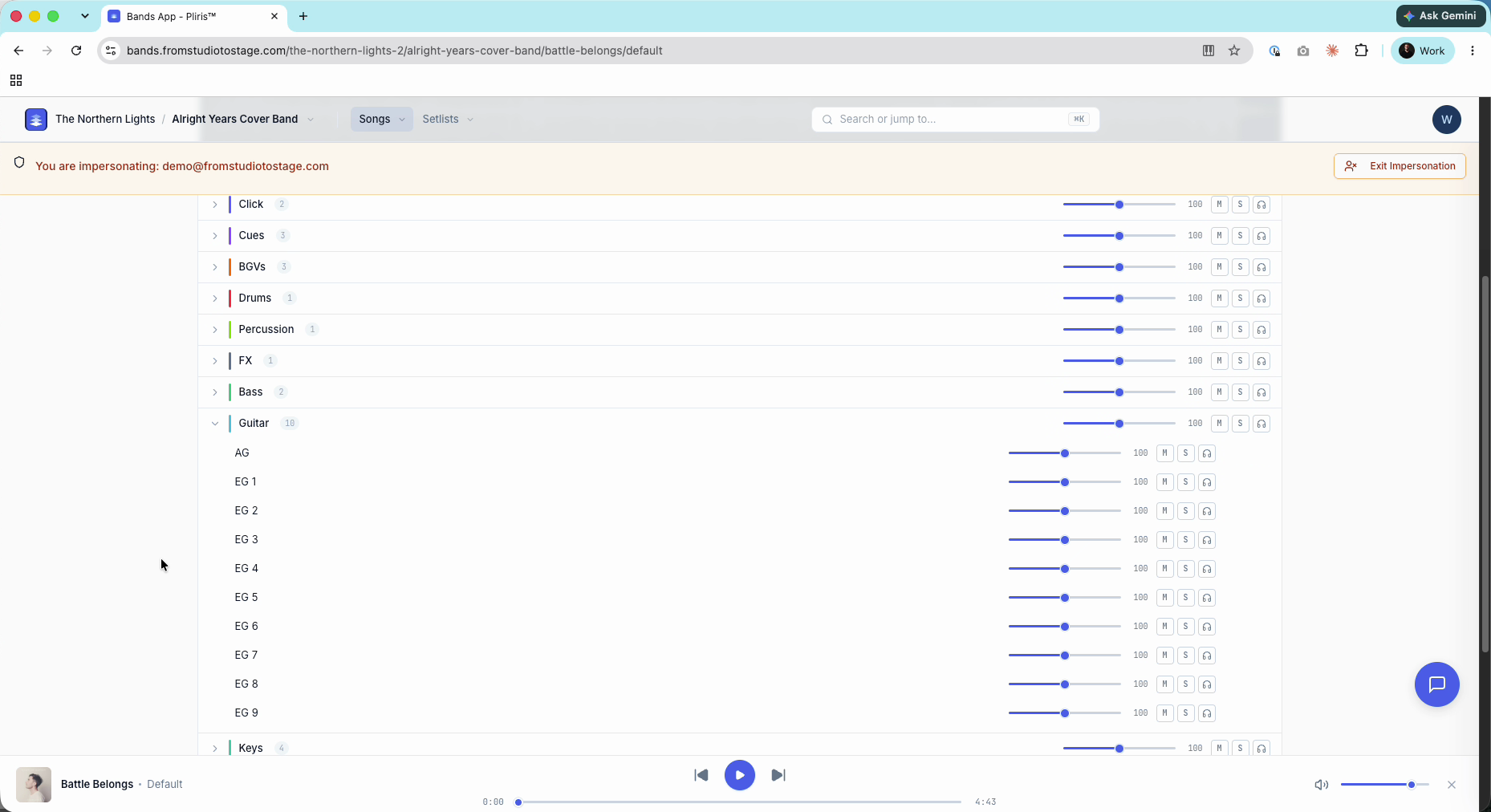
Move a single stem on one song
On the song page, right-click a stem and choose Move to group. If a group ends up empty on that song, it disappears.
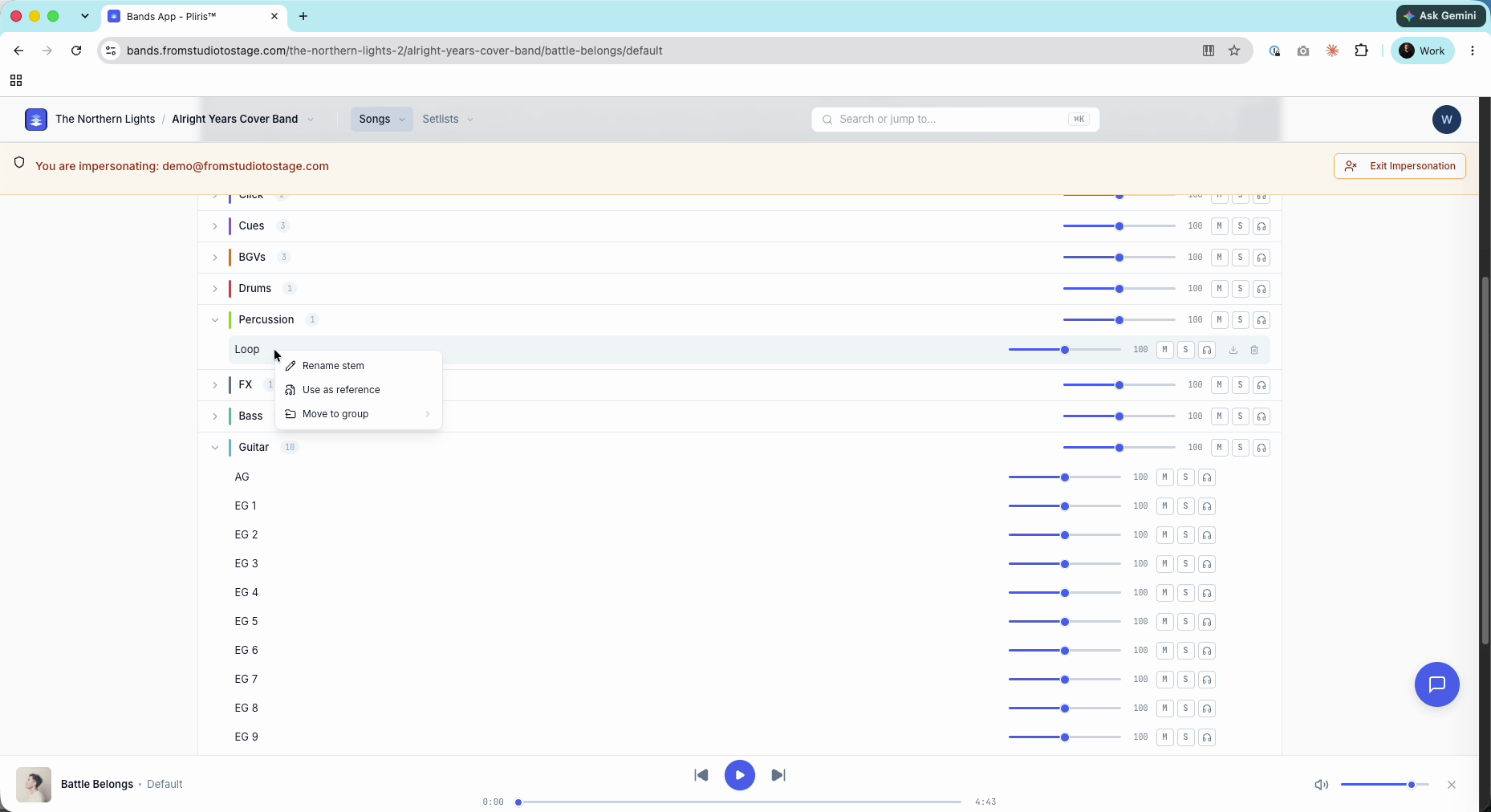
Rename a stem everywhere
- Click your icon (top right), then Band settings, then Stems under Global routing.
- Click a stem name and type a new one, then press Enter. Every stem with that name is renamed at once (for example AG becomes Acoustic Guitar).

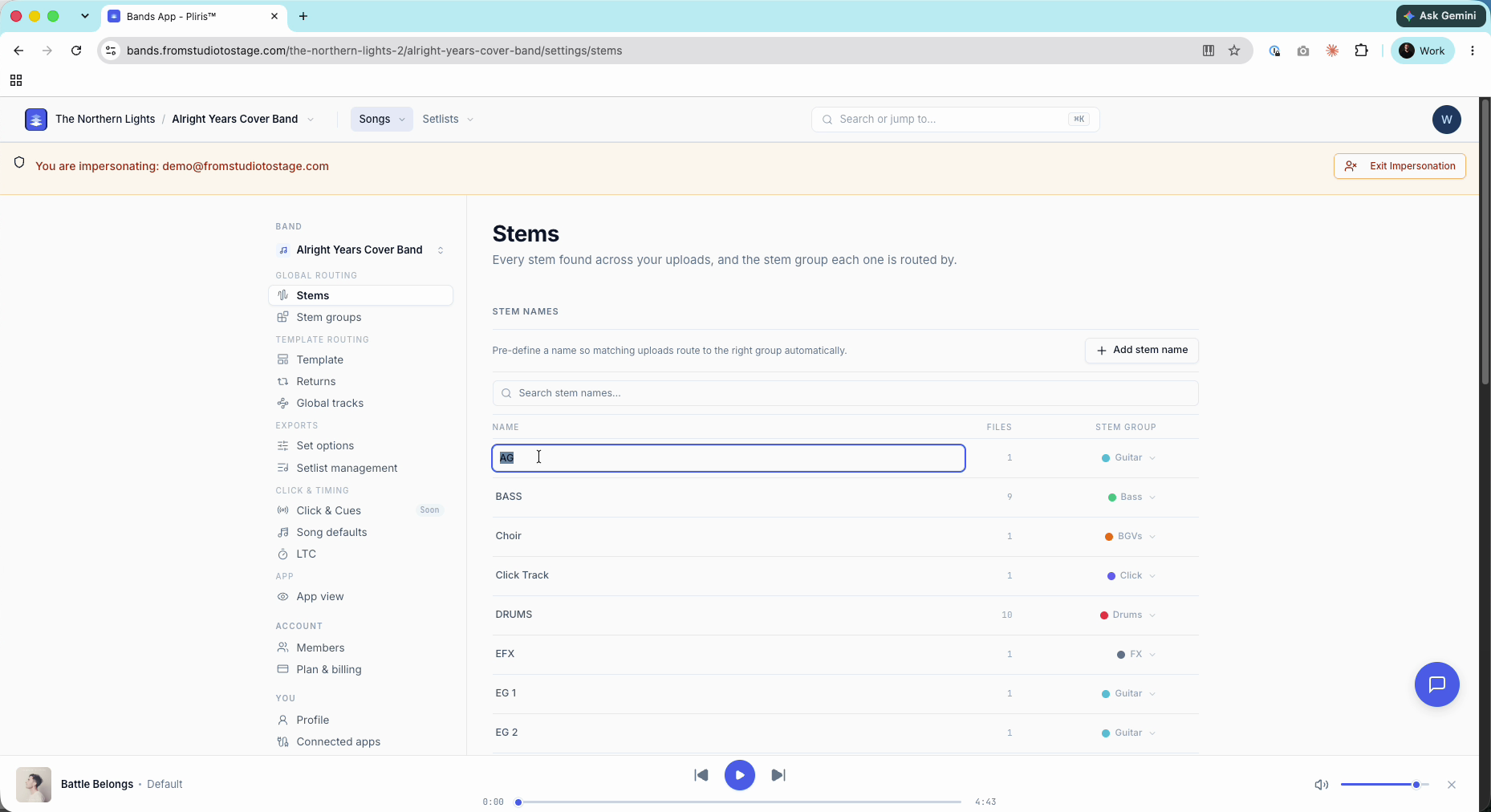
Pre-route stems before they're uploaded
On Stems, click Add stem name, type the name (for example Will's Guitar), choose a stem group and click Add stem name. Any future upload with that name goes straight to that group.
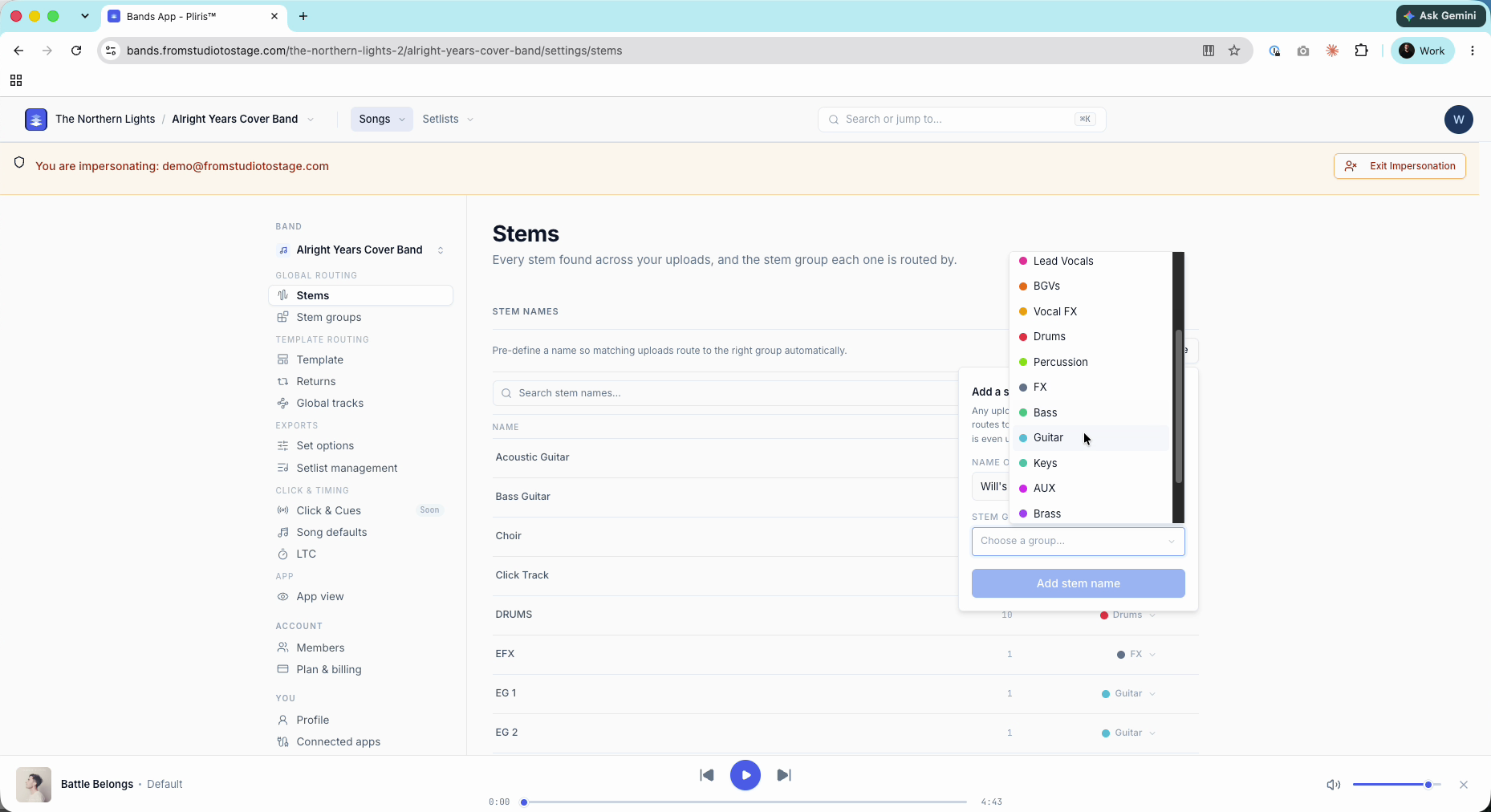
Create custom stem groups
- Open Settings → Stem groups.
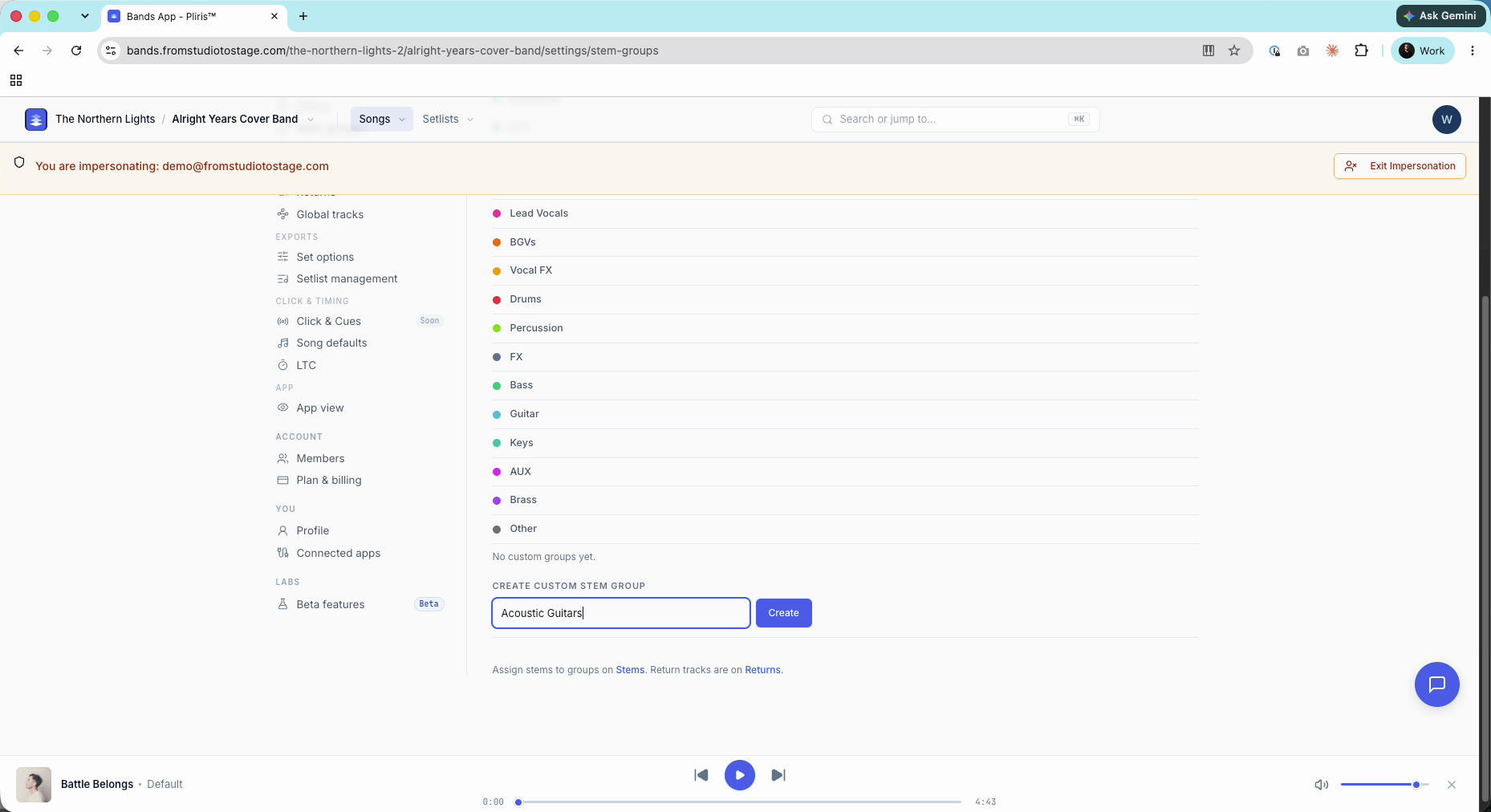
- Under Create custom stem group, type a name (for example Acoustic Guitars) and click Create. Repeat for Electric Guitars.
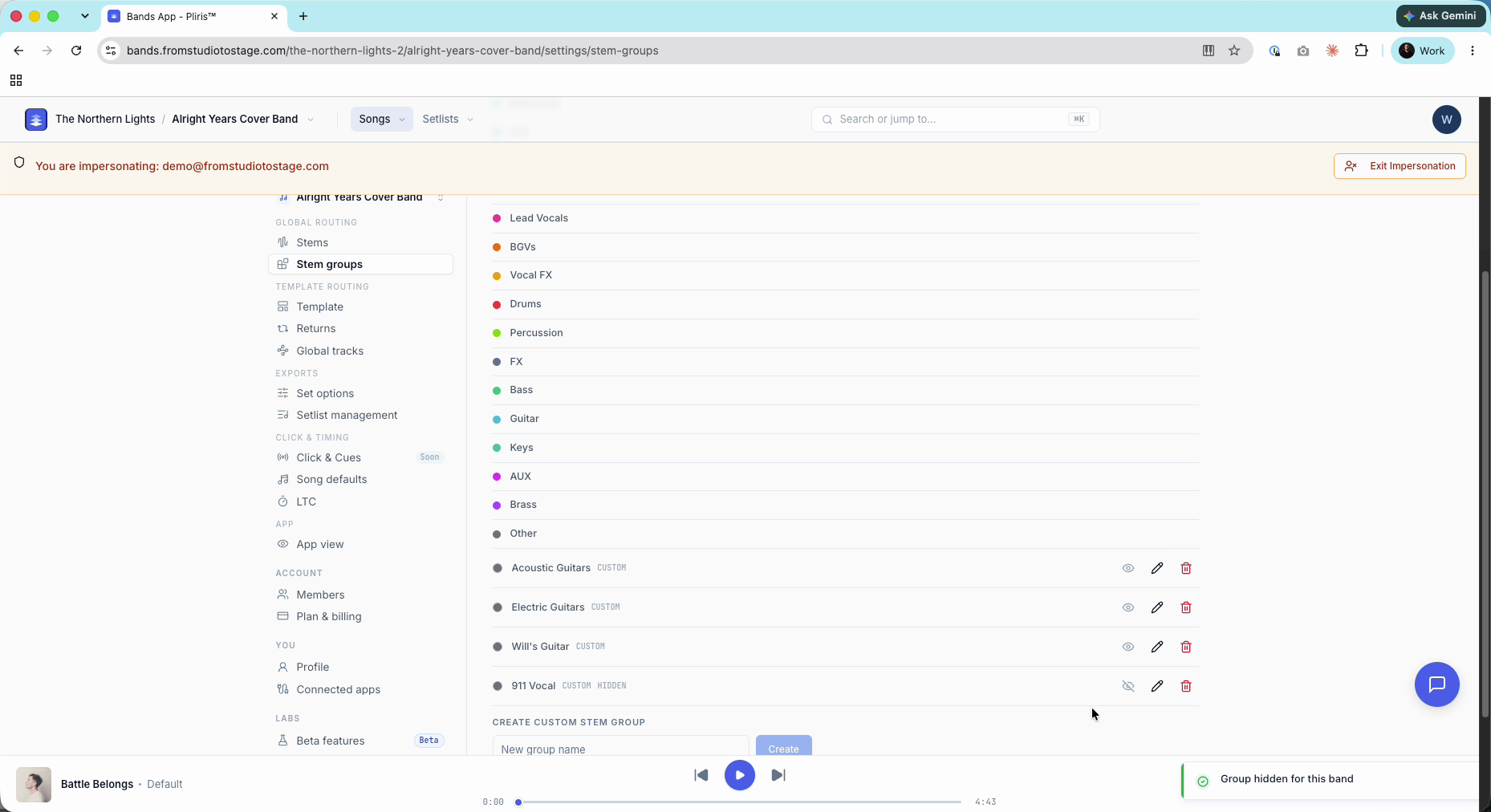
Built-in groups can't be deleted. Custom groups have three icons: the eye hides the group from song pages, the pencil renames it and the trash deletes it. Custom groups belong to one band.
Hide a group
Click the eye icon to hide a group, for example a 911 (emergency) vocal. It's marked Hidden: it doesn't show on song pages, but it's still in your Ableton exports.
Route stems into your groups
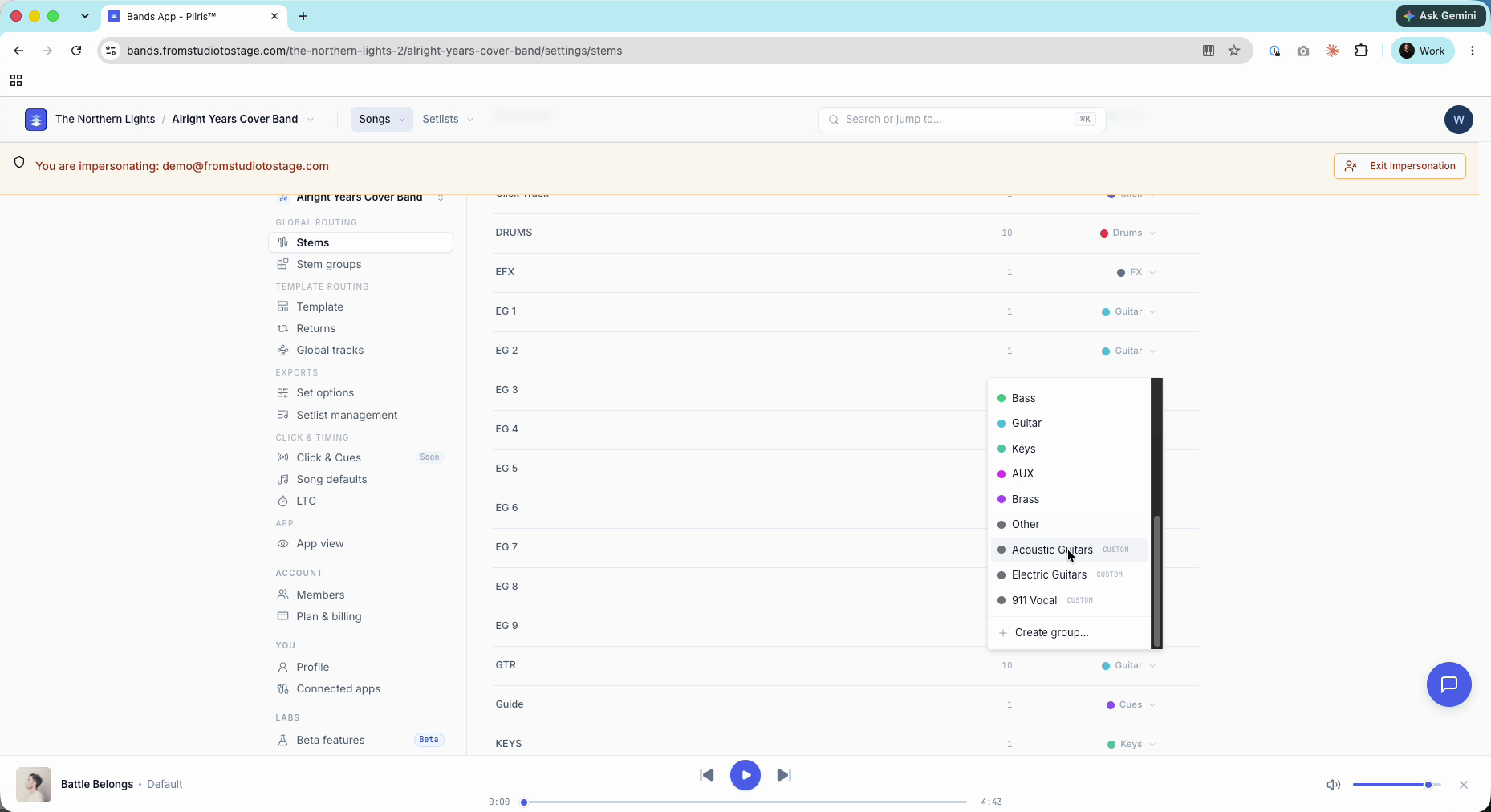
Back on Stems, open each stem's Stem group picker and choose the new group. There's no batch edit yet, so set each stem individually.
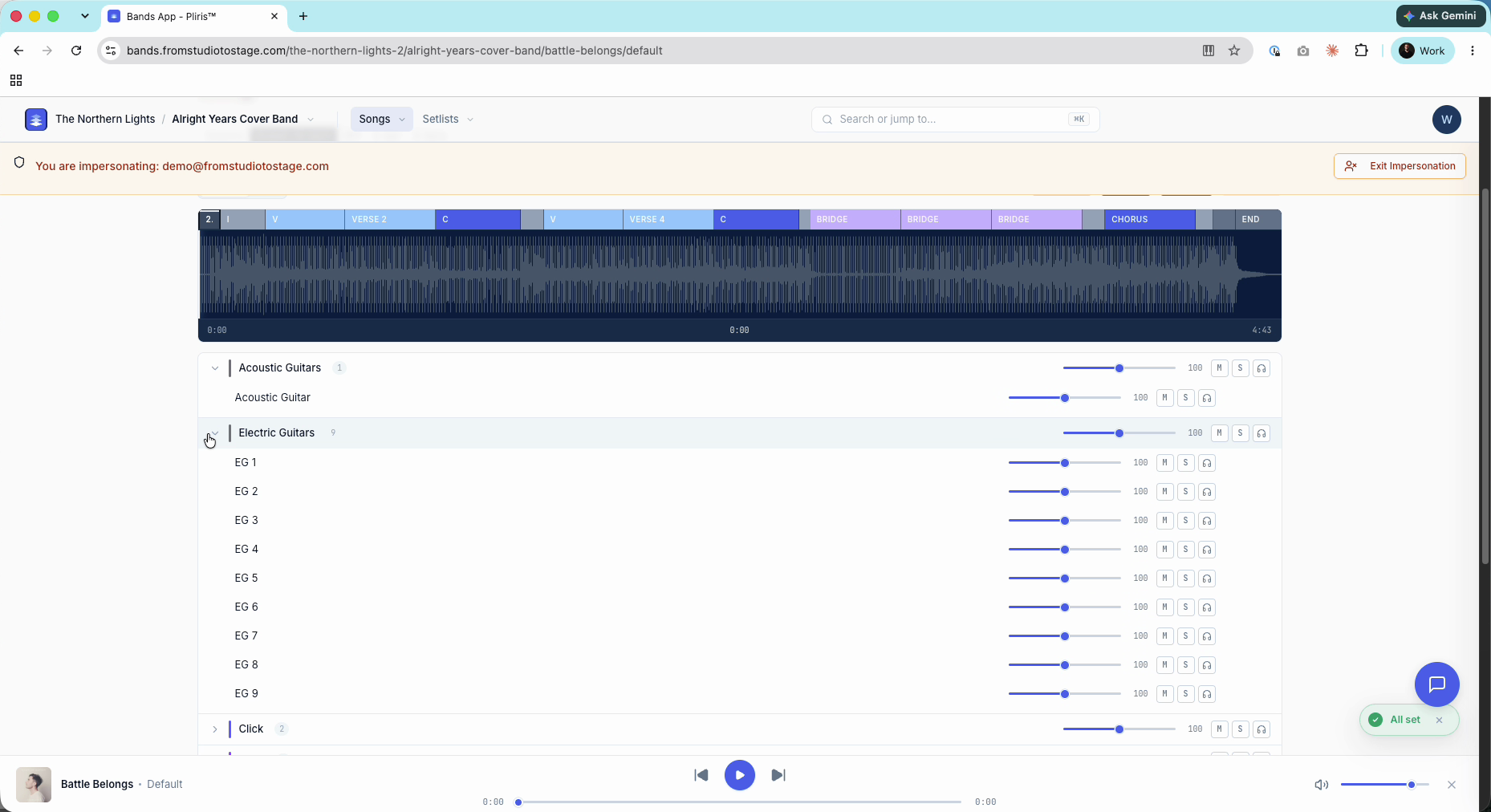
Open the song again: the new groups replace the old one, and future uploads sort the same way.
Related: How to Create Custom Stem Groups, How to Pre-Route Stems to Groups, Settings → Stems, How to Route Return Tracks.
Frequently asked questions
Can a stem be in more than one stem group?
No. Each stem is in one stem group at a time. Route groups to returns if you need a stem in more than one place in Ableton.
How do I rename a stem on every song at once?
Open Settings → Stems, click the stem's name, type the new name and press Enter.
How do I send future uploads to the right group automatically?
Set the stem's group on Settings → Stems, or use Add stem name to pre-route a name before it's uploaded.
What does hiding a stem group do?
It hides the group from song pages. The stems are still in your Ableton exports.
Why can't I delete the Guitar group?
Built-in groups can't be deleted. Only custom groups have a delete icon.