Finding Your Way Around Settings
The Settings rail is split by how far a change reaches: Band, Account, You, and Labs. Here is what lives where, who can change it, and which pages to open for routing, exports, timing, and your own profile.
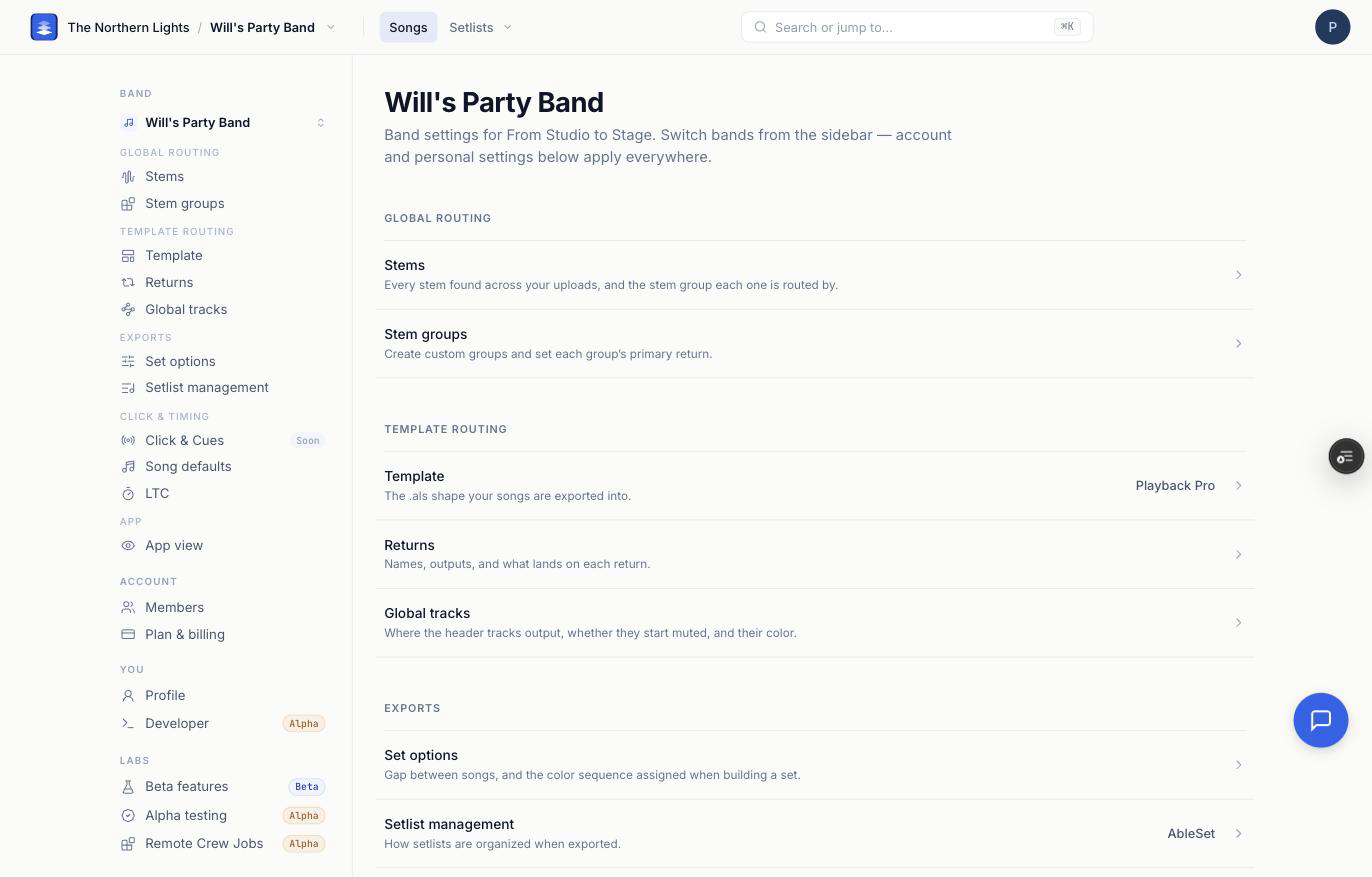
Settings is one page with a rail down the left. Every row on that rail is a page, and the rail is grouped by how far a change reaches, not by feature. Read the uppercase headers first and you will always know what a switch is about to affect.
Opening Settings
Open a band, click your avatar in the top right, and choose Band settings. (Profile, Members and Plan & billing in the same menu open straight to those pages.) Settings is for admins: you need to be an admin on the band, or an admin on the account that owns it. Everyone else sees the player and the songs, but not this menu entry.
Two kinds of admin reach Settings, and they do not have the same reach inside it:
- Band admins can change everything that is scoped to their band: routing, exports, timing, and the app view.
- Account admins can do all of that on every band, plus the things that are account-wide: creating custom stem groups and changing their colors, managing members, and billing.
Where a control is account-admin only, the page says so instead of showing a control that will not save.
The four scopes
Band
The band switcher sits at the top of the rail. Everything under Band applies to the band shown there, and only to it. An account with several bands can route, export, and count in differently for each one.
| Group on the rail | Pages | What they decide |
|---|---|---|
| Global routing | Stems, Stem groups | Which stem group each stem name belongs to, and which return each group lands on. Saved per band. |
| Template routing | Template, Returns, Global tracks | The Ableton Live Set shape you export into, and what its return and header tracks are called, where they output, and what feeds them. Saved per band and per template. |
| Exports | Set options, Setlist management | The gap and colors between songs in a built set, and which setlist system your locators are written for. |
| Click & timing | Song defaults, LTC | Auto-align, auto-generated click and cues, count-in length, and how LTC values are assigned. |
| App | App view | Which features show on arrangement pages for this band. |
The split between Global routing and Template routing matters when you change templates. A guitar is a guitar whatever you export into, so "this stem name is a Guitar" travels with the band. "Guitars land on return C" cannot mean the same thing in a 4-return template and a 12-return one, so destinations are stored against the template. Settings and Routing walks the whole model.
Account
Members and Plan & billing apply to the whole account and every band in it. The band switcher is disabled here so switching bands cannot look like it changed something. Plan & billing is shown to account admins only. See Account, You and Labs.
You
Profile is yours: your name, avatar, and login email. It follows you into every band and every account you belong to.
Labs
Beta features are early-access features you can opt into per band on a paid plan or an active Guest Pass. They stay off until you turn them on.
Which page do I want?
| You want to… | Open |
|---|---|
| Fix a stem that landed on the wrong return | Stems, then Stem groups, then Returns, in that order. The first page that surprises you is the answer. |
| Make a group for one player's parts | Stem groups → Creating Custom Stem Groups |
| Set routing up before any audio arrives | Stems → Add stem name → Pre-Routing Stems to Groups |
| Send one part to a second return, like a monitor mix | Returns → Routing One Stem to Multiple Return Tracks |
| Rename a return, change its output, or take it out of the export | Returns → Routing Return Tracks |
| Change which template you export into | Template |
| Change the count-in, or turn auto click and cues off | Song defaults |
| Switch to AbleSet, LIOBOX, Conductor, or TAZ locators | Setlist management |
| Hide Lyrics or MIDI cues from the song page | App view |
| Invite someone or change what they can see | Members |
Frequently asked questions
Where is Settings in Pliris?
Open a band, click your avatar in the top right, and choose Band settings. The page has a rail down the left with one row per settings page, grouped into Band, Account, You, and Labs.
Why can't I see Settings?
Settings is for admins. You need to be a band admin on the band you are viewing, or an admin on the account that owns it. Ask an account admin to change your role from Settings → Members.
Do band settings apply to all my bands?
No. Everything under the Band header applies to the band shown in the band switcher at the top of the rail. Switch bands to change another one. Members, billing, and your profile apply everywhere.
Why is the band switcher grayed out on some pages?
Members, Plan & billing, and Profile are not band-scoped, so switching bands would change nothing there. The switcher is disabled on those pages so a switch cannot look like a no-op.
What is the difference between Global routing and Template routing?
Global routing is which stem group each stem name belongs to, and it is saved per band. Template routing is where those groups land, what the returns and header tracks are called, and where they output, and it is saved per band and per template. Change templates and your groups stay put while the destinations switch to that template's own set.