Settings → Stems
Every stem name across your band's uploads, how many files use it, and the stem group it routes by. Change a name's group for every song at once, pre-define names before you upload, and rename a stem across the whole band.
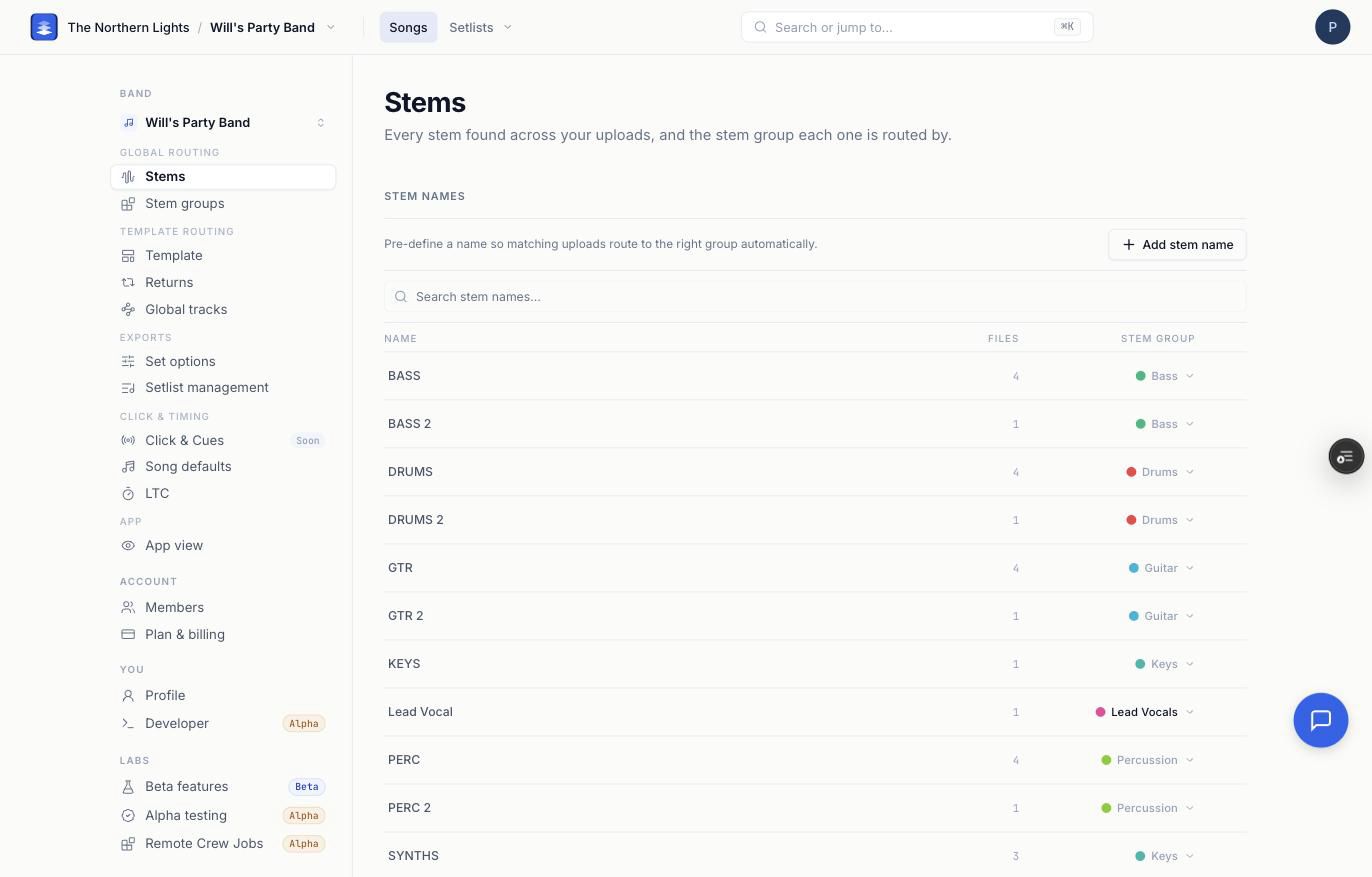
Settings → Stems is the band-wide view of your stems. Instead of one song at a time, it lists every distinct stem name across all of the band's uploads, how many files carry that name, and the stem group each name is routed by. Change the group here and every file with that name follows, in every song.
Reading the list
Each row is one stem name:
- Name. The name your stems arrive with, tidied where Pliris can safely strip a song title out of it (
Campfire_97_Gtrs 1shows as the part, not the file). Click a name to rename every stem in the band that carries it. The underlying files are not changed, and any pre-define on the old name moves with it. - Files. How many stems across the band use this name. The list is alphabetical, so use this column to spot the names that genuinely repeat. A name used by 40 files is worth pinning before one used by a single file.
- Stem group. The group this name routes by. The dropdown lists every built-in group and every custom group your band can see, with Create group… at the bottom for account admins.
- ×. Shown on names you assigned or pre-defined. Removes that pin, clears the assignment from every existing file with that name, and lets the name fall back to automatic matching on the next upload. Names Pliris classified on its own have nothing to clear, so they have no ×.
The Search stem names… box filters the list live. Long lists show the first batch with a Show all link underneath.
Changing a name's group
Pick a different group in the Stem group column. Two things happen at once:
- Every existing stem in the band with that name moves to the new group.
- The name is pinned to that group as a pre-define, so the next upload with a matching name lands there too.
The toast reads <name> → <group> when it saves. If the write is denied, the files are put back where they were so the page never reports a move that did not stick.
This is different from moving a stem on a song page, which changes that one stem only. See Changing a Stem's Group on a Song for when to use which.
Add stem name
Add stem name lets you claim a name that does not exist yet. Type the name or pattern your stems will arrive with, pick a group (or create one on the spot), and click Add stem name. Any future upload matching it routes to that group before you have touched the song.
A pre-define is matched as a keyword, not an exact filename, and matching is case-insensitive. When several keywords match one file, the longest wins, and a keyword pointed at a custom group is checked before any pointed at a built-in group. The full recipe is in Pre-Routing Stems to Groups.
What this page runs on
The page runs the same classifier your export does, so for any name you have assigned or pre-defined, what you see here is exactly what the export uses. Where a group was guessed from the name alone, the export also considers the stem's original filename, so an auto-tidied name can occasionally resolve differently. Assigning the row explicitly settles it.
Pre-defines and assignments are per band. Pinning gtr w on one band never changes another band's classification.
See also: Organizing Stems with Custom Stem Groups uses this page to rename stems, pre-route names and move stems into new groups, step by step.
Frequently asked questions
How do I change the stem group for every song at once?
Open Settings → Stems, find the stem name, and pick a new group in the Stem group column. Every file in the band with that name moves, and the name is pinned so future uploads land there too.
How do I rename a stem across all my songs?
On Settings → Stems, click the name and type the new one. Every stem in the band with that name is renamed. The files themselves are not touched, and any pre-define follows the new name.
What does the × next to a stem name do?
It removes your pin on that name. Existing files with the name are cleared back to automatic matching, and the next upload uses Pliris's guess instead of your assignment. Names Pliris guessed on its own have no × because there is nothing to remove.
Can I set up stem routing before I upload anything?
Yes. Use Add stem name to claim the names your stems will arrive with and point each at a group. See Pre-Routing Stems to Groups.
Why does the Stems page say a stem is in one group but my export put it somewhere else?
For a name Pliris guessed on its own, the export also looks at the stem's original filename, which can resolve differently from the tidied name shown here. Assign the row explicitly and both agree.