How to Route One Stem to Multiple Return Tracks
A stem is in exactly one stem group, but it can land on as many return tracks as you like. Add the group, or the stem by name, as a source on a second return in Settings → Returns.
Two rules, and the whole page follows from them:
A stem is in exactly one stem group at a time. A stem can land on as many return tracks as you like.
So Tim's Guitar can be in the built-in Guitar group or in a custom Tim's Guitar group, never both. But whichever group it is in, it can feed the GUITARS return and a LIVE GUITARS return and Tim's monitor mix, all at once. Groups are for sorting. Returns are for sending.
Option 1: send the whole group to a second return
Use this when everything in the group should reach the extra return.
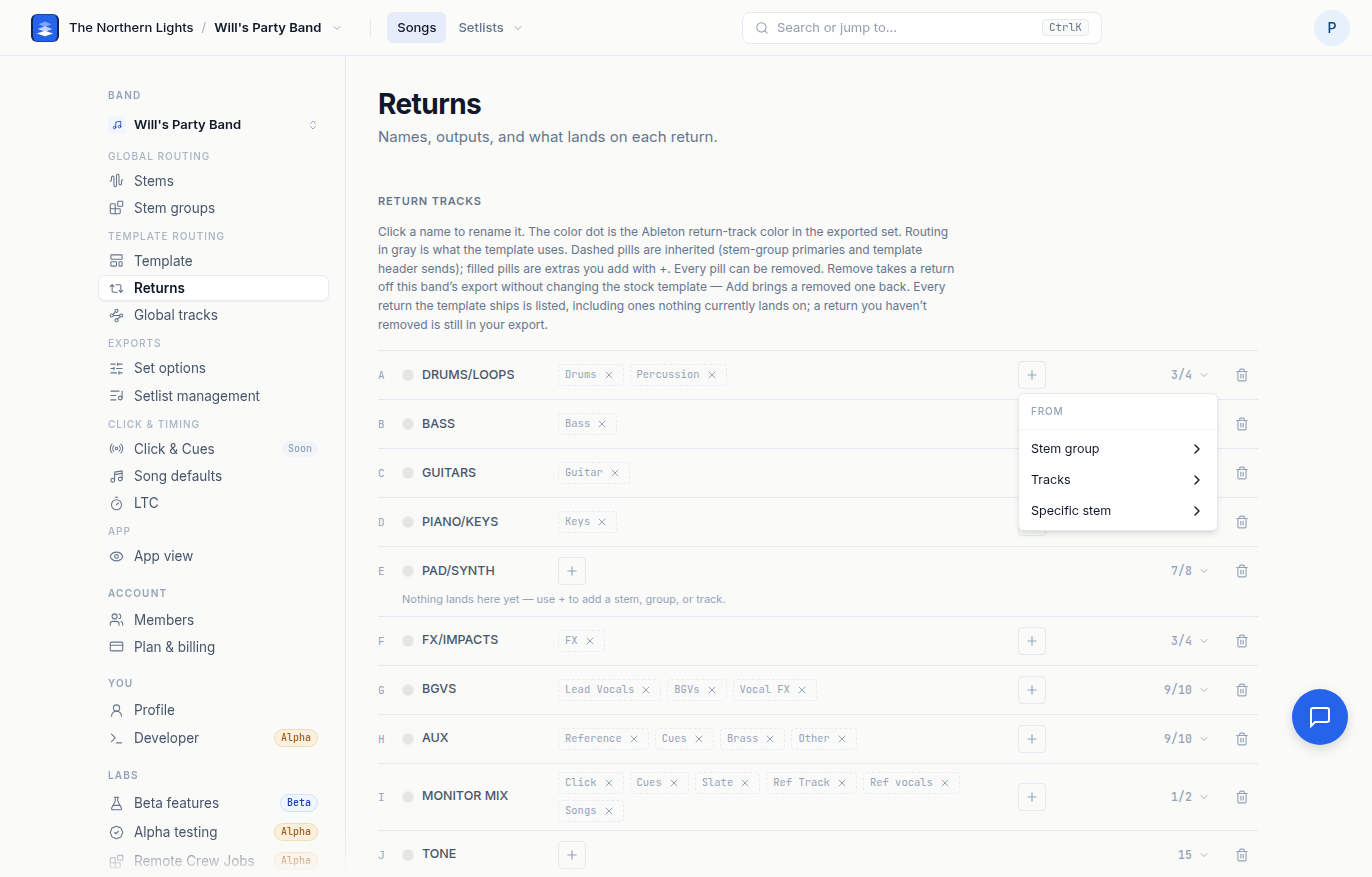
- Open Settings → Returns.
- On the return that should also receive the group, click +.
- Choose Stem group, then the group. Groups already on this return are left out of the list.
- A filled pill appears on the return. Every stem in that group now sends to it, in every song, on top of the group's primary return.
The group's primary return, set on Stem groups, is unchanged. Changing the primary later moves only the dashed pill; extras you added here stay put.
Option 2: send one stem by name
Use this when only one part should reach the extra return, or when the parts you want come from different groups.
- Open Settings → Returns.
- On the return, click + and choose Specific stem.
- Pick the stem name. The list is every stem name in the band.
Every stem with that exact name, in every song, now sends to this return, whatever group it is in. Tim's Guitar on a monitor return reaches every song where a stem is named Tim's Guitar, and nothing about its group changes.
Worked example: a guitarist's monitor mix
Tim wants his own guitar, the click, and the cues in his ears, and nothing else. On the Pro template:
- On Settings → Returns, rename an unused return to TIM MON and set its output to the pair his in-ear pack is fed from. See Routing Return Tracks.
- Click + → Specific stem →
Tim's Guitar. - Click + → Tracks → Click.
- Click + → Tracks → Cues.
Three pills on one return. Tim's guitar still sits in its stem group and still lands on GUITARS for front of house. TIM MON is an extra send, not a move.
Taking a send away
Every pill has an ×. Remove a filled pill and that extra send is gone. Remove a dashed (inherited) pill and the group stops going to that return; if it was the group's primary, its Routes to on Stem groups is cleared, so give it a new home there. + brings anything back.
What this is not
- Not a way to put a stem in two groups. If the song page should show the stem under a different heading, move it: Changing a Stem's Group on a Song.
- Not per song. Sends are per band, on the template you are on. Add a send once and every song follows.
Frequently asked questions
Can one stem go to two return tracks in Pliris?
Yes. A stem is in one stem group, but it can land on any number of returns. On Settings → Returns, click + on the second return and add the stem's group, or the stem by name under Specific stem.
Can a stem be in two stem groups?
No. A stem is in exactly one group at a time. Use return sends, not groups, to get one part into several places.
How do I set up a monitor mix return for one player?
On Settings → Returns, rename a return, set its output to the player's feed, then click + and add their stem under Specific stem, plus Click and Cues under Tracks. Their stem stays in its group and still reaches front of house.
Does adding a second return change where the stem group goes?
No. The group's primary return, set on Settings → Stem groups, is untouched. A send you add on Returns is an extra, and it stays even if you change the primary later.
Do I have to add the send on every song?
No. Sends are set once per band on Settings → Returns and apply to every song exported on that template.