Settings → Stem groups
Create custom stem groups, change their colors, and set Routes to for the primary return track (or global track) each group lands on. Multi-return sends are set on the Returns page.
Settings → Stem groups is the middle layer of routing. Stems belong to groups, and groups land on return tracks. This page is where you make the groups your band thinks in and decide where each one goes with Routes to.
Stem groups are how stems are grouped (flexible naming). Returns are the output destination. Matching a custom group's name to a return does not set the destination — you set Routes to explicitly.
Custom groups
At the top, account admins see Create custom stem group with a name field and a Create button. Type a name and press Enter or click Create. The group appears in the list below with a gray color dot and a CUSTOM tag. Click the dot to pick a color from the Ableton palette. That color is used on the song page and in the exported set.
After you create a stem group, set Routes to for where it lands in Ableton. Creating the group alone does not finish routing.
Two names are refused: one that matches a built-in group (Drums, Guitar, Keys…), and one that already exists on this band. Assign stems to the built-in group on the Stems page instead.
Band admins who are not account admins see a note here instead of the field: only account admins can create custom groups or change their colors. Everything else on the page is theirs to change.
Custom groups are per band. Name, color, which stems belong to a group, and where it lands are all independent per band. A group inherited from the account starts out with the same name and color on every band until a band renames or recolors its own copy. Each custom group has three icons: the eye hides it, the pencil renames it and the trash deletes it. Built-in groups cannot be deleted.
A hidden group is marked Hidden. It doesn't show on song pages, but its stems are still in your Ableton exports. That suits something like a 911 (emergency) vocal.
The step-by-step version, with the reasons you would want one, is Creating Custom Stem Groups. For a full example, splitting a crowded Guitar group, see Organizing Stems with Custom Stem Groups.
Output routing
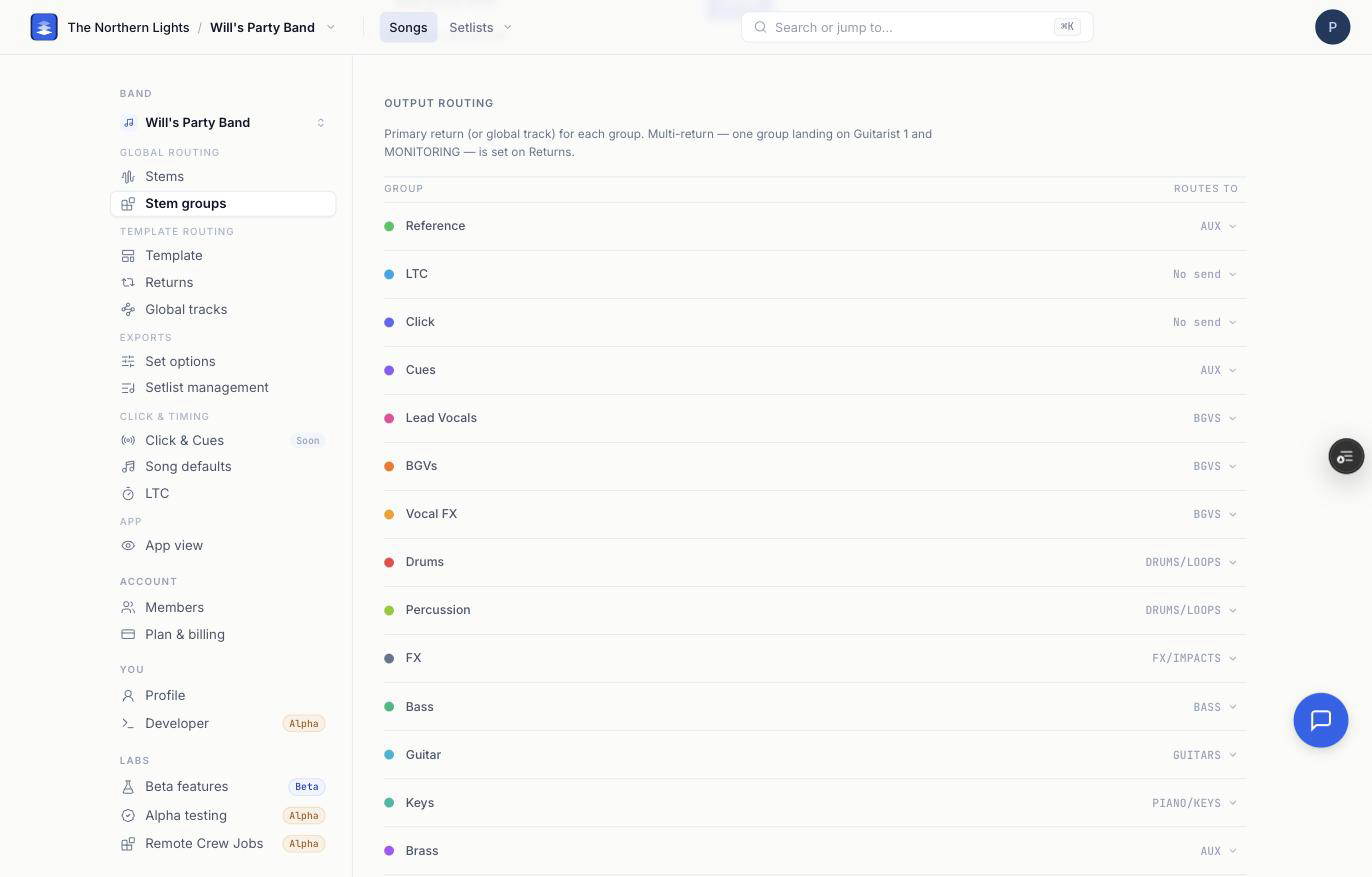
One row per group, built-in groups first in the same order the song page uses (Reference, LTC, Click, Cues, Lead Vocals, BGVs, Vocal FX, Drums, Percussion, Loops/FX, Bass, Guitar, Keys, Brass, Other) and then your custom groups. The Routes to column is the group's primary destination:
- Shown in gray when it is what the template does on its own.
- Shown solid once you have overridden it. The line under the list counts how many groups are routed explicitly.
- No send means the group is not sent to any return. Click and LTC are deliberately unrouted by default.
Click the value to change it. The picker offers every return the template ships and this band has not removed, listed by letter and name, and then the template's Global tracks. Once a group has been overridden, Reset to default appears at the top of the picker as an undo.
Changing a primary return does two things: the group's dashed pill moves from the old return to the new one on the Returns page, and any extra send you gave the group on Returns stays where it is. The primary is one destination. Extras are the Returns page's job.
Routing a group to a global track
Choosing a global track instead of a return puts the group's audio into that header track rather than sending it to a bus. Two things to know first:
- It takes those stems out of the song's group bus, so anything applied at the group fader will not reach them.
- It does not apply on every export path. A single-song export routes the group to the track as expected, but a built set can leave those stems on the song group instead, including on a custom template where stems matched to an authored slot keep the template's own routing. Check a built set before relying on it for a show.
Where the rest lives
- Which stems are in a group is set on Stems for a whole name at once, or by right-clicking a stem on a song page.
- A group feeding more than one return, and what each return is called, is set on Returns.
Frequently asked questions
How do I create a custom stem group in Pliris?
Open Settings → Stem groups, type a name under Create custom stem group, and click Create. You need to be an account admin. Then assign stems to it on Settings → Stems or by right-clicking stems on a song page. After you create the group, set Routes to for where it lands in Ableton.
I named my custom group the same as a return. Does that set Routes to?
No. Matching a return's name when you create a custom group does not set Routes to. Click the value in the Routes to column and pick the return explicitly.
How do I change which return track a stem group goes to?
On Settings → Stem groups, click the value in the Routes to column for that group and pick a return. Gray means the template's default; solid means you have overridden it. Reset to default in the picker undoes an override.
Why is the Create button missing on the Stem groups page?
Creating groups and changing their colors is account-admin only. A band admin sees a note instead. Ask an account admin to create the group, or to make you an account admin from Settings → Members.
Can a stem group go to two return tracks?
The Stem groups page sets one primary return per group. To send the same group to a second return, open Settings → Returns, click + on the other return, and choose the group under Stem group. See Routing One Stem to Multiple Return Tracks.
Are custom groups shared between my bands?
Each band has its own set. A group created while viewing one band belongs to that band, and renaming or recoloring a group on one band never changes what another band sees. Which stems are in a group, and where it lands, are per band too.
Can I rename or delete a custom stem group?
Yes. Use the pencil or trash icon on a custom group on Settings → Stem groups. The eye icon hides it from song pages instead. Built-in groups cannot be deleted.