How to Route Return Tracks
Return tracks can receive stem groups, individual stems, and header tracks. Here is how to change what feeds a return, send one thing to several returns, change a return's output, and remove or restore returns.
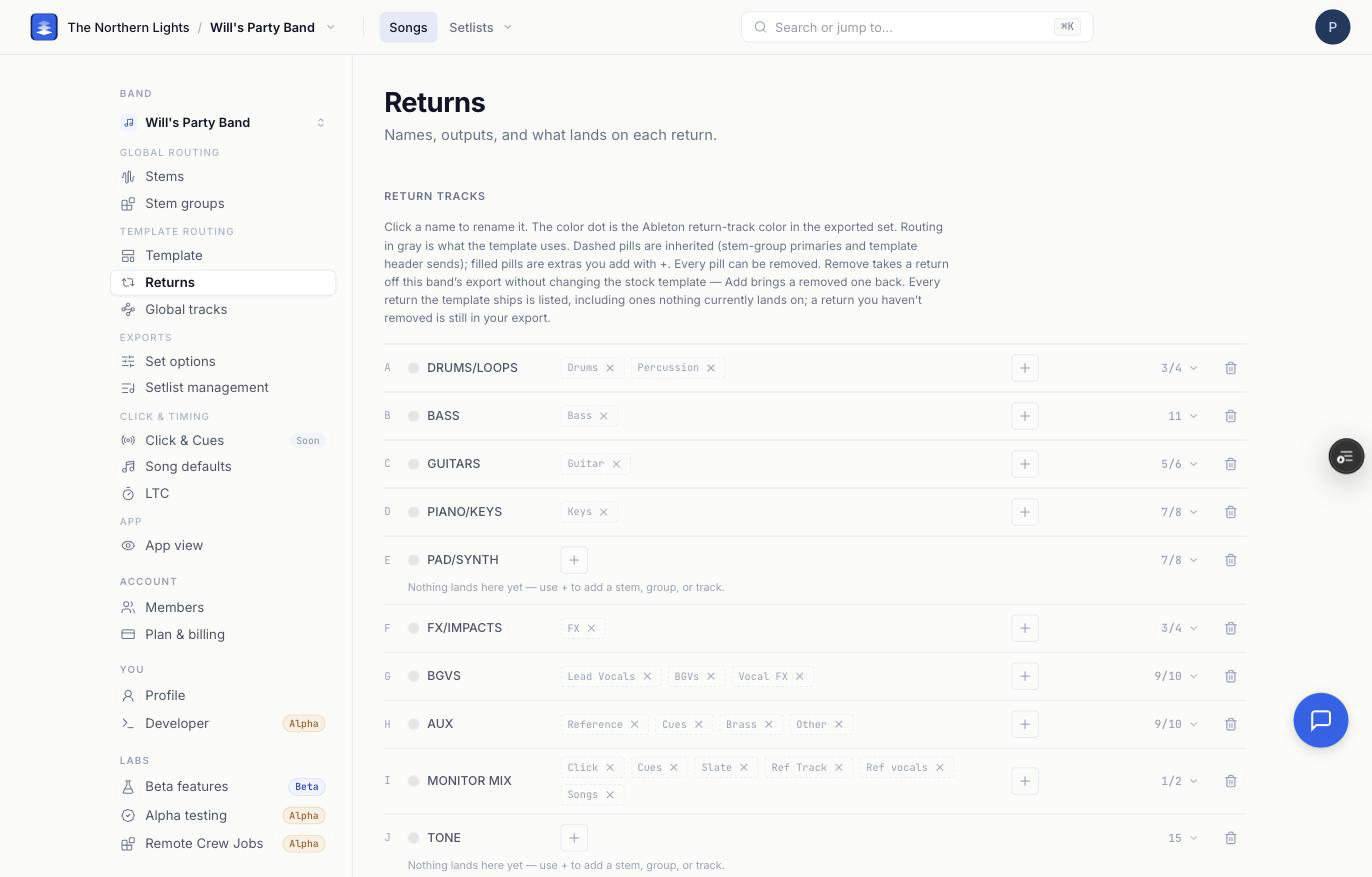
Return tracks are where your stems end up in the exported Live Set, and where front of house and monitors take their feeds from. Settings → Returns is one row per return: its name and color, what feeds it, and where it outputs. Everything here is saved per band, on the template you are on.
Clear the Not routed list
At the top of the page, Not routed lists stem groups that aren't on any return yet. Stems in those groups get no return routing when you export. Custom stem groups start here, because Pliris doesn't guess where you want them. Drag each group onto a return, or add it to a return with +. Check this list is empty before you export.
What a return can receive
Click + on any return. Three lists:
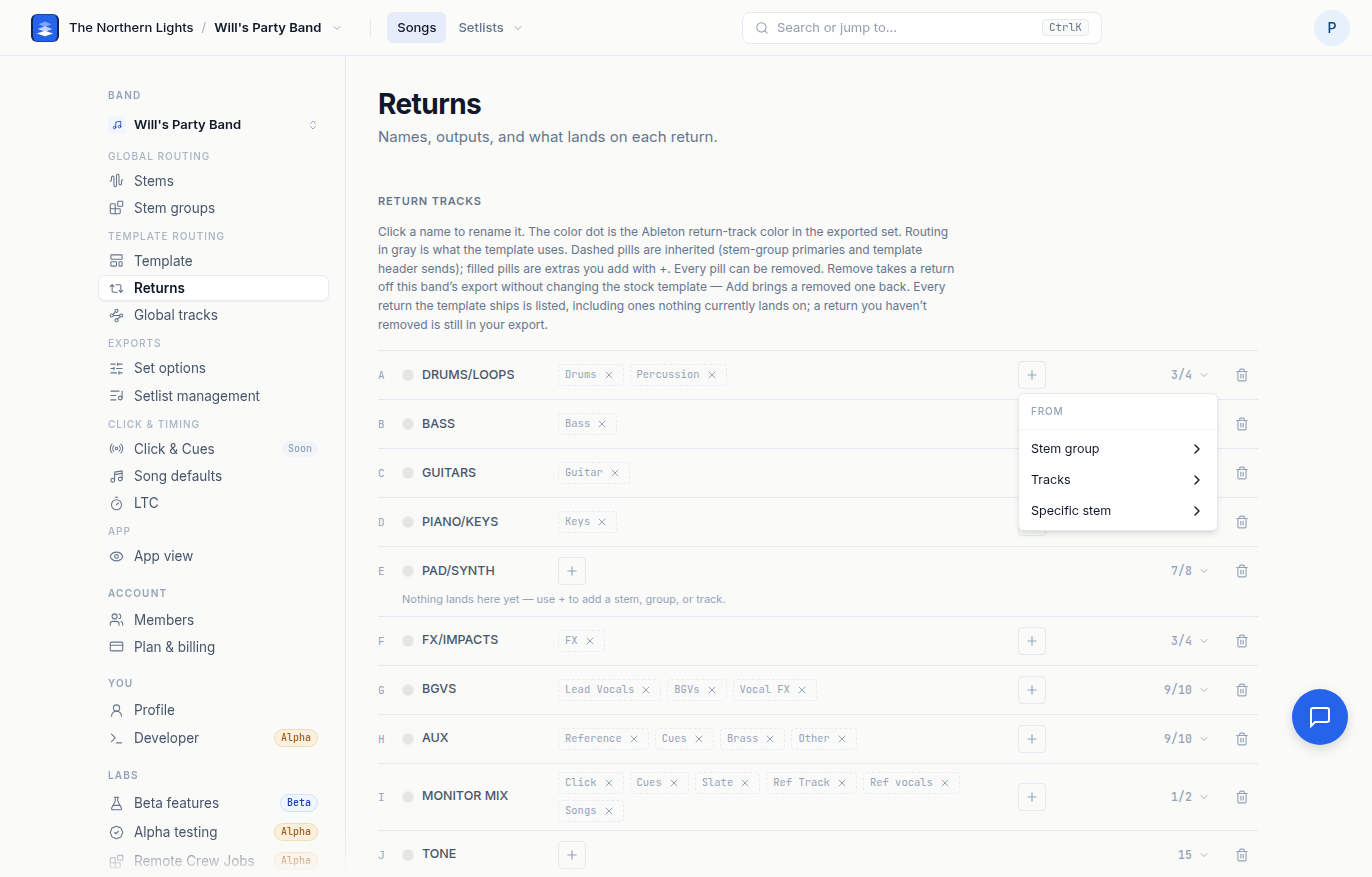
| Source | What lands on the return |
|---|---|
| Stem group | Every stem in that group, in every song. |
| Tracks | A header track: Click, Cues, Slate, Ref Track, Songs and the rest of what your template ships. |
| Specific stem | Every stem with that exact name, in every song, whatever group it is in. |
A return can carry any mix of the three. Anything already on the return is left out of the + menu.
Each source shows as a pill. Dashed pills are inherited: a stem group whose primary return this is, or a header-track send the template itself makes. Filled pills are extras you added. A return with no pills reads "Nothing lands here yet" and is still in the export.
Adjust what feeds a return
- Add a source. Click +, pick the list, pick the item.
- Remove a source. Click the × on its pill. A removed inherited pill stays gone until you add it back with +. If the pill was a group's primary return, that group's Routes to on Stem groups is cleared, so set a new primary there.
- Move a group's primary return. That is the Stem groups page: Settings → Stem groups → Routes to. The dashed pill moves from the old return to the new one, and any extra send you gave the group on Returns stays where it is. See Settings → Stem groups.
Send one thing to many returns
Add the same source on each return that should receive it. A group can be an extra on any number of returns on top of its primary. A specific stem or a header track can be on as many returns as you like. Nothing about the stem's group changes; a send is a send.
The full walkthrough, with a monitor-mix example, is Routing One Stem to Multiple Return Tracks.
Rename and recolor
- Click the name to rename it. The name is what appears in the exported Live Set.
- Click the color dot to pick the Ableton return-track color.
Change a return's output
Click the output value on the right of the row. The picker offers:
- Sends only, No output.
- Internal routing…, which reveals a second picker of the template's own tracks so the return can feed a track inside the set.
- Main (Live 12's name for the Master track), stereo pairs 1/2 to 31/32, and mono external outs 1 to 32.
Gray means the value is what the template does. Solid means you have overridden it, and Reset to template appears at the top of the picker naming the value it goes back to. Set the output to the pair your interface actually feeds; a return routed to 7/8 on a 2-output interface is silent.
Header tracks (Click, Cues, LTC and so on) have their own output on Settings → Global tracks. See Settings → Global tracks.
Remove and restore a return
The trash icon takes the return off this band's export on this template. Its sends and routing are cleared and any group that had it as primary is unrouted, but its name and color are kept. The stock template is untouched and every other band still has it.
Add return appears under the list while any return is removed. Pick the return by letter and it comes back to the same slot with its original name and the template's default output.
Checking the result
Export a song and open it in Live. Each return's name, color and output should match the page, and each stem's send should light up on the returns you gave it. If a stem lands somewhere else, walk the three screens in order: Stems, Stem groups, then back here. The first one that surprises you is the answer.
Frequently asked questions
What can I route to a return track in Pliris?
A stem group, a header track (Click, Cues, Slate, Ref Track, Songs), or a specific stem by name. Click + on the return in Settings → Returns and pick from the three lists.
How do I send the click to a return track?
On Settings → Returns, click + on the return, choose Tracks, then Click. Do the same on any other return that should carry it.
How do I change a return track's output?
Click the output value on the return's row and pick Main, a stereo pair, a mono out, Sends only, No output, or Internal routing to one of the template's tracks. Reset to template undoes an override.
How do I send the same thing to several returns?
Add it as a source on each return with +. A group, a stem, or a track can be on as many returns as you like.
How do I remove a return I don't use?
Click the trash icon on its row. It leaves this band's export on this template. Add return under the list brings it back with its original name.
Why is an empty return still in my export?
Because only the trash icon removes a return. An empty return is listed so that "empty" and "removed" never look the same. Remove it if you do not want it exported.