Settings → Template
Pick the Ableton Live Set your songs are exported into (Intro, Standard, Pro, or your own Custom template), understand which routing is saved per template, and reset a template's routing to its defaults.
Settings → Template picks the Ableton Live Set shape your songs are poured into. The template decides how many header tracks and return tracks every export ships with, so it is the first thing to set on a new band. Everything on the Returns and Global tracks pages is drawn from it.
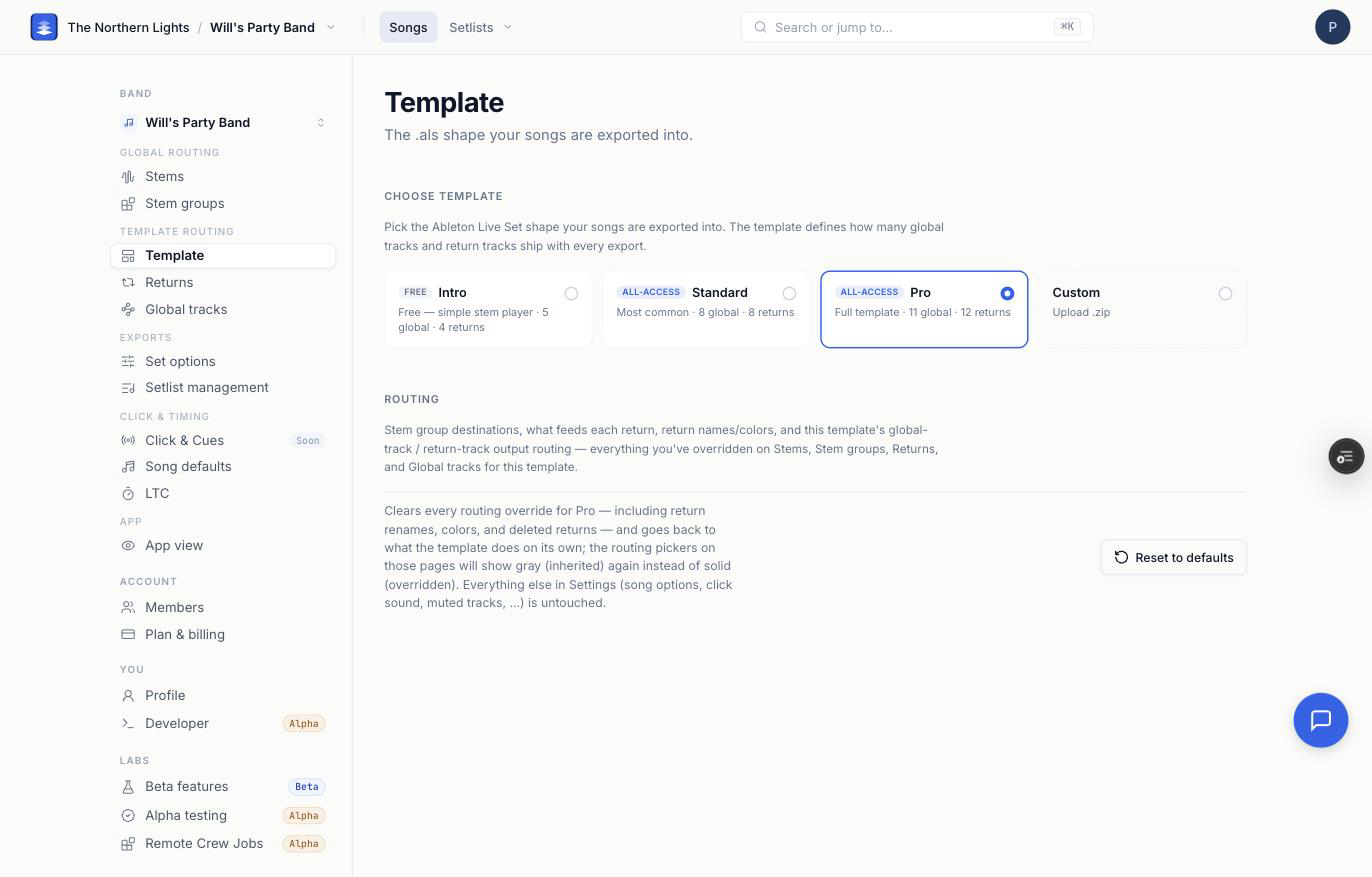
Choose template
| Template | Plan | What ships |
|---|---|---|
| Intro | Free | A simple stem player. 5 header tracks, 4 returns. |
| Standard | All-Access | The most common choice. 5 header tracks, 12 returns. |
| Pro | All-Access | The full rig. 11 header tracks, 12 returns. |
| Custom | All-Access | Your own Ableton Live Project, uploaded as a zip or a plain project folder. |
Click a tile to switch. The change saves immediately and a Template updated message confirms it. The template is set per band and applies to single-song and full-set exports. On the free plan, Standard and Pro show Paid plan required and cannot be selected.
For a walkthrough of switching and what each one ships, see Switching Your Ableton Export Template. For what ends up inside the file, see What's in an Exported Ableton Project?.
Custom templates
Selecting Custom on a paid plan opens a Custom templates section underneath. In Live, run File → Collect All and Save first. Then, under Add your Ableton template, choose Upload a compressed template (a .zip of the project folder) or Choose a plain Ableton project (the folder itself, no zip). You can also drop either onto the page. The wizard then walks you through the layout, which of your tracks play which role, and which return each stem group lands on. The step-by-step version is Uploading a Custom Ableton Template. Once you have more than one custom template, the list above the wizard lets you pick which one this band exports into, and Edit reopens the wizard for a template you already saved.
A template saved without its samples is kept but not selected, because it cannot export yet. Upload it again with its samples (Collect All and Save first) to use it.
What is saved per template
The rail splits your routing into two kinds, and this page is where the split matters:
- Global routing (Stems and Stem groups) is saved per band. Which stem group a stem name belongs to does not change when you switch templates.
- Template routing (Returns and Global tracks, plus each group's destination on Stem groups) is saved per band and per template. Return names, colors, output routing, removed returns, extra sends, and header-track settings all belong to the template you set them on.
So after switching a band's template, open Stem groups, Returns, and Global tracks and check the destinations. Nothing is lost by switching. Switch back and the previous template's routing is exactly as you left it.
Reset to defaults
The Routing section at the bottom has one button: Reset to defaults. It clears every routing override for the template you are on:
- each stem group's destination on Stem groups
- what feeds each return, including extras you added and inherited pills you removed
- return names and colors
- returns you removed from the export
- output routing for returns and header tracks
It does not touch your Stems assignments, song options, click sound, muted tracks, or set options. A confirmation dialog lists what is about to be cleared before anything happens, and the toast confirms when it is done.
Frequently asked questions
How do I change the Ableton template in Pliris?
Open Settings → Template and click Intro, Standard, Pro, or Custom. The change saves immediately. Standard, Pro, and Custom need an All-Access plan.
What happens to my routing when I change templates?
Your stem-to-group assignments stay exactly where they are. The destinations switch to the new template's own set: which return each group lands on, return names and colors, removed returns, and output routing are all saved per template. Switch back and the old template's routing is still there.
How do I reset my routing to the template defaults?
On Settings → Template, scroll to Routing and click Reset to defaults. It clears every override on Stem groups, Returns, and Global tracks for the template you are on. Your Stems assignments are left alone.
Can I use my own Ableton project as a template?
Yes, on an All-Access plan. Choose Custom, then upload a zipped Live Project or choose the plain project folder. The wizard asks you to label which tracks play which role. Collect All and Save in Live first so the samples travel with it. See Uploading a Custom Ableton Template.
Why can't I select Standard or Pro?
They need an All-Access subscription. On the free plan the tiles show Paid plan required. See Plans, Credits, and Billing.