Settings and Routing
How stems become stem groups, how stem groups land on return tracks, and how to set the whole thing up before you upload a single file.
Settings decides what your Ableton export looks like: which return track each stem lands on, what those returns are called, what the header tracks do, and how a set is assembled. This walks the whole thing.
Everything here is per band — two bands in the same account can route completely differently, right down to a custom group's own name and color. Renaming or recoloring a group while viewing one band only changes that band's copy; every other band keeps seeing what it saw before.
How to think about it
One sentence covers most of it:
A stem belongs to a stem group. A stem group lands on a return track. The template decides which return tracks exist.
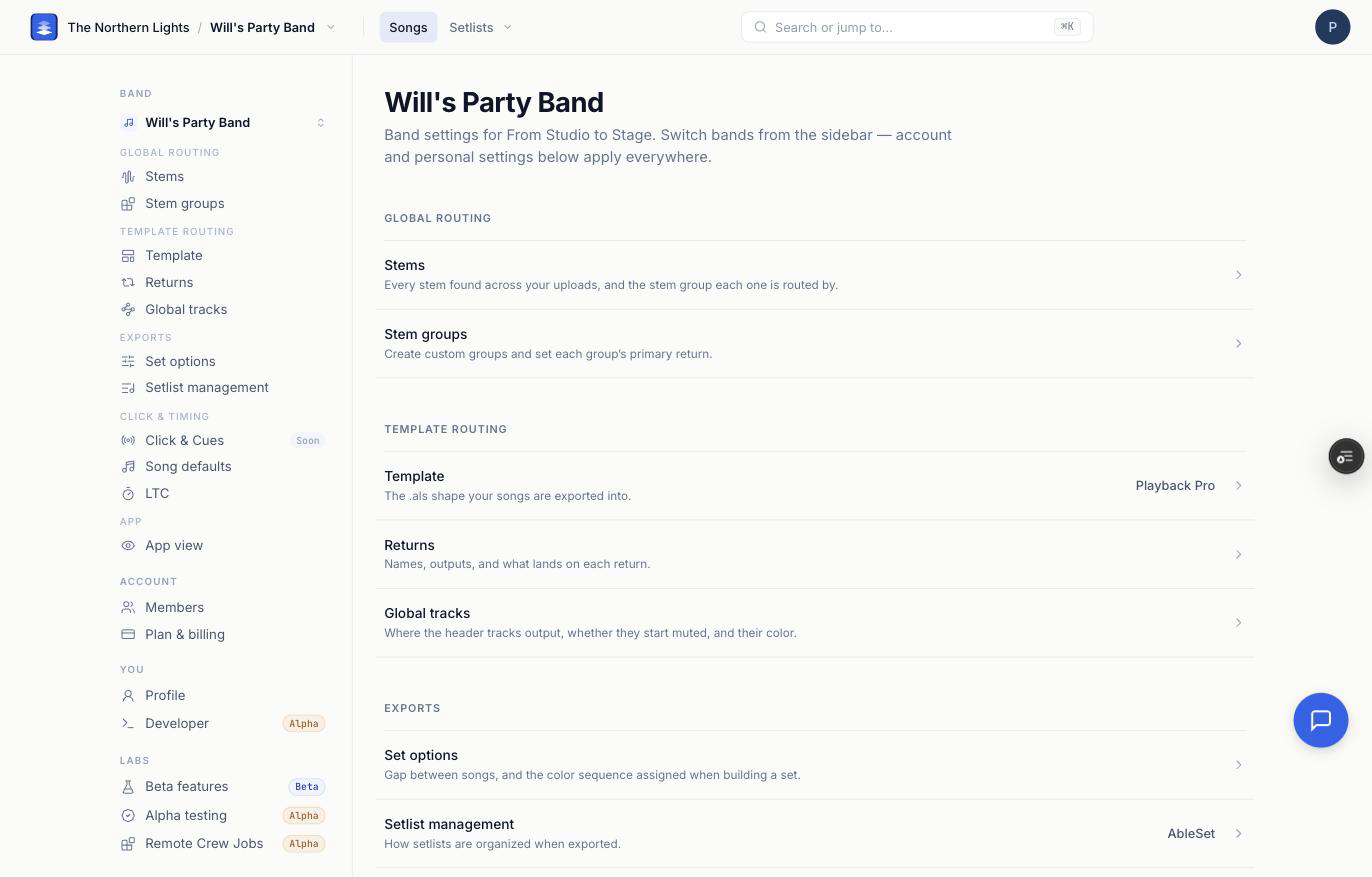
That is three screens, in that order:
- Settings → Stems — which group each stem name belongs to.
- Settings → Stem groups — which return each group lands on.
- Settings → Returns — what each return is called, where it outputs, and what feeds it.
When a stem lands somewhere odd, walk those three in order. The first screen that surprises you is your answer.
Template
Settings → Template picks the Ableton Live Set your songs are exported into. The template decides how many header tracks and return tracks every export ships with — Intro has 4 returns, Standard 8, Pro 12 — and you can upload your own as a Custom template.
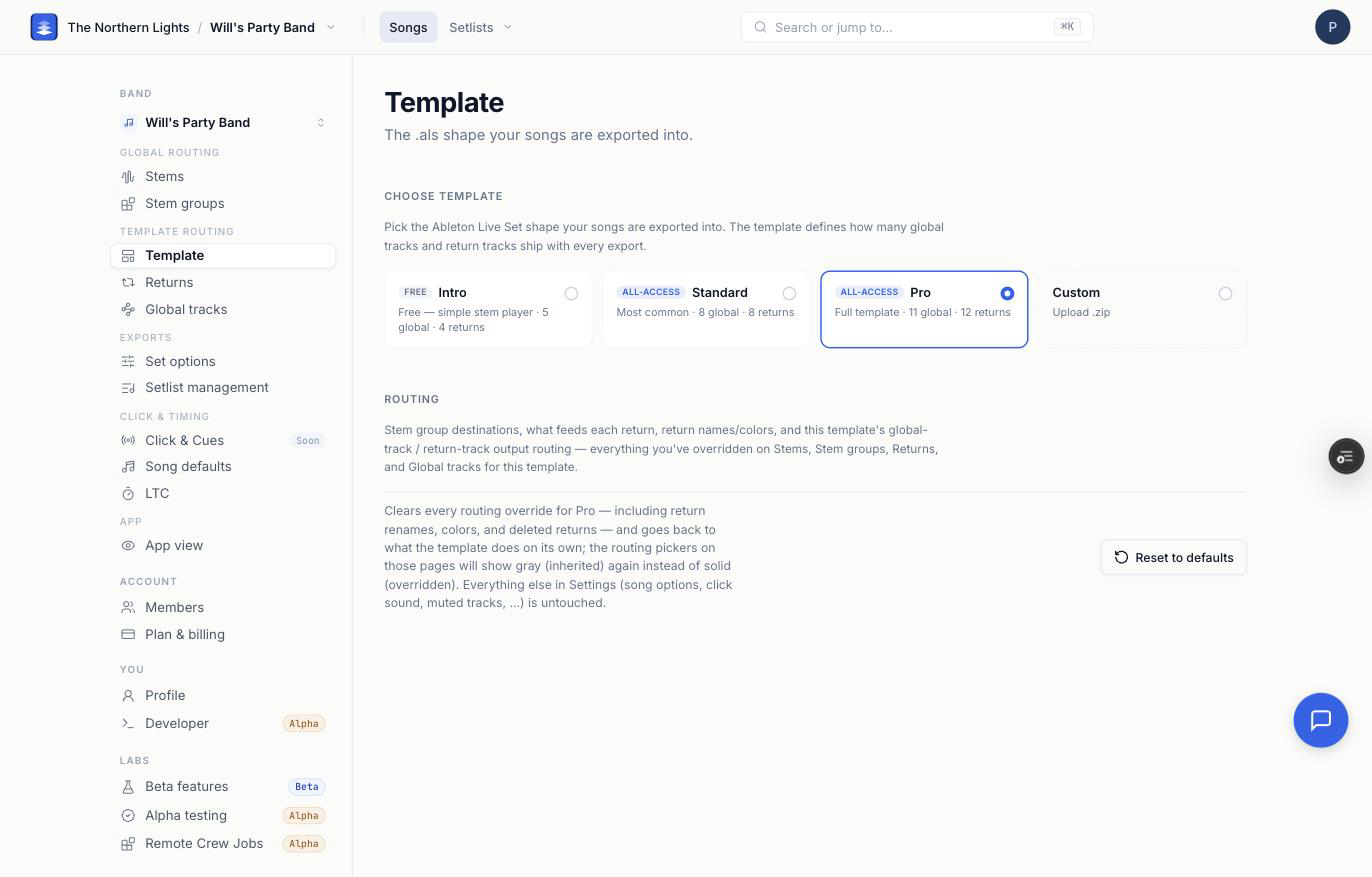
Some of your routing is saved per template and some is not, and the rail says which is which. Global routing — Stems and Stem groups — saves which group each stem name belongs to per band, so GTR stays a guitar whatever you export into. Template routing — Template, Returns and Global tracks — saves where each group lands, plus return names, colors, deleted returns and output routing, against the template you are on. That split is deliberate: "Guitars is return C" cannot mean the same thing in a 4-return template and a 12-return one, but a guitar is a guitar either way.
So after changing a band's template, check your destinations — Stem groups, Returns, Global tracks. Nothing is lost; switch back and your old routing is exactly where you left it. Your Stems assignments do not need re-checking, because they never moved.
Reset to defaults clears every routing override for that template: stem group destinations, return feeds, return names, colors, return on/muted choices, deleted returns, and output routing. It does not touch song options, click sound, or muted tracks. The dialog says so before you confirm.
Stems
Settings → Stems lists every stem name found across your uploads, how many files use it, and the stem group it routes by. Change the group in the right-hand column and every file with that name follows.
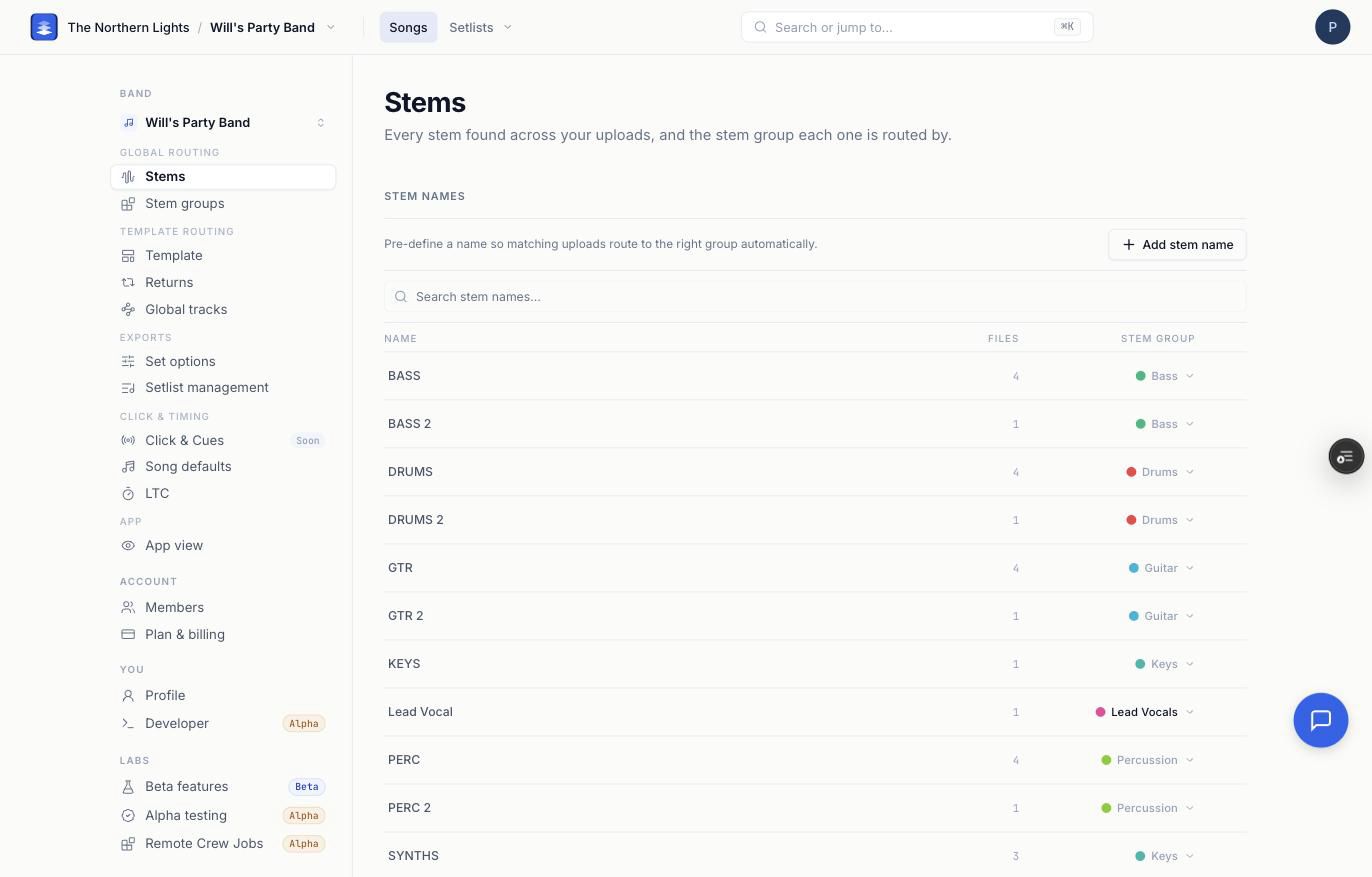
This page runs the same classifier your export does. For any name you have assigned or pre-defined, what you see here is exactly what the export uses. Where the group was guessed from the name alone, the export also considers the stem's original filename, so an auto-tidied name can occasionally resolve differently — assigning the row explicitly settles it.
Pre-defining a name
Add stem name lets you claim a name that does not exist yet. Type the name your stems arrive with, pick its group, and the next upload that matches lands routed. This is how you set a band up before any audio arrives.
A sensible order for a new band:
- Create your groups on Stem groups.
- Set up your returns on Returns — names, colors, outputs; remove the ones you do not use.
- Pre-define your stem names, each pointed at a group.
- Upload. The first export is right, with no cleanup.
Already have a catalog? Work down the Stems list and let the Files column choose your order — a name used by 40 files is worth pinning before one used by a single file. The list itself is sorted alphabetically, not by file count, so the names worth your time are scattered through it rather than gathered at the top.
Routing by naming convention
A pre-defined name is matched as a keyword, not an exact filename, and matching is case-insensitive. When several names match, the longest one wins — with one precedence rule on top: a keyword pointed at a custom group is checked before any pointed at a built-in group, however short it is. In practice that is the arrangement you want anyway — put your specific rules on custom groups and leave the broad fallbacks built-in. The trap is the inverse: a short custom-group keyword will swallow a longer built-in one. That turns your naming convention into a routing engine.
Say your team exports guitars as GTR W L, GTR W R, GTR J, and sometimes just GTR:
| Pre-define | Group |
|---|---|
gtr w |
Will's Guitar |
gtr j |
Jason's Guitar |
gtr |
Guitar |
GTR W L matches both gtr and gtr w. The longer keyword wins, so it lands in Will's Guitar. GTR J goes to Jason's. A plain GTR falls through to the generic group. Every future upload sorts itself.
Patterns worth stealing:
- Player initials.
kick,snare,ohfor the kit;gtr w,gtr jfor the players. One rule per person, one fallback per instrument. - Variants of the same instrument. If your team delivers both a programmed and a played version,
live gtrto Live Guitars andgtrto Guitar sends them to different returns automatically. (Routing is per band, so this is about telling two kinds of stem apart, not about switching a band between rigs.) - Programmed vs. played.
prog drumsto its own return with its own fader for FOH,drumsto Drums. - A short generic keyword per instrument family as your safety net. It is what stops an odd name landing on a bus nobody is listening to.
Keep long keywords specific and short keywords generic — the short ones are the net. And a pre-define is band-scoped, so each band can use its own engineer's convention.
Stem groups
Settings → Stem groups does two things.
Custom groups — an account admin names a group (Will's Guitar, Programmed Drums), then you assign matching stems to it on the Stems page. An account admin can click a custom group's color dot to change it; built-in groups keep their color. Custom groups are per band, name and color included — renaming or recoloring one while viewing a band never touches what another band sees. Which stems are in a group is per band. Where the group lands is per band and per template.
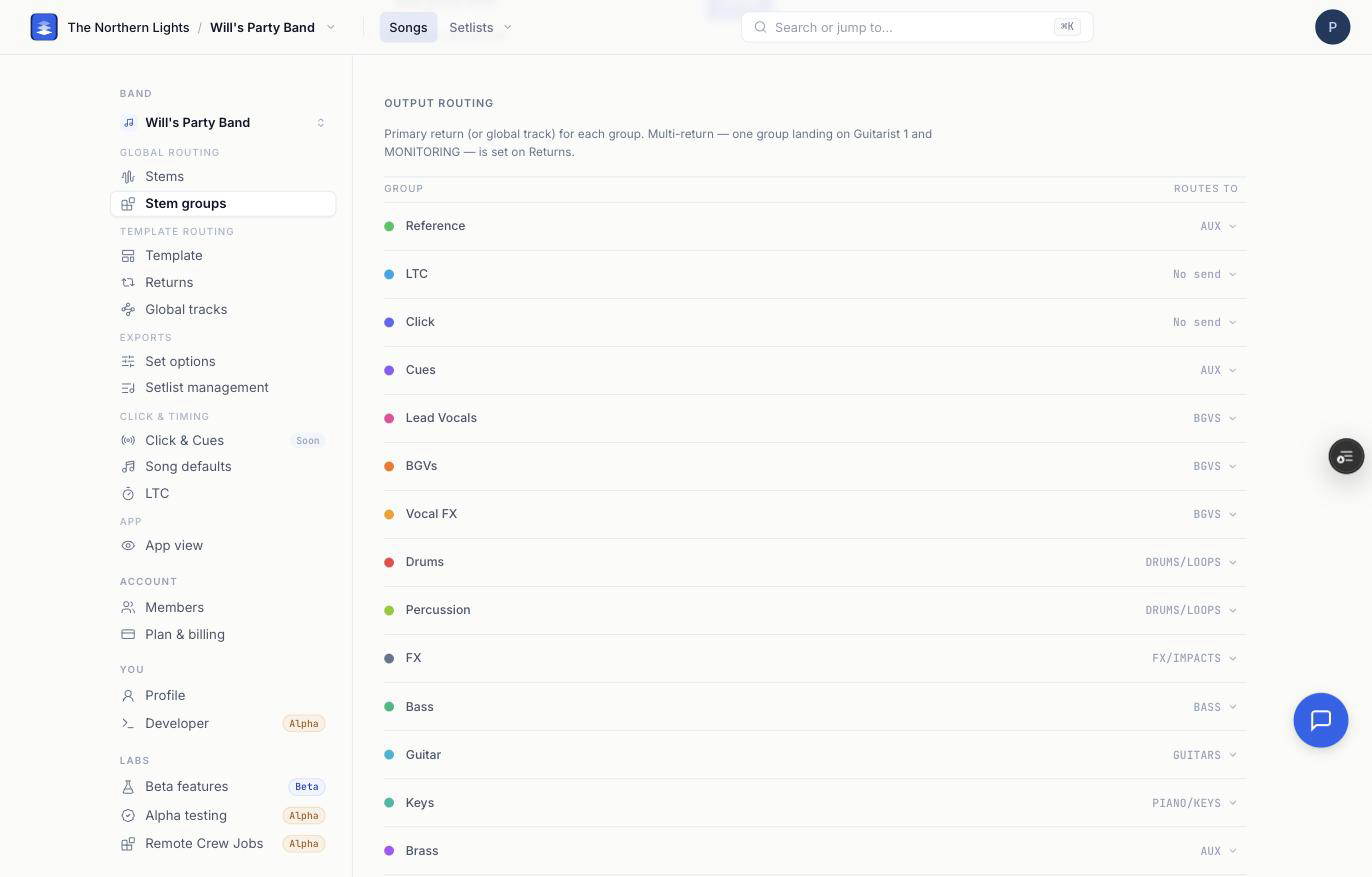
Output routing — the primary return (or global track) for each group. This is the "stem group lands on a return track" step.
A group can be routed to a global track instead of a return, which puts the audio into that header track rather than sending it to a bus. Two cautions. It takes those stems out of the song's group bus, so anything applied at the group fader will not reach them. And it does not apply on every export path: a single-song export routes the group to the track as expected, but a built set can leave those stems on the song group instead — including on a custom template, where stems matched to an authored slot keep the template's own routing. Check a built set before relying on it for a show.
Returns
Settings → Returns is one row per return track: its letter, color, name, what feeds it, and its output.
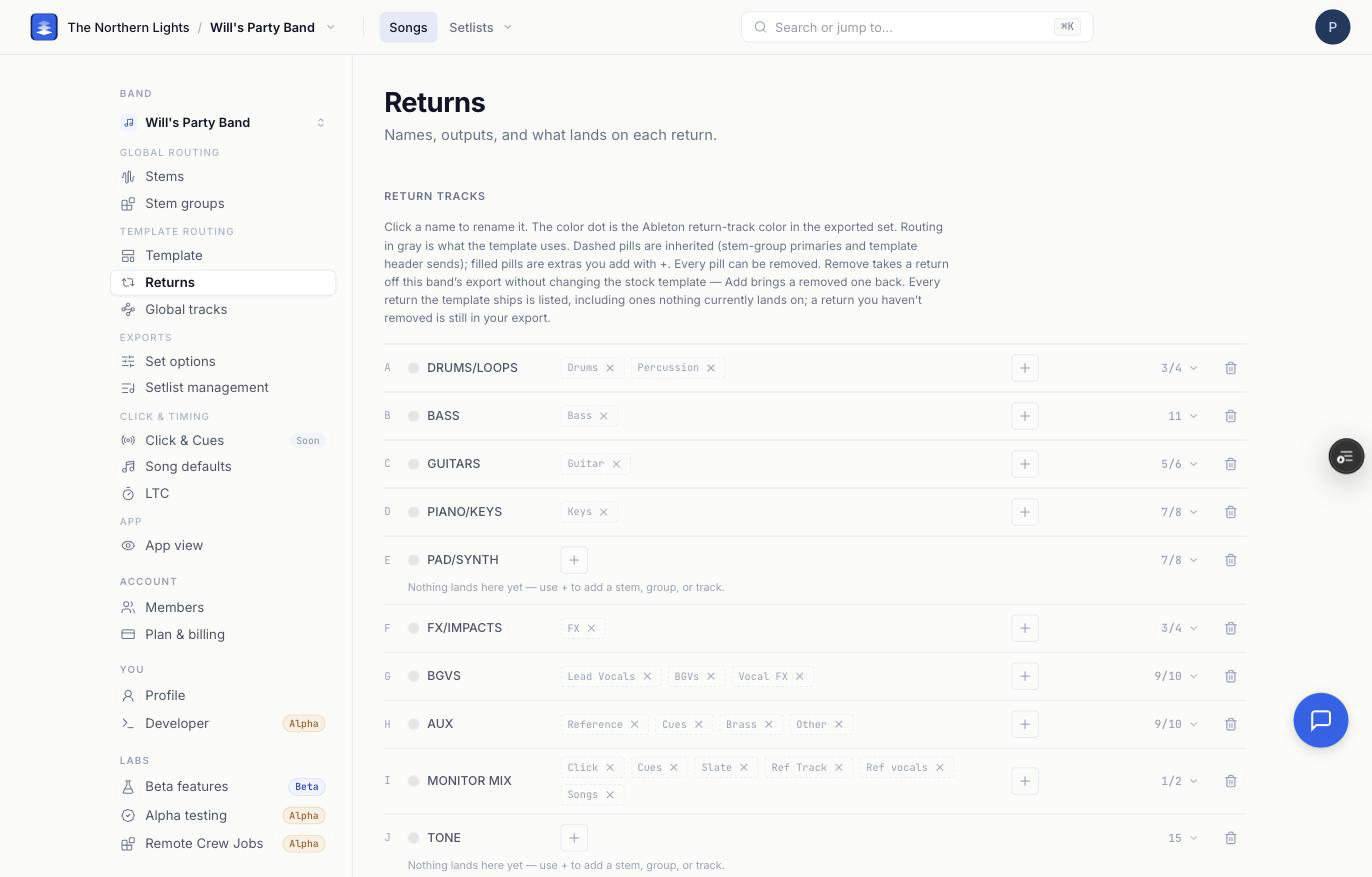
- Click a name to rename it. The name reaches the exported Live Set.
- Click the color dot to set the Ableton return-track color.
- Pills are what feeds the return. Dashed pills are inherited — stem-group primaries and template header sends. Solid pills are extras you added with +. Any pill can be removed.
- The on/muted switch sets whether the return sounds when the exported set opens. On means the return is on; off means it loads muted. It starts at whatever the template does. Pro ships return I (MONITOR MIX) muted, so turn it on if you have repurposed that return.
- Output is where the return goes in Live.
- Remove (the trash icon) takes a return off this band's export on this template. Like the rest of this page it is stored per band and per template, so switching templates shows that template's returns with its own removals — the one you took out here is still there. The stock template is untouched either way. Add brings a removed one back.
Every return the template ships is listed, including ones nothing currently lands on. A return you have not removed is still in your export — which is why an empty one stays on screen rather than disappearing.
A return can be fed by several groups, and a group can feed several returns. A guitarist's monitor fed by Will's Guitar, Click and Cues is three pills on one return; nothing about your song groups changes, the stem just gets another send.
Global tracks
Settings → Global tracks covers the header tracks at the top of every song and the full set — SONG, SECTIONS, TEMPO, CLICK, CUES, LTC, REF TRACK and the rest.
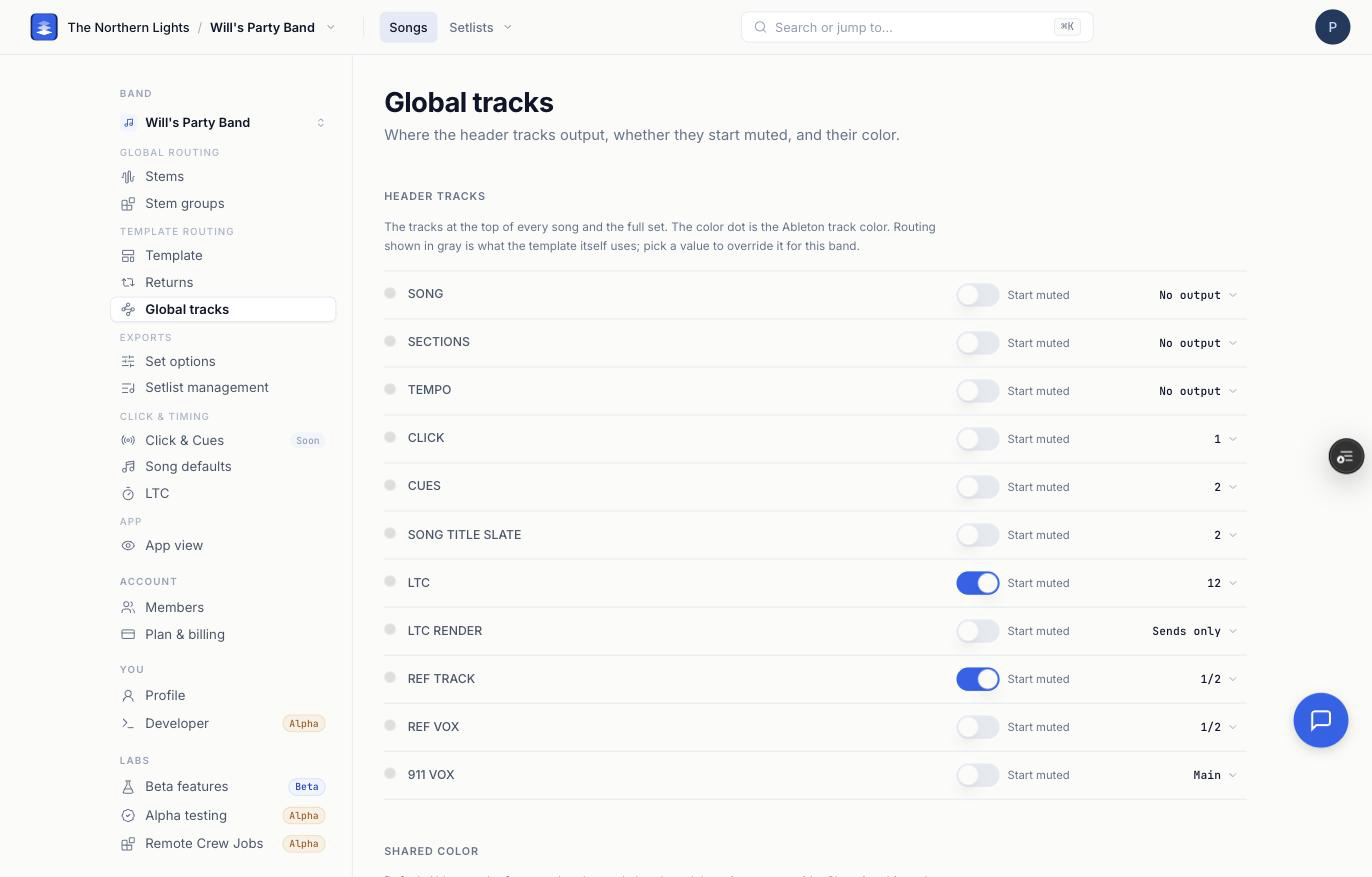
Per track you can set the output, whether it loads on or muted, and its color. Routing shown in gray is what the template itself uses; pick a value to override it for this band.
The switch shows the track's state: on means the track is on, off means it loads muted. On the built-in templates it is honored in both directions — including LTC and REF TRACK, which ship muted, so turning their switch on means the track arrives unmuted. On a custom template it can only mute: a track you authored muted stays muted even if you turn the switch on.
Set options and Setlist management
Set options covers the gap between songs and the color sequence assigned when building a set. Setlist management covers how setlists are organized when exported.
When something lands in the wrong place
Work in this order — the first screen that surprises you is the one to fix:
- Stems. Is the stem in the group you expect? If not, change its group, or pre-define a longer keyword that beats the one currently winning.
- Stem groups. Is that group routed to the return you expect?
- Returns. Is that return named, fed and output the way you expect? Is it still in your export?
- Template. Are you on the template you exported with? Destinations, return names and removals are saved per template, so the wrong template shows a different set of answers. (Your Stems assignments are per band, so they read the same either way.)
If all four screens look right and the export still disagrees, click the support bubble on any page — a real person reads every one, and you will hear back within 24 hours.
Frequently asked questions
Why is my stem landing on the wrong return track?
Walk the three screens in order: on Stems, check the stem is in the group you expect; on Stem groups, check that group is pointed at the return you expect; on Returns, check that return is still in your export with the right source pill. Nine times out of ten the first screen that surprises you is the answer.
Do I have to set up routing for every song?
No. Routing is per band, not per song. Set it once and every song you upload afterwards follows it — including songs you have already uploaded, since changing a stem name's group moves every file with that name.
Can I set up routing before I upload any stems?
Yes, and it is the fastest way to onboard a band. On Settings → Stems, use Add stem name to claim the names your stems arrive with and point each at a group. The first upload that matches lands routed, with no cleanup.
What happens to my routing if I change templates?
Your stem-to-group assignments stay exactly as they are — those are saved per band. What changes are the destinations: which return each group lands on, return names and colors, and any returns you removed are all saved per template. Switch back and the old template's routing is exactly where you left it.
How do I get a stem out of the mix entirely?
Route its group to a global track instead of a return. The audio goes into that header track rather than being sent to a bus. Useful for reference material and talkback — but note it leaves the song's group bus, so anything applied at the group fader will not reach it.
Where to go next
This article is the big picture. Each Settings page has its own walkthrough, and the most common routing jobs have step-by-step guides:
- Finding Your Way Around Settings — the rail, the scopes, and who can change what.
- Page by page: Template, Stems, Stem groups, Returns, Global tracks, Set options, Setlist management, Song defaults, LTC, App view, and Account, You and Labs.
- How-tos: Organizing Stems with Custom Stem Groups, Switching Your Ableton Export Template, Routing Global Tracks in Your Ableton Export, Uploading a Custom Ableton Template, Exporting Your Songs for AbleSet, LIOBOX and TAZ, Creating Custom Stem Groups, Changing a Stem's Group on a Song, Pre-Routing Stems to Groups, Routing One Stem to Multiple Return Tracks, and Routing Return Tracks.