Exporting Your Songs for AbleSet, LIOBOX and TAZ
Choose your setlist tool in Settings → Setlist management and every Ableton export comes out with that tool's stop locators, section locators and song metadata, plus an AbleSet lyrics track. Switch tools and export again; nothing to reprogram.
Setlist tools like AbleSet, LIOBOX, Conductor and TAZ read Ableton locators to find your songs and sections. A plain export doesn't include them, so AbleSet shows a song with no sections. Tell Pliris which tool you use and every export is formatted for it.
Watch the lesson: this article goes with Export for your setlist app, part of the Using Pliris to Program, Practice, and Perform course.
Choose your setlist tool
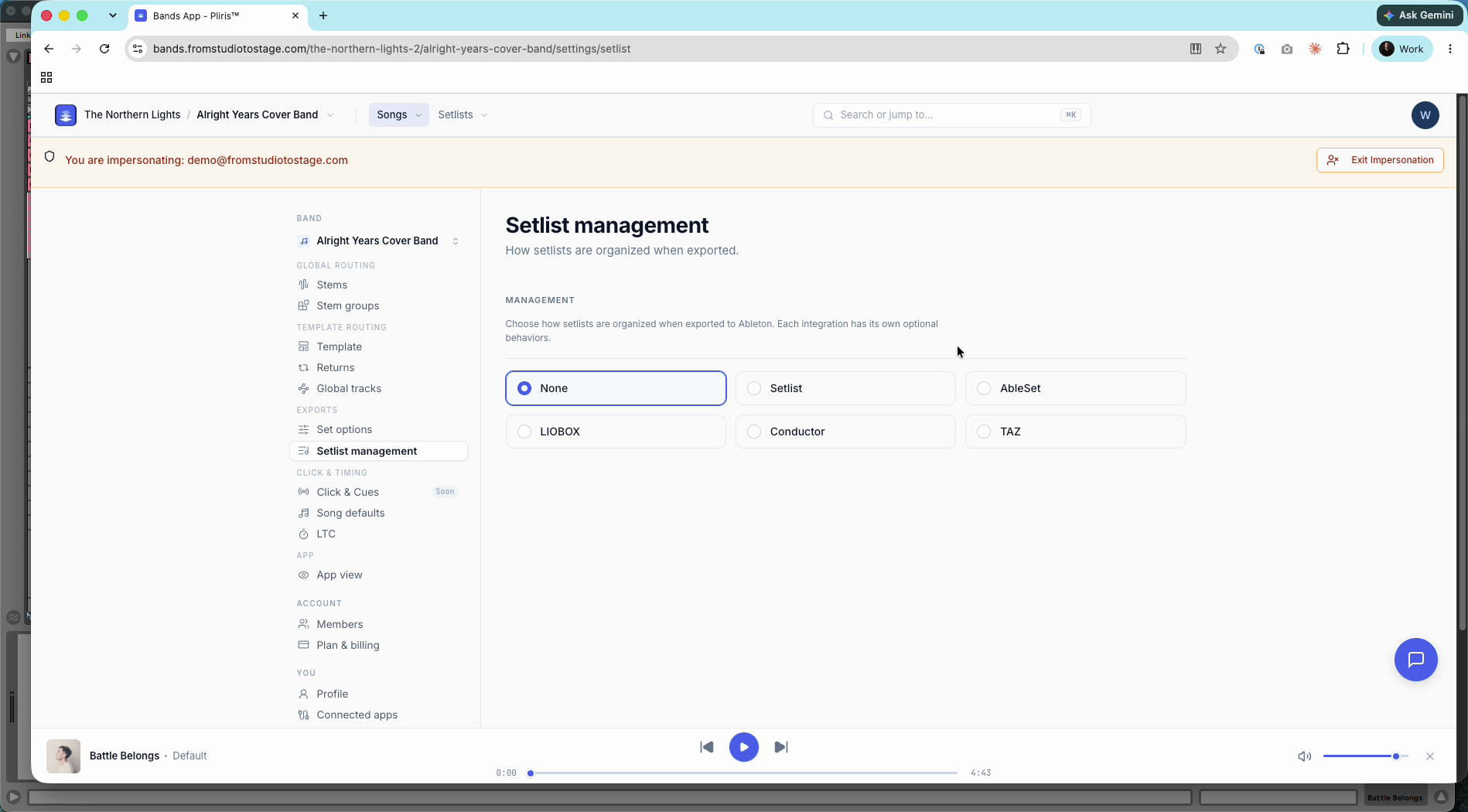
- Open your band's Settings and click Setlist management, under Exports.
- Choose None, Setlist, AbleSet, LIOBOX, Conductor or TAZ. The options below change to match.
Setlist is the Setlist iOS app, and Conductor is MultiTracks Conductor. Pick the tool you actually run the show from. There's no separate locator-format setting: the tool you pick sets the format.
LIOBOX options
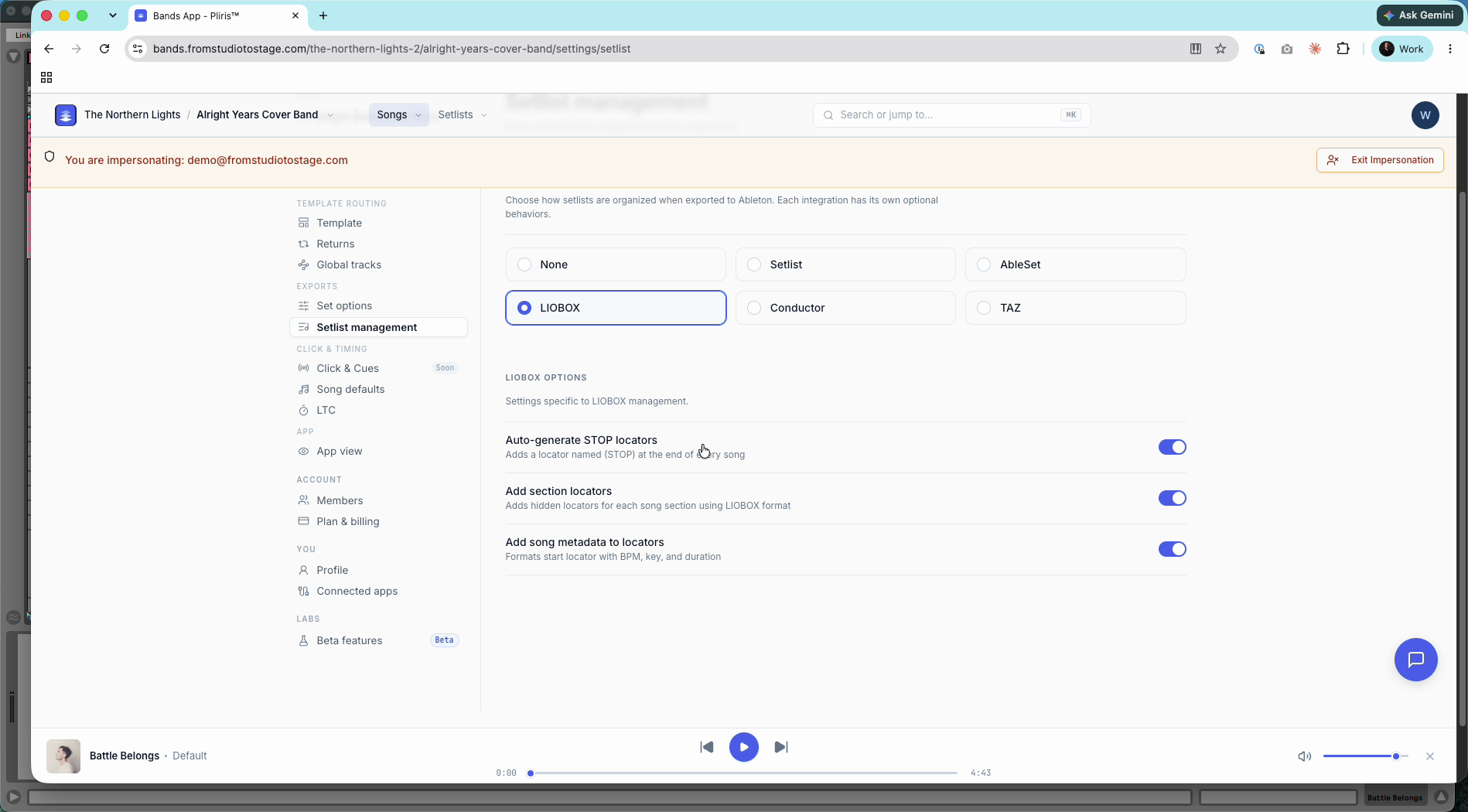
- Auto-generate STOP locators: a locator named (STOP) at the end of every song.
- Add section locators: hidden locators for each section, in LIOBOX format.
- Add song metadata to locators: the start locator shows BPM, key and duration.
AbleSet options
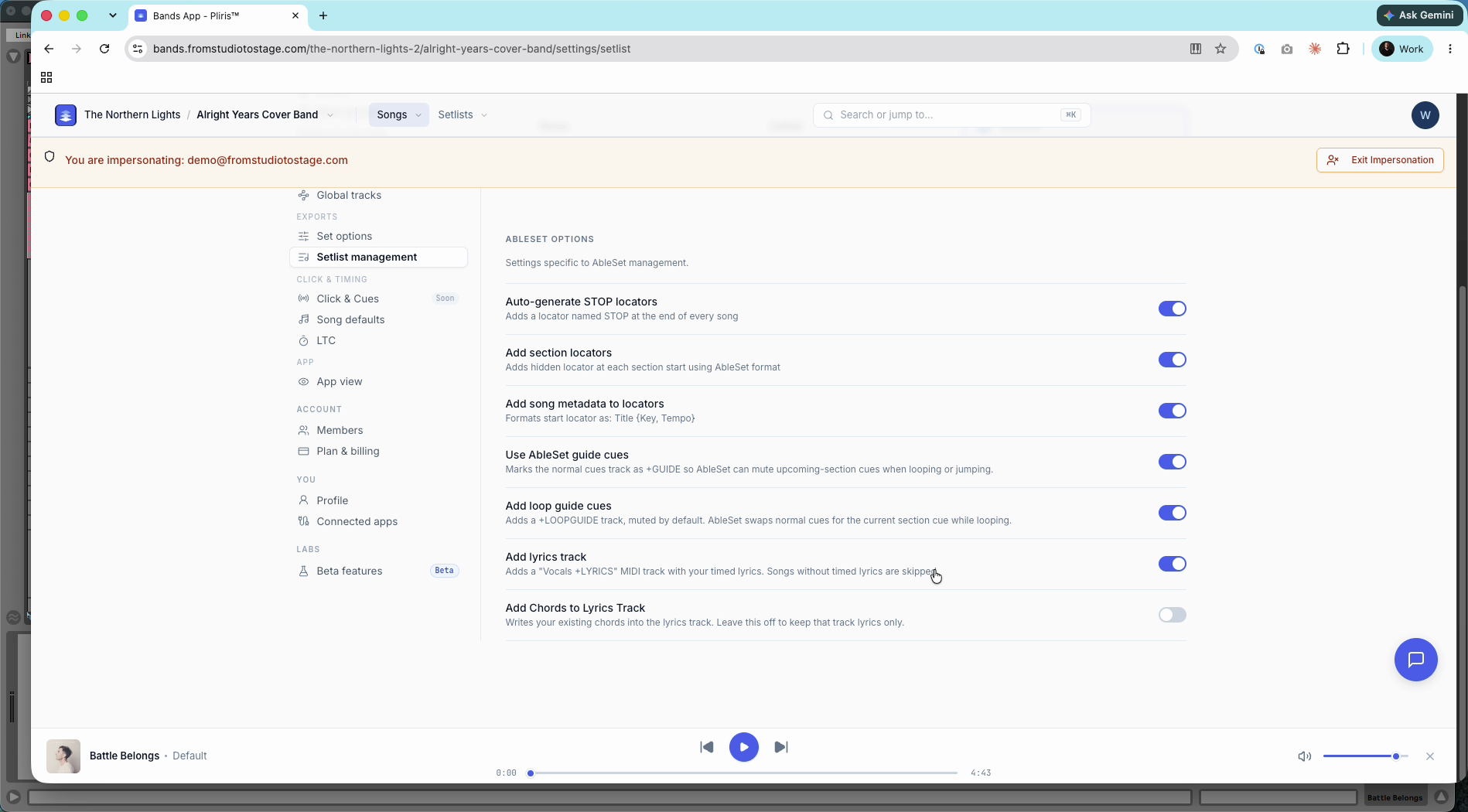
- Auto-generate STOP locators: a STOP locator at the end of every song.
- Add section locators: a hidden locator at each section start, in AbleSet format.
- Add song metadata to locators: the start locator reads Title {Key, Tempo}.
- Use AbleSet guide cues: marks the cues track +GUIDE so AbleSet can mute upcoming-section cues when you loop or jump.
- Add loop guide cues: adds a +LOOPGUIDE track, muted by default. AbleSet swaps in the current section's cue while looping.
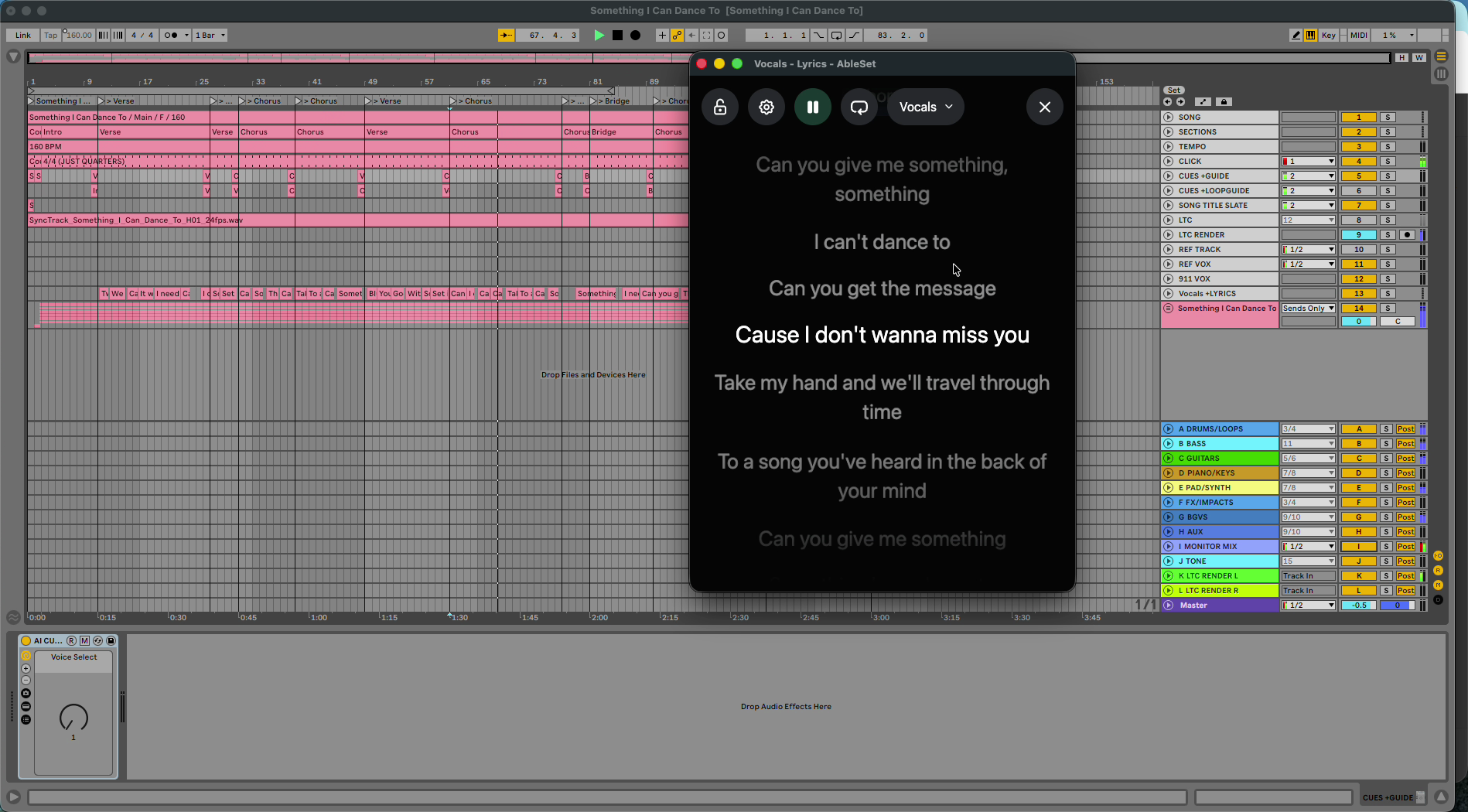
- Add lyrics track: adds a Vocals +LYRICS MIDI track with your timed lyrics. Songs without timed lyrics are skipped.
- Add Chords to Lyrics Track: writes your chords into the lyrics track. Leave it off for lyrics only.
For every system's options, see Settings → Setlist management.
Export and check it
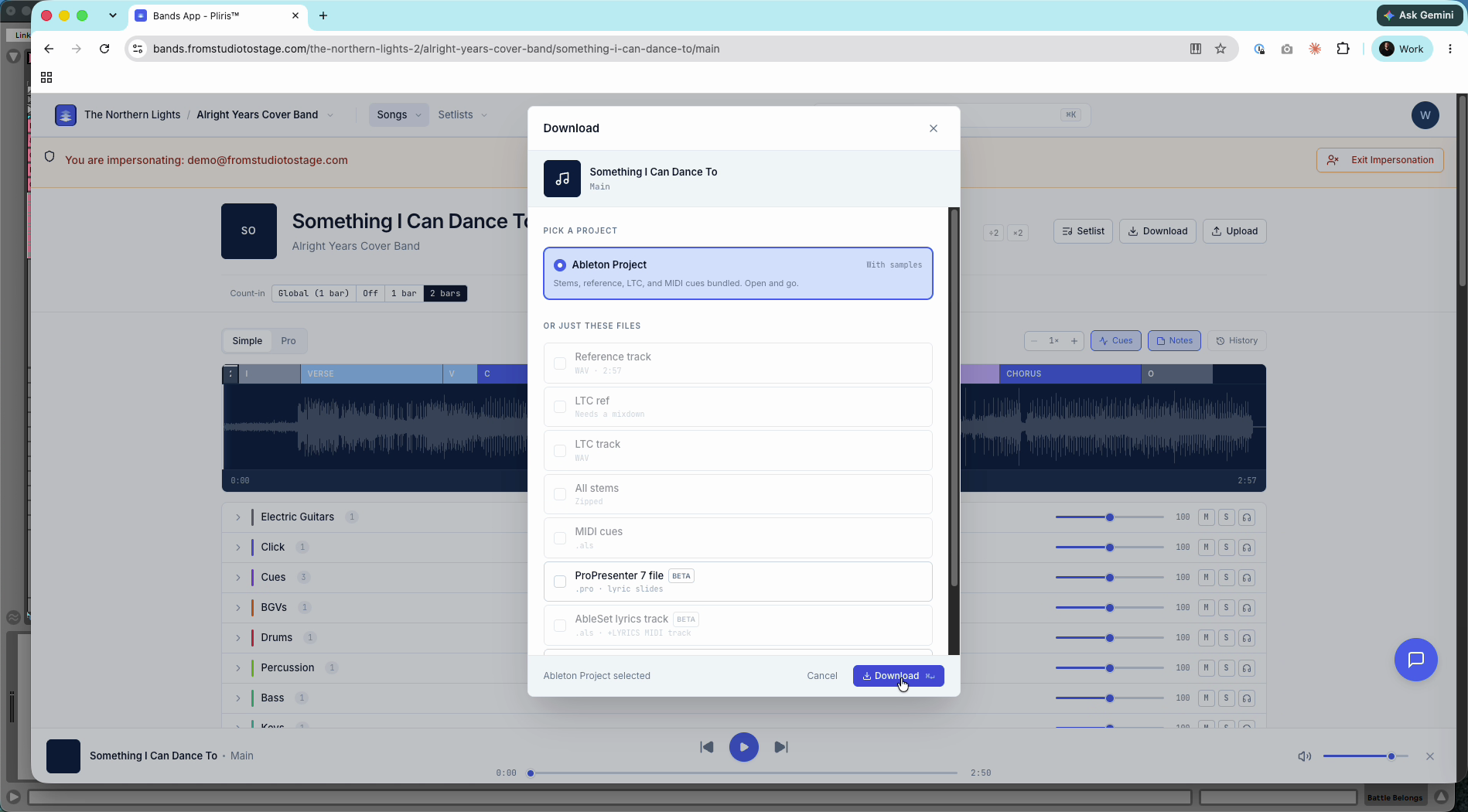
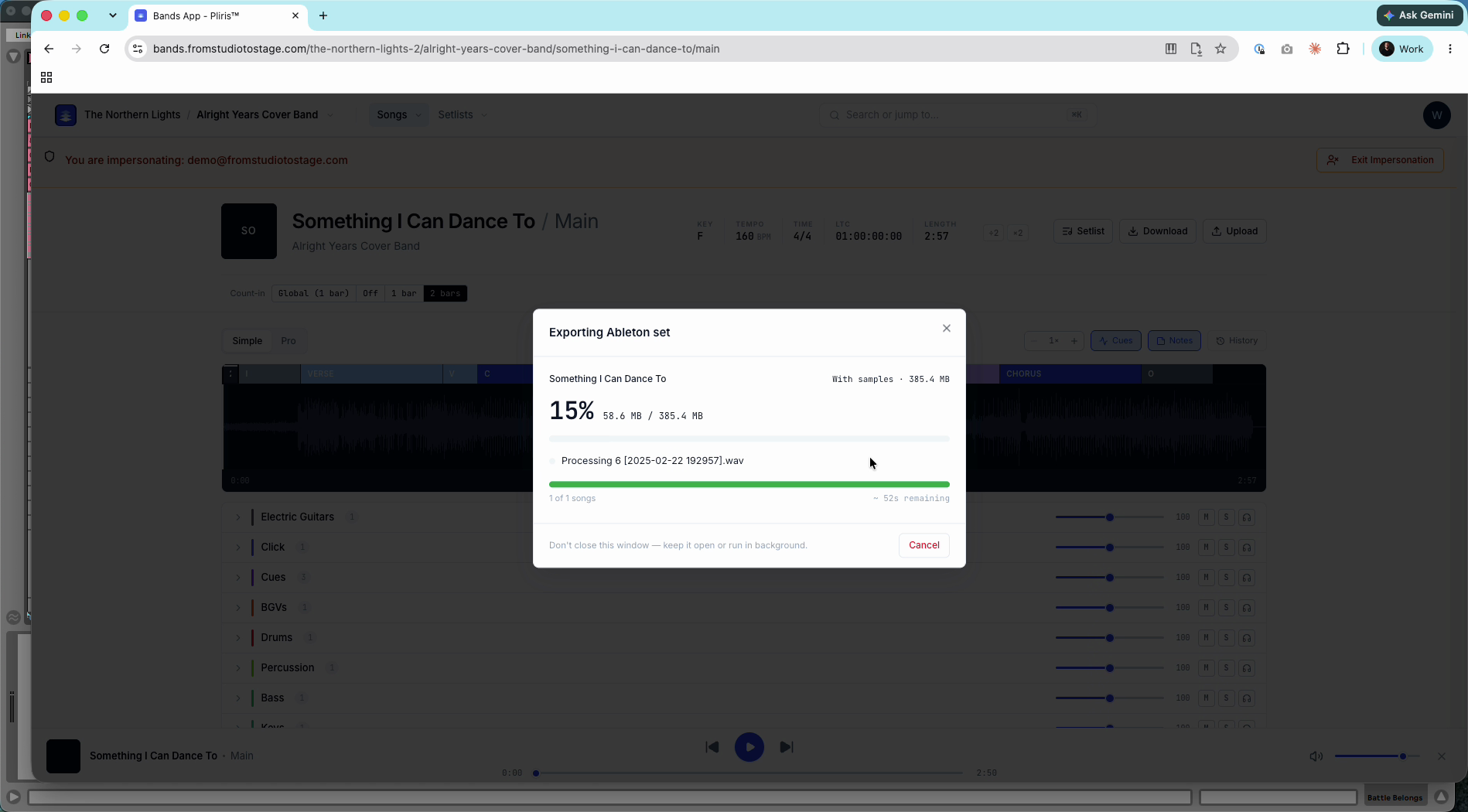
- Open a song, click Download and choose Ableton Project. Your band's template still applies.
- Replace the old project on your computer with the new one and open it in Ableton Live.
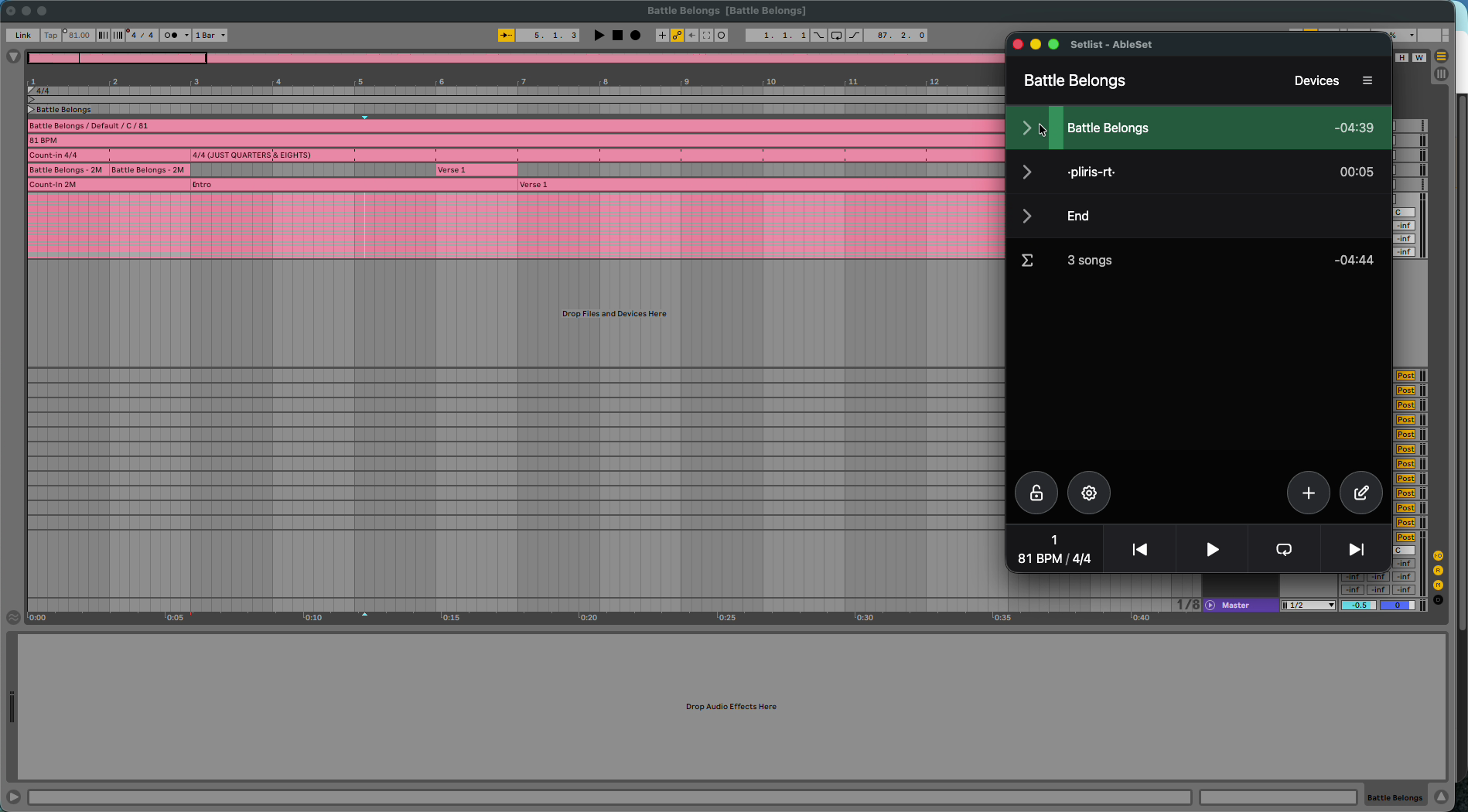
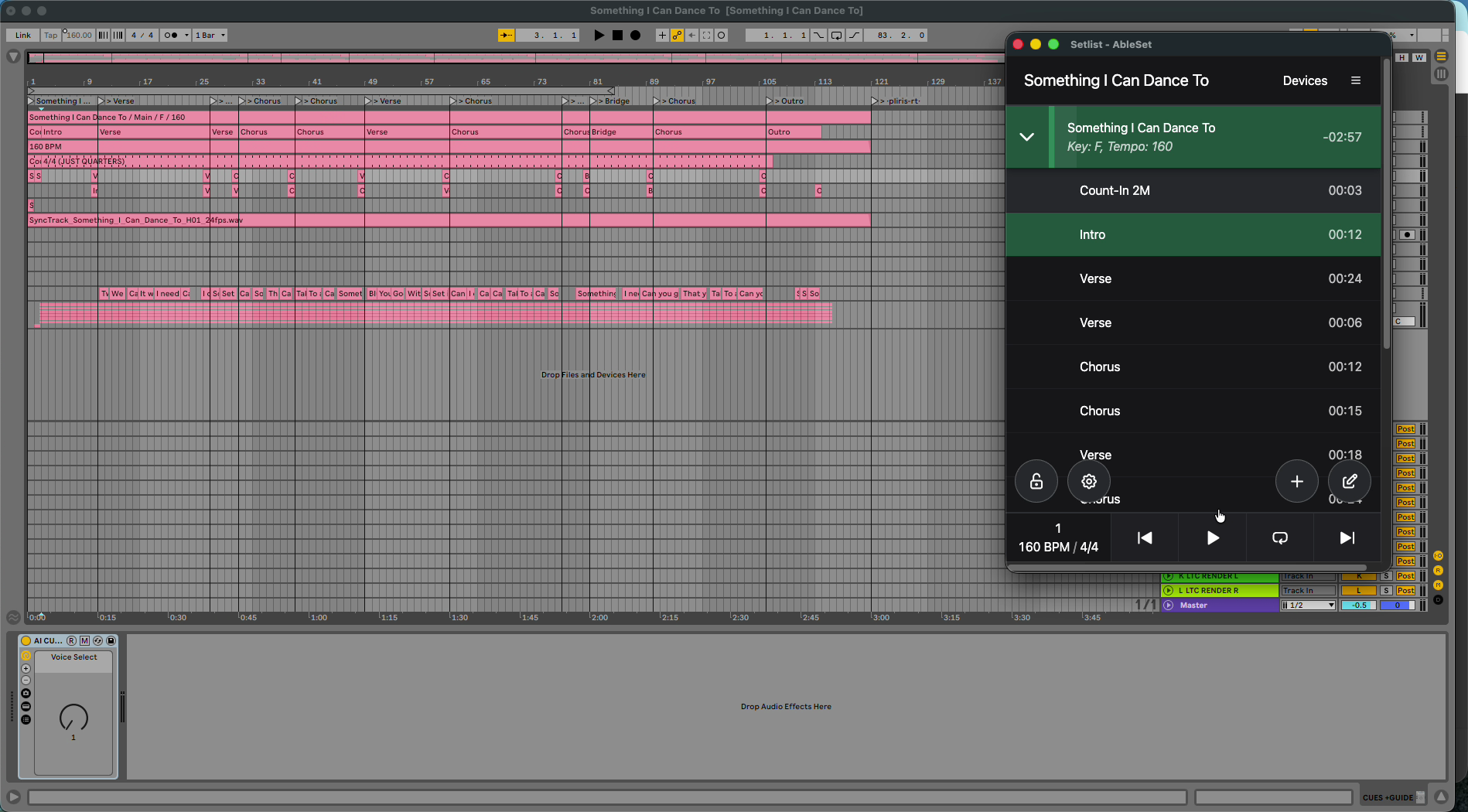
In AbleSet you'll see the song with its key, tempo and every section, and with Add lyrics track on, the lyrics in time.
Switching tools
Your songs aren't tied to one setlist app. If you move from AbleSet to LIOBOX, or play a gig that uses a different tool, choose it in Setlist management and export again. The next export uses the new format.
If the locators still look wrong after you export again, contact support. Tell them which tool is selected and attach a screenshot of Setlist management.
Related: Settings → Setlist management, Lyrics Text vs Timing (and AbleSet), Switching Your Ableton Export Template.
Frequently asked questions
Why don't my song sections show up in AbleSet?
The export wasn't made for AbleSet. In Settings → Setlist management, pick AbleSet, keep Add section locators on, and export again.
Can I switch from AbleSet to LIOBOX without redoing my set?
Yes. Choose LIOBOX in Setlist management and export again. Your songs and sections stay the same in Pliris; only the export format changes.
How do I get lyrics into AbleSet?
Turn on Add lyrics track in the AbleSet options. Only songs with timed lyrics are included.
Do setting changes update files I already downloaded?
No. Settings apply to your next export. Download the song or set again.