Re-importing Your Ableton Edits
Edited a song in Ableton Live after exporting it from Pliris? Drag the .als onto the song page, review the Update arrangement summary, and your sections, trims and deactivated clips are back in Pliris. No re-upload. Download again to take the edits back to Ableton.
You exported a song from Pliris, then changed it in Ableton Live during rehearsal: new sections, a trimmed intro, a few clips switched off. You don't need to redo stems or reference files. Re-import the Live set and Pliris updates the song in place.
Watch the lesson: this article goes with Re-import your Ableton edits, part of the Using Pliris to Program, Practice, and Perform course.
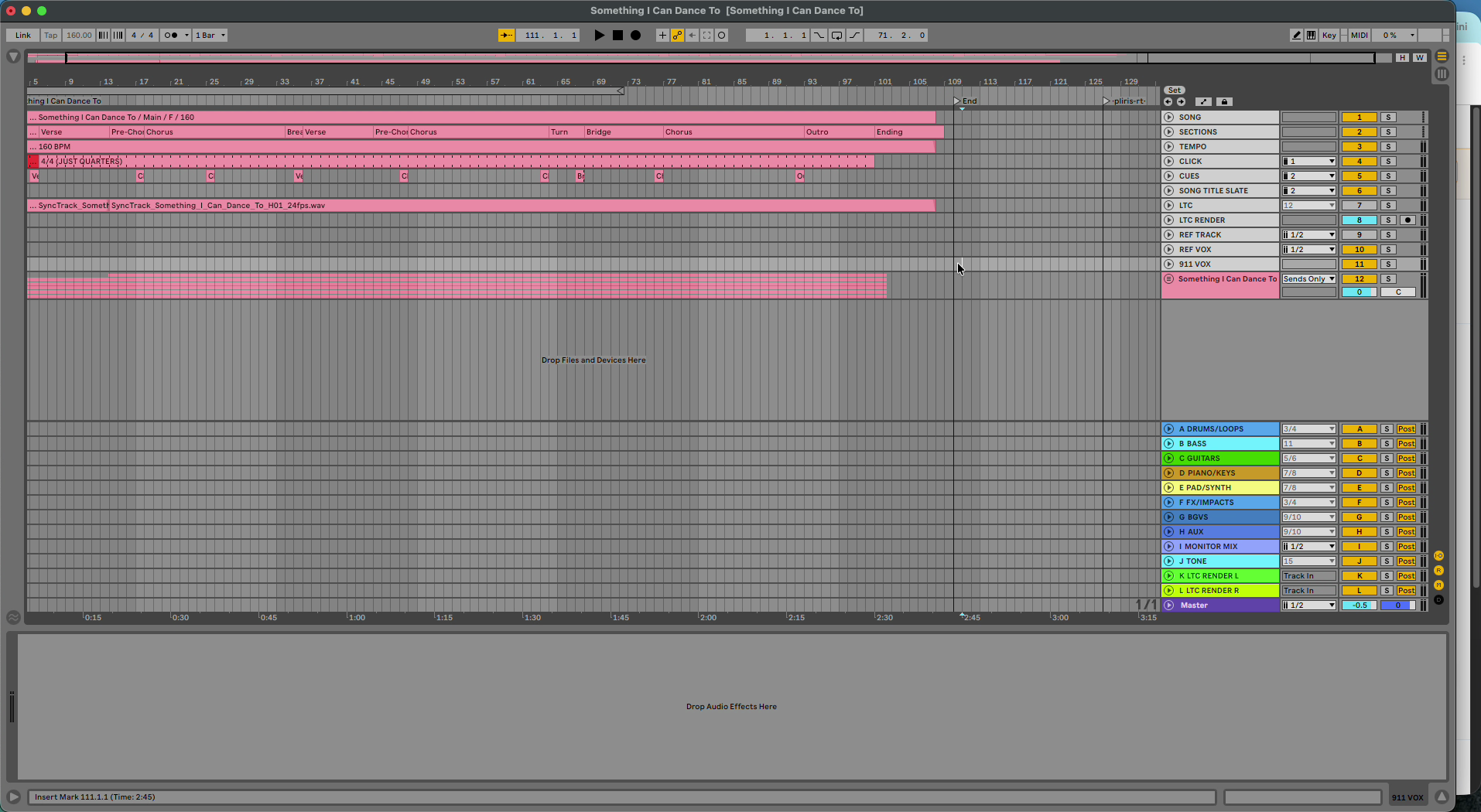
Before you start
- Re-import reads arrangement changes, not new audio. If you recorded or added new audio, upload those stems instead.
- Use Chrome for drag-and-drop.
Re-import the .als
- On your computer, open the Ableton project folder and find the .als file (the Live set, not the whole folder).
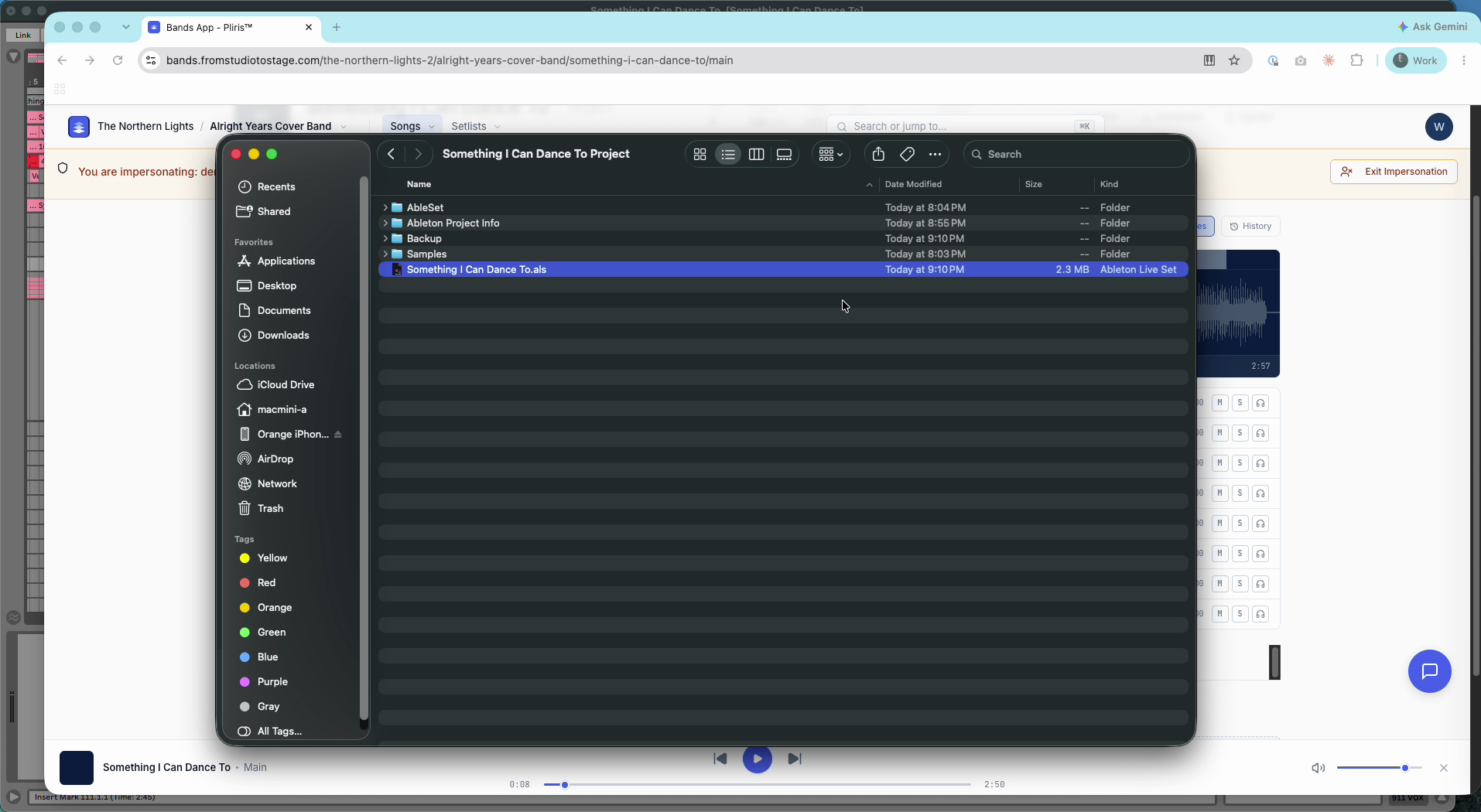
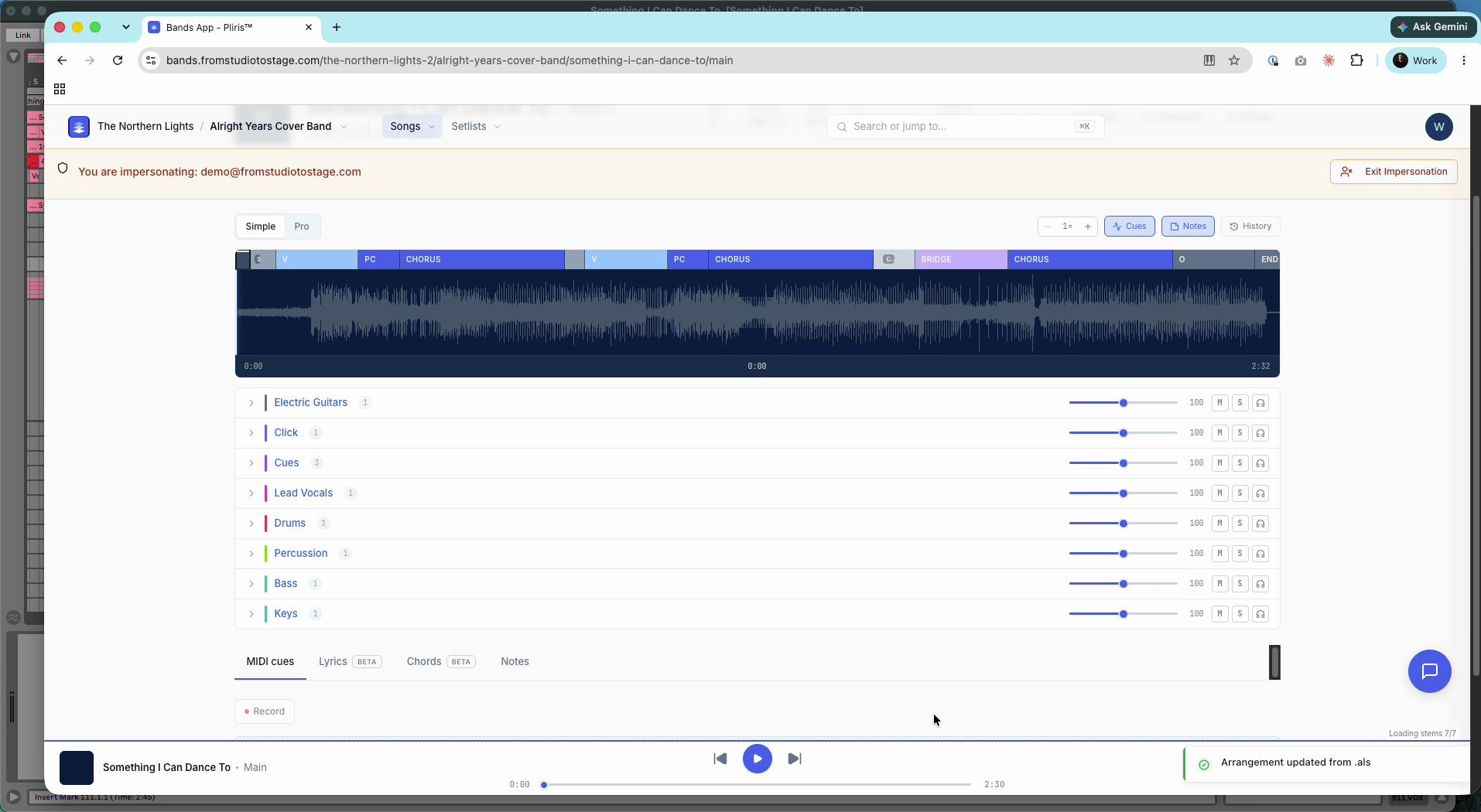
- Open the song in Pliris and drag the .als onto the page. Drop it on Drop .als to update arrangement.
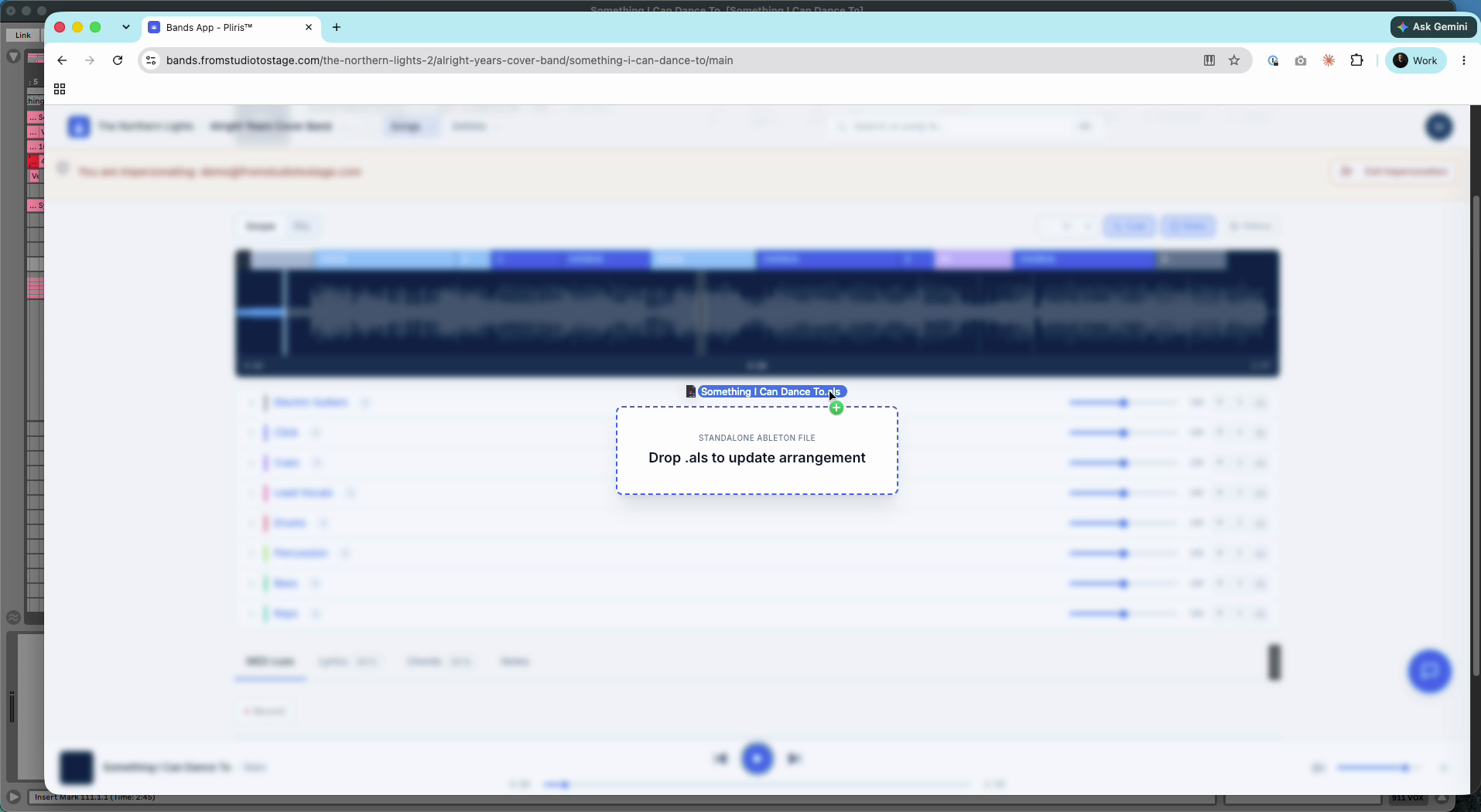
- Review the Update arrangement? summary. It lists every change it detected (Sections, Locators, Tempo automation, Click length, Mix data, Stem clip alignment, Cues programming, Click programming), the sections added and removed, and before/after counts for tempo, sections and locators.
- Click Update arrangement. To back out, click Cancel; nothing changes until you confirm.
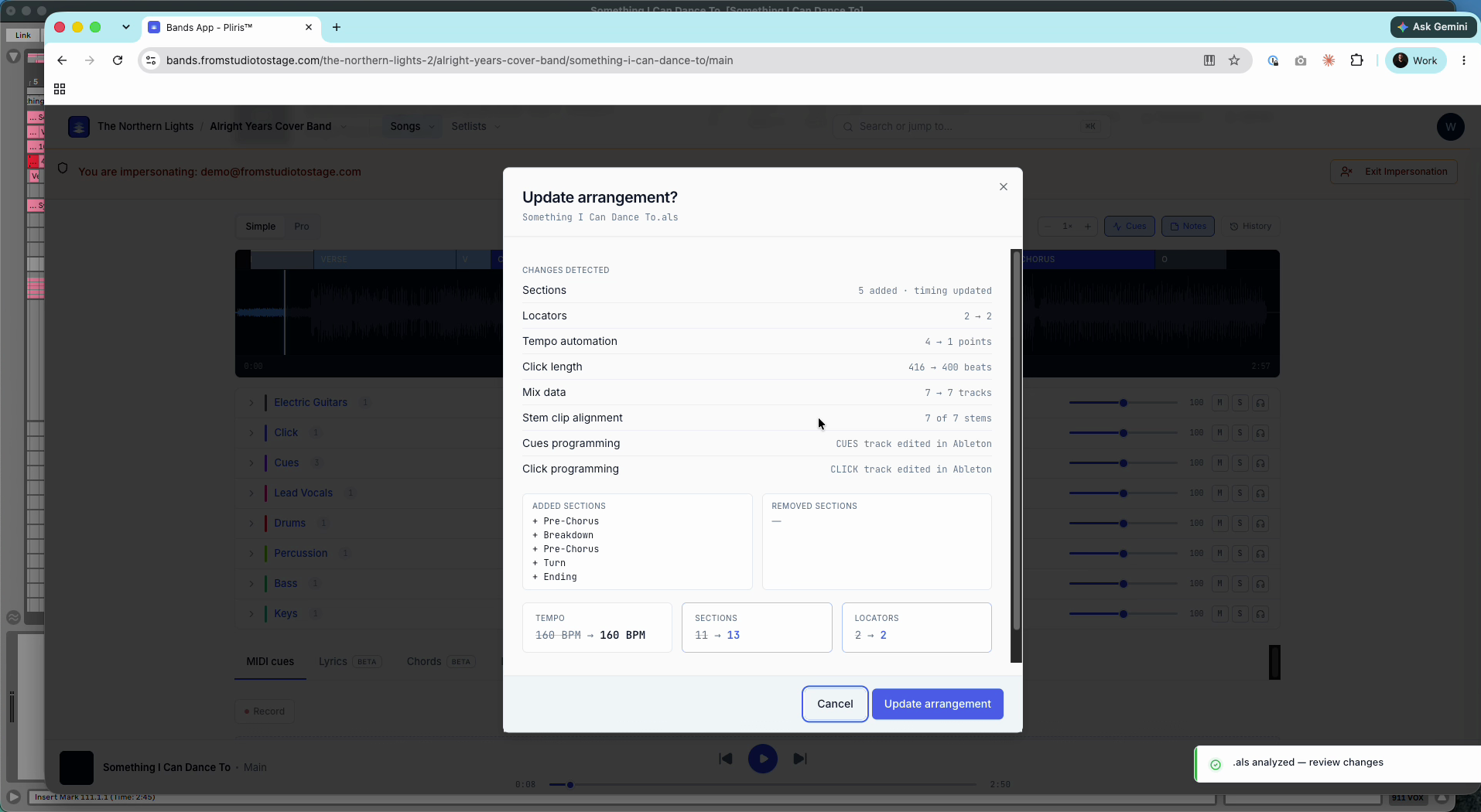
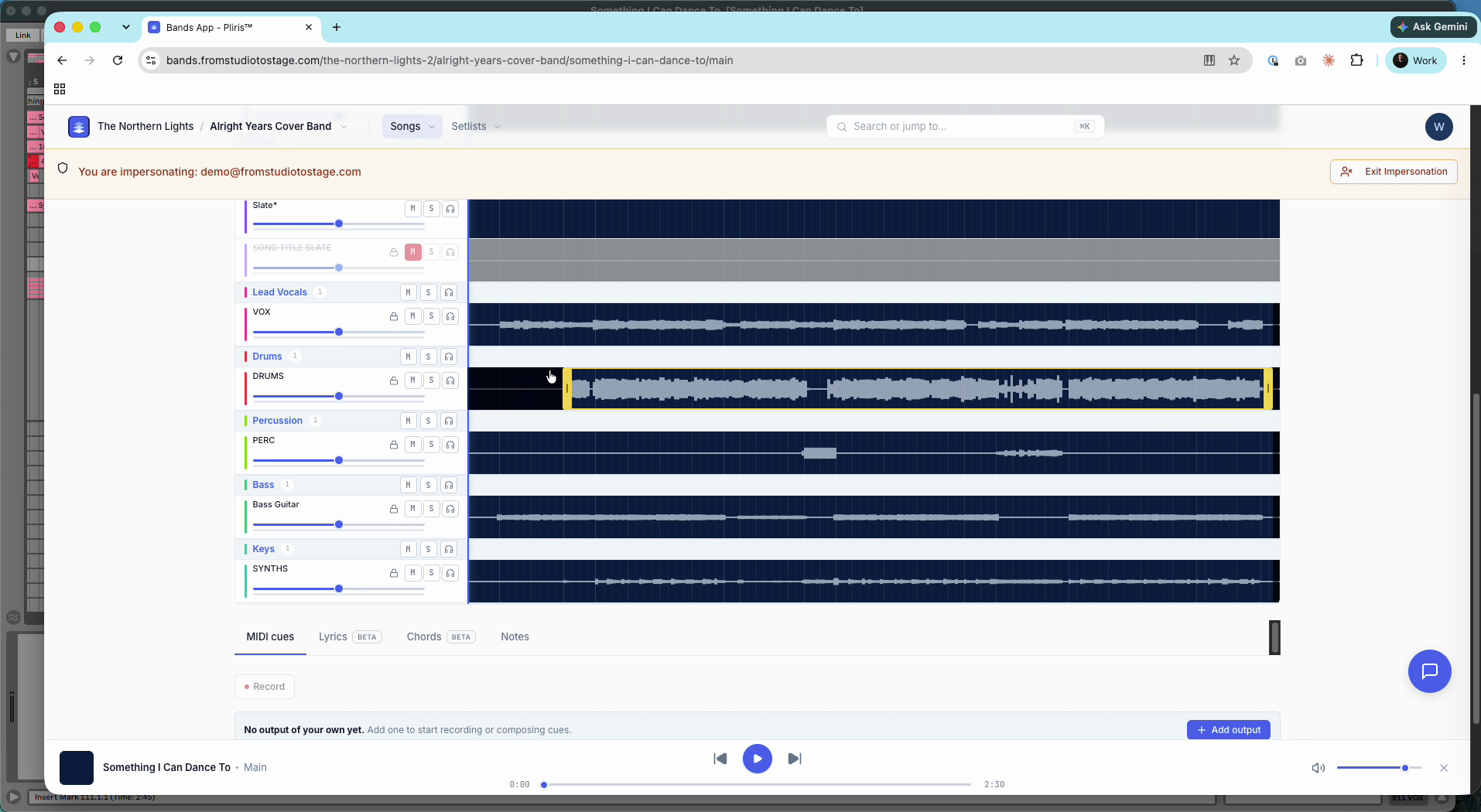
The sections update, stems reload and deactivated clips show as deactivated. In Pro mode, unlock a stem to see trims that match your Ableton edit.
Take the edits back to Ableton
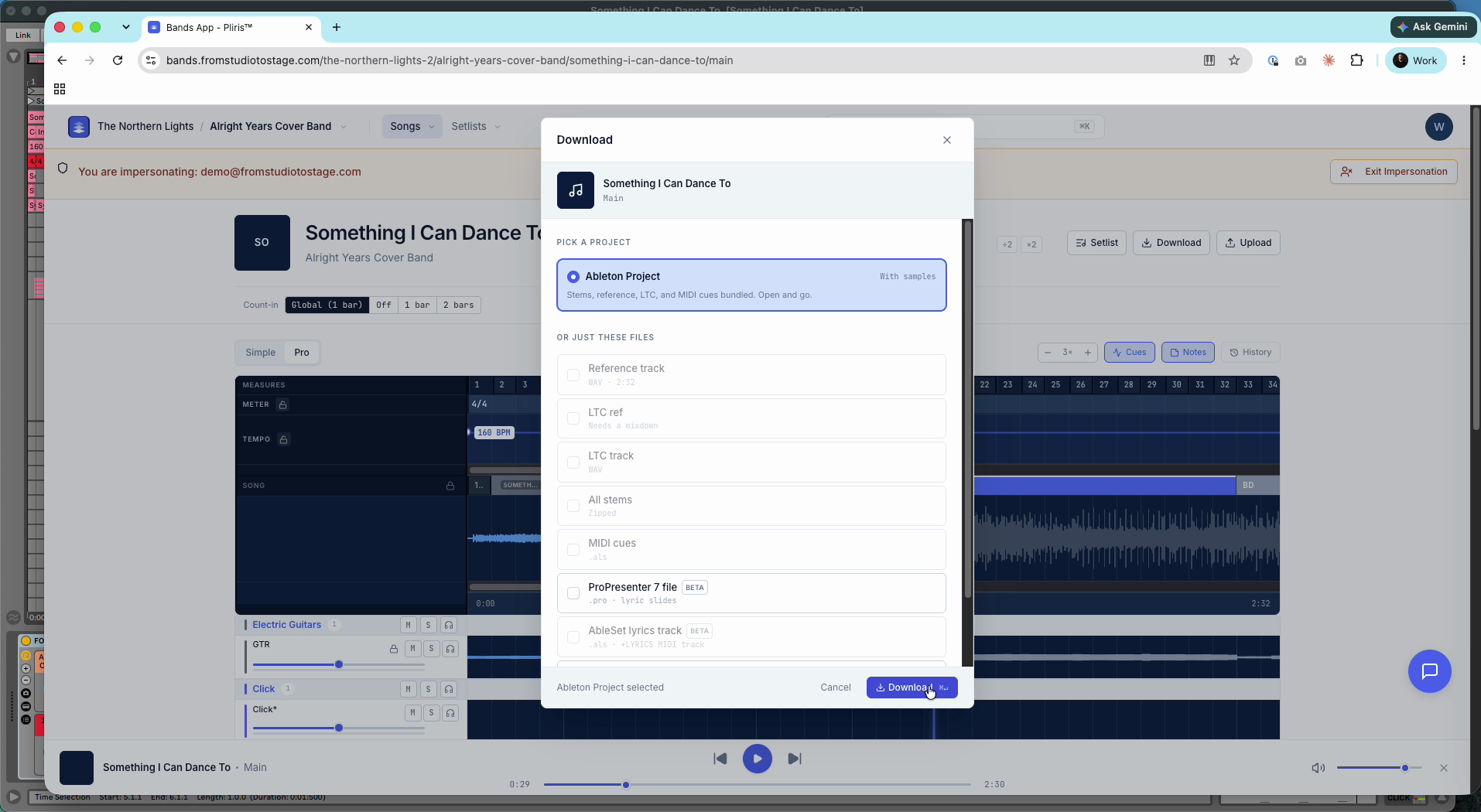
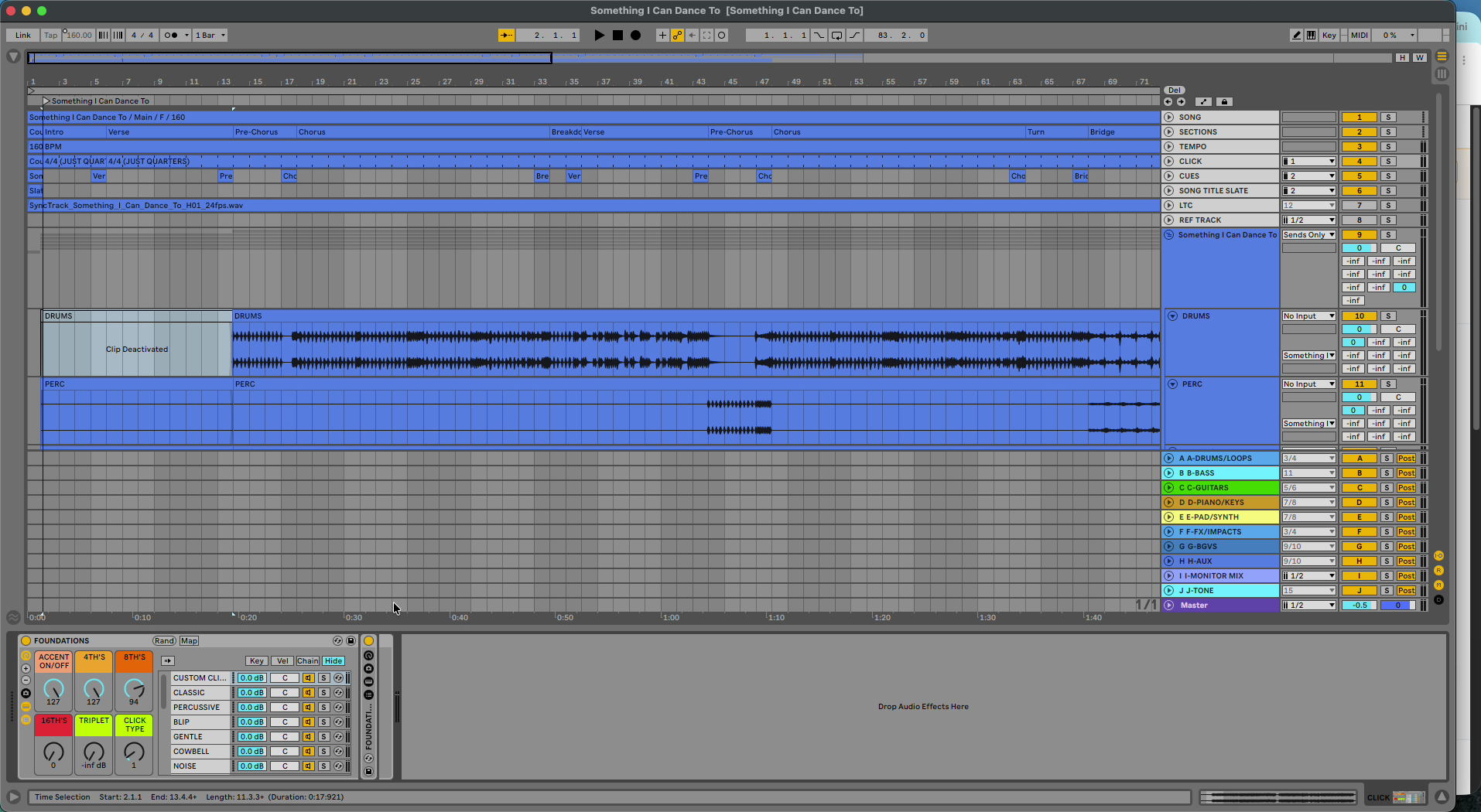
Click Download → Ableton Project. The new export includes your re-imported edits: sections, cue placement, trims, deactivated clips and warped stems. Your team gets updated reference and LTC files too.
What doesn't make the round trip yet
At the time of writing:
- Click sound and cue voice changes are stored with the song but don't play in the Pliris player, and they aren't in the re-export yet.
- Click subdivision changes (for example eighths in the intro, then quarters) don't come back in the export yet.
Cue placement does come back. For the full list of what's read from the file, see What Gets Imported When You Update from Ableton.
Related: Updating an Arrangement from Ableton, Updating Your Set's Arrangements from Ableton.
Frequently asked questions
Do I need to re-upload stems after editing a song in Ableton?
No. Drag the edited .als onto the song page and click Update arrangement. Only upload stems if you added new audio.
What does re-importing an Ableton file change in Pliris?
Sections, locators, tempo automation, click length, mix data, clip alignment and trims, deactivated clips, and cue and click programming, as listed in the Update arrangement summary.
Why doesn't my new click sound play in Pliris?
Click sound and cue voice changes are stored with the song but aren't played back in the app or re-exported yet. Support is coming.
How do I get my re-imported edits back into Ableton?
Download the song again as an Ableton Project. The new export includes the edits.
Why won't Pliris re-import my older Ableton set?
On October 6, Pliris changed how re-import works. Every export now keeps a saved copy, so Pliris can tell what you changed in Live from what Pliris wrote. Sets you exported between September 8 and October 6 don't have that saved copy. When you drop one of them back onto a song or setlist that already has content, Pliris stops and imports nothing, so it can't overwrite your timing, cues or stems by guessing. To keep working, re-export the song or setlist from Pliris and make your Live changes on the new file. If you've already done a lot of work in Live on the older file, contact us and we'll bring your changes across. Sets you built yourself, or exported before September 8, import as usual.
Why does Pliris say it couldn't load the saved copy of my export?
Your set is a recent export, but its saved copy didn't download, usually because the upload didn't finish when you exported. Drop the file again to retry. If you see the message again, re-export the song from Pliris and use the new file.