Uploading Raw Stems or a Zip of Stems
Add a song, drop in your stems (WAV, MP3, or a .zip), pick the analysis you want, and stay on the page until it says Analyzing audio. You never need to zip stems first.
Raw stems are the simplest way to get a song into Pliris. Add a song, drop in its stems, and choose the analysis you want. You don't need to compress your stems. If you already have them in a .zip, upload that instead and Pliris unpacks it in your browser.
Watch the lesson: this article goes with Upload raw stems, part of the Using Pliris to Program, Practice, and Perform course.
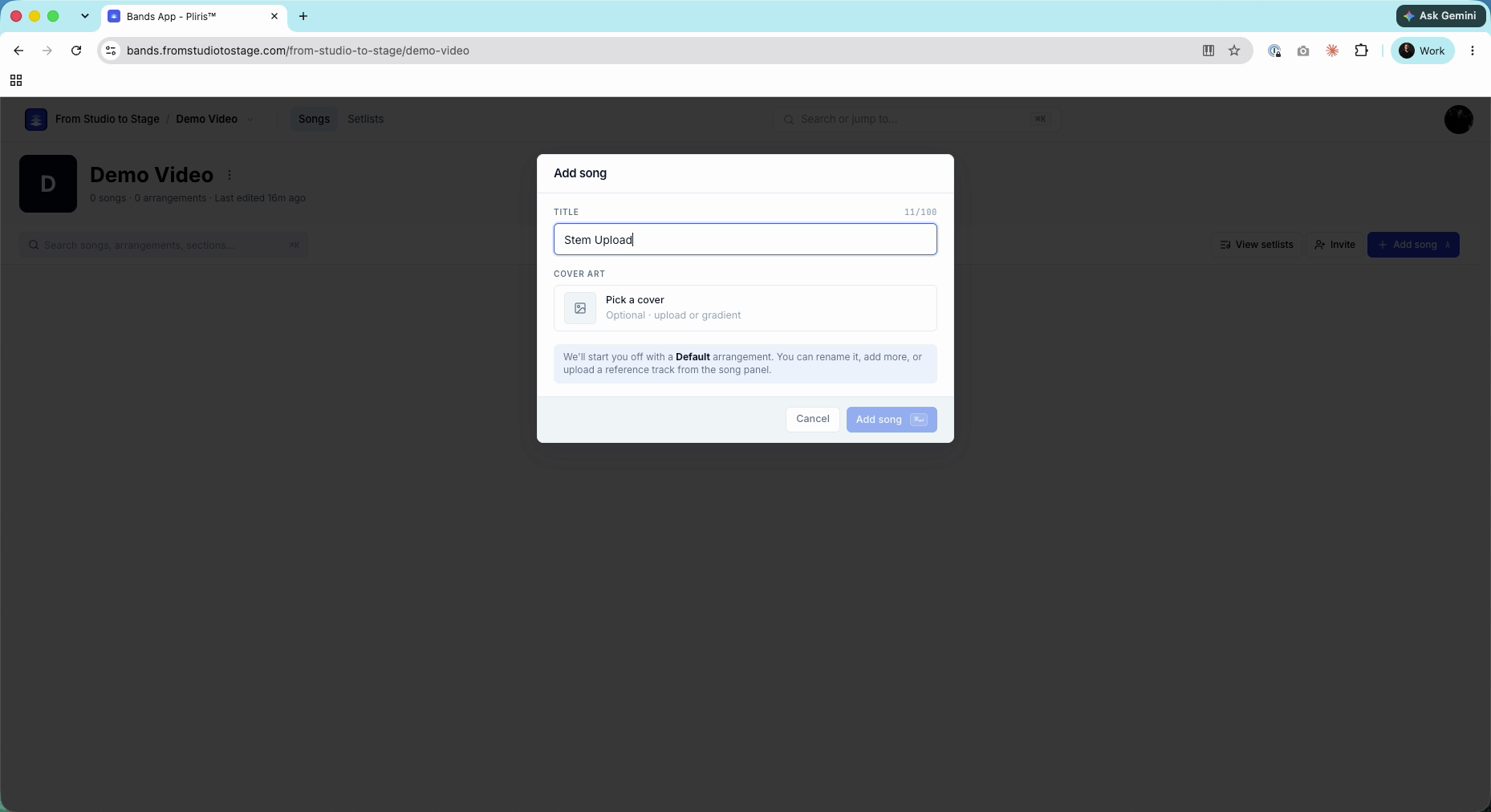
Add a song
- In your band, click Add song.
- Type a title and click Add song. Cover art is optional.
Every new song starts with a Default arrangement. You can rename it, add more, or upload a reference track later from the song panel.
Upload your stems
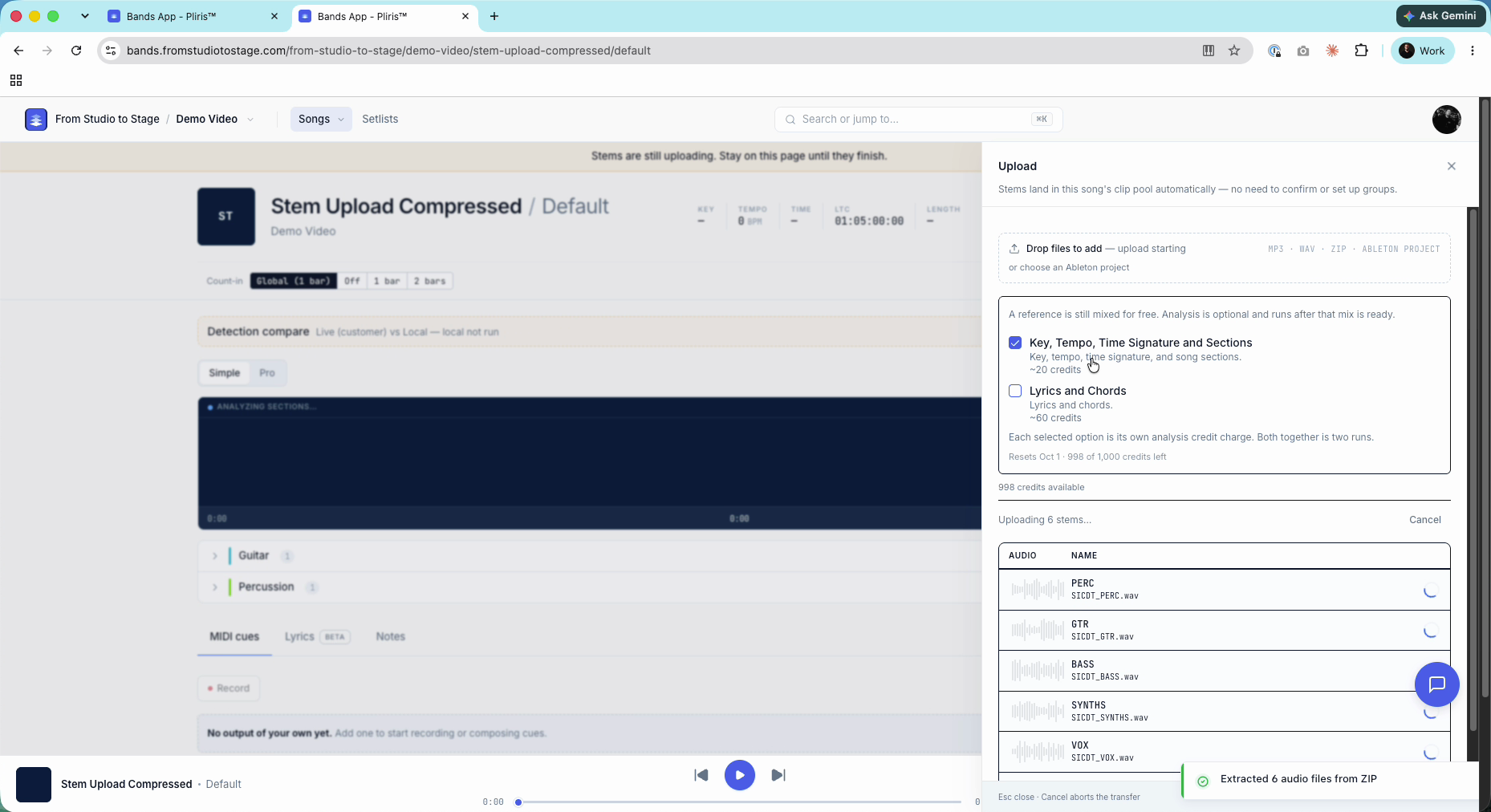
- The Upload panel opens on the right. Click Drop files to add, or drag your files onto it. It accepts MP3, WAV, ZIP and Ableton projects.
- Select all of your stems and click Open.
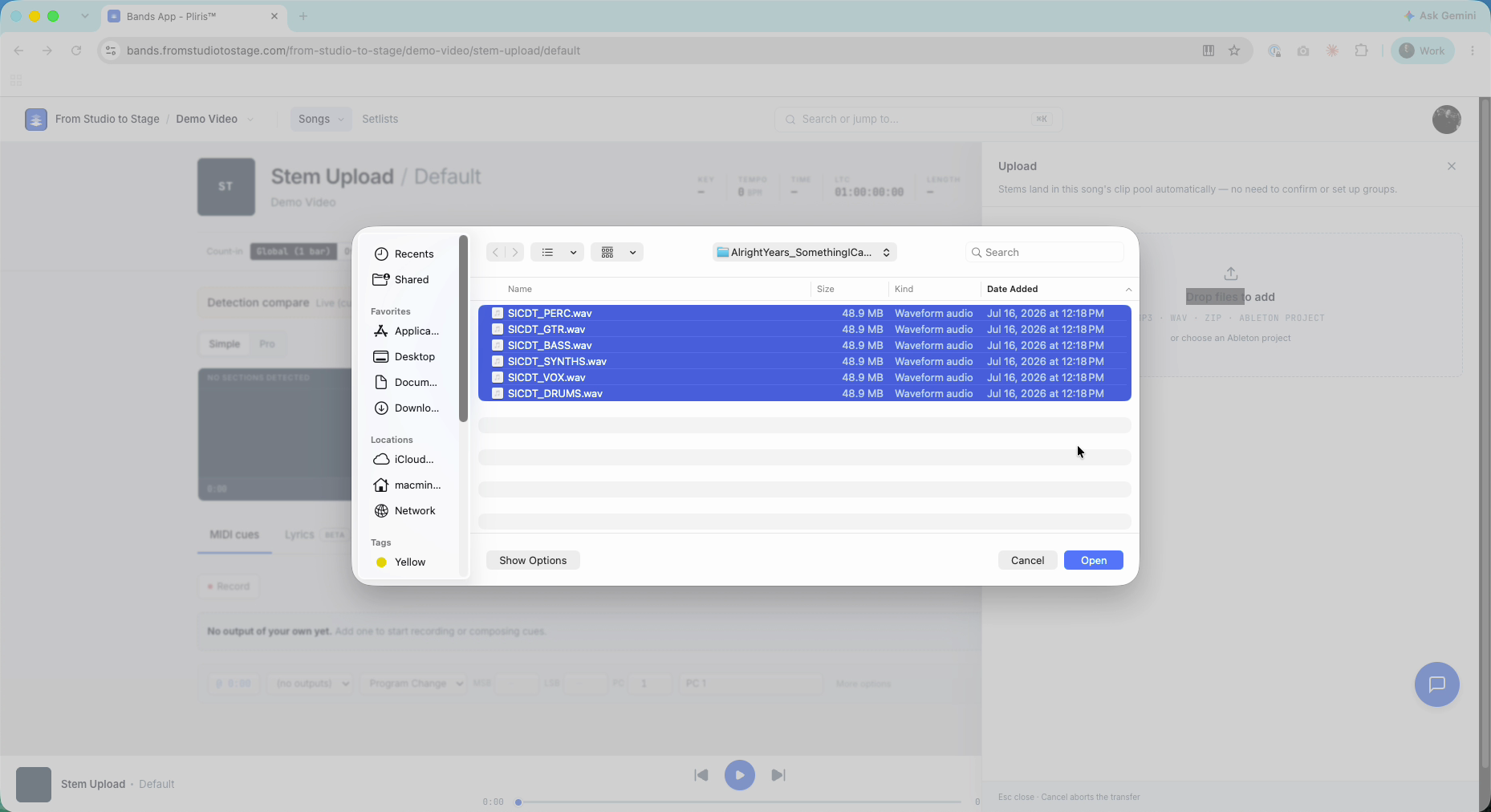
Stems land in the song's clip pool automatically. There's no need to confirm anything or set up groups.
Choose your analysis
Two options appear once your files are added:
- Key, Tempo, Time Signature and Sections (about 20 credits): detects key, tempo, time signature and song sections.
- Lyrics and Chords (about 60 credits): adds lyrics and chords.
Each selected option is its own credit charge, so both together is two runs. If you don't need lyrics and chords, leave that box unticked. For stems, it's worth ticking at least the first option. A reference mix is made for free either way, and analysis runs once that mix is ready. See Credits Explained.
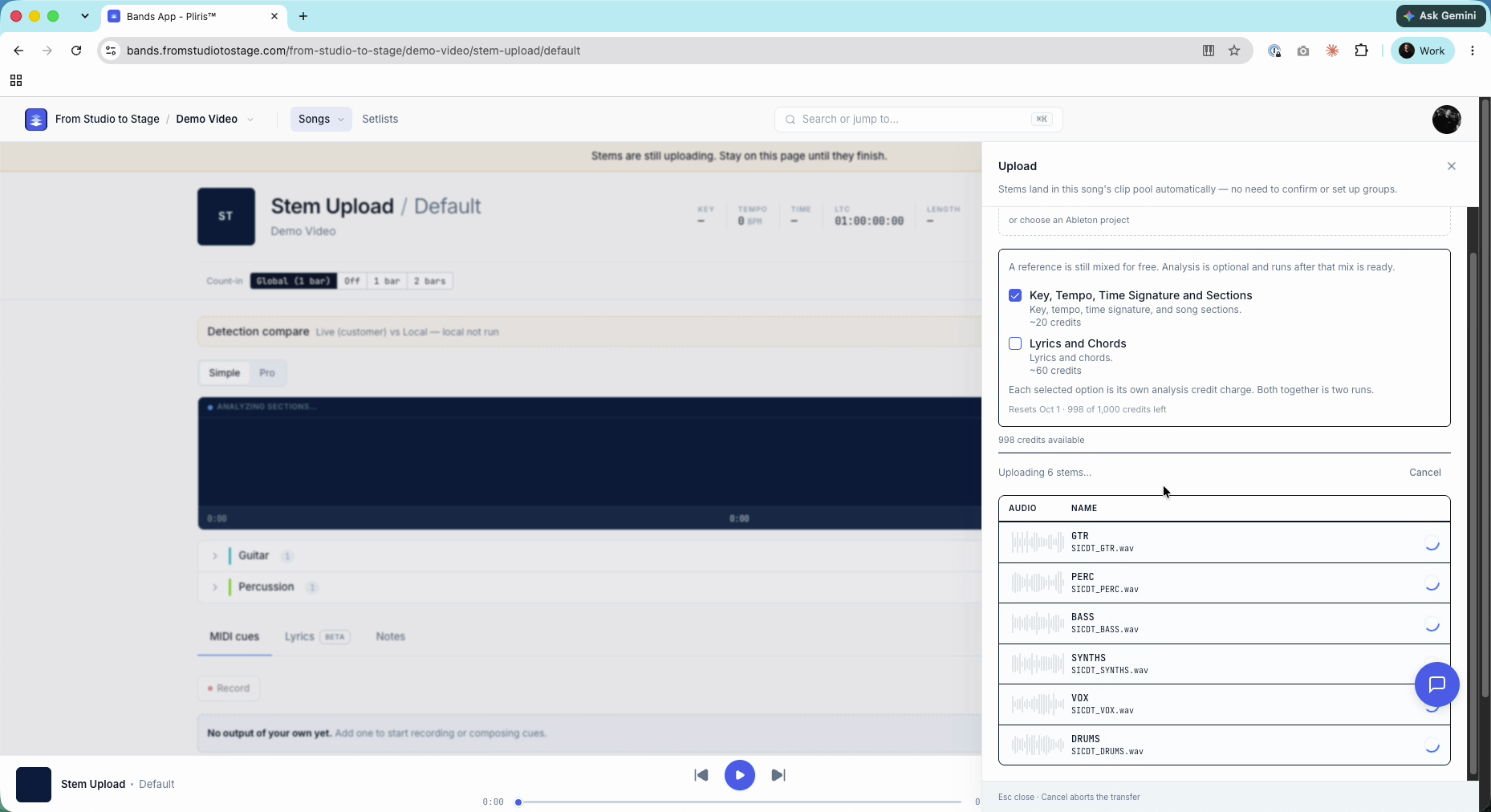
Stay on the page until the upload finishes
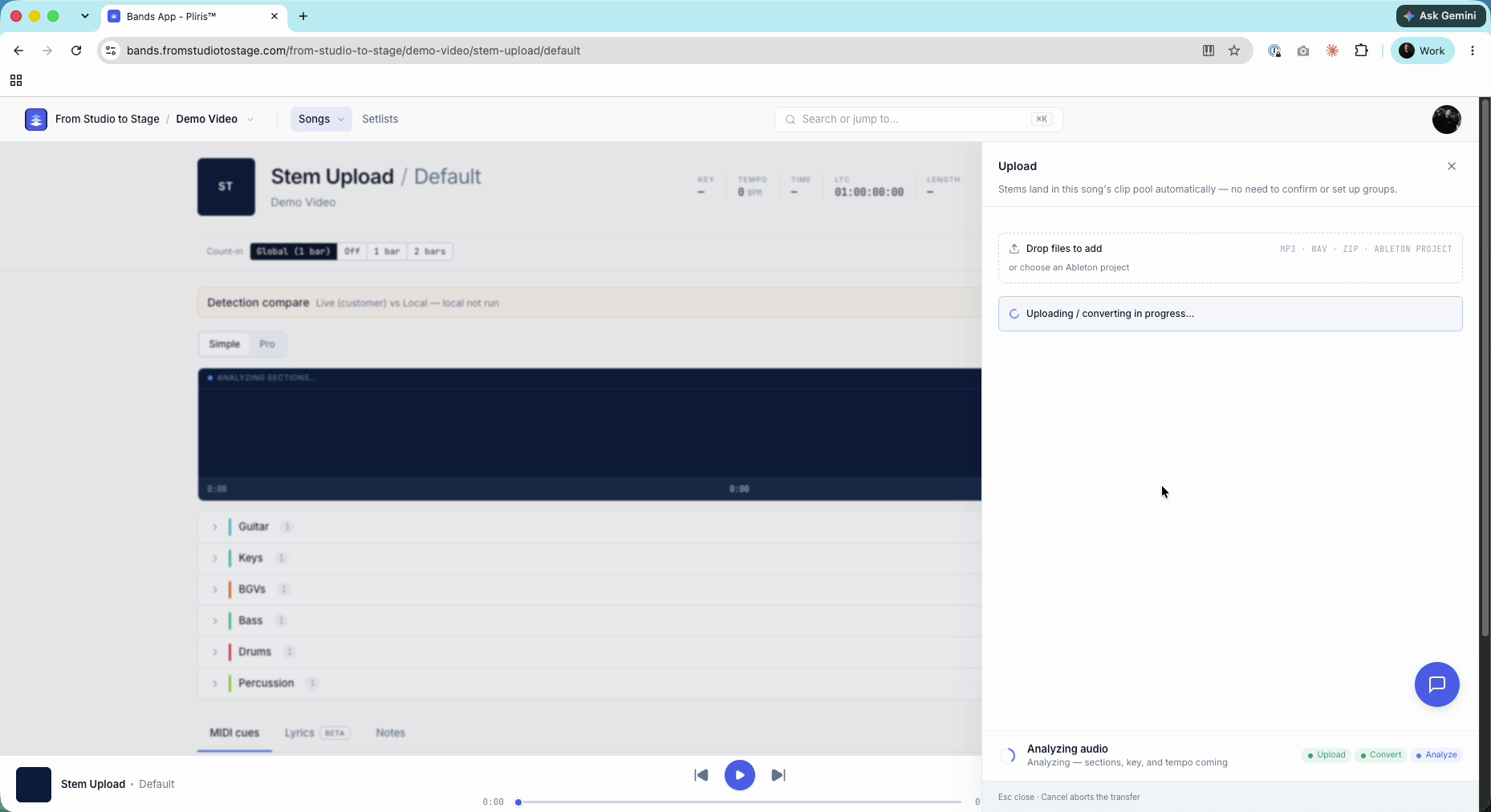
While files transfer, a banner reads Stems are still uploading. Stay on this page until they finish. Once the panel shows Analyzing audio, the upload is done. You can leave the page and analysis carries on.
Uploading a .zip of stems
If your stems are already compressed, upload the .zip the same way: drag it onto the uploader or choose it with Drop files to add. It must be a .zip file, not a folder.
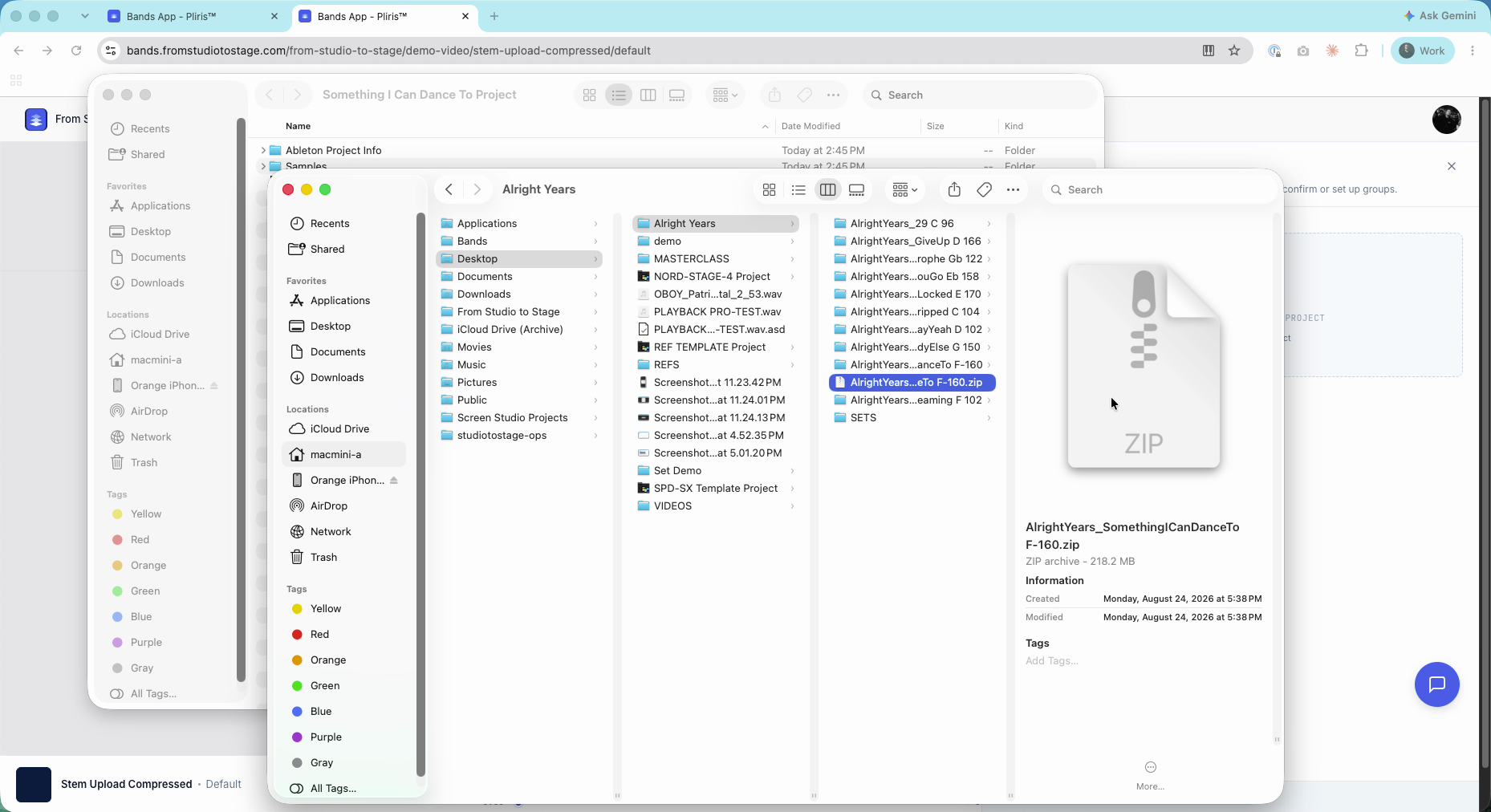
Pliris unpacks the .zip in your browser, shows you the files (for example, Extracted 6 audio files from ZIP), and offers the same analysis options.
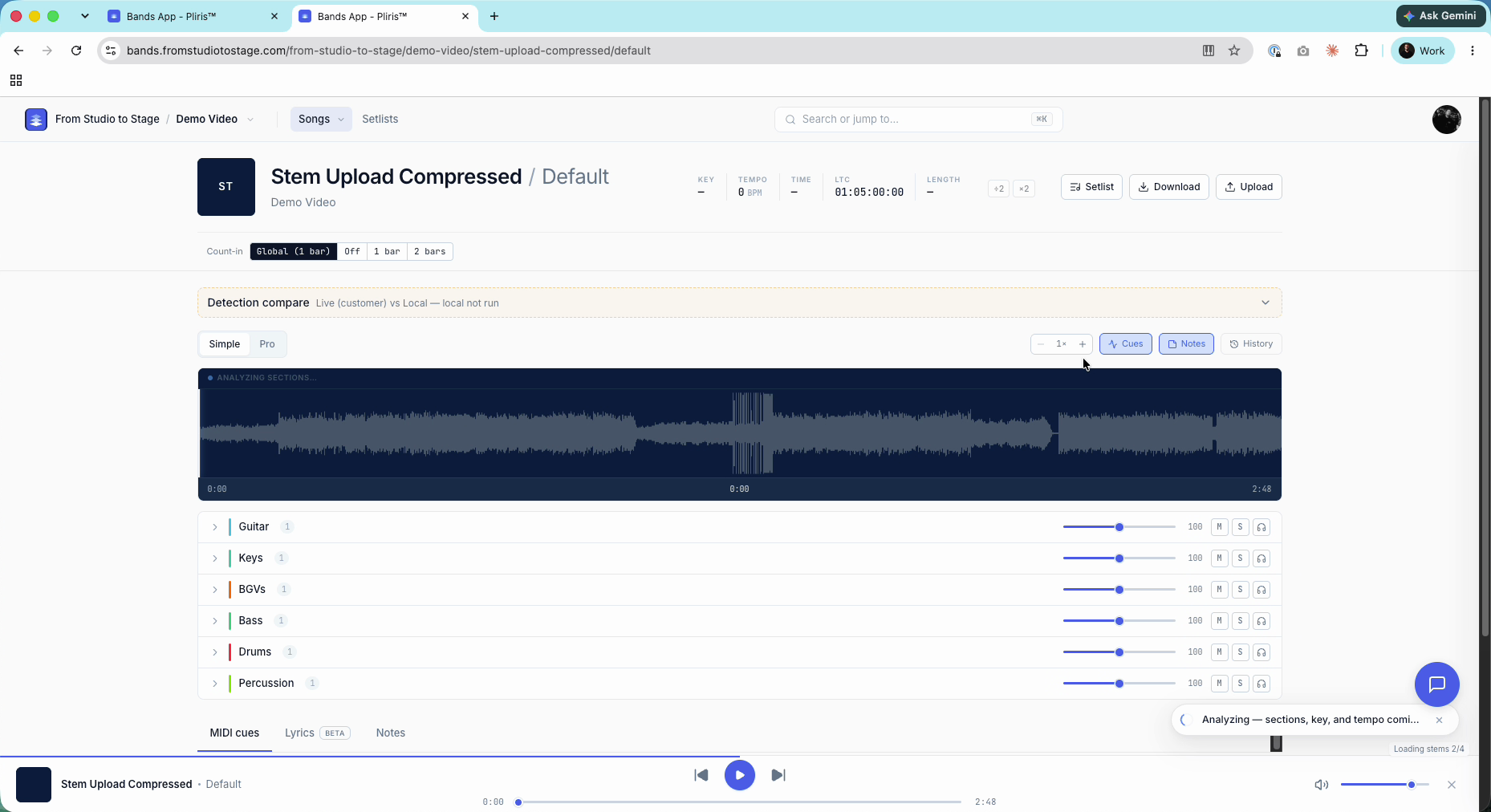
When it's done, the stems load into the song's groups, and key, tempo and sections appear when analysis finishes.
For renaming, regrouping and everything that happens after analysis, see Uploading and Analyzing Your Stems.
Frequently asked questions
Do I need to zip my stems before uploading?
No. Upload the individual files. Zipping them first is an extra step with no benefit. If they're already in a .zip, you can upload that as is.
Can I upload a folder of stems?
Not as a folder. Select the files inside it, or compress the folder into a .zip and upload that.
Can I leave the page while stems upload?
Not until the upload finishes. When the panel shows Analyzing audio, you're free to navigate away.
How many credits does analysis cost?
About 20 credits for Key, Tempo, Time Signature and Sections, and about 60 for Lyrics and Chords. Each option you tick is charged separately.
Should I skip Lyrics and Chords?
If you don't need lyrics or chords, yes. It's the more expensive option.