How to Use the Song Arrangement Page
The arrangement page is where you rehearse and build a song — stems, sections, tempo, count-in, MIDI cues, lyrics, and playback all live here.
The arrangement page is the home base for a song in Pliris™. Open a song from your band's Songs library (or from a setlist), and you land here — the player, the stems, the structure, and every edit tool for that version of the song.
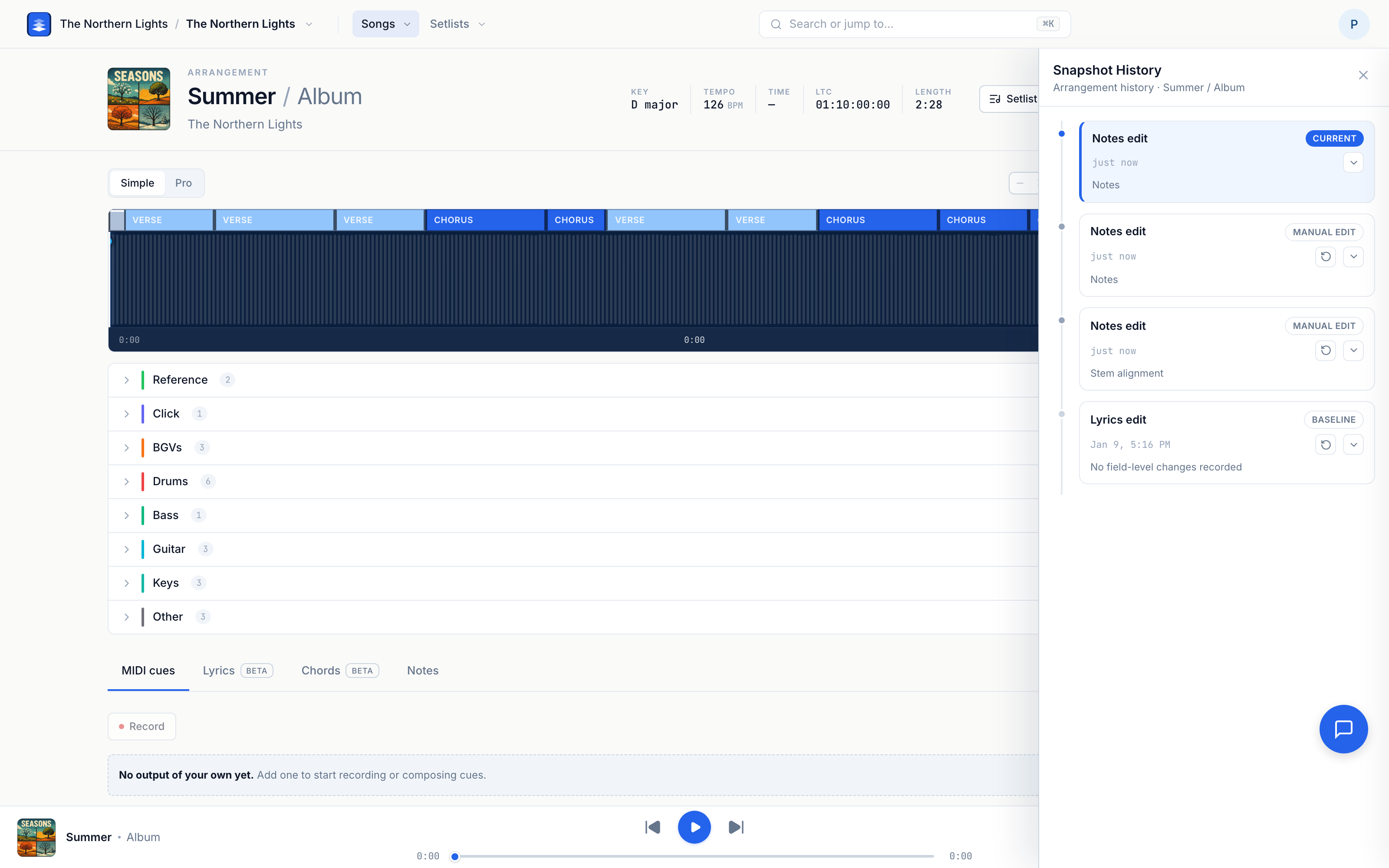
What you're looking at
From top to bottom:
- Song header — artwork, song and arrangement name, and the band.
- Metadata chips — Key, Tempo, Time, LTC, and Length. Right-click Key / Tempo / Time to edit (left-click often copies). LTC and Length still use Edit when that control is present — see How to Edit Songs in Pliris.
- Header actions — Edit (when shown — LTC/Length and pre-rollout builds), Setlist, Download, Upload (drop zone also lives on the page).
- Secondary controls — Count-in, plus tools like Align stems when they apply.
- Player — toggle Simple / Pro, the section lane, and the waveform.
- Stem groups — Reference, Click, drums, bass, guitars, and the rest. Expand a group to use the mute (M), solo (S), or Focus buttons on a stem. Shift-click a group's arrow to open every group at once. Right-click a stem to Rename stem, Use as reference or Move to group.
- Bottom panels — MIDI cues, Lyrics, Chords, and Notes.
- Transport — play / pause, scrub, prev / next, master volume.
If you opened the song from a setlist, the setlist navigation panel can sit alongside so you can jump songs without leaving the page.
Simple vs Pro
- Simple — clean waveform with collapsible panels below. Best for rehearsal and day-to-day edits.
- Pro — DAW-style layout with Measures, Meter, Tempo and Song lanes above the waveform, and diamond MIDI cue markers you can drag. Best for cue programming, fine timing and fixing the grid.
Toggle them with the Simple / Pro control above the player, or press Tab.
Getting around the song
- Space — play / pause (when focus isn't in a text field).
- Click a section on the lane to jump there, or use Left / Right for previous / next section.
- Scrub the waveform or the transport bar to move freely.
- Expand stem groups to hear parts in isolation (solo / Focus buttons) or cut them (mute).
Playback and setlist shortcuts: Keyboard Shortcuts.
The main jobs on this page
| Job | Where |
|---|---|
| Upload or replace stems | Drop files (upload starts immediately) → Uploading and Analyzing Your Stems |
| Set key, tempo, time | Right-click the chip → Changing a Song's Key, Setting the Tempo of a Song, Fixing a Wrong Time Signature |
| Set LTC / length | Edit (when shown) → click the chip → How to Edit Songs in Pliris |
| Rename / regroup stems | Right-click a stem → Moving and Renaming Stems on the Song Page |
| Rename sections | Right-click a section on the timeline → Rename |
| Count-in | Count-in control under the header → Changing Count-In |
| MIDI cues | MIDI cues panel (or press C) → Programming MIDI Cues |
| Push Ableton edits | Drop an .als on the page → Updating an Arrangement from Ableton |
| Undo a change | History in the player toolbar → Snapshot History |
Pro tip: Drop files, optionally Analyze, then right-click to fix anything that landed wrong — see Drop Files, Analyze When Ready, Right-Click to Edit. Arrangement edits and Ableton drops are captured in Snapshot History so you can roll back.
Frequently asked questions
Where do I open the arrangement page?
From your band, open Songs and click a song (or open a song from a setlist). Pliris opens that song's arrangement — the page with the waveform, stem groups, and metadata chips.
What's the difference between Simple and Pro on the arrangement page?
Simple is a clean waveform with panels below for cues, lyrics, chords, and notes. Pro adds a DAW-style layout with section lanes and draggable MIDI cue markers on the waveform — use it when you're programming or nudging cues. Lyrics and Chords populate after Lyrics and Chords, not after Key, Tempo, Time Signature and Sections alone. See Lyrics Text vs Timing (and AbleSet).
Can I rehearse from the arrangement page without exporting to Ableton?
Yes. Play the arrangement in the browser, mute and solo stems, click sections (or use Left / Right) to jump around, and use count-in and MIDI cues the same way you would on stage. Export is optional when you want a Live set back.
Why don't I see a History button?
History needs manage access on the band (or band admin). View-only or download-only members won't see it.
Where to go next
- Playback and setlist shortcuts → Keyboard Shortcuts.
- How songs and arrangements nest → Bands, Songs, Arrangements, and Setlists.
- Tell Pliris the right BPM → Setting the Tempo of a Song.
- Bring Ableton changes back → Updating an Arrangement from Ableton.
Stuck at any point, click the support bubble in the bottom-right corner of any page, or email support@fromstudiotostage.com.