Build a Setlist from a Planning Center Plan
Turn a Planning Center Services plan into a Pliris setlist in one click with the Send to Pliris Chrome extension, then send it to your playback computer to build the Ableton set.
With the Send to Pliris Chrome extension, a Planning Center Services plan becomes a Pliris setlist in one click: same songs, same order, in the key the plan calls for. If you run the Pliris Files app on your playback computer, you can send that setlist there to be built as an Ableton Live set in the same step.
This is a beta feature. Install the extension first (see Send to Pliris).
Build the setlist
- Sign in to Planning Center Services in Chrome and open the plan.
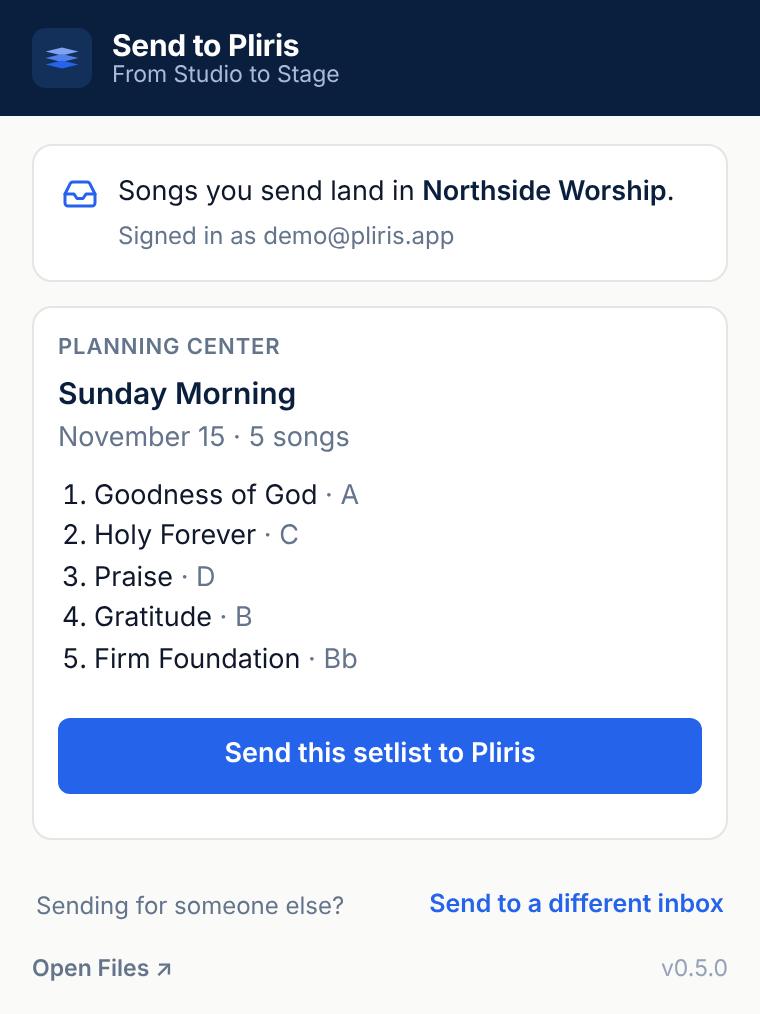
- Click the Send to Pliris icon. The Planning Center panel shows the plan's title, date and songs.
- If you have more than one band, choose the Band.
- Click Send this setlist to Pliris.
- Click Open in Pliris to open the new setlist.
How songs are matched
Each song in the plan is matched to a song in that band by title. Capital letters, punctuation and notes like "(Live)" don't have to match. When a song has several arrangements, Pliris picks the one in the plan's key.
A song the band doesn't have yet keeps its place in the setlist as a placeholder named "
Sending the same plan to the same band again offers the setlist you already built. Choose Build another copy if you really want a second one.
Build it on your playback computer
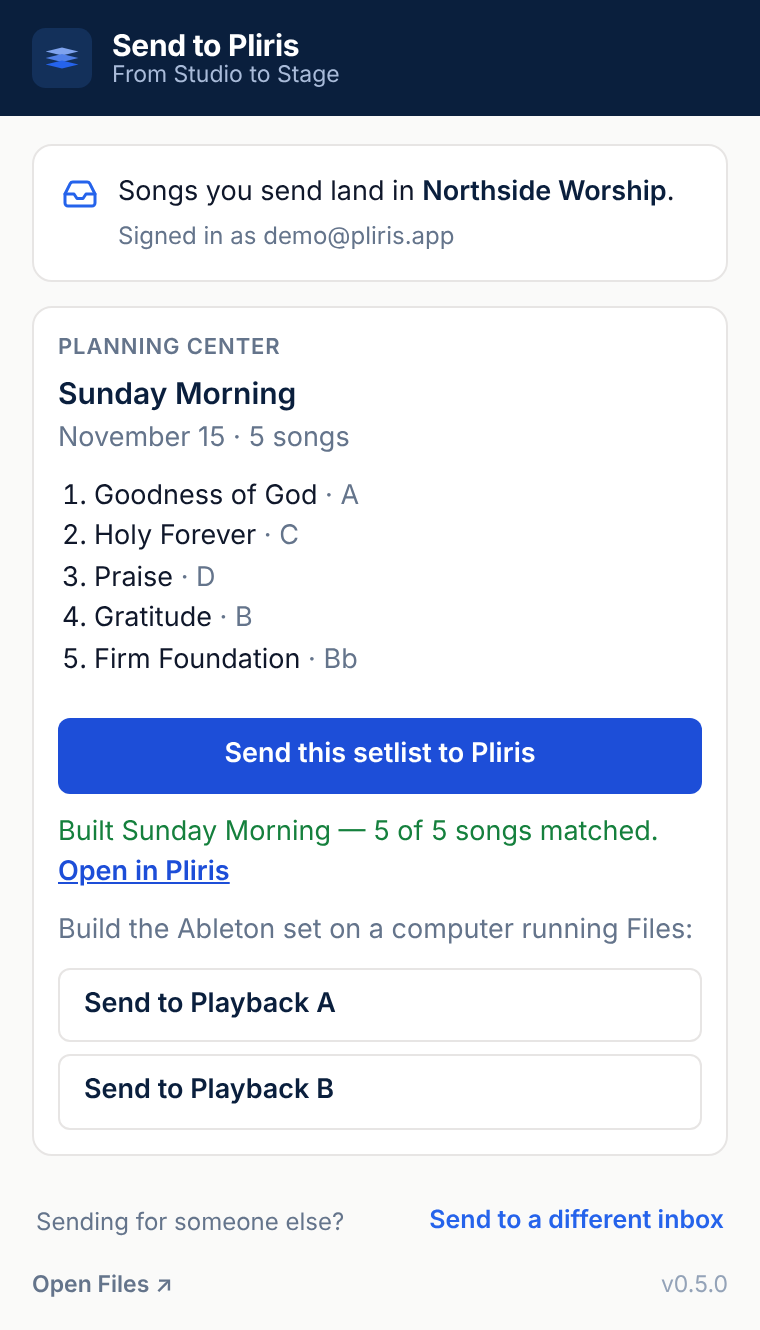
After the setlist is built, the panel lists each Mac that is signed in to your account with the Pliris Files app.
- Click Send to and the computer's name, for example Send to Playback A.
- Files on that Mac builds the Ableton Live set and shows Your set is ready with Open in Live. The extension shows Ready on Playback A when it is done.
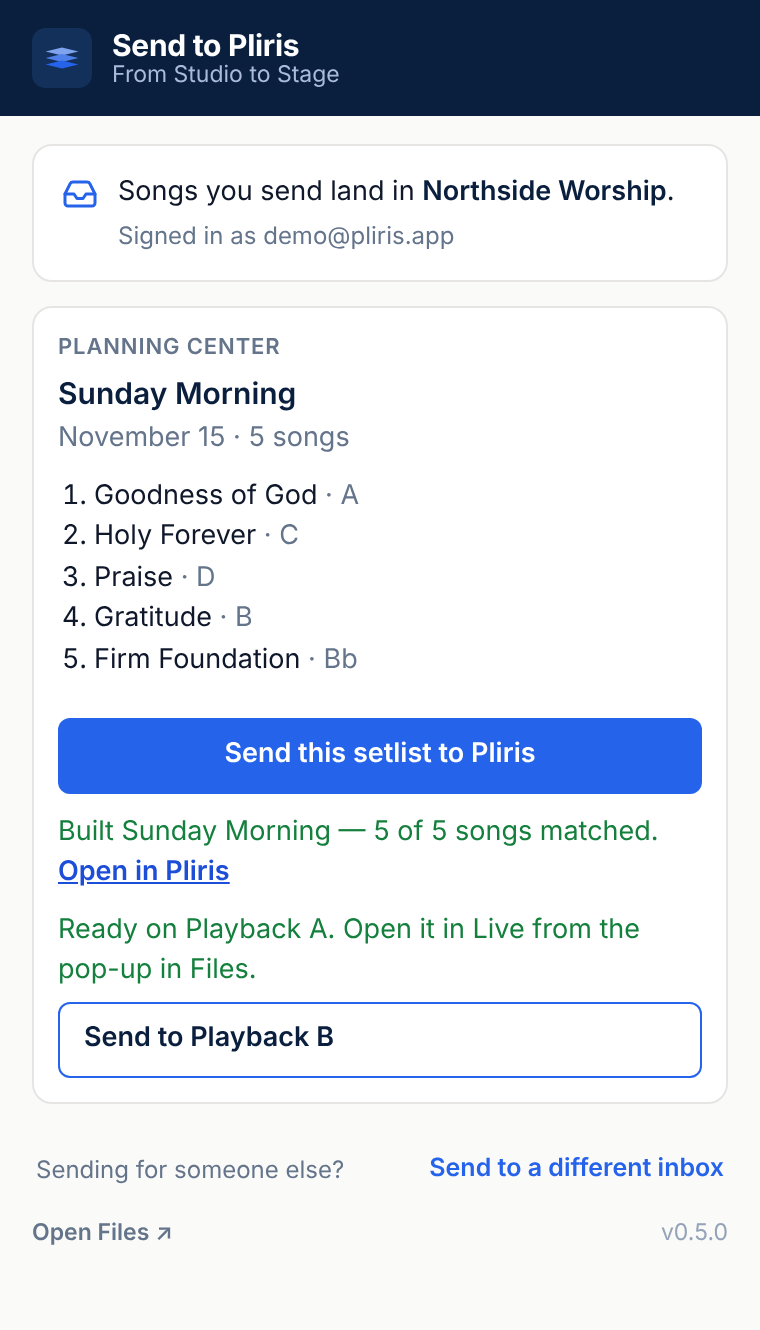
The next time you build a setlist from a plan, the extension sends it to the same computer without asking. Your other computers stay listed, so click a different one to send there instead. It becomes the new usual.
If the computer is offline, the build waits and starts the next time Files opens there, for up to 24 hours.
Only the account owner or an account admin can send a set to a computer. To name a computer, open Settings → Connected devices in Pliris.
Frequently asked questions
Can I import a Planning Center plan into Pliris?
Yes. Install the Send to Pliris Chrome extension, open the plan in Planning Center Services, click the extension, and click Send this setlist to Pliris. The plan's songs become a Pliris setlist in the same order.
Why does a song say "not in Pliris" in my setlist?
The band has no song with that title yet, so the extension kept its place with a placeholder. Add the song to the band, then swap it in for the placeholder in the setlist.
Pliris picked the wrong arrangement or key. Why?
The extension matches by title, then looks for an arrangement in the plan's key. If none of the song's arrangements is in that key, it uses another arrangement of the song. Change the arrangement on the setlist in Pliris.
Does Pliris change anything in Planning Center?
No. The extension only reads the plan. It never edits your plan, and it never sees or stores your Planning Center password.
Why don't I see my computer after the setlist is built?
The computer has to be signed in to the same Pliris account with the Files app, and you have to be the account owner or an account admin. Check Settings → Connected devices in Pliris to see which computers are signed in.
The extension says it could not read the plan. What do I do?
Make sure you are signed in to Planning Center in the same Chrome window and can see the plan yourself, reload the plan page, then click the extension again.
If I change the plan later, does the Pliris setlist update?
No. The setlist is a copy made when you clicked the button. Edit the setlist in Pliris, or build another copy from the updated plan.