Changing a Song's Key
Right-click the Key in an arrangement's header, type the right key, and click Save. Use it when analysis picks the relative minor or major, or when you skipped analysis.
Analysis detects each song's key, but it can confuse a major key with its relative minor (C major and A minor share the same notes). You can fix the key yourself in a few seconds. You don't need to contact support.
Watch the lesson: this article goes with Edit a song's key, part of the Using Pliris to Program, Practice, and Perform course.
Change the key
- Open the song's arrangement in the Bands app. The key shows at the top of the page, next to Tempo and Time.
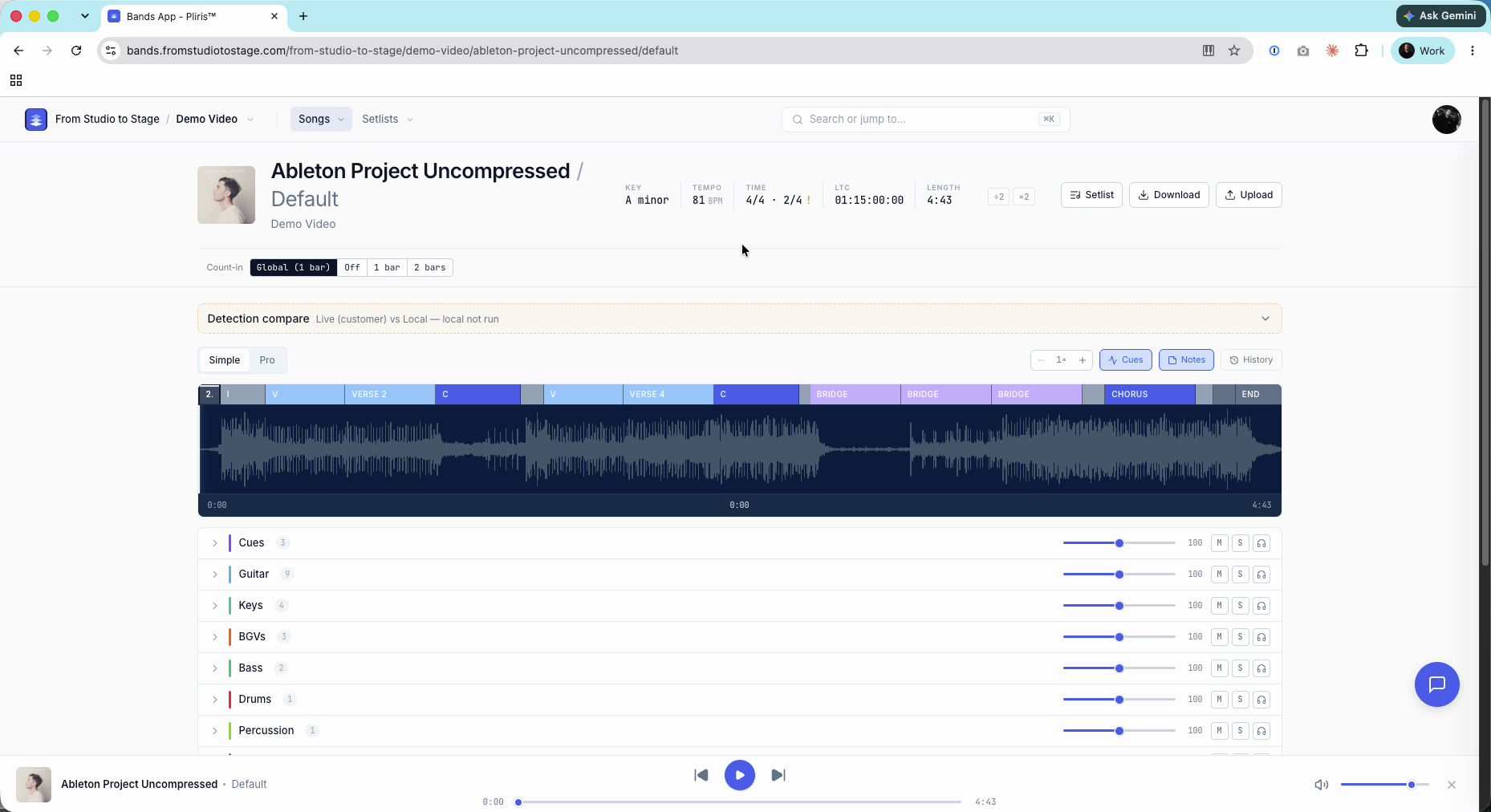
- Right-click the key. The Edit Key dialog opens.
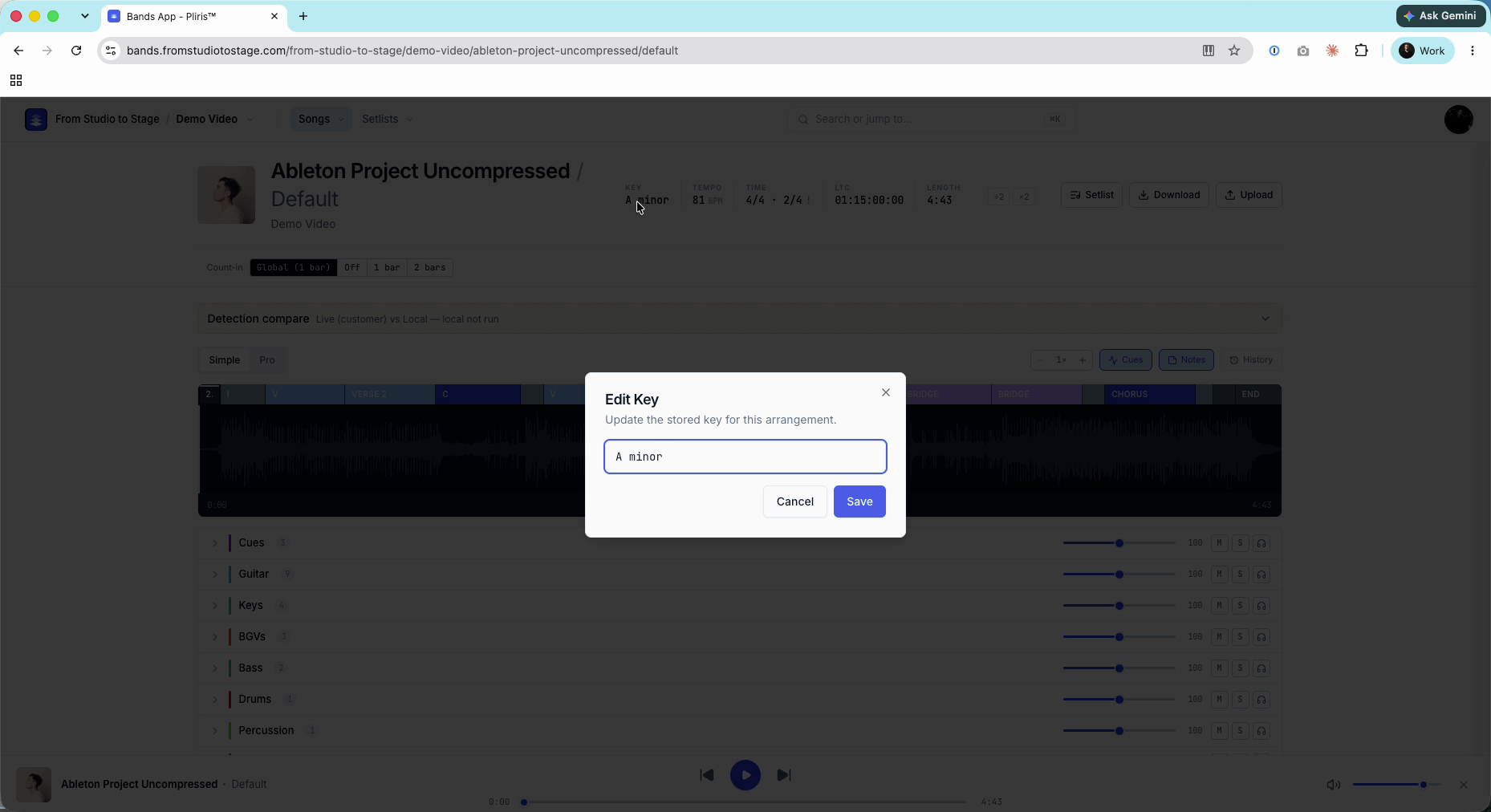
- Type the key. A note on its own (C) or a note with major or minor (C major, A minor) both work.
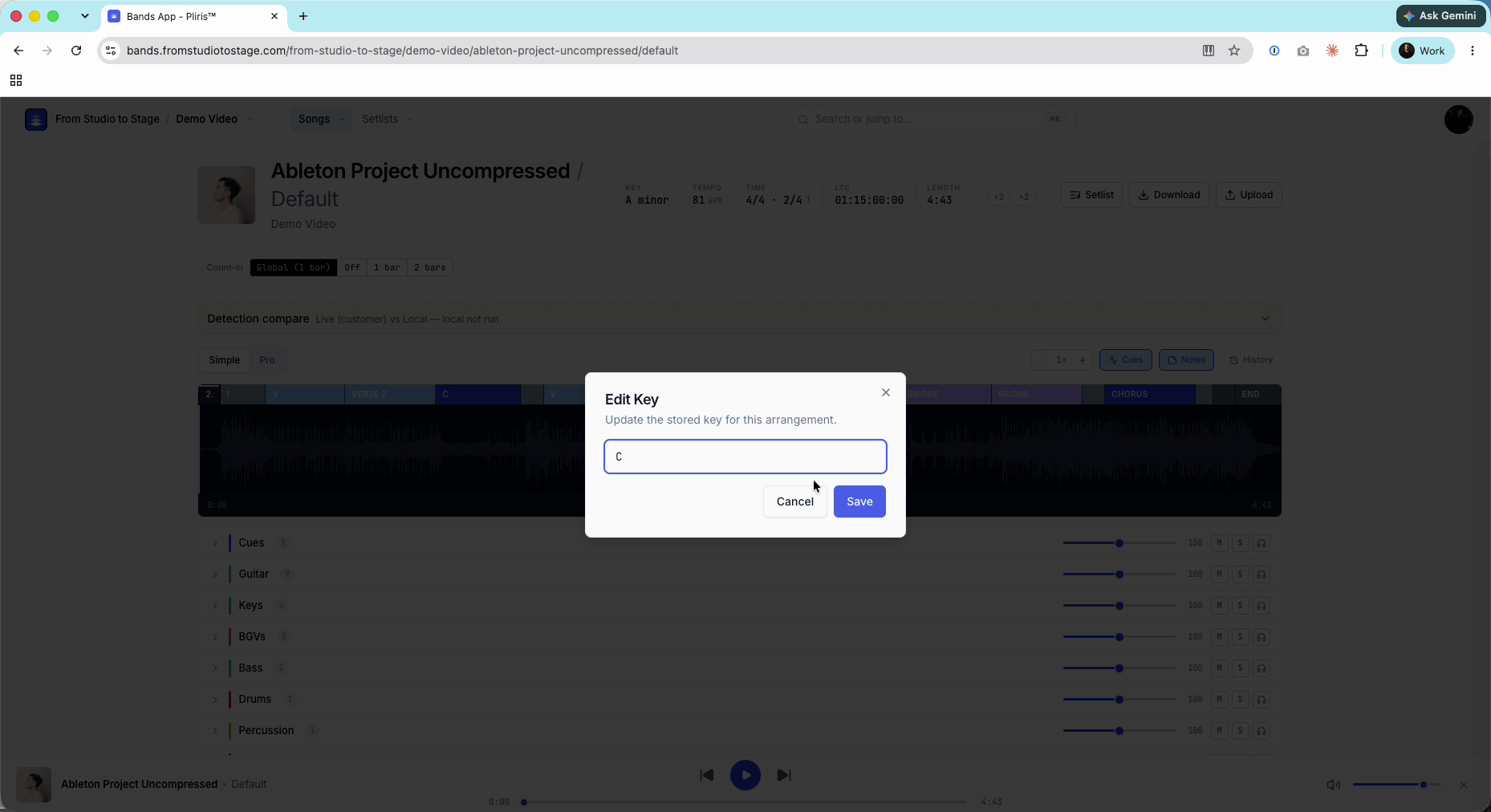
- Click Save. The header updates straight away.
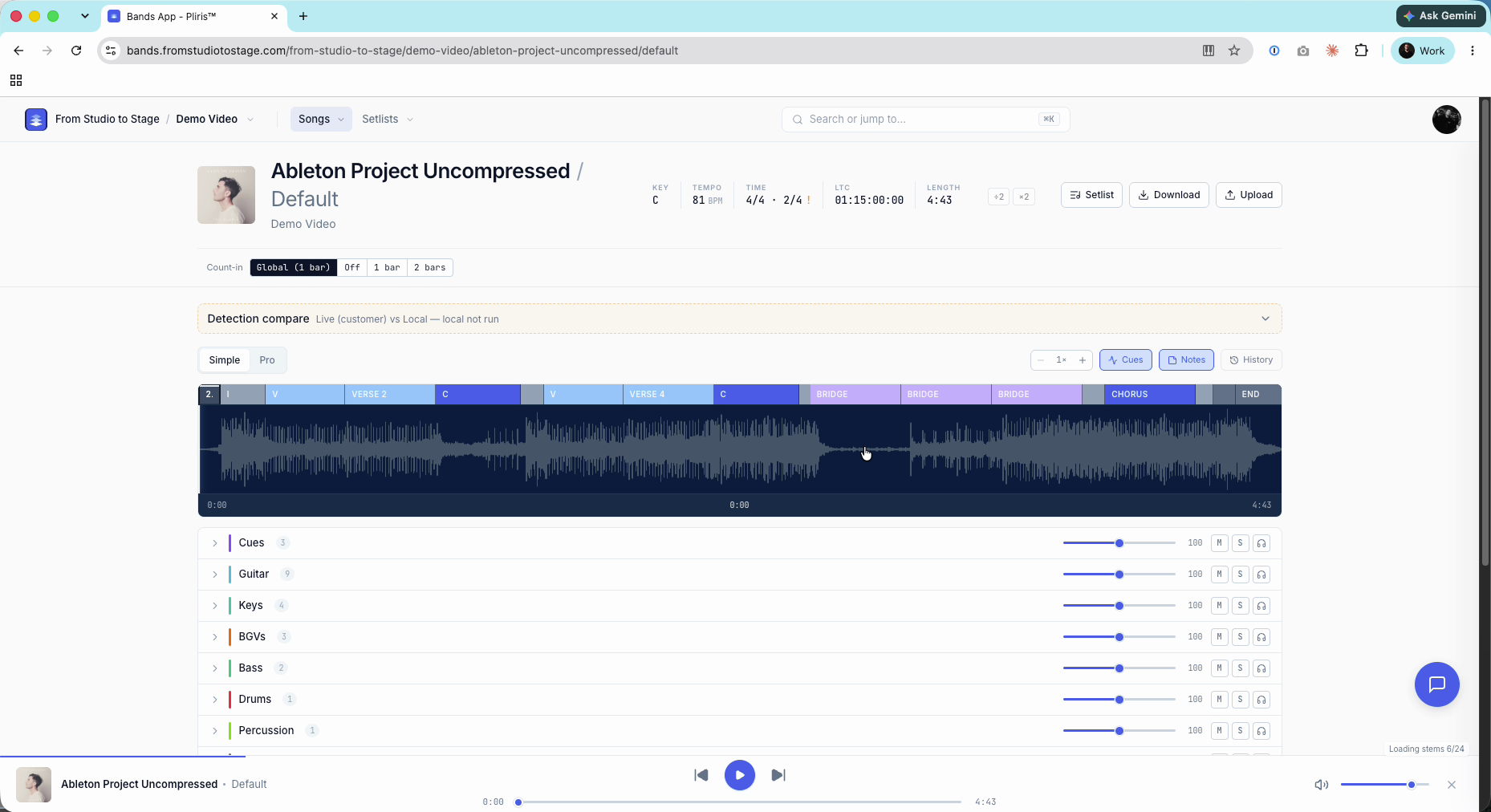
Pro tip: The key is stored on the arrangement, not the song. If a song has several arrangements, change each one that needs it.
Tempo and time signature work the same way: right-click them in the header. See How to Edit Songs in Pliris for every edit on the arrangement page, and Setting the Tempo of a Song for tempo.
Frequently asked questions
How do I change a song's key in Pliris?
Open the arrangement, right-click the Key in the header, type the new key, and click Save.
Why did analysis get my song's key wrong?
The most common mistake is picking the relative minor or major, such as A minor for a song in C major. Those keys share the same notes, so fix it by hand.
Can I add a key if I didn't run analysis?
Yes. Right-click the key in the header and type it in, the same way you'd correct it.
Does changing the key change the audio?
No. The key is information about the arrangement. It doesn't transpose or alter your stems.
Do I have to change the key on every arrangement?
Yes. Each arrangement stores its own key, so update every version that needs the change.