Send to Pliris: Send Purchased Songs Straight to Your Files Inbox
A Chrome extension that sends a song you bought on Loop Community, MultiTracks.com or Karaoke Version into your Pliris Files inbox with one click. Install it from Settings, Beta features.
Send to Pliris is a Chrome extension that puts a song you bought on Loop Community, MultiTracks.com or Karaoke Version into your Pliris Files inbox with one click. You don't download a ZIP, find it, and upload it again. It also turns a Planning Center plan into a Pliris setlist (see Build a Setlist from a Planning Center Plan).
Send to Pliris is a beta feature. It needs a paid Pliris plan or an active Guest Pass, and Chrome 116 or later on a computer.
Install the extension
- In Pliris, open Settings → Beta features.
- Under Chrome extension, click Download next to Send to Pliris.
- Unzip the download into a folder you plan to keep. Chrome runs the extension from that folder, so don't delete or move it afterward.
- In Chrome, go to
chrome://extensionsand turn on Developer mode in the top right. - Click Load unpacked and choose the unzipped folder (the one that contains
manifest.json). - Click the puzzle-piece icon in Chrome's toolbar and pin Send to Pliris.
Sign in and choose your inbox
- Click the Send to Pliris icon, then Sign in to Pliris. Files opens. Sign in there.
- Click the icon again. The top line now reads "Songs you send land in" and the name of your inbox.
- If you belong to more than one Pliris account, pick the inbox you want from Your Pliris inbox.
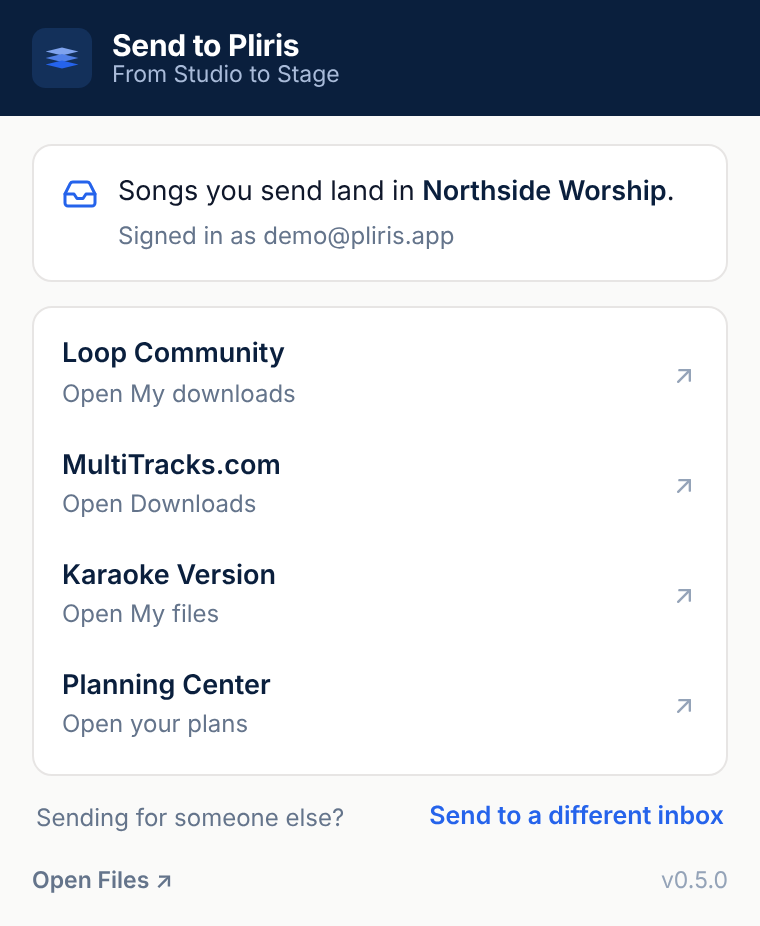
To send into someone else's inbox, click Send to a different inbox and paste the inbox link they gave you, plus your email. Add the inbox password if that inbox has one.
Send a song
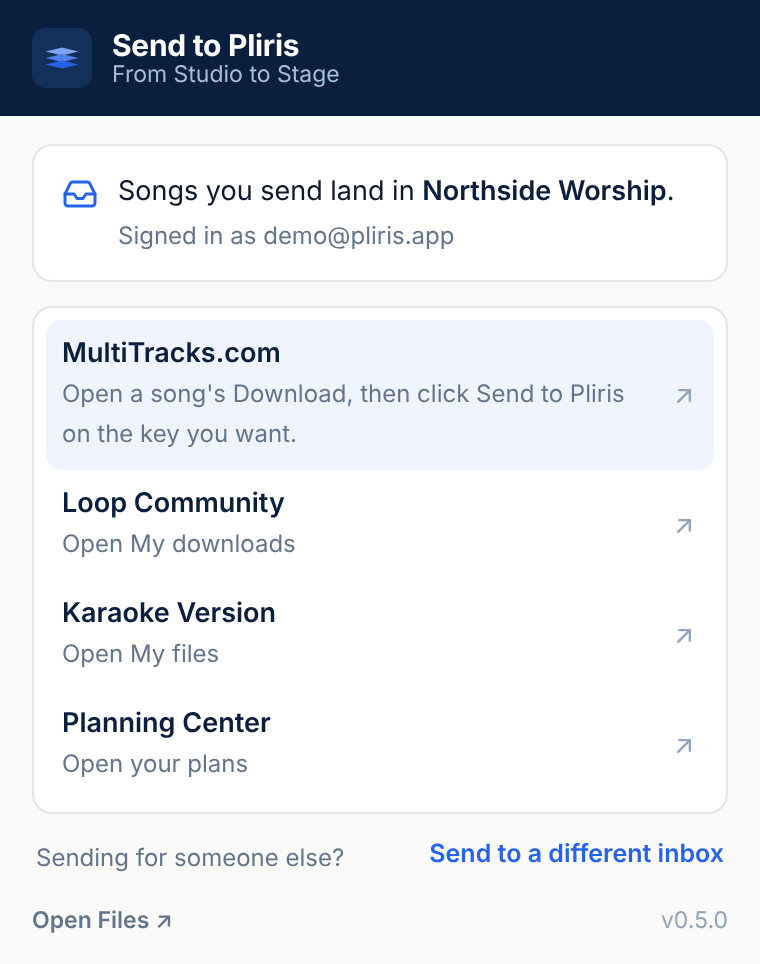
The extension lists each store. Click a store to open the page you send from.
Loop Community
- Click Loop Community in the extension. Your My downloads page opens.
- Find the ZIP you want and click Send to Pliris beside it.
MultiTracks.com
- Click MultiTracks.com in the extension. Your Downloads page opens.
- Click the song's own Download button to open its list of keys.
- Click Send to Pliris on the row for the key and format (WAV or M4A) you want. Only that key is sent.
Karaoke Version
- Click Karaoke Version in the extension. Your purchased files open.
- Open the purchased custom backing track and set the Key you want.
- Click Send to Pliris under the Download button. Every stem is sent as its own MP3 in that key, and the click track is marked as the click.
Keep Chrome open while a song sends. The button shows progress and ends on In your inbox.
Turn what you sent into a song
- Open Files and go to your inbox.
- A ZIP from Loop Community or MultiTracks unpacks by itself. If it still shows Unpack, click it once.
- Select the stems and click Create songs.
- Check the title, key, tempo and each track's role before you confirm. MultiTracks downloads don't include a tempo, so type it in here.
- Open the new song in Pliris and play it once to confirm the stems line up.
If a send pauses
Read the message on the button, then click Try again on the same song. The upload picks up from the piece it stopped on. If the message says the Loop Community link is unavailable, refresh My downloads first. On MultiTracks, a key that is still processing needs a minute before you try it again.
Update the extension
Download the new ZIP from Settings → Beta features, unzip it over the same folder, then click Reload on Send to Pliris at chrome://extensions. Don't click Remove: removing the extension clears any send that is still waiting on a retry.
Frequently asked questions
How do I get songs from MultiTracks into Pliris without downloading them first?
Install Send to Pliris, open your MultiTracks Downloads page, click a song's Download button, and click Send to Pliris on the key you want. The stems go from MultiTracks to your Pliris Files inbox. Then choose Create songs in Files.
Where is the Send to Pliris button on MultiTracks?
It is inside the song's Download window, on each key row. It does not appear in the Downloads list itself. Click the song's own Download button first.
Does Send to Pliris work with MultiTracks rentals or AppTrack?
No. Rentals and AppTrack songs are not downloadable files, so there is nothing for the extension to send. It works with songs you purchased as downloads.
Does Send to Pliris work in Safari, Firefox or on a phone?
No. It is a Chrome extension for a computer and needs Chrome 116 or later.
Why does Chrome say Developer mode is on?
During the beta the extension is installed from a folder, not from the Chrome Web Store, and Chrome only allows that with Developer mode on. The notice is expected.
I sent a song but I don't see it in Pliris. Where is it?
It is in your Files inbox, not in your song list yet. Open Files, go to the inbox, and choose Create songs for the stems. If you belong to several accounts, check that the extension shows the inbox you expected.
Does the extension see my Loop Community, MultiTracks or Karaoke Version password?
No. It works inside the store page you are already signed in to and never asks for or stores a store password.
Can I send several songs at once?
Send them one at a time. Click Send to Pliris on each song or key you want and let each finish.