How to Create Custom Stem Groups
Make a stem group of your own (Tim's Guitar, Programmed Drums, Tracks), give it a color, put stems in it, and set Routes to for where it lands. Groups are per band, and a stem is in exactly one group at a time.
Built-in groups (Drums, Bass, Guitar, Keys, Lead Vocals, BGVs…) are how Pliris sorts stems on its own. Custom groups are how you sort them: by player, by rig, by anything your band actually talks about. Tim's Guitar, Live Guitars and Programmed Drums can each land on their own return, or share one, without touching each other.
Stem groups are the bucket. Where that bucket lands in Ableton is separate — after you create a stem group, set Routes to on Settings → Stem groups.
Before you start
- You need to be an account admin. Band admins can use groups but not create them or change their colors; the Stem groups page says so in place of the Create field.
- A group name cannot match a built-in group.
Guitaris refused;Tim's Guitaris fine. - Groups are per band. Create the group while viewing the band that needs it.
Create the group
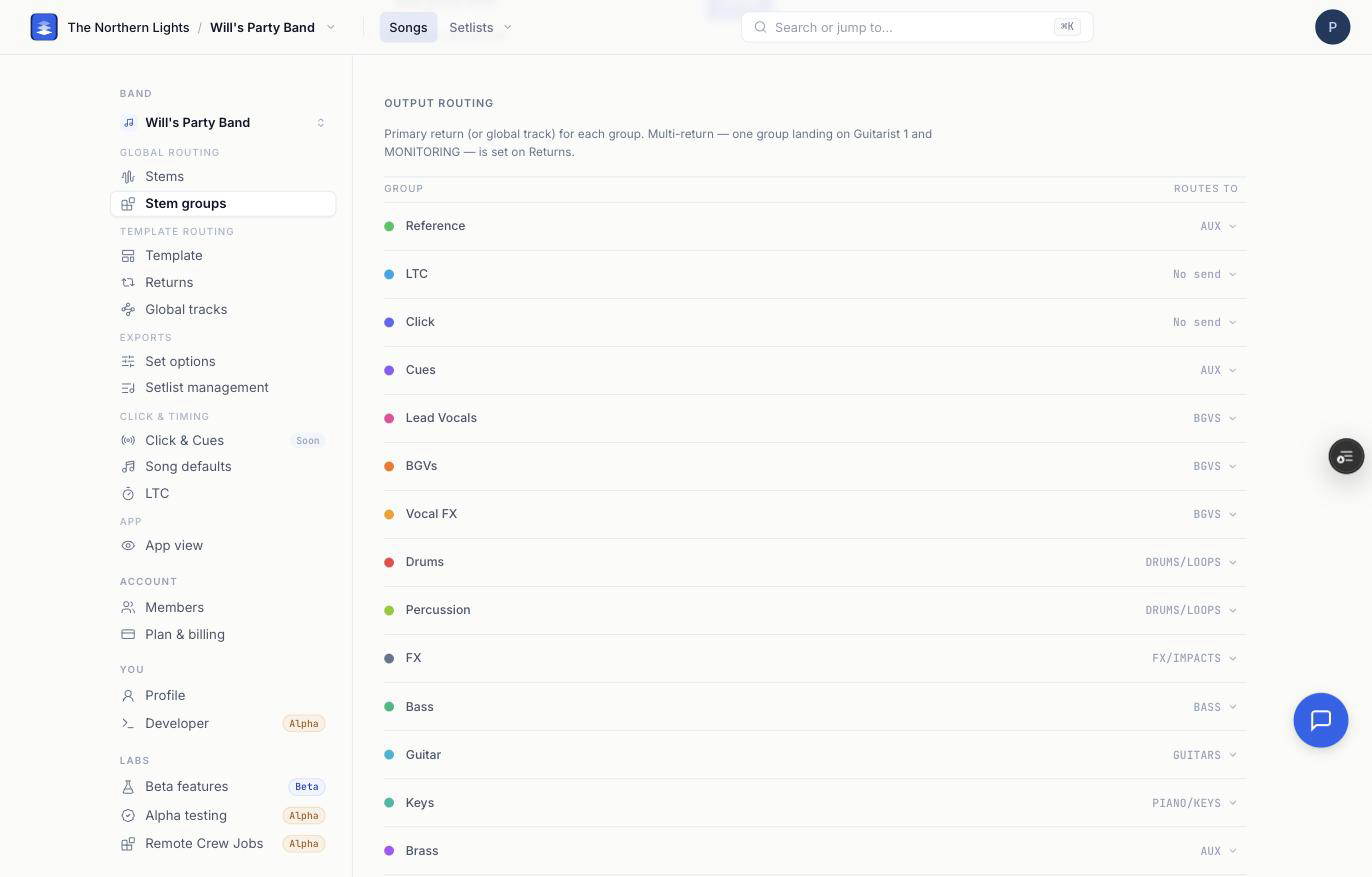
- Open Settings → Stem groups.
- Under Create custom stem group, type the name and click Create (or press Enter).
- The group appears in the list with a
CUSTOMtag. Click its color dot and pick a color from the Ableton palette. That color follows the group onto the song page and into the exported set.
You can also create a group from wherever you are assigning stems:
- On Settings → Stems, open a name's Stem group dropdown and choose Create group… at the bottom. The name is assigned to the new group in one move.
- In Add stem name on the same page, the group picker has the same Create group… entry, so a pre-define and its group can be made together.
Put stems in it
A stem is in exactly one group at a time, so moving a stem into your custom group takes it out of whichever group it was in. Three ways, from widest to narrowest:
- Every file with a name, in every song. On Settings → Stems, pick the group in that name's Stem group column. The name is also pinned, so future uploads with that name land there. See Settings → Stems.
- Before the files exist. On Settings → Stems, use Add stem name to point a name or keyword at the group. See Pre-Routing Stems to Groups.
- One stem, on one song. Open the song, right-click the stem, choose Move to group, and pick your group. See Changing a Stem's Group on a Song.
Decide where it lands
After you create a stem group, set Routes to for where it lands in Ableton. A new group inherits a destination from the template's own routing, which is usually not where you want a custom group. On Settings → Stem groups, under Output routing, click the value in the Routes to column for your group and pick a return.
Matching your custom group's name to a renamed return does not set Routes to. Choose the return in the Routes to column explicitly.
That is the group's primary return: one destination per group. If the group should also reach a second return, a monitor mix for instance, add it there with + on Settings → Returns. See Routing One Stem to Multiple Return Tracks.
Recolor, rename, delete
- Recolor a custom group from Settings → Stem groups by clicking its dot. The change applies to this band's copy of the group only.
- Hide, rename or delete a custom group from Settings → Stem groups with its eye, pencil and trash icons. A hidden group is marked Hidden: it doesn't show on song pages, but its stems are still in your Ableton exports. Built-in groups cannot be deleted.
- Retire stems from a group you no longer want by moving them elsewhere, on Settings → Stems or by right-click on a song page, before you delete the empty custom group.
Why bother
- One fader per player at FOH.
Will's GuitarandTim's Guitaron separate returns, or both on GUITARS, your call, and changeable in one click via Routes to. - Played versus programmed.
Programmed Drumson its own return with its own fader,Drumson DRUMS. - A naming convention that routes itself. Pin
gtr ttoTim's Guitarand every future upload sorts itself into the group. See Pre-Routing Stems to Groups. Still set Routes to so the group lands where you expect in Ableton.
See also: Organizing Stems with Custom Stem Groups walks through splitting a crowded Guitar group from start to finish, with the course lesson.
Frequently asked questions
How do I create a custom stem group in Pliris?
Open Settings → Stem groups, type a name under Create custom stem group, and click Create. You need to be an account admin. Then assign stems on Settings → Stems, or right-click a stem on a song page and choose Move to group. After you create the group, set Routes to for where it lands in Ableton.
I named my custom group the same as a return. Does that route it?
No. Matching a return's name when you create a custom group does not set Routes to. Open Settings → Stem groups and choose the return in the Routes to column explicitly.
Can a stem be in two stem groups?
No. A stem is in exactly one stem group at a time. It can still land on several return tracks; that is set on Settings → Returns. See Routing One Stem to Multiple Return Tracks.
Why can't I create a group called Guitar?
Names that match a built-in group are refused. Assign the stem to the built-in Guitar group on the Stems page instead, or pick a more specific name like Tim's Guitar.
Do custom groups apply to all my bands?
No. Groups are per band: their name, color, which stems are in them, and where they land. Create the group while viewing the band that needs it.
How do I rename or delete a custom stem group?
Rename or delete custom groups from Settings → Stem groups. Built-in groups cannot be deleted.