Your First Show with the Pliris Apps
Set up a whole show with the Pliris apps: the network, Files on your playback computers, Maestro running tonight's setlist in Live, Remote in your hand and Charts on the band's iPads. A checklist for soundcheck.
By the end of this guide your setlist runs in Ableton Live from Maestro, you can drive it from your phone, and the band's iPads turn the page on their own. Each app has its own guide. This one puts them together in the order you set them up, so you can work down it once at home and again at soundcheck.
What you need
- A playback Mac with Ableton Live. A second one as a backup is optional.
- Files and Maestro on each playback Mac, from the beta apps page.
- Pliris Remote on your iPhone or iPad, and Pliris Charts on any iPad that needs charts, from TestFlight.
- A setlist in Pliris. Build it on the website (Building and sharing a setlist) or in Maestro's setlist builder.
- A network for the show. Your own router or a phone hotspot. It doesn't need the internet.
1. Set up the show network
Plug your playback computers into a switch or straight into your router with Ethernet. Phones and iPads join the router's Wi-Fi. Every device has to be on the same network. The internet can be unplugged.
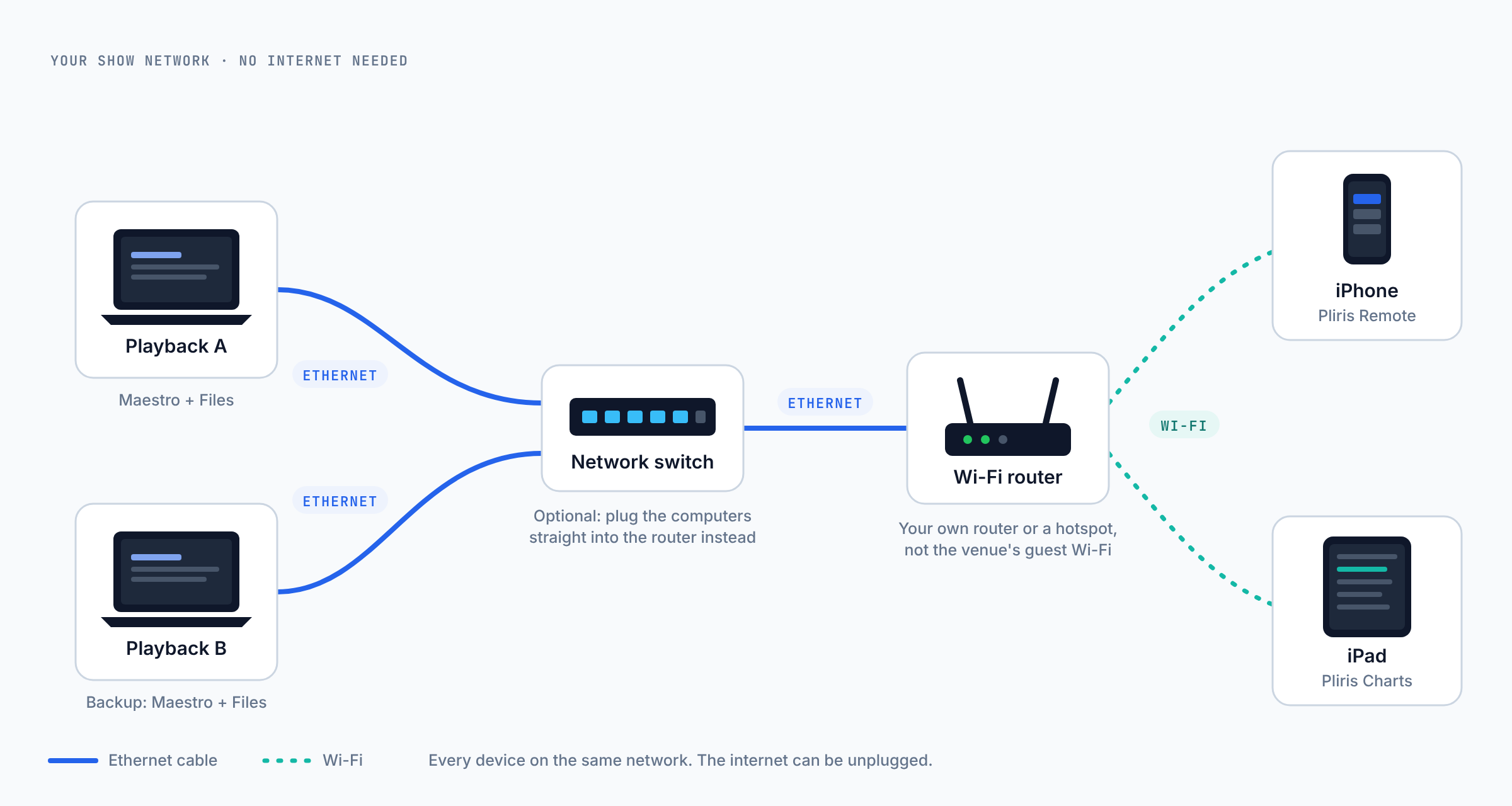
Use your own router or hotspot rather than the venue's guest Wi-Fi. Guest networks often stop devices talking to each other, which stops the apps finding each other. See What is Pliris Network? for more.
2. Get your songs onto the playback Mac with Files
- Open Files and sign in with your Pliris account. See Signing in to the desktop apps.
- In Sync on this computer, tick your band. Files downloads every song and set, and keeps them up to date.
- Wait until the status at the top says Up to date.
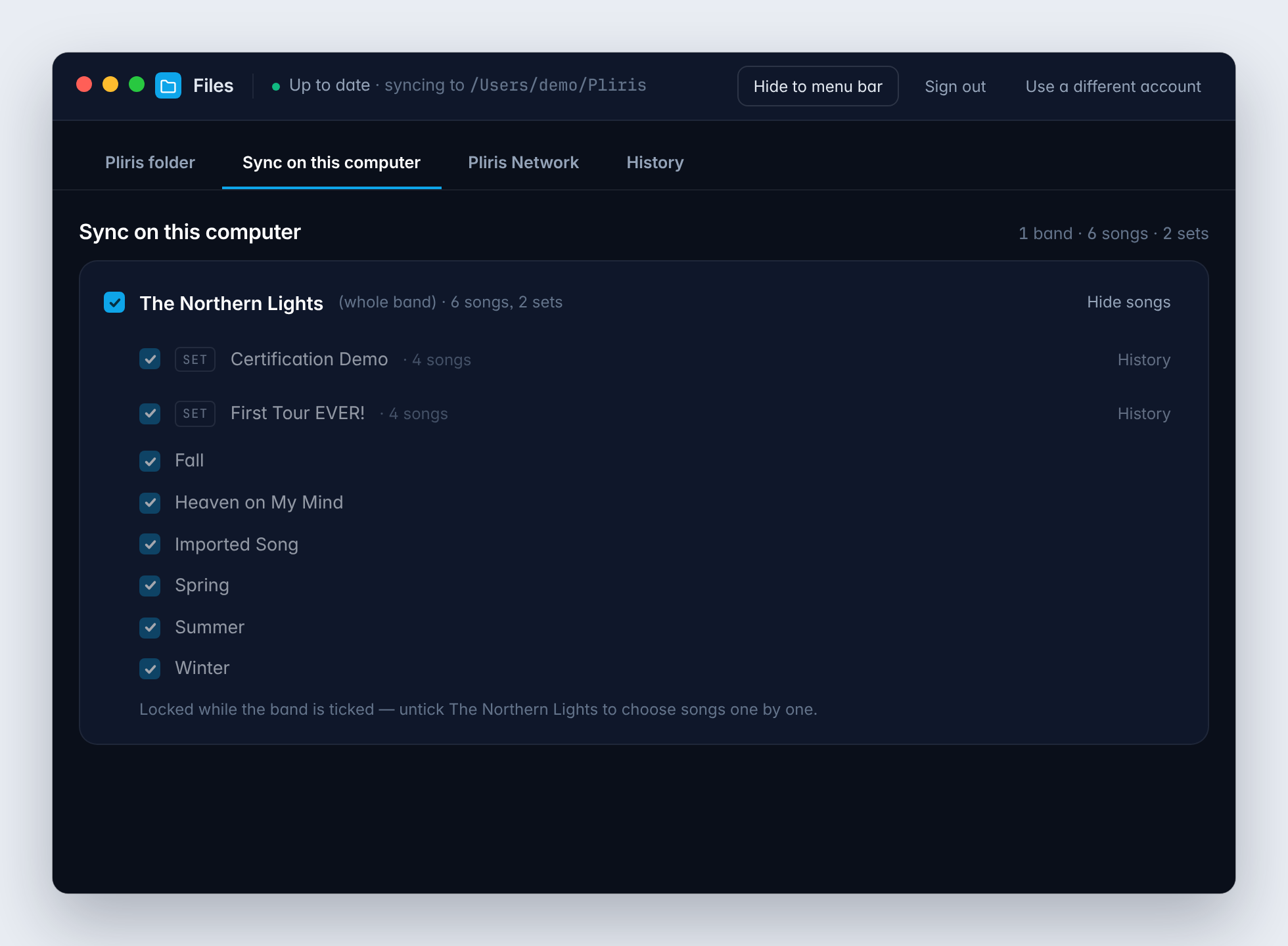
Do this at home, on a fast connection. Once it says Up to date, everything is on the Mac and the show doesn't need the internet.
Running a backup computer? Do the same on the second Mac: sign in to Files with an account that can download the band, and tick the same band. Keep both on the show network. Files keeps them matched, so a set you save on one is on the other within seconds. On the Pliris Network tab, each Mac should list the other under Connected devices. See Keep two playback computers in sync.
3. Load tonight's setlist in Maestro
- Open Maestro. If Files is already signed in, click Continue as to sign in with the same account.
- Allow Accessibility when macOS asks. Maestro needs it to edit and save song sections in Live.
- First time only: connect Maestro to Live. Opening Maestro installs its script, so open (or restart) Ableton Live now. In Live, go to Settings → Link, Tempo & MIDI, and in an empty Control Surface slot choose Pliris Maestro, with Input and Output left at None. Maestro's Waiting for Live changes to Live connected. See Set up Maestro with Ableton Live.
- Open the setlist builder (☰ → Setlist builder, or ⌘2), and pick your band and tonight's setlist.
- Click Open Set in Live. Files builds the whole set as one Live set, and Maestro opens it.
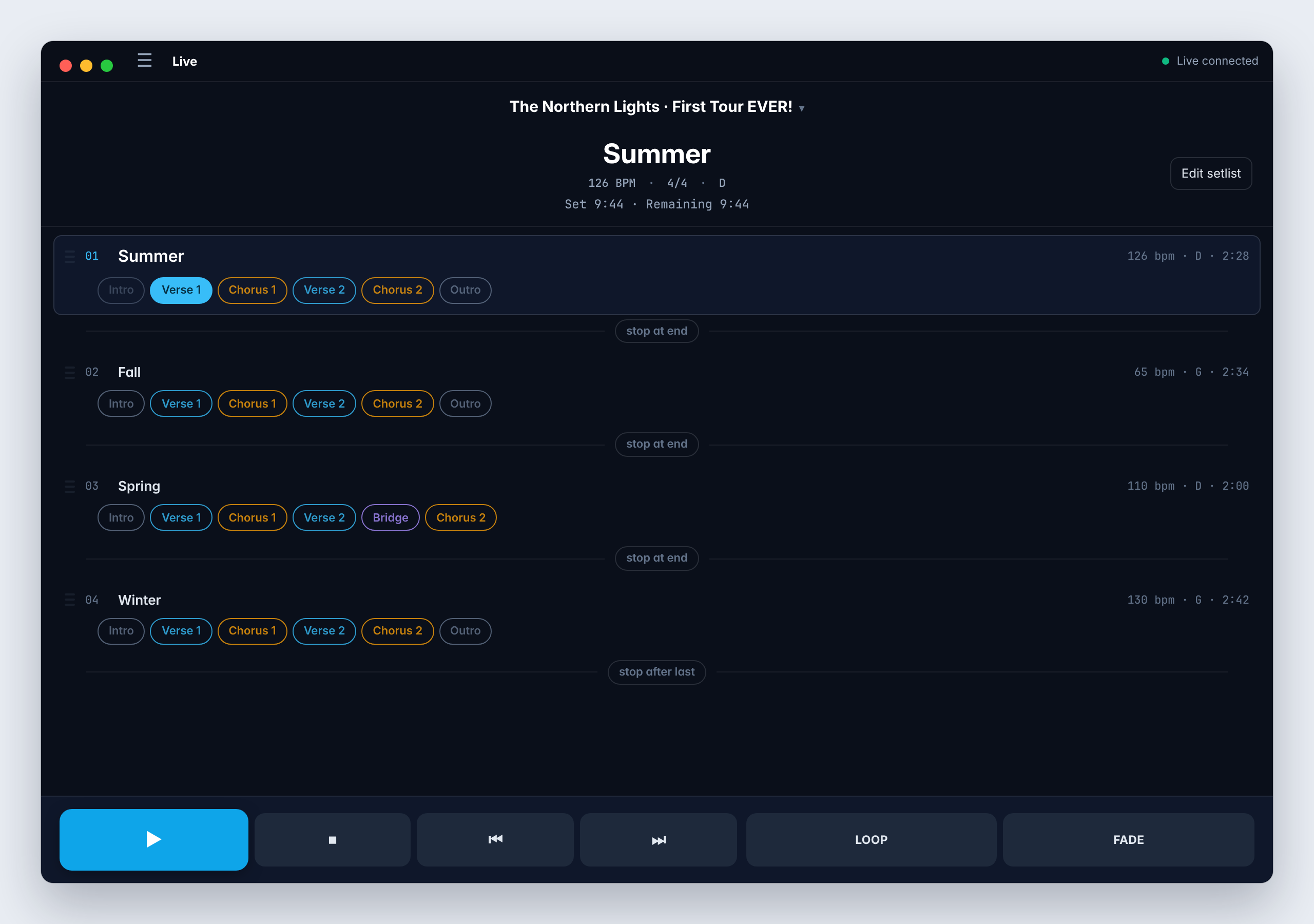
If a song shows a cloud icon, it isn't on this Mac yet. Go back to Files and check it's ticked and Up to date.
Run the set once from Maestro: play, jump to a section, loop one and fade out. The Maestro guide covers each control.
4. Put Maestro in your hand with Remote
- Join your phone to the show network.
- Open Pliris Remote and allow Local Network access when iOS asks.
- Tap your playback computer in the list, such as Pliris Maestro (Playback A).
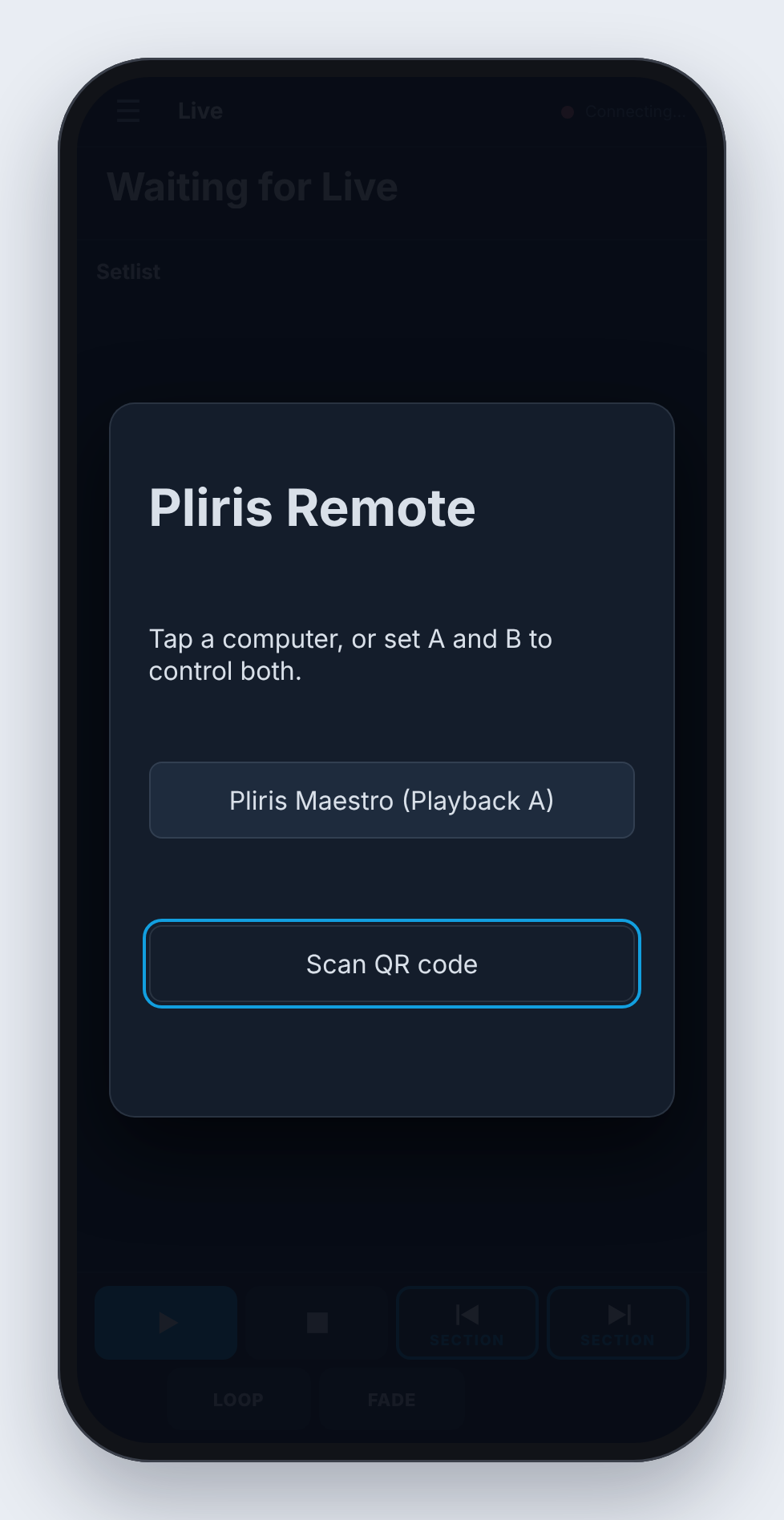
You can now start songs, jump between sections and loop from the stage. If the network is shared with people outside your team, set a remote password in Maestro under Settings → Remote. See Pliris Remote.
5. Get the band's charts following with Charts
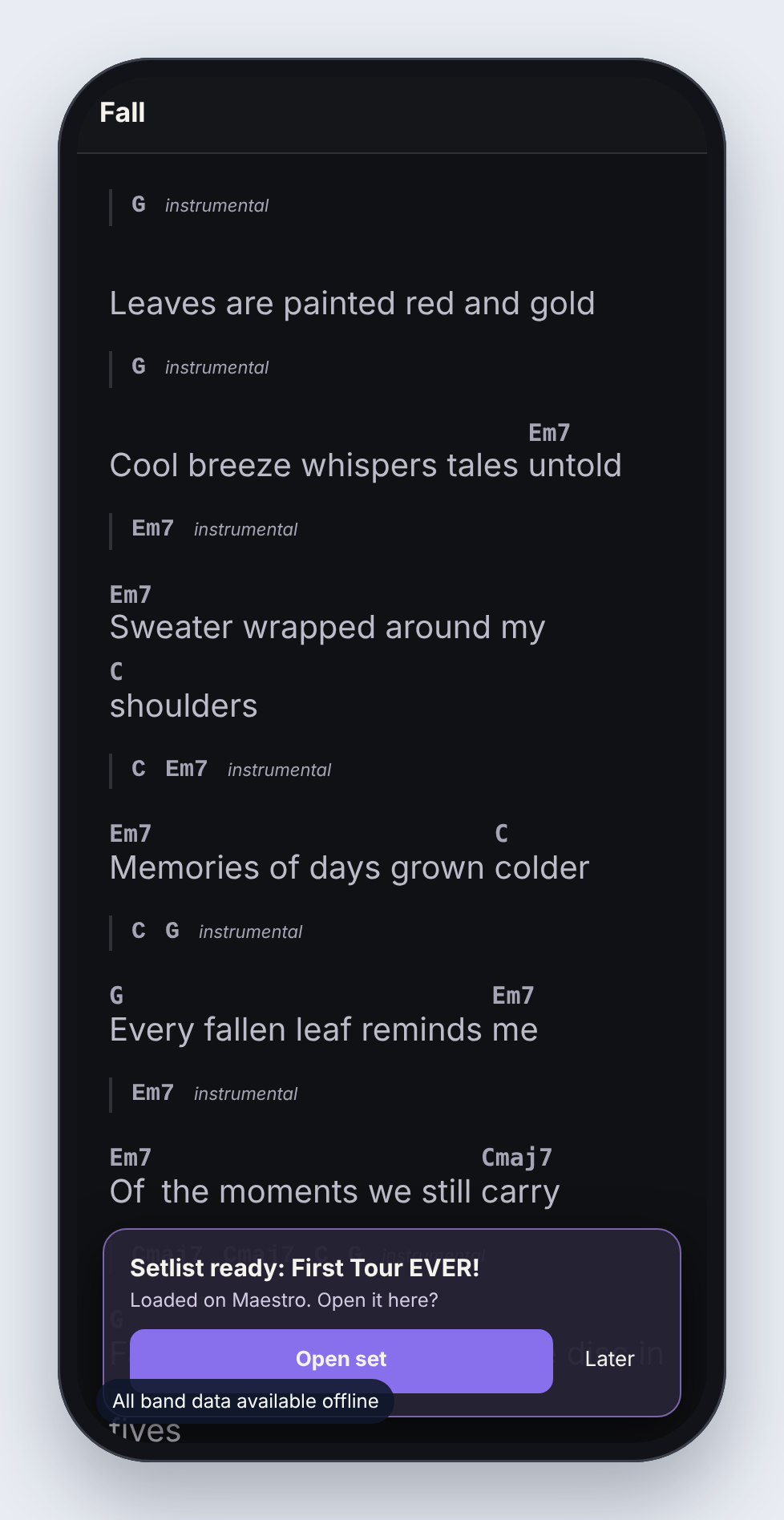
- At home, while you have internet: open Pliris Charts on each iPad and sign in with the code Charts emails you. Leave it open until the note at the bottom left says All band data available offline. Charts can then show every chart with no internet.
- At the show, join each iPad to the show network and open Charts.
- When Maestro opens the setlist, Charts asks Open it here? Tap Open set.
- Play a song in Maestro. Charts moves to that song and highlights the section you're in.
There's nothing to pair. See Pliris Charts.
Soundcheck checklist
Run down this before doors:
- Every device is on the show network, and the venue Wi-Fi isn't involved.
- Files says Up to date on every playback Mac.
- Your backup Mac shows your main Mac under Connected devices in Files.
- Maestro says Live connected and has tonight's setlist open in Live, with no cloud icons.
- Remote says Connected, and a section jump from the phone moves Live.
- Every iPad running Charts showed All band data available offline before you left home, and says Following Pliris Network while Live plays.
- Accessibility is still on for Maestro (an update can switch it off).
Frequently asked questions
Do I need the internet at the venue?
No. Files downloads everything to your Macs at home, and Charts downloads the band's charts to each iPad. At the show, Maestro, Remote, Charts and the backup computer talk over your local network only. Unplug the internet and the show keeps running.
Can I use the venue's Wi-Fi?
Avoid it if you can. Guest Wi-Fi often stops devices from seeing each other, so Remote can't find Maestro and Charts can't follow. Bring your own router, or use a phone hotspot.
Do I need a network switch?
Only if your router doesn't have enough Ethernet ports. You can plug the playback computers straight into the router instead.
Do I need a backup computer?
No. Everything here works with one playback Mac. A backup is for peace of mind: Files keeps it matched with your main computer, so it's ready if you need to switch.
Remote can't find Maestro. What should I check?
Check the phone and the playback computer are on the same network, Maestro is open, and Remote has Local Network access under Settings → Privacy & Security → Local Network on the phone. See Pliris Remote.
Charts isn't following. What should I check?
Check the iPad is on the same network as the playback computer and that Live is playing. If Charts says Manual browsing, you picked a song yourself. Tap Follow Network in Settings to follow the show again.
Which apps does everyone in the band need?
Only whoever runs playback needs Files and Maestro. Players who want charts need Charts on an iPad or iPhone. To rehearse with the stems at home, use the Bands app.
Where to go next
Stuck at any point, click the support bubble in the bottom-right corner of any page, or email support@fromstudiotostage.com. You'll hear back within 24 hours.