What Is Pliris Network?
Pliris Network is how the Pliris apps on your stage find each other and stay in step: Maestro runs the show, and Lyrics, Video, Charts and your other playback computer follow it over your local network, with no internet and no setup.
Pliris Network is the connection between the Pliris apps on your stage. Open them on the same network and they find each other on their own. Maestro runs the show in Ableton Live, and everything else follows it: the lyrics on the singer's iPad move to the next line, the chart on the keys player's iPad jumps to the chorus, and your backup computer has tonight's set before you do.
It runs entirely on your local network. It doesn't need the internet, a server, or an account per device, and there are no ports or addresses to type in.
What it lets you do
- Follow the show. Maestro shares tonight's setlist and the song and section that are playing as Live plays. Apps that follow it change song, scroll and highlight in time, without anyone touching them.
- Hand out tonight's setlist. When you load a setlist in Maestro, the apps following it offer to open the same setlist: Setlist ready: First Tour EVER! Loaded on Maestro. Open it here? Tap Open set, or Later to stay where you are. An app with nothing open yet opens the setlist straight away.
- Keep playback computers in sync. The Files app on each of your playback computers keeps their Pliris folders matched over the network, so a set saved on one shows up on the other within seconds, with or without internet.
- Route timecode to the rest of your rig. The Pliris Network app turns the network's clock into MIDI timecode and LTC audio for gear and software that isn't a Pliris app.
Who sends and who follows
There is one source and many followers.
| App | What it does on Pliris Network |
|---|---|
| Maestro (Mac) | Runs the show. Shares the song and section that are playing, and offers its setlist to the other apps. Always on. |
| Lyrics (Mac) | Follows the song and scrolls the lyrics in time. |
| Video (Mac) | Follows the song and plays the matching video in time. |
| Charts (iPhone and iPad) | Follows the song and highlights the current section. Listens only; it never sends anything. |
| Files (Mac) | Keeps your sets and songs in sync between your own playback computers. |
| Pliris Network (Mac menu bar) | Passes the clock on to MIDI devices and LTC audio outputs. |
Remote is different. Pliris Remote on your phone connects straight to Maestro rather than following the network. See Pliris Remote.
Joining Pliris Network
You don't join it so much as open an app on the right network.
Wire up your show network
Pliris Network runs on any ordinary network, wired or Wi-Fi, and doesn't need the internet. A setup that works in any room:
- Plug each playback computer into a network switch with an Ethernet cable. Wired is the steadiest connection for the computers that run the show.
- Plug the switch into your own Wi-Fi router. A small router often has spare network ports on the back, so you can plug the computers straight into it and skip the switch.
- Join the router's Wi-Fi from every iPhone and iPad running Remote, Charts or Bands.
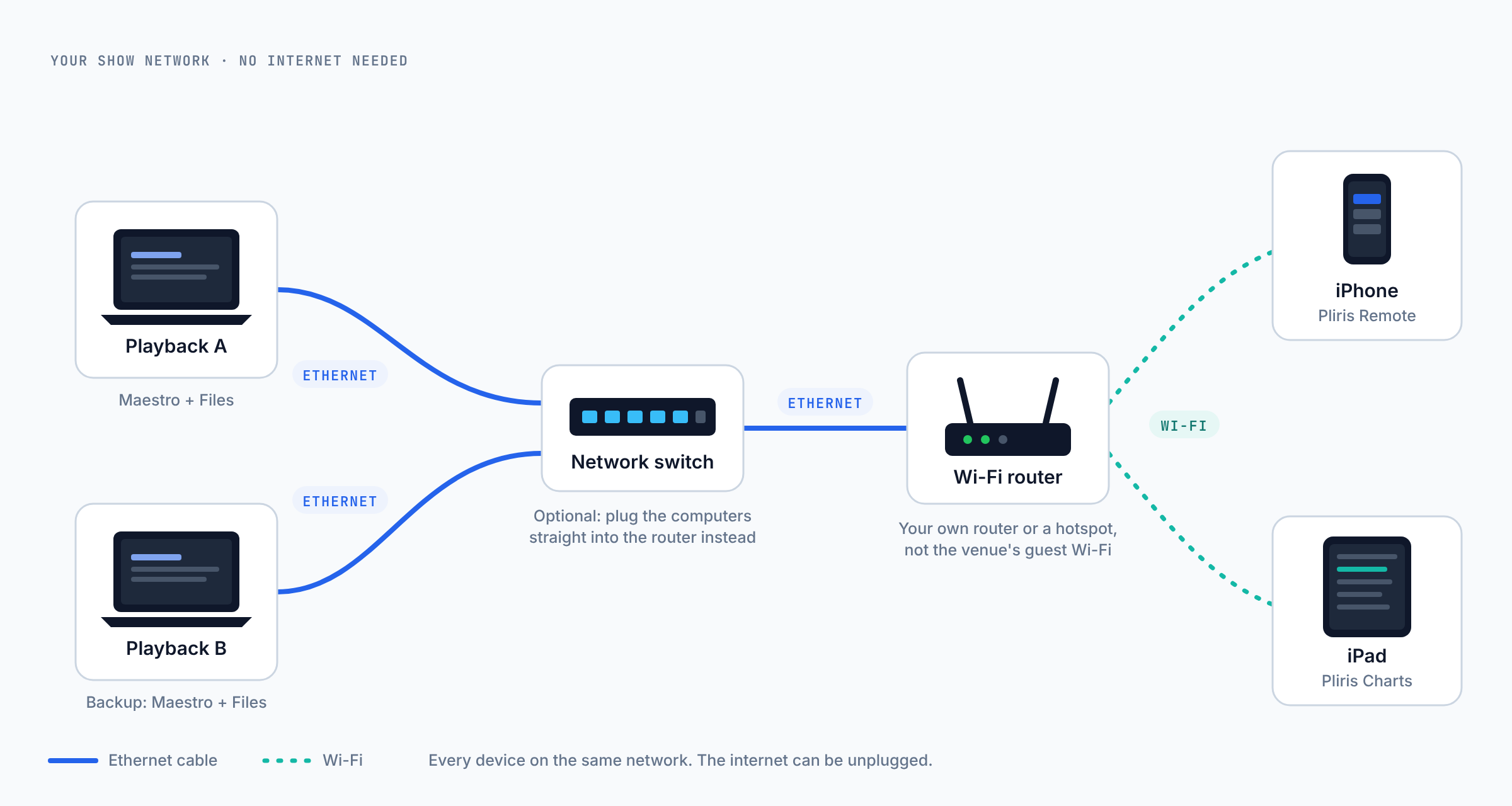
The router doesn't need an internet connection. If the venue gives you one, you can plug it into the router's internet port, but the show works the same without it.
Connect your devices
- Put every device on the same network. Your show router or switch is best. Every computer, iPad and phone has to be on that one network.
- Open Maestro on the playback computer. Pliris Network is always on in Maestro.
- Open the apps that follow it on the other devices.
- Allow Local Network access when macOS or iOS asks. This is the one permission Pliris Network can't work without. If you missed the prompt, turn it on in System Settings → Privacy & Security → Local Network on a Mac, or Settings → Privacy & Security → Local Network on an iPhone or iPad.
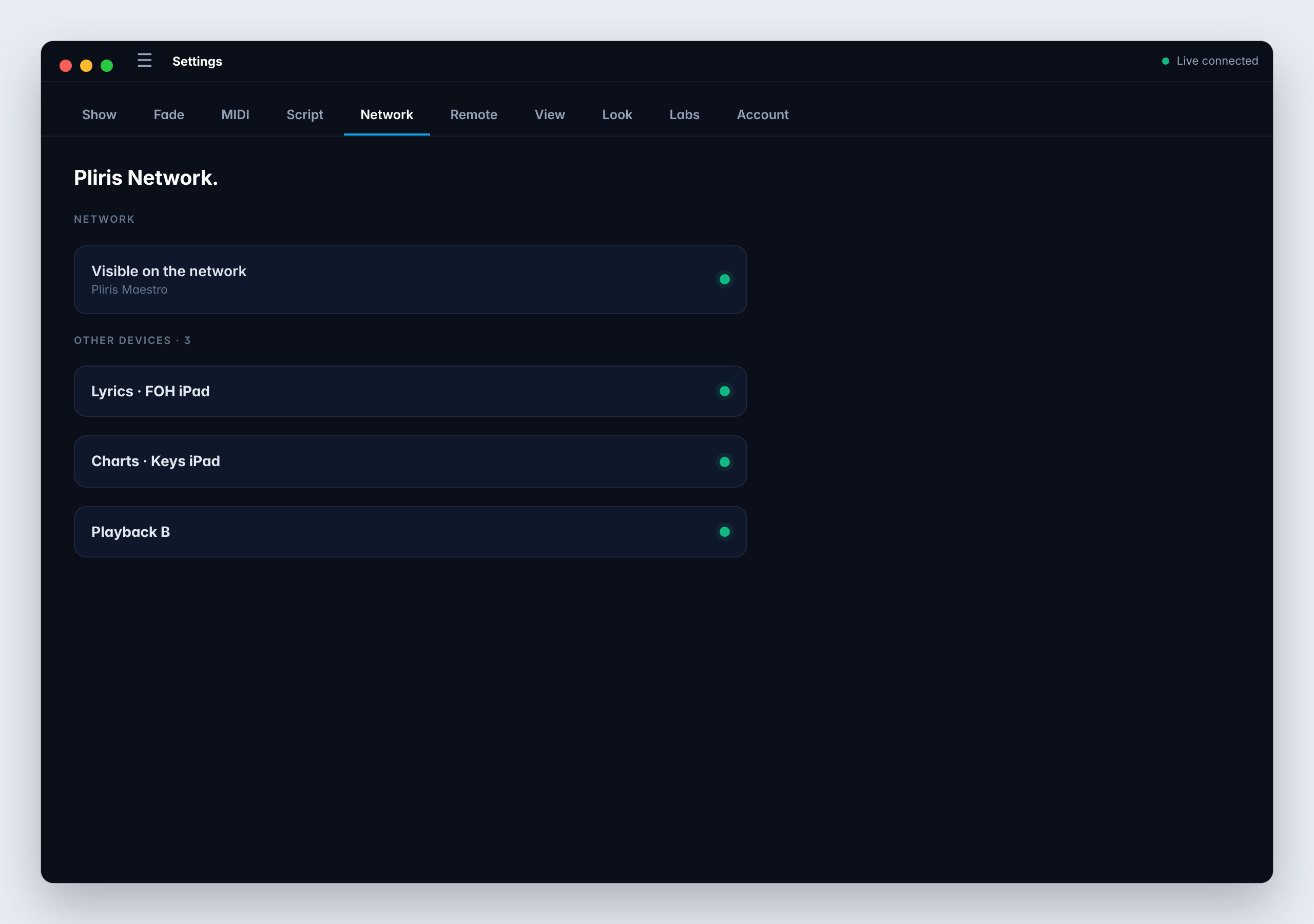
Within a few seconds each app lists the others. In Maestro, open Settings → Network and look under Other devices. In the Files app, open the Pliris Network tab.
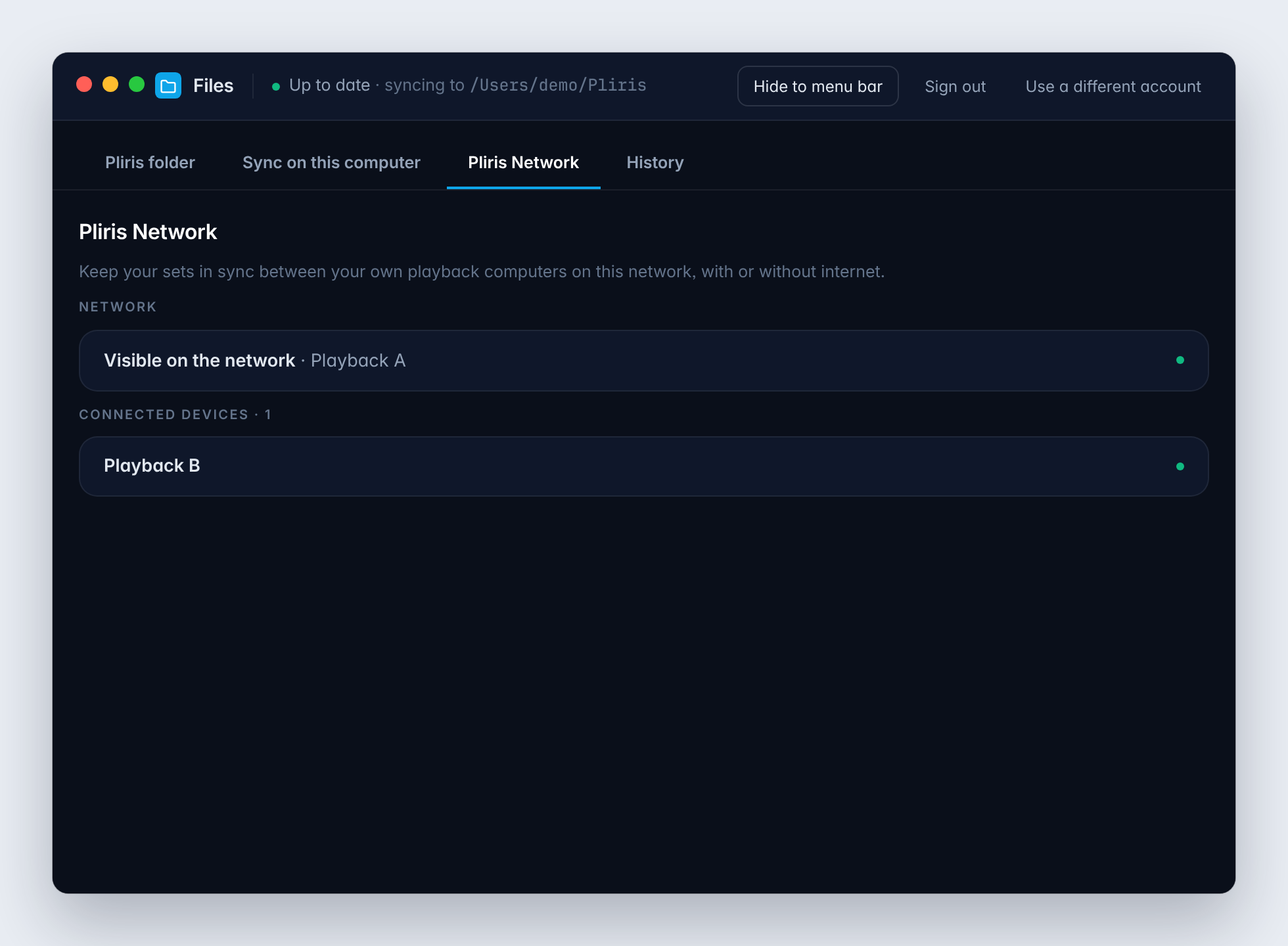
Pro tip: Name each computer before the show. "Playback A" and "Playback B" are much easier to find in a device list than two copies of "MacBook Pro".
Checking the connection
Every app shows the same thing in its own words: is this device on the network, and who else is there?
- Maestro → Settings → Network shows Visible on the network and a list of Other devices.
- Lyrics and Video show a status light: green when they're connected and audio is playing, yellow when they're connected but audio is stopped or paused, and red when they're not connected.
- Charts shows Following Pliris Network once it is locked to the show.
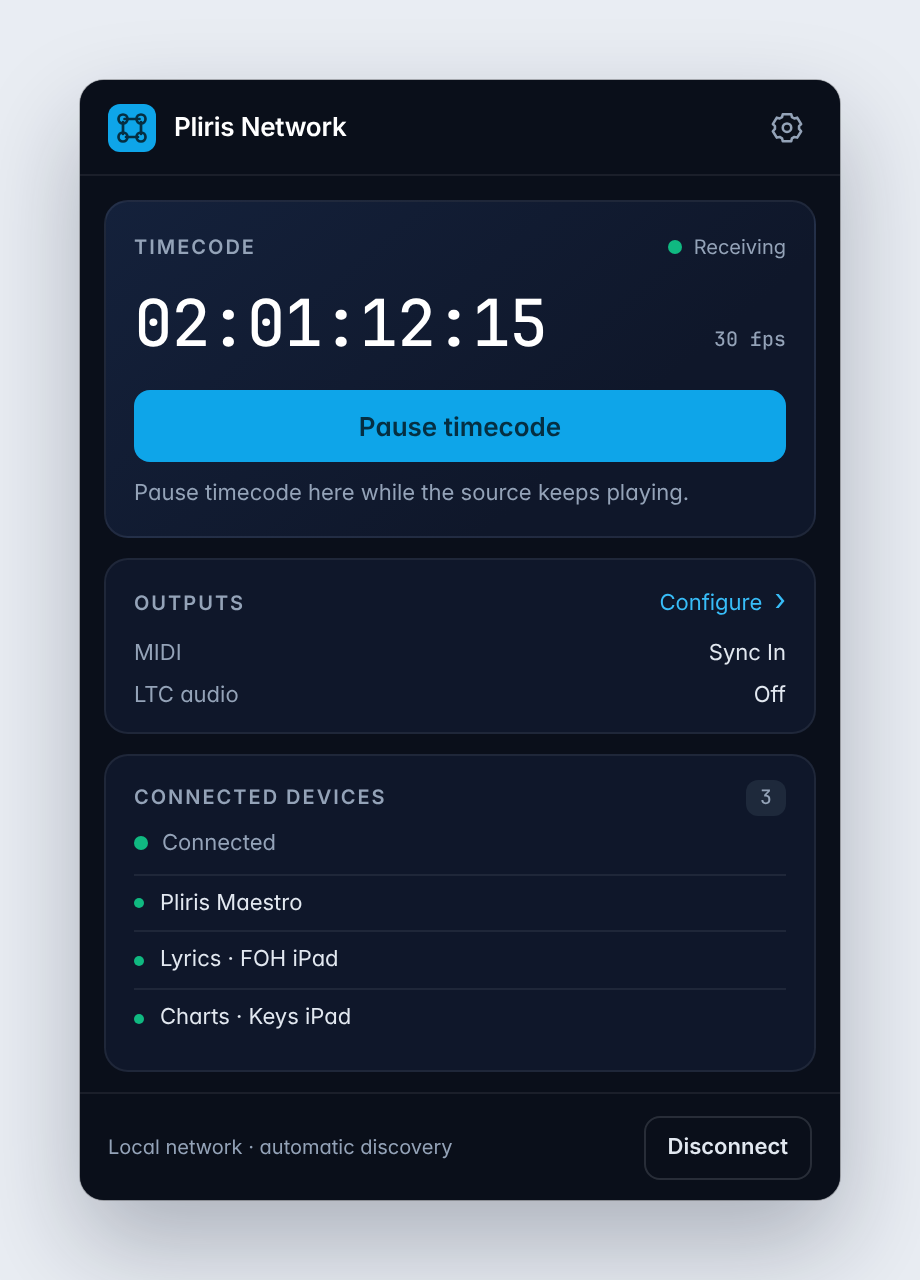
- The Pliris Network app shows the incoming timecode and every connected device.
When a device doesn't show up
Work down this list. Almost every case is the first or second item.
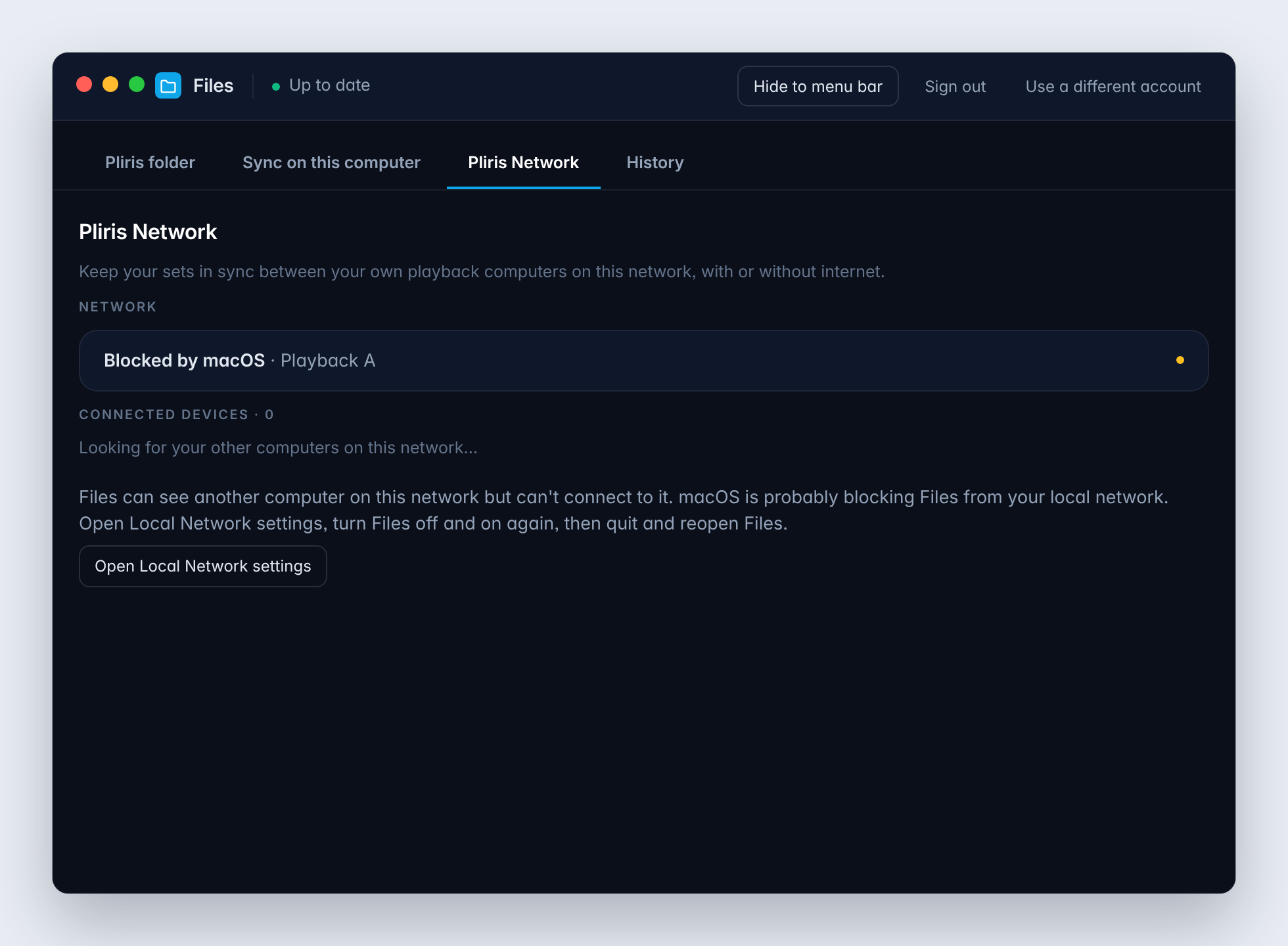
- Local Network access is off. This is the most common cause by far. Open System Settings → Privacy & Security → Local Network, turn the app off and on again, then quit and reopen it. The Files app tells you directly when this happens: Blocked by macOS.
- The devices are on different networks. A laptop on the venue Wi-Fi and an iPad on your show router can't see each other. Move everything onto one network.
- The Wi-Fi keeps devices apart. Airport, hotel, church-guest and other public Wi-Fi often blocks devices from talking to each other, even when they're on the same network name. Use your own router or a personal hotspot instead.
- The computers are on different subnets. If your show network spans more than one IP range, discovery can't cross it. In Lyrics or Video, open Settings, choose Device missing? Connect by IP, and type the other computer's address.
- A firewall is blocking incoming connections. In System Settings → Network → Firewall, allow incoming connections for the Pliris apps.
Frequently asked questions
Does Pliris Network need the internet?
No. It runs entirely on your local network, so a show in a building with no internet works exactly the same. You need the internet only to sign in and to download songs to a computer for the first time.
Do I need the Pliris Network app to use Pliris Network?
No. Maestro, Lyrics, Video, Charts and Files each connect to Pliris Network by themselves. The Pliris Network app is only for passing the show's timecode on to MIDI devices or LTC audio outputs that aren't Pliris apps.
Can I use Pliris Network over Wi-Fi?
Yes, as long as every device is on the same Wi-Fi network and that network lets devices talk to each other. For the show itself, a wired connection or your own dedicated router is more reliable than shared venue Wi-Fi.
Why can my iPad see Maestro at home but not at the venue?
Venue, hotel and guest Wi-Fi often isolates devices from each other. Bring your own router or use a personal hotspot, and put every device on it.
How many devices can join one Pliris Network?
Up to 32 Pliris devices can join the same show. That covers the playback computers, every iPad and phone running Charts or Lyrics, and the rest of the rig.
Is anyone else on the network able to see my songs?
Files only syncs a band to computers signed in to an account that's allowed to download that band. Being on the same Wi-Fi isn't enough.
Why does macOS ask for Local Network access?
Finding other devices on your network needs that permission, and every Pliris app that uses Pliris Network asks for it the first time. Allow it, or the app can't see anything else on the network.
Where to go next
- The Maestro desktop app: run the show that everything else follows.
- The Files desktop app: keep your playback computers in sync.
- The Pliris Network app: send the show's timecode to MIDI devices and LTC outputs.
- The Pliris beta apps: where to download each app.
Stuck at any point, click the support bubble in the bottom-right corner of any page, or email support@fromstudiotostage.com. You'll hear back within 24 hours.