Pliris Charts for iPhone and iPad
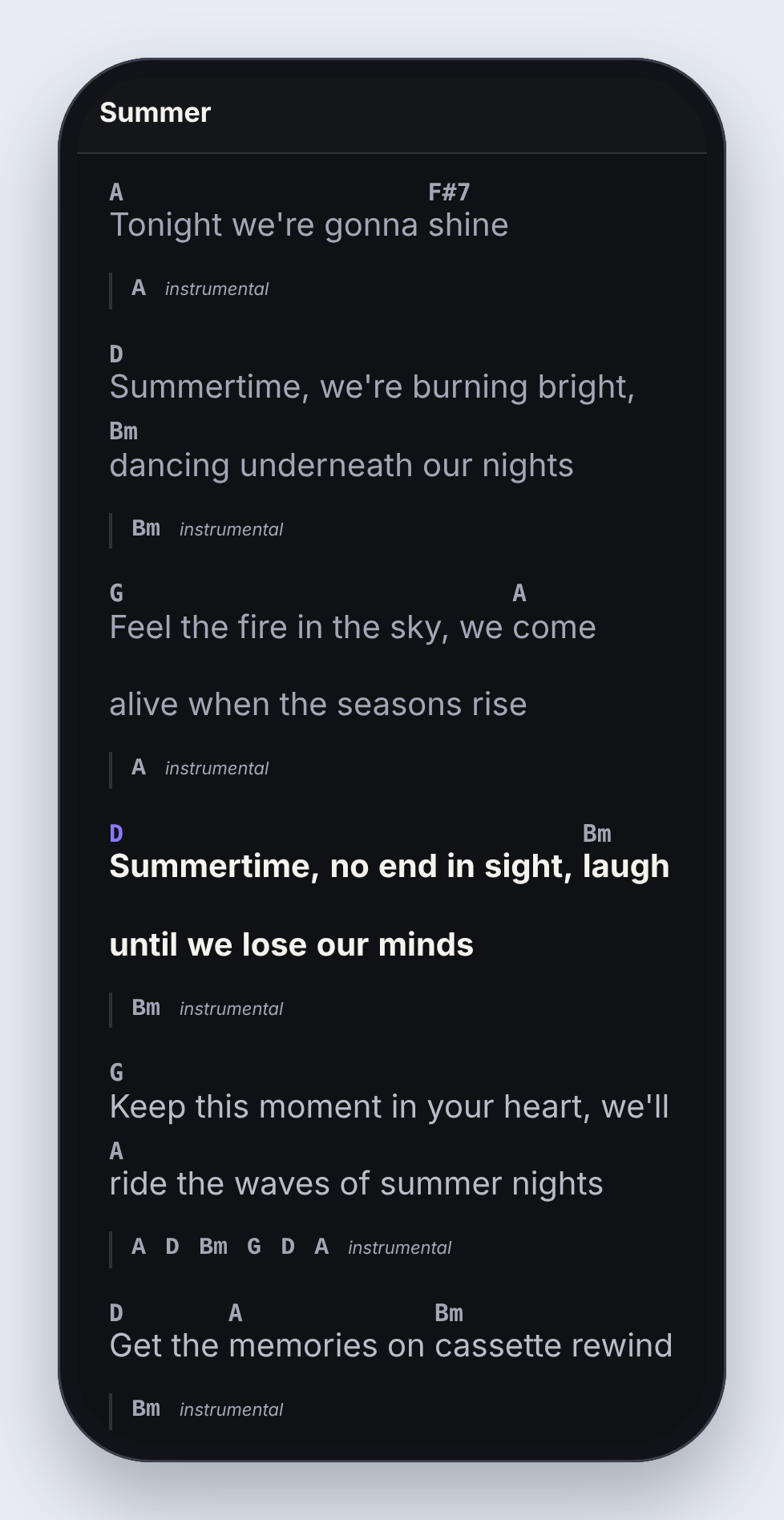
Your band's chord charts on stage: open any song or setlist, choose chords and lyrics, a slash chart or lyrics only, and let Charts follow Maestro over Pliris Network so the right song and section are always in front of you, even with no internet.
Pliris Charts puts every chord chart in your catalog on an iPhone or iPad on your music stand. When Maestro runs the show, Charts follows it: the song changes when the band does, and the section you're playing is highlighted as you get to it. Nobody turns pages and nobody calls out the song.
It works with no internet. Charts keeps your band's charts on the device, so a venue with no signal doesn't matter.
What you need
- An iPhone or iPad.
- Pliris Charts, from TestFlight. See The Pliris beta apps.
- Your Pliris account. Charts uses the same account as the website and can't create a new one.
- To follow the show: Maestro running on the same network. See What is Pliris Network?
Sign in
- Open Charts.
- Type the email address you use for Pliris and tap Email me a code.
- Type the code from your email and tap Sign in. If it didn't arrive, tap Request another code.
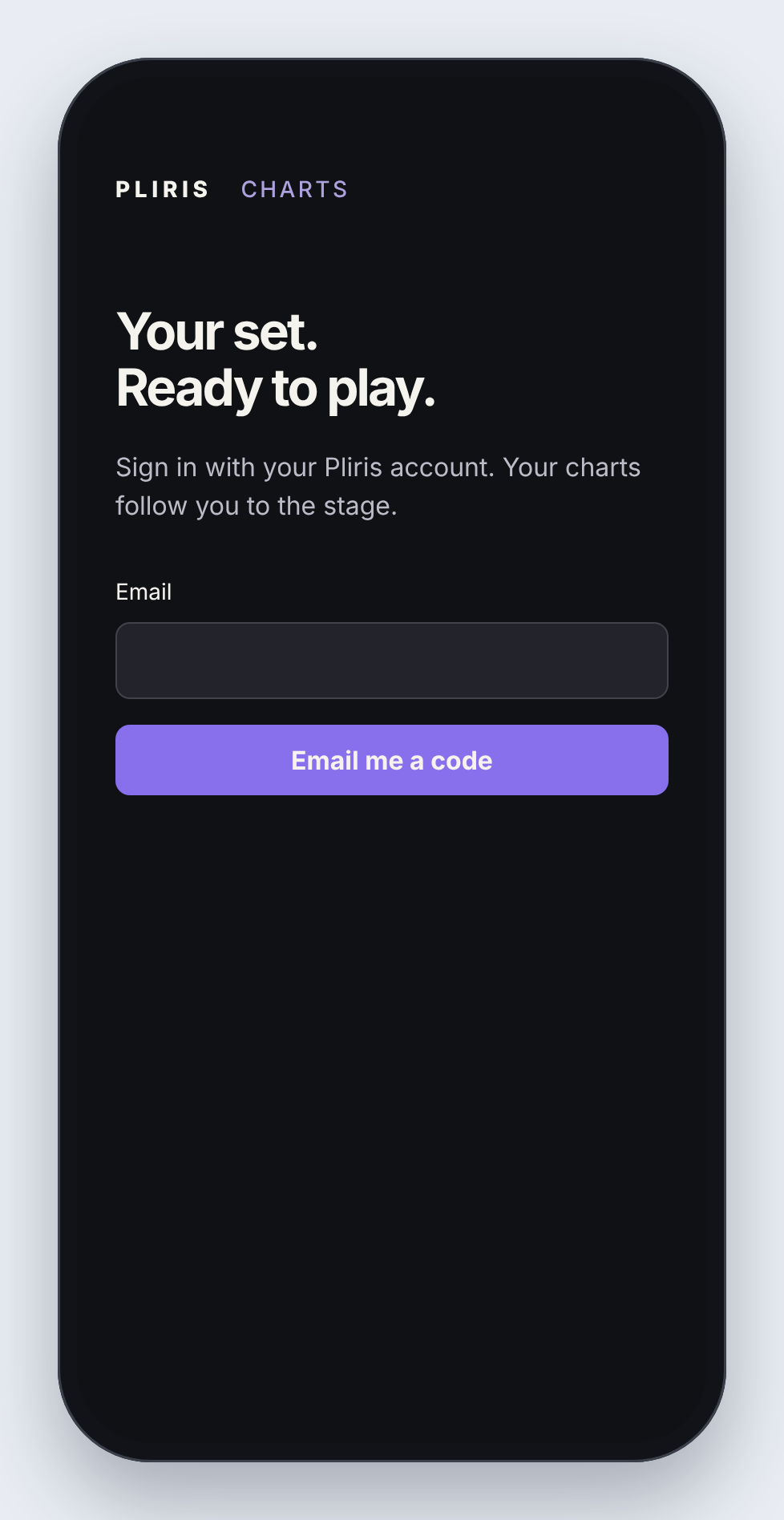
You stay signed in, even with no internet, so this is a one-time step on each device.
Open a chart
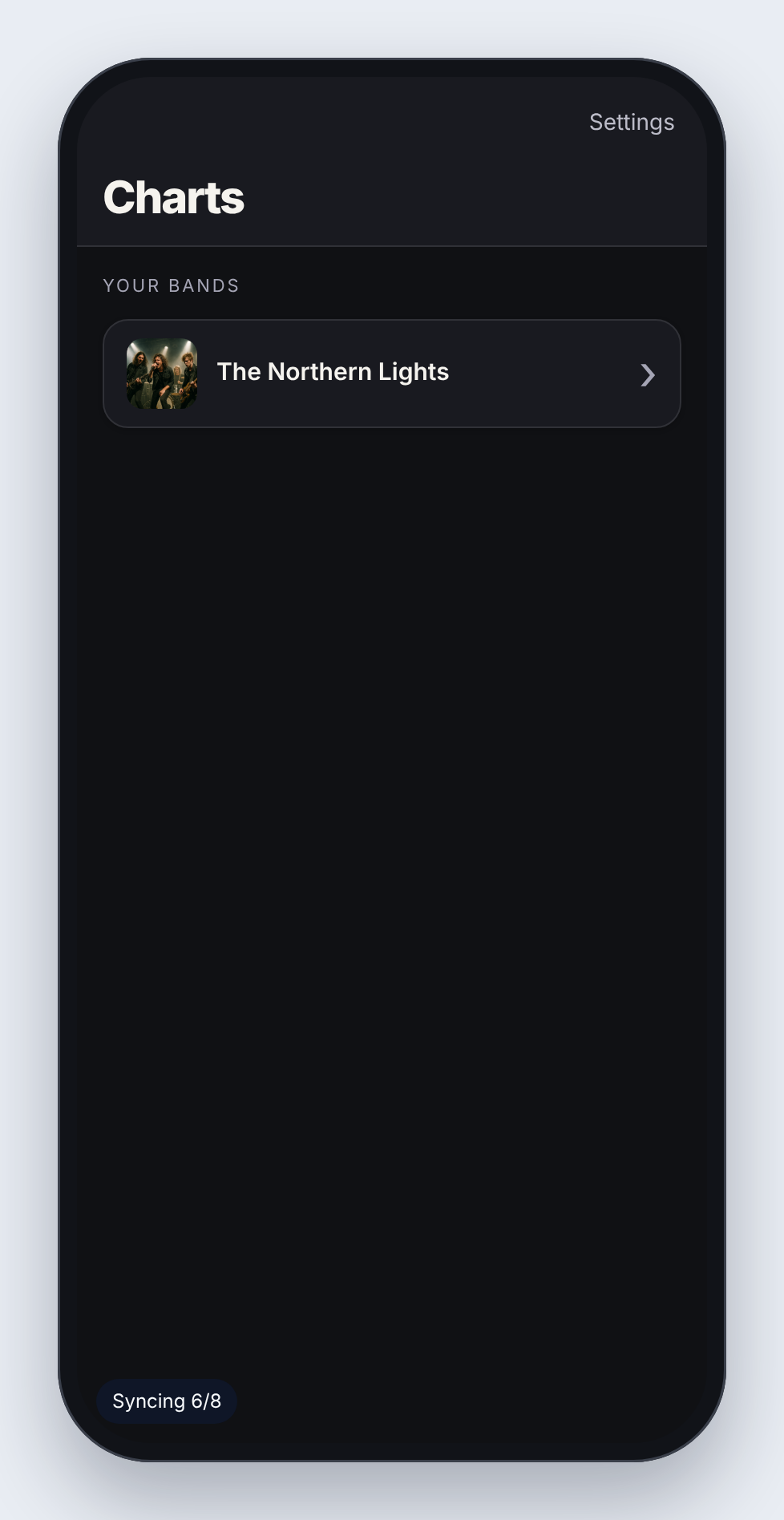
- Under Your bands, tap your band.
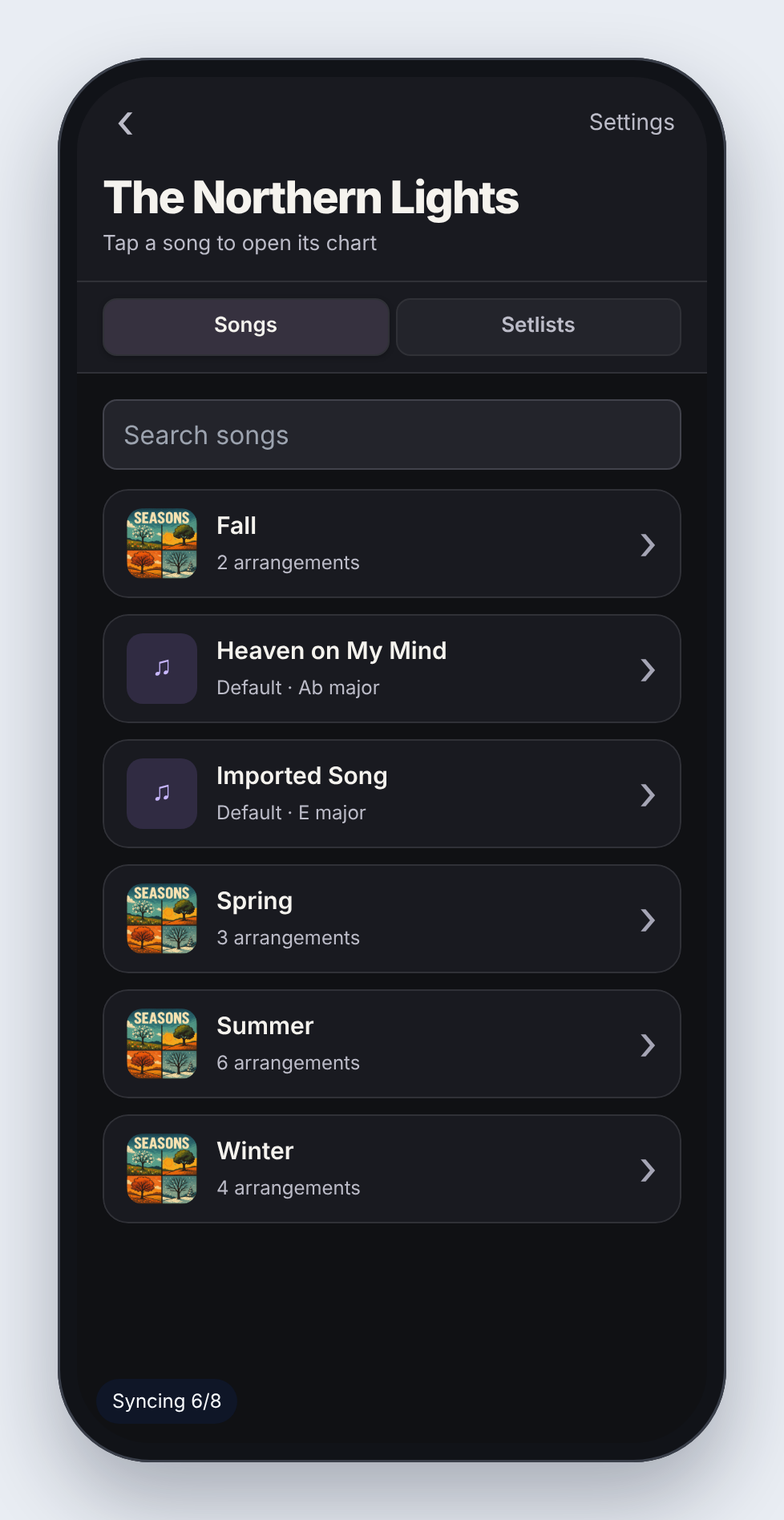
- On Songs, tap a song to open its chart. Use Search songs to find one fast. A song with several arrangements, such as Album and Short Version, lists them; tap the one you're playing.
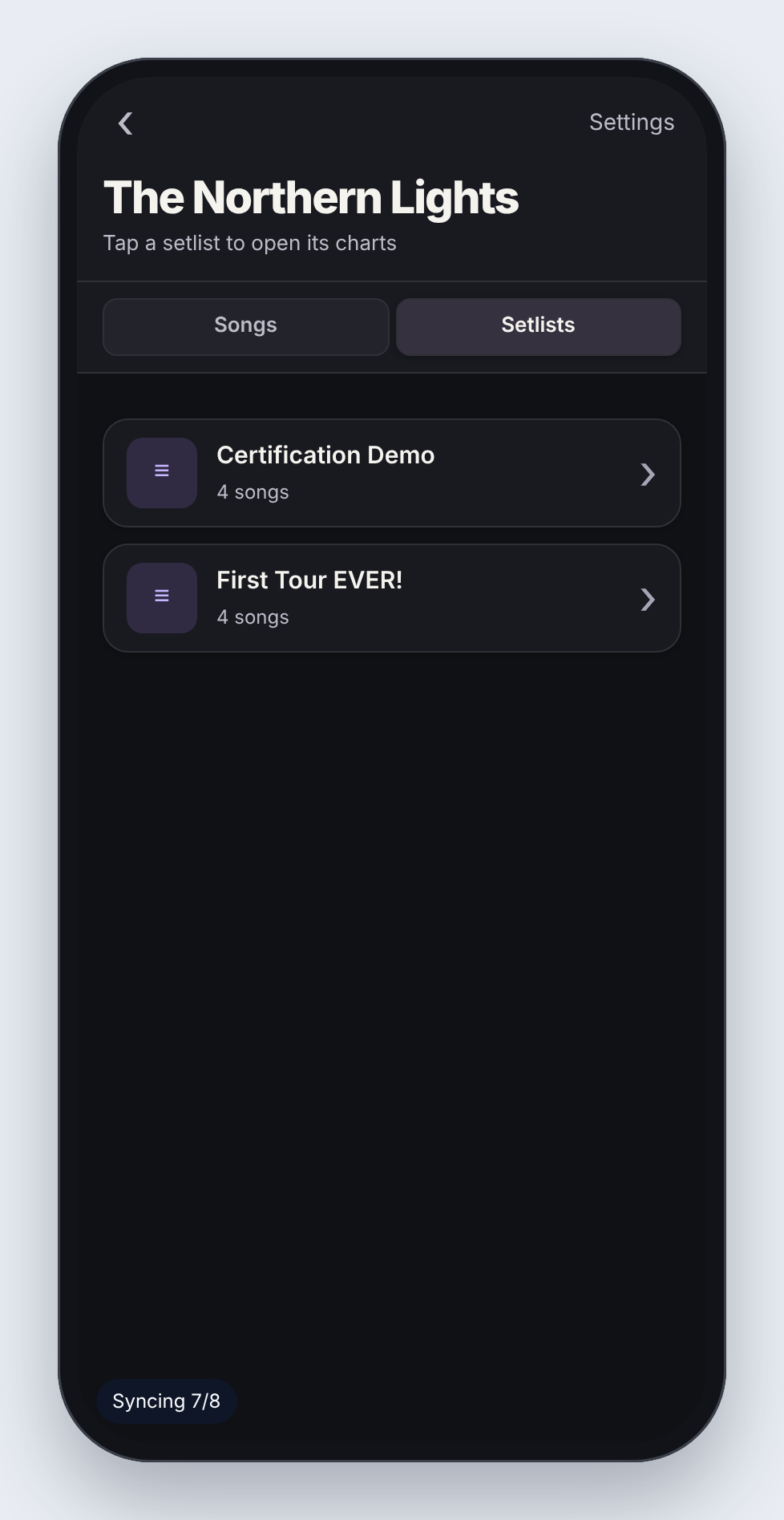
- Or tap Setlists and choose a setlist to open its charts in order.
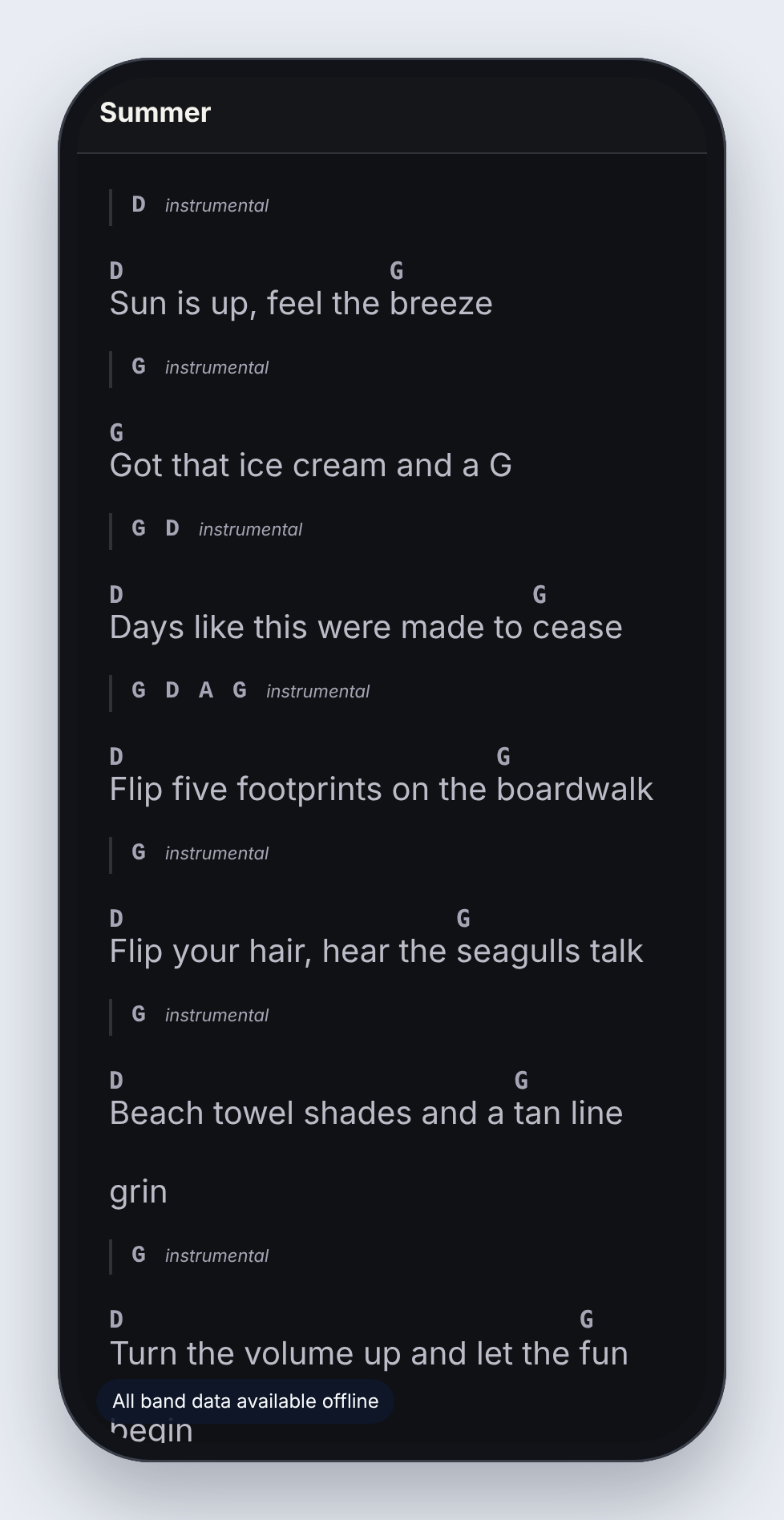
The chart fills the screen. Scroll to read ahead.
Move around a setlist
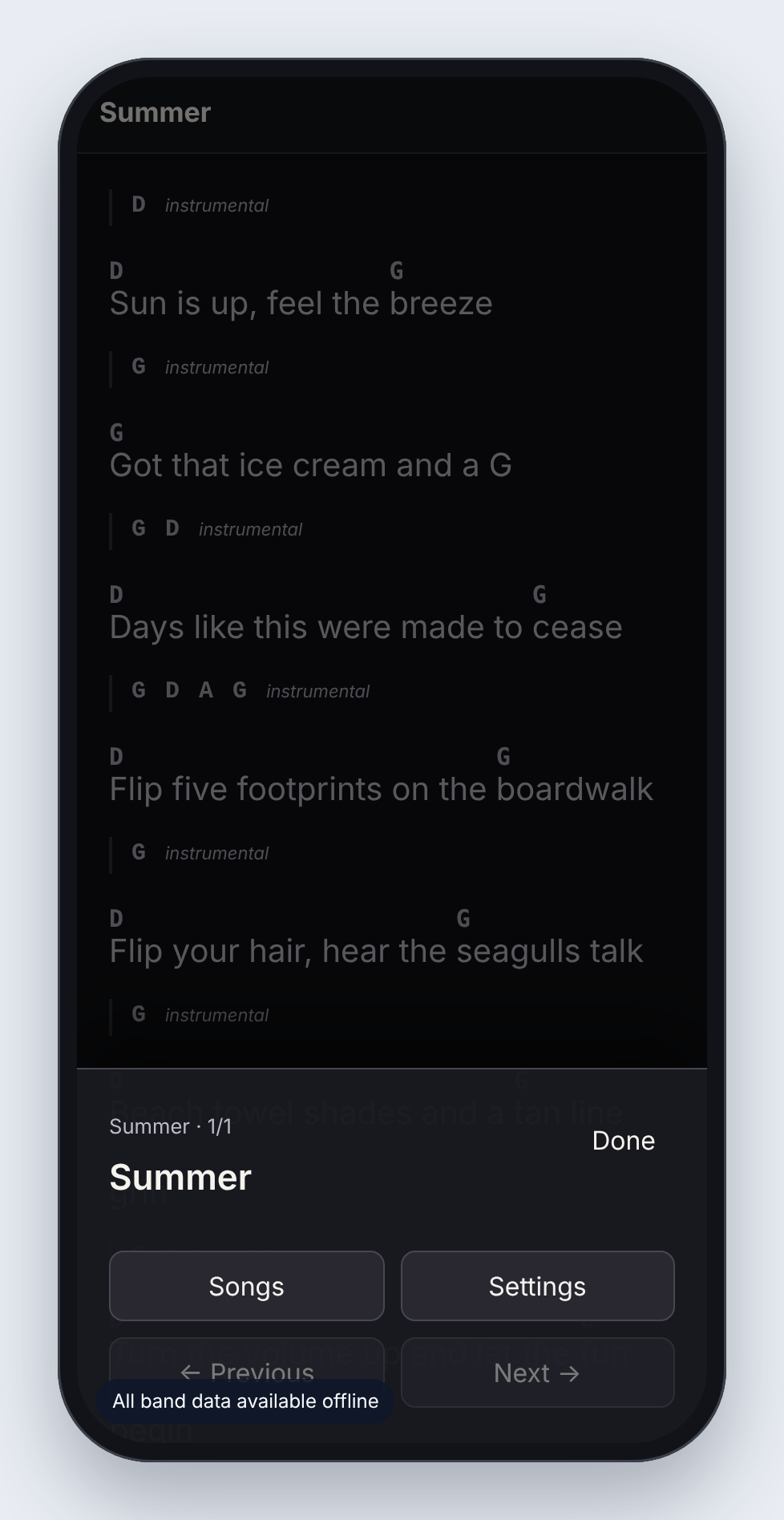
Tap anywhere on the chart to show the chart controls:
- ← Previous and Next → move through the setlist.
- Setlist (Songs when you opened a single song) lists every song so you can jump straight to one.
- Settings changes how the chart looks.
- Done hides the controls again.
Choose how the chart looks
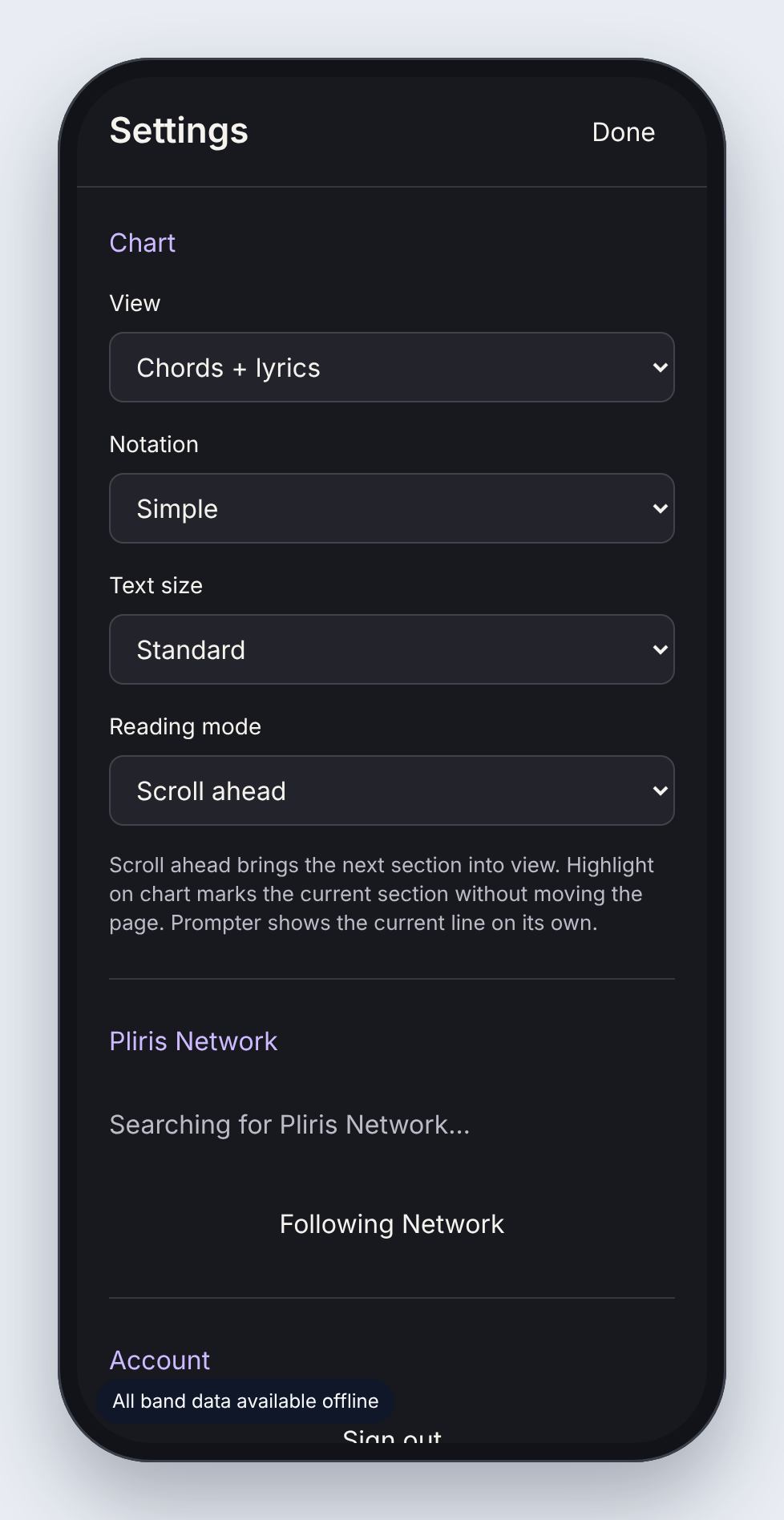
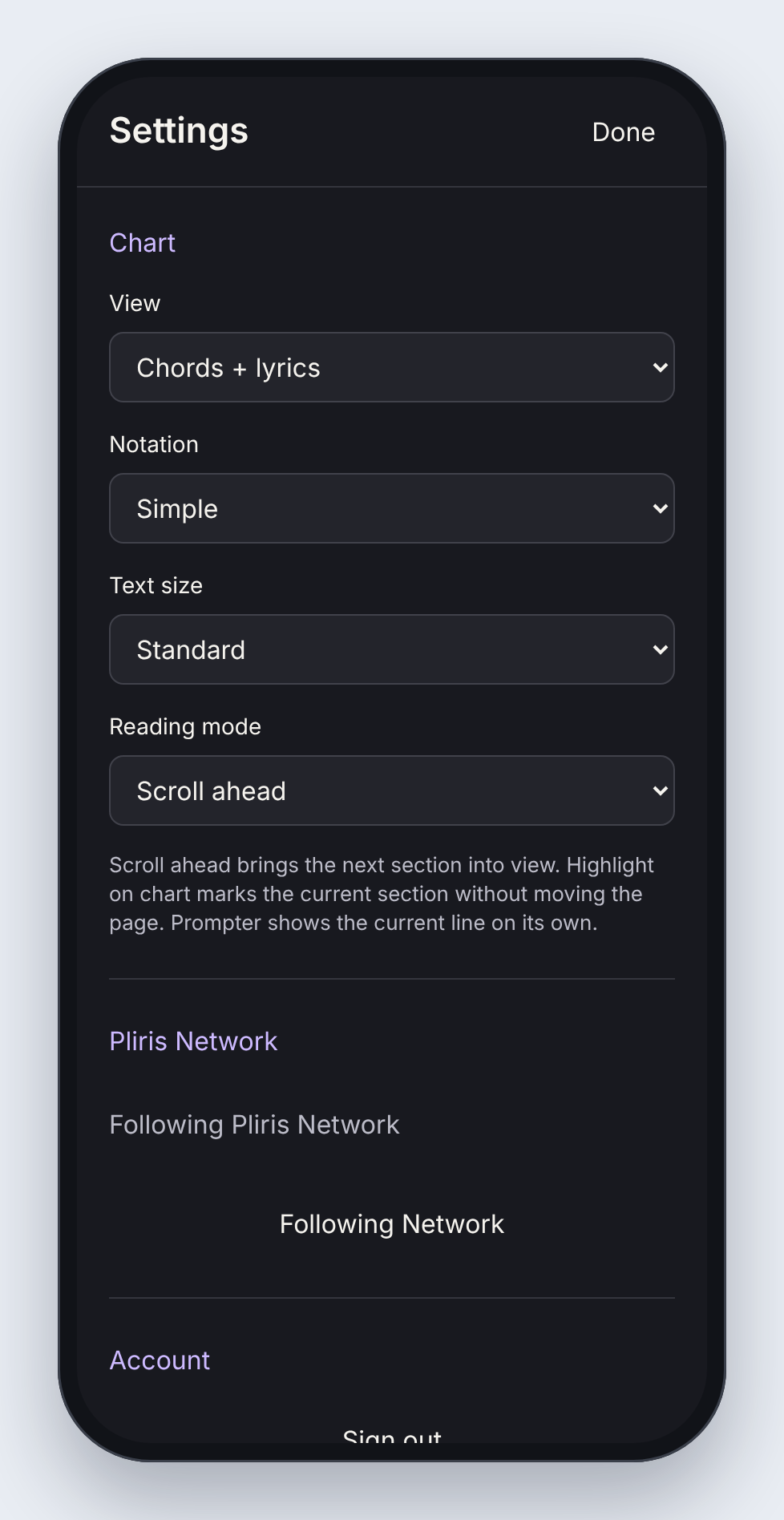
Tap the chart, then Settings. Under Chart:
- View: Chords + lyrics (chords above the words), Slash chart (chords over beat slashes, bar by bar), or Lyrics only.
- Notation: how chords are written. Simple (D, G), Jazz, or Numbers (the Nashville number system).
- Text size: Compact, Standard, Large or Extra large.
- Reading mode (iPhone): Scroll ahead brings the next section into view, Highlight on chart marks the current section without moving the page, and Prompter shows only the current line and the one up next, in large type.
- Fit chart to one page when possible (iPad): shrinks a chart to fit the screen so you don't have to scroll.
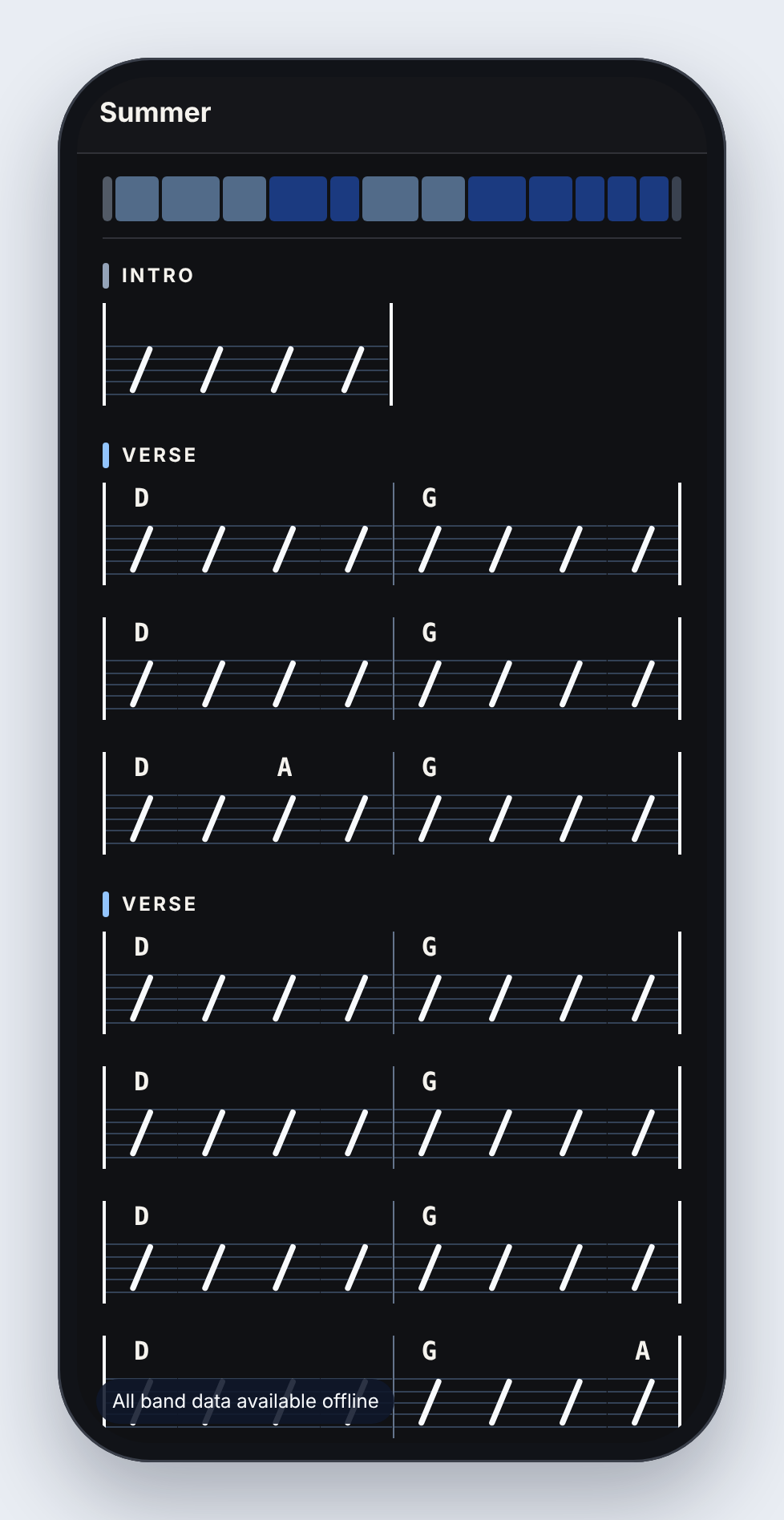
Pro tip: On a phone on a mic stand, try Prompter. One line at a time in big type is easier to read at arm's length than a full chart.
Follow the show with Maestro
When Maestro runs the show on the same network, Charts follows it over Pliris Network. There's nothing to pair and nothing to turn on: open Charts on the same network as the playback computer.
- When Maestro opens a setlist, Charts opens it too. If you already have a chart open, Charts asks first: Setlist ready: First Tour EVER! Loaded on Maestro. Open it here? Tap Open set, or Later to stay where you are.
- As Live plays, Charts moves to the song the band is playing and highlights the section you're in.
- If you browse away to another song by hand, Charts stops following and says Manual browsing. Tap Follow Network in Settings to jump back to the show.
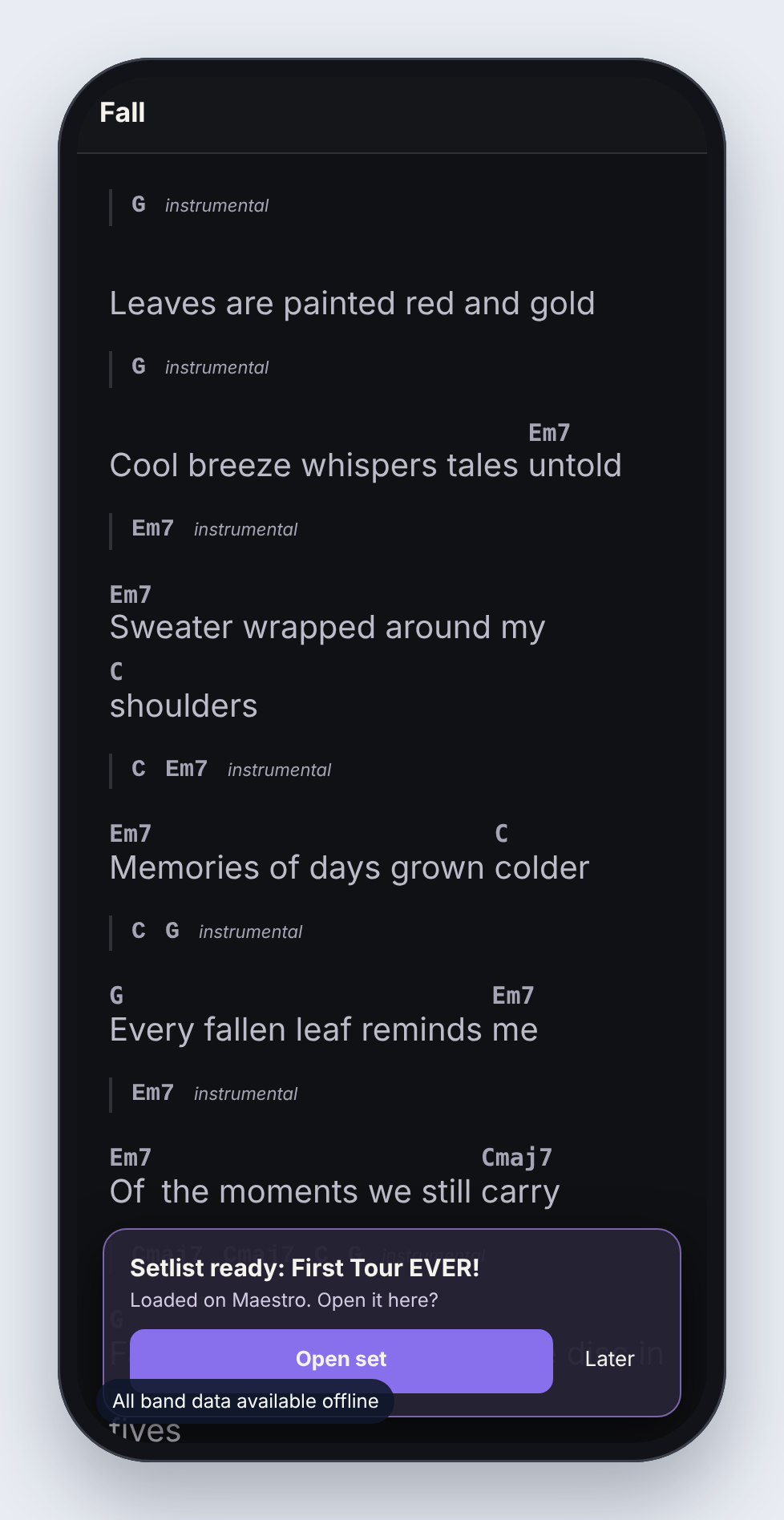
The Pliris Network section in Settings shows what Charts sees:
| Status | What it means |
|---|---|
| Searching for Pliris Network… | Charts hasn't found Maestro yet. |
| Pliris Network connected · waiting for sync | Charts sees Maestro, and Live isn't playing yet. |
| Following Pliris Network | Charts is following the show. |
| Manual browsing | You picked a song yourself. Tap Follow Network to follow again. |
| Sync received · no unique song match | Maestro is playing something Charts can't match to one song in this setlist. |
If the band stops, Live jumps, or the network drops for a moment, Charts holds its place rather than jumping somewhere wrong. It picks up again as soon as the show does.
Pro tip: Open Charts and get it following during soundcheck, not at downbeat. If it says Searching for Pliris Network…, you have time to fix it.
Use it with no internet
Charts downloads your band's songs, setlists and charts to the device while you're online. A small note at the bottom left shows the progress (Syncing 6/8) and then All band data available offline. From then on, Charts opens and shows every chart with no internet at all.
Following Maestro doesn't need the internet either. Pliris Network runs on your local network.
On iPad
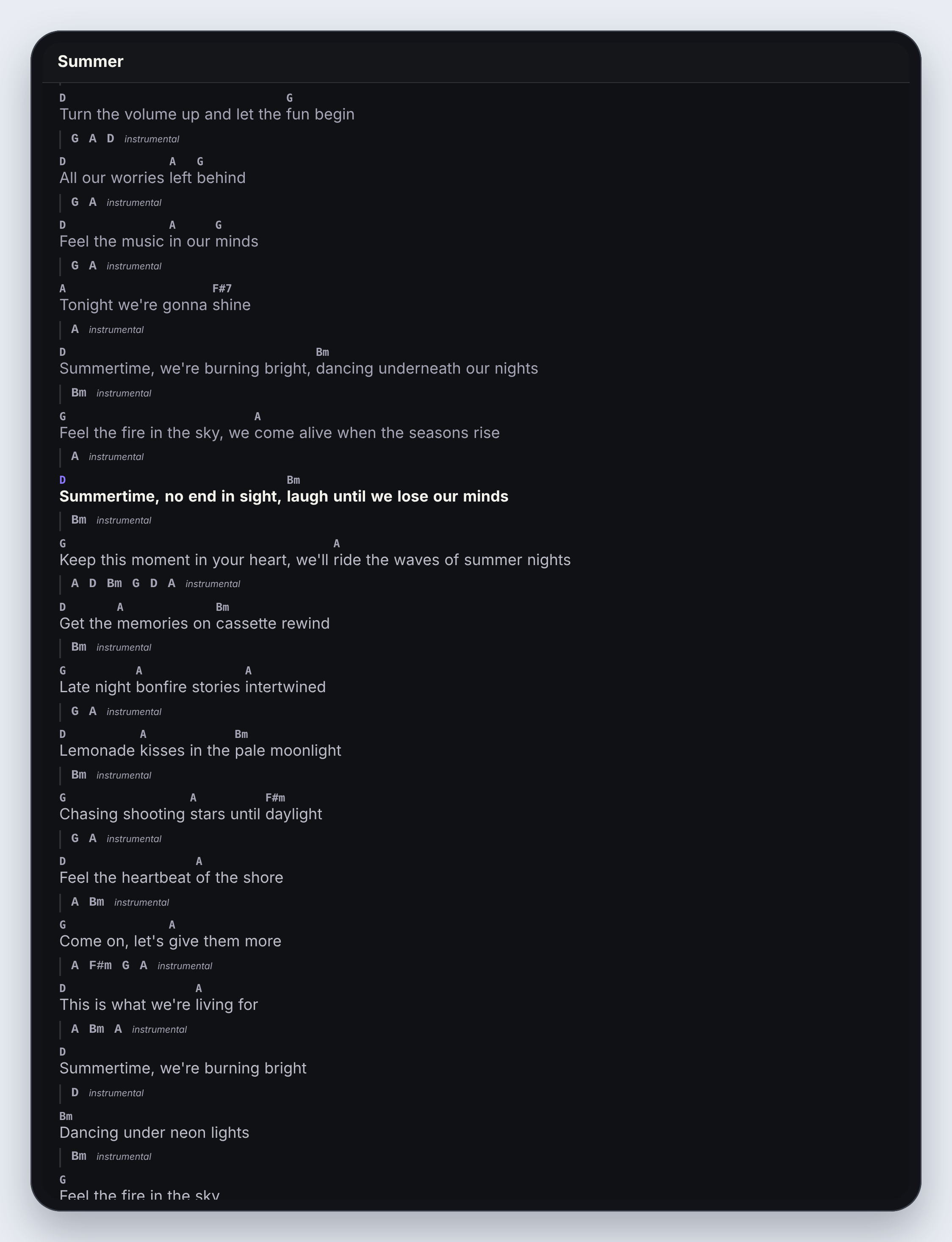
On an iPad the whole chart has room to breathe, and Fit chart to one page when possible can put a song on one screen.
Frequently asked questions
How does Charts know which song we're playing?
Maestro sends the show's position over Pliris Network as Live plays, and Charts matches it to the song and section in your setlist. Charts only listens; it never controls the show.
Charts says "Searching for Pliris Network…" and never connects. What should I check?
First, check that Local Network access is on for Charts, in Settings → Privacy & Security → Local Network on the iPhone or iPad. Then check the device is on the same Wi-Fi as the playback computer, and that Maestro is open. Venue and guest Wi-Fi often blocks devices from seeing each other; use your own router. See What is Pliris Network? for the full checklist.
It's connected but says "waiting for sync."
Charts can see Maestro, but Live isn't playing. Start playback and Charts follows.
How do I stop Charts from jumping songs while I look ahead?
Browse to another song by hand and Charts stops following (Manual browsing). Tap Follow Network in Settings to go back to following the show.
Can I use Charts without Maestro?
Yes. Open any song or setlist and read it, scroll and move between songs yourself. Following Maestro is an extra for the show.
Does Charts work with no internet?
Yes. Once Charts has synced your band (All band data available offline), every chart opens with no connection. Following Maestro works offline too.
Can I see the chart as numbers instead of chord names?
Yes. Tap the chart, then Settings → Notation → Numbers.
Is there an Android version?
Not yet. Charts is available for iPhone and iPad through TestFlight.
Where to go next
- What is Pliris Network?: how Charts follows Maestro.
- The Maestro desktop app: run the show that Charts follows.
- The Bands app for iPhone and iPad: rehearse the songs with stems.
Stuck at any point, click the support bubble in the bottom-right corner of any page, or email support@fromstudiotostage.com. You'll hear back within 24 hours.