The Bands App for iPhone and iPad
Rehearse your parts anywhere: sign in with a code, open any song or setlist, play the stems with your own mix, follow the lyrics and chords, loop a section, and download songs to rehearse with no internet.
The Bands app puts your band's songs on your iPhone or iPad, ready to rehearse. Open a song and you hear the real stems with your own mix: solo your part, mute the click, loop the bridge until it sticks. The lyrics and chords are one tap away. Download a setlist before you leave home and you can rehearse it on the plane.
What you need
- An iPhone or iPad.
- The Pliris Bands app, from TestFlight. See The Pliris beta apps.
- Your Pliris account. The app uses the same account as the website, and it can't create a new one. Sign up at bands.fromstudiotostage.com first if you don't have one.
Sign in
- Open Pliris Bands.
- Type the email address you use for Pliris and tap Send code.
- Check your email for a 6-digit code, type it in, and tap Sign in.
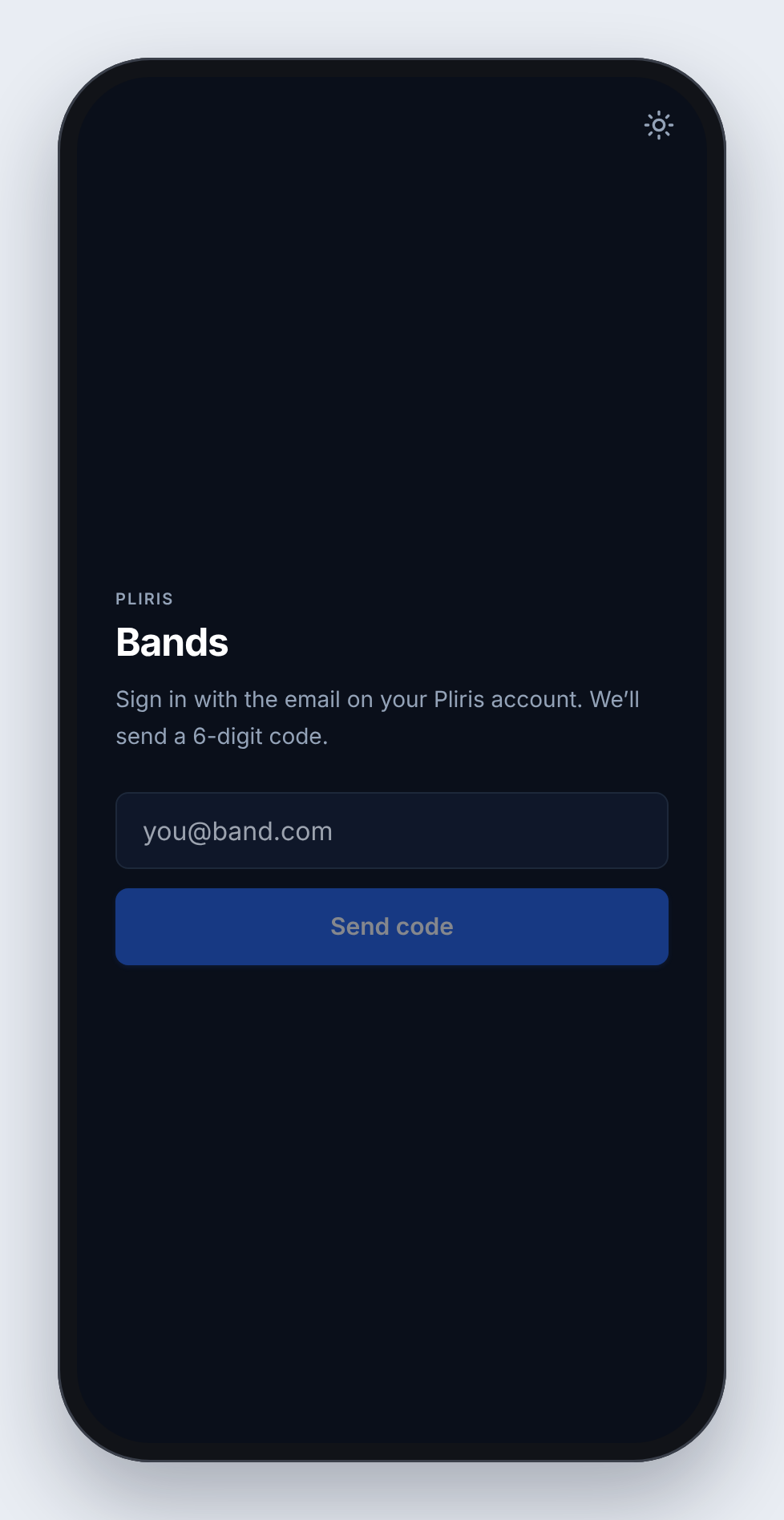
Typed the wrong address? Tap Use a different email. If the app says No account found for that email, that address isn't on a Pliris account. Check for a typo, or sign up on the website first.
You stay signed in, so this is a one-time step on each device. The sun or moon button at the top right switches between light and dark.
Find a song
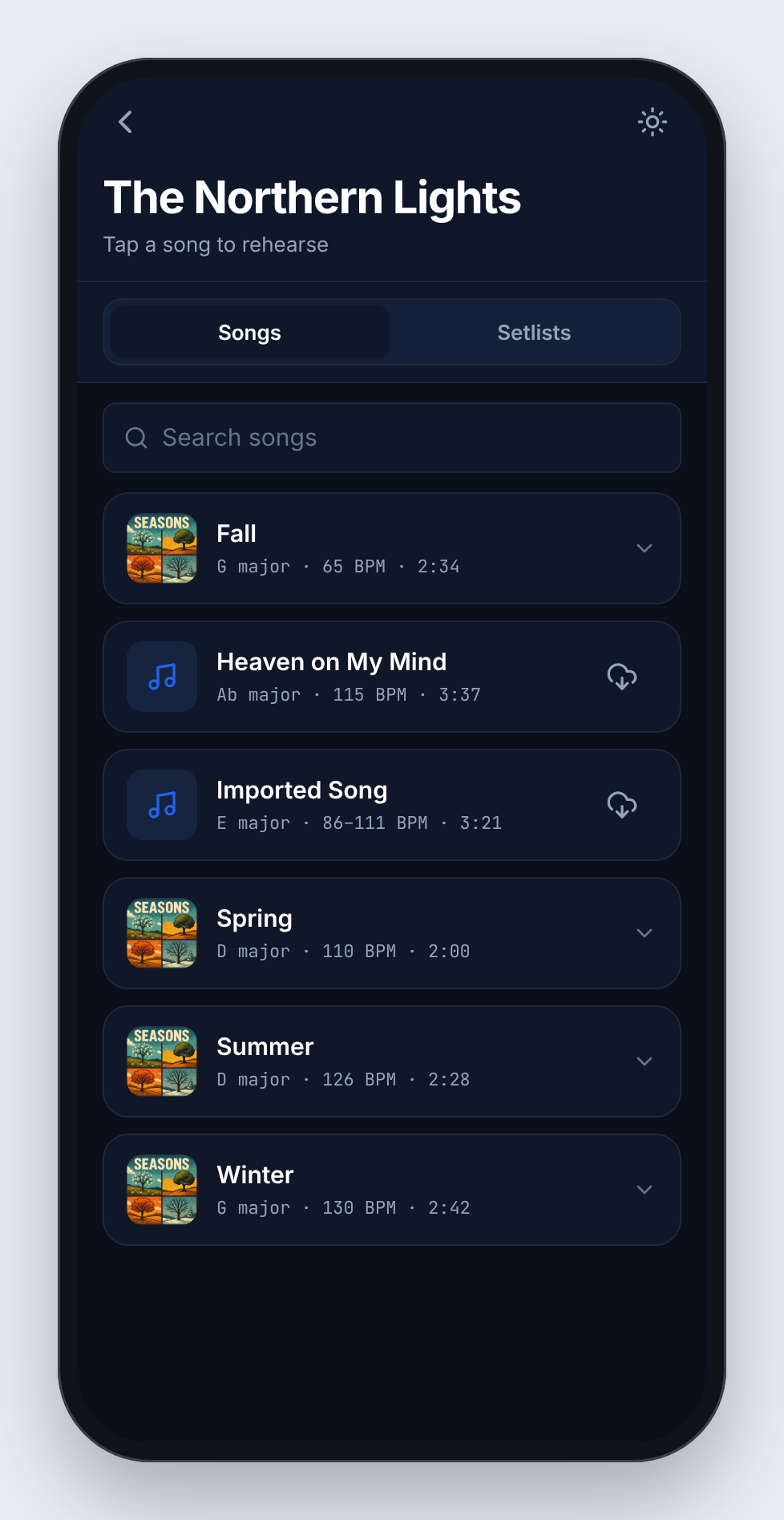
If you're in more than one band, the app opens on Your bands. Tap one. With a single band, it goes straight to that band's songs.
- Songs lists every song in the band, with its key, tempo and length. Use Search songs to find one fast.
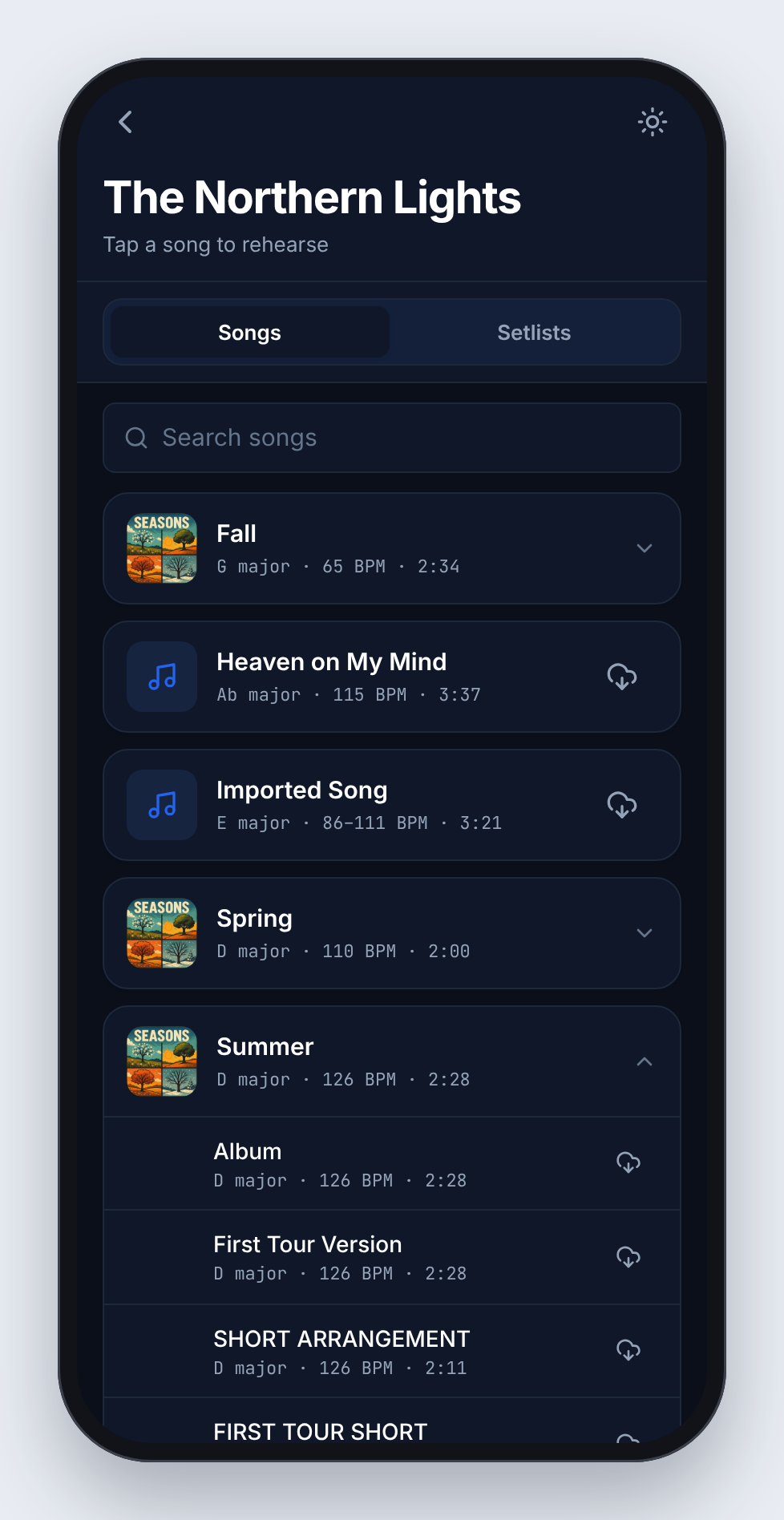
- A song with more than one arrangement opens a list of its versions, such as Album or Short Version. Tap the one you want.
Rehearse a setlist
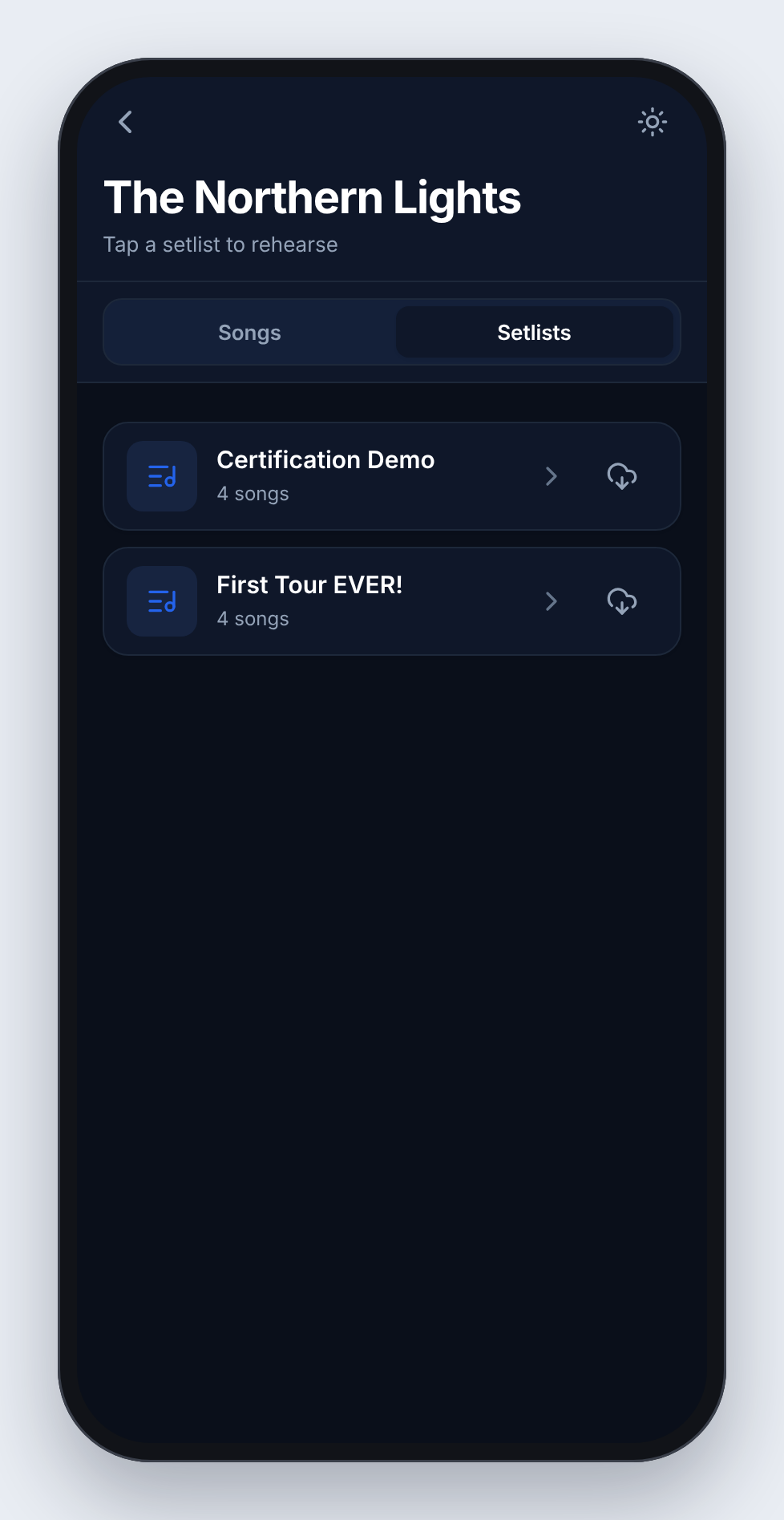
- Tap Setlists at the top of the band's page.
- Tap a setlist. The first song opens, and the header shows where you are, such as 1 of 4 · First Tour EVER!
- Use the arrows at the top right to move to the next or previous song in the set.
Play a song
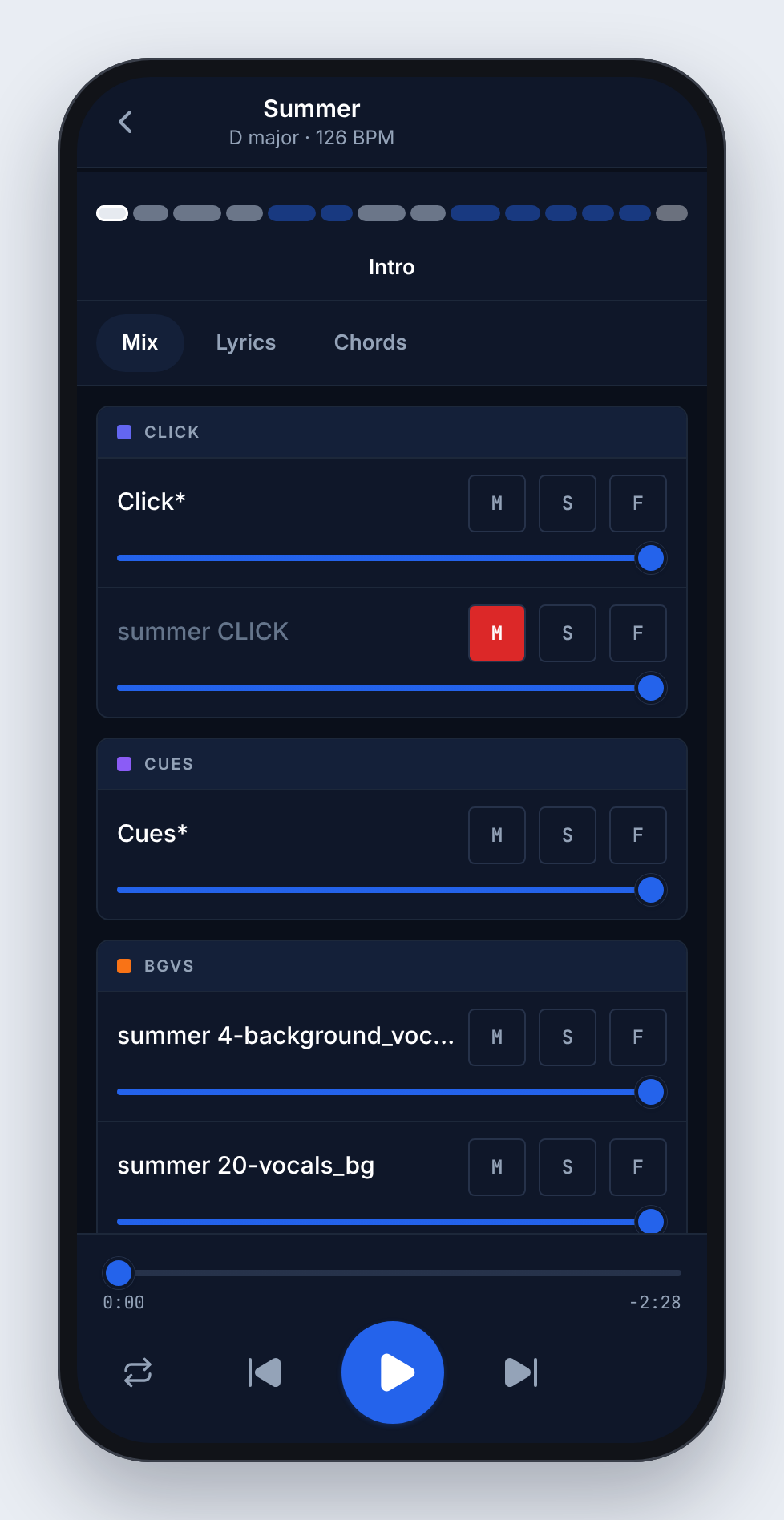
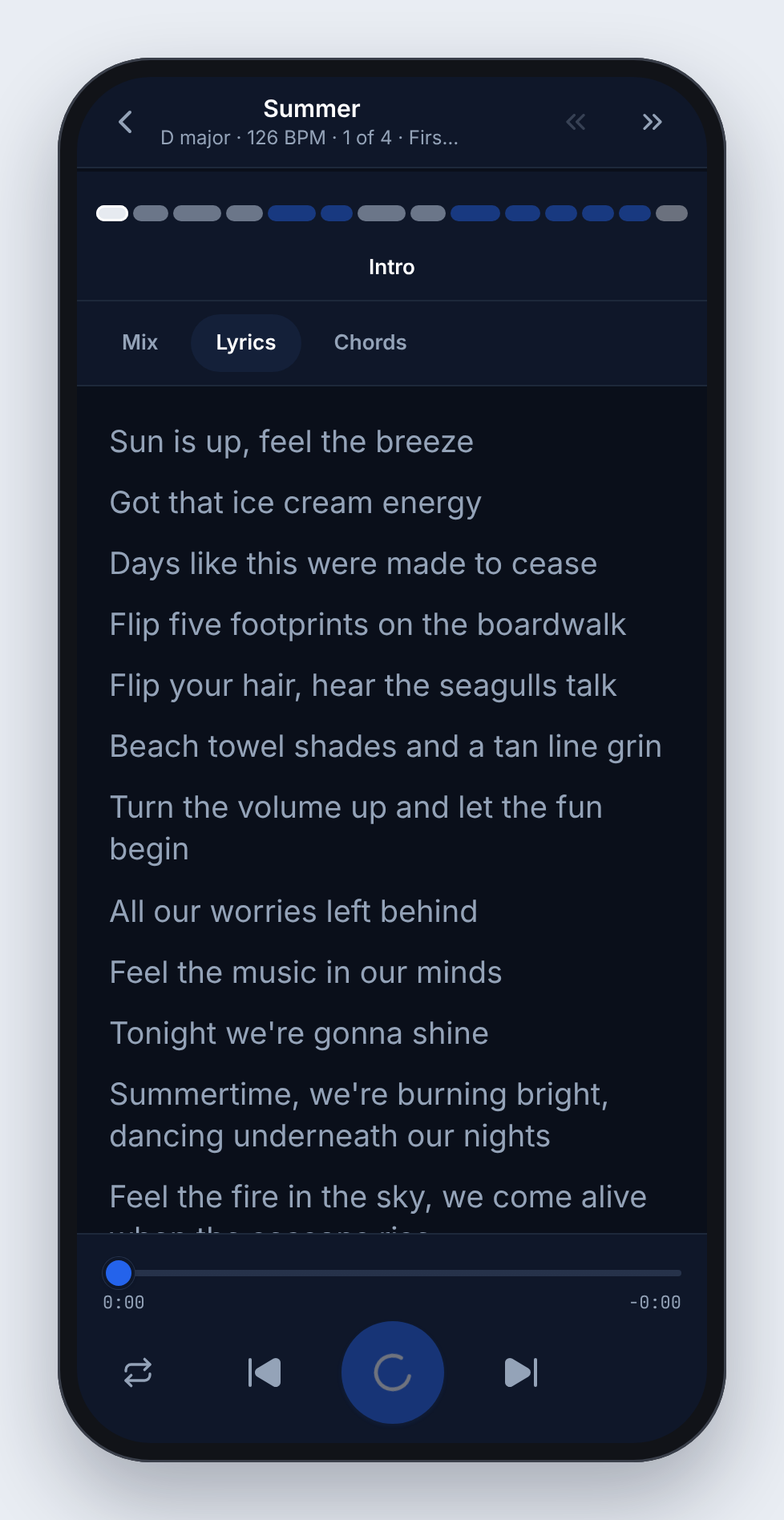
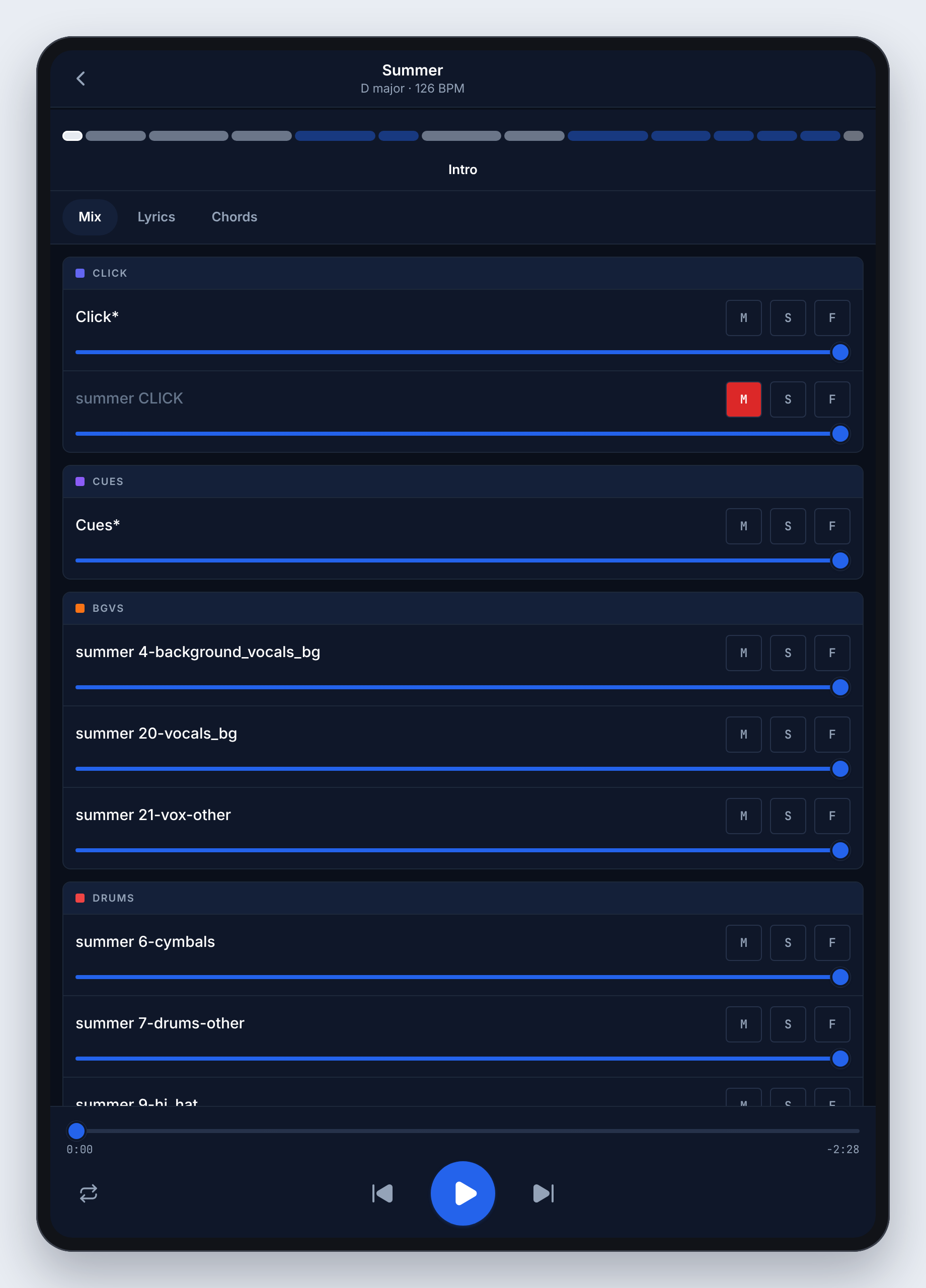
The player has four parts, top to bottom:
- The sections. Each bar across the top is a section of the song: intro, verses, choruses. The name of the current one is underneath. Tap a bar to jump there.
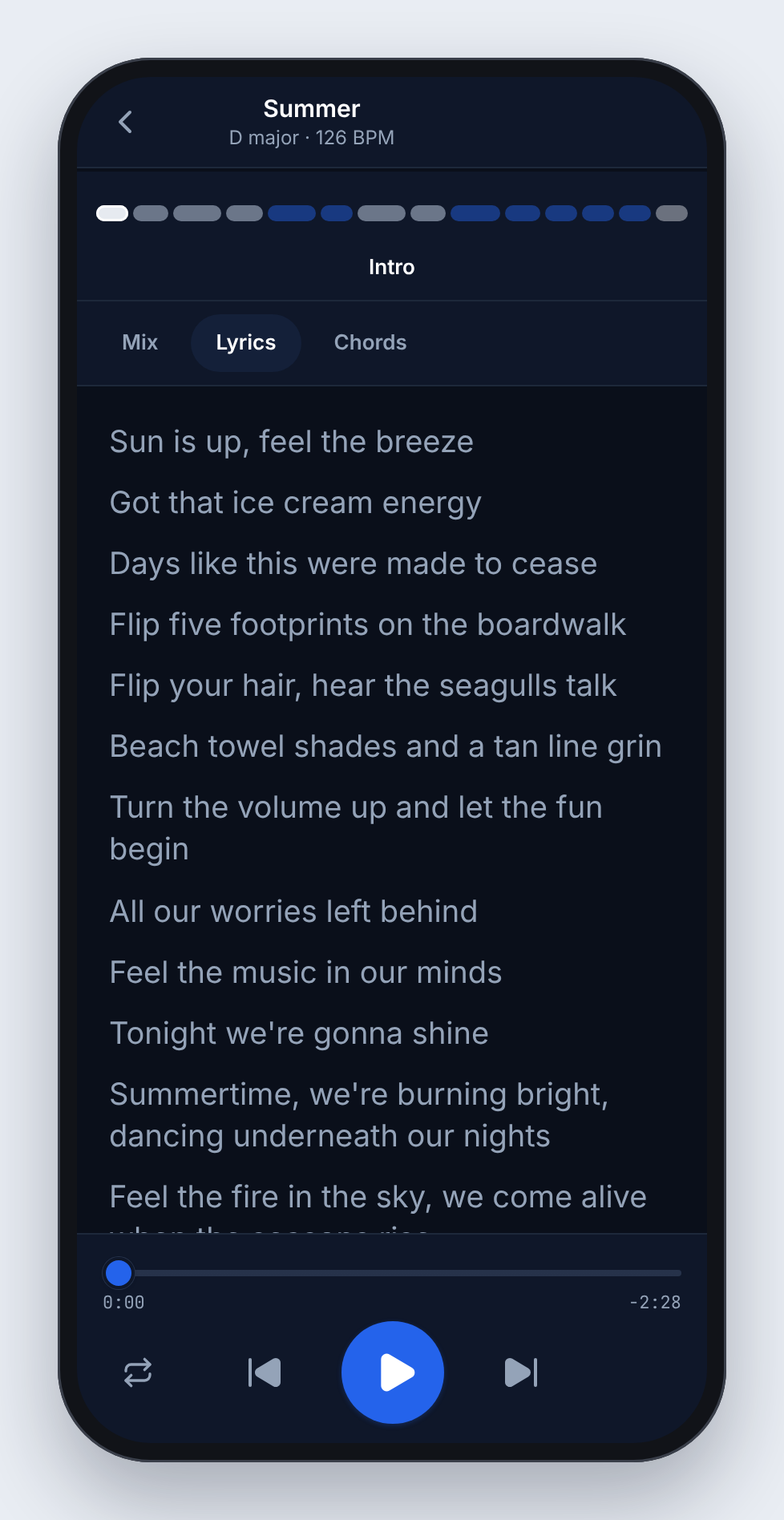
- Mix, Lyrics and Chords. Tabs for what you want to see while you play. Lyrics and Chords appear when the song has them.
- The timeline. Drag it to move through the song. It shows the time played and the time left.
- The controls. Play / pause, previous and next section, and loop.
Make your own mix
On the Mix tab, every stem has its own row, grouped the way your band groups them (click, cues, background vocals, drums and so on):
- M mutes it.
- S solos it.
- F focuses on it: that stem stays where it is and everything else drops to about a third of its volume, so you can pick it out. Tap F again to bring the rest back.
- The slider sets its volume.
Your mix only changes what you hear on this phone or tablet. It doesn't change the song for the rest of the band.
Pro tip: Learning a part? Turn down the stem you play and keep the click. You're playing along with the record minus you.
Loop a section
Tap a section to jump to it, then tap the loop button at the bottom left. That section repeats until you tap loop again. A ⟲ next to the section name shows it's looping.
Follow the lyrics and chords
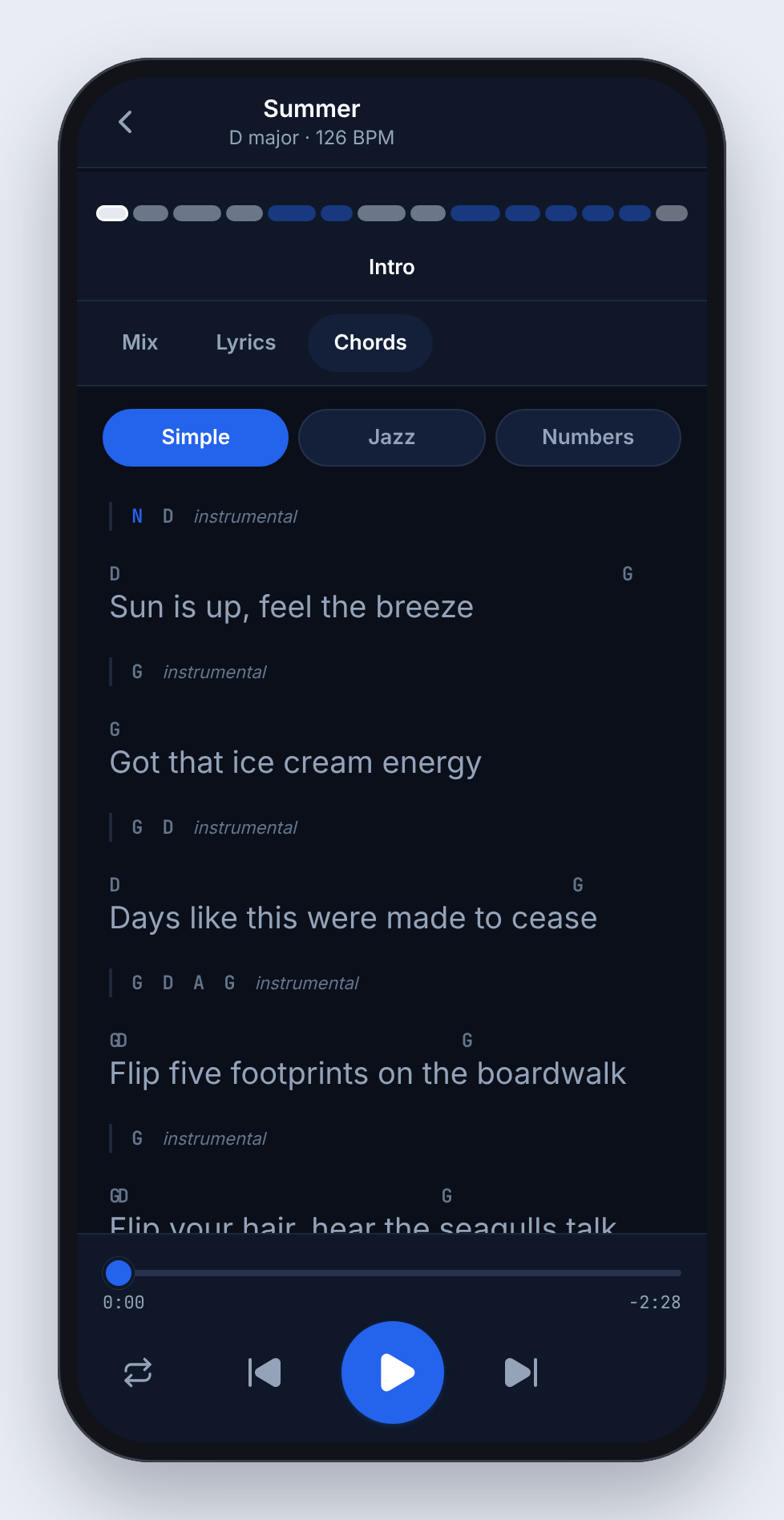
Tap Lyrics for the words, or Chords for the chords above the lyrics. On the Chords tab, choose how chords are written: Simple (D, G), Jazz or Numbers (the Nashville number system).
Rehearse with no internet
Download songs while you're online and you can rehearse them anywhere, with no signal at all.
- One song: tap the cloud next to it on the Songs list. The download shows its progress, then a check mark.
- A version of a song: open the song's arrangements and tap the cloud next to the one you want.
- A whole setlist: tap the cloud next to it on the Setlists tab.
When you're offline, the app says Offline — showing downloaded songs and lists only what's on the device. To free up space, tap the check mark next to a downloaded song and choose Remove download.
Download buttons appear for band admins and for members whose role lets them download files. If you don't see them, ask your band admin.
On iPad
The iPad shows the same app with more room: longer song lists, and more of the mix on screen at once.
Frequently asked questions
How do I sign in to the Bands app?
Type the email address on your Pliris account and tap Send code. Then type the 6-digit code from your email and tap Sign in. There's no password.
It says "No account found for that email."
The app signs in to an existing Pliris account and can't create a new one. Check the address for typos, or sign up at bands.fromstudiotostage.com first, then sign in to the app with that email.
Does changing the mix change the song for my band?
No. Your mix is yours: it changes only what you hear on your own phone or tablet.
Can I rehearse without internet?
Yes, for songs you've downloaded. Tap the cloud next to a song or setlist while you're online, and it plays with no connection later.
Why don't I see the download buttons?
They appear for band admins and for members whose role allows downloading files. Ask an admin of your band to give you download access.
Why are there no lyrics or chords on a song?
The Lyrics and Chords tabs appear only when the song has them. Add lyrics and chords to the song on the website and they show up in the app.
Can I edit songs or build setlists in the app?
No. The Bands app is for rehearsing. Edit songs and build setlists on the website or in Maestro, and the app picks up the changes.
Is there an Android version?
Not yet. The Bands app is available for iPhone and iPad through TestFlight.
Where to go next
- The Pliris beta apps: install the Bands app from TestFlight.
- Pliris Charts: charts that follow the show on stage.
- Pliris Remote: run Maestro from your phone during the show.
Stuck at any point, click the support bubble in the bottom-right corner of any page, or email support@fromstudiotostage.com. You'll hear back within 24 hours.