Pliris Remote for iPhone and iPad
Run Maestro from the stage: connect your iPhone or iPad to the playback computer, jump between songs and sections, loop and fade, rebuild tonight's setlist, build your own controller, and mix Live's tracks from your phone.
Pliris Remote puts Maestro in your pocket. From the stage, you can jump to the bridge, loop the vamp, fade the last chorus or skip a song, without walking back to the playback computer. You can also reorder tonight's set, mix Live's tracks, and build a controller with exactly the buttons your show needs.
What you need
- An iPhone or iPad.
- Pliris Remote, from TestFlight. See The Pliris beta apps.
- Maestro running on the playback computer. See The Maestro desktop app.
- Both on the same network, wired or Wi-Fi. The playback computer can be plugged into your show router while the phone joins its Wi-Fi. No internet needed: Remote talks to Maestro over your local network only. Your own router or a personal hotspot works best. Venue and hotel Wi-Fi often blocks devices from talking to each other.
Connect to Maestro
- Open Maestro on the playback computer.
- Put your iPhone or iPad on the same network.
- Open Pliris Remote. Allow Local Network access when iOS asks; Remote can't find Maestro without it.
- Remote lists every Maestro it finds, such as Pliris Maestro (Playback A). Tap yours. If it's the only one, Remote joins it by itself after a couple of seconds.
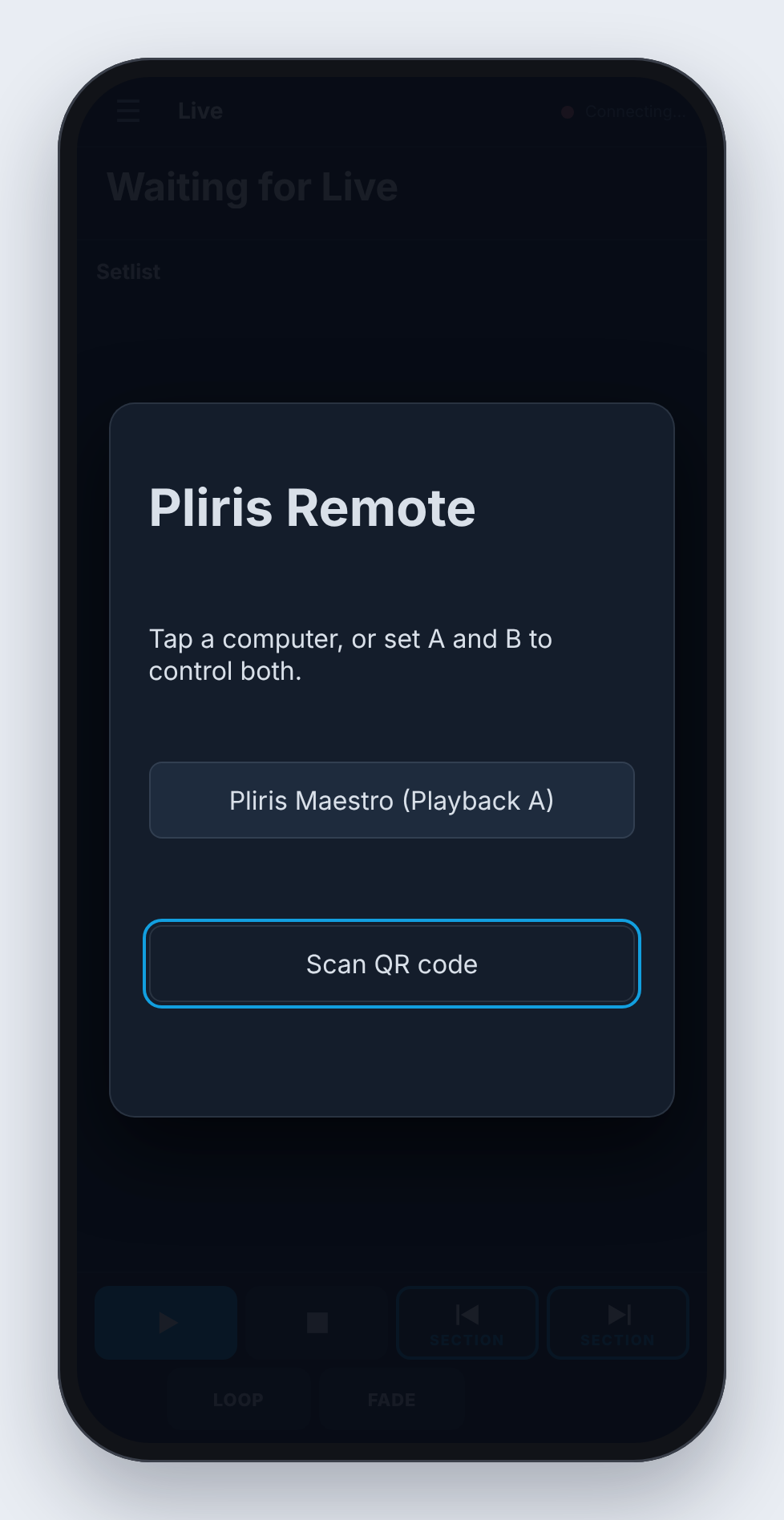
If Maestro has a remote password, Remote asks for it. Type it and tap Join.
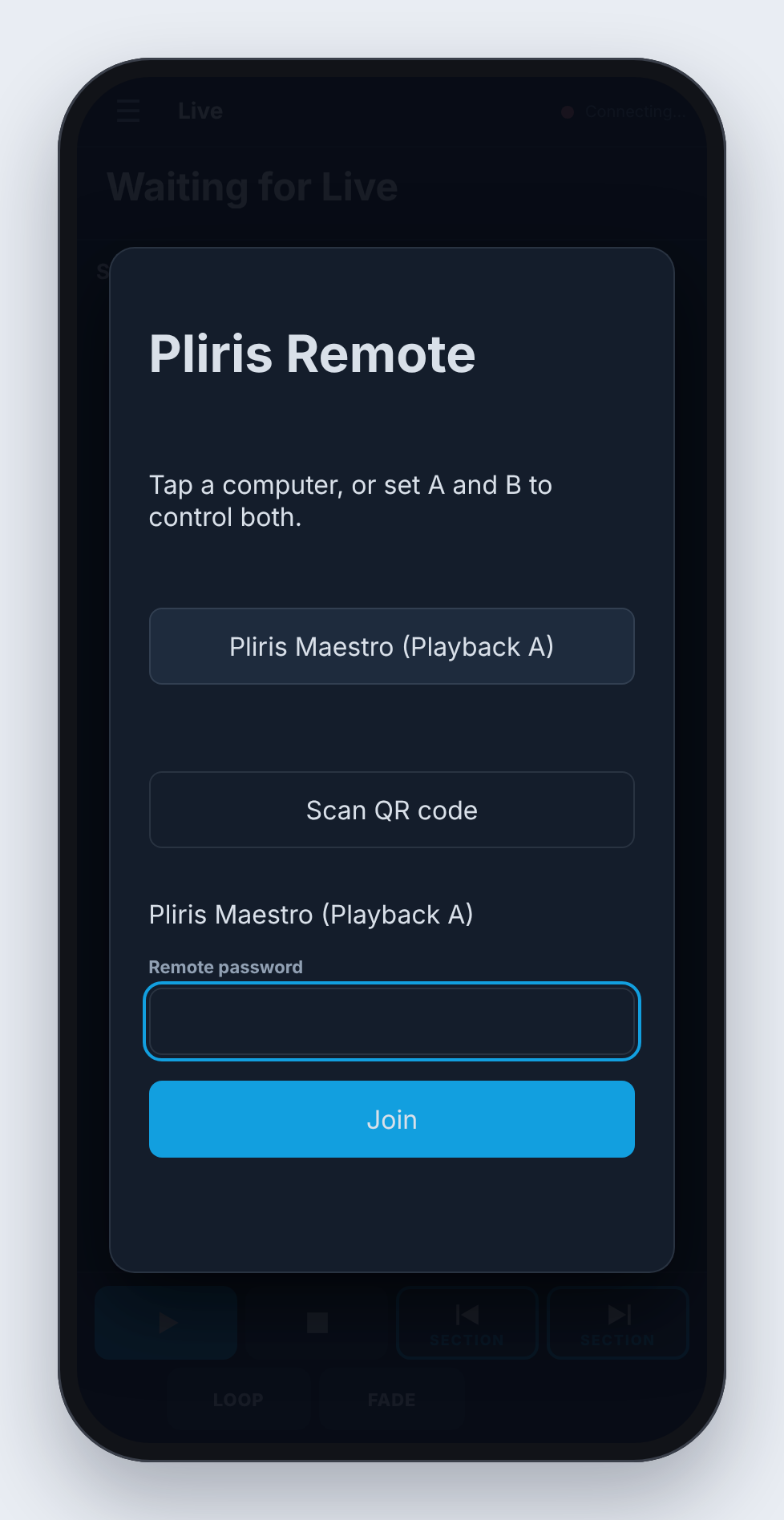
When you're connected, the top right says Connected.
Set a remote password
The password is optional and lives in Maestro, under Settings → Remote:
- No password: any phone on the network joins with one tap.
- With a password: each phone asks for it. Set one whenever you share the network with people outside your team.
The same screen shows how many phones are connected, and Disconnect all signs them all out.
Remote remembers which computer you used, but not the password. After you close the app completely, it asks for the password again.
Run the show from the Live page
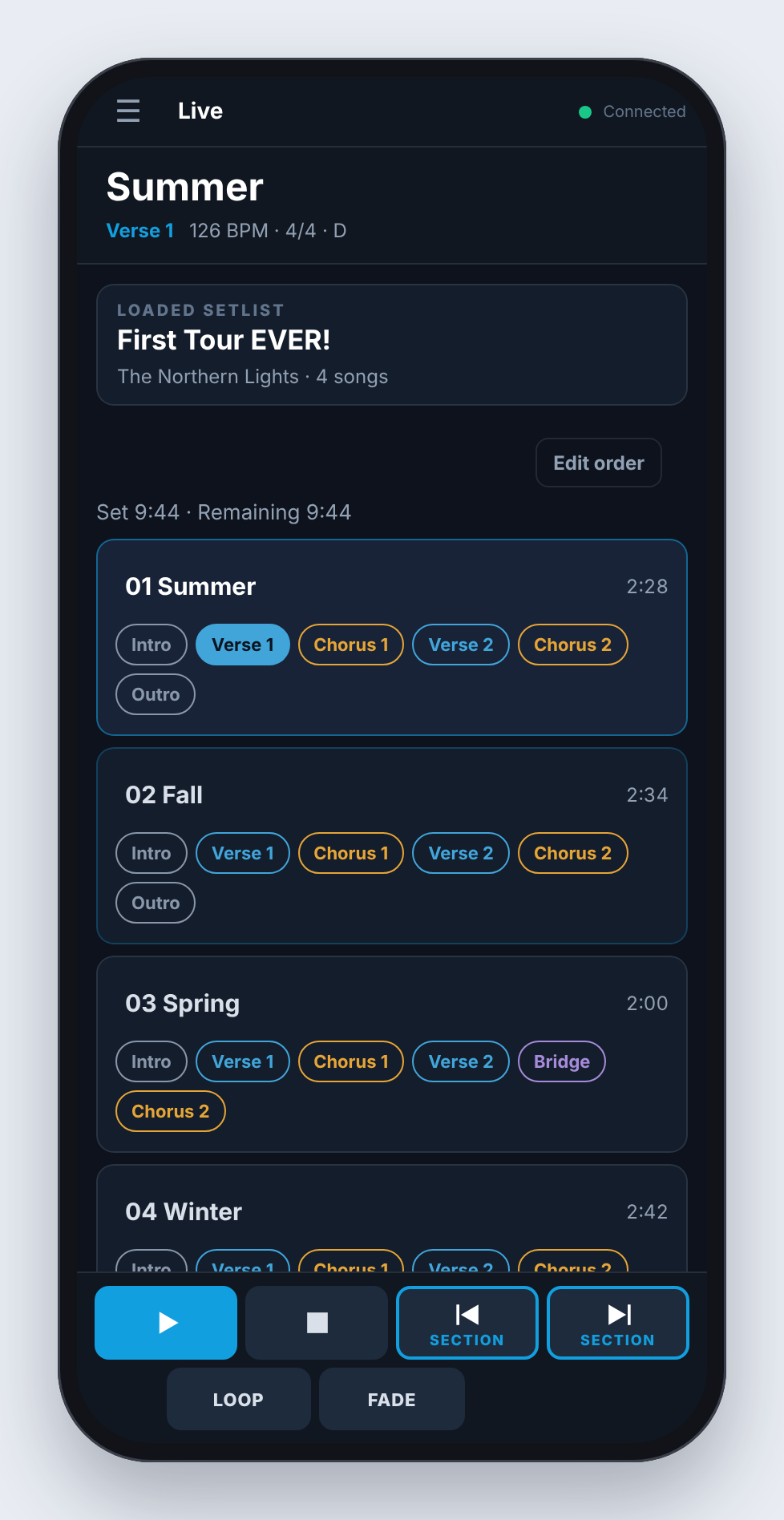
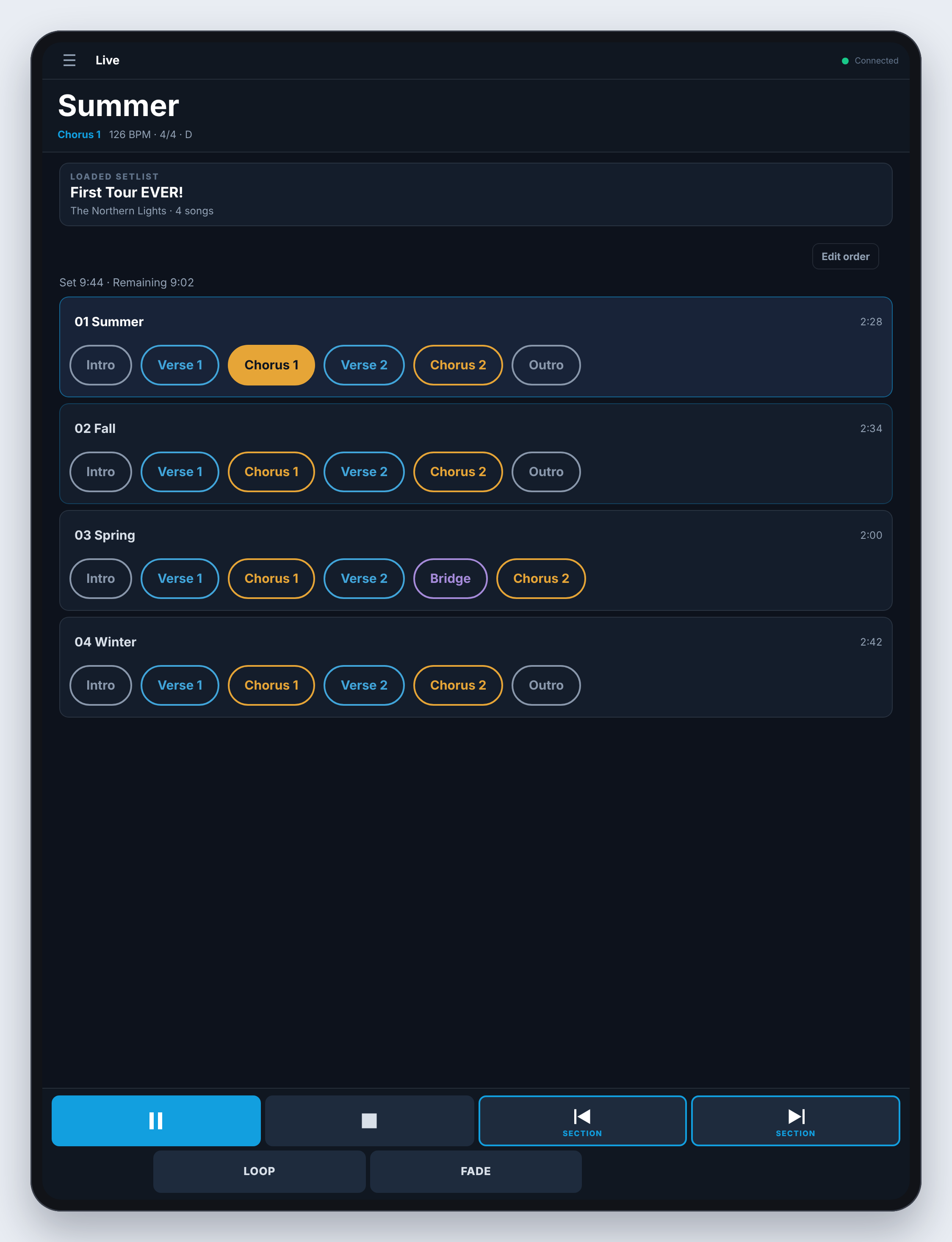
The Live page shows the current song, with its section, tempo, time signature and key. Below that are the loaded setlist, how long the set runs and how much is left, and every song in the set.
- Tap a song to jump to it.
- Tap a section (Verse 1, Chorus 1, Bridge) to jump there.
- Use the buttons along the bottom: Play / Pause, Stop, Previous and Next, LOOP and FADE.
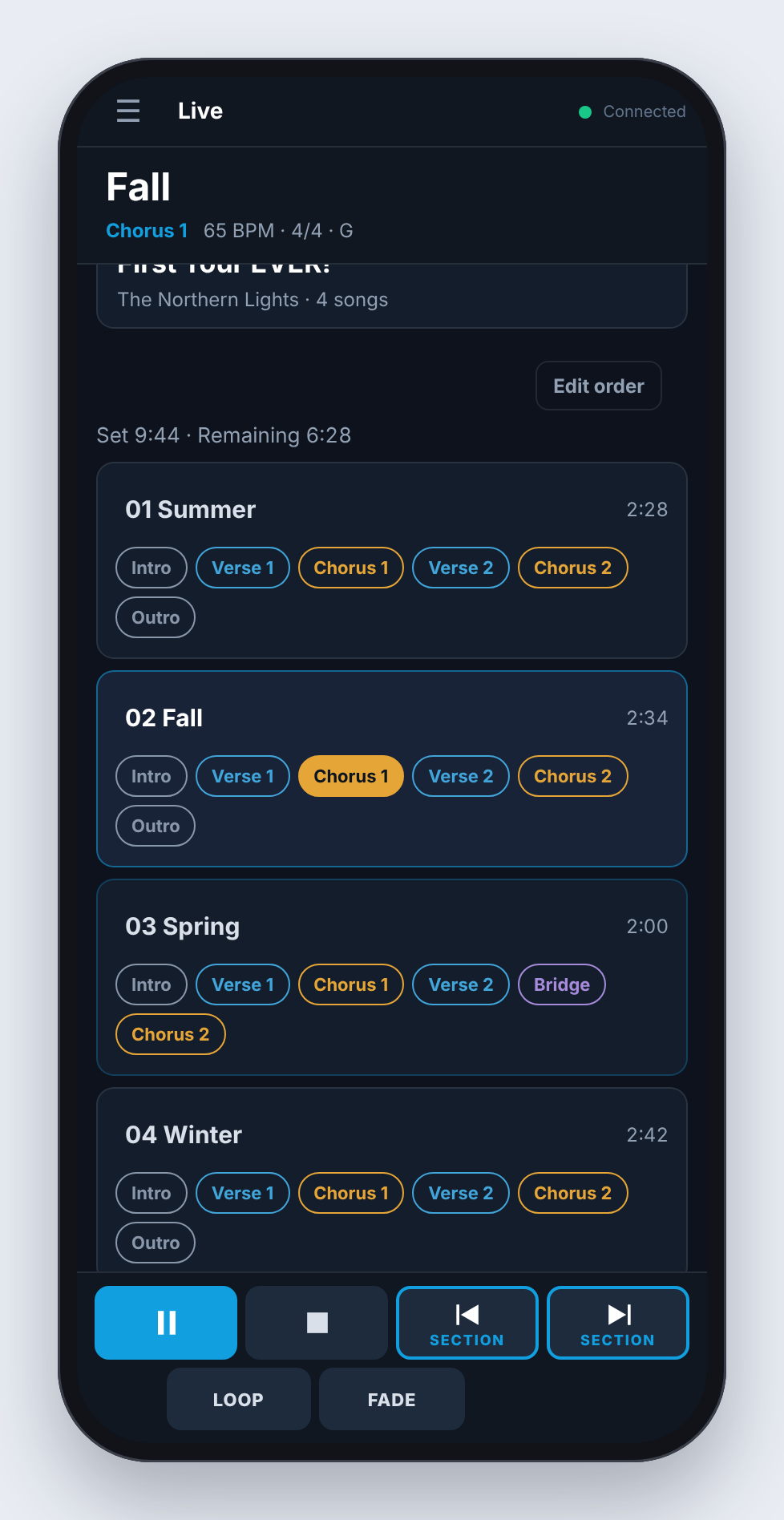
Previous and Next move by section, and say Section underneath. To make them move by song instead, open the menu and change Prev / Next move by to Song.
LOOP repeats the current section until you release it. FADE brings the song down using the fade you set in Maestro.
Change tonight's order
Tap Edit order to move songs up or down, or take some out for tonight. Then:
- Done plays the new order tonight only.
- Save to Pliris also saves it to the setlist on Pliris.
Fix a section in Live
Press and hold a section to Rename…, Copy, Cut…, Paste, Duplicate or Delete it. The change happens in Live straight away, and an Unsaved edits in Live card offers Revert to saved if you change your mind. To keep your changes, choose Save in Live from the menu. (Stop playback first; Live can't save while it's playing.) Cut, Paste, Duplicate, Delete and Save in Live need Maestro to have Accessibility permission on the playback computer: System Settings → Privacy & Security → Accessibility.
The menu
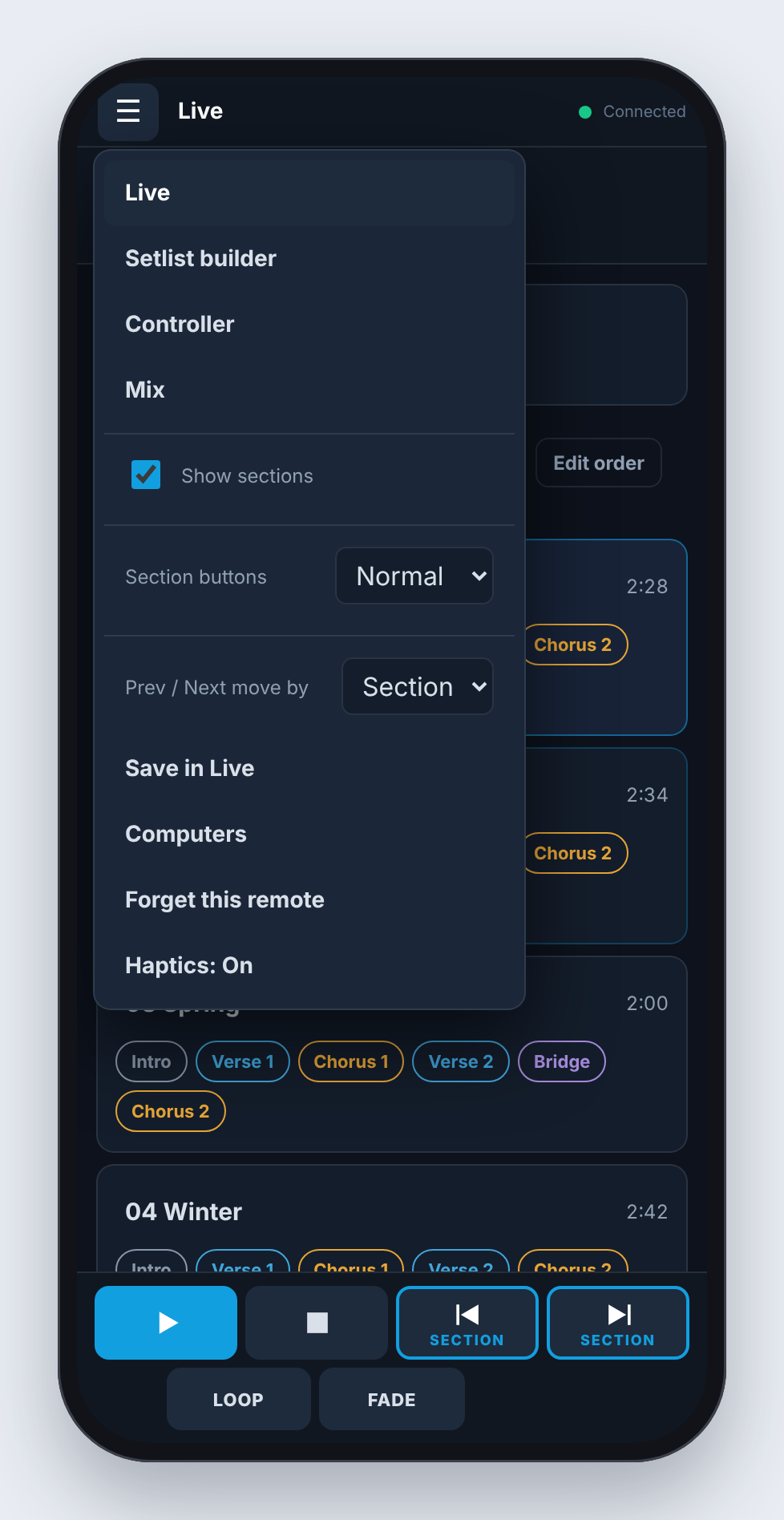
Tap ☰ at the top left to switch pages and change how Remote works:
- Live, Setlist builder, Controller and Mix: the four pages.
- Show sections: show each song's sections on the Live page.
- Section buttons: Normal, Medium or Large section buttons. Large is the default on iPad.
- Prev / Next move by: Section or Song.
- Save in Live: saves the set in Ableton Live on the playback computer.
- Computers: shows which Maestro you're connected to, and Disconnect.
- Forget this remote: signs this phone out of Maestro.
- Haptics: On / Off: a light tap when you press a button.
Build or change a setlist
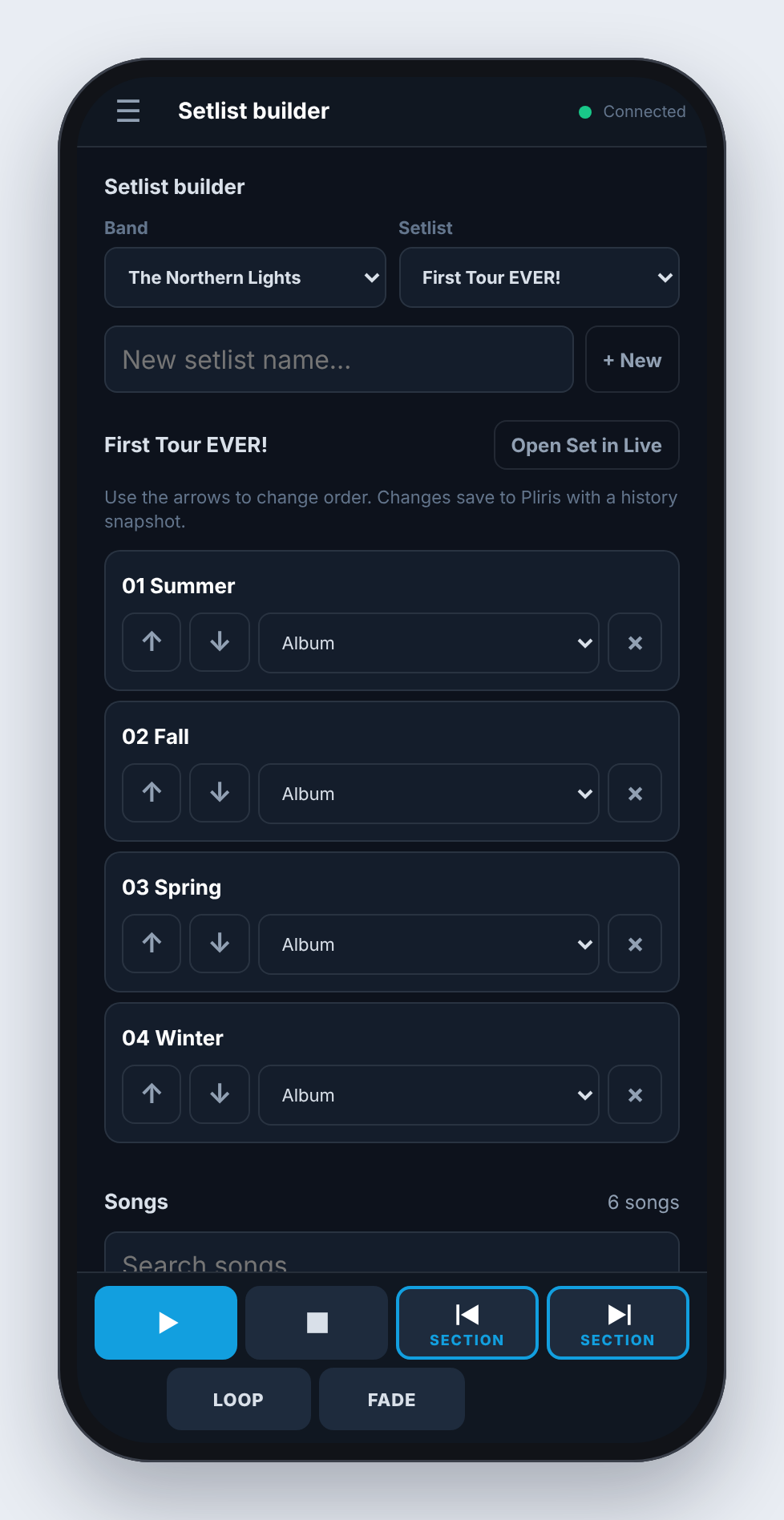
The Setlist builder page edits your Pliris setlists from the stage:
- Choose the Band and the Setlist, or type a name in New setlist name… and tap + New.
- Use the arrows to reorder songs, the menu on each song to pick its arrangement, and × to take it out. Add songs from the Songs list below with +.
- Tap Open Set in Live to have Maestro open the set on the playback computer.
Changes save to Pliris as you make them, with a version in the setlist's history. A ☁ next to a song means it isn't downloaded to the playback computer yet. Tick it in the Files desktop app on that computer.
Build your own controller
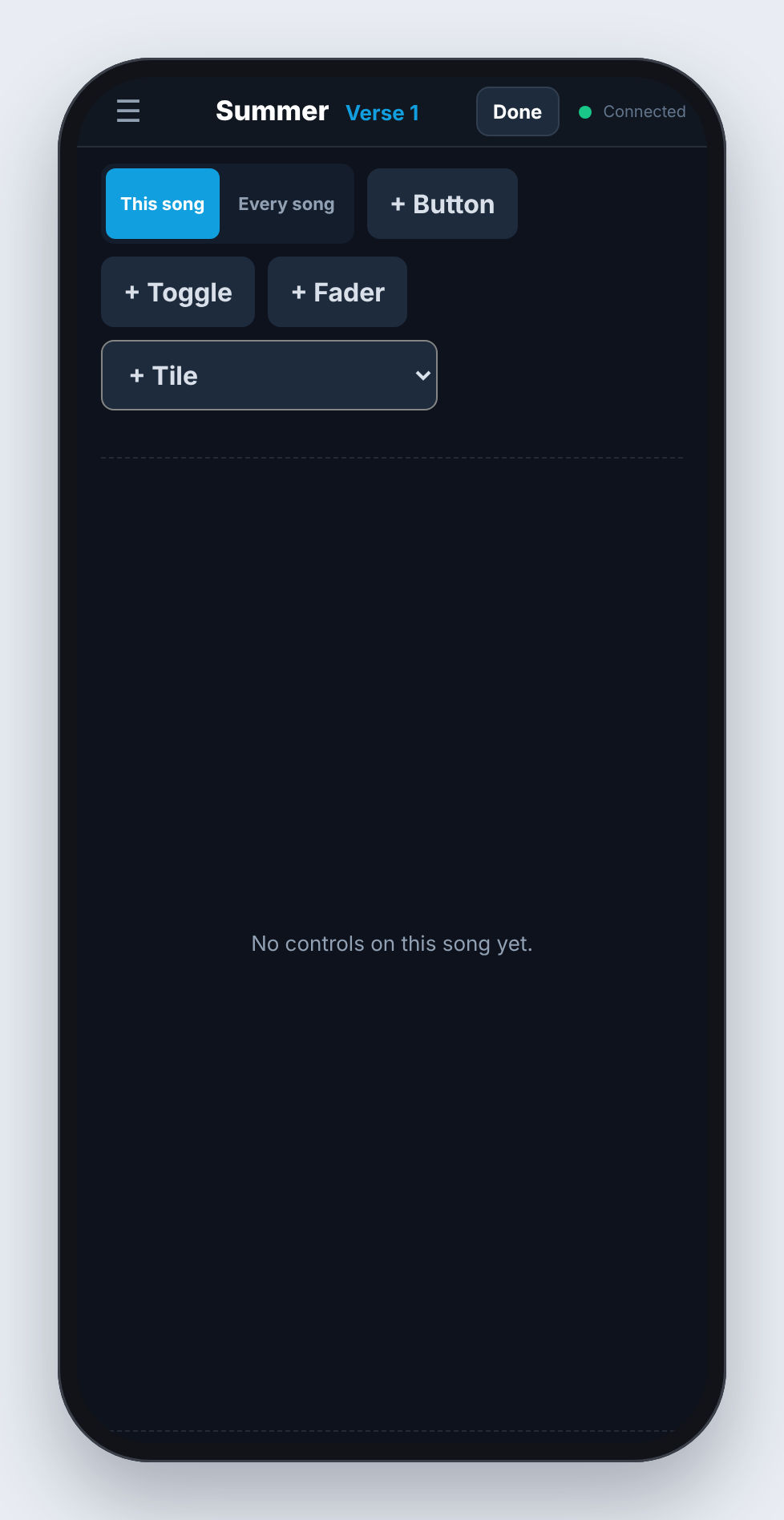
The Controller page is a blank canvas you fill with exactly the controls your show needs.
- Open Controller and tap Edit.
- Choose This song for controls that only appear on the current song, or Every song for controls you always want.
- Add controls:
- + Button runs a list of steps when you press it, such as jumping to a section or starting a loop. Use Test it to try it.
- + Toggle turns something on and off, and can light up while it's on.
- + Fader moves one or more tracks together.
- + Tile shows information: the setlist, the sections, song info, the song's time, the set's total time, time remaining, a clock or the timecode.
- Drag and resize controls on the grid, then tap Done.
Mix from the stage
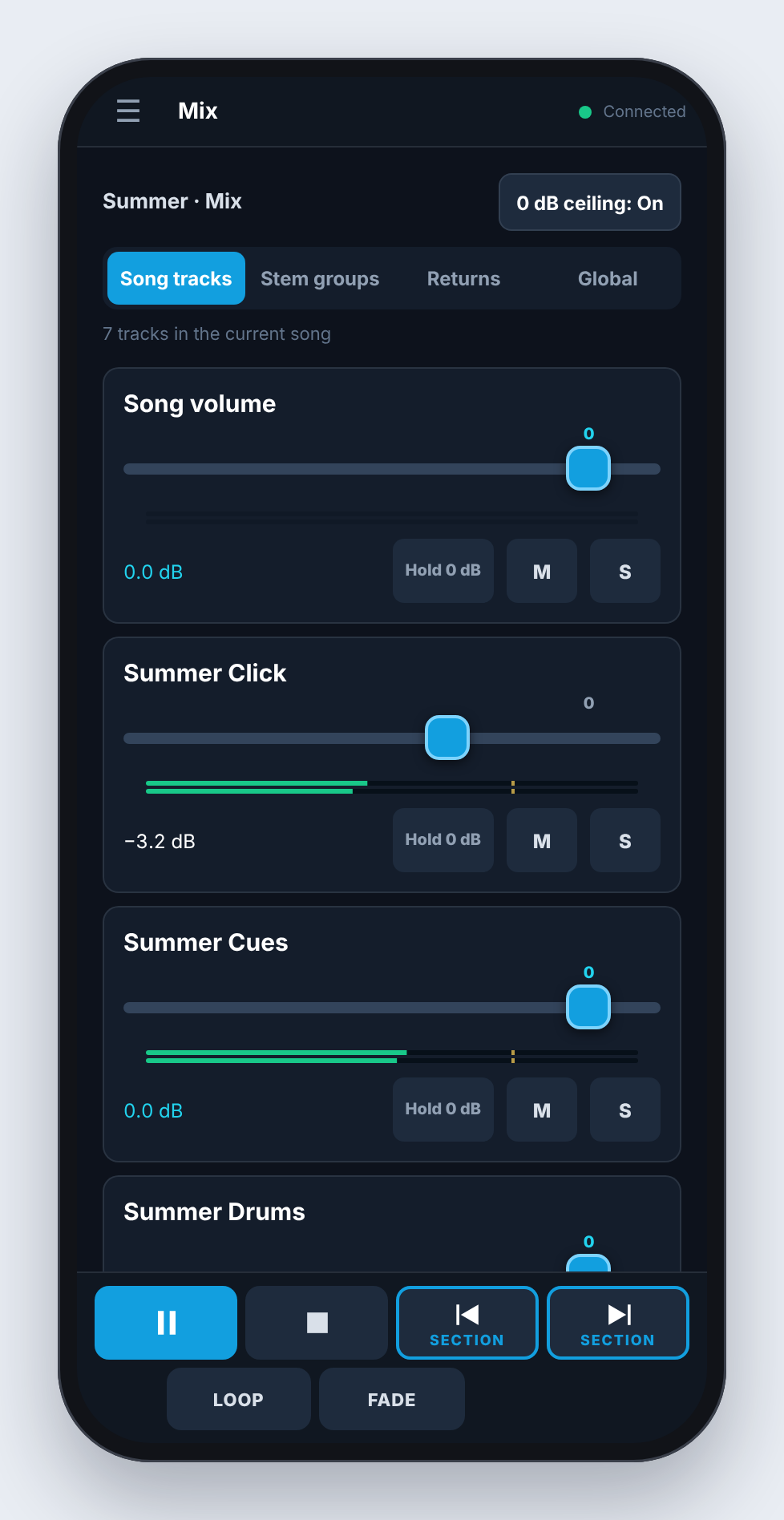
The Mix page controls Live's mixer:
- Song tracks shows the current song's tracks, with Song volume at the top.
- Stem groups, Returns and Global show the rest of your set.
- Each track has a fader, a level meter, M (mute) and S (solo). Hold 0 dB sets the fader to 0 dB and locks it there so it can't be bumped; tap Unlock to move it again.
- 0 dB ceiling: On keeps every fader from going above 0 dB, so a slip of the thumb can't blow out the monitors.
On iPad
On an iPad, Remote shows the whole setlist and larger section buttons, which are easier to hit on a stand.
Frequently asked questions
Remote doesn't find my Maestro. What should I check?
- Local Network access: check it's on for Pliris Remote, under Settings → Privacy & Security → Local Network on the iPhone or iPad.
- Maestro: check that Maestro is open on the playback computer.
- Same network: check both devices are on the same network.
- Venue Wi-Fi: airport, hotel, church-guest and other public Wi-Fi often blocks devices from connecting to each other. Use a personal hotspot or your own router.
- Firewall: if the computer has its firewall on, allow incoming connections for Maestro, under System Settings → Network → Firewall.
It says "Incorrect remote password."
The password is the one set in Maestro under Settings → Remote. Check it there, or remove it if you don't need one.
Why does Remote ask for the password every time I open it?
Remote never stores the password on your phone. It remembers which computer you used, and asks for the password again after you close the app completely.
It says "Lost the connection."
The phone lost the network or the computer went to sleep. Check both are on the same network and Maestro is open, then tap the computer again.
Can more than one person use Remote at once?
Yes. Several phones can connect to the same Maestro. Settings → Remote in Maestro shows how many are connected.
Does Remote need the internet?
No. Remote talks to Maestro over your local network. Running the show, mixing and the controller all work with no internet. Saving setlist changes to Pliris needs the playback computer to be online.
Is there an Android version?
Not yet. Pliris Remote is available for iPhone and iPad through TestFlight.
Where to go next
- The Maestro desktop app: what Remote controls.
- What is Pliris Network?: how the Pliris apps find each other.
- Pliris Charts: charts that follow the show.
Stuck at any point, click the support bubble in the bottom-right corner of any page, or email support@fromstudiotostage.com. You'll hear back within 24 hours.