The Presets Desktop App
Switch your guitar rig, keyboard or pedals to the right patch from Ableton without typing MIDI: pick your device and a preset, drag it onto a MIDI track, and the clip sends the right Program Change and Bank Select on playback.
Presets turns "switch the guitar to the lead tone at the chorus" into a drag and drop. Pick your gear, pick the patch, and drag it into Ableton. You get a MIDI clip carrying the exact Program Change and Bank Select messages for that patch, and when the set plays, your gear switches right on cue. You never look up a MIDI chart or type a number.
What it works with
Presets knows the MIDI for about 70 devices, including:
- Guitar and modelers: Line 6 Helix, HX Effects and POD Go; Kemper; Fractal Axe-Fx III, FM3 and FM9; Neural DSP Quad Cortex; Boss GT-1000 and GX-100; TONEX; HeadRush.
- Keys and synths: Nord Stage and Electro; Yamaha Montage M; Roland Fantom; Korg Kronos; Hammond SK Pro; Sequential Prophet-6 and OB-6; Novation Bass Station II.
- Pedals: Strymon, Meris, Eventide H9 and H90, Chase Bliss, Morningstar MC6 and MC8.
- Pads: Roland SPD-SX and TM-1.
- Software: Antares Auto-Tune, Waves Tune Real-Time, ProPresenter 7, ENTTEC DMXIS and Apple MainStage.
- Anything else: Generic MIDI, for Program Change, CC and notes on any device.
It uses the same preset catalog as the MIDI Cues → Preset composer in the Pliris player.
What you need
- A Mac with Ableton Live.
- Presets, from the beta apps page. It is in early access, open to paid Pliris plans, free trials and guest passes.
- Your Pliris account.
- A MIDI track in Ableton routed to your gear (a MIDI interface, or USB straight to the device).
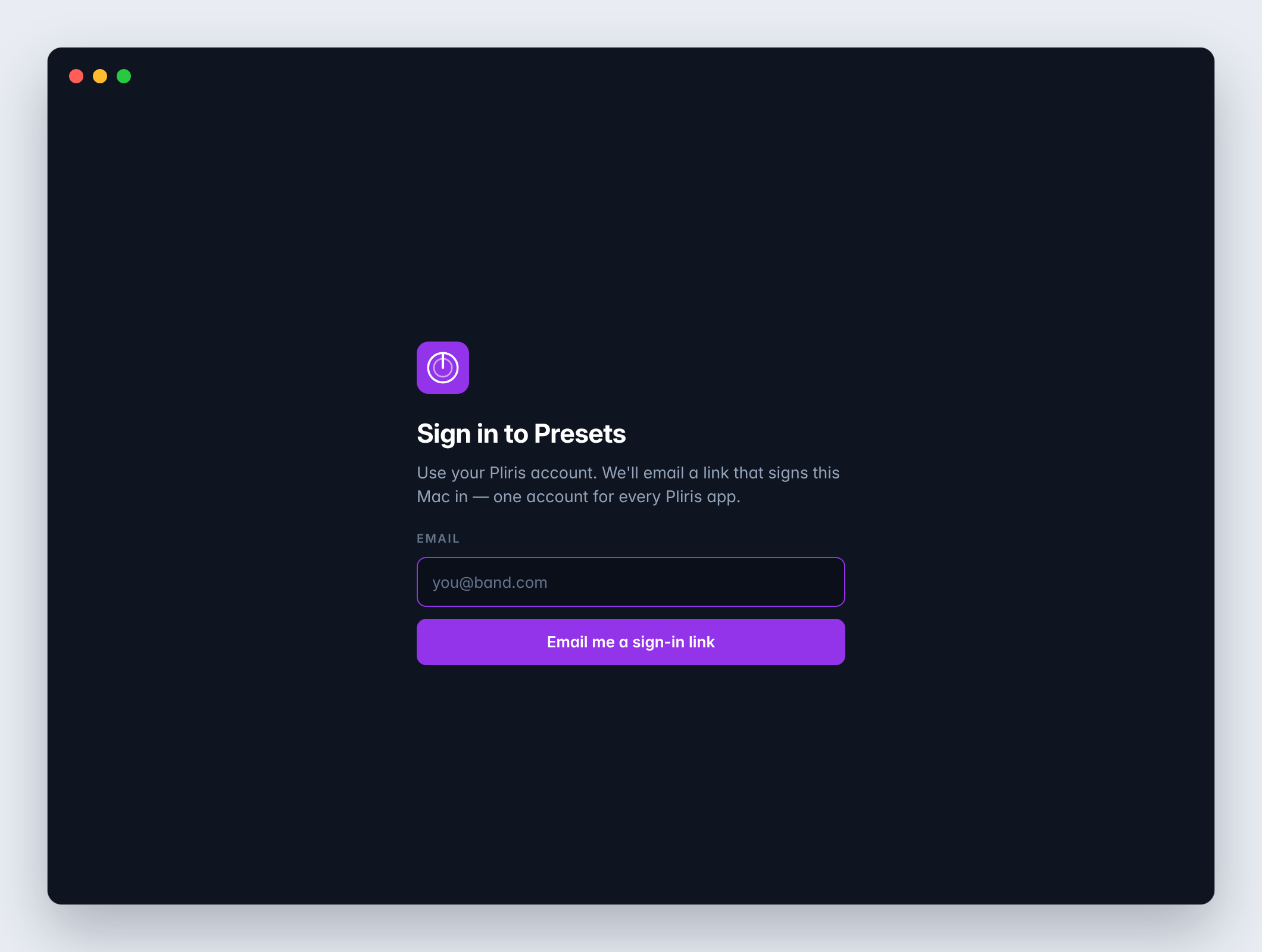
Sign in
- Open Presets and type the email address you use for Pliris.
- Click Email me a sign-in link, then open the email on this Mac and click the link.
If another Pliris app on this Mac is already signed in, Presets offers Continue as with that email instead. You stay signed in, including with no internet.
Drag a preset into Ableton
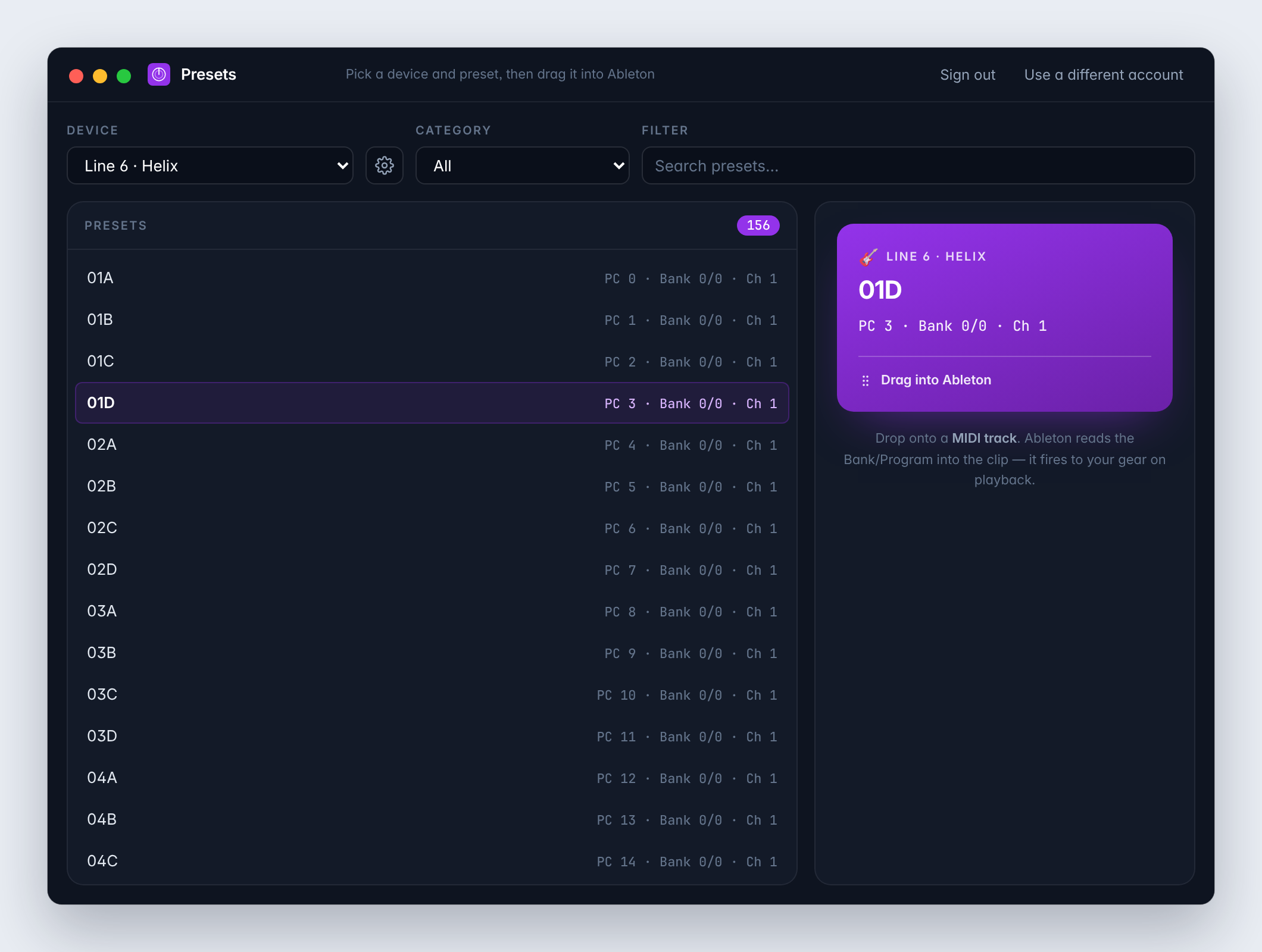
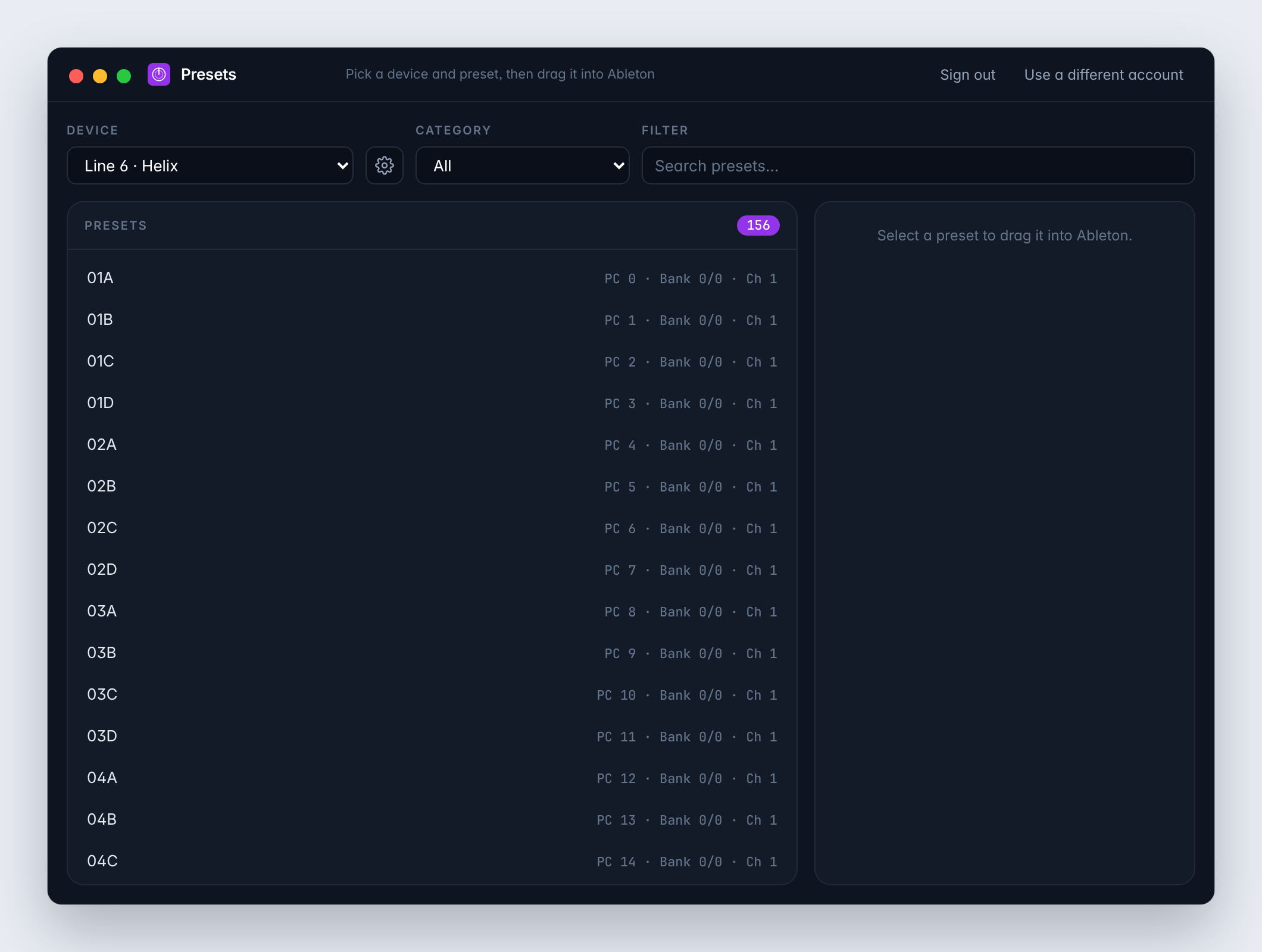
- Under Device, choose your gear.
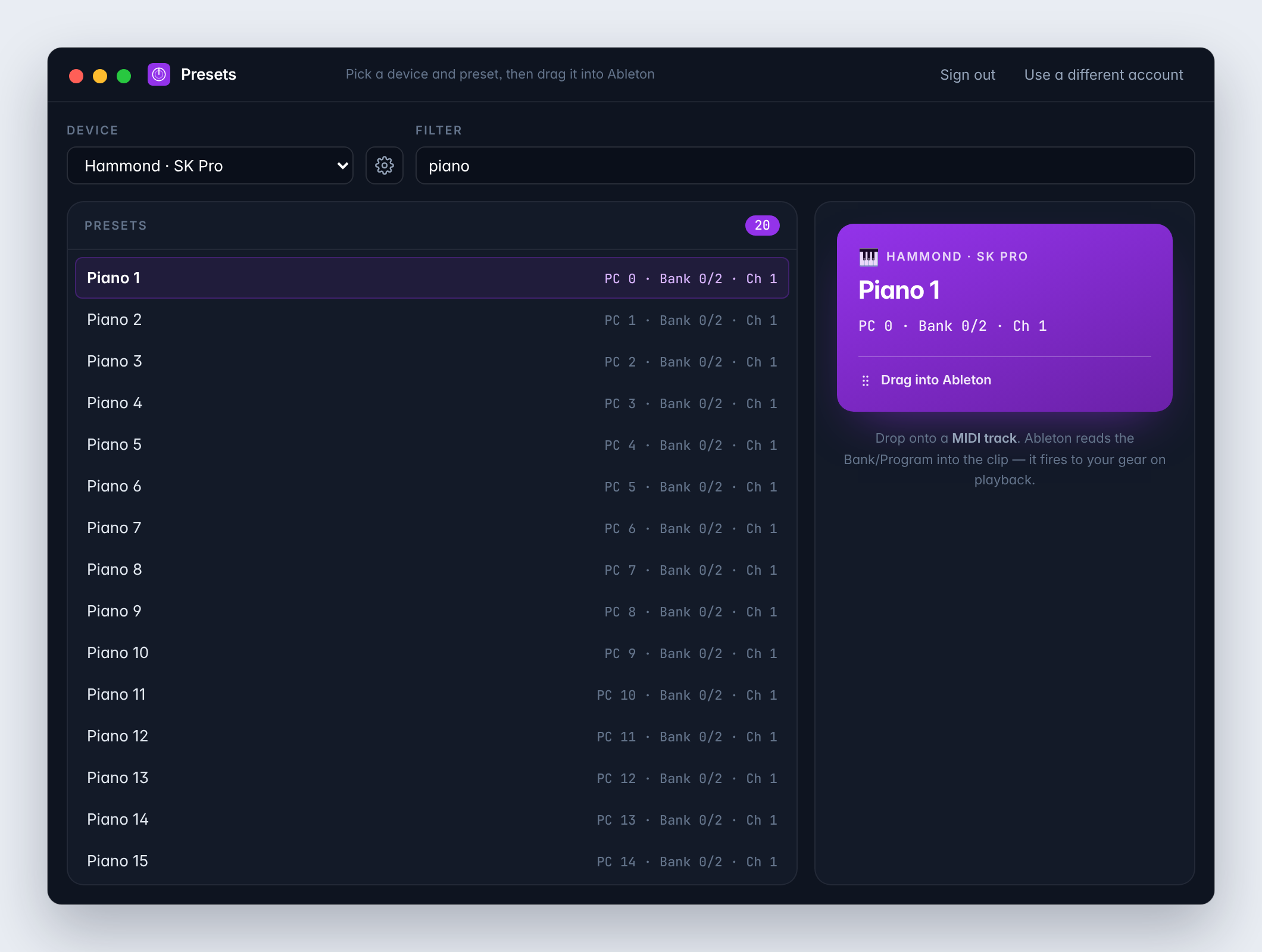
- Find the patch. The list shows every preset for that device, with the MIDI it sends, such as PC 3 · Bank 0/0 · Ch 1. Narrow it with Category, or type in Search presets…
- Click a preset. A tile appears on the right with the device, the preset and its MIDI.
- Drag the tile by Drag into Ableton onto a MIDI track in Ableton's Arrangement view, where you want the change to happen.
Ableton creates a MIDI clip with the Bank and Program inside. When the set plays over that clip, it sends them to your gear.
Pro tip: Drop the clip a beat before the section starts. Most gear switches instantly, but some amps and modelers need a moment, and a change that lands early is never heard late.
Program numbers in Ableton look one higher
Ableton counts programs from 1, while MIDI counts from 0. So a preset Presets shows as PC 6 appears in Ableton's clip as Pgm 7. They're the same patch.
Match your device's MIDI settings
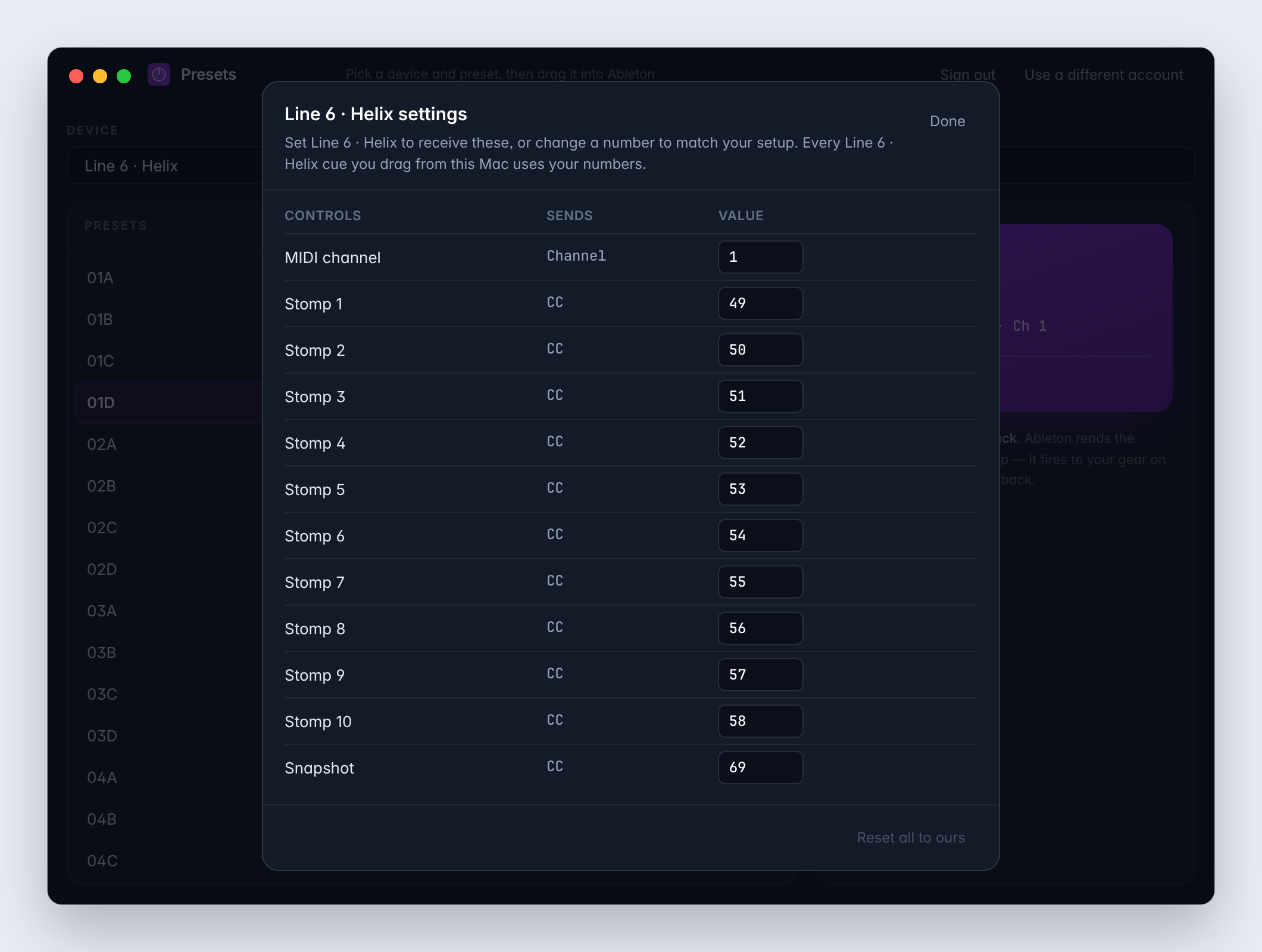
Every device's cues use a default MIDI channel and, for some devices, default CC or note numbers. If your gear is set up differently, change them once:
- Choose the device, then click the gear next to it.
- Change the MIDI channel, or any CC or note number, to match your device.
- Click Done.
Every cue you drag for that device from this Mac now uses your numbers. Ours: N next to a changed number puts it back, and Reset all to ours resets everything. These settings are saved on this Mac.
Use it offline
Presets saves the preset catalog on your Mac the first time it loads. With no internet, it says Offline — showing the presets saved on this computer and works as usual.
Frequently asked questions
Does Presets send MIDI to my gear itself?
No. Presets makes the MIDI clip; Ableton plays it. Your gear switches when the set plays over the clip, through the MIDI track's output.
Why does Ableton show a different program number?
Ableton counts programs from 1 and MIDI counts from 0, so PC 6 in Presets is Pgm 7 in Ableton. It's the same patch.
My gear doesn't change patch. What should I check?
First, check the MIDI track's MIDI To goes to the port your gear is on. Then check your device listens on the same MIDI channel: open the gear next to the device in Presets and match the channel to your gear's MIDI settings.
My device isn't in the list.
Use Generic MIDI, which sends any Program Change, CC or note. Then let us know which device you use.
Are my channel changes saved to my account?
No. They're saved on this Mac, so set them on each computer you build sets on.
Where to go next
- The Maestro desktop app: run the show the clips play in.
- The Pliris desktop apps: every Mac app and how to install it.
Stuck at any point, click the support bubble in the bottom-right corner of any page, or email support@fromstudiotostage.com. You'll hear back within 24 hours.