Managing Members and Access
Invite band members and crew as members of specific bands or as account admins, choose View (stream), Download or Manage access, and change, demote or remove anyone from Account → Members.
Your Pliris account is a workspace that can hold several bands. Add your band, your crew and anyone else on the show, and give each person exactly the access they need: which bands, and what they can do there.
Watch the lesson: this article goes with Member management, part of the Using Pliris to Program, Practice, and Perform course.
See everyone in your workspace
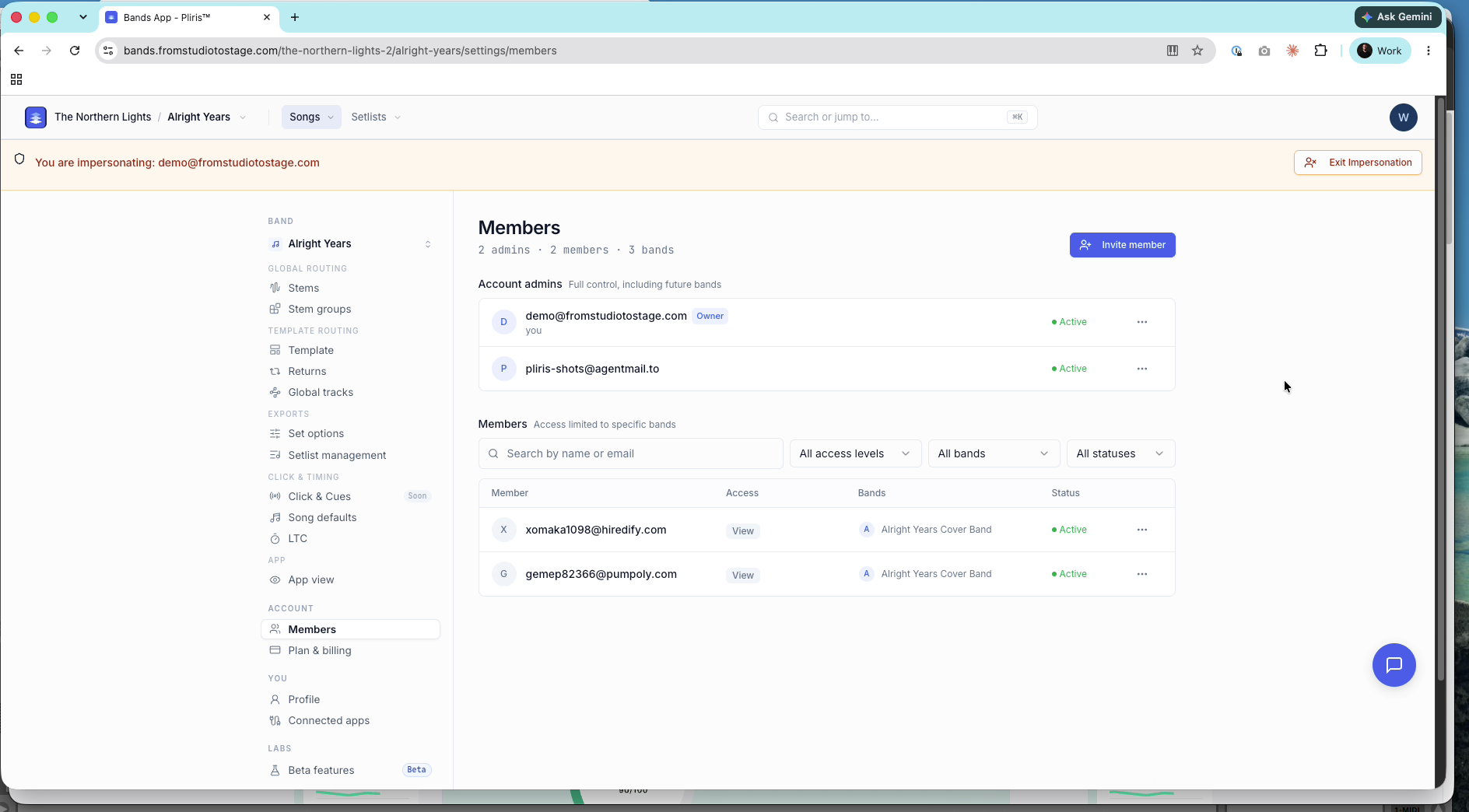
Click your profile icon → Account → Members. You'll see:
- Account admins: full control, including future bands.
- Members: access limited to specific bands, with their access level, bands and status.
Filter by access level, band or status, or search by name or email.
Invite someone
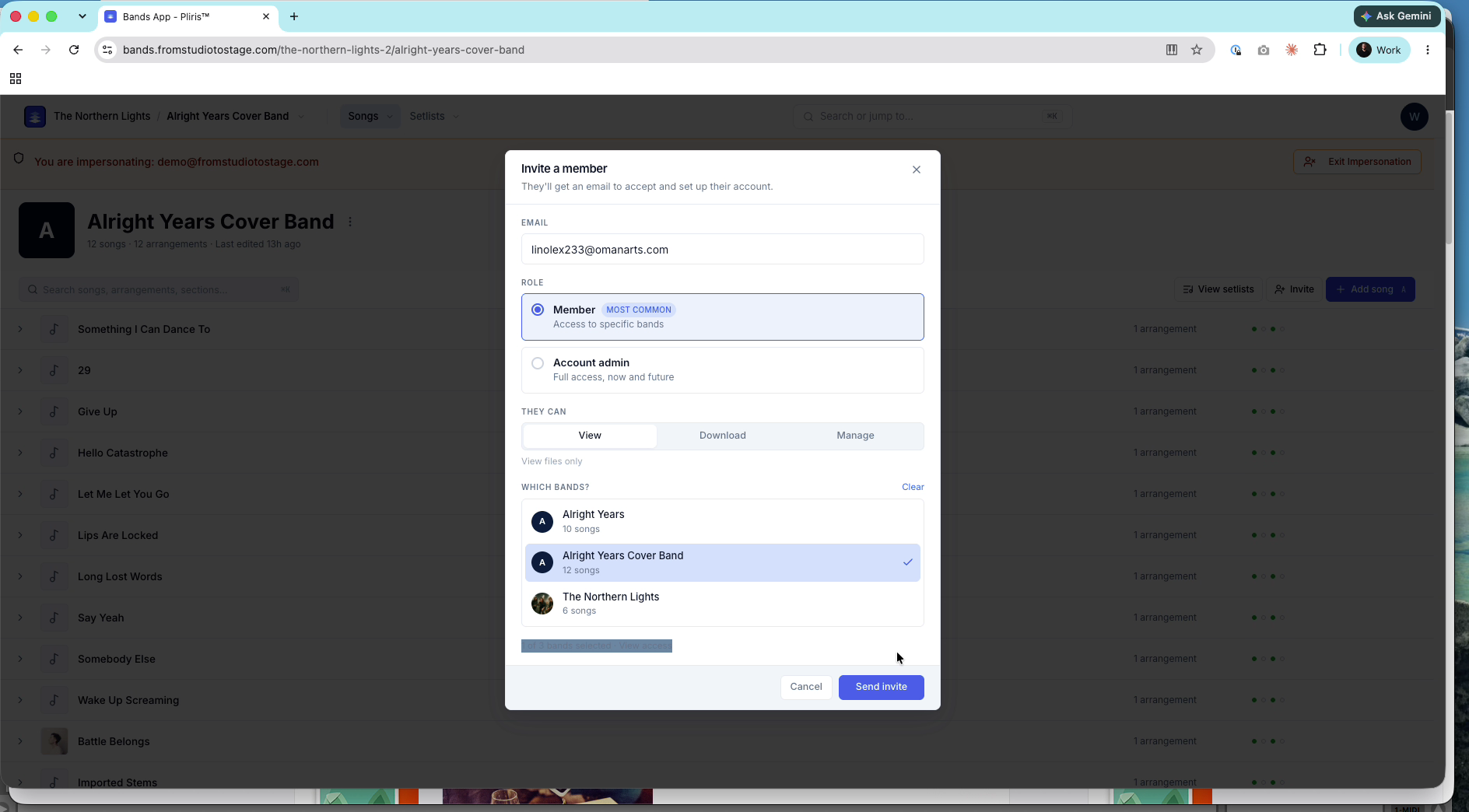
- Open a band and click Invite, or click Invite member on the Members page.
- Enter their email address.
- Choose a role:
- Member (most common): access to the bands you pick.
- Account admin: full access, now and future, including every band, billing, account settings and inviting people. Keep this to a very small number of people.
- Choose what they can do (see below) and which bands they're in.
- Click Send invite.
They get an email saying you added them to the band. They click to accept. No password is needed. Once they accept, they appear as Active.
Access levels
| Level | What they can do | Good for |
|---|---|---|
| View (being renamed Stream) | Browse and play reference files and stems, rehearse on song pages and setlists. Nothing to download. | Subs, lighting and video programmers, anyone learning the show |
| Download | Everything in View, plus download Ableton sets, stems, LTC, reference files and ProPresenter files | Playback engineers, programmers, music directors |
| Manage | Everything in Download, plus edit songs, arrangements, setlists and members, for their bands | People who help you run the show |
Pick bands the same way: a sub for one show gets one band; someone you trust across all your projects can get every band. Members only see the bands you give them.
What members can do
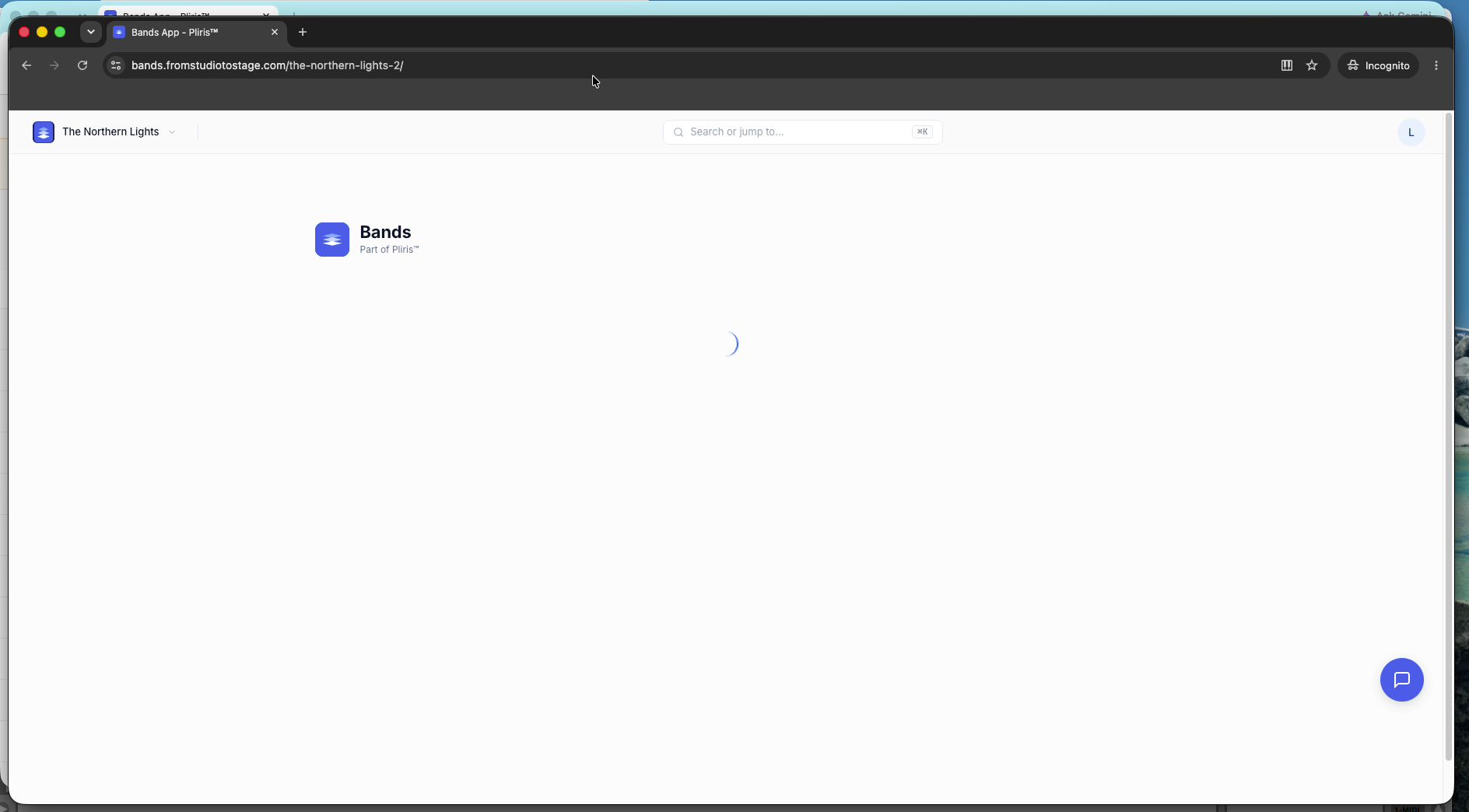
Members can play every song in their bands and rehearse the whole setlist in order. On a song page they can solo a part, use focus mode to hear it in the context of the full song, mute it to play along, press L to loop a section, use the arrow keys to jump, Shift + arrow keys to scrub, and Space to stop.
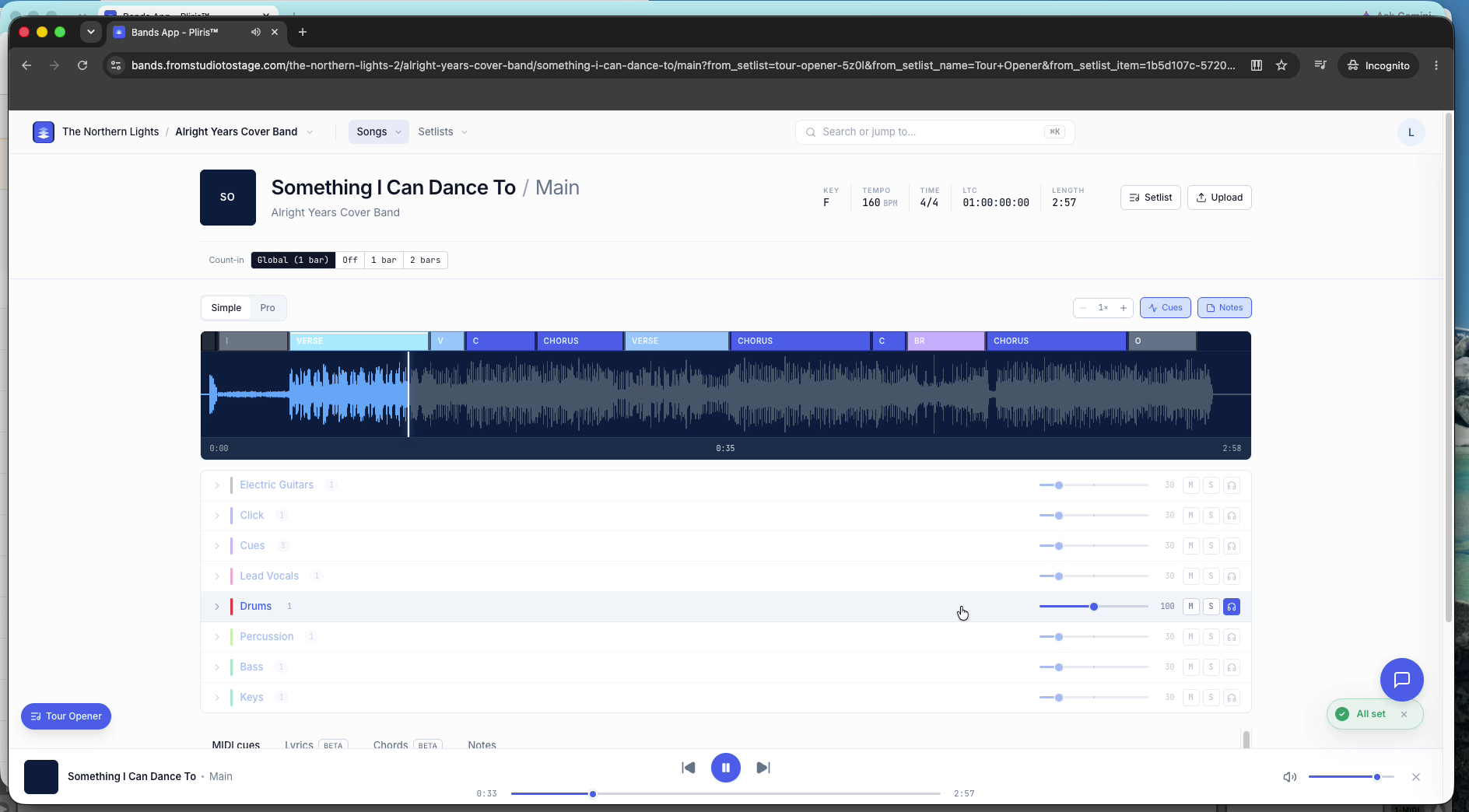
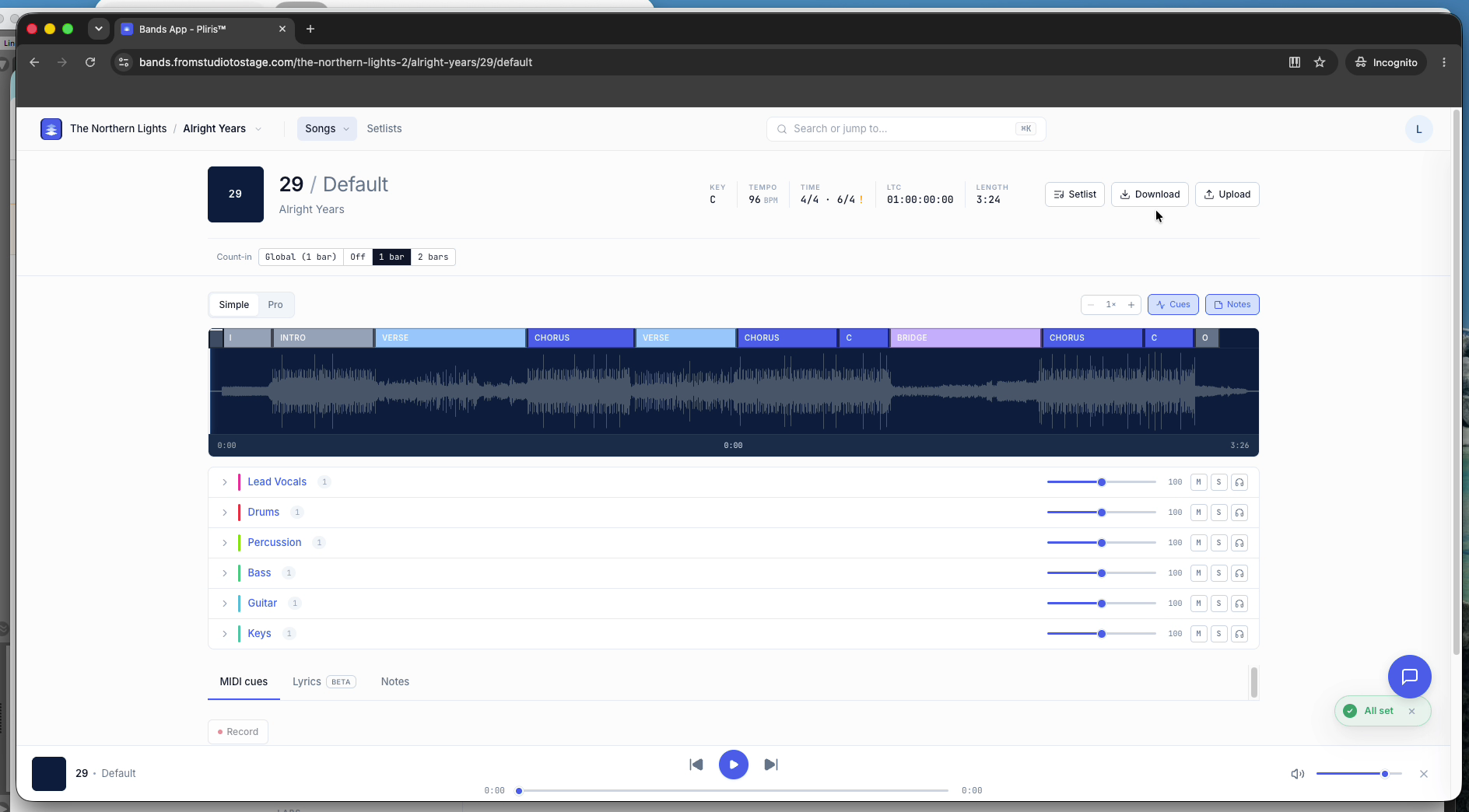
With Download access, a Download button appears on each song so they can download the Ableton project.
Change someone's access
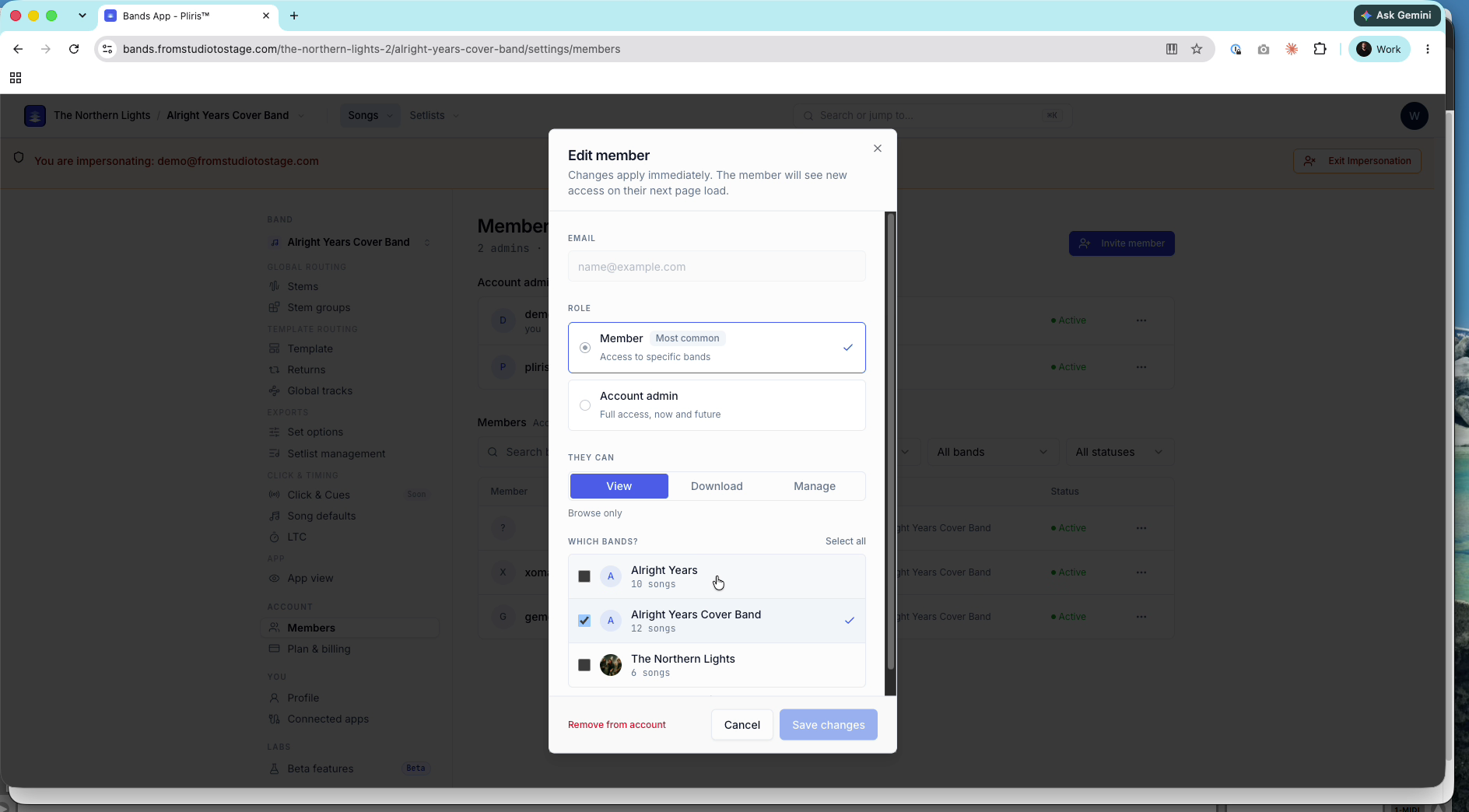
On Account → Members, open the member's menu and choose Edit access. Change their level or bands and save. Changes apply immediately; they see them on their next page load.
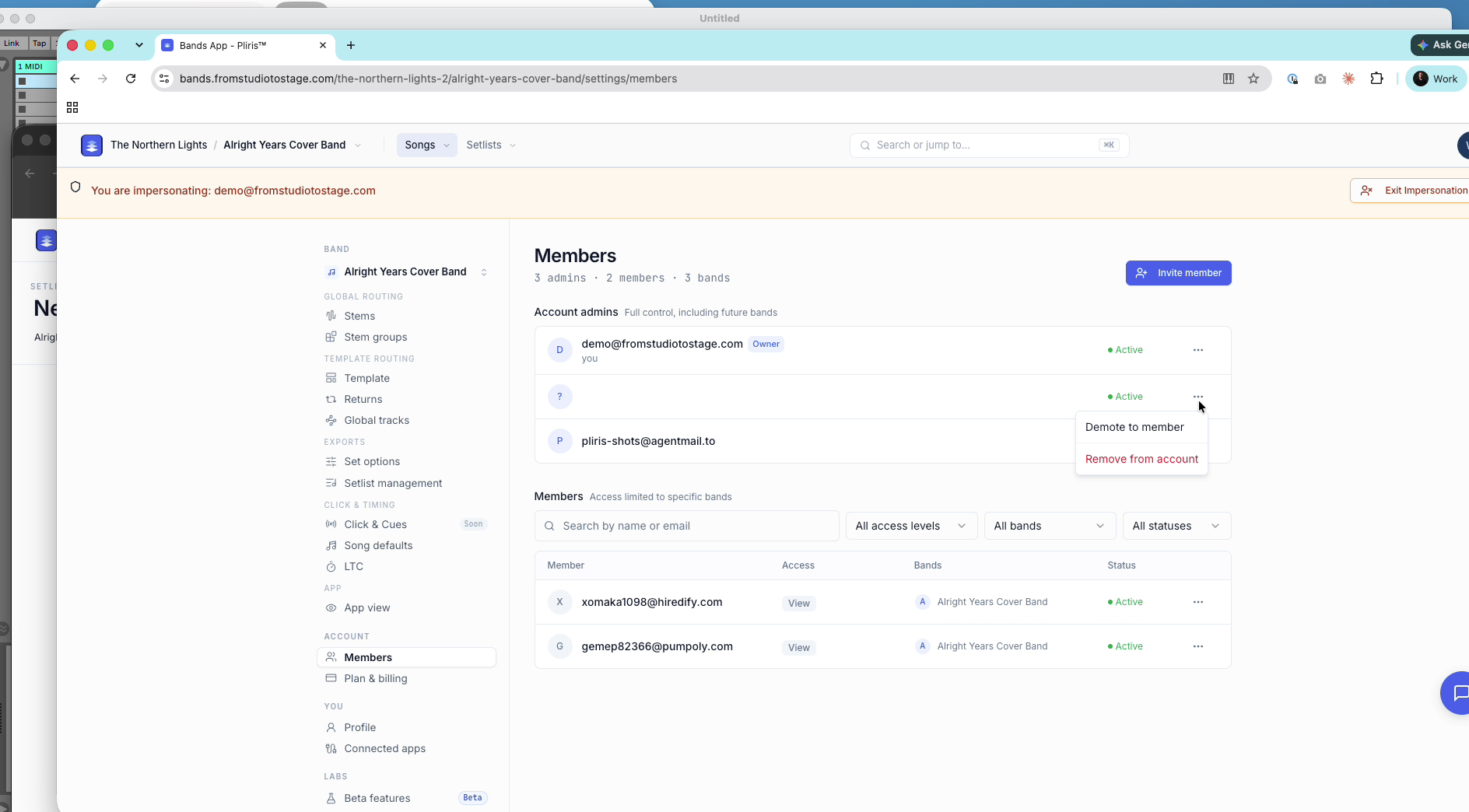
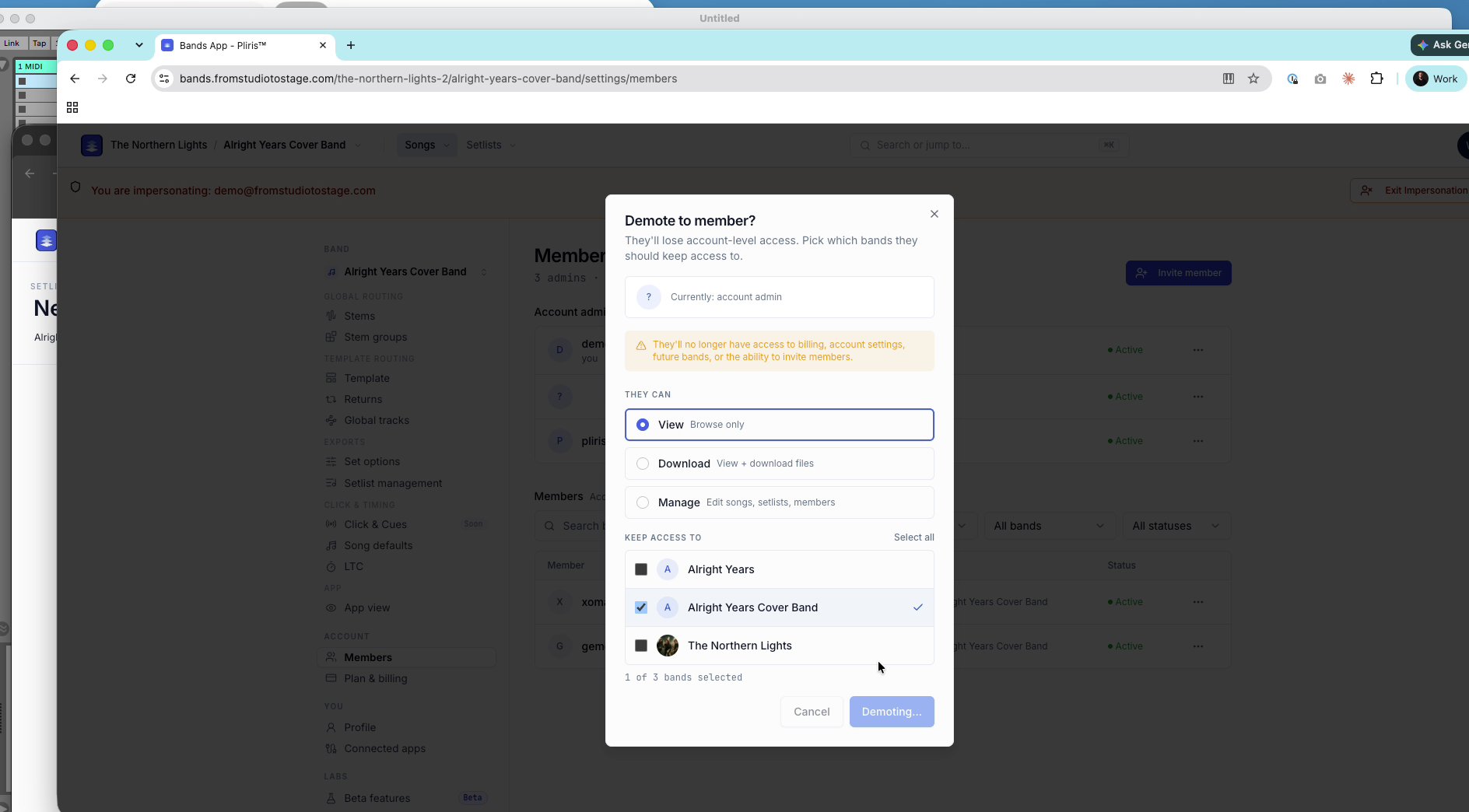
From the same menu you can promote a member to account admin, Demote to member (they lose billing, account settings, future bands and the ability to invite), or Remove from account.
Someone you remove keeps their own Pliris account, but loses access to your bands straight away.
If a member can't see something
Check two things on Account → Members:
- They're in the right band.
- Their access level covers what they need. For example, View can't download.
Still stuck? Contact support with their email and the band name.
Your plan vs their access
Your plan (Free or All-Access) decides what Pliris unlocks. A member's access level decides what they can do inside a band. Both have to allow it. For example, a Free account still can't use paid-only Ableton templates, even with Manage access.
Band settings, such as the Ableton template your exports use, can be changed by band admins and account admins. Members with Manage access export with whatever template the band has set.
Frequently asked questions
How do I add a band member to Pliris?
Open the band, click Invite, enter their email, choose Member, pick their access level and bands, and click Send invite. They accept from the email.
Can band members download my stems?
Only with Download or Manage access. With View access they can play and rehearse but not download.
What's the difference between an account admin and a member?
An account admin has full access to every band, now and in the future, including billing and members. A member only has access to the bands you choose, at the level you choose.
How do I remove someone from my band?
Go to Account → Members, open their menu and choose Remove from account. They lose access immediately.
Do invited members need a password?
No. They accept the emailed invite and they're in.