Importing a Whole Ableton Live Set
Import a multi-song Ableton Live set in one go from Files: Upload, Bulk import, Ableton Live set. Each locator becomes a song, with its stems, tempo, sections, lyrics and MIDI cues, plus the key when it's in the song's name. Analysis is usually unnecessary.
If your show already lives in one Ableton Live set, you can bring the whole thing into a band at once. Pliris makes one song per locator and reads each song's stems, tempo and sections from the set. The key comes across when it's in the song's name (for example Give Up D 166).
Watch the lesson: this article goes with Import a whole Ableton Live set, part of the Using Pliris to Program, Practice, and Perform course.
Before you start
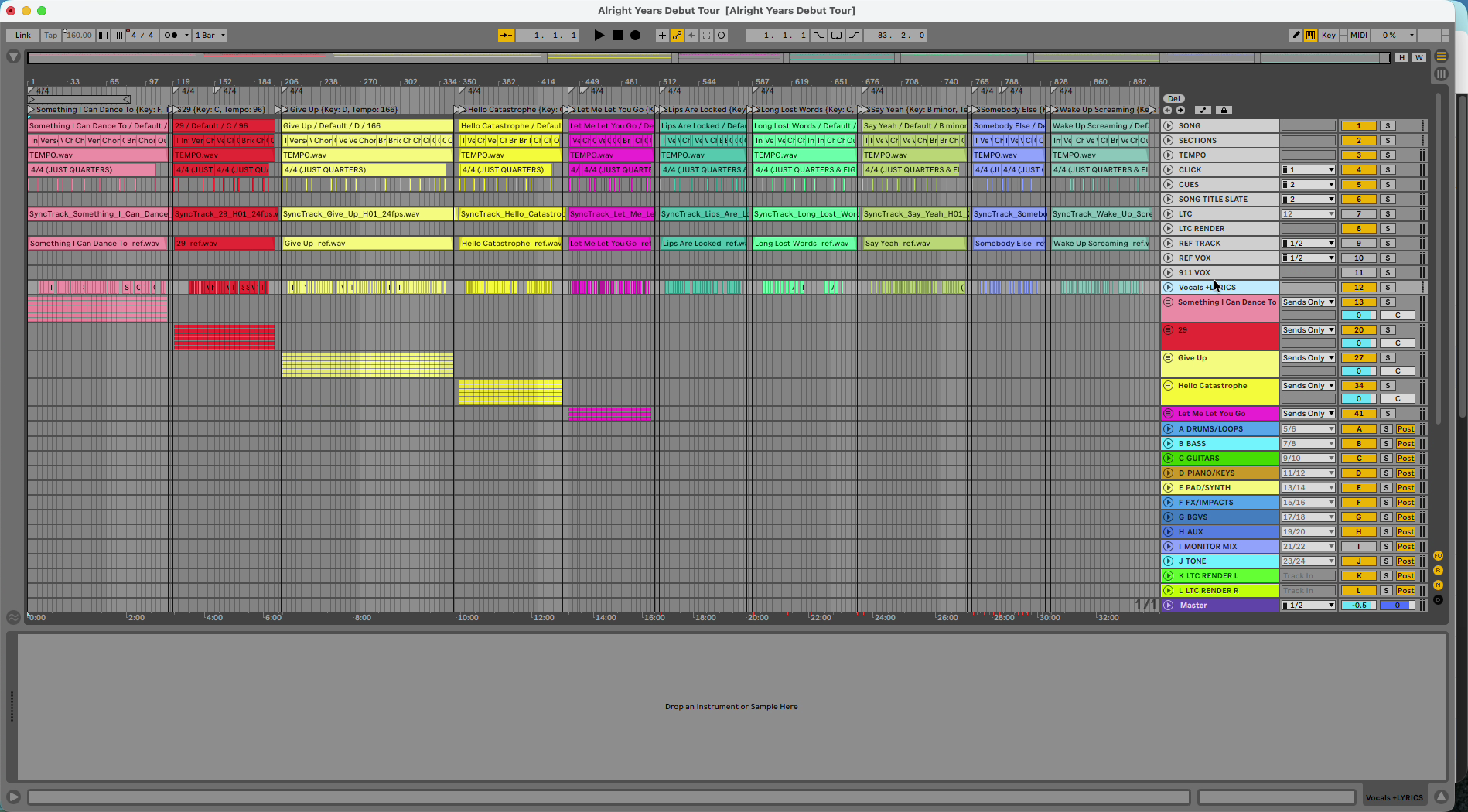
- A locator at the start of each song. Plain names, Setlist, AbleSet, LIOBOX, Conductor and TAZ formats all work.
- Full-length rendered stems.
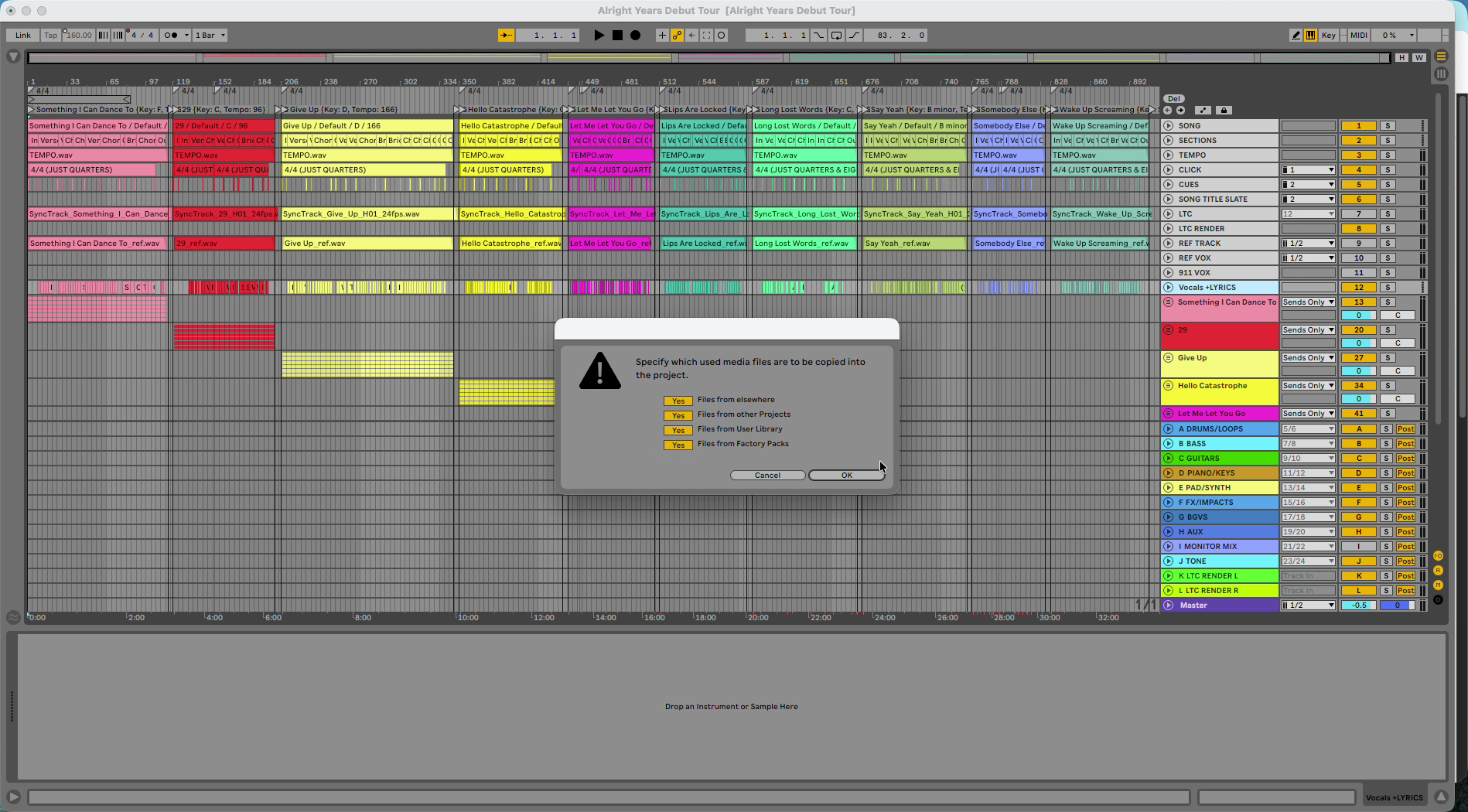
- All samples in the project folder. In Ableton, choose File → Collect All and Save first.
Import the set
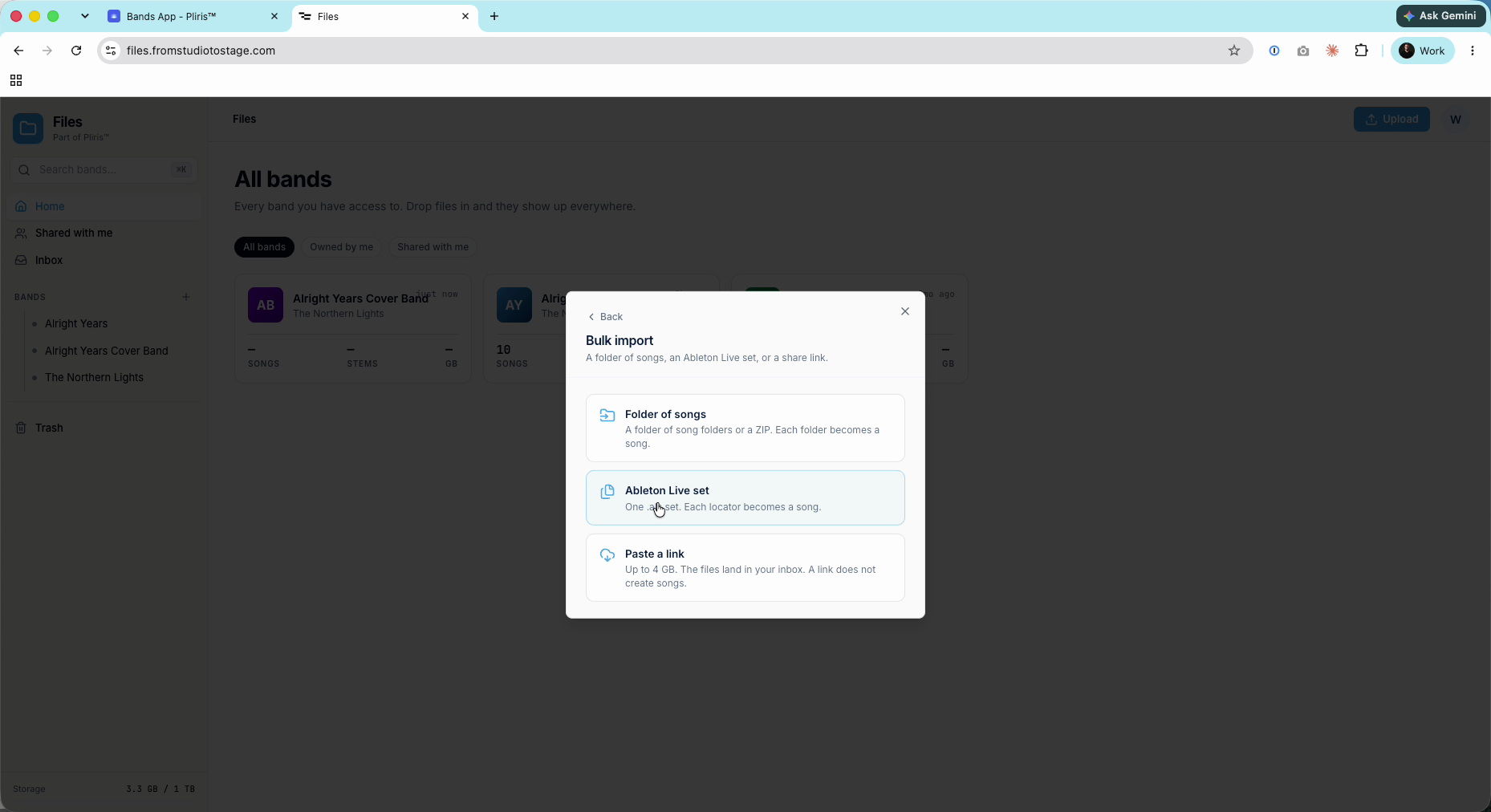
- Go to Files (files.fromstudiotostage.com), click Upload, then Bulk import, then Ableton Live set.
- Choose the band to import into.
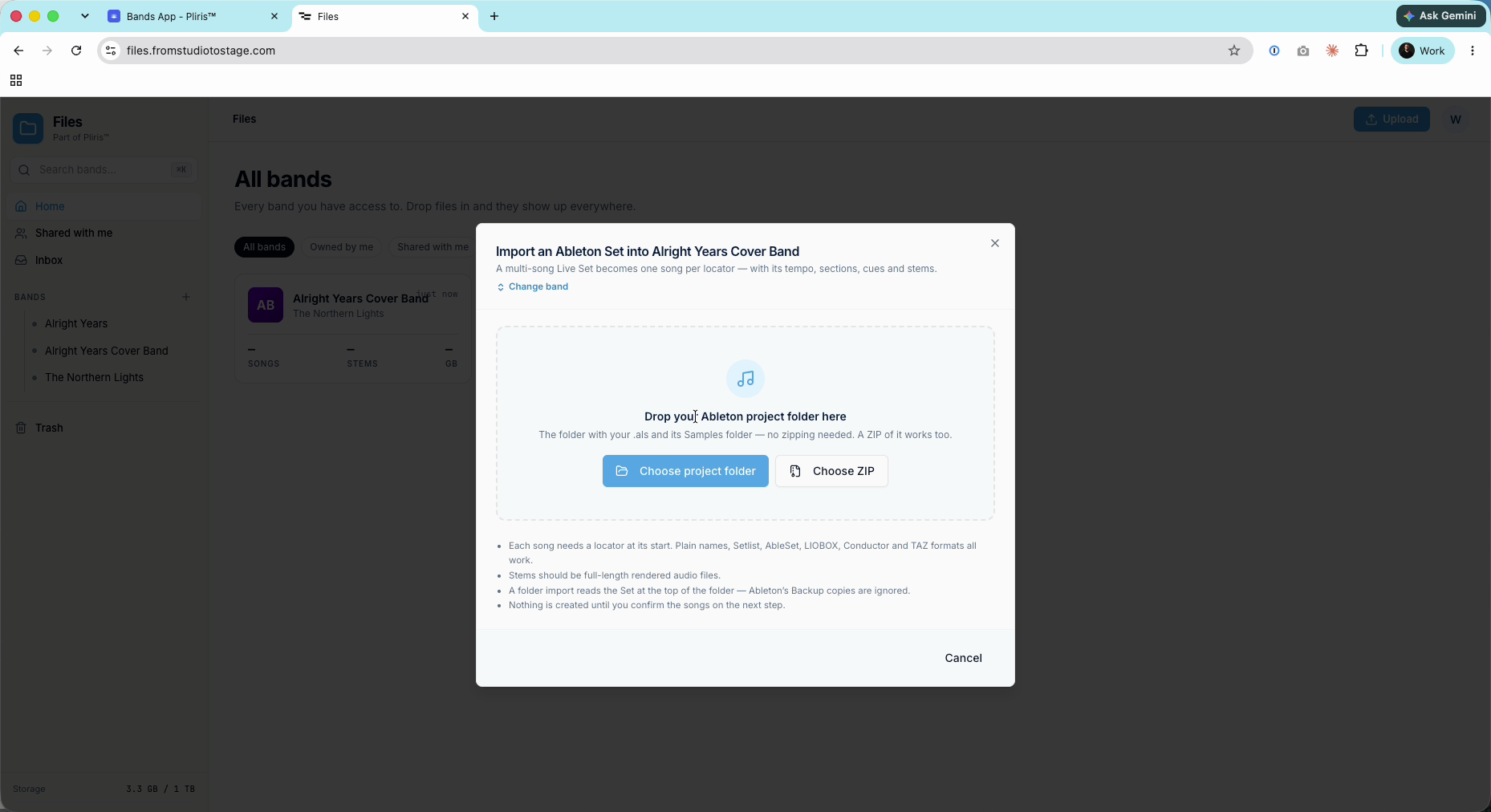
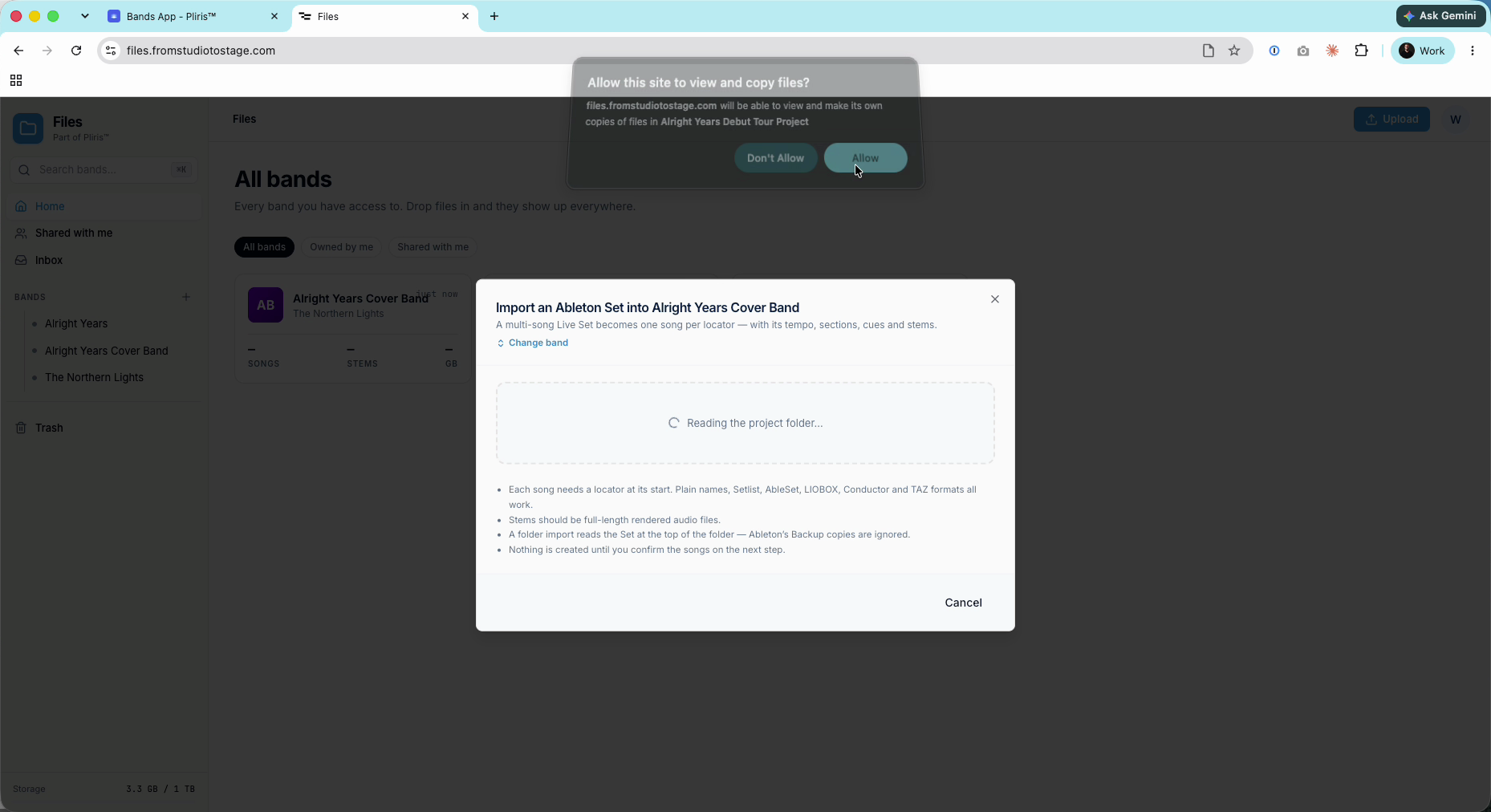
- Drop your project folder (the folder with your .als and its Samples folder), or click Choose project folder. A zipped project works too: click Choose ZIP. A folder import reads the set at the top of the folder, and Ableton's Backup copies are ignored.
- If your browser asks to let the site view and copy files, click Allow.
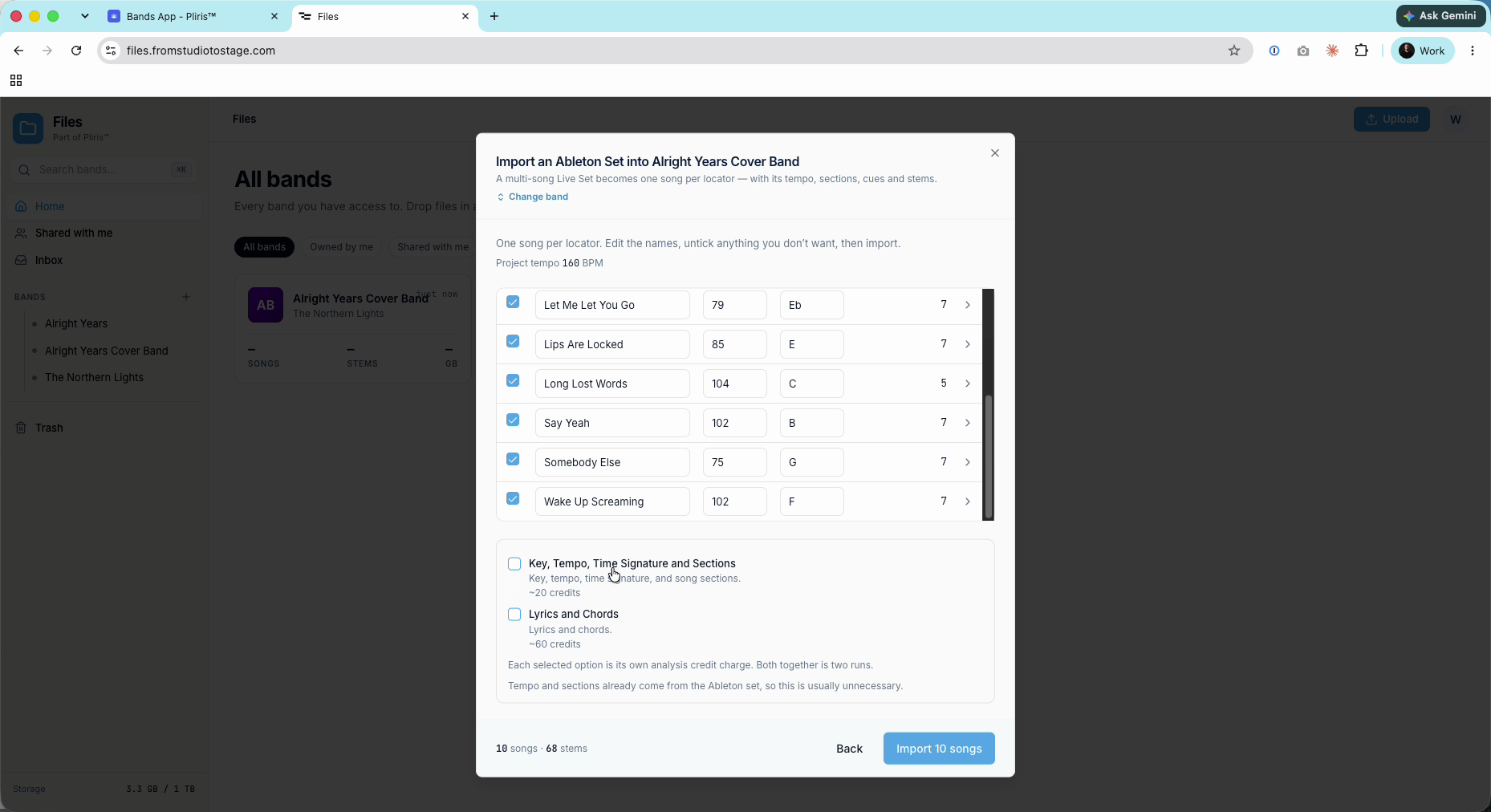
- Check the songs. Each locator is listed with its tempo, key and number of stems. Edit names or untick songs you don't want. Nothing is created until you import.
- Leave analysis unticked unless you need it. Tempo and sections already come from the set, so Key, Tempo, Time Signature and Sections is usually unnecessary. If the set has a lyrics track, you can skip Lyrics and Chords too.
- Click Import (for example Import 10 songs).
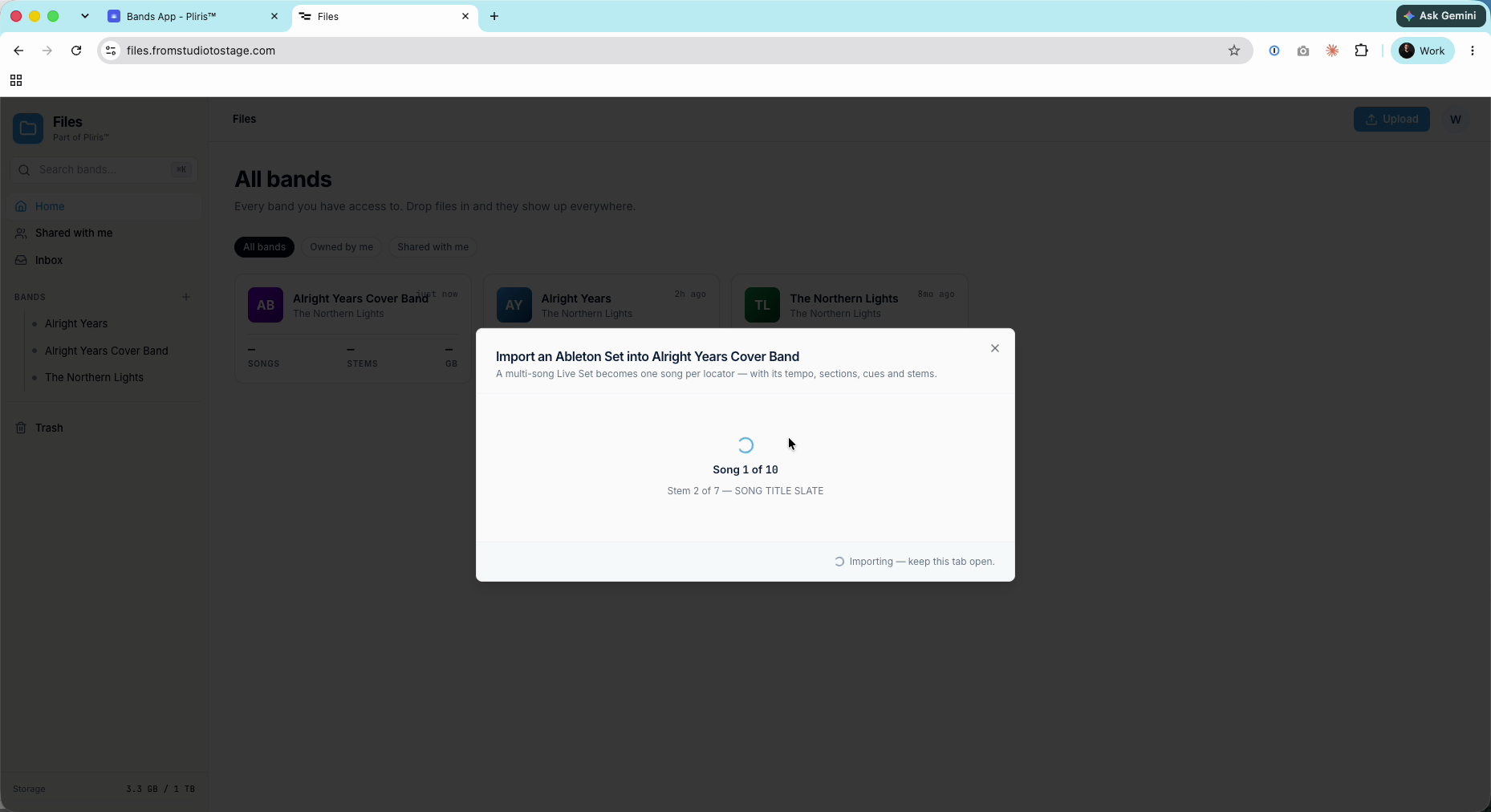
- Keep the tab open while it imports. Progress shows the song and stem it's working on.
What comes across
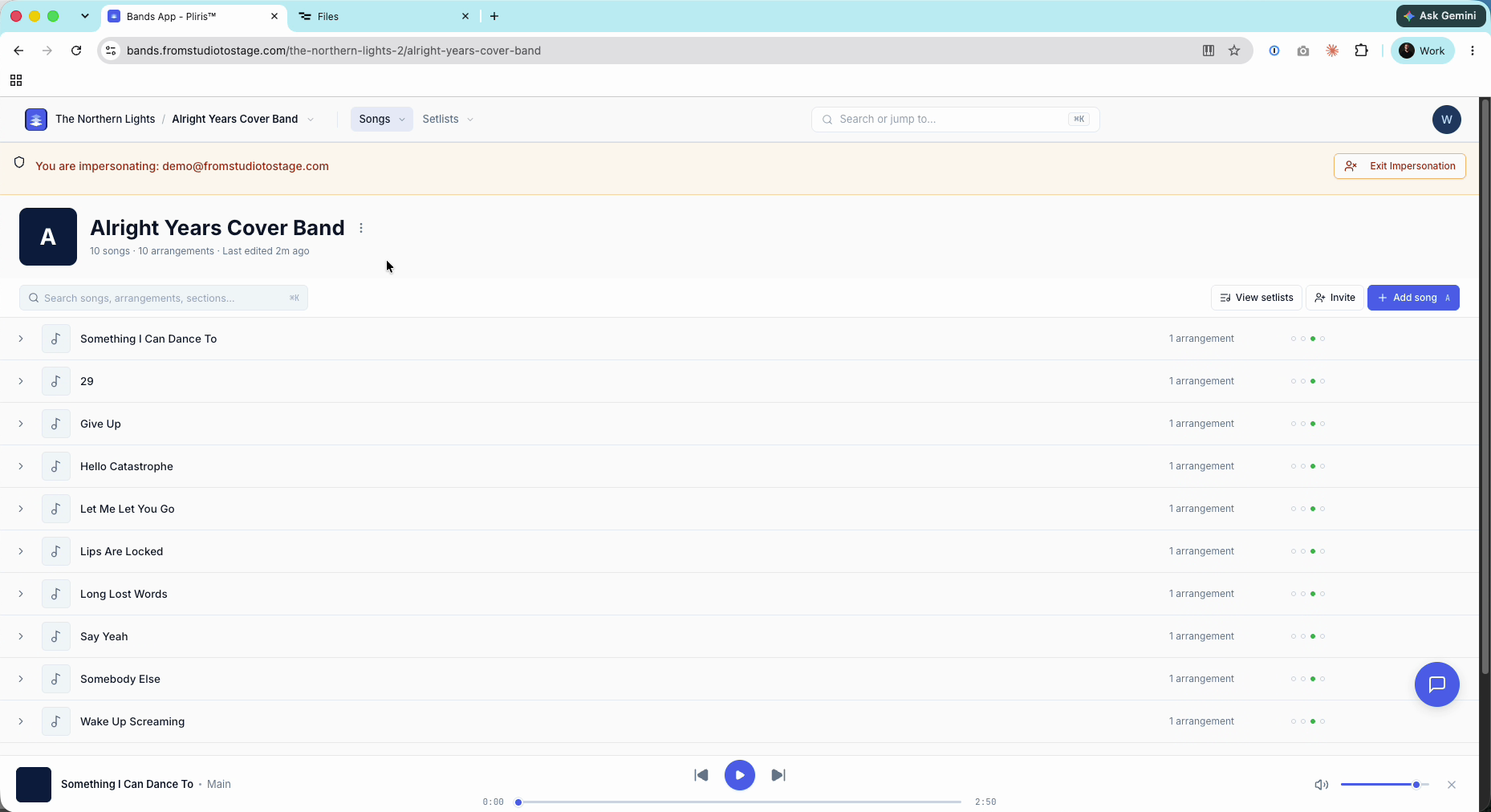
- Songs: one per locator, in the band you picked.
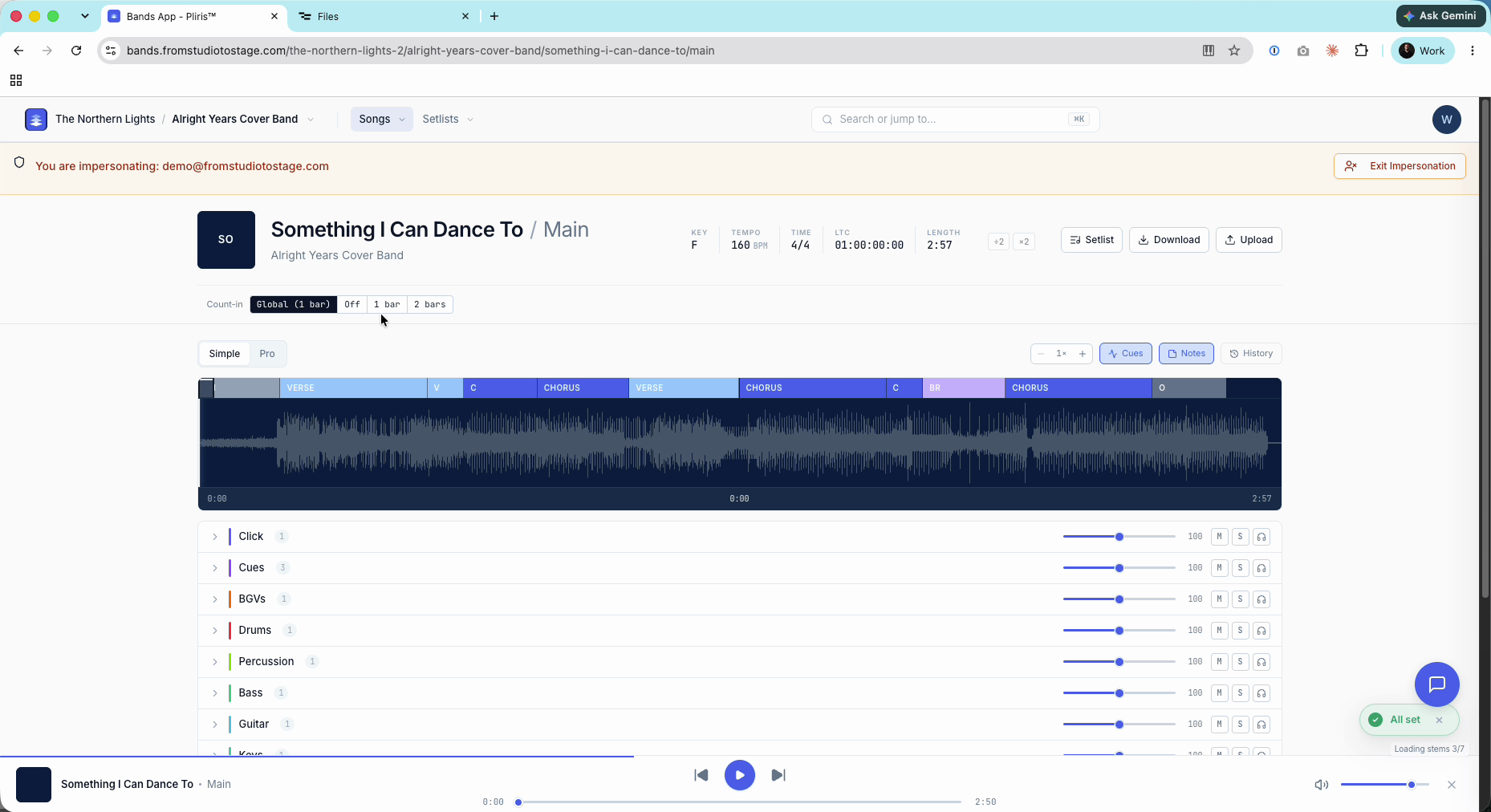
- Tempo and sections, matching your Live set exactly, and the key when it's in the song's name. If it isn't, set the key on the song page or run Key, Tempo, Time Signature and Sections.
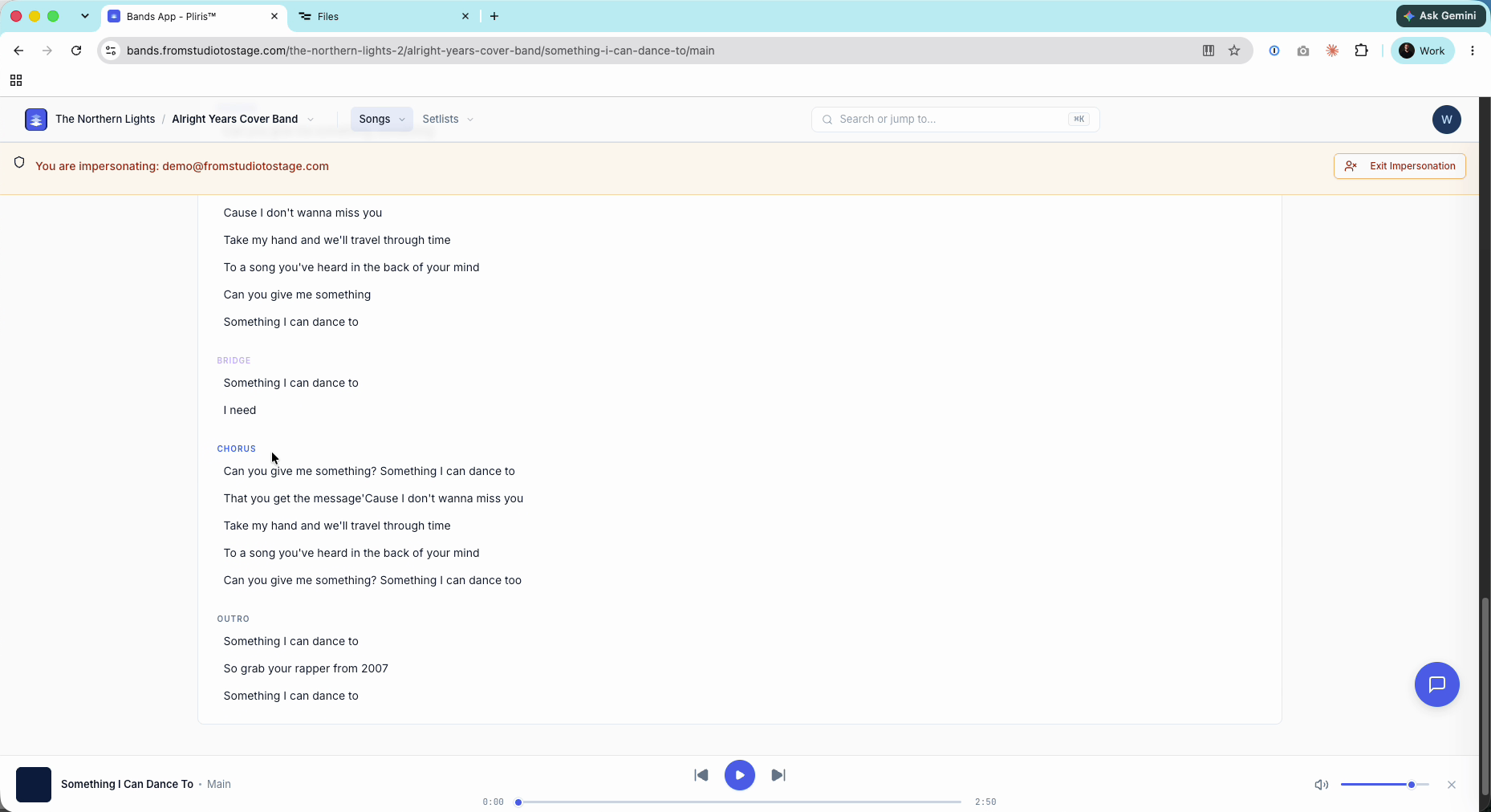
- Lyrics from a lyrics track, with their timing.
- MIDI cues, with an output created for them if you don't have one.
For a single song, see Importing a Song from Ableton Live. For a folder of stems per song, see Bulk Uploading a Folder of Songs.
Frequently asked questions
Can I import my whole Ableton Live set into Pliris at once?
Yes. In Files, choose Upload, Bulk import, Ableton Live set, and pick your project folder or ZIP. Each locator becomes a song.
How does Pliris know where each song starts?
From your locators. Put a locator at the start of every song. Plain names, Setlist, AbleSet, LIOBOX, Conductor and TAZ formats all work.
Do I need to run analysis on an imported Live set?
Usually not. Tempo and sections come from the set, and lyrics come from a lyrics track if you have one.
Some audio is missing after import. Why?
The set probably referenced samples outside its project folder. Run File → Collect All and Save in Ableton and import again.