Bulk Uploading a Folder of Songs
Put each song's stems in its own folder, then in Files choose Upload, Bulk import, Folder of songs. Pliris creates one song and arrangement per folder, with optional analysis. Keep the page open until it finishes.
You don't have to upload a catalog one song at a time. Give Pliris a folder of song folders and it creates every song at once: each folder becomes a song, and its audio files become that song's stems.
Watch the lesson: this article goes with Bulk upload a folder of songs, part of the Using Pliris to Program, Practice, and Perform course.
Before you start
- Put each song's stems in its own folder, all inside one parent folder. A ZIP of the parent folder works too.
- Name the folders the way you want the songs named. You can rename during the import, but it's quicker beforehand.
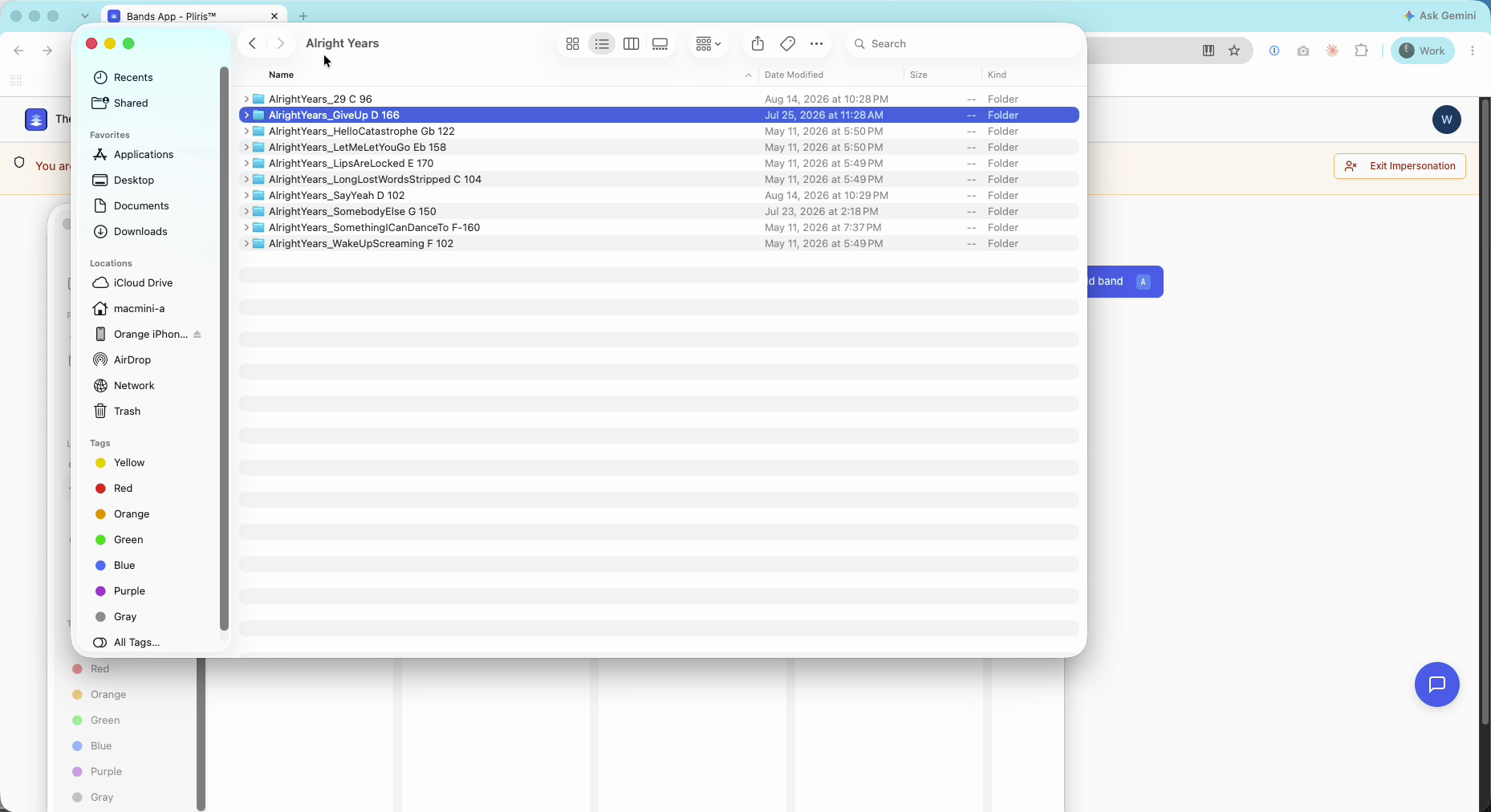
Import the folder
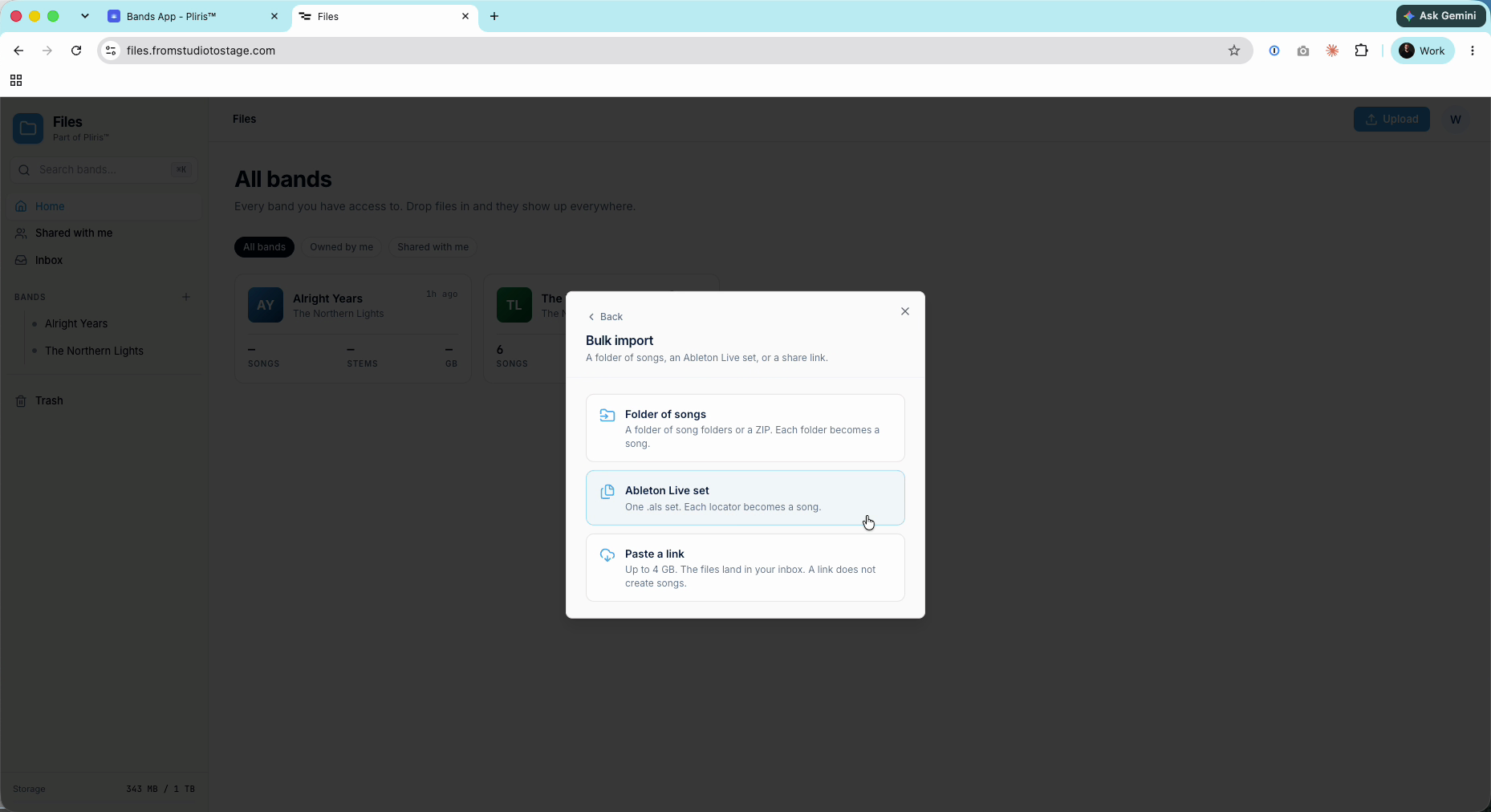
- Go to Files (files.fromstudiotostage.com) and click Upload, then Bulk import, then Folder of songs.
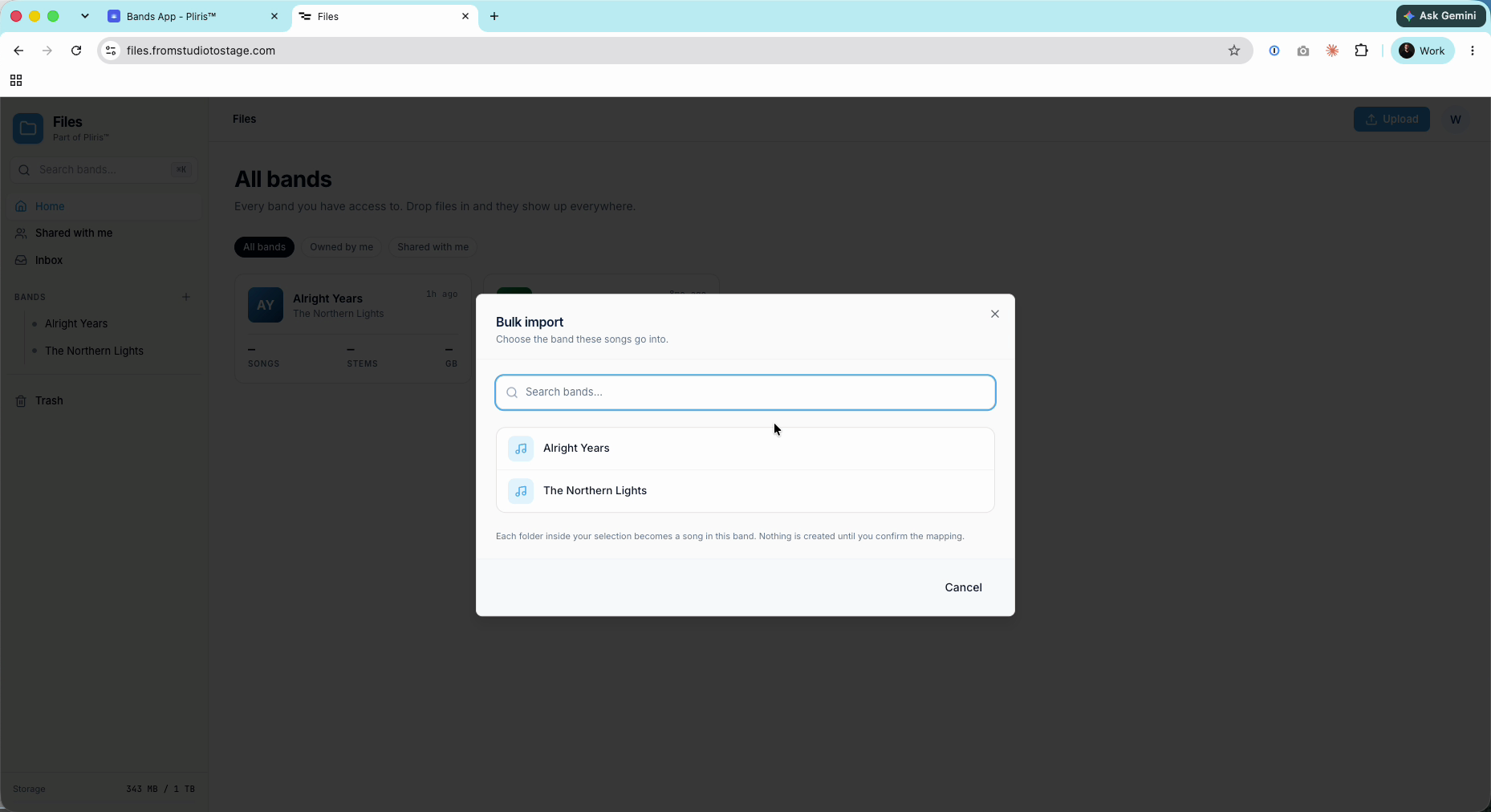
- Choose the band the songs belong to.
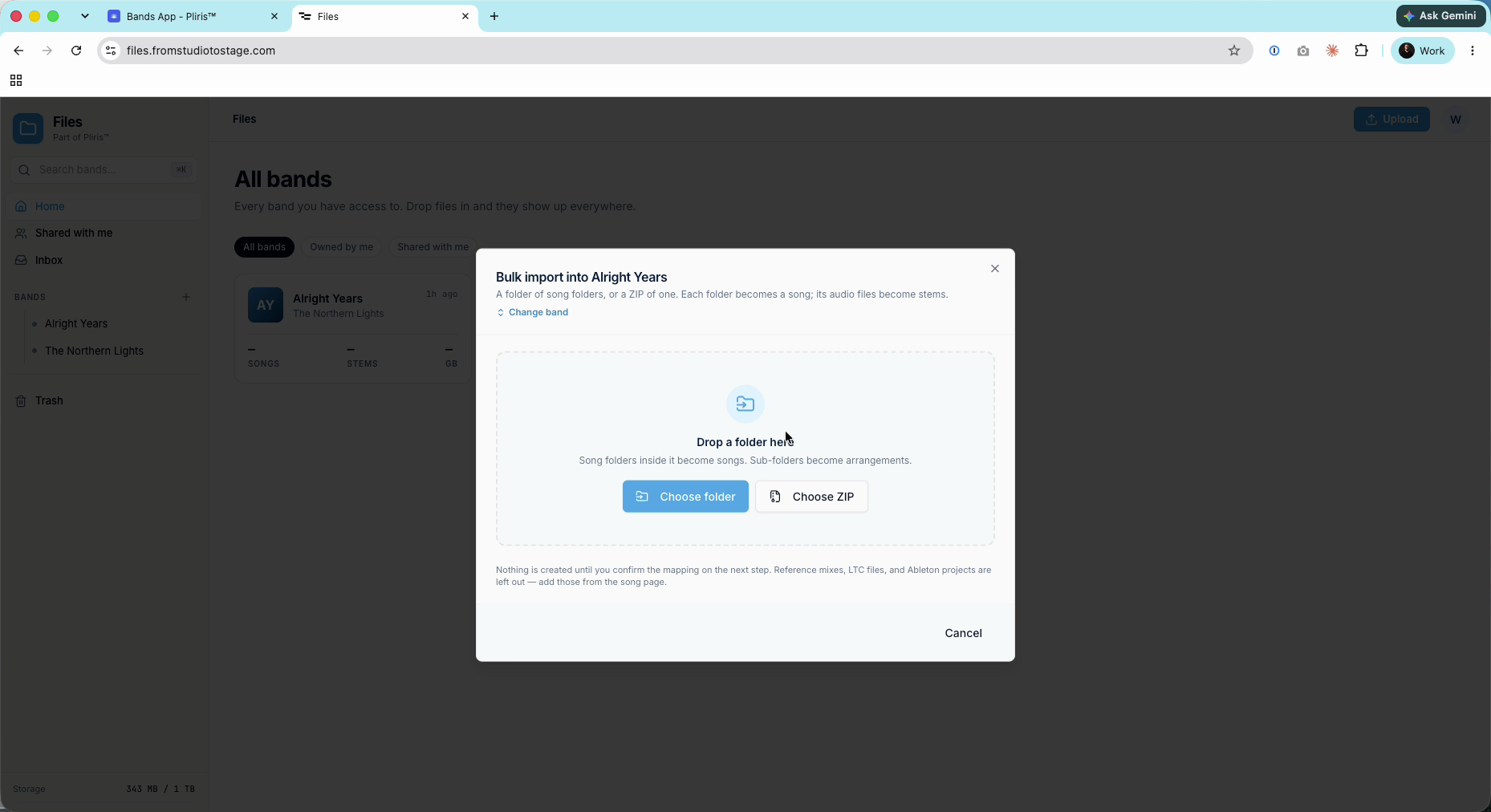
- Click Choose folder (or Choose ZIP), pick the parent folder and click Upload.
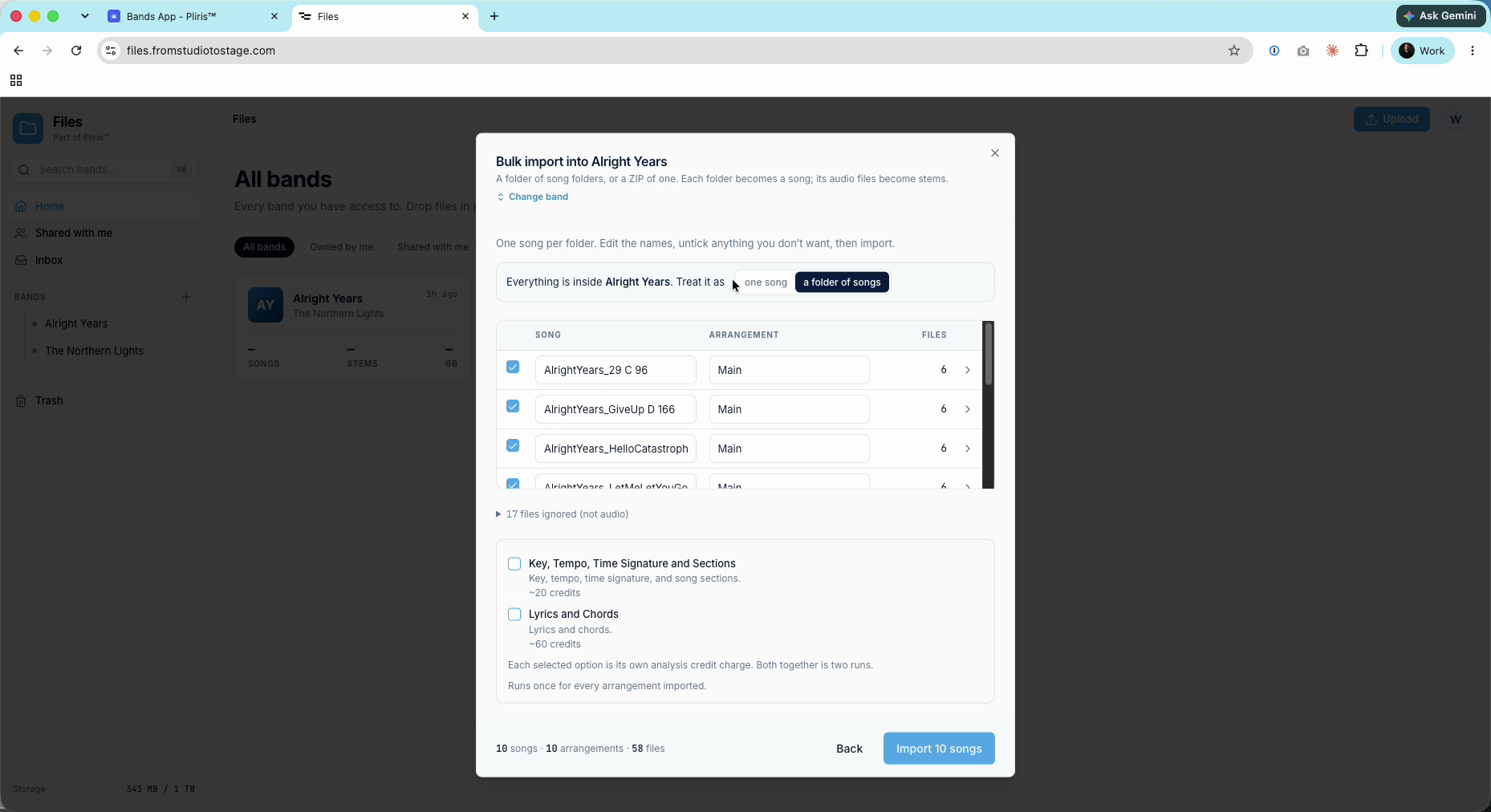
- Keep a folder of songs selected (choose one song only if everything belongs to a single song).
- Check each song's name and arrangement name, and rename where needed. Untick any song you don't want to import.
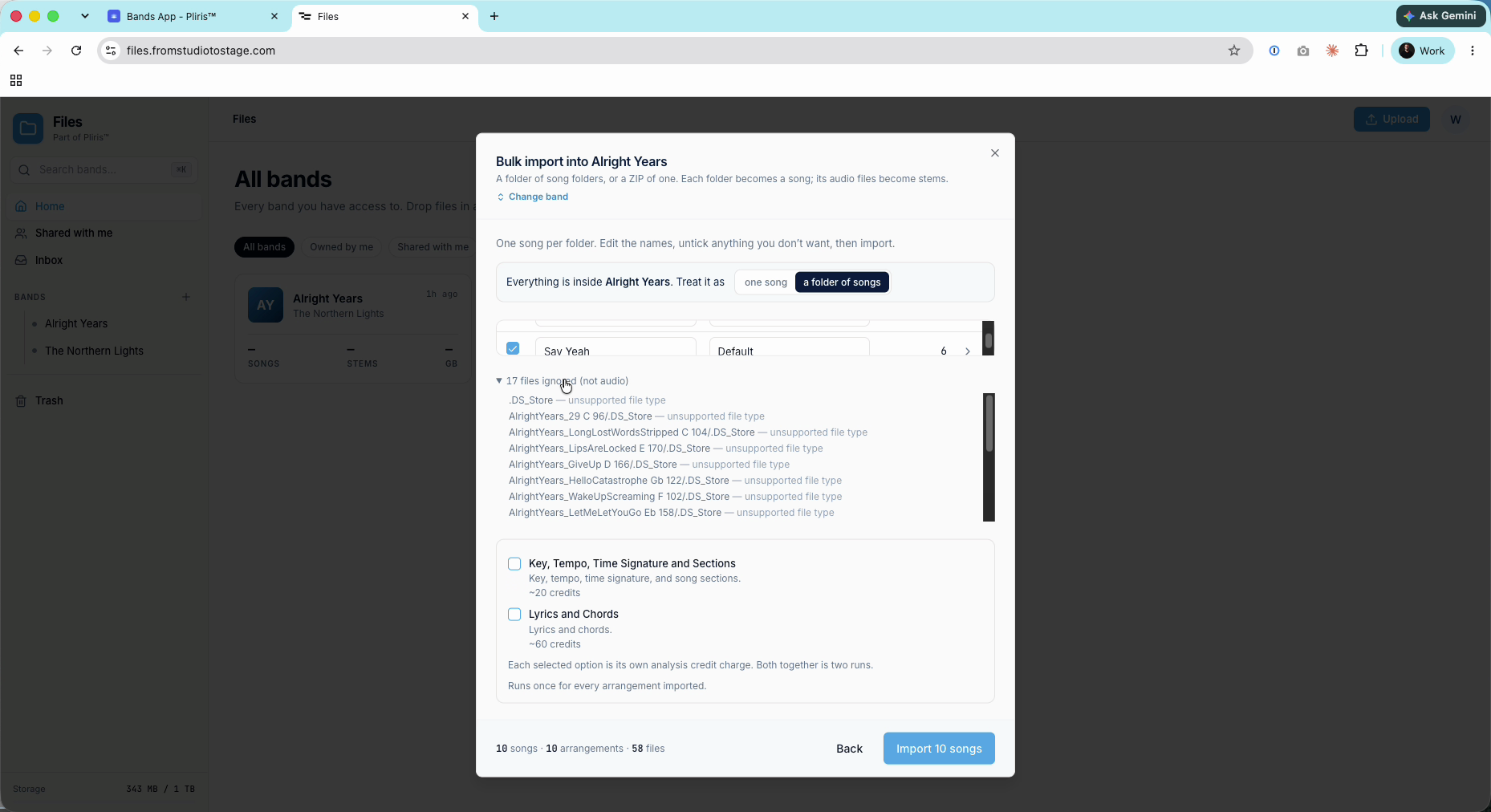
- Files that aren't audio (such as .DS_Store) are listed as ignored and won't upload.
- Choose analysis. For stems we suggest Key, Tempo, Time Signature and Sections (about 20 credits), plus Lyrics and Chords (about 60 credits) if you want them. Each option is its own charge and runs once for every arrangement imported. See Credits Explained.
- Click Import (for example Import 10 songs).
While it imports
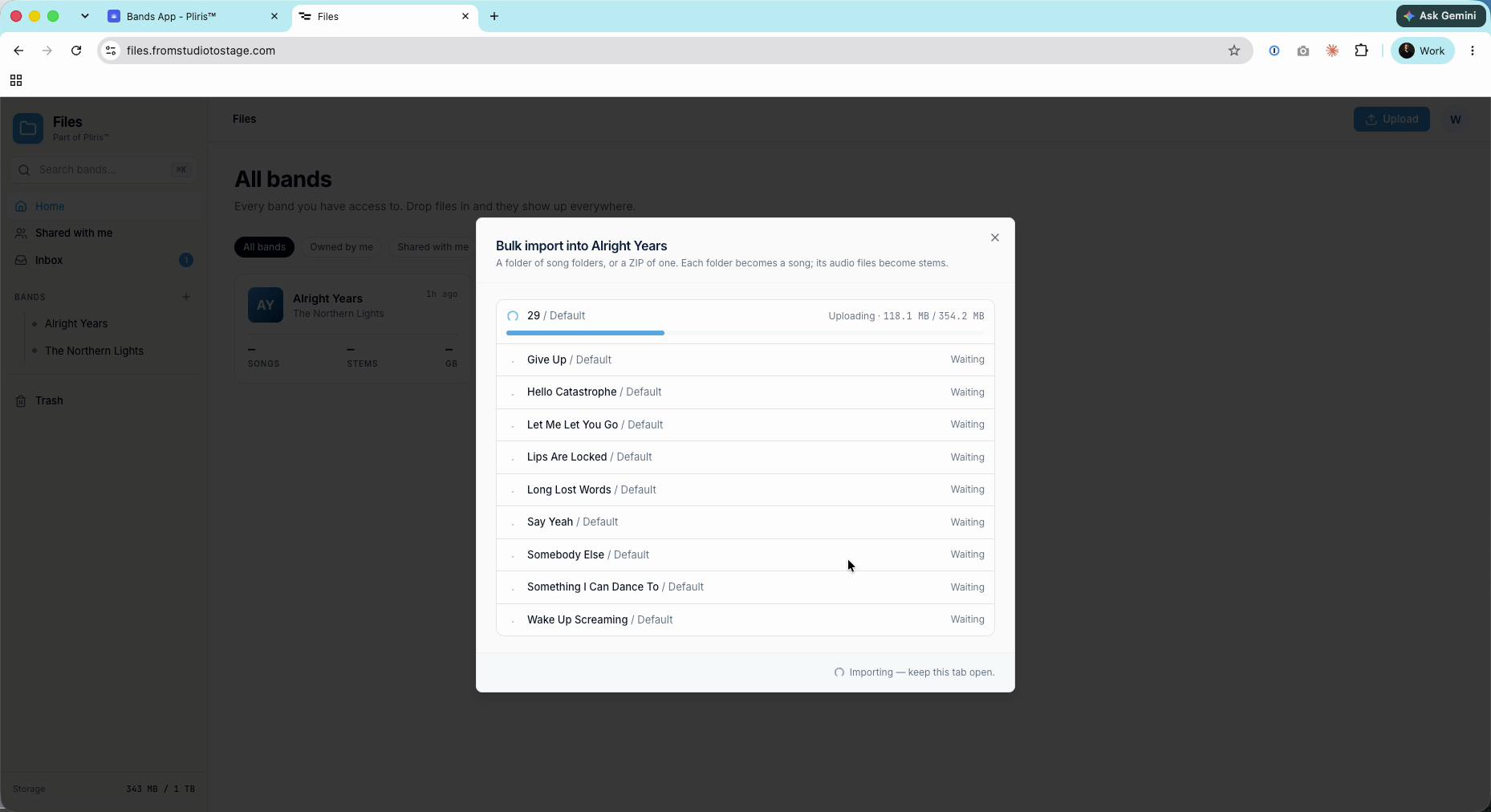
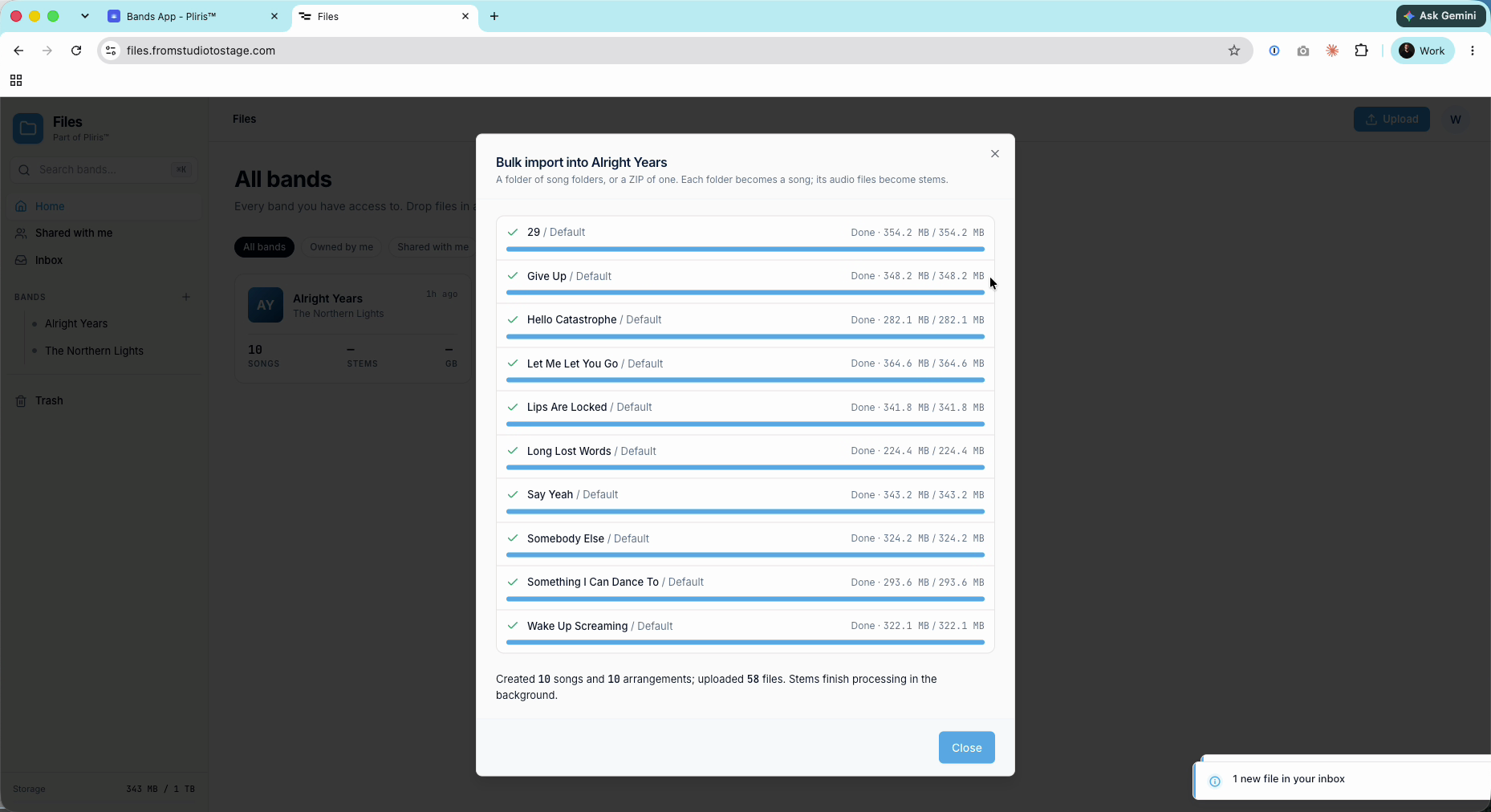
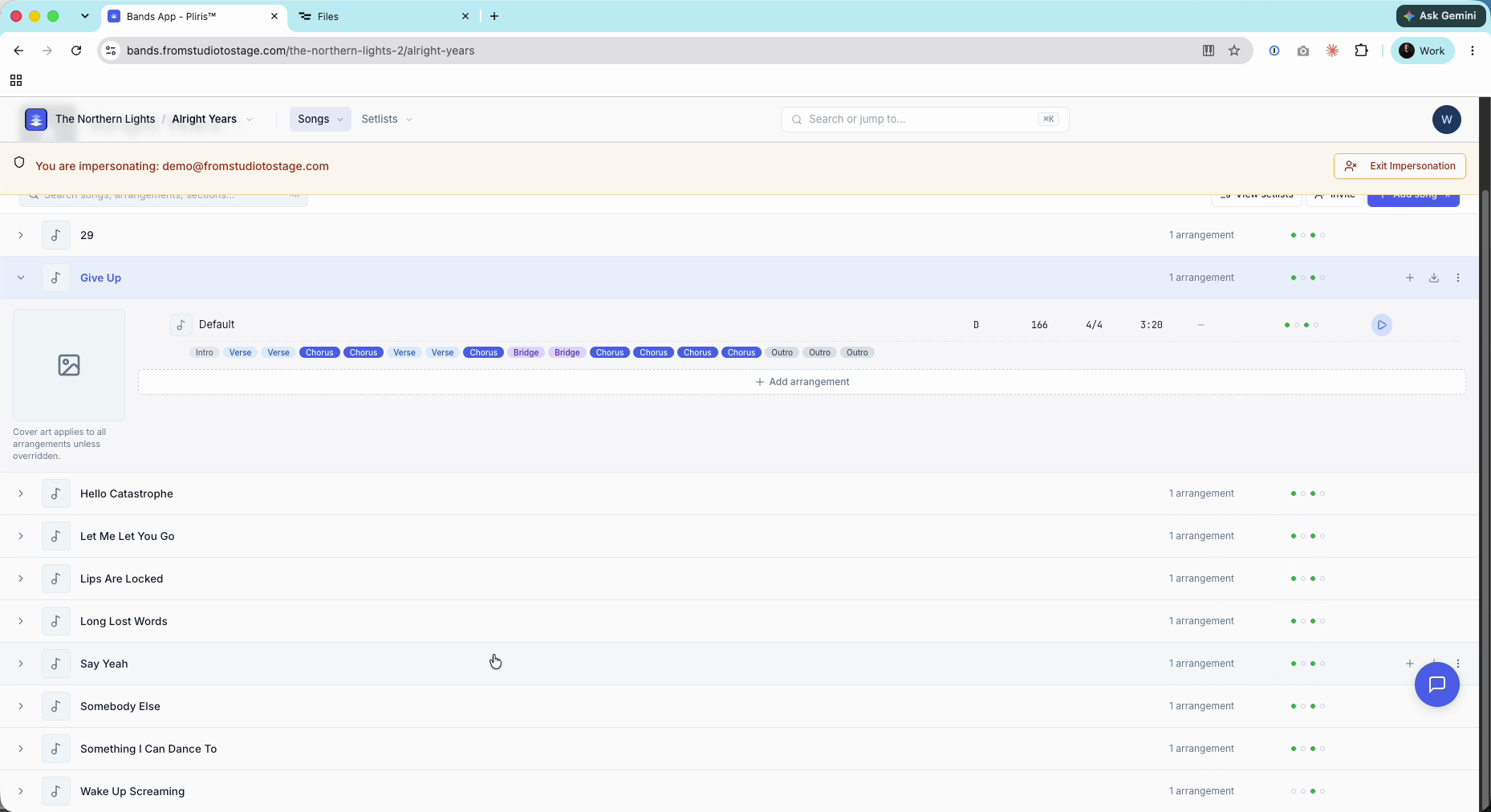
A progress list shows each song uploading, waiting or done. Keep the page open until it finishes. Each song appears in the band as soon as it's done, so you can open finished songs in the Bands app while the rest upload.
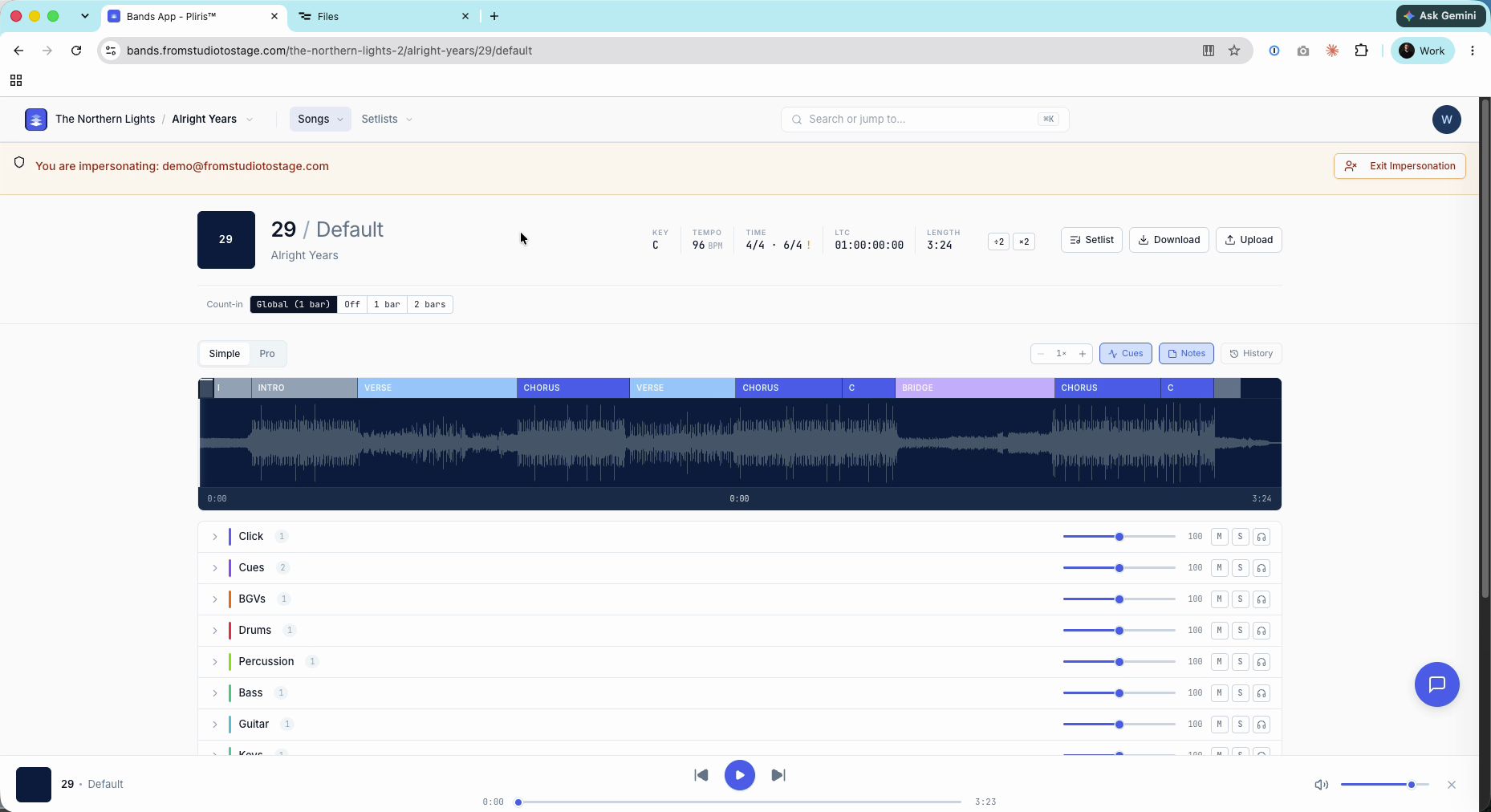
When it's done, a summary shows the songs, arrangements and files created. Processing finishes in the background, so you can click Close.
Already have the songs in an Ableton Live set? See Importing a Whole Ableton Live Set. Stems in Dropbox, Google Drive or another cloud? See Importing Stems from Cloud Storage. For other ways in, see Ways to Get Songs into Pliris.
Moving a very large catalog and need a hand? Contact support. We can help you plan the import.
Frequently asked questions
How do I upload many songs to Pliris at once?
Put each song's stems in its own folder, then in Files choose Upload, Bulk import, Folder of songs, and pick the parent folder.
Can I bulk import a ZIP?
Yes. Choose Choose ZIP instead of Choose folder. Each folder inside the ZIP becomes a song.
Can I leave the page while a bulk import runs?
Keep it open until the import finishes. Songs that are already done appear in the band straight away.
Why were some files ignored?
Only audio files upload. System and project files, such as .DS_Store, are skipped.
Can I skip some songs in the folder?
Yes. Untick them in the import list before you click Import.