Importing Stems from Cloud Storage
Paste a Dropbox, Google Drive, OneDrive, SharePoint, or iCloud Drive share link into Files and Pliris pulls the stems in server-side. Nothing uploads over your internet. Then send the drop to a song with Add to arrangement.
If your stems are already in cloud storage, you don't have to download them and upload them again. Paste a share link into Files and Pliris fetches the files server-side, straight into your Inbox. Nothing goes over your internet connection, so a slow or capped connection doesn't matter.
Watch the lesson: this article goes with Import stems from cloud storage, part of the Using Pliris to Program, Practice, and Perform course.
Supported: Dropbox, Google Drive, OneDrive, SharePoint and iCloud Drive share links.
Before you start
- The link has to be downloadable by anyone who has it. If you could send it to a friend and they could download the files without signing in, it will work.
- Password-protected links are fine. Enter the password in the import dialog.
- Compressed and folder imports that unpack to more than about 4 GB usually need splitting into smaller shares, or uploading from your computer instead.
Import a share link
- Go to Files (files.fromstudiotostage.com) and click Upload, top right. Choose Add files.
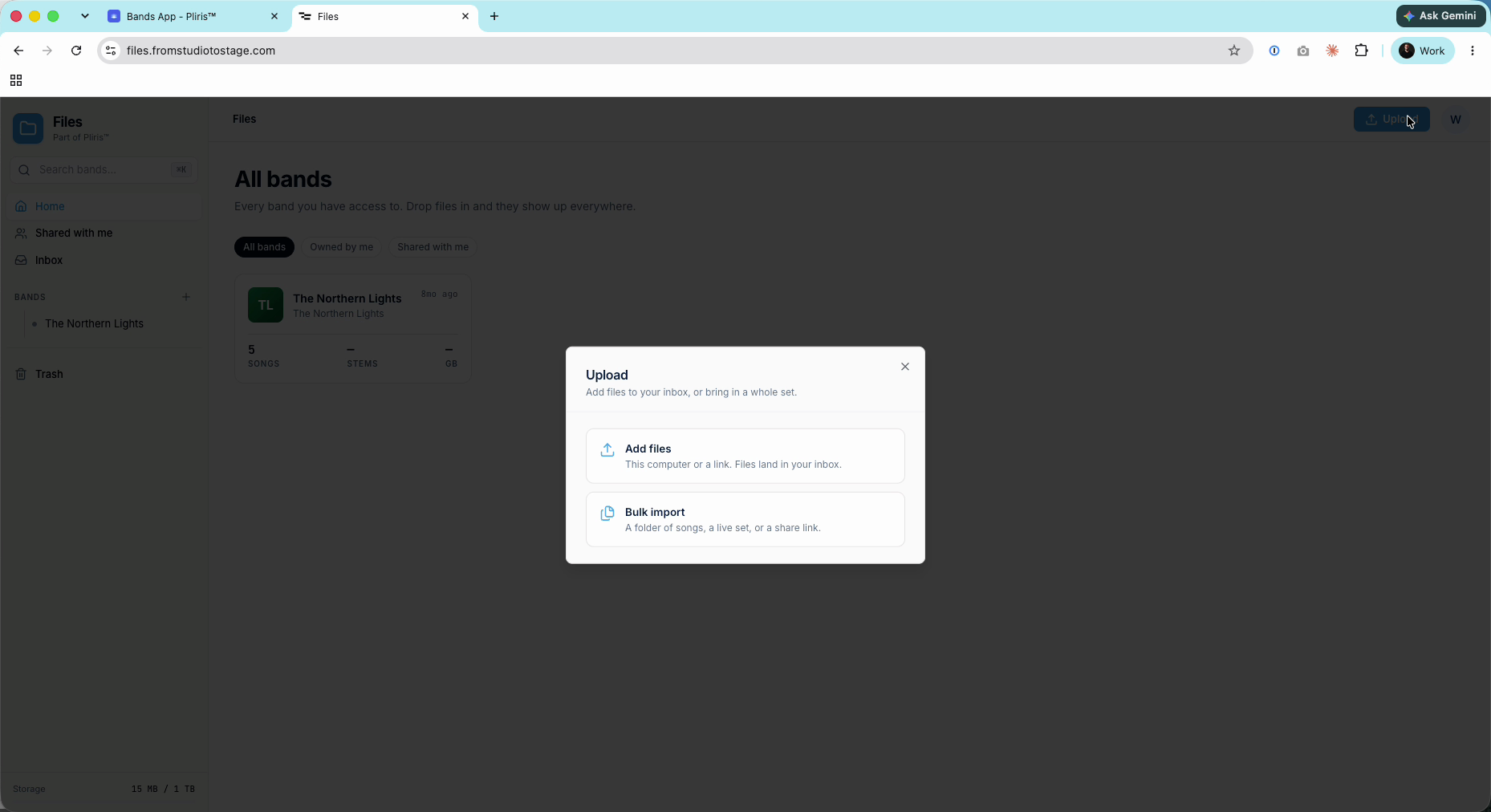
- Choose Paste a link.
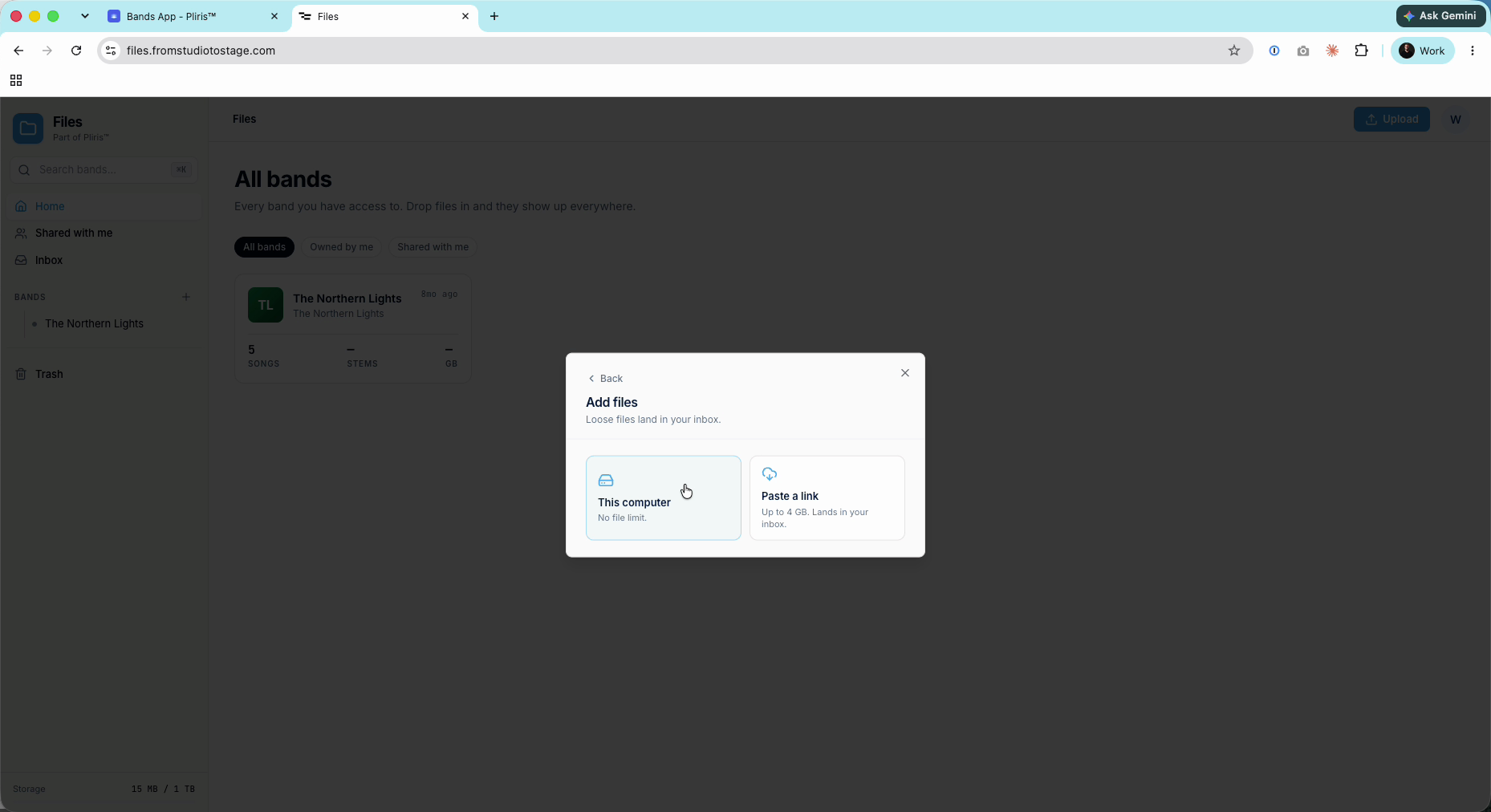
- Paste your link into Share link, add a password if the link has one, and click Start import.
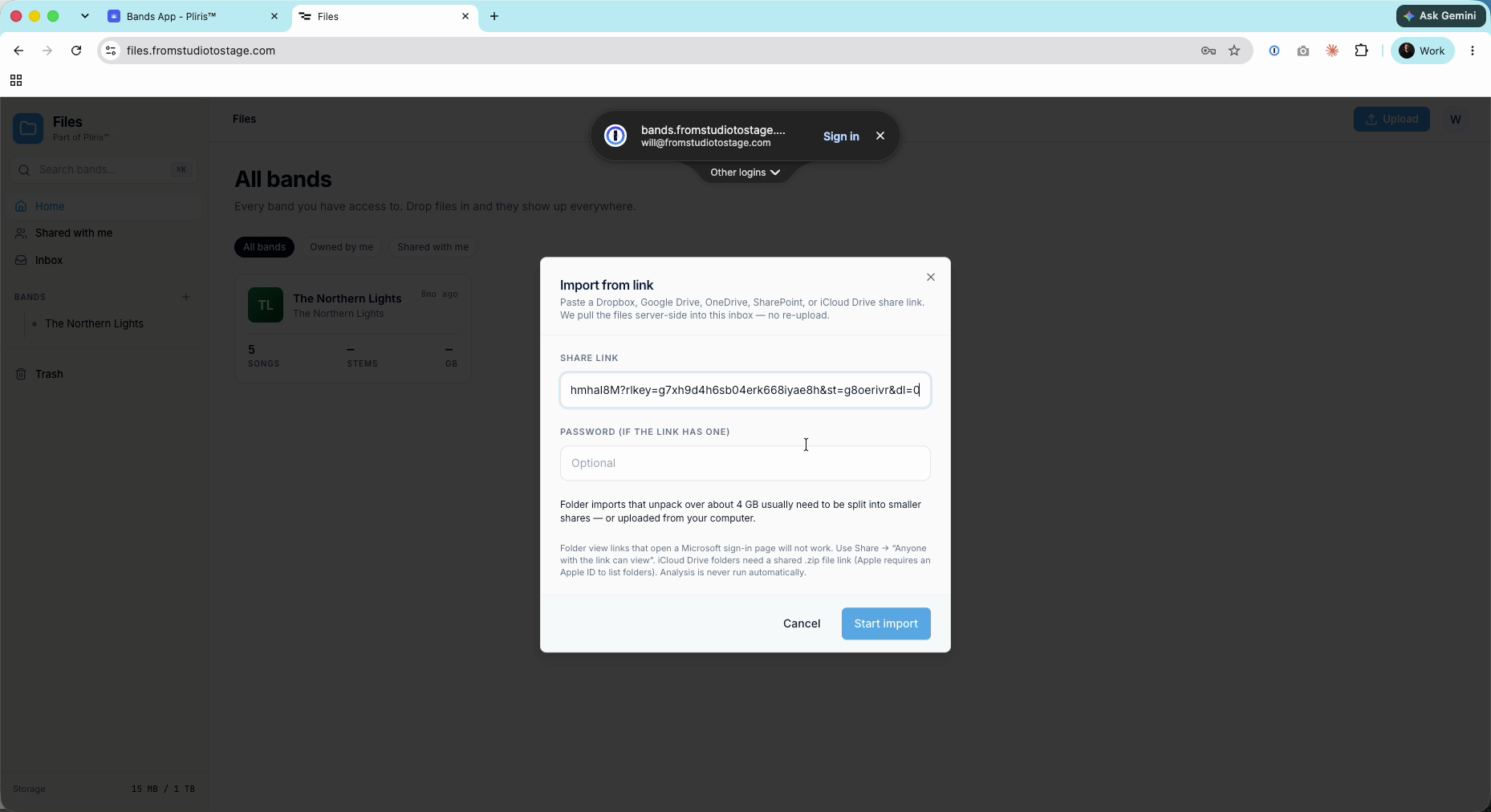
- Open Inbox. The import shows as Fetching, then counts files as they're staged. You don't need to stay on the page.
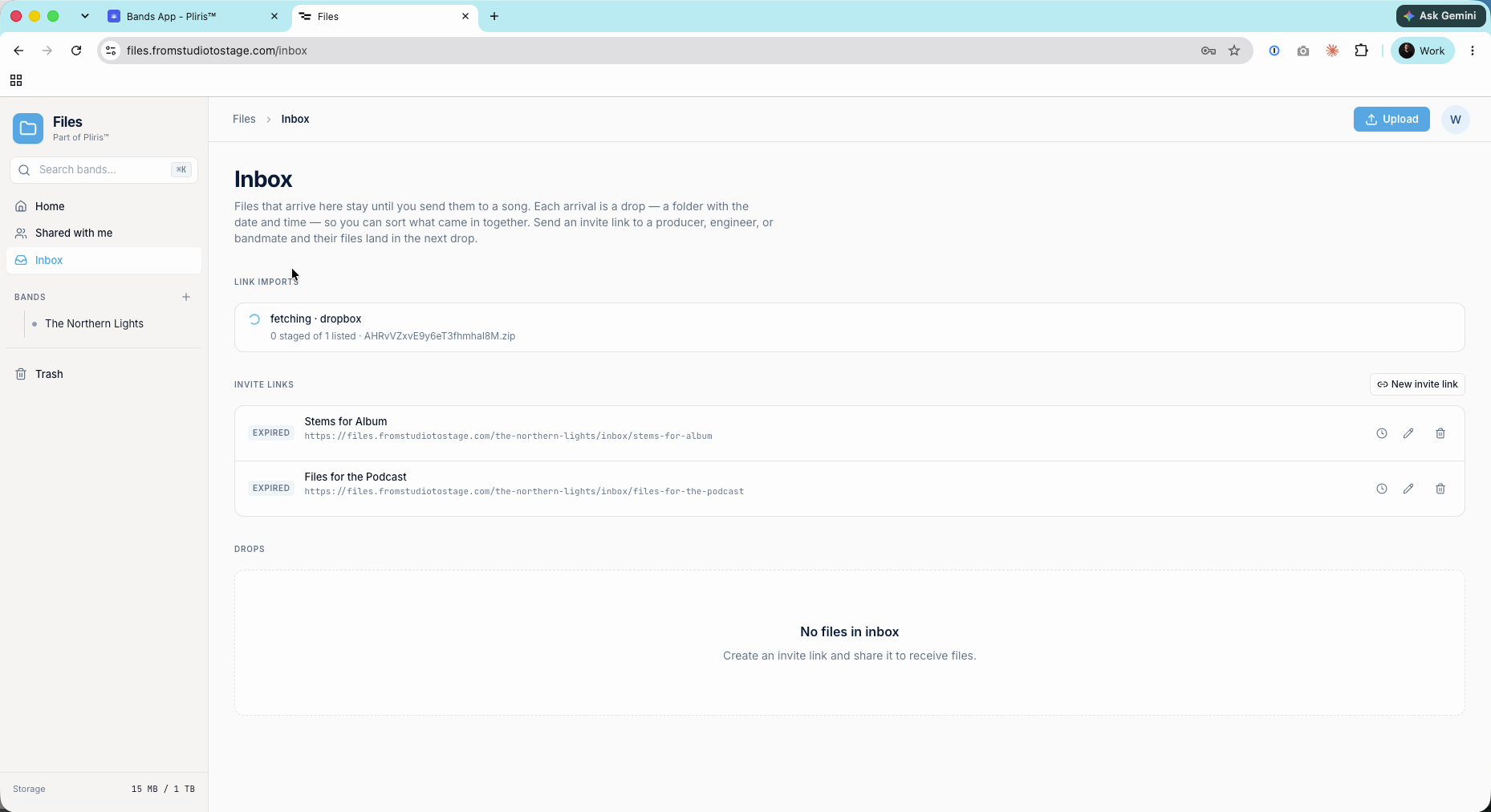
When it finishes, the files arrive as a drop: a folder named with the date and time. It also shows who imported it and where it came from (for example DROPBOX).
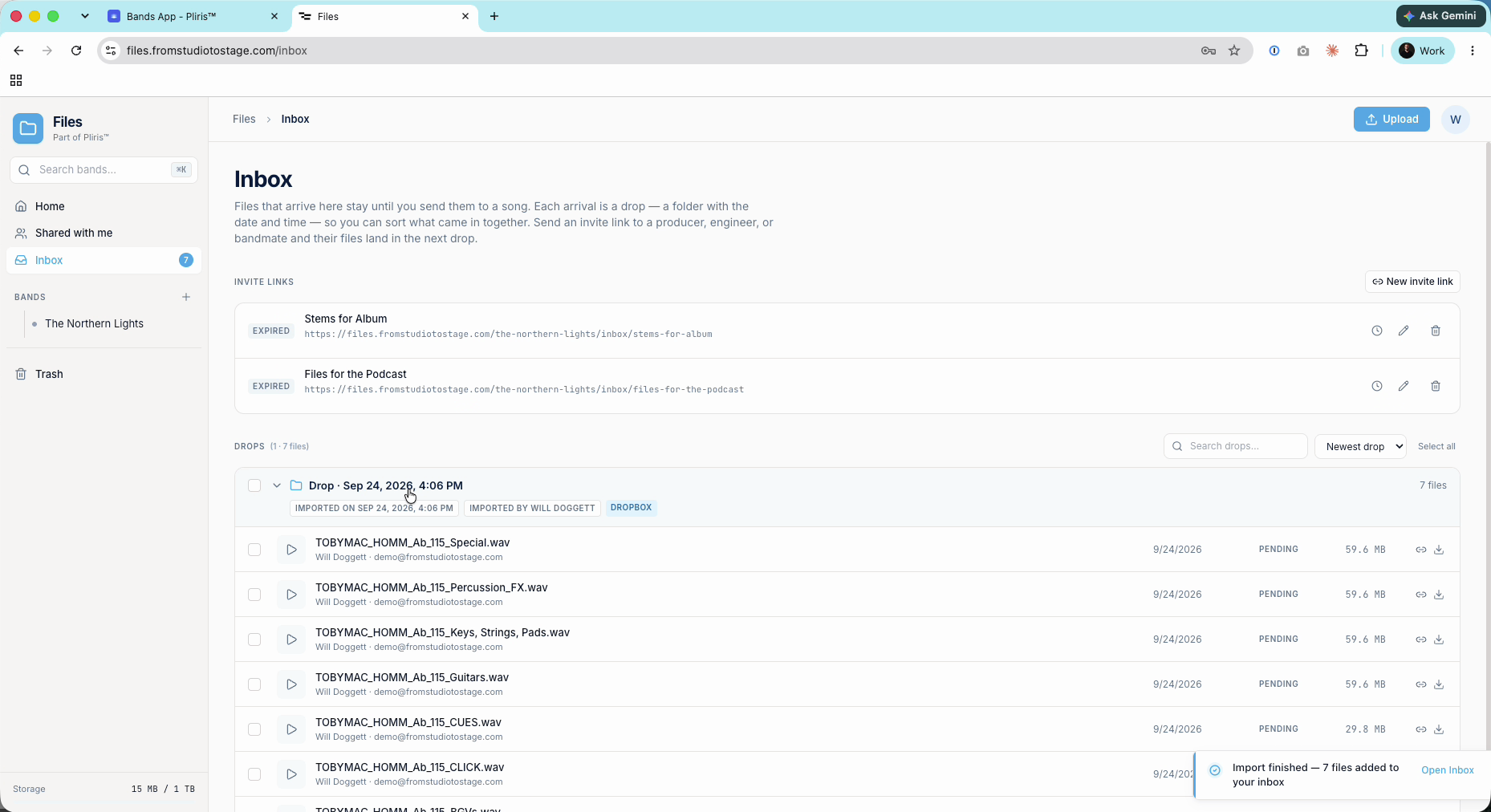
Send the drop to a song
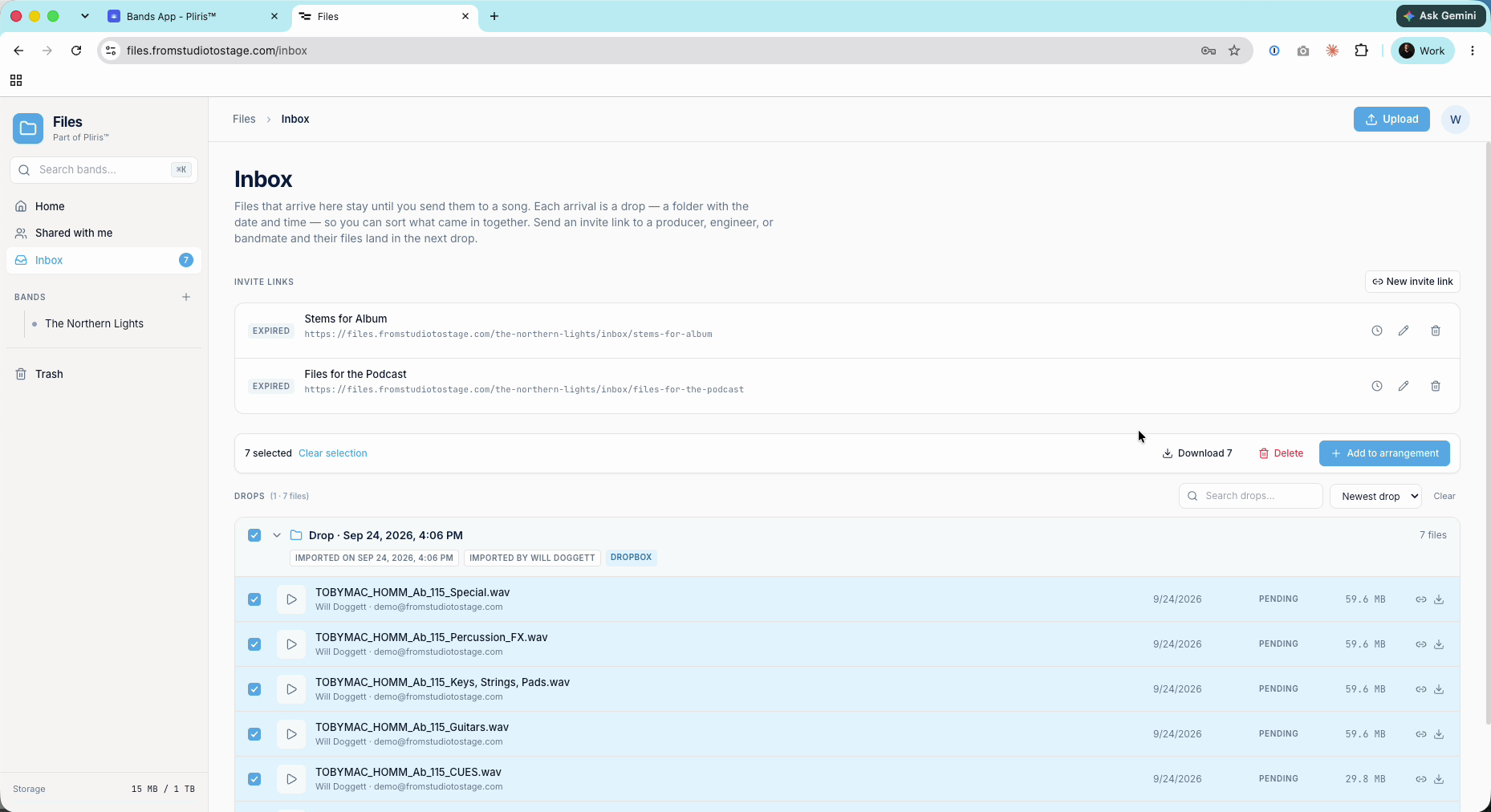
Imported files wait in your Inbox until you send them to a song. They aren't in a band yet.
- Tick the drop's checkbox to select all of its files, then click Add to arrangement.
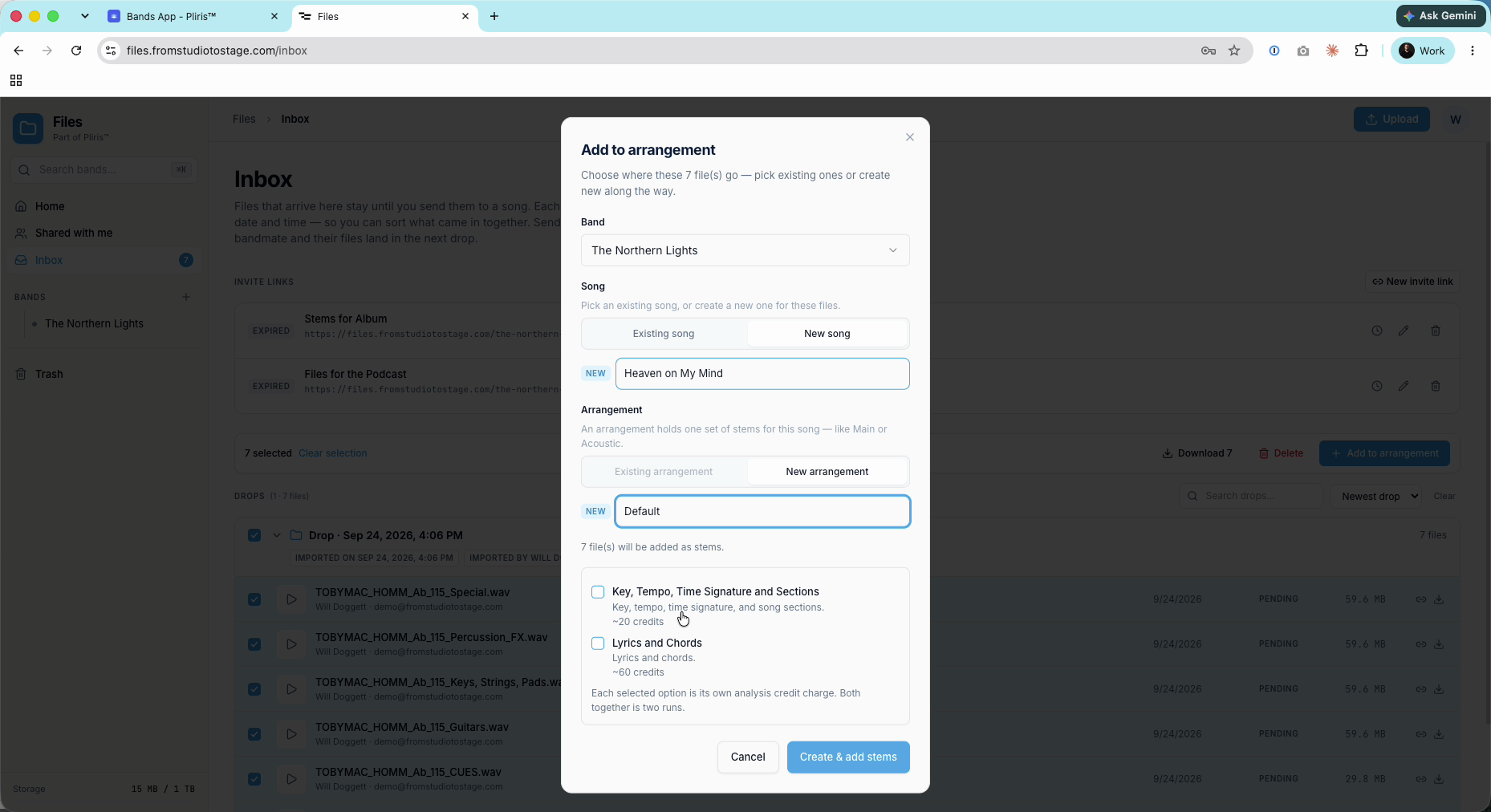
Choose the Band, then an Existing song or a New song, then an Existing arrangement or a New arrangement (for example Default).
Tick the analysis you want. Analysis is never run automatically:
- Key, Tempo, Time Signature and Sections
- Lyrics and Chords
Each option you tick is its own credit charge. See Credits Explained.
Click Create & add stems.
The stems move from your Inbox into the song, and analysis starts. Key, tempo and time signature come first, then sections. Lyrics take a little longer.
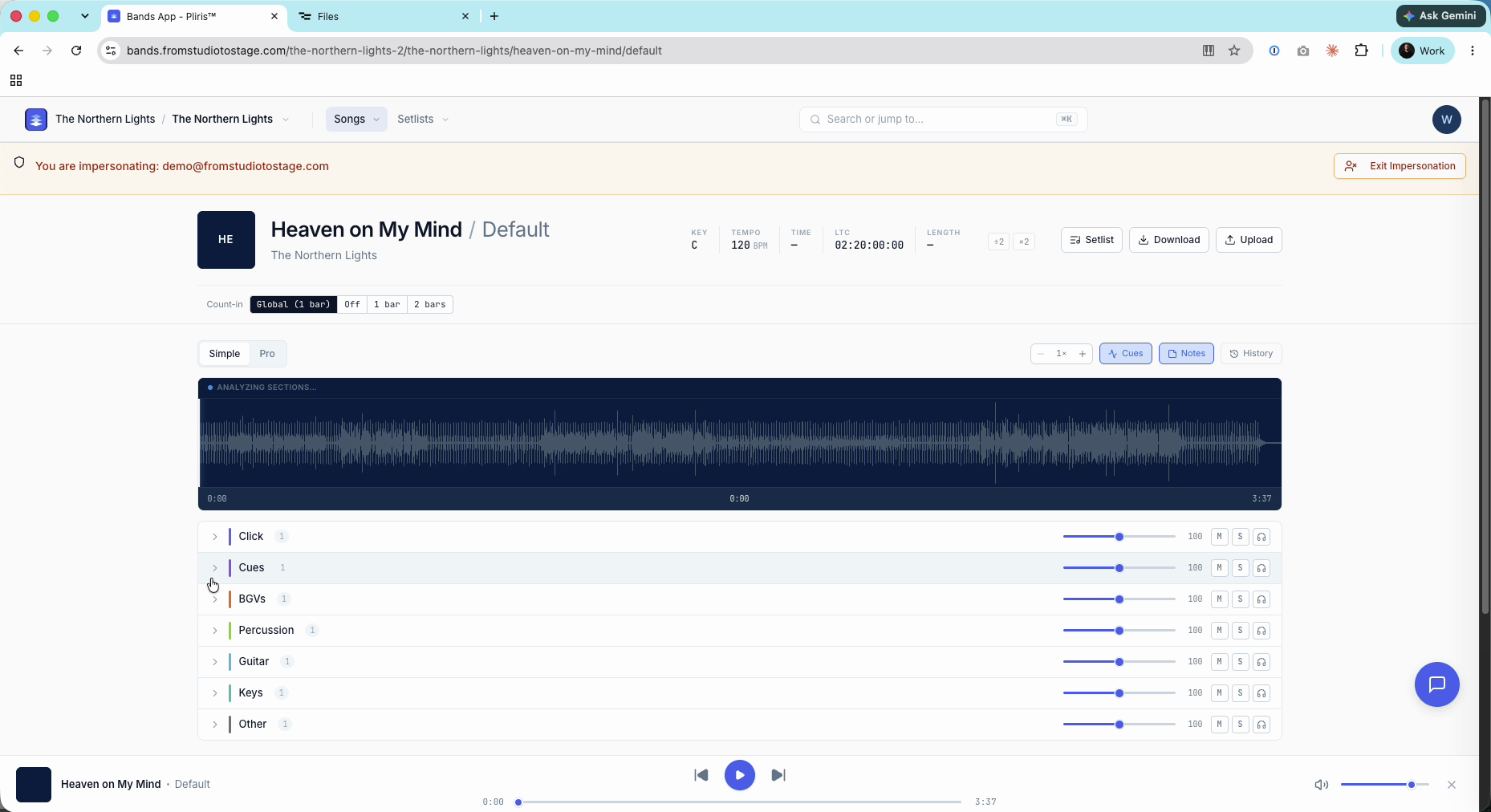
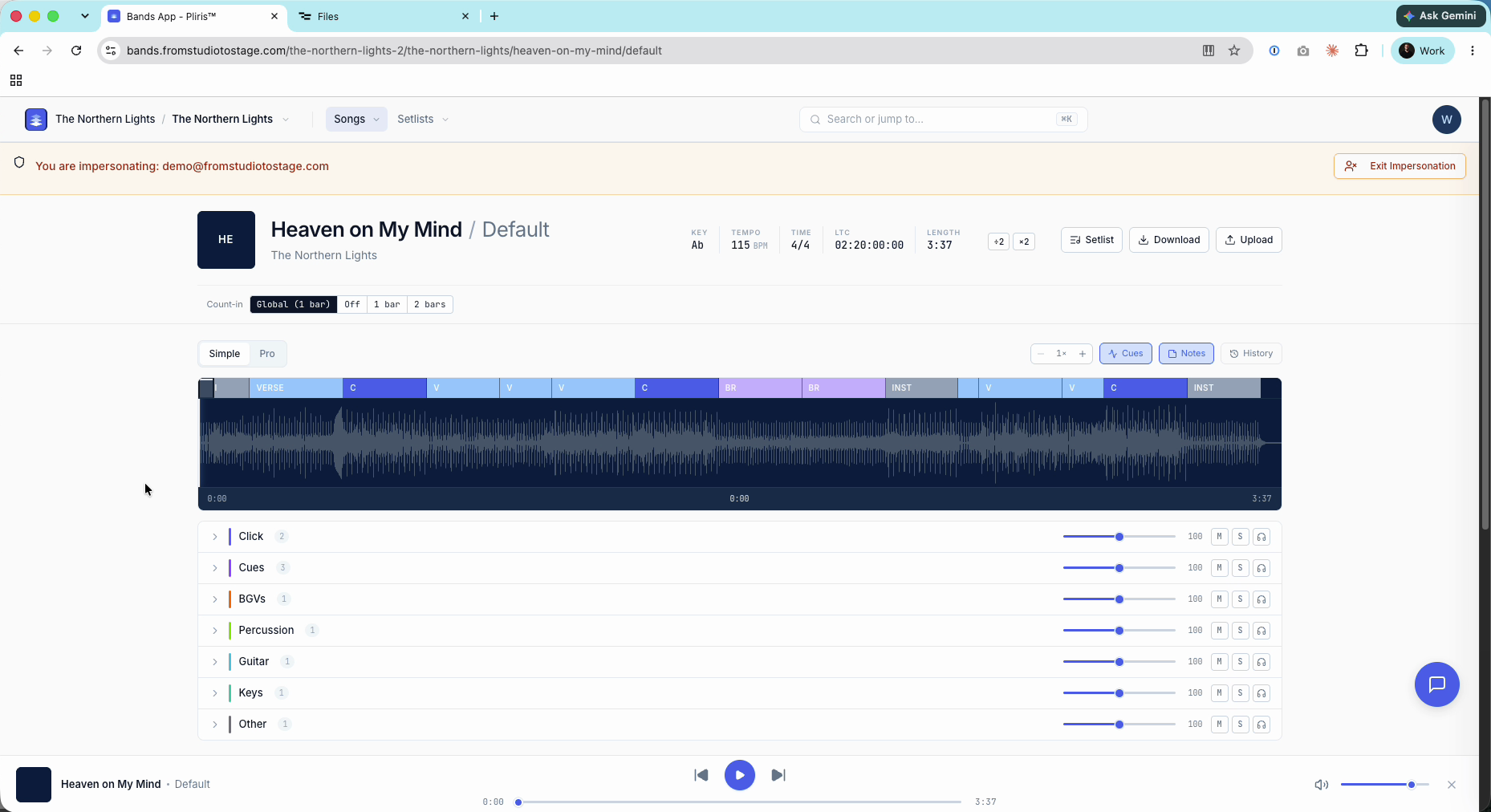
From here the song works like any other. To edit it, see Drop Files, Analyze When Ready, Right-Click to Edit.
Frequently asked questions
Does importing use my internet connection?
No. Pliris downloads the files from your cloud provider directly. Your connection is only used to paste the link and watch the progress.
My import fails straight away. Why?
Almost always, the link isn't shared publicly. Change the share setting to Anyone with the link can view and paste the new link.
My OneDrive or SharePoint folder link doesn't work.
Folder links that open a Microsoft sign-in page won't import. Use Share → "Anyone with the link can view" instead.
Can I import an iCloud Drive folder?
Share it as a .zip file link. Apple requires an Apple ID to list a folder's contents, so plain folder links can't be read.
My big .zip won't import.
Imports that unpack to more than about 4 GB usually need splitting into smaller shares. You can also upload them from your computer. See Uploading and Analyzing Your Stems.
The files are in Files but not in my band.
That's expected. Every import lands in your Inbox first. Select the drop and use Add to arrangement.
Lyrics are missing after analysis.
Lyrics and Chords is a separate option, and it finishes after sections. Check that you ticked it, and give it a few minutes.