Edit the grid
Pliris now lets you fix a song's grid — bar lines, meter, tempo and sections — in the app, no round trip through Ableton. You are correcting what Pliris believes about the music, not changing the music: your stems are never time-stretched or re-rendered.
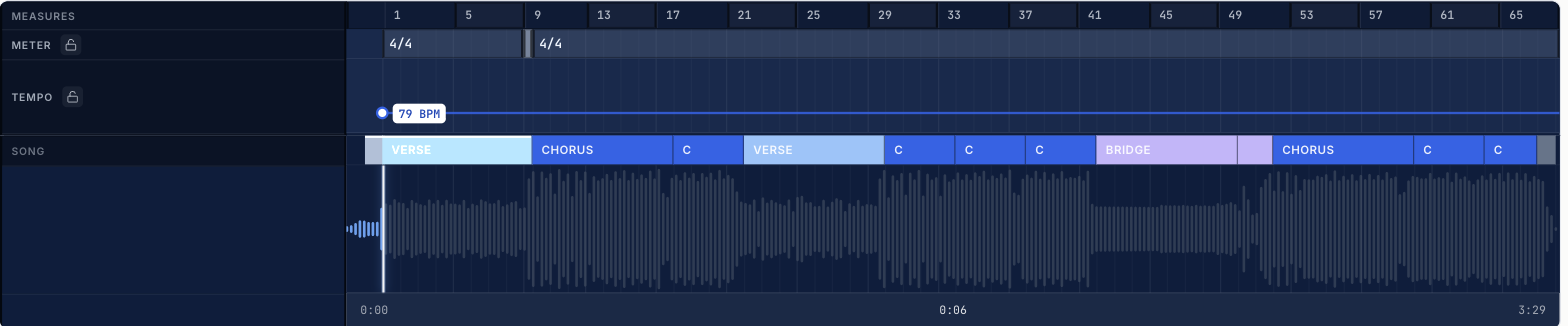
Analyze is good at working out a song's grid. It is not perfect, and until now, when it got something wrong your only option was to go back to Ableton, move a locator or a time-signature change, save, and drop the set onto the arrangement again.
That round trip is gone. Pliris now has an editable grid.
First, the important part: this does not change your song
The grid is Pliris's description of the music you uploaded — where the bar lines fall, what the meter is, what the tempo is doing. Analyze writes that description for you. Everything below is about correcting the description when it does not match the recording.
Your audio never moves. Nothing here time-stretches a stem, speeds a song up, re-renders anything or spends a credit. Change the tempo in the grid and your stems keep playing at exactly the speed they were recorded — you are telling Pliris "this song is 102 BPM", not "play this song at 102 BPM."
The useful way to hold it: if the click is fighting the music, the click is wrong. You are fixing the click.
Pro mode
Open any song and click Pro, next to Simple, above the timeline. Three new lanes appear above your waveform — Measures, Meter and Tempo — lined up bar-for-bar with the audio and with the Song lane underneath.
Everything in those lanes is editable.
Fix a time signature
Right-click any bar in the Meter lane and pick 4/4, 3/4, 2/4, 6/8 or 12/8. The new meter runs from that bar until the next change.
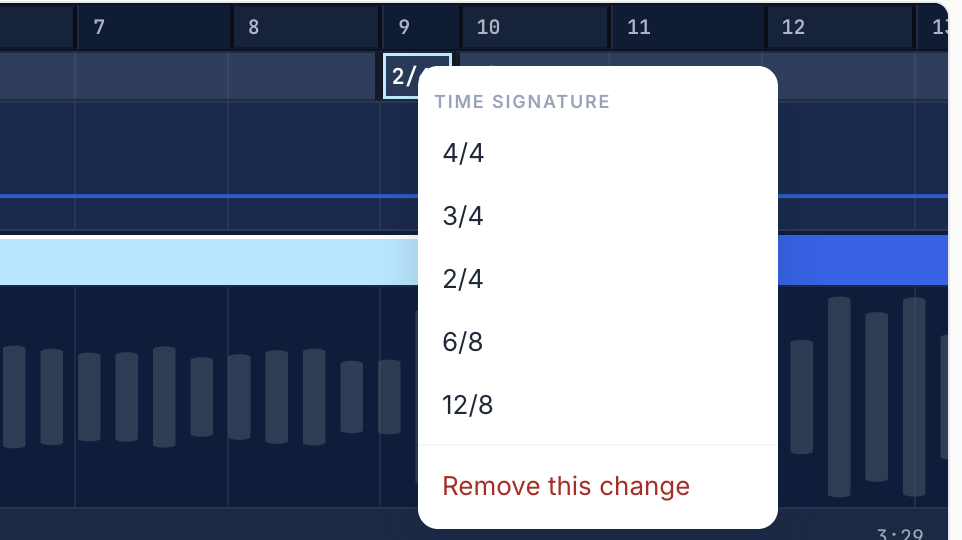
Here is the case that comes up most. A song drops a couple of beats going into the chorus. Analyze hears six beats and calls it one bar of 6/4. That is not wrong, exactly — the downbeat still lands in the right place, and the chorus starts where it should. But your players hear the click count 1-2-3-4-5-6 into the chorus, when the chart says a bar of 4 followed by a bar of 2.
Two right-clicks and it counts 1-2-3-4, 1-2 instead.
The part that matters: it is not a relabel. Changing the meter moves the bar lines, and the click, the count-in and the cues all follow, because they read the same grid you just edited.
Retune a tempo
The Tempo lane draws the song's tempo as a line with a point at each change. Drag a point up or down to retune from that bar on. Hold Shift for finer steps. Drag it sideways and it snaps to the nearest bar. Right-click to remove it, or right-click empty space to add one.
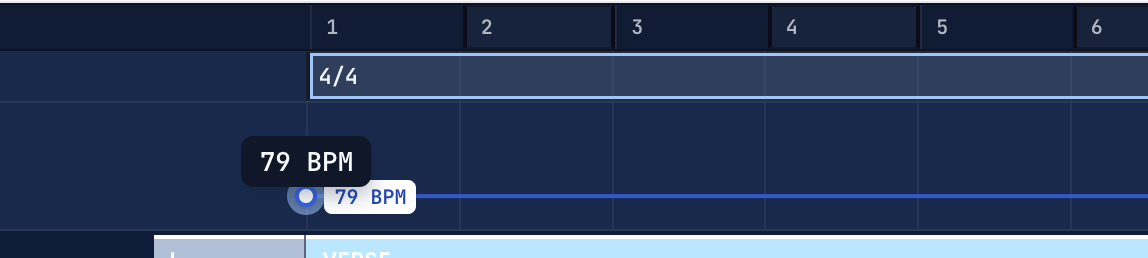
Worth saying twice: changing the tempo does not time-stretch anything and does not alter your stems. You are telling Pliris what the song already is, so the click, the count-in and the export agree with the recording. Set a number the song is not actually at and the audio carries on regardless while the click walks away from it.
Edit sections without leaving the page
Right-click a section for Rename, Split here, Edit cue, Loop section, Merge with previous, Merge with next and Delete section. Double-click to rename. Drag the boundary between two sections to resize them — it snaps to the beat grid, and ticks as you cross each beat so you can feel where you are landing.
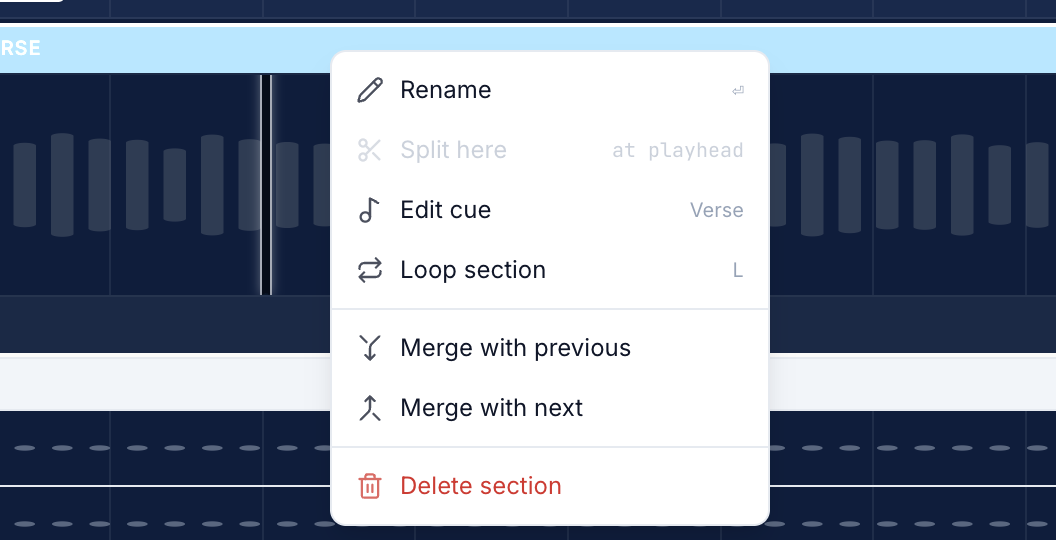
Splitting happens at the playhead, so park the playhead where you want the split first.
Marking a section as a loop travels into your Ableton export too, in whatever form your device expects — +LOOP on the locator name for AbleSet, a loop N action locator for LIOBOX and Setlist.
It is all undoable
⌘Z (Ctrl+Z on Windows) undoes the last edit in this session — the mistake you just made.
History (above the timeline) is different: it keeps version snapshots when you save arrangement edits, leave edit mode, or drop an updated .als — not a row for every single click. Restore an earlier version from there after a reload; restoring itself writes a new snapshot so you can undo the restore.
Your stems are never touched. Nothing is re-analyzed. No credits are spent.
Small things
- Clicking the timeline in Pro mode snaps the playhead to the nearest bar, so you land on the downbeat you aimed at. Simple mode still seeks to the exact spot.
- Zoom with + / − or = / -. Every bar line draws from 2× up; beat lines appear at 8×.
- Tempo readouts round for display — a song measured at 101.9894 BPM shows as 102 — while the precise value is kept for playback.
One post, two features
Section editing — split, merge, delete, resize, loop — and the tempo/meter grid shipped together. Both are on the arrangement page, both are right-click driven, and both are undoable with ⌘Z, and meaningful saves land in History.
Getting started
Open a song, click Pro, and have a look at the Meter lane. If a bar looks longer than it sounds, it probably is.
Full walkthrough: Editing the Grid.