Edit in Ableton. Live on the Page.
Change an arrangement in rehearsal — mute, deactivate, duplicate — drop the Live set back, and the on-page player updates instantly. No re-upload. Your whole set, in one drop.

You're in rehearsal and the second chorus isn't hitting. So you do what you'd do anyway — in Ableton you mute the doubled guitar, deactivate the pad clip, duplicate the last chorus to give the ending another eight bars. You hit save.
You drag that Live set onto the song page. And before the band counts back in, the on-page player is already playing the new version — muted guitar, no pad, longer ending. No re-uploading stems. No re-analyzing. No waiting.
Your band rehearses the song as it actually is now. That's live today.
Here is the whole flow in seven minutes — one Ableton set updating a full setlist, snapshot history included:
https://vimeo.com/1210635150/84de37e618
Update an arrangement straight from Ableton
This is the part that changes your rehearsal night. You don't re-upload anything — you drop your edited .als on the arrangement and Pliris™ reads what you changed: muted tracks, deactivated clips, a duplicated chorus, new section lengths. It shows you exactly what it caught, you confirm, and the on-page player updates in place.
Make a call in the room, land it on everyone's screen in seconds. The version they rehearse is the version you just built.
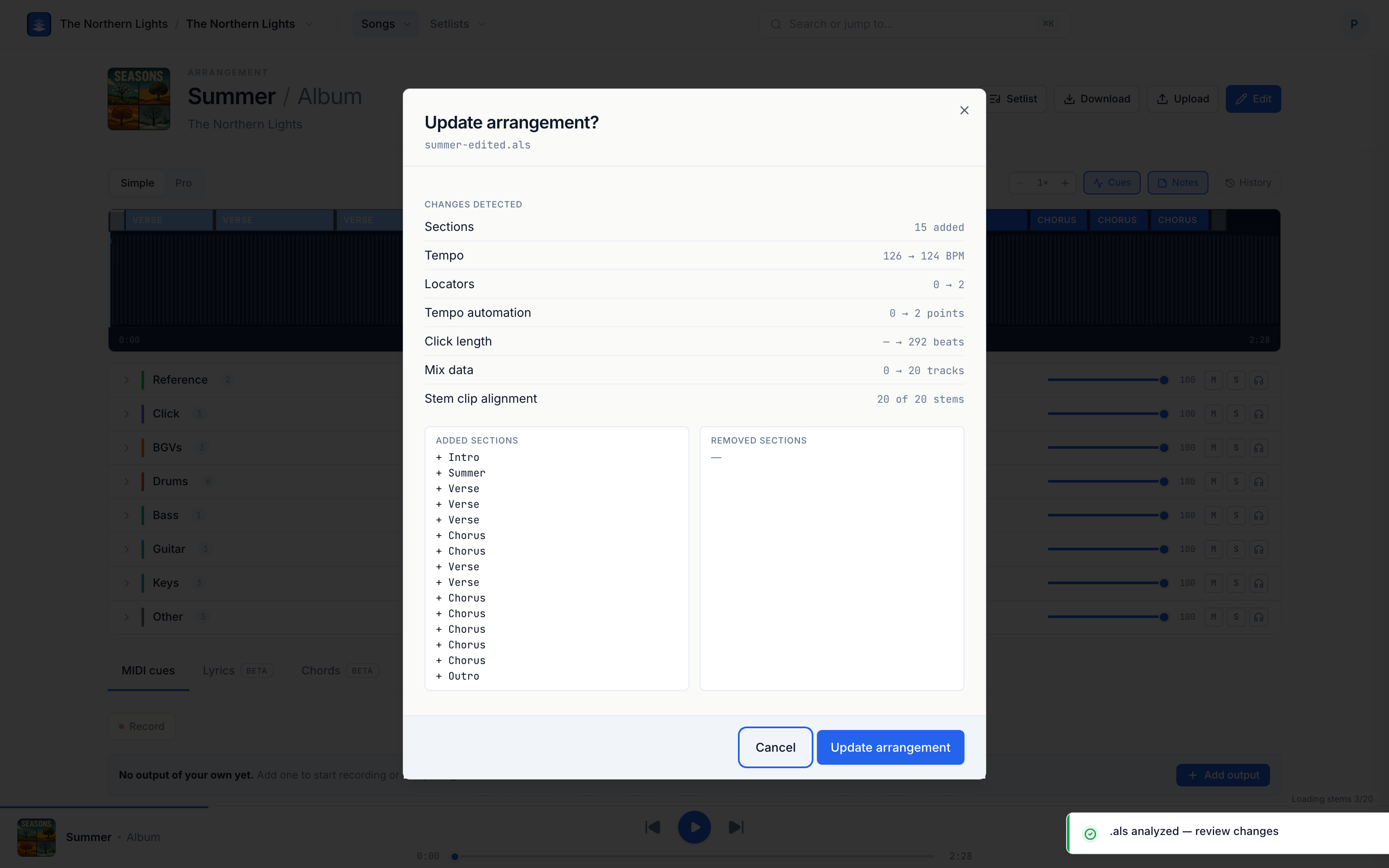
Drop your whole set back — in one move
Now do it for the entire show. Export your setlist to Ableton, run the rehearsal, make your changes across every song — then drop that one set file back on the page.
Pliris reads it song by song and applies each change to the right arrangement. Reworked an existing arrangement? It updates it. Built something new in the room? It can spin that up as a new arrangement instead. Your whole set, re-synced from one drop — not a song-by-song re-upload marathon after everyone's gone home.
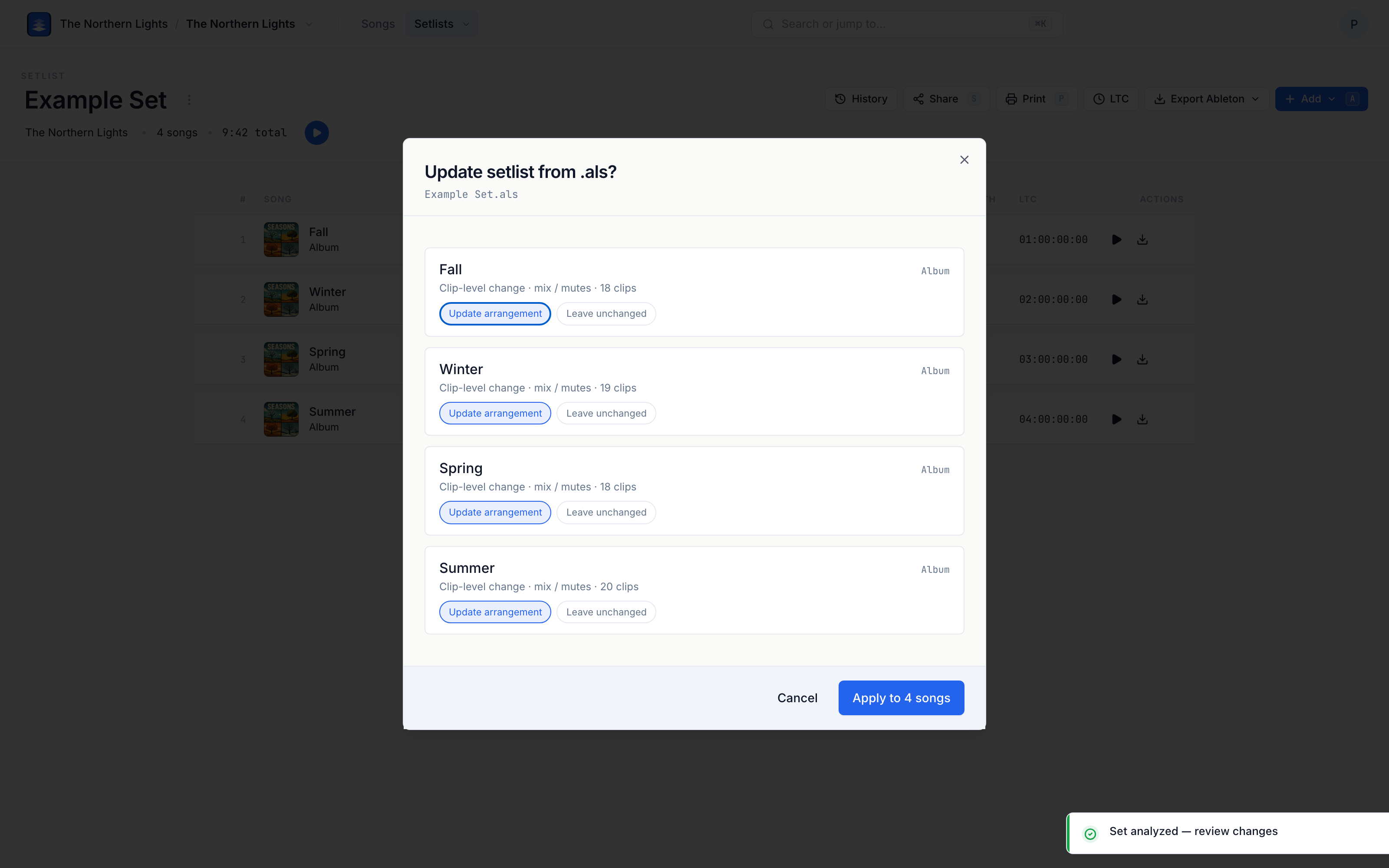
Every version is saved — so go ahead and experiment
Because every one of those drops is captured, you can be bold in rehearsal. Try the aggressive edit. Gut the bridge. If it doesn't land, open the arrangement's history and put the old one back — and even that restore is undoable, so you can never paint yourself into a corner.
Nothing you try in rehearsal is ever lost, and nothing you keep needs a "save."
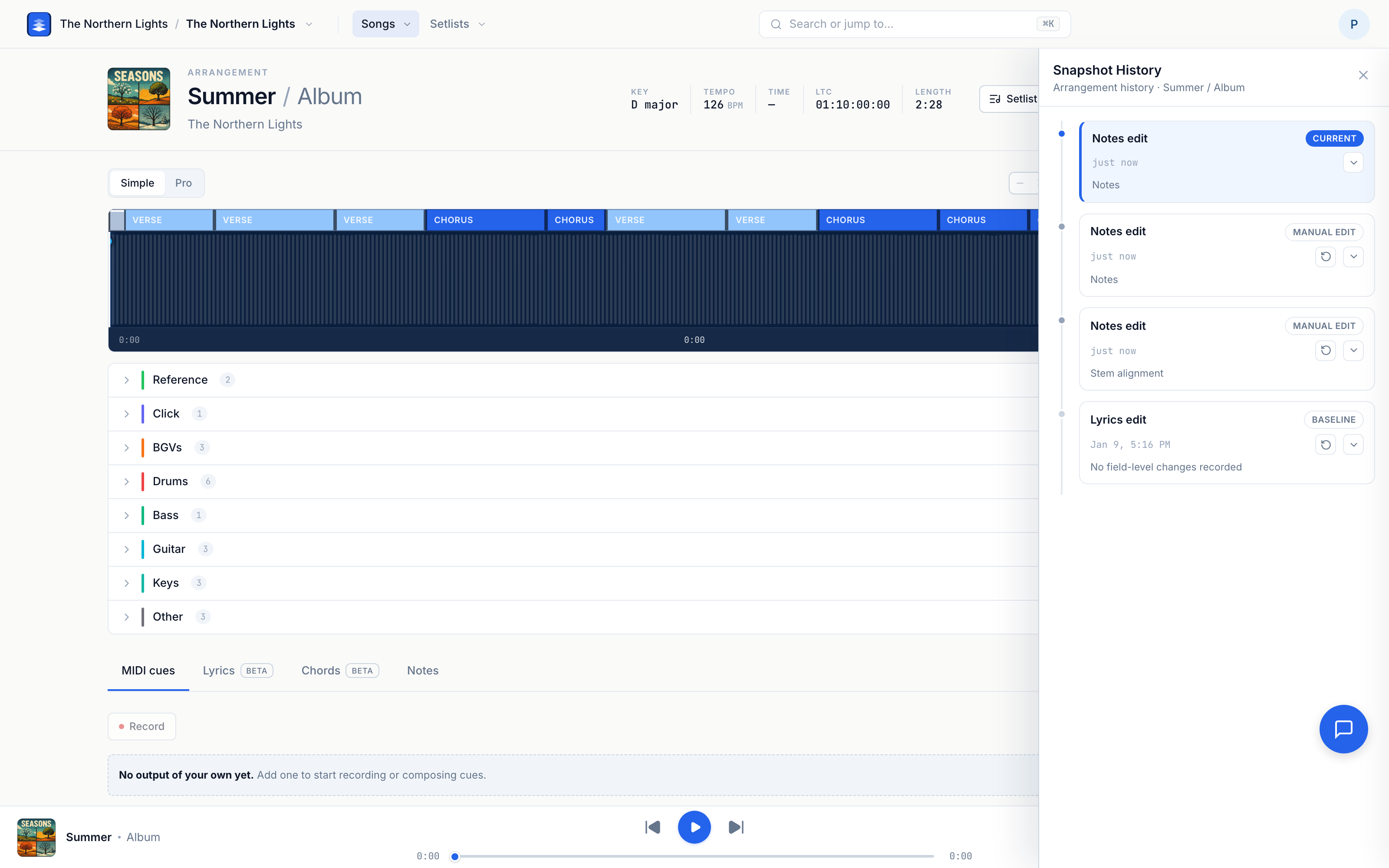
It's already on
There's nothing to enable. If you can edit an arrangement or a setlist, this is live for you right now. Take your next rehearsal into Ableton, make it better, and drop it back — your band will be playing the update before the count-in.
See the full guide for exactly what gets read from your Live set and how versions work.